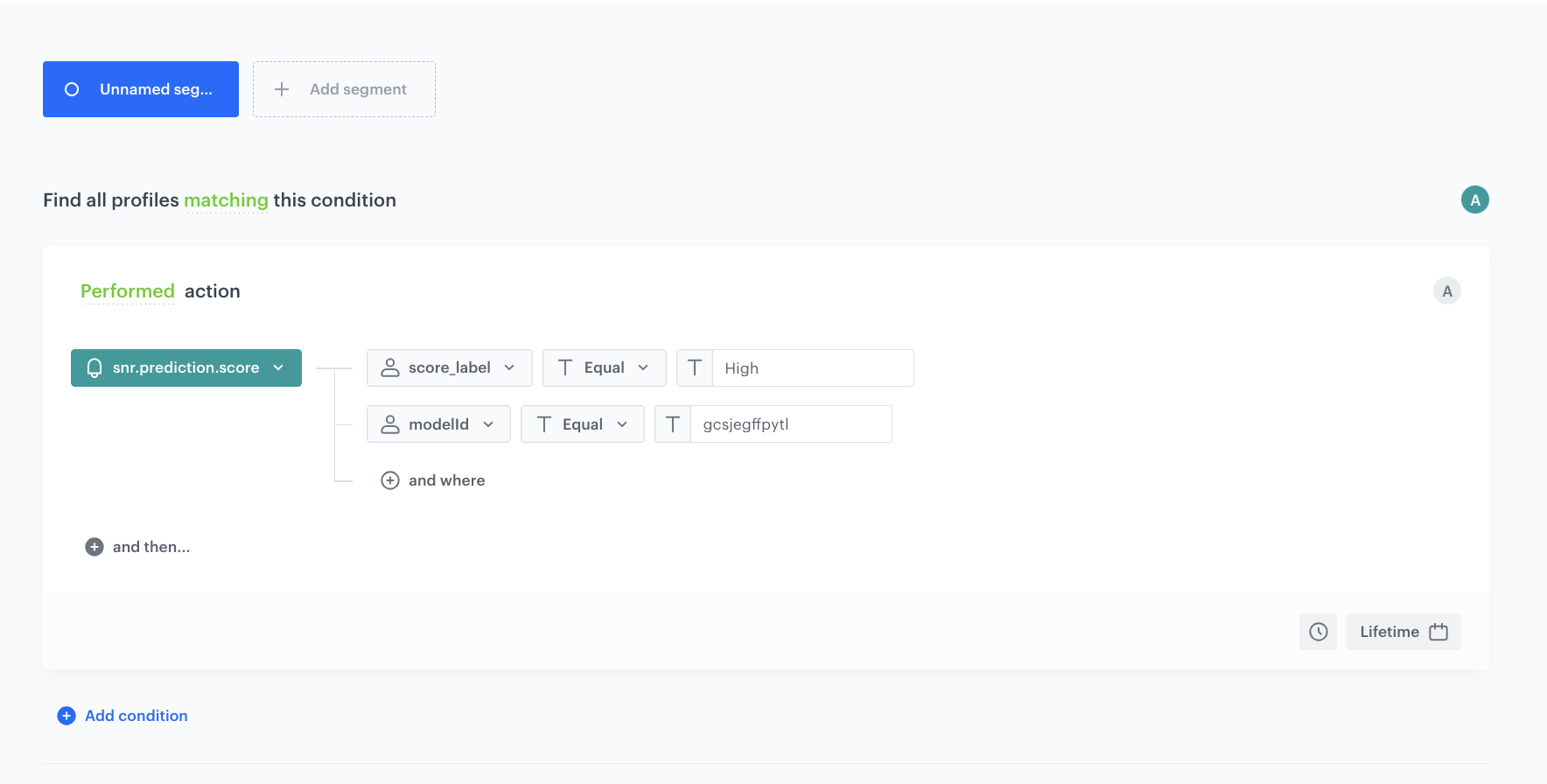
 **Decision Hub > Segmentations > New segmentation**.
2. Give the segmentation a meaningful name, for example `Customers at risk of churn`.
3. Click **Choose filter** and select the `snr.prediction.score` event.
**Decision Hub > Segmentations > New segmentation**.
2. Give the segmentation a meaningful name, for example `Customers at risk of churn`.
3. Click **Choose filter** and select the `snr.prediction.score` event.
 menu in the Prediction list.
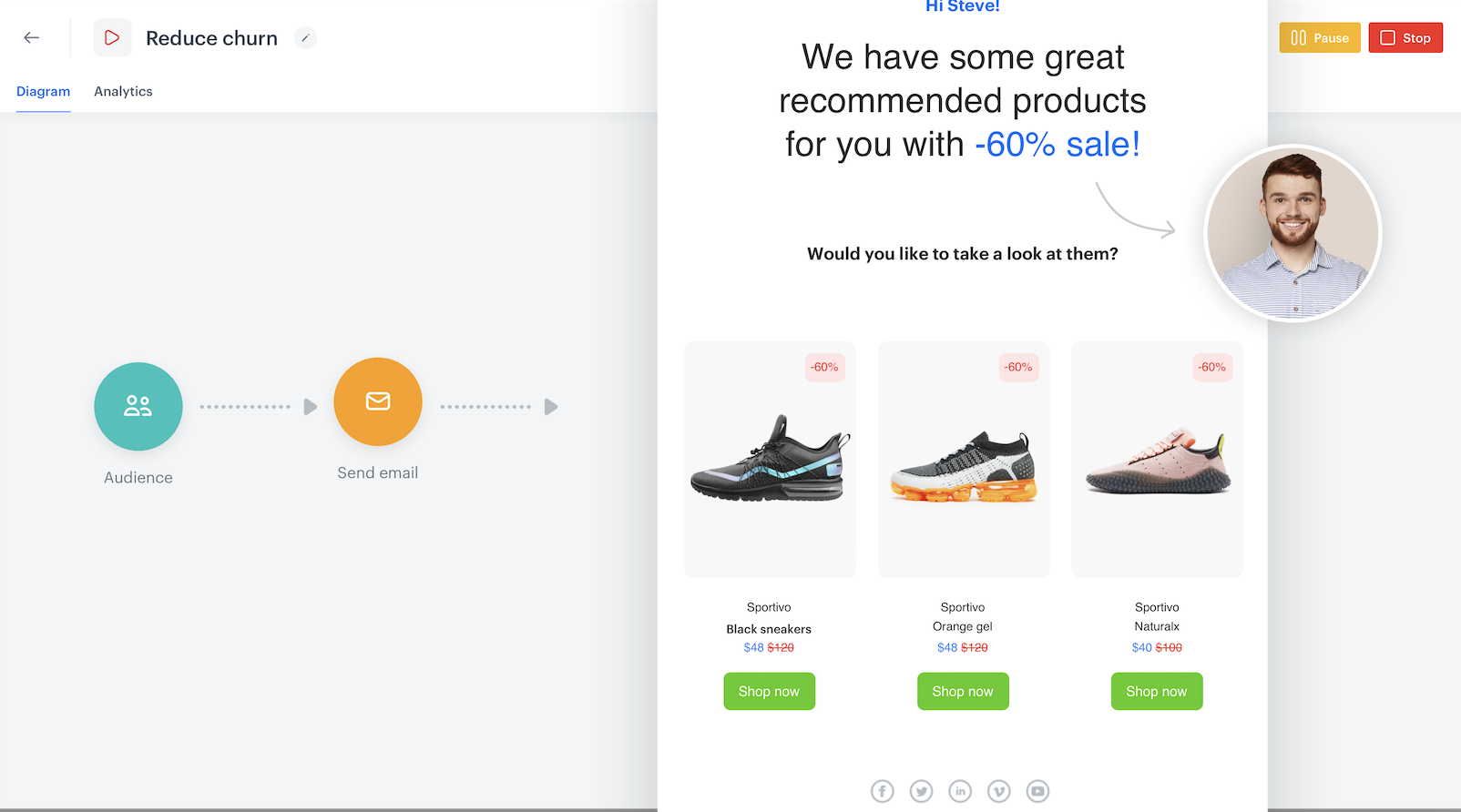
 **Automation Hub > Workflows > New workflow**.
2. Add an **Audience** trigger node.
3. In the settings of the node, as the audience select the segment you created earlier.
4. Add boolean and set it as **true**.
4. Save the node configuration.
5. Add a **Send email** node.
6. Configure the sender and prepare the content as described [here](/docs/automation/actions/send-email).
7. Save the node configuration.
8. Add and **End** node.
9. Perform one of the following actions:
- If you want to send the messages immediately, click **Save & Run**.
- If you want to send the messages later, click **Save**.
**Result:** When the workflow starts, a message is sent to all customers who belonged to the segmentation at the time of starting the workflow.
## What's next
---
You can configure the workflow differently, for example by:
- using the prediction event as a trigger,
- sending other types of messages,
- adding more conditions to the audience filter,
- and more nodes, depending on your business scenario and familiarity with Automation Hub.
## Check the use case set up on the Synerise Demo workspace
---
You can find the analyses created in this use case in our Synerise Demo workspace at the following links:
- [Propensity prediction](https://app.synerise.com/ai-v2/predictions/generic-scoring/bgycsoovxgby)
- [Segmentation](https://app.synerise.com/analytics-v2/segmentations/9ec901b4-2ea0-47dc-9285-023d2000e8cf)
- [Workflow configuration](https://app.synerise.com/automations/automation-diagram/e0f72659-611a-4122-91a0-a99e4832a106)
If you’re our partner or client, you already have automatic access to the **Synerise Demo workspace (1590)**, where you can explore all the configured elements of this use case and copy them to your workspace.
If you’re not a partner or client yet, we encourage you to fill out the contact [form](https://demo.synerise.com/request) to schedule a meeting with our representatives. They’ll be happy to show you how our demo works and discuss how you can apply this use case in your business.
## Read more
---
- [Predictions](/docs/ai-hub/predictions)
- [Workflow](/docs/automation)
**Automation Hub > Workflows > New workflow**.
2. Add an **Audience** trigger node.
3. In the settings of the node, as the audience select the segment you created earlier.
4. Add boolean and set it as **true**.
4. Save the node configuration.
5. Add a **Send email** node.
6. Configure the sender and prepare the content as described [here](/docs/automation/actions/send-email).
7. Save the node configuration.
8. Add and **End** node.
9. Perform one of the following actions:
- If you want to send the messages immediately, click **Save & Run**.
- If you want to send the messages later, click **Save**.
**Result:** When the workflow starts, a message is sent to all customers who belonged to the segmentation at the time of starting the workflow.
## What's next
---
You can configure the workflow differently, for example by:
- using the prediction event as a trigger,
- sending other types of messages,
- adding more conditions to the audience filter,
- and more nodes, depending on your business scenario and familiarity with Automation Hub.
## Check the use case set up on the Synerise Demo workspace
---
You can find the analyses created in this use case in our Synerise Demo workspace at the following links:
- [Propensity prediction](https://app.synerise.com/ai-v2/predictions/generic-scoring/bgycsoovxgby)
- [Segmentation](https://app.synerise.com/analytics-v2/segmentations/9ec901b4-2ea0-47dc-9285-023d2000e8cf)
- [Workflow configuration](https://app.synerise.com/automations/automation-diagram/e0f72659-611a-4122-91a0-a99e4832a106)
If you’re our partner or client, you already have automatic access to the **Synerise Demo workspace (1590)**, where you can explore all the configured elements of this use case and copy them to your workspace.
If you’re not a partner or client yet, we encourage you to fill out the contact [form](https://demo.synerise.com/request) to schedule a meeting with our representatives. They’ll be happy to show you how our demo works and discuss how you can apply this use case in your business.
## Read more
---
- [Predictions](/docs/ai-hub/predictions)
- [Workflow](/docs/automation)