 menu in the Prediction list.


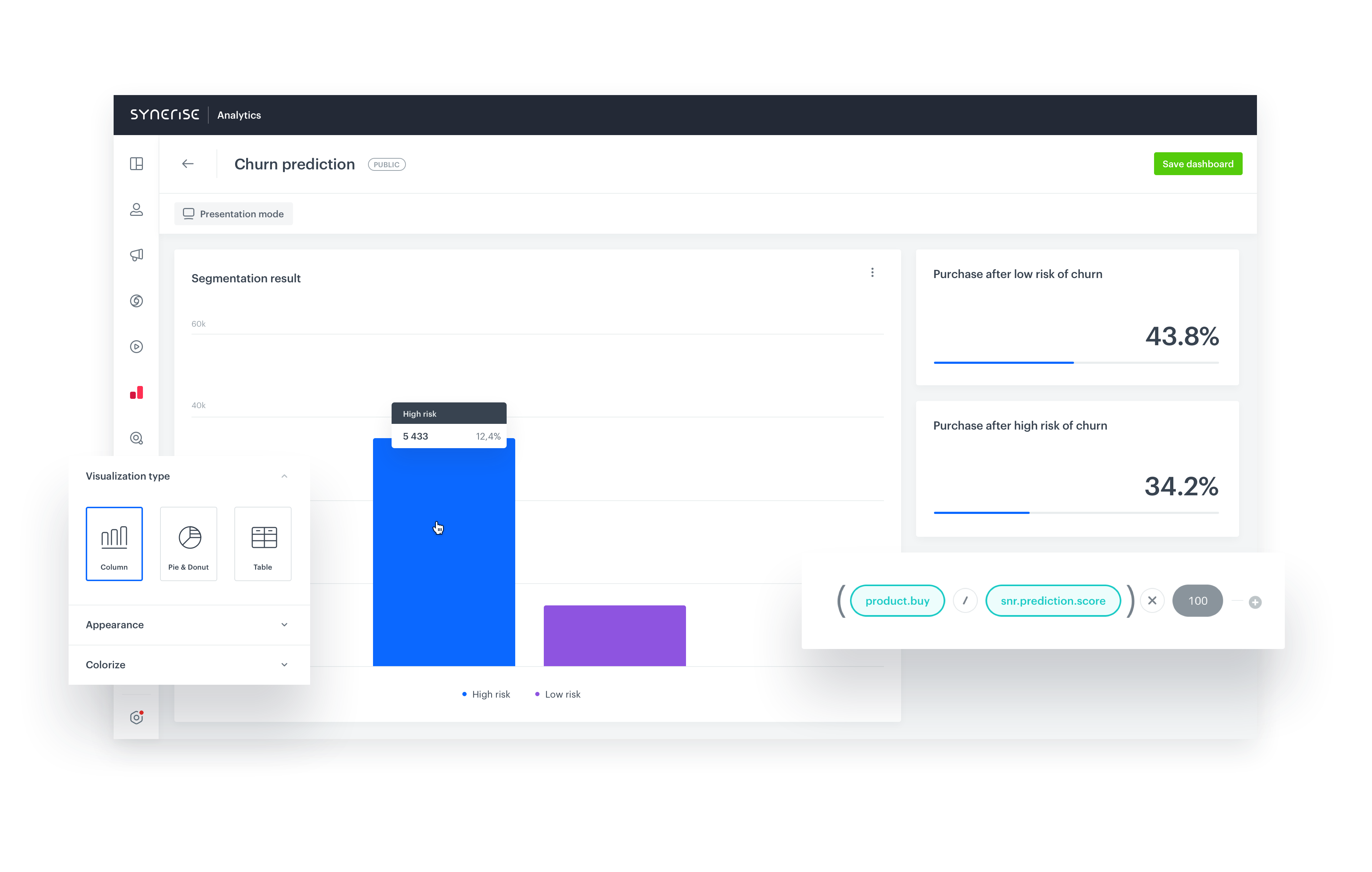
 **Decision Hub > Dashboards > Add dashboard**.
2. Add a segment to the dashboard:
1. In the menu above the canvas, click
**Decision Hub > Dashboards > Add dashboard**.
2. Add a segment to the dashboard:
1. In the menu above the canvas, click  .
2. Click the widget that appears.
3. In the panel on right, from the **Segmentation** drop-down list, select **Create new**.
**Result:** The segmentation editor opens.
4. Add the segment with customers whose probability of churn is high:
1. Click **Choose filter** and select the `snr.prediction.score` event.
2. Add the following condition: `modelId` equals the ID of the model of the prediction you want to analyze.
menu in the Prediction list.
.
2. Click the widget that appears.
3. In the panel on right, from the **Segmentation** drop-down list, select **Create new**.
**Result:** The segmentation editor opens.
4. Add the segment with customers whose probability of churn is high:
1. Click **Choose filter** and select the `snr.prediction.score` event.
2. Add the following condition: `modelId` equals the ID of the model of the prediction you want to analyze.
menu in the Prediction list.
 .
2. Click the widget that appears.
3. From the **Metric** drop-down list, select one of the metrics that you created previously.
4. On the **Style** tab, change **Data format** to **%**.
5. Repeat steps **3a-3d** to add the other metric.
2. Click **Save dashboard**.
**Result:** The dashboard becomes available for viewing and sharing. You can change the date range when viewing the results.
## Check the use case set up on the Synerise Demo workspace
---
You can check the [dashboard](https://app.synerise.com/analytics/dashboards/027184a7-d282-43c4-8acd-8fb192fb5e58) configuration directly in Synerise Demo workspace.
If you’re our partner or client, you already have automatic access to the **Synerise Demo workspace (1590)**, where you can explore all the configured elements of this use case and copy them to your workspace.
If you’re not a partner or client yet, we encourage you to fill out the contact [form](https://demo.synerise.com/request) to schedule a meeting with our representatives. They’ll be happy to show you how our demo works and discuss how you can apply this use case in your business.
## Read more
---
- [Dashboards](/docs/analytics/analytics-dashboard)
- [Metrics](/docs/analytics/metrics)
- [Predictions](/docs/ai-hub/predictions)
.
2. Click the widget that appears.
3. From the **Metric** drop-down list, select one of the metrics that you created previously.
4. On the **Style** tab, change **Data format** to **%**.
5. Repeat steps **3a-3d** to add the other metric.
2. Click **Save dashboard**.
**Result:** The dashboard becomes available for viewing and sharing. You can change the date range when viewing the results.
## Check the use case set up on the Synerise Demo workspace
---
You can check the [dashboard](https://app.synerise.com/analytics/dashboards/027184a7-d282-43c4-8acd-8fb192fb5e58) configuration directly in Synerise Demo workspace.
If you’re our partner or client, you already have automatic access to the **Synerise Demo workspace (1590)**, where you can explore all the configured elements of this use case and copy them to your workspace.
If you’re not a partner or client yet, we encourage you to fill out the contact [form](https://demo.synerise.com/request) to schedule a meeting with our representatives. They’ll be happy to show you how our demo works and discuss how you can apply this use case in your business.
## Read more
---
- [Dashboards](/docs/analytics/analytics-dashboard)
- [Metrics](/docs/analytics/metrics)
- [Predictions](/docs/ai-hub/predictions)