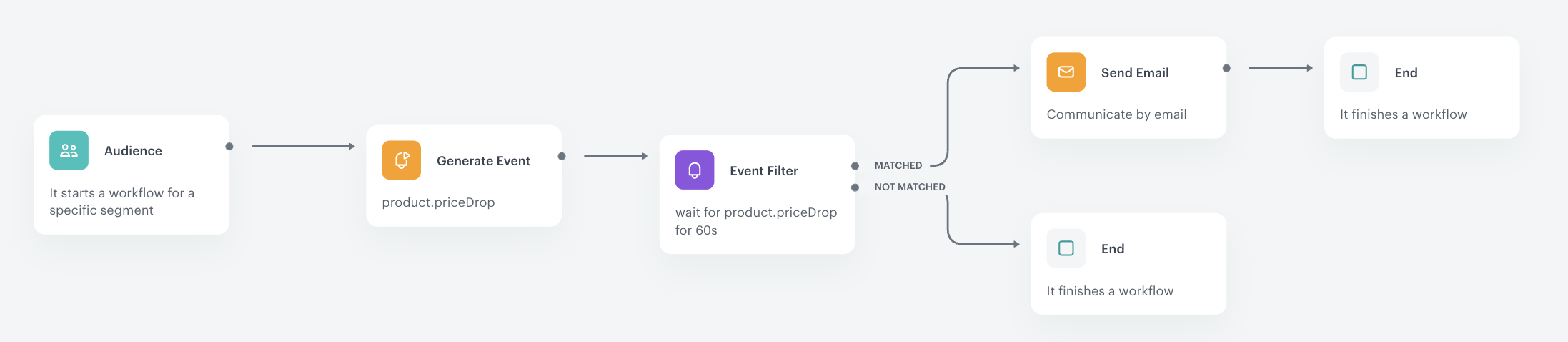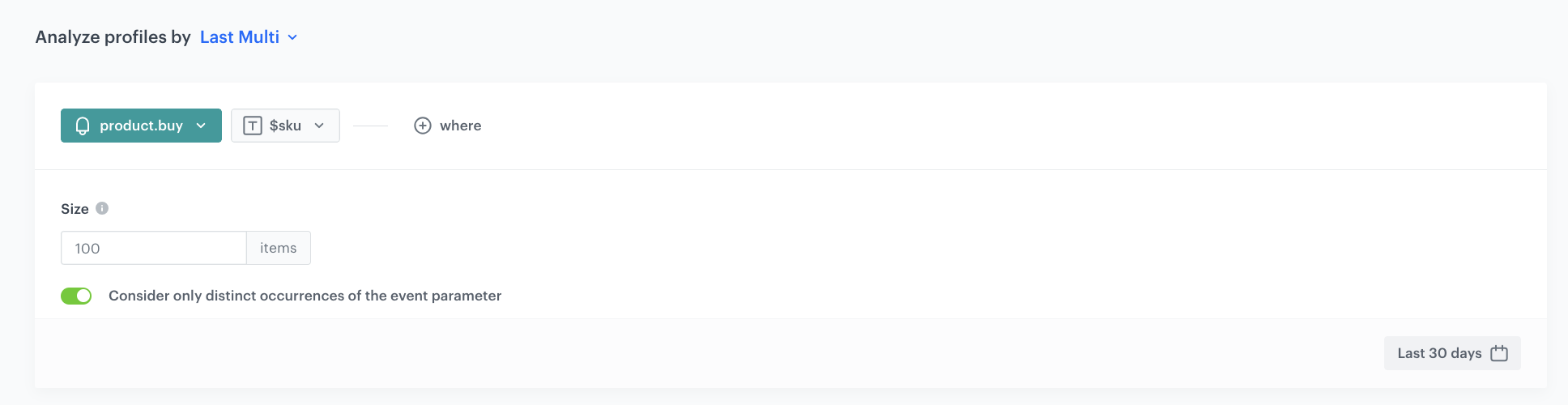
 **Data Modeling Hub > Events**.
2. To create and describe new event in the system click **Add event** option.
3. Define the name of the event. In our case, the event is called **product.priceDrop**.
In the API and SDK, this parameter is usually called "action" or "action name".
4. Optionally, define a human-friendly display name that will be shown in **Data Modeling Hub** and **Decision Hub**.
5. Optionally, describe the event.
6. Enable the **Make this event available to anonymous profiles without JWT** toggle.
7. **Apply** all settings.
8. In the list of events, find the event you just created.
9. On the right side of the screen, click **Add property**.
10. In the **Source parameter** field, enter the name of the parameter - `sku`.
11. In the **Property name** field, enter a human-readable label for display in the Synerise platform.
12. Optionally, in the **Description** field, you can add an explanation about the purpose of this parameter.
13. To complete the process, click **Save**.
## Create an aggregate that collects sku of recently purchased products
---
This aggregate will be used in the next part of the process to exclude products that the user has already bought.
1. Go to
**Data Modeling Hub > Events**.
2. To create and describe new event in the system click **Add event** option.
3. Define the name of the event. In our case, the event is called **product.priceDrop**.
In the API and SDK, this parameter is usually called "action" or "action name".
4. Optionally, define a human-friendly display name that will be shown in **Data Modeling Hub** and **Decision Hub**.
5. Optionally, describe the event.
6. Enable the **Make this event available to anonymous profiles without JWT** toggle.
7. **Apply** all settings.
8. In the list of events, find the event you just created.
9. On the right side of the screen, click **Add property**.
10. In the **Source parameter** field, enter the name of the parameter - `sku`.
11. In the **Property name** field, enter a human-readable label for display in the Synerise platform.
12. Optionally, in the **Description** field, you can add an explanation about the purpose of this parameter.
13. To complete the process, click **Save**.
## Create an aggregate that collects sku of recently purchased products
---
This aggregate will be used in the next part of the process to exclude products that the user has already bought.
1. Go to  **Behavioral Data Hub > Live Aggregates > Create aggregate**.
2. As the aggregate type, select **Profile**.
2. Enter the name of the aggregate.
3. Click **Analyze profiles by** and select **Last multi** and size: **100**.
4. Enable **Consider only distinct occurrences of the event parameter**.
5. From the **Choose event** dropdown list, select the **product.buy** event.
6. As the event parameter, select **sku**.
7. Define the period from which the aggregate will collect products from the event to the last **30 days**.
8. Save the aggregate.
**Behavioral Data Hub > Live Aggregates > Create aggregate**.
2. As the aggregate type, select **Profile**.
2. Enter the name of the aggregate.
3. Click **Analyze profiles by** and select **Last multi** and size: **100**.
5. From the **Choose event** dropdown list, select the **product.addToFavorites** event.
6. As the event parameter, select **sku**.
7. Click **+ where** button.
8. From the **Choose parameter** dropdown list, select the **sku** parameter.
9. From the **Choose operator** dropdown list, select **Not in Array**.
10. From the **Choose value** dropdown list, select the aggregate you created in the [previous step](/use-cases/price-drop-alert#create-an-aggregate-that-collects-sku-of-recently-purchased-products).
11. Click **+ where** button.
12. From the **Choose parameter** dropdown list, select the **sku** parameter.
13. From the **Choose operator** dropdown list, select Boolean **Is true**.
14. Define the period from which the aggregate will collect products from the event to the last **30 days**.
15. Save the aggregate.
**Behavioral Data Hub > Live Aggregates > Create aggregate**.
2. As the aggregate type, select **Profile**.
2. Enter the name of the aggregate.
3. Click **Analyze profiles by** and select **Last multi** and size: **100**.
4. Enable **Consider only distinct occurrences of the event parameter**.
5. From the **Choose event** dropdown list, select the **product.buy** event.
6. As the event parameter, select **sku**.
7. Define the period from which the aggregate will collect products from the event to the last **30 days**.
8. Save the aggregate.
**Behavioral Data Hub > Live Aggregates > Create aggregate**.
2. As the aggregate type, select **Profile**.
2. Enter the name of the aggregate.
3. Click **Analyze profiles by** and select **Last multi** and size: **100**.
5. From the **Choose event** dropdown list, select the **product.addToFavorites** event.
6. As the event parameter, select **sku**.
7. Click **+ where** button.
8. From the **Choose parameter** dropdown list, select the **sku** parameter.
9. From the **Choose operator** dropdown list, select **Not in Array**.
10. From the **Choose value** dropdown list, select the aggregate you created in the [previous step](/use-cases/price-drop-alert#create-an-aggregate-that-collects-sku-of-recently-purchased-products).
11. Click **+ where** button.
12. From the **Choose parameter** dropdown list, select the **sku** parameter.
13. From the **Choose operator** dropdown list, select Boolean **Is true**.
14. Define the period from which the aggregate will collect products from the event to the last **30 days**.
15. Save the aggregate.
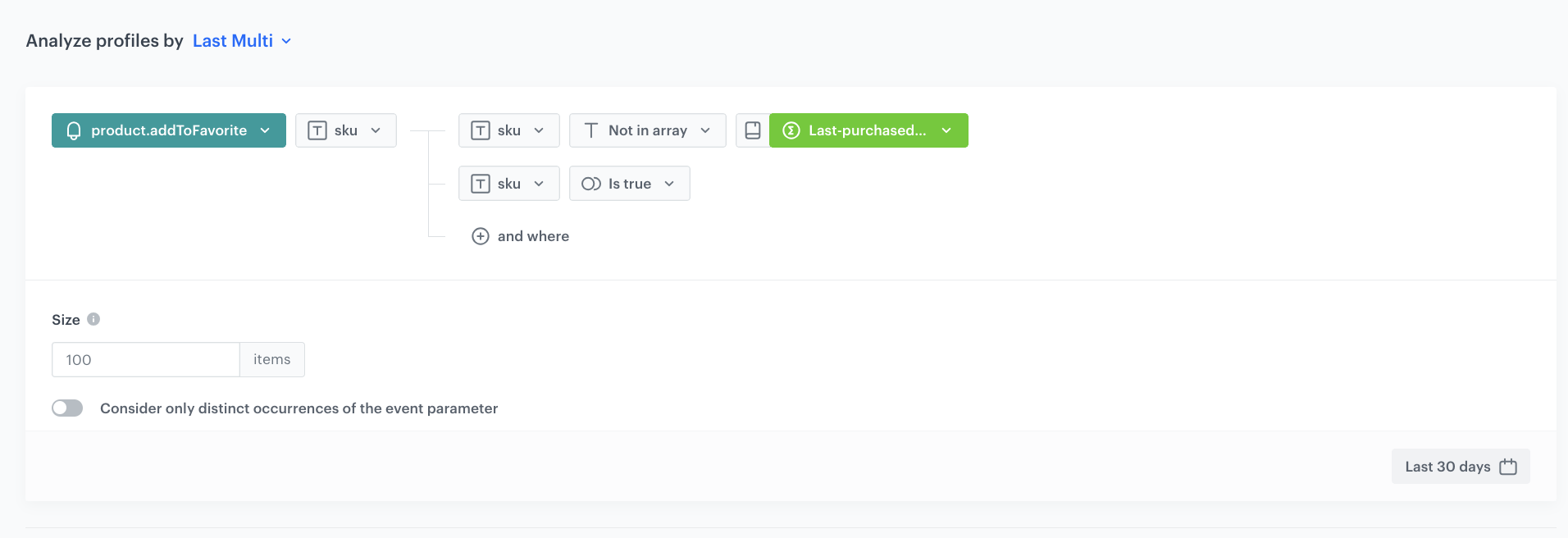 **Behavioral Data Hub > Live Aggregates > Create aggregate**.
2. As the aggregate type, select **Profile**.
2. Enter the name of the aggregate.
3. Click **Analyze profiles by** and select **Last multi** and size: **100**.
5. From the **Choose event** dropdown list, select the **product.addToFavorites** event.
6. As the event parameter, select **price**.
7. Click **+ where** button.
8. From the **Choose parameter** dropdown list, select the **price** parameter.
9. From the **Choose operator** dropdown list, select Boolean **Is true**.
10. Click **+ where** button.
11. From the **Choose parameter** dropdown list, select the **sku** parameter.
12. From the **Choose operator** dropdown list, select **Not in Array**.
13. From the **Choose value** dropdown list, select the aggregate you created [earlier](/use-cases/price-drop-alert#create-an-aggregate-that-collects-sku-of-recently-purchased-products).
14. Define the period from which the aggregate will collect products from the event to the last **30 days**.
15. Save the aggregate.
**Behavioral Data Hub > Live Aggregates > Create aggregate**.
2. As the aggregate type, select **Profile**.
2. Enter the name of the aggregate.
3. Click **Analyze profiles by** and select **Last multi** and size: **100**.
5. From the **Choose event** dropdown list, select the **product.addToFavorites** event.
6. As the event parameter, select **price**.
7. Click **+ where** button.
8. From the **Choose parameter** dropdown list, select the **price** parameter.
9. From the **Choose operator** dropdown list, select Boolean **Is true**.
10. Click **+ where** button.
11. From the **Choose parameter** dropdown list, select the **sku** parameter.
12. From the **Choose operator** dropdown list, select **Not in Array**.
13. From the **Choose value** dropdown list, select the aggregate you created [earlier](/use-cases/price-drop-alert#create-an-aggregate-that-collects-sku-of-recently-purchased-products).
14. Define the period from which the aggregate will collect products from the event to the last **30 days**.
15. Save the aggregate.
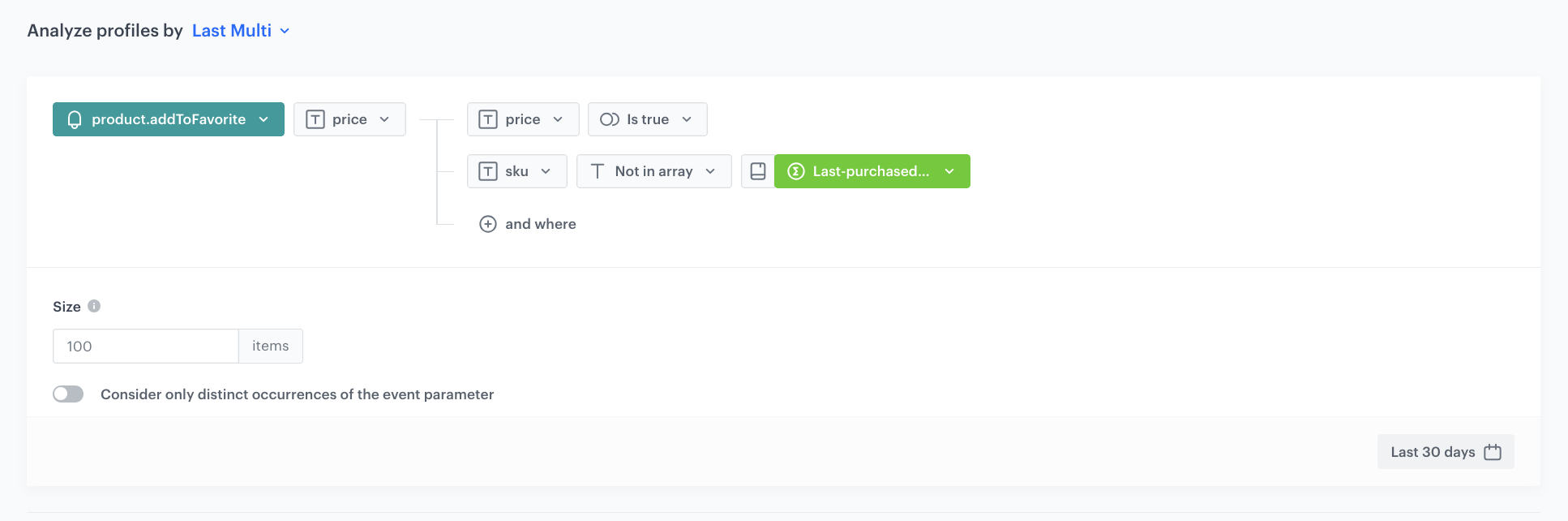 **Behavioral Data Hub > Live Aggregates > Create aggregate**.
2. As the aggregate type, select **Profile**.
2. Enter the name of the aggregate.
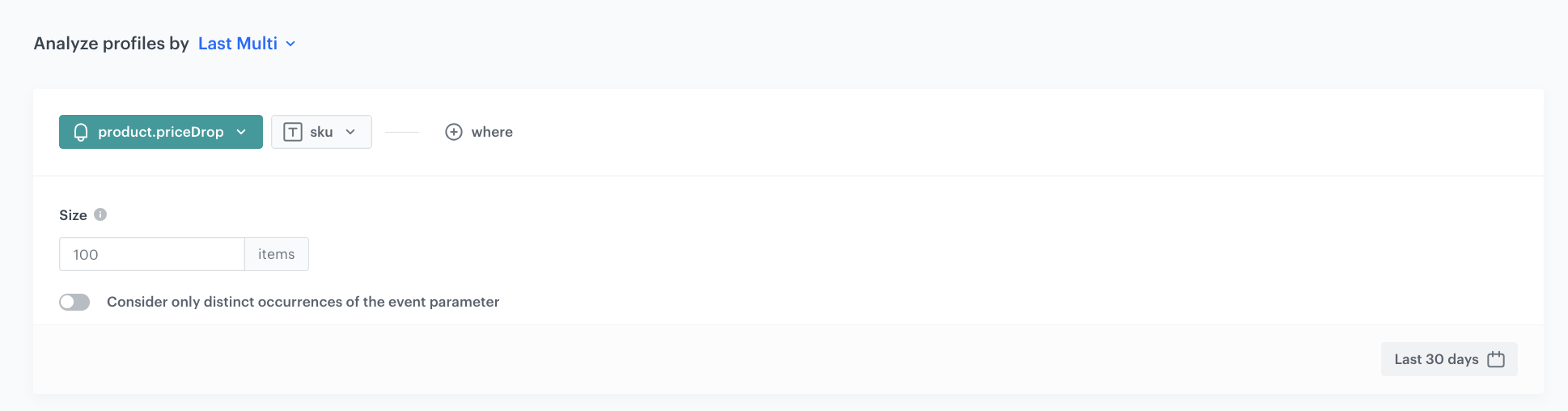
3. Click **Analyze profiles by** and select **Last multi** and size: **100**.
5. From the **Choose event** dropdown list, select the **product.priceDrop** event.
6. As the event parameter, select **sku**.
7. Define the period from which the aggregate will collect products from the event to the last **30 days**.
8. Save the aggregate.
**Behavioral Data Hub > Live Aggregates > Create aggregate**.
2. As the aggregate type, select **Profile**.
2. Enter the name of the aggregate.
3. Click **Analyze profiles by** and select **Last multi** and size: **100**.
5. From the **Choose event** dropdown list, select the **product.priceDrop** event.
6. As the event parameter, select **sku**.
7. Define the period from which the aggregate will collect products from the event to the last **30 days**.
8. Save the aggregate.
{
  "sku": "
  {% set last_sku=[] %}
  {% set last_price=[] %}
  {% set last_objects_array=[] %}
  {% set final_sku=[] %}
  {% set list=[] %}
  {% aggregate LAST-ITEM-ID %} {# aggregate collecting product sku #}
    {% for sku in aggregate_result|reverse %} {# saving sku from aggregate to last_sku variable #}
      {% do last_sku.append(sku) %}
    {% endfor %}
  {% endaggregate %}
  {% aggregate LAST-PRODUCT-PRICE %} {# aggregate collecting product prices #}
    {% for price in aggregate_result|reverse %} {# saving prices from the aggregate to the price variable #}
      {% do last_price.append(price) %}
    {% endfor %}
  {% endaggregate %}
  {% aggregate LAST-PRODUCT-PRICE-DROP-SKU %} {# aggregate containing previously shown items #}
    {% for listSku in aggregate_result %} {# preparation of a variable list with items to be excluded #}
      {% do list.append(listSku) %}
    {% endfor %}
  {% endaggregate %}
    {% for sku in last_sku %} {# creating an object containing the product id and price #}
      {% set index=loop.index0 %}
      {% do last_objects_array.append({sku: sku, price: last_price[index], index: index}) %}
    {% endfor %}
  {% set last_objects_array_uniq=last_objects_array|unique(attr='sku') %} {# downloading sku from objects for comparison with the catalog #}
    {% for last in last_objects_array_uniq %}
      {% set key_name=last.sku %}
      {% catalogvar.CATALOG-WITH-ACTUAL-PRICE(key_name).ATTRIBUTE-ACTUAL-PRICE %} {# catalog from which we retrieve the price with the selected attribute #}
      {% set catalog_item=catalog_result|float %}
      {% if last.price|float > catalog_item|float %} {# condition to check if there has been a price drop #}
        {% if last.sku in list|join(',') %} {# condition that adds a comma to items that are affected by the price drop and are not in the list variable #}
        {% else %}
          {% do final_sku.append(last.sku) %}
        {% endif %}
      {% endif %}
      {% endcatalogvar %}
    {% endfor %}
    {% for sku in final_sku %} {# listing the final sku in the sku parameter #}
      {{sku}}
      {% if loop.index != final_sku|length%},{% endif %}
    {% endfor %}
  {% if final_sku|length < 1 %} {# condition to check if any product had a price drop #}
    {{kill}}
  {% endif %}"
}{% if last.price|float > catalog_item|float %}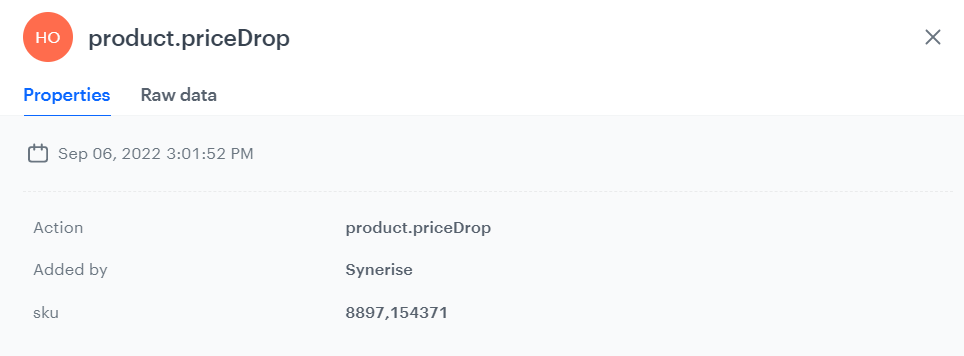
{% set sku_array = event.params.sku %} {% set sku_from_array = sku_array|split(',') %} <ul> {% for sku in sku_from_array %} <li data-snr-ai-product-id="{% catalog.Snrs-produktu-ogTag(sku).product:retailer_part_no %}"> <a class="snrs-AI--item-link" href="{% catalog.Snrs-produktu-ogTag(sku).og:url %}" title="{% catalog.Snrs-produktu-ogTag(sku).og:title %}"> <img src="{% catalog.Snrs-produktu-ogTag(sku).og:image %}" class="products-slider__item-image snrAI-product-image snrAI-product-image-{% catalog.Snrs-produktu-ogTag(sku).og:image %}" width="90" alt="{% catalog.Snrs-produktu-ogTag(sku).og:title %}" id="snrAI-image-{% catalog.Snrs-produktu-ogTag(sku).product:retailer_part_no %}"> <h3 class="snrs-AI-product--product-name"> <span class="snrs-AI-product--name-first">{% catalog.Snrs-produktu-ogTag(sku).og:title %}</span> </h3> </a> </li> {% endfor %} </ul>