
By promoting our loyalty program, we want to reach with our communication mainly those who are most likely to join it. Thanks to such optimization, campaigns encouraging to become a member are better targeted - only to a specific, most promising group.

This use case describes the process of creating a segmentation of customers with the highest propensity for joining the loyalty club. This segmentation can later be used in selected campaigns that promote the loyalty club membership. It can help you optimize the cost of campaigns that are oriented toward users who will enjoy the loyalty program and the probability that this group of users will be really interested in joining is really high.


## Prerequisites 
---
- [Create an email account](/docs/campaign/e-mail/configuring-email-account).
- Collect the [custom event](/developers/mobile-sdk/event-tracking) which sends information to Synerise about joining a loyalty program (for example `account.status` with parameter `accountStatus` equal to `active`). Such an event with the appropriate status must be sent each time the membership status changes (when the customer resigns from the program or joins again).
- [Enable the Lookalike prediction type](/docs/ai-hub/predictions/enabling-predictions#enabling-lookalikes).
- Create an email template with a message which encourages users to become your loyalty club members.


  <div class="admonition admonition-tip"><div class="admonition-icon"><svg xmlns="http://www.w3.org/2000/svg" fill="none" viewBox="0 0 24 24" stroke="currentColor" stroke-width="2.5"><path stroke-linecap="round" stroke-linejoin="round" d="M9.663 17h4.673M12 3v1m6.364 1.636l-.707.707M21 12h-1M4 12H3m3.343-5.657l-.707-.707m2.828 9.9a5 5 0 117.072 0l-.548.547A3.374 3.374 0 0014 18.469V19a2 2 0 11-4 0v-.531c0-.895-.356-1.754-.988-2.386l-.548-.547z" /></svg></div><div class="admonition-body"><div class="admonition-content">

  We recommend using [snippets](/docs/assets/snippets) in email templates to personalize the message, for example, you can use the first name of the customer and [the promotion code for the first transaction](/use-cases/discount-promotion-for-first-transaction).

  </div></div></div>


## Process
---

In this use case, you will go through the following steps:
1. [Create an aggregate](/use-cases/probability-joining-loyalty-club#create-an-aggregate) that returns the current status of the customer’s membership in loyalty program.
3. [Create source segmentation](/use-cases/probability-joining-loyalty-club#create-source-segmentation) of customers who are members of loyalty program.
4. [Create target segmentation](/use-cases/probability-joining-loyalty-club#create-target-segmentation).
4. [Create a prediction](/use-cases/probability-joining-loyalty-club#create-a-prediction).
5. [Create an email campaign](/use-cases/probability-joining-loyalty-club#create-an-email-campaign).


## Create an aggregate 
---
In this part of the process, you create an aggregate analyzing the current status of the customer's membership.

1. Go to <img src="/api/docs/image/54176ad07f146575310749eba44b7c2f42c1b327/icons/behavioral-data-hub-icon.svg" alt="Behavioral Data Hub icon" class="icon" > **Behavioral Data Hub > Live Aggregates > Create aggregate**.
2. As the aggregate type, select **Profile**. 
2. Enter the name of the aggregate.
3. Click **Analyze profiles by** and select **Last**.  
4. From the **Choose event** dropdown list, select the **account.status** event.
5. As the event parameter, choose **accountStatus**.
6. Define the period for the event as **Lifetime**. 
7. To save the aggregate, click **Save**.

<figure>
    <img src="/api/docs/image/54176ad07f146575310749eba44b7c2f42c1b327/use-cases/all-cases/_gfx/current-status-of-account.png" class="full" alt="Configuration of the aggregate">
    <figcaption>Configuration of the aggregate</figcaption>
    </figure>


## Create source segmentation
---
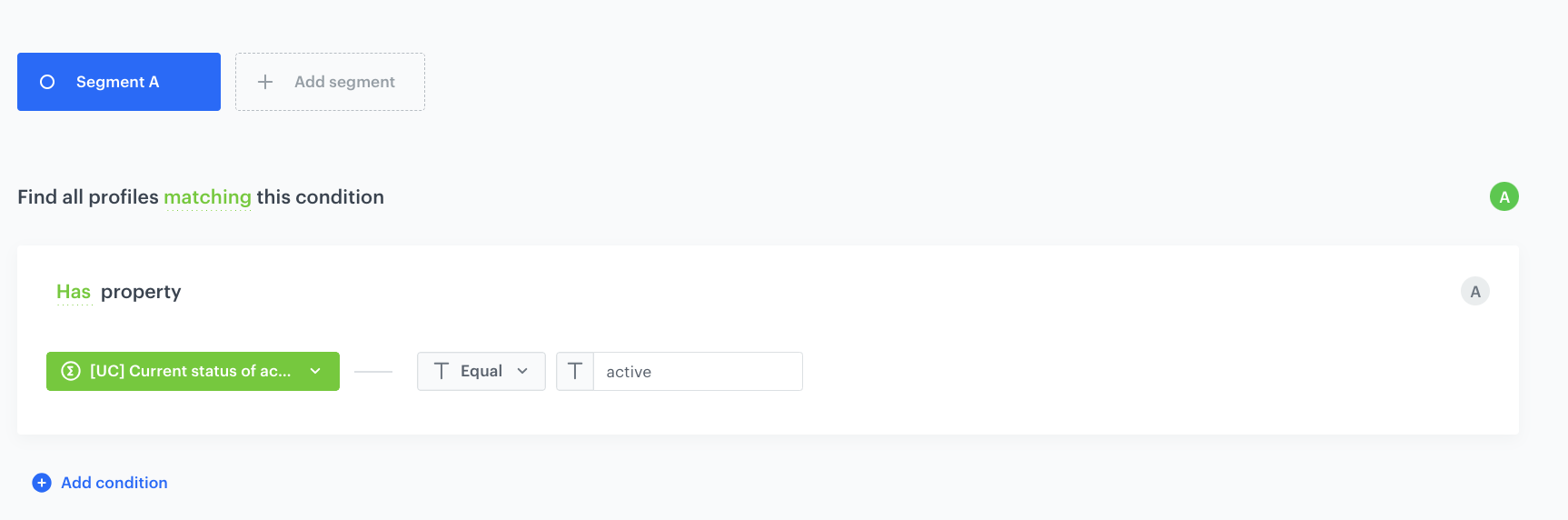
In this part of the process, create a source segmentation that contains model customers. These customers will be compared with those in the target segmentation to find the customers who are similar to the model group. This segmentation includes customers who currently are members of your loyalty club.

1. Go to <img src="/api/docs/image/54176ad07f146575310749eba44b7c2f42c1b327/icons/decision-hub-icon.svg" alt="Behavioral Data Hub icon" class="icon"> **Decision Hub > Segmentations > New segmentation**.
2. Enter the name of segmentation. 
5. From the **Add condition** dropdown list, select the [aggregate analyzing the active status of the customer's membership](/use-cases/probability-joining-loyalty-club#create-an-aggregate) you created in the previous step. 
6. As an operator, choose **Equal**.
7. In the text field, enter `active`.
7. Confirm the settings by clicking **Save**.
<figure>
    <img src="/api/docs/image/54176ad07f146575310749eba44b7c2f42c1b327/use-cases/all-cases/_gfx/target-segmentation-lookalike.png" class="full" alt="Configuration of the aggregate">
    <figcaption>Configuration of the source segmentation</figcaption>
    </figure>

## Create target segmentation
---
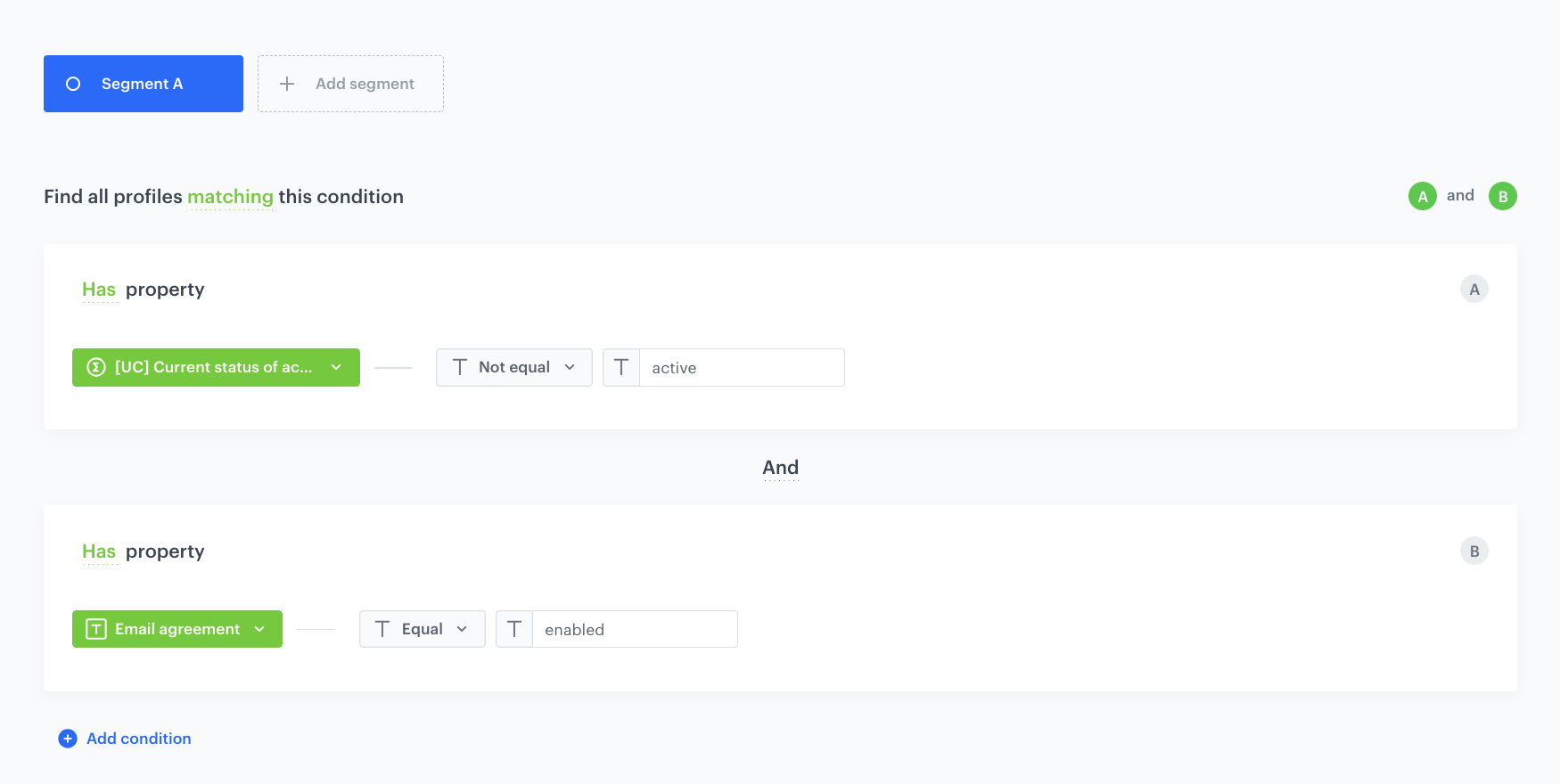
Create a segmentation of customers among whom you would like to find those who are most likely to become a member of your loyalty program. In our case, as we want to direct to such customers email communication, we will narrow down the segmentation to customers who agreed to receive newsletters.

1. Go to <img src="/api/docs/image/54176ad07f146575310749eba44b7c2f42c1b327/icons/decision-hub-icon.svg" alt="Behavioral Data Hub icon" class="icon"> **Decision Hub > Segmentations > New segmentation**.
2. Enter the name of the segmentation.
3. From the **Add condition** dropdown list, select the [aggregate analyzing the active status of the customer's membership](/use-cases/probability-joining-loyalty-club#create-an-aggregate) created in the previous step. 
4. As an operator, choose **Not equal**.
5. In the text field, enter `active`.
5. From the **Add condition** dropdown list, select `newsletter_agreement`.
6. As an operator, choose **Equal**.
7. In the text field, enter `enabled`.
7. Confirm the settings by clicking **Save**.
<figure>
    <img src="/api/docs/image/54176ad07f146575310749eba44b7c2f42c1b327/use-cases/all-cases/_gfx/source-segmentation-lookalike.png" class="full" alt="Configuration of the aggregate">
    <figcaption>Configuration of the target segmentation</figcaption>
    </figure>

## Create a prediction
---
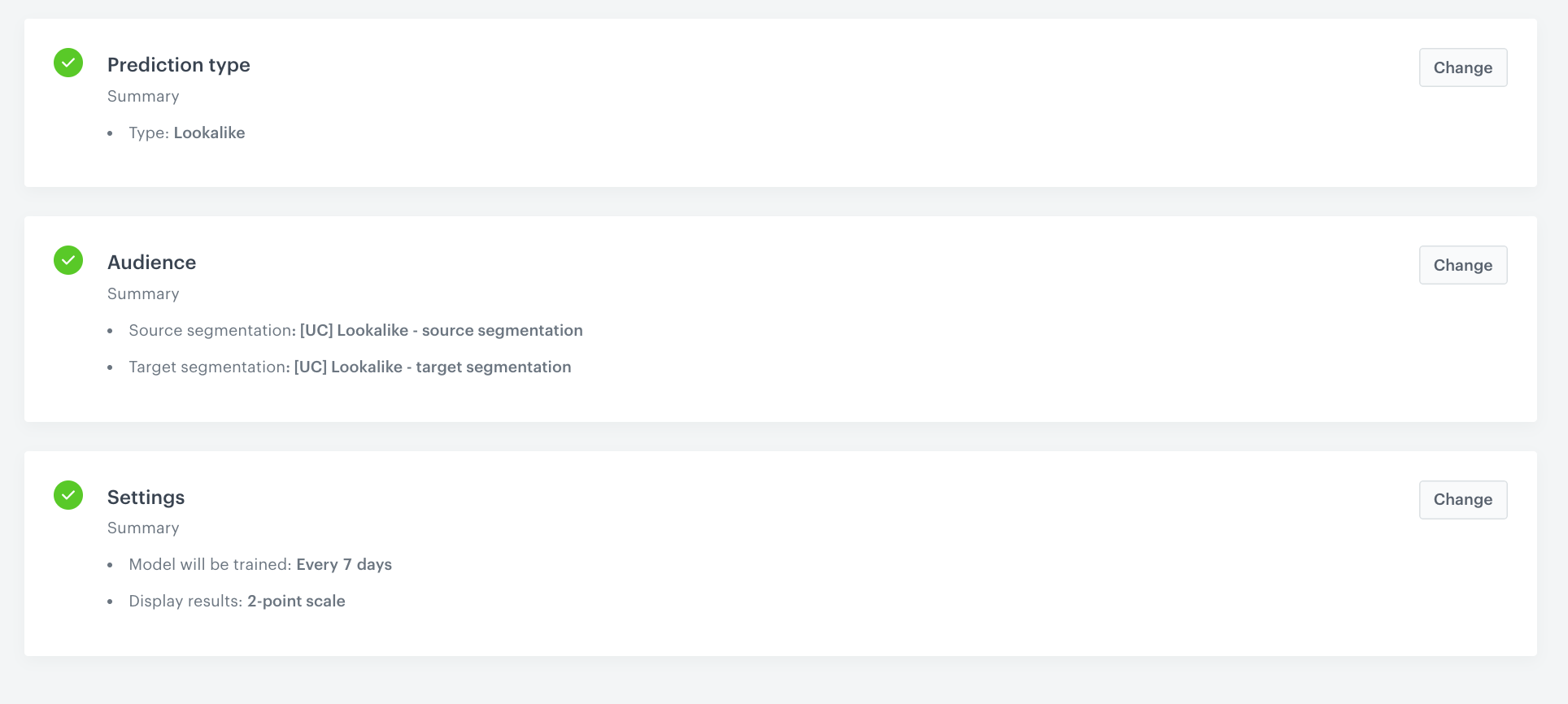
In this part of the process, create a Lookalikes prediction which compares the two segmentations - the engine looks for customers in the target segmentation who are most similar to the customers in the source segmentation. On the profile cards of all customers from the target segmentation, a snr.lookalike.score event is generated. In the details of the event, you can find the score_label parameter that describes the similarity of a customer to the customers in the source segmentation. The score_label parameter for this particular prediction takes two values: low or high.

1. Go to <img src="/api/docs/image/54176ad07f146575310749eba44b7c2f42c1b327/icons/ai-hub-icon.svg" alt="Image presents the Prediction icon" class="icon"> **Predictions > New prediction**.  
2. As the type of prediction, select **Lookalikes**.  
3. In the **Audience** section, click **Define**.
4. In the **Source segmentation** subsection, click **Choose segmentation**.
5. From the dropdown list, select the [source segmentation you created before.](/use-cases/probability-joining-loyalty-club#create-source-segmentation)
6. In the **Target segmentation** subsection, click **Choose segmentation**.
7. From the dropdown list, select the [target segmentation you created before.](/use-cases/probability-joining-loyalty-club#create-target-segmentation)
8. Confirm by clicking **Apply**.
9. In the **Settings** section, click Change.
10. Enable the Set up recurring prediction calculation option.
12. Select the 2-point scale.
13. Confirm by clicking **Apply.**
14. Click **Save & Calculate**.
<figure>
    <img src="/api/docs/image/54176ad07f146575310749eba44b7c2f42c1b327/use-cases/all-cases/_gfx/prediction-lookalike.png" class="full" alt="Configuration of the aggregate">
    <figcaption>Configuration of the prediction</figcaption>
    </figure>

## Create an email campaign
---
In this part of the process, you create an email campaign, targeted to customers with the high propensity to join the loyalty program. This campaign will encourage them to become a member.

1. Go to <img src="/api/docs/image/54176ad07f146575310749eba44b7c2f42c1b327/icons/experience-hub-icon.svg" alt="Image presents the Experience Hub icon" class="icon">  **Experience Hub > Email campaign > Create new**.
2. In the **Audience** section, choose the **New audience**.
3. Define the conditions:
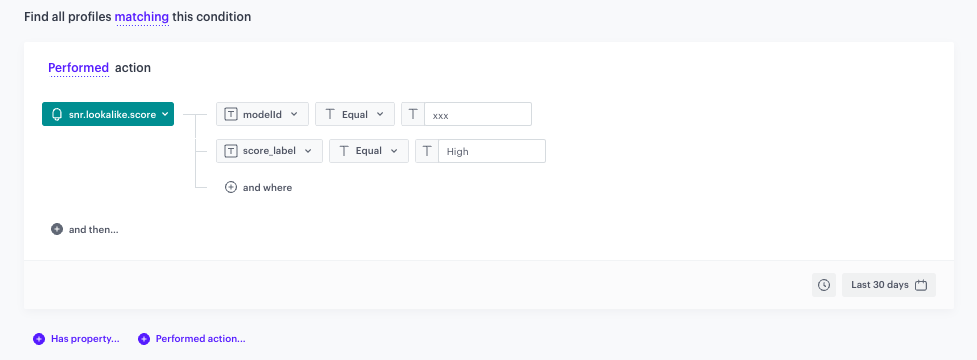
    1. Choose event `snr.lookalike.score`.
    2. As the parameter choose **modelId**.
    3. As the operator, choose **Equal**.
    4. In the text field, enter the ID of the prediction you created.
    5. Click **+ where**.
    6. From the dropdown list, select **source_label**.  
    7. As the operator, choose **Equal**.  
    8. In the text field, enter `high`.
        <figure>
        <img src="/api/docs/image/54176ad07f146575310749eba44b7c2f42c1b327/use-cases/all-cases/_gfx/snr.lookalike.score_segmentation.png" alt="The conditions for the audience of the email" class="full">
        <figcaption> The conditions for the audience of the email </figcaption>
        </figure>

    4. Apply and save your changes.
3. Configure the **Content** section.
    1. Choose the email account from which you want to send your message.
    2. In the **Subject** field, enter your message subject.
    2. Click **Create message** and choose an email template created as a part of prerequisites.
    3. Apply changes.
4. In the **Schedule** section, specify the time when you want to send your communication.
4. You can optionally define **UTM & URL parameters**. If not, click **Skip step**.
4. Confirm by clicking **Apply**.


## Check the use case set up on the Synerise Demo workspace
---
In the Synerise Demo workspace, you can check:
- [aggregate configuration](https://app.synerise.com/analytics/aggregates/4538a92b-b5e7-338e-a7f0-a4c690b63272), 
- [target segmentation](https://app.synerise.com/analytics-v2/segmentations/978b1740-9d89-45f5-b39a-44f66541c923), 
- [source segmentation](https://app.synerise.com/analytics-v2/segmentations/c84d0d14-6361-4007-9325-ff2cb7f3d18a), 
- [prediction](https://app.synerise.com/ai-v2/predictions/lookalike/pogtpohudlin), 
- [email campaign](https://app.synerise.com/campaigns/create/5a0afcb8-bf8d-46a0-b7e5-a65fd4edd509).

If you’re our partner or client, you already have automatic access to the **Synerise Demo workspace (1590)**, where you can explore all the configured elements of this use case and copy them to your workspace.  

If you’re not a partner or client yet, we encourage you to fill out the contact [form](https://demo.synerise.com/request) to schedule a meeting with our representatives. They’ll be happy to show you how our demo works and discuss how you can apply this use case in your business. 

## Read more
---

- [Aggregates](/docs/analytics/aggregates)
- [Email campaigns](/docs/campaign/e-mail)
- [Predictions](/docs/ai-hub/predictions)
- [Segmentation](/docs/analytics/segmentations)
