Nowadays, it is important to try not to lose customers even if they don’t make a transaction. One effective solution is to offer them products similar to the ones they have previously viewed. AI algorithms that select similar products based on established characteristics, e.g. brand, model, visual similarity, are useful here. A communication based on these assumptions can help reduce customer churn and increase the total revenue. 

## Example of use - Electronics Industry

**Challenge**

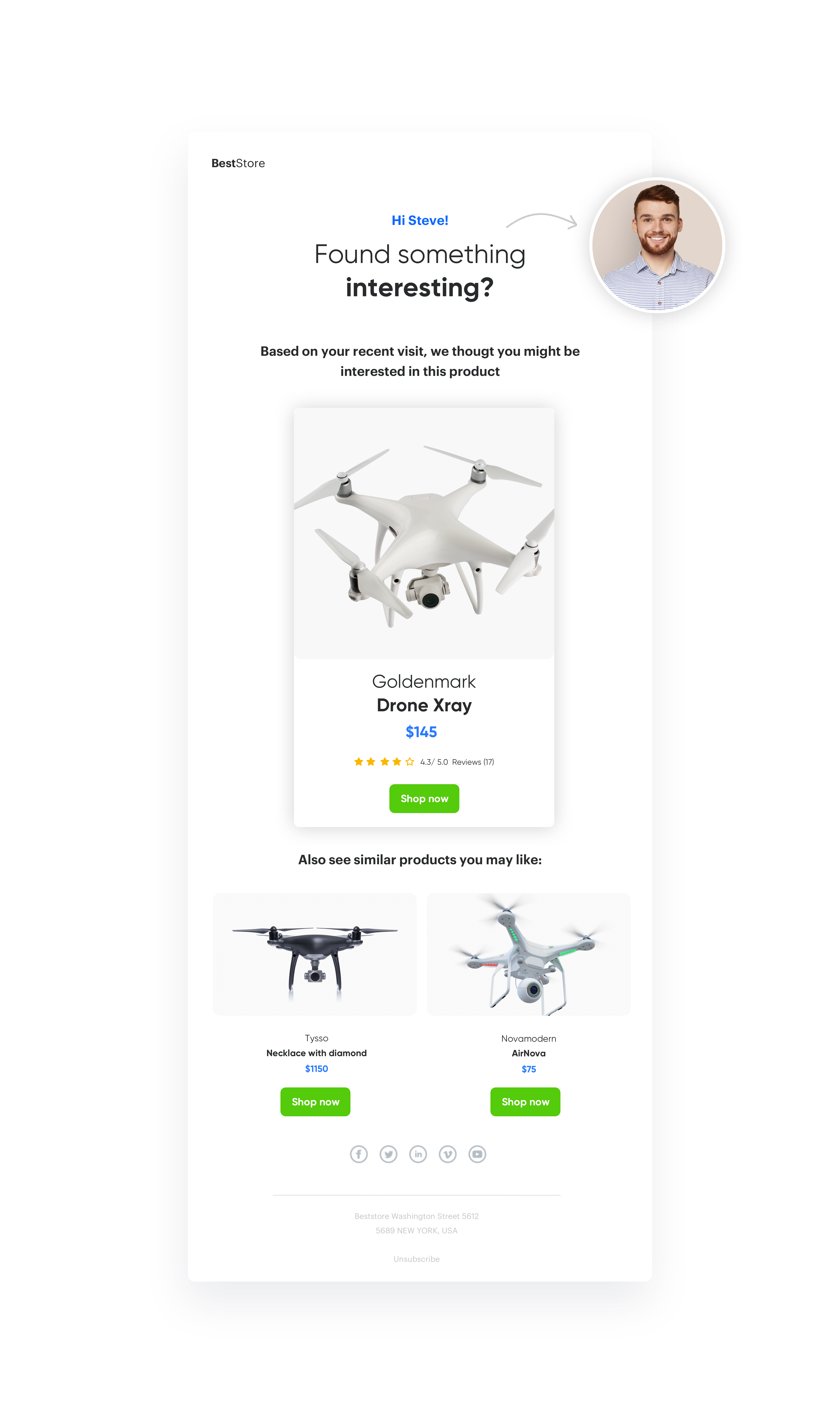
Our customer from the home and electronics industry prepared an email called "abandoned products".  

If the user added a product to the cart, but did not complete the transaction, he would receive an email presenting the product added to the cart along with similar products that were selected and personalized thanks to AI algorithms. 

<figure>
<img src="/api/docs/image/54176ad07f146575310749eba44b7c2f42c1b327/use-cases/all-cases/_gfx/productssimilar.png" alt="Example email with products similar to the items last added to the cartt" class="full no-frame">
<figcaption> Example email with products similar to the items last added to the cart </figcaption>
</figure>

## Results

- OR 14,53% 
- CTR 32.9% 
- CTOR 99,7% 
- CONVERSION 0.7% 

## Prerequisites 
---

- [Tracking code](/docs/settings/tool/tracking_codes) implemented on your website.
- Implementing [product feed](/developers/product-feed).
- Implementing [product catalog](/docs/assets/catalogs).
- [Transaction events](/developers/web/transactions-sdk).
- [Add to cart event](/docs/assets/events).
- [Email account](/docs/settings/configuration/email-account) configured.
- [Subscriber’s database](/docs/automation/actions/synerise-integrations/import-customers) implemented to Synerise.

## Process
---

In this use case, you will go through the following steps:

1. [Prepare an aggregate](/use-cases/products-similar-to-the-last-added-to-the-cart#prepare-an-aggregate).
2. [Prepare AI recommendations](/use-cases/products-similar-to-the-last-added-to-the-cart#prepare-ai-recommendations).
3. [Prepare the email template](/use-cases/products-similar-to-the-last-added-to-the-cart#prepare-the-email-template).
4. [Configure automation](/use-cases/products-similar-to-the-last-added-to-the-cart#create-a-workflow) 

## Prepare an aggregate
---

1. Go to <img src="/api/docs/image/54176ad07f146575310749eba44b7c2f42c1b327/icons/behavioral-data-hub-icon.svg" alt="Behavioral Data Hub icon" class="icon"> **Behavioral Data Hub > Live Aggregates > Create aggregate**.
2. As the aggregate type, select **Profile**.  
2. Click **Analyze profiles by** and select **Last**.
3. Select **productAddToCart** event, and specify the **$sku** parameter. 

 <figure>
   <img src="/api/docs/image/54176ad07f146575310749eba44b7c2f42c1b327/use-cases/all-cases/_gfx/productssimilar2.png" alt="`Screenshot presenting AB test`" class="full">
   <figcaption> The aggregate with last product added to the cart </figcaption>
   </figure>


   <div class="admonition admonition-tip"><div class="admonition-icon"><svg xmlns="http://www.w3.org/2000/svg" fill="none" viewBox="0 0 24 24" stroke="currentColor" stroke-width="2.5"><path stroke-linecap="round" stroke-linejoin="round" d="M9.663 17h4.673M12 3v1m6.364 1.636l-.707.707M21 12h-1M4 12H3m3.343-5.657l-.707-.707m2.828 9.9a5 5 0 117.072 0l-.548.547A3.374 3.374 0 0014 18.469V19a2 2 0 11-4 0v-.531c0-.895-.356-1.754-.988-2.386l-.548-.547z" /></svg></div><div class="admonition-body"><div class="admonition-content">

   Similar recommendations which you want to add to the email template have to have context of the product, hence using aggregate which take the product SKU from the add to cart event, you will indicate to what product you want to get similar recommendations. On the other hand, thanks to this you will indicate the product you want to get similar recommendations to.

   </div></div></div>


## Prepare AI recommendations
---

1. Go to <img src="/api/docs/image/54176ad07f146575310749eba44b7c2f42c1b327/icons/ai-hub-icon.svg" alt="AI Hub icon" class="icon" > **AI Hub > (AI Recommendations) Models > Add recommendation**.
2. Enter the name of the recommendation (it is only visible on the list of recommendation).
3. In the **Type & Items feed** section and click **Define**.
4. From the Catalog dropdown list, select a trained product feed.
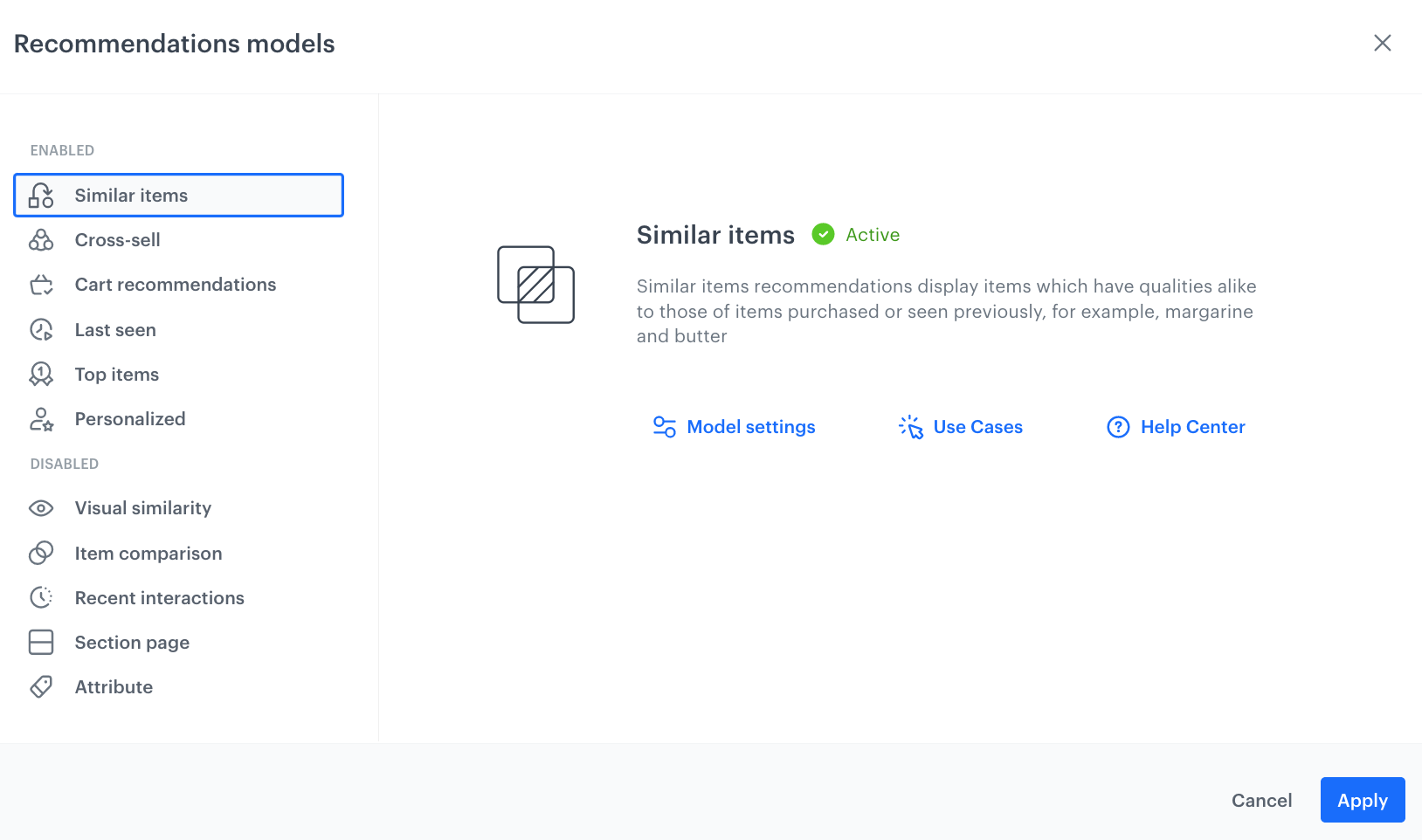
5. Select the recommendation type, in our example it will be similar product. 
 <figure>
   <img src="/api/docs/image/54176ad07f146575310749eba44b7c2f42c1b327/use-cases/all-cases/_gfx/productssimilar3.png" alt="`Screenshot presenting type of recommendation`" class="full">
   <figcaption> Similar AI recommendation </figcaption>
   </figure>


   <div class="admonition admonition-important"><div class="admonition-icon"><svg xmlns="http://www.w3.org/2000/svg" fill="none" viewBox="0 0 24 24" stroke="currentColor" stroke-width="2.5"><path stroke-linecap="round" stroke-linejoin="round" d="M12 8v4m0 4h.01M21 12a9 9 0 11-18 0 9 9 0 0118 0z" /></svg></div><div class="admonition-body"><div class="admonition-content">

   To add AI recommendations in the email template, first you have to prepare an **AI recommendation**. Choose similar recommendation types and define the number of products you want to show in the email template. You can add additional filters if needed.

   </div></div></div>


## Prepare the email template
---

1. Go to **Experience Hub > Email > Templates**. 
    1. To create a new template, click **Create new**.
    2. To create a template out of an existing template, click **From template**.
2. Select the template.
3. Select the wizard:
    1. **Drag&drop** builder - Create email templates with ready-made components.
    2. **Code editor** - Create email templates in CSS and HTML.
4. To add the dynamic part to the email template (last added product to the cart and AI recommendations), you will have to use jinjava and add your own CSS. Let’s look at how to prepare the appropriate jijnava code. 


   <details class="accordion"><summary>Check the jinja code</summary><div class="accordion-content"><pre><code class="language-jinja">&lt;!-- Opening the tag that retrieves the value from the aggregate prepared in point 1--&gt; {% aggregate a5f787bc3-db2d-3791-bef5-bd027102ca3e %} &lt;!-- Assign an aggregate value to skuValue --&gt; {% set skuValue = aggregate_result[0] %} &lt;!-- Referencing with the help of variable to the snrs-product-ogTag directory built by default from OG tags. The variable names depend on the name of the OG tags on your page --&gt; &lt;div class="wrapper-card"&gt; &lt;h2 style="text-align:center"&gt;Product Card&lt;/h2&gt; &lt;div class="card"&gt; &lt;img src="{% catalog.Snrs-produktu-ogTag(skuValue).og:image %}" alt="Product image" style="width:100%"&gt; &lt;h1&gt;{% catalog.Snrs-produktu-ogTag(skuValue).product:brand %}&lt;/h1&gt; &lt;p class="price"&gt;$ {% catalog.Snrs-produktu-ogTag(skuValue).product:price:amount %}&lt;/p&gt; &lt;p&gt;{% catalog.Snrs-produktu-ogTag(skuValue).og:title %}&lt;/p&gt; &lt;p&gt;&lt;button&gt;Add to Cart&lt;/button&gt;&lt;/p&gt; &lt;/div&gt; &lt;/div&gt; &lt;!-- Adding the skuValue variable to the array for which we will retrieve similar products --&gt; {% set itemContext = [] %} {% do itemContext.append(skuValue) %} &lt;!-- Downloading the similar campaign for the product in the table --&gt; {% recommendations2 campaignId=a7wO36CRGJm6P products=itemContext %} &lt;!-- Iterating loop through the received products --&gt; {% for item in recommended_products2 %} &lt;!-- Listing the attributes assigned to the product in the feed --&gt; &lt;div class="wrapper-card" style="width:25%;float:left"&gt; &lt;h2 style="text-align:center"&gt;Product Card&lt;/h2&gt; &lt;div class="card"&gt; &lt;img src="{{ item.imageLink }}" alt="Product image" style="width:100%"&gt; &lt;h1&gt;{{ item.brand }}&lt;/h1&gt; &lt;p class="price"&gt;$ {{ item.priceValue }}&lt;/p&gt; &lt;p&gt;{{ item.title }}&lt;/p&gt; &lt;p&gt;&lt;button&gt;Add to Cart&lt;/button&gt;&lt;/p&gt; &lt;/div&gt; &lt;/div&gt; {% endfor %} {% endrecommendations2 %} &lt;!-- Closing of the tag that gets the value from the aggregate prepared in point 1 --&gt; {% endaggregate %}</code></pre></div></details>


<div class="admonition admonition-note"><div class="admonition-icon"><svg xmlns="http://www.w3.org/2000/svg" fill="none" viewBox="0 0 24 24" stroke="currentColor" stroke-width="2.5"><path stroke-linecap="round" stroke-linejoin="round" d="M13 16h-1v-4h-1m1-4h.01M21 12a9 9 0 11-18 0 9 9 0 0118 0z" /></svg></div><div class="admonition-body"><div class="admonition-content">

You will find more about email templates in [this](/docs/campaign/e-mail/creating-email-templates) article.

</div></div></div>


## Create a workflow
---

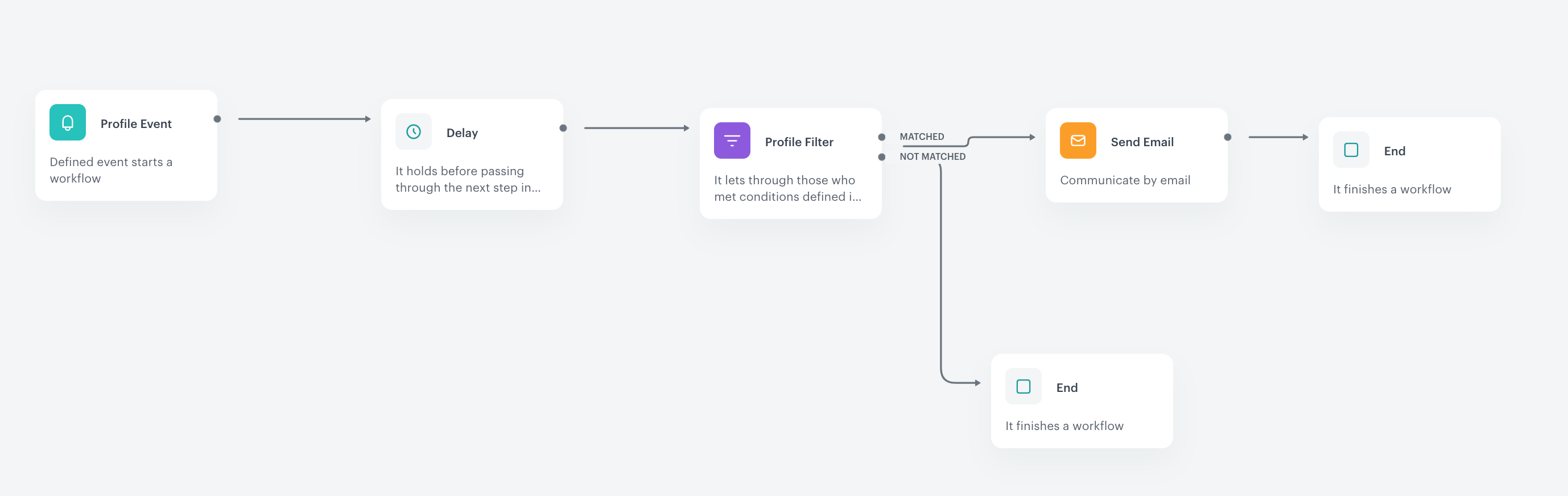
To start sending emails to customers you will have to prepare a workflow, which in basic configuration may look like the one below. 

1. Go to **Automation Hub > Workflows > New workflow**..
2. On the dashboard, click the plus button to add the first node.
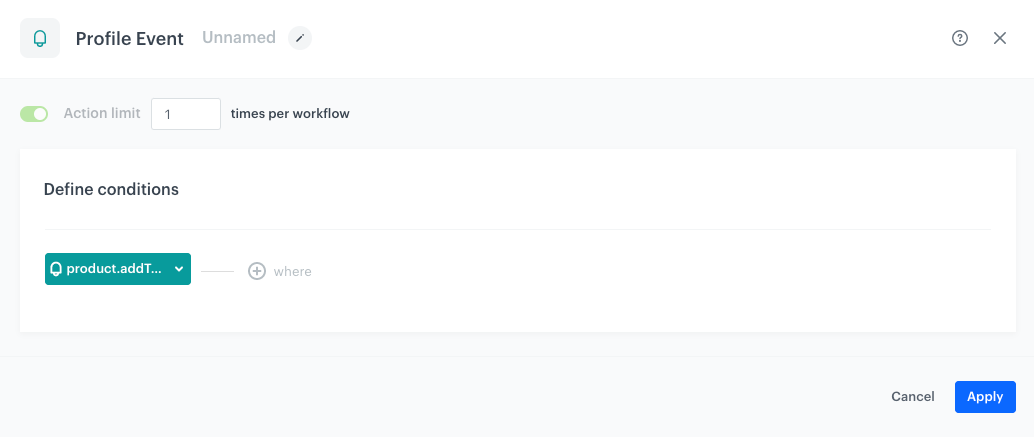
3. Start the workflow by choosing a trigger. For every user who will add a product to the cart – choose the **Profile Event** trigger node and select **productAddToCart** event from the list.
    <figure>
     <img src="/api/docs/image/54176ad07f146575310749eba44b7c2f42c1b327/use-cases/all-cases/_gfx/productssimilar5.png" alt="`Screenshot presenting AB test`" class="large">
     <figcaption> Profile Event </figcaption>
     </figure>
4. Confirm the settings by clicking **Apply**.
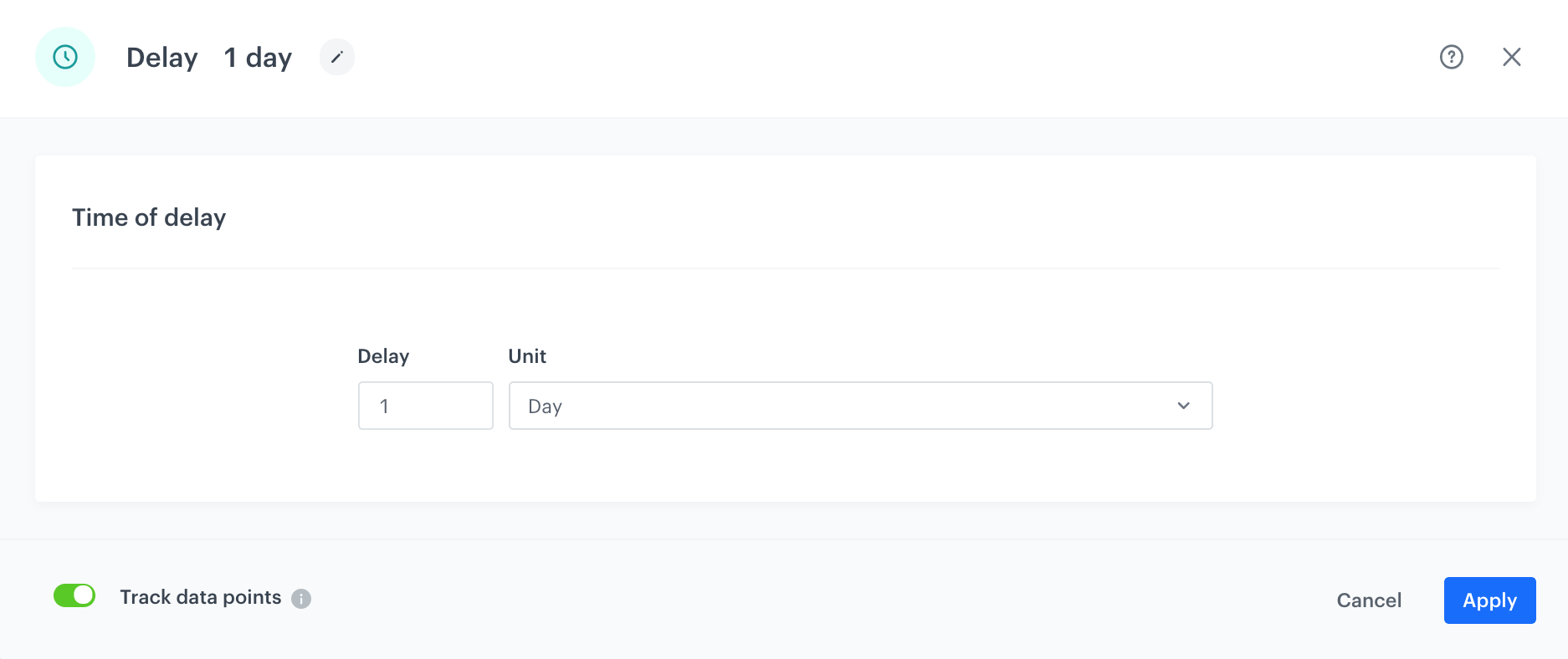
5. Set up time period users will get the message by using the **Delay** node, here this is 1 day (24 hours). 
    <figure>
     <img src="/api/docs/image/54176ad07f146575310749eba44b7c2f42c1b327/use-cases/all-cases/_gfx/productssimilar6.png" alt="`Screenshot presenting AB test`" class="large">
     <figcaption> Delay node </figcaption>
     </figure>
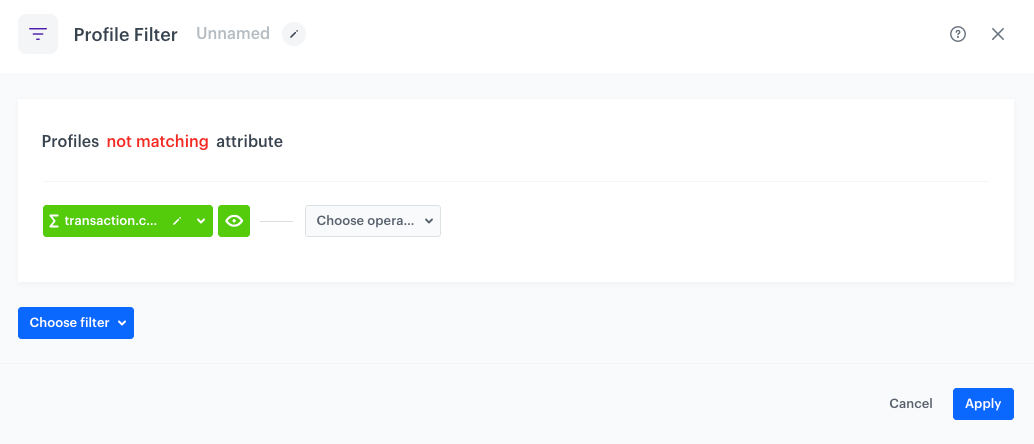
6. Use the **Profile Filter** node, exclude users who have made a transaction in last 24h. 
7. Select **trasaction.charge** event, mark “not matching”, and select appropriate date range. 
   
   <div class="admonition admonition-important"><div class="admonition-icon"><svg xmlns="http://www.w3.org/2000/svg" fill="none" viewBox="0 0 24 24" stroke="currentColor" stroke-width="2.5"><path stroke-linecap="round" stroke-linejoin="round" d="M12 8v4m0 4h.01M21 12a9 9 0 11-18 0 9 9 0 0118 0z" /></svg></div><div class="admonition-body"><div class="admonition-content">

   Please note that we use 1440 minutes instead of 1 day – use smaller granulation, as in this case 1 day would take the time from current hour till the midnight, so such an analysis will not take into consideration all necessary users.

   </div></div></div>

    <figure>
     <img src="/api/docs/image/54176ad07f146575310749eba44b7c2f42c1b327/use-cases/all-cases/_gfx/productssimilar7.png" alt="`Screenshot presenting AB test`" class="large">
     <figcaption> Profile Filter node </figcaption>
     </figure>
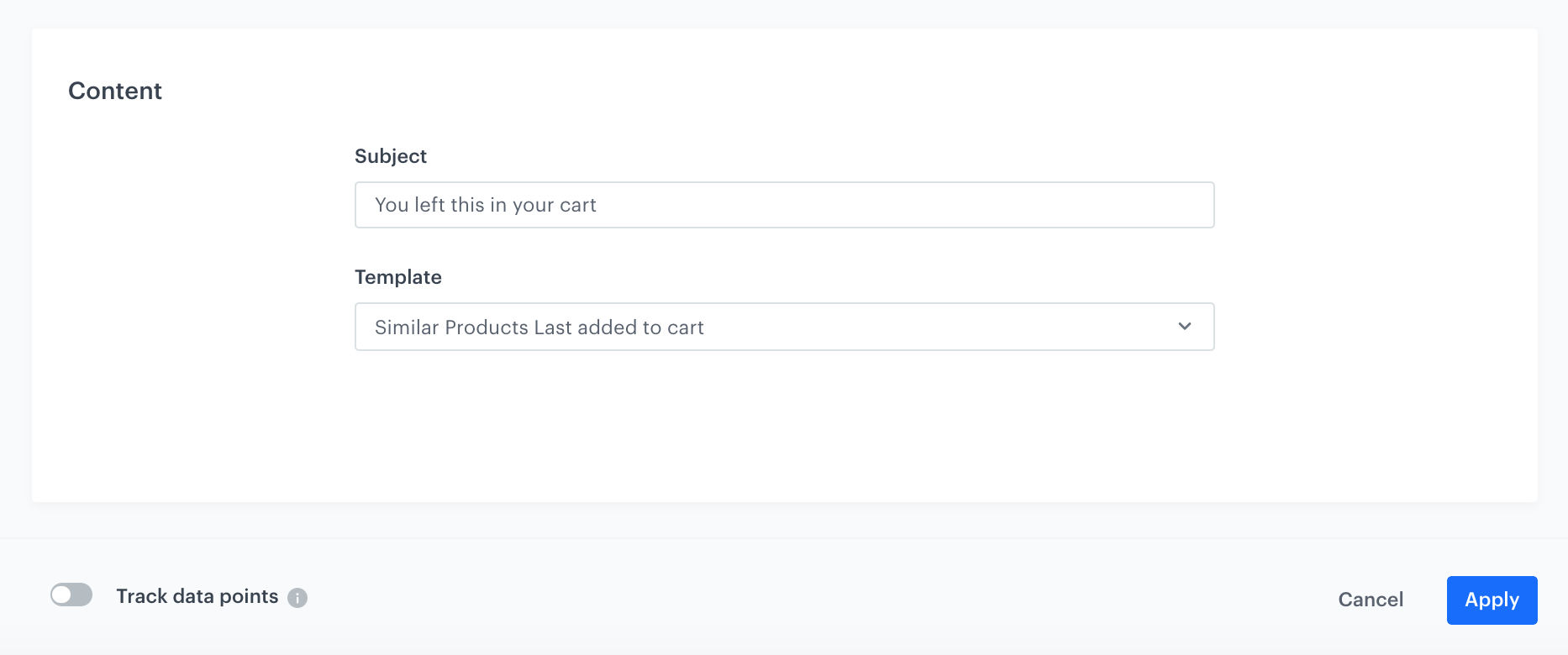
8. Set the **Send Email** node by selecting the appropriate email account, choosing the template that you prepared in previous step and adding the email subject. 
    <figure>
     <img src="/api/docs/image/54176ad07f146575310749eba44b7c2f42c1b327/use-cases/all-cases/_gfx/productssimilar8.png" alt="`Screenshot presenting AB test`" class="large">
     <figcaption> Send Email node </figcaption>
     </figure>
9. Add the **End** nodes where the workflow should finish for users. 
10. Specify capping (here 1 for 1 day). 
11. Optionally add titles to each node so the workflow will be more understandable for your colleagues. 
12. Name the automation and **Save** it or **Save & Run**. 

<figure>
  <img src="/api/docs/image/54176ad07f146575310749eba44b7c2f42c1b327/use-cases/all-cases/_gfx/productssimilar4.png" alt="`Screenshot presenting AB test`" class="full">
  <figcaption> Configuring the automation </figcaption>
  </figure>

## Check the use case set up on the Synerise Demo workspace
---
Check the [aggregate](https://app.synerise.com/analytics/aggregates/b53ad06b-0232-36b1-8c83-8b9417fd6321) settings directly in Synerise Demo workspace.

You can also find there [recommendation](https://app.synerise.com/ai-v2/recommendations/klBzjVB4QZUS) and [workflow](https://app.synerise.com/automations/automation-diagram/c97ee31b-1f3f-4e3b-b1c6-8099dcd5f6c9) settings.

If you’re our partner or client, you already have automatic access to the **Synerise Demo workspace (1590)**, where you can explore all the configured elements of this use case and copy them to your workspace.  

If you’re not a partner or client yet, we encourage you to fill out the contact [form](https://demo.synerise.com/request) to schedule a meeting with our representatives. They’ll be happy to show you how our demo works and discuss how you can apply this use case in your business.

---
## Read more

- [Automation Hub](/docs/automation)
- [Creating aggregates](/docs/analytics/aggregates/creating-aggregates)
- [Email templates](/docs/campaign/e-mail/creating-email-templates)
- [Jinjava inserts](/developers/inserts/insert-usage)
- [Segmentation](/docs/analytics/segmentations/creating-segmentations)
- [Similar AI recommendations](/docs/ai-hub/recommendations-v2/recommendation-types#similar-items)