Recommendations suggest items based on a customer's behavioral history - purchases, page visits, interactions with previous recommendations, etc.
However, it may be beneficial for your business to override the recommendations by increasing the frequency (promoting) of suggesting items with a higher profit margin and decreasing the frequency (demoting) of suggesting items with a lower margin.
This can be done by using **recommendation boosting**. Boosting rules are built using the same editor as the filters, but unlike filtering, boosting does not entirely exclude items that do not meet the conditions - it only tells the AI model to assign a different weight to the profit margin parameter when calculating the final recommendation score of an item.
## Prerequisites
---
- **Recommended**: Become familiar with [creating recommendations](/docs/ai-hub/recommendations-v2/creating-recommendation-campaign).
This article does not explain every step of creating a recommendation in detail.
- The item feed includes a parameter that denotes the profit margin.
In this example, the parameter is called `margin` and its values are `high` and `low`.
## Creating the recommendation
---
### Choose source, type, and add slots
1. Go to **AI Hub > (AI Recommendations) Models > Add recommendation**.
2. In the **Type & Items feed** section:
1. Select an item catalog.
2. Select a recommendation type.
Boosting can be used with all recommendation types.
3. Click **Apply**.
3. In the **Items** section, configure at least one slot and click **Apply**.
### Build the boosting rules
In this part of the process, you add two co-existing rules:
- Promote items with the `margin` attribute equal to `high`
- Demote items with the `margin` attribute equal to `low`
1. In the **Boosting** section, click **Define**.
2. Click **Add rule**.
3. Click **Define rule** and select **Visual Builder**.
**Result** The Visual Builder window opens.
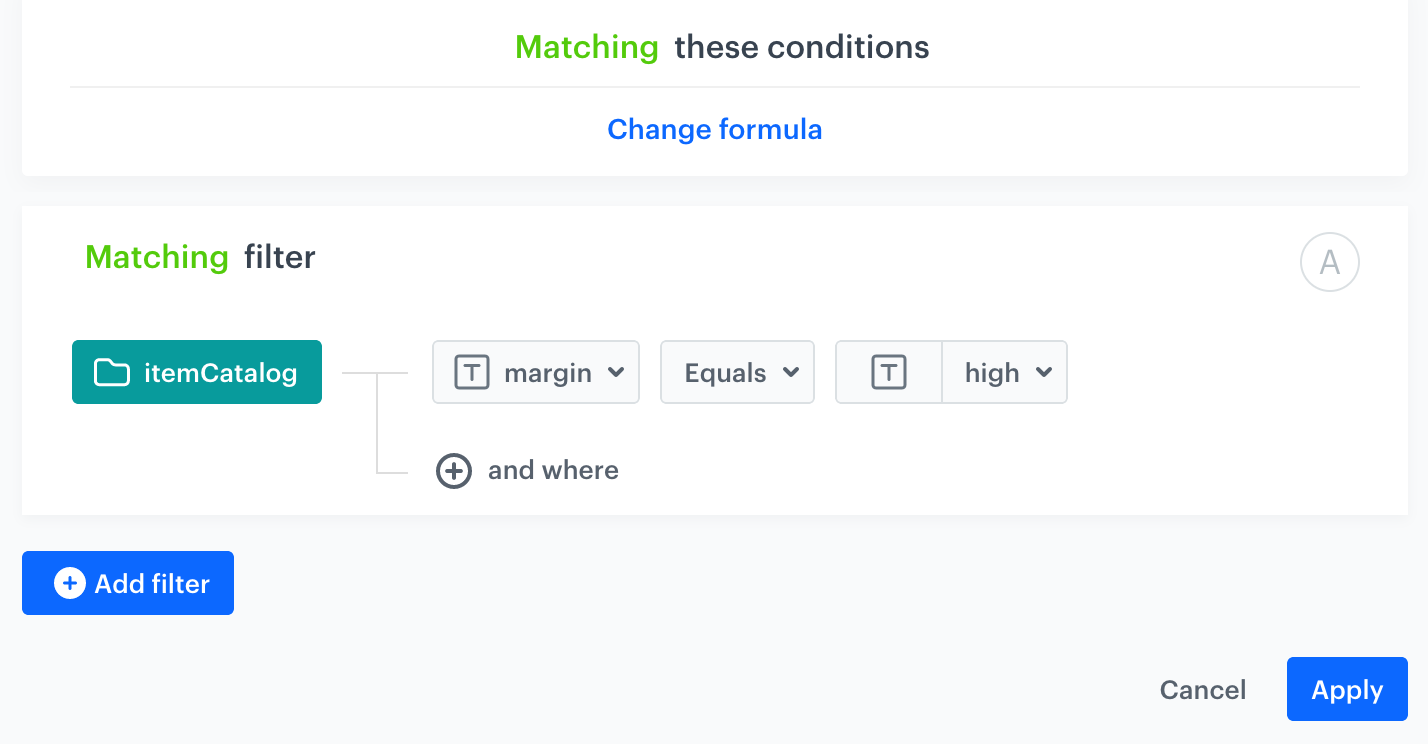
4. From the **Select attribute** drop-down list, select the margin attribute.
You can use the search field.
5. From the **Operator** drop-down list, select **Equals**.
6. From the **Select value** drop-down list, select **high**.
Boosting filter that matches high-margin items
7. Click **Apply**.
8. In the **Promote/Demote** selector, select **Promote** (default value).
9. Use the slider to adjust how much you want the rule to affect the results.
10. Add the rule for demoting low-margin items by repeating steps 2-9 with the following changes:
1. Change the value of **margin** to **low**.
2. Change the **Promote/Demote** selector to **Demote**.
11. Save the **Boosting** section settings by clicking **Apply**.
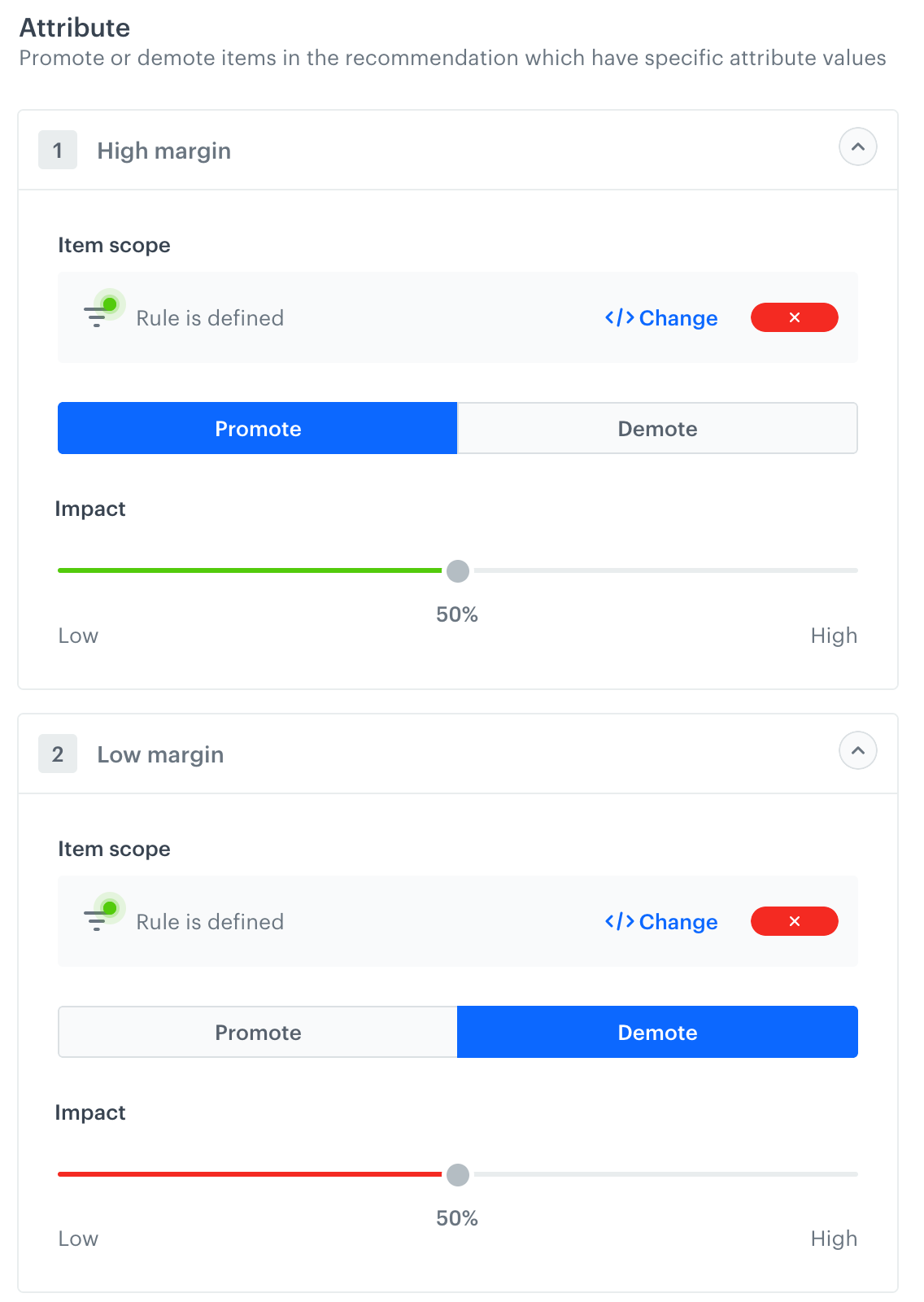
After applying the settings, you can use the **Preview** tab (available in the upper left part of the recommendation creator screen) to see how your rule changed the recommendation result. If necessary, you can return to the settings and adjust the boosting strength to meet your expectations.
Two rules applied at once: one for promotion, the other for demotion
### Additional settings and saving
1. Configure the **Additional settings** section and click **Apply**.
2. Save the recommendation.
## What's next
---
You can use the ID of the recommendation and [inject it with a snippet](/docs/assets/snippets) in other types of communication, such as:
- [dynamic content](/docs/campaign/dynamiccontent) - this way you can show the recommendations on your website.
- [email](/docs/campaign/e-mail) - this way you can send out recommended items through emails.
- mobile application - you can use [documents](/docs/assets/documents) to build your own mobile app and show the recommended items.
- [mobile push](/docs/campaign/Mobile) - you can send recommendations through notifications in your mobile application.
- [web push](/docs/campaign/Webpush) - this way you can send notifications to your customers through a web browser.
- [SMS](/docs/campaign/SMS) - this way you can reach your customers with recommendations on their mobile.
## Read more
---
- [Recommendations](/docs/ai-hub/recommendations-v2)
 **AI Hub > (AI Recommendations) Models > Add recommendation**.
2. In the **Type & Items feed** section:
1. Select an item catalog.
2. Select a recommendation type.
**AI Hub > (AI Recommendations) Models > Add recommendation**.
2. In the **Type & Items feed** section:
1. Select an item catalog.
2. Select a recommendation type.