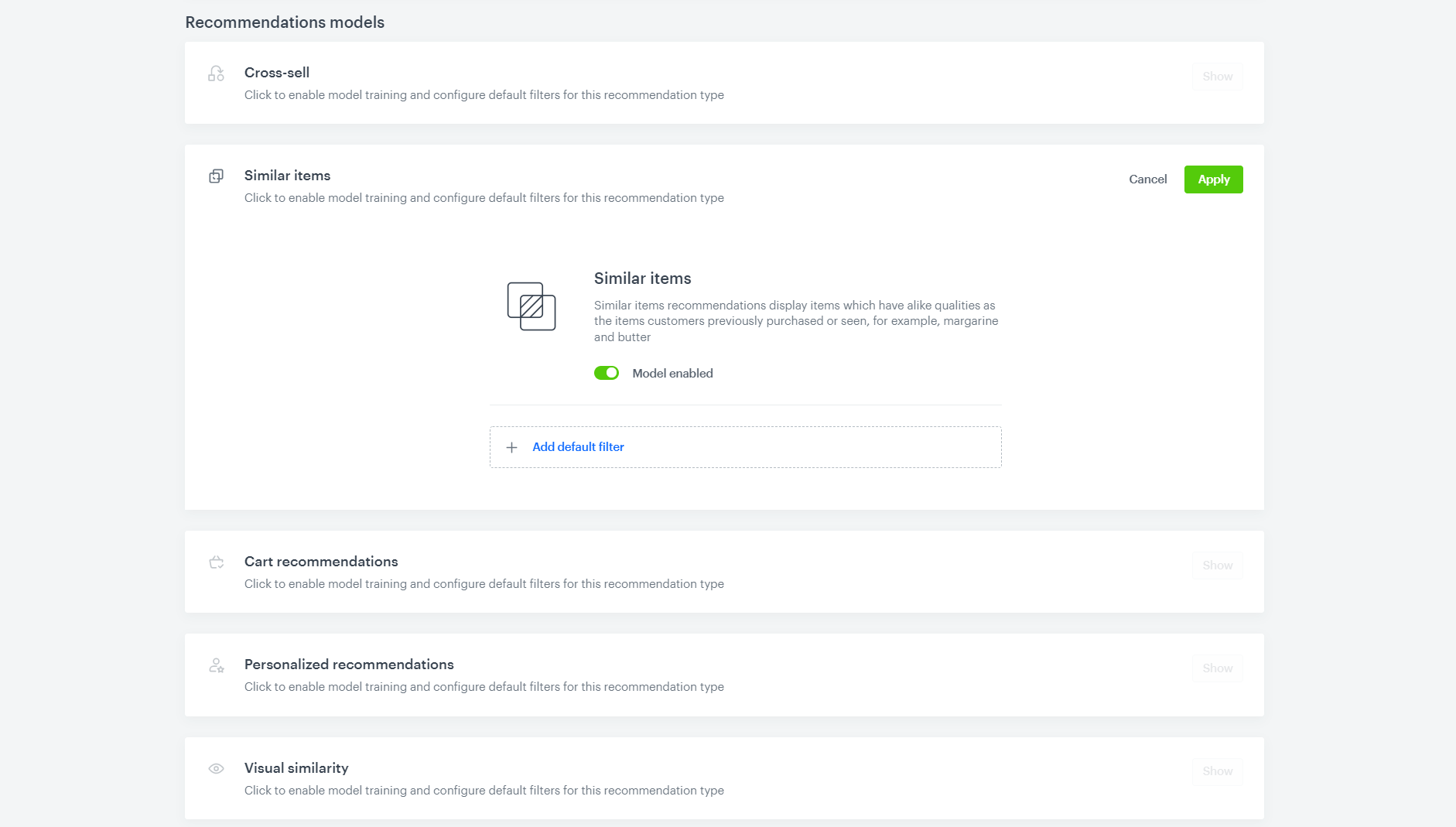
There are certain types of products that you want to promote in the recommendations by default. In this use case, we will show you how to promote high margin products in all types of recommendations. In order to do this we will use default filters.
Default filters are set up per recommendation type. To promote high margin items, we will set the filters to be elastic. This way, recommendations will always filter to products with high margin, unless there are no such products. Then the recommendations will return the rest of the products. For this approach to work, you will have to add information about the margin to the items feed or catalog as an item's attribute. The margin can be a numeric value, however, this approach will also work with labels, for example: `low`, `medium` and `high`, or even a boolean value of `true` for high margin products.
## Prerequisites
---
- The `margin` attribute must be added to the items feed or catalog.
- The recommendation models for which you want to add default filters to must be enabled.
## Create AI recommendations
---
1. Go to **Settings > AI Engine Configuration**.
2. Choose the **Items feed** for which you want to apply the filters.
3. In the **Recommendation models** section click **Show** for the chosen recommendation model.
4. Click **Add default filter**.
5. Click **Define filter**.
6. Click **Select attribute** and from the dropdown menu choose the attribute that you assigned the `margin` to.
- If your `margin` attribute contains numeric values:
1. Click **Choose** and click **More or equal**.
2. In the **Value** input type the number above which products will be included. In our example products have the `margin` value from 10 to 100, so we will type 70.
3. Click **Apply**.
- If your `margin` has labels (`low`, `medium`, `high`):
1. Click **Choose** and click **Equal**.
2. From the dropdown menu with the attribute values click `high`.
3. Click **Apply**.
7. Click **Apply**.
Default filters in recommendations
8. Repeat steps 3.- 9. for each recommendation type you want to promote high margin products in.
9. In the top right corner click **Save**.
The default filter will filter products for previously existing campaigns as well as the ones created later, for the specified recommendation type.
In order to disable the default filter for a specific campaign:
1. Go to **Experience Hub > Recommendations**.
2. Choose the campaign for which you want to turn off the default filter from the list.
3. Click **Define** in the `Additional settings` section.
4. Disable the **Default filters** toggle.
5. Click **Apply**.
6. In the top right corner click **Save**.
### Additional example
---
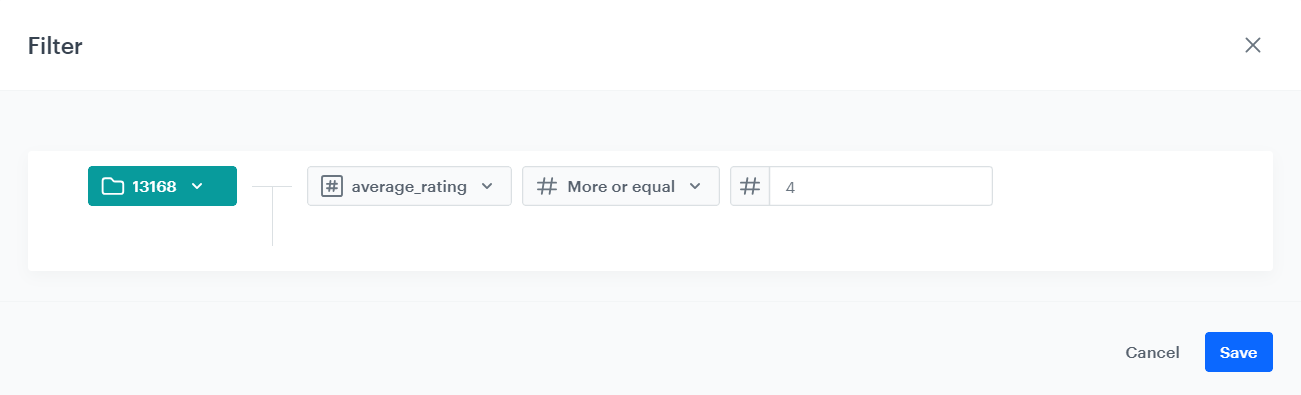
The screenshot below shows a situation where our margin is the average_rating. In this case, setting the index to high means selecting the filter More or equal with a value of 4.
Margin
## Check the use case set up on the Synerise Demo workspace
---
You can check the [item feed](https://app.synerise.com/ai-v2/config/edit/13168), [catalog](https://app.synerise.com/assets/catalogs/13168) and [recommendations](https://app.synerise.com/ai-v2/recommendations/vyoOsvIIHCGZ) directly in Synerise Demo workspace.
If you’re our partner or client, you already have automatic access to the **Synerise Demo workspace (1590)**, where you can explore all the configured elements of this use case and copy them to your workspace.
If you’re not a partner or client yet, we encourage you to fill out the contact [form](https://demo.synerise.com/request) to schedule a meeting with our representatives. They’ll be happy to show you how our demo works and discuss how you can apply this use case in your business.
## Read more
---
- [Filters](/docs/ai-hub/recommendations-v2/recommendation-filters)
- [Setting up campaigns](/docs/ai-hub/recommendations-v2/creating-recommendation-campaign)