AI Search Engine enables creating rules which can help you promote items with specific attributes, based on the searched phrase. One of the applications is to create a rule which shows new products to customers based on selected phrases.

This use case will help you create a rule in AI Search that promotes new models of TVs when the customer is searching for a TV.

## Prerequistes
---
- An item feed must be provided.
- Enable [the search engine](/docs/ai-hub/ai-search/introduction-to-ai-search) for your workspace and create an [index](/docs/ai-hub/ai-search/create-index).
- Add an attribute which marks items as new in your items catalog and add this attribute to filterable attributes. In this example, the attribute is the value "new" in the `G:adwords_labels` attribute.
- [Implement AI search](https://developers.synerise.com/AISearch/AISearch.html#tag/Search) in any of your channels (mobile app, website etc.).

## Create a rule
---
1. Go to <img src="/api/docs/image/54176ad07f146575310749eba44b7c2f42c1b327/icons/ai-hub-icon.svg" alt="AI Hub icon" class="icon" > **AI Hub > Indexes**.
2. Select an index from the list.
3. Go to the **Rules** section. 
4. Click **Add Rule**.  
5. Name the rule. In this case, it's "Promote new TVs".
6. To adjust the query conditions, in the **Conditions** section, click **Define**.  
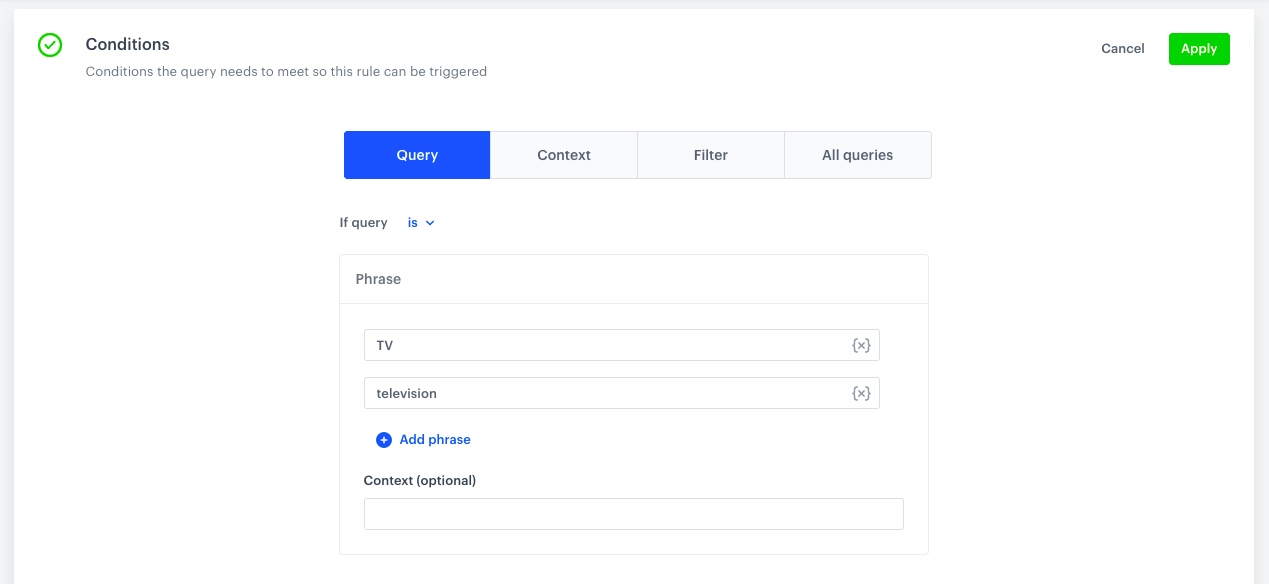
    1. On the **Query** tab, to define the method of checking the query, choose **If query is**.
    2. Click **Add phrase**.
    3. Enter a phrase. You can do it in two ways:
        - In text field, type a word (or a phrase) in a singular form.
        - Next to the text field, click the <img src="/api/docs/image/54176ad07f146575310749eba44b7c2f42c1b327/icons/facet-in-query-rules.png" alt="Facet icon in Query rules" class="icon" > button. From the dropdown list, select a facet. It is different from defining an exact query: you can define an attribute whose values the query looks for. For example, if you choose _brand_ as the facet, the query rule will apply its consequence whenever any brand name is detected in the query.
        <figure>
        <img src="/api/docs/image/54176ad07f146575310749eba44b7c2f42c1b327/use-cases/all-cases/_gfx/ai-search-promotions-with-corelating-phrases-1.png" class="full" alt="Example of phrases">
        <figcaption>Example of phrases</figcaption>
        </figure>
    4. If you want to add more phrases, repeat steps **b** and **c**.
    5. Confirm the settings by clicking the **Apply** button.
7. To define how the search engine reacts to the defined conditions, in the **Consequences** section, click **Define**.
    1. Click **Add consequence**.
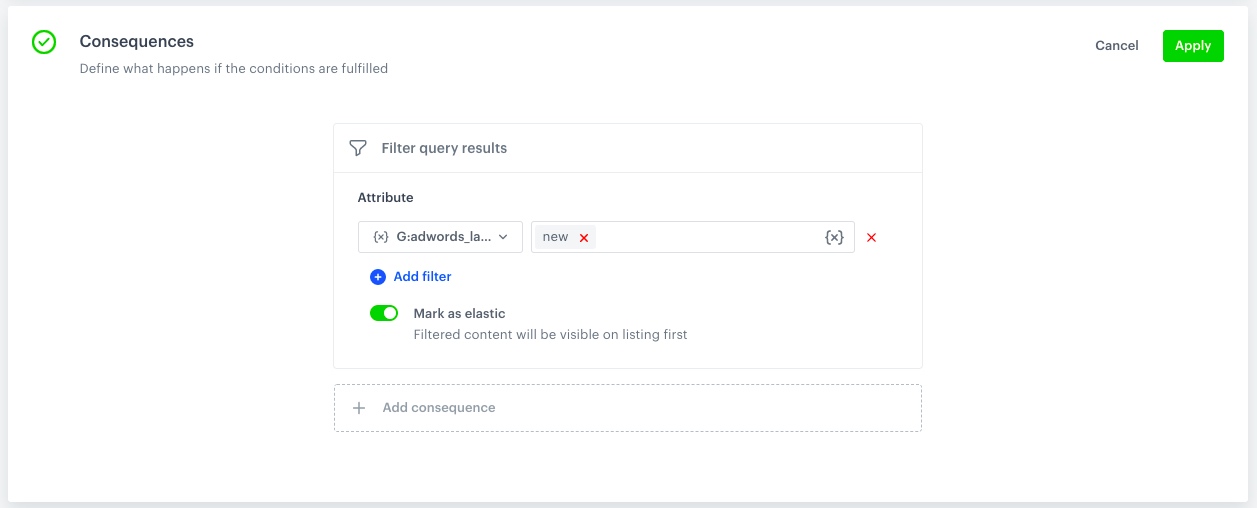
    2. From the dropdown list, select a consequence, in this case **Filter query results**.
    3. Add filter and choose attribute **G: adwords_labels**.
    
    
       <div class="admonition admonition-note"><div class="admonition-icon"><svg xmlns="http://www.w3.org/2000/svg" fill="none" viewBox="0 0 24 24" stroke="currentColor" stroke-width="2.5"><path stroke-linecap="round" stroke-linejoin="round" d="M13 16h-1v-4h-1m1-4h.01M21 12a9 9 0 11-18 0 9 9 0 0118 0z" /></svg></div><div class="admonition-body"><div class="admonition-content">

       The attribute can have a different name in your workspace, the above is an example.

       </div></div></div>
   

    4. In the next field choose **new**.
    5. Enable the **Mark as elastic** option.

     <figure>
        <img src="/api/docs/image/54176ad07f146575310749eba44b7c2f42c1b327/use-cases/all-cases/_gfx/ai-search-promotions-with-corelating-phrases-2.png" class="full" alt="Example of condition consequences">
        <figcaption>Example of condition consequences</figcaption>
        </figure>

    6. Confirm by clicking **Apply**.
8. To define when the query rule applies, in the **Schedule** section, click **Define**.
    1. Select an option:
        - To launch query rules immediately, click **Active immediately**.
        - To schedule the rules at specific time, click **Scheduled**. Set the schedule according to your business needs.
    3. Confirm by clicking **Apply**.
8. To complete working on the query rule, you can either:
    - Save it as a draft by clicking **Finish later**.
    - Save and activate it by clicking **Publish**.

**Result:** If you chose **Publish** the rule will take effect in those areas where AI search has been implemented, according to the schedule you set.

## Check the use case set up on the Synerise Demo workspace
---

You can check the [rule configuration](https://app.synerise.com/ai-v2/search/indices/2891e883b914a485c4f3f98b37b652271657484874/query-rules/14434) directly in Synerise demo workspace.

If you’re our partner or client, you already have automatic access to the **Synerise Demo workspace (1590)**, where you can explore all the configured elements of this use case and copy them to your workspace.  

If you’re not a partner or client yet, we encourage you to fill out the contact [form](https://demo.synerise.com/request) to schedule a meeting with our representatives. They’ll be happy to show you how our demo works and discuss how you can apply this use case in your business.


## Read more
---
- [Configuring AI Search](/docs/ai-hub/ai-search/introduction-to-ai-search#configuring-ai-search)
- [Rules in AI Search](/docs/ai-hub/ai-search/query-rules)