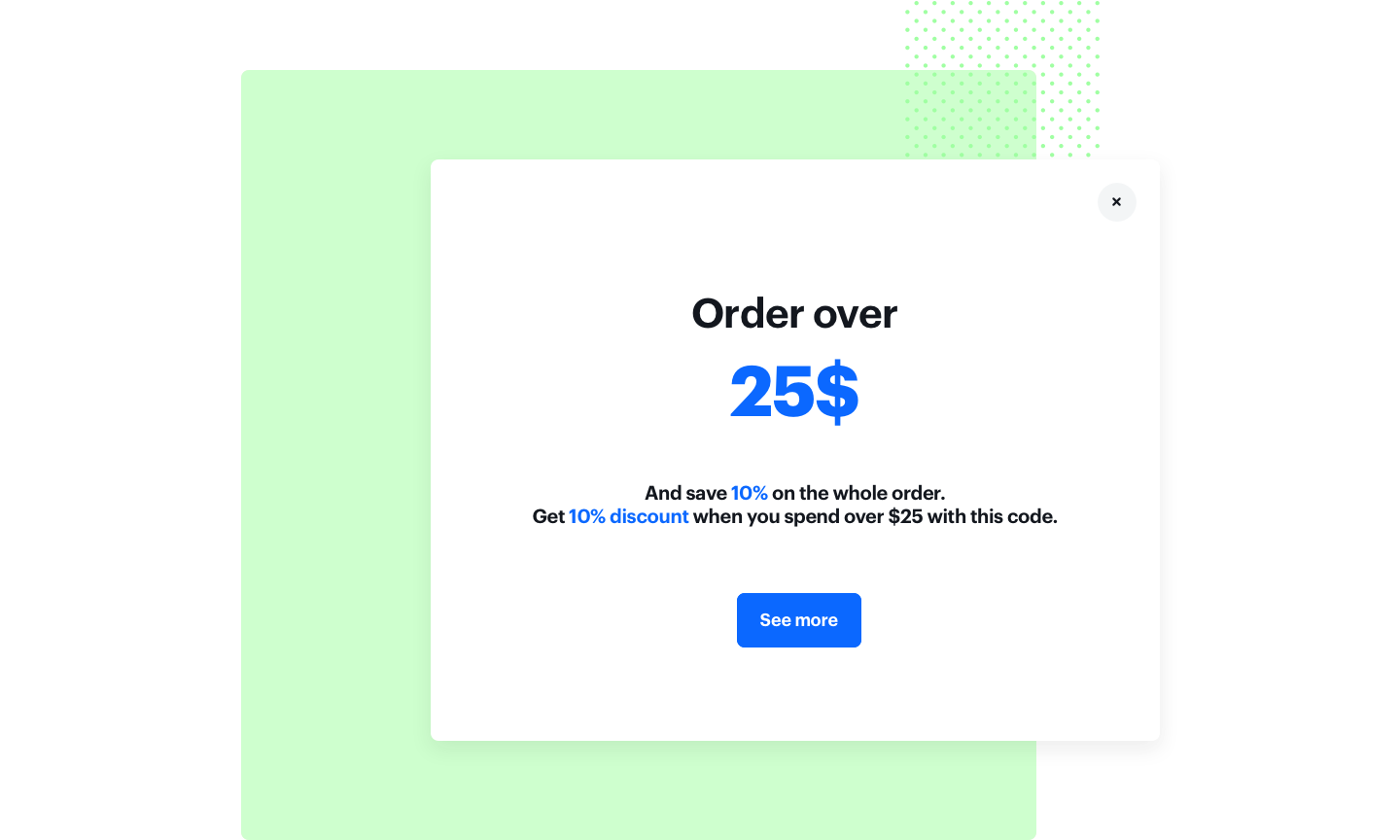
Increasing average order value is one of the most important KPI's in commerce activities. Promotion for entire basket with minumum cart value can trigger a boost in spending across whole loyalty base. 

While creating such a promotion, additional assumptions need to be taken into consideration:
- A discount should be granted only when a transaction value exceeds the minimum amount in order to incentivize a customer to increase their basket size.
- The value of certain items (like alcohol or cigarretes) should not be included in basket value while calculating minimum threshold (for legal purposes).

In this use case, we will create a basket promotion with 10% discount on all items (except for alcohol products) with 25$ minimum basket value trigger.

<figure>
<img src="/api/docs/image/54176ad07f146575310749eba44b7c2f42c1b327/use-cases/all-cases/_gfx/discountpolicy4.png" alt="Basket promotion" class="full" >
<figcaption>Basket promotion</figcaption>
</figure>

## Prerequisites
---

- Point of sales must be integrated with Synerise promotion engine to calculate discounted values of basket items.
- Product feed must be uploaded to catalog.

## Security configuration
---
Before you start working with this hub, if you are a Synerise customer or partner, consider reading [the section about denylisting events](/docs/settings/tool/api#denylist). This natively accessible configuration will allow you to manage the restrictions in points management that may help you prevent fraud.

## Process
---

In this use case, you will go through the following steps:
1. [Create a list of excluded items](/use-cases/promotion-for-entire-basket#create-a-list-of-excluded-items).
2. [Create a promotion](/use-cases/promotion-for-entire-basket#create-a-promotion).

## Create a list of excluded items
---

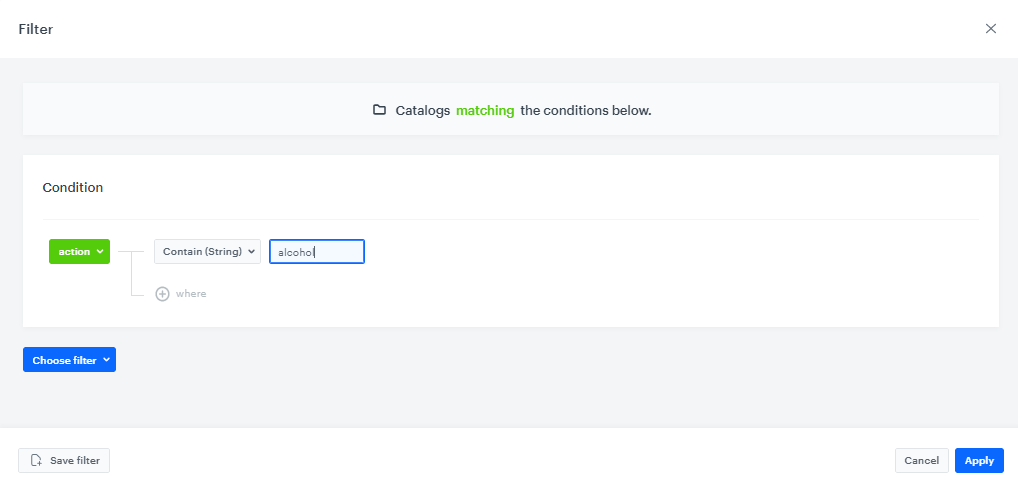
In order to exclude forbidden items from calculating basket value, you need to create a filter in a product catalog, which will contain all items you would like to exclude from this promotion.

1. Go to **Assets > Catalogs** and find your product catalog. 
2. Click the <img src="/api/docs/image/54176ad07f146575310749eba44b7c2f42c1b327/icons/filter-on-list.png" alt="Filter icon" class="icon"> icon. 
3. Click **Define**.  
4. Enter the name of the filter and define the conditions of the filters as presented in the image below:
<figure>
<img src="/api/docs/image/54176ad07f146575310749eba44b7c2f42c1b327/use-cases/all-cases/_gfx/catalog-filters.png" alt="Setting up product filters" class="full" >
<figcaption>Setting up product filters</figcaption>
</figure>


<div class="admonition admonition-important"><div class="admonition-icon"><svg xmlns="http://www.w3.org/2000/svg" fill="none" viewBox="0 0 24 24" stroke="currentColor" stroke-width="2.5"><path stroke-linecap="round" stroke-linejoin="round" d="M12 8v4m0 4h.01M21 12a9 9 0 11-18 0 9 9 0 0118 0z" /></svg></div><div class="admonition-body"><div class="admonition-content">

The filter will be automatically updated once you add new products to the catalog.

</div></div></div>


## Create a promotion
---
Once you've defined filter with alcohol products, create a promotion for entire basket.
1. Go to <img src="/api/docs/image/54176ad07f146575310749eba44b7c2f42c1b327/icons/ai-hub-icon.svg" alt="AI Hub icon" class="icon" > **AI Hub > Regular Promotions > Add promotion**. 
2. Select the **For entire cart** option.
3. In the **Audience** section, select a group of customers for whom the promotion will be activated. Confirm your selection, by clicking **Apply**.   
4. In the **Content** section, define the name, description, and an image of the promotion. Confirm the settings by clicking **Apply**.
5. In **Type & limits** section:  
    1. As a Discount type, choose **Percentage**.
    2. In the Cart section, as the minimum value, enter `25`.
6. In the **Schedule** section, define the distribution period.
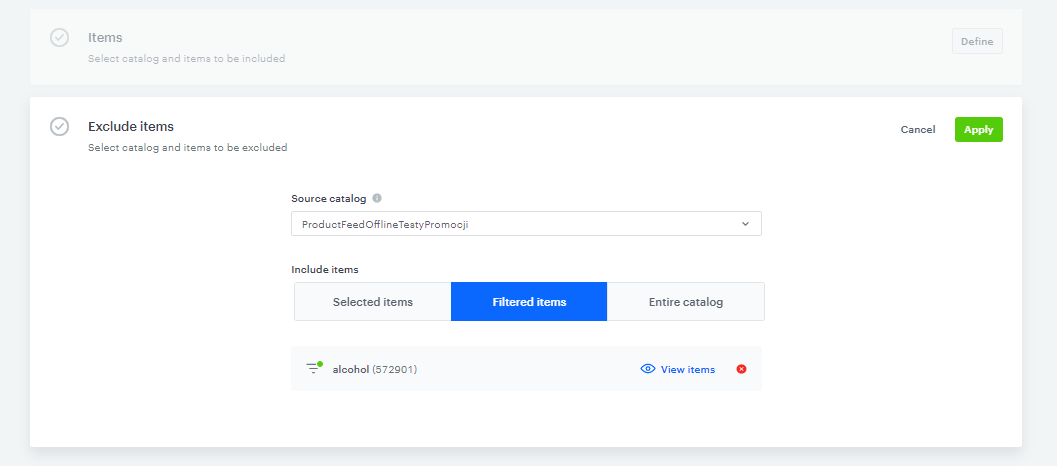
7. In **Exclude items** section choose previously created filter from the dropdown in **Filtered items** section.
8. To apply all changes and run the promotion, click **Publish**.

Once the promotion is published, it will be visible immediately to all customers defined in thw **Audience** section in every distribution channel.
 <figure>
    <img src="/api/docs/image/54176ad07f146575310749eba44b7c2f42c1b327/use-cases/all-cases/_gfx/promotions_exclude_items.png" alt="Excluding products from promotion" class="full" >
    <figcaption>Excluding products from promotion</figcaption>
    </figure>


<div class="admonition admonition-important"><div class="admonition-icon"><svg xmlns="http://www.w3.org/2000/svg" fill="none" viewBox="0 0 24 24" stroke="currentColor" stroke-width="2.5"><path stroke-linecap="round" stroke-linejoin="round" d="M12 8v4m0 4h.01M21 12a9 9 0 11-18 0 9 9 0 0118 0z" /></svg></div><div class="admonition-body"><div class="admonition-content">

Each item in the basket will be discounted by amount you defined as **Value** in **Type & limits** section. This does not apply to items which have been selected in **Exlude items** section - their price will not be changed.

</div></div></div>


## Check the use case set up on the Synerise Demo workspace
---
Check the promotion settings in Synerise Demo workspace at this [link](https://app.synerise.com/campaigns/promotions/a0c5024e-a657-47bb-99a3-657e8fb38576).

If you’re our partner or client, you already have automatic access to the **Synerise Demo workspace (1590)**, where you can explore all the configured elements of this use case and copy them to your workspace.  

If you’re not a partner or client yet, we encourage you to fill out the contact [form](https://demo.synerise.com/request) to schedule a meeting with our representatives. They’ll be happy to show you how our demo works and discuss how you can apply this use case in your business.

## Read more
---
- [Promotions](/docs/ai-hub/promotions)
 
