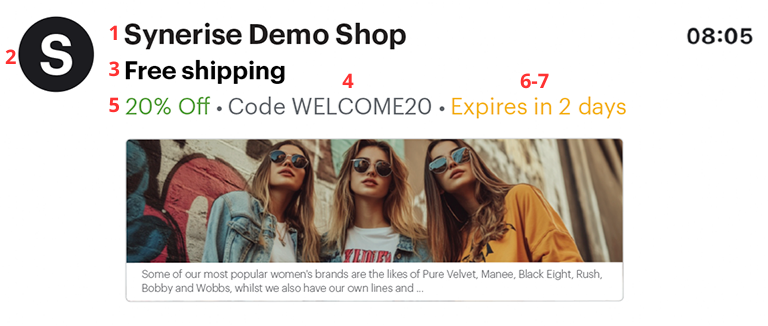
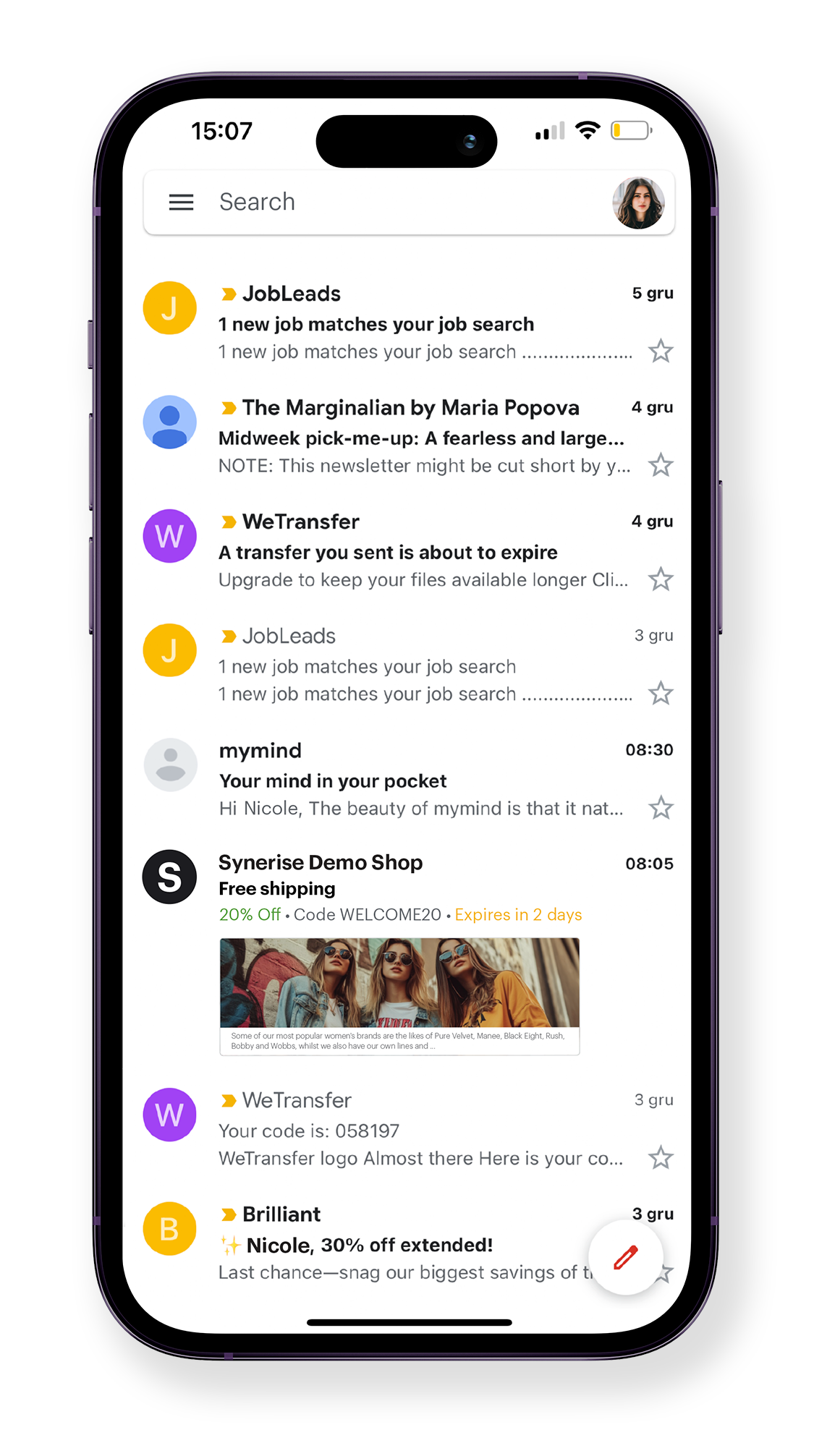
Gmail allows highlighting your messages in the “Promotions” tab with Gmail Promotions Annotation.
Those annotations let you enhance the visibility of your emails and engage your recipients more effectively. With this feature, you can include a header, image, your company logo, the promotion's end date, and a variety of other details to make your emails stand out.
This use case demonstrates how to integrate the Gmail Promotions Annotation feature into email communication sent from Synerise. It provides a predefined HTML insert, making it easier to customize the Promotions Annotation in the Config tab in the code editor.
This feature is supported only for mailboxes associated with the gmail.com domain for individual users. This feature will work if the following conditions are met:
- The recipient opens the message using the Gmail mobile app.
- The message is delivered to the 'Promotions' tab.
- Annotations will only appear for one-time emails; subsequent messages with the same subject will be grouped into a thread and may not display properly.
## Prerequisites
---
- Configure a [sender account](/docs/campaign/e-mail/configuring-email-account).
- The domain must have SPF, DKIM, and DMARC configured.
- [Create an email etmplate](/docs/campaign/e-mail/creating-email-templates).
## Updating the template
---
1. Go to **Experience Hub > Email**.
2. On the left pane, click **Templates** and search for the template you prepared as a part of prerequisites.
**Result:** You are redirected to the code editor.
3. In the code editor, go to the **HTML** section and in the head section after the `` tag, add the code below:
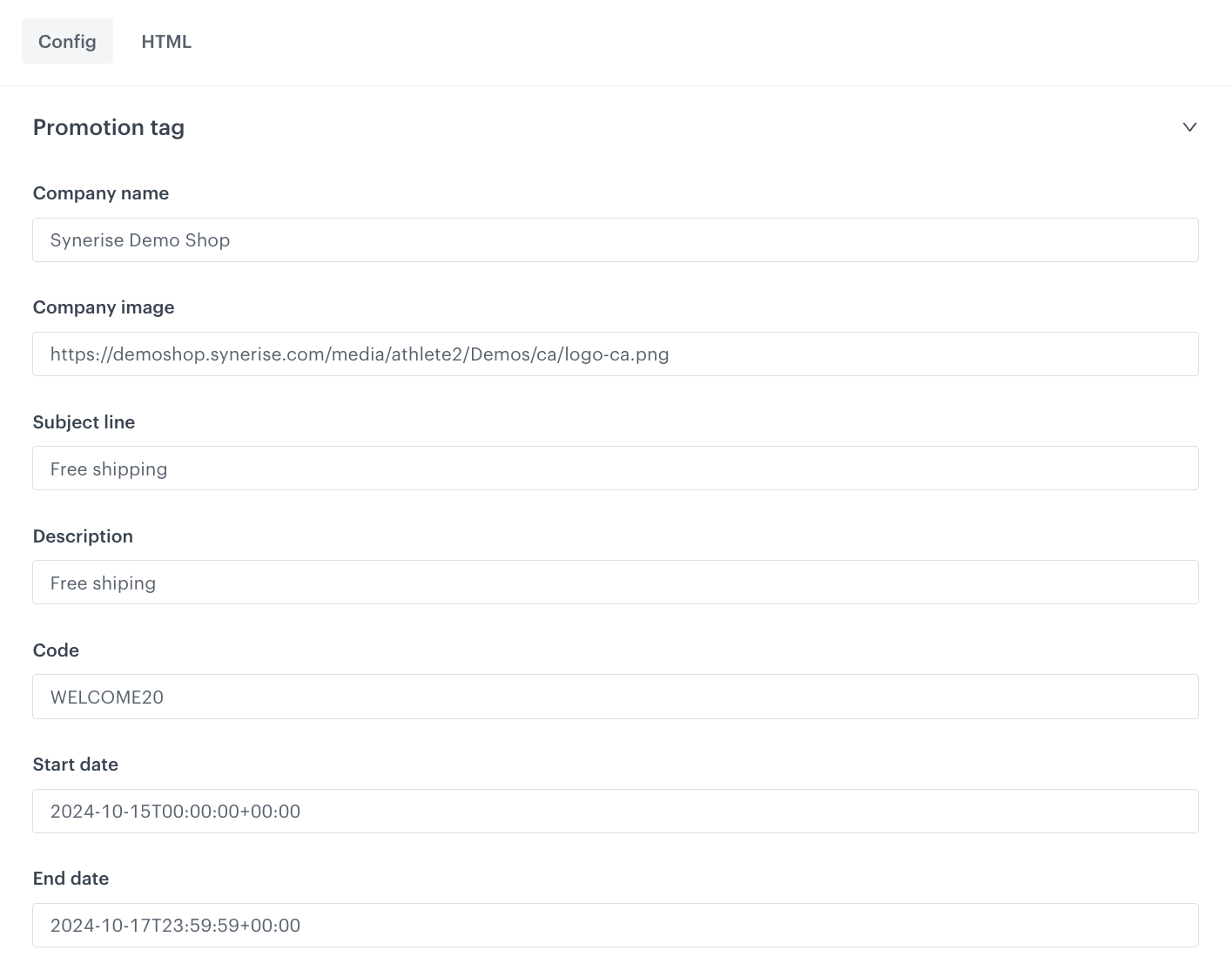
This will add the following fields in the **Config** section:
The config form for adding Gmail Promotions Annotation
### Edit the form in the Config tab
The form in the Config tab is pre-filled with default values, which you can modify to suit your business needs.
1. In the **Company name** field, enter the name of your company.
2. In the **Company image** field, you can provide a link to an image.
3. In the **Subject line** field, you can type the subject you want to display.
4. In the **Description** field, you can type the text that displays with the deal badge.
5. In the **Code** field, you can type the discount or promotion code for the offer.
6. In the **Start date** field, you can type the date and time when the offer begins in [ISO 8601 format](https://support.google.com/merchants/answer/7055760).
7. In the **End date** field, you can type the end date and time of the promotion in [ISO 8601 format](https://support.google.com/merchants/answer/7055760).
8. If the template is ready, click **Save** in the upper right corner.
Configured Gmail Promotions Annotation with corresponding fields from the config form
## What's next
---
Now you can use this template in emails you sent through the Experience Hub and Automation Hub.
## Check the use case set up on the Synerise Demo workspace
---
You can check the [template configuration](https://app.synerise.com/campaigns/email/content-manager/template/153289) directly in Synerise Demo workspace.
If you’re our partner or client, you already have automatic access to the **Synerise Demo workspace (1590)**, where you can explore all the configured elements of this use case and copy them to your workspace.
If you’re not a partner or client yet, we encourage you to fill out the contact [form](https://demo.synerise.com/request) to schedule a meeting with our representatives. They’ll be happy to show you how our demo works and discuss how you can apply this use case in your business.
## Read more
---
- [Email campaigns](/docs/campaign/e-mail)
- [Google's Guide](https://developers.google.com/gmail/promotab/overview) to the Gmail Promotions Annotation function
 **Experience Hub > Email**.
2. On the left pane, click **Templates** and search for the template you prepared as a part of prerequisites.
**Result:** You are redirected to the code editor.
3. In the code editor, go to the **HTML** section and in the head section after the `` tag, add the code below:
**Experience Hub > Email**.
2. On the left pane, click **Templates** and search for the template you prepared as a part of prerequisites.
**Result:** You are redirected to the code editor.
3. In the code editor, go to the **HTML** section and in the head section after the `` tag, add the code below: