An essential aspect of churn prediction is preventing customer from leaving. Because it is more expensive to acquire new consumers than it is to keep existing ones, you might try to entice them back with special offers.

In this use case, you wil create a buy one, get one free (BOGO) promotion for a group of customers who are most likely to churn. 

## Prerequisites
---
- [Integrate JS SDK](/developers/web/installation-and-configuration).
- [Enable the Custom prediction model](/docs/ai-hub/predictions/enabling-predictions#enabling-regression-and-classification-predictions).
- Implement promotions in your [mobile application](/developers/mobile-sdk/loyalty), [API](https://developers.synerise.com/LoyaltyandEngagement/LoyaltyandEngagement.html#operation/profileLogin).
- [Import your product feed to catalog](/use-cases/import-product-feed-to-catalog).
- If you want to limit the promotion to only some of your stores, add the list of stores to a catalog. Such a catalog must contain a unique store ID and any other store attributes by which you will filter stores, such as city, zip code, and so on. More information about catalogs can be found [here](/docs/assets/catalogs).
- Predict churn for a group of customers. The [Predict churn](/use-cases/churn-prediction) use case includes detailed instructions.

## Security configuration
---
Before you start working with this hub, if you are a Synerise customer or partner, consider reading [the section about denylisting events](/docs/settings/tool/api#denylist). This natively accessible configuration will allow you to manage the restrictions in points management that may help you prevent fraud.

## Process
---
1. [Prepare a segmentation](/use-cases/promotions-for-customers-at-risk-of-churning#prepare-a-segmentation-based-on-prediction) of customers who are at high risk of churn.
2. [Create a promotion](/use-cases/promotions-for-customers-at-risk-of-churning#create-a-promotion).

## Prepare a segmentation based on prediction
---
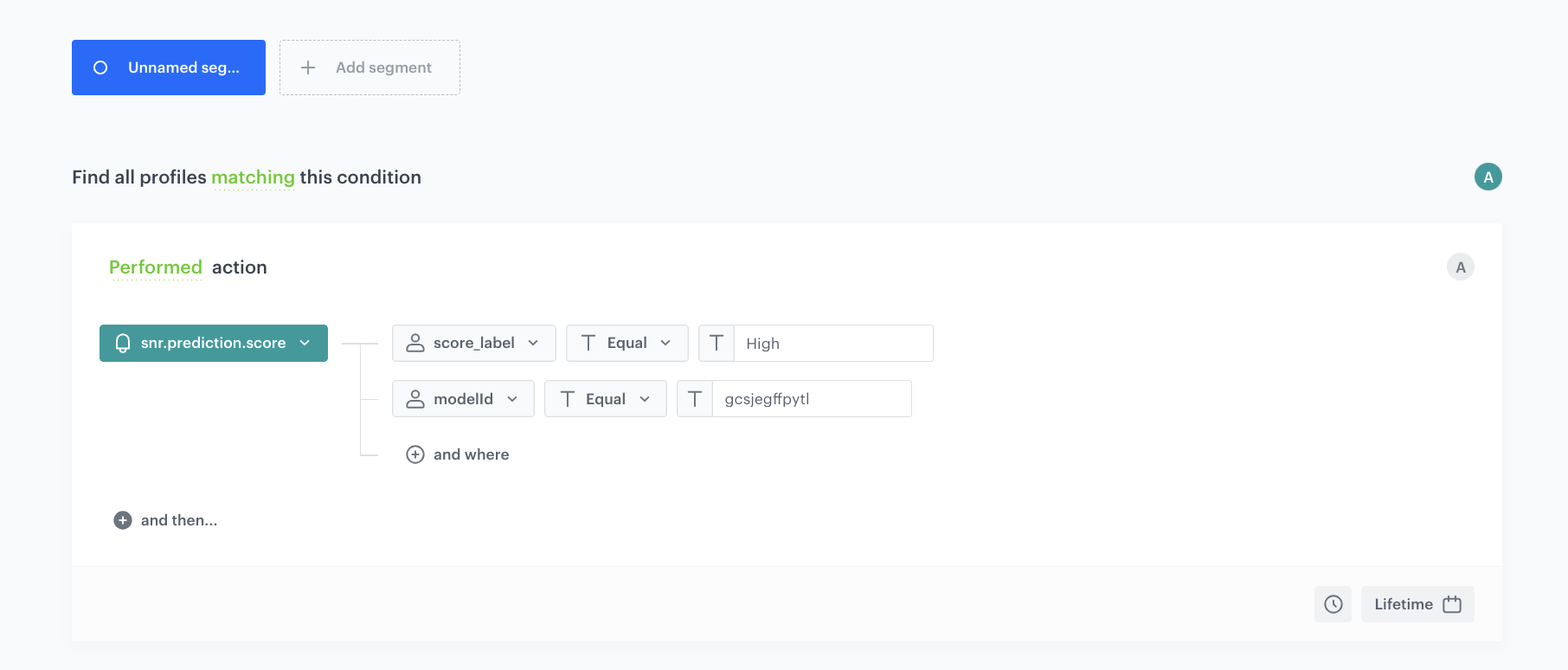
As the first part of the process, create a segmentation of customers based on the prediction results.

1. Go to <img src="/api/docs/image/54176ad07f146575310749eba44b7c2f42c1b327/icons/decision-hub-icon.svg" alt="Decision Hub icon" class="icon"> **Decision Hub > Segmentations > New segmentation**.
2. Give the segmentation a meaningful name, for example `Customers at risk of churn`.
3. Click **Choose filter** and select the `snr.prediction.score` event.  
    
   <div class="admonition admonition-tip"><div class="admonition-icon"><svg xmlns="http://www.w3.org/2000/svg" fill="none" viewBox="0 0 24 24" stroke="currentColor" stroke-width="2.5"><path stroke-linecap="round" stroke-linejoin="round" d="M9.663 17h4.673M12 3v1m6.364 1.636l-.707.707M21 12h-1M4 12H3m3.343-5.657l-.707-.707m2.828 9.9a5 5 0 117.072 0l-.548.547A3.374 3.374 0 0014 18.469V19a2 2 0 11-4 0v-.531c0-.895-.356-1.754-.988-2.386l-.548-.547z" /></svg></div><div class="admonition-body"><div class="admonition-content">

   The event may have a custom label in the list, but can always be found by entering the system name (`snr.prediction.score`) in the search field.

   </div></div></div>

3. Add the following conditions to the event:
    - `score_label` parameter equals `High`
    - `modelId` parameter equals the ID of the prediction you want to use.  
        
   <div class="admonition admonition-tip"><div class="admonition-icon"><svg xmlns="http://www.w3.org/2000/svg" fill="none" viewBox="0 0 24 24" stroke="currentColor" stroke-width="2.5"><path stroke-linecap="round" stroke-linejoin="round" d="M9.663 17h4.673M12 3v1m6.364 1.636l-.707.707M21 12h-1M4 12H3m3.343-5.657l-.707-.707m2.828 9.9a5 5 0 117.072 0l-.548.547A3.374 3.374 0 0014 18.469V19a2 2 0 11-4 0v-.531c0-.895-.356-1.754-.988-2.386l-.548-.547z" /></svg></div><div class="admonition-body"><div class="admonition-content">

   The model ID can be copied from the <img src="/api/docs/image/54176ad07f146575310749eba44b7c2f42c1b327/icons/threedoticon.png" alt="Three-dot icon" class="icon"> menu in the Prediction list.

   </div></div></div>

4. Click **Save**.  
**Result:** The segmentation is saved and can be used as an audience for a promotion.

 <figure>
        <img src="/api/docs/image/54176ad07f146575310749eba44b7c2f42c1b327/use-cases/all-cases/_gfx/segmentationss.png" class="full" alt="Segmentt">
        <figcaption>Segment</figcaption>
        </figure>

## Create a promotion
---
1. Go to <img src="/api/docs/image/54176ad07f146575310749eba44b7c2f42c1b327/icons/ai-hub-icon.svg" alt="AI Hub icon" class="icon" > **AI Hub > Regular Promotions > Add promotion**.
2. Select the **For selected items** option.
3. In the **Audience** section, select the segmentation created in [this step](/use-cases/promotions-for-customers-at-risk-of-churning#prepare-a-segmentation-based-on-prediction).
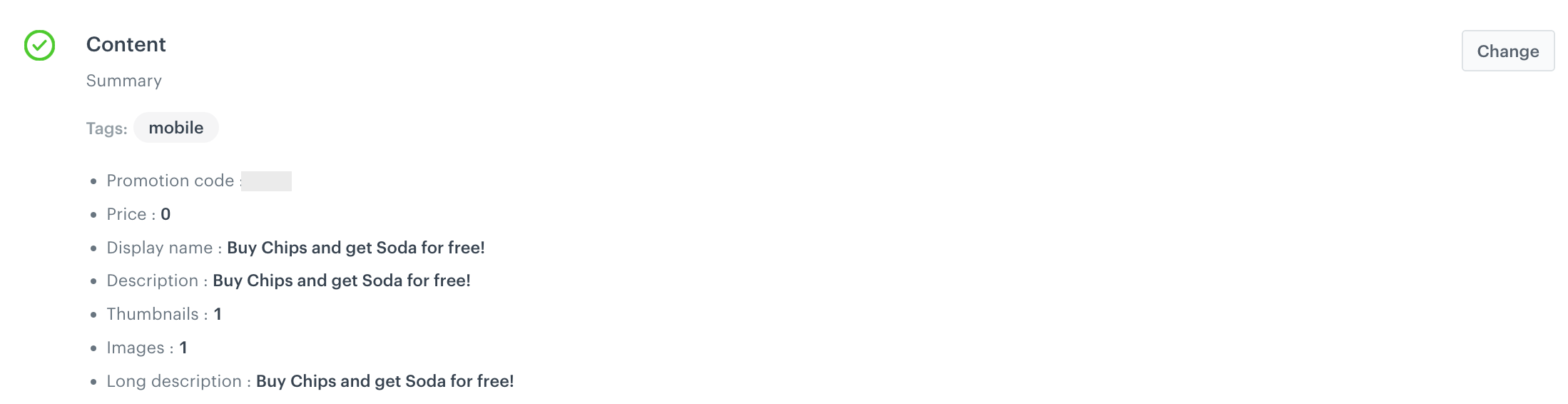
4. In the **Content** section:
    1. Define the name, description, and image of the promotion. 
    2. In the **Price** field enter `0`. 
    3. Confirm the settings by clicking **Apply**. 
        <figure>
        <img src="/api/docs/image/54176ad07f146575310749eba44b7c2f42c1b327/use-cases/all-cases/_gfx/buy-one-get-one-content1.png" class="full" alt="Example of promotion content">
        <figcaption>Example of promotion content</figcaption>
        </figure>

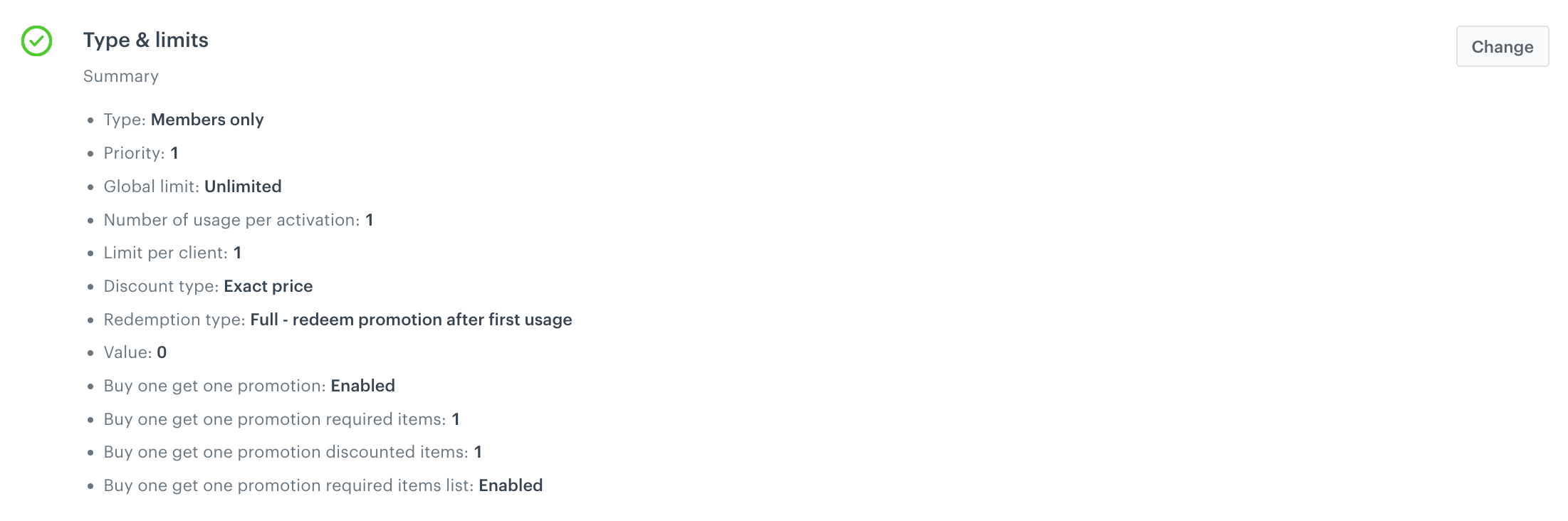
5. In the **Type and limits** section:
    1. In the **Type** dropdown list, choose **Members only**.
    2. In the **Discount type** dropdown list, choose **Exact price**.
    3. Leave the **Discount mode** field value at default (**Static**).
    4. In the **Limit per profile** section, enter `1`.
    5. In the **Value** section, define the discount as `0`.
    6. Enable the **Buy one, get one promotion** toggle.
    7. Define the number of required and discounted items.
    8. Enable the **Turn on required items** toggle.

        <figure>
        <img src="/api/docs/image/54176ad07f146575310749eba44b7c2f42c1b327/use-cases/all-cases/_gfx/buy-one-get-one-limits.png" class="full" alt="Example of Type and limits settings">
        <figcaption>Example of Type and limits settings</figcaption>
        </figure>

6. In the **Schedule** section, define the promotion distribution period according to your business needs.
7. *Optionally*: In the **Stores** section, specify stores where the promotion is available.  

    
   <div class="admonition admonition-note"><div class="admonition-icon"><svg xmlns="http://www.w3.org/2000/svg" fill="none" viewBox="0 0 24 24" stroke="currentColor" stroke-width="2.5"><path stroke-linecap="round" stroke-linejoin="round" d="M13 16h-1v-4h-1m1-4h.01M21 12a9 9 0 11-18 0 9 9 0 0118 0z" /></svg></div><div class="admonition-body"><div class="admonition-content">

   This is possible only if the list of stores is imported into a [catalog](/docs/assets/catalogs).

   </div></div></div>
 

8. In the **Items** section, specify the catalog item to be discounted:
    1. From the **Source catalog** dropdown list, select an item catalog from which the items will be selected.
    2. Select the **Select items** tab.  
    3. Click the **Select items** button. 
    4. On the list, select the item a customer will get for free.

9. In the **Required Items** section, choose the items a customer must buy to unlock "buy one, get one" discount:
    1. From the **Source catalog** dropdown list, select an item catalog from which the items will be selected.
    2. Select the **Select items** tab.  
    3. Click the **Select items** button. 
    4. On the list, select the item a customer will get for free.
11. To apply configuration and run the promotion, click **Publish**.

## Check the use case set up on the Synerise Demo workspace
---
You can check the configuration of every element of this process directly in Synerise Demo workspace:

- [Propensity prediction](https://app.synerise.com/ai-v2/predictions/generic-scoring/bgycsoovxgby)
- [Segmentation](https://app.synerise.com/analytics-v2/segmentations/9ec901b4-2ea0-47dc-9285-023d2000e8cf)
- [Promotion](https://app.synerise.com/campaigns/promotions/c4b75133-6235-42c4-98fd-0956def1f96a)

If you’re our partner or client, you already have automatic access to the **Synerise Demo workspace (1590)**, where you can explore all the configured elements of this use case and copy them to your workspace.  

If you’re not a partner or client yet, we encourage you to fill out the contact [form](https://demo.synerise.com/request) to schedule a meeting with our representatives. They’ll be happy to show you how our demo works and discuss how you can apply this use case in your business.

## Read more
---
- [Promotions](/docs/ai-hub/promotions)
- [Propensity predictions](/docs/ai-hub/predictions)
- [Segmentations](/docs/analytics/segmentations)