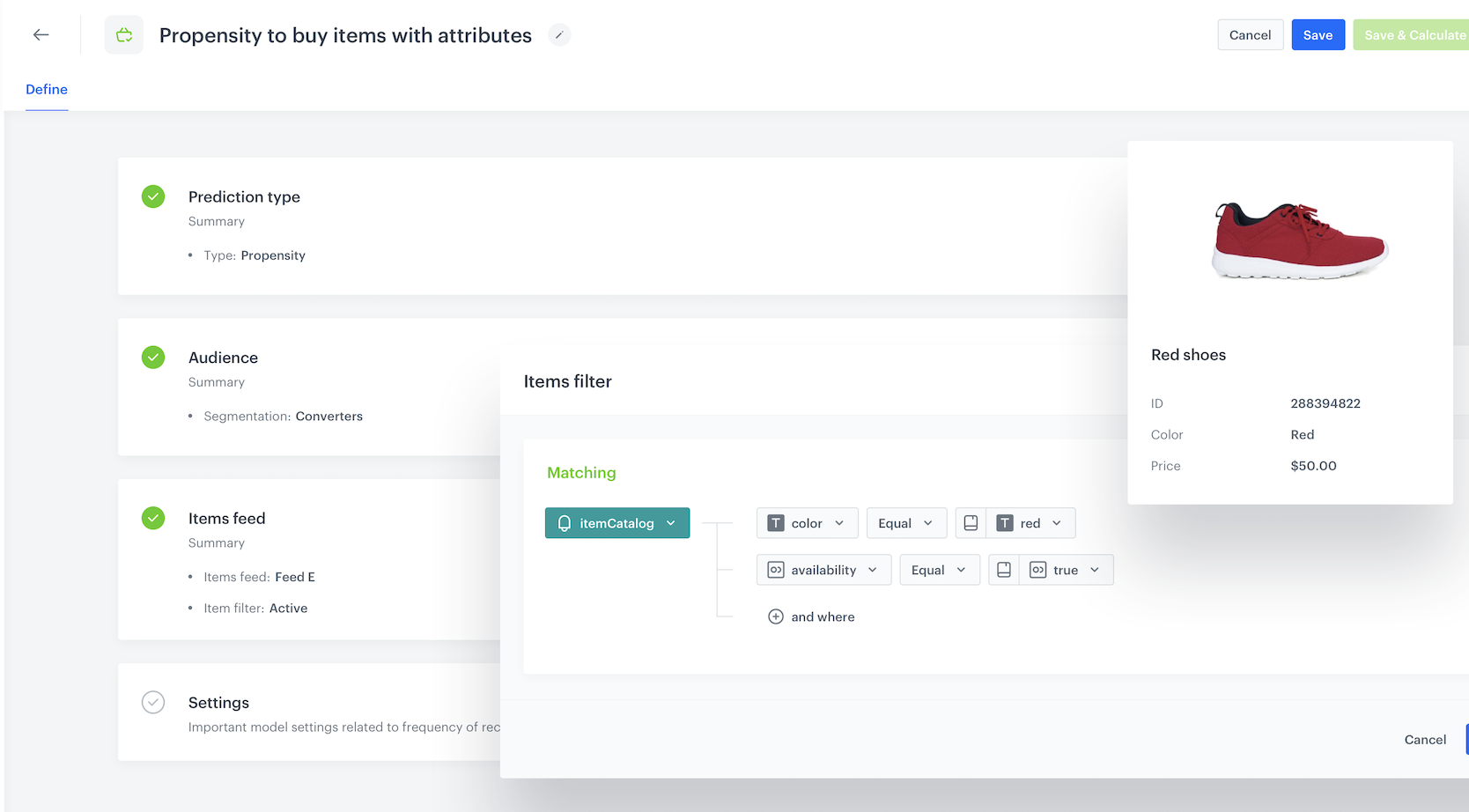
You can use the Predictions feature to calculate the probability of customers buying items with a particular attribute value, such as color or size. The results can be used for better targeting of your marketing efforts.

In this use case example, an additional condition is added - the items must be available at the time of calculation.

<figure><img src="/api/docs/image/54176ad07f146575310749eba44b7c2f42c1b327/use-cases/all-cases/_gfx/propensity-attribute-illustration.png" class="full no-frame" alt="Propensity to buy items with the color attribute set to 'red'. Only available items are included in the calculation."><figcaption>Propensity to buy items with the color attribute set to "red". Only available items are included in the calculation.</figcaption></figure>

## Prerequisites
---
- [Enable the Propensity model](/docs/ai-hub/predictions/enabling-predictions#enabling-propensity-and-best-fit-predictions).
- The item feed must contain the attribute you want to use for the prediction and that attribute must be added to [filterable attributes](/docs/ai-hub/ai-search/define-attributes#filterable-attributes).

## Creating the prediction
---
1. Go to <img src="/api/docs/image/54176ad07f146575310749eba44b7c2f42c1b327/icons/ai-hub-icon.svg" alt="Image presents the AI Hub icon" class="icon"> **(AI Predictions) Models > New prediction** and select **Propensity** as the prediction type.
2. Select an audience for the prediction.  
    For more information, see the [Predictions quick start article](/docs/ai-hub/predictions/propensity#select-customers-to-be-analyzed).

### Define the item attribute

In this section, you define the items for which you want to calculate the prediction. This is done by creating an item filter that matches only the items with an attribute of your choosing.

1. In the **Item feed** section, click **Define**.
2. Click **Choose item feed**.
3. Select the catalog that contains the items you want to make the prediction for.  
    **Result**: the **Item filter** section appears.
4. Click **Define item filter**.
5. From the **Select attribute** drop-down list, select an attribute.  
    You can use the search field.  
    
   <div class="admonition admonition-note"><div class="admonition-icon"><svg xmlns="http://www.w3.org/2000/svg" fill="none" viewBox="0 0 24 24" stroke="currentColor" stroke-width="2.5"><path stroke-linecap="round" stroke-linejoin="round" d="M13 16h-1v-4h-1m1-4h.01M21 12a9 9 0 11-18 0 9 9 0 0118 0z" /></svg></div><div class="admonition-body"><div class="admonition-content">

   Custom attributes have an `attribute` prefix in the selector.

   </div></div></div>

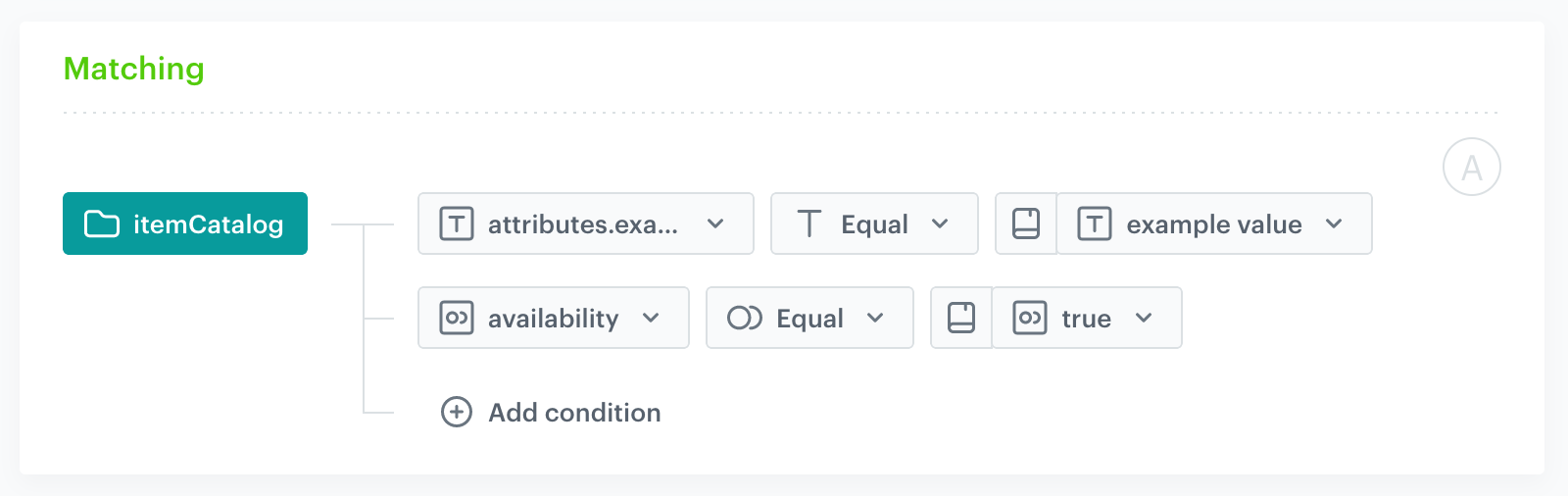
6. From the drop-down list that appears, select the **Equal** operator.
7. From the list of available values that appears, select a value.  
    You can use the search field.  
    You can only choose attribute values which already exist in the item feed.
8. Click **Add condition**.
9. From the **Select attribute** drop-down list, select the **availability** attribute.
10. From the drop-down list that appears, select the **Equal** operator.
11. From the list of available values, select `true`.  
    <figure><img src="/api/docs/image/54176ad07f146575310749eba44b7c2f42c1b327/use-cases/all-cases/_gfx/propensity-attribute-available.png" class="full" alt="Screenshot: filter matches items with an attribute and the items must be available"><figcaption>The filter matches items with an attribute value (attributes.exampleAttribute = "example value") and the items must be available</figcaption></figure>
12. Click **Save**.
13. Save the item feed configuration by clicking **Apply**.

### Additional settings and saving

Configure the [additional settings](/docs/ai-hub/predictions/propensity#additional-settings) (or leave them at default) and click **Save & Calculate**.

## What's next
---
After the calculation is completed, a `snr.propensity.score` event is saved in the profiles of each customer in the audience. The event data includes detailed results of the prediction.

Based on the `snr.propensity.score` event, you can create segmentations of customers with different propensity and use those segmentations as campaign targets:
- [email](/docs/campaign/e-mail)
- [SMS](/docs/campaign/SMS)
- [web push](/docs/campaign/Webpush)
- [mobile push](/docs/campaign/Mobile)
- [dynamic content](/docs/campaign/dynamiccontent)
- [screen views](/docs/campaign/screen-views)  
  
Email, SMS, web push and mobile push can be sent manually or you can launch them by using [Automation Hub](/docs/automation).

## Check the use case set up on the Synerise Demo workspace
---
You can check the configuration of the [Propensity prediction](https://app.synerise.com/ai-v2/predictions/propensity/rgsoxyozowvg) directly in Synerise Demo workspace.

If you’re our partner or client, you already have automatic access to the **Synerise Demo workspace (1590)**, where you can explore all the configured elements of this use case and copy them to your workspace.  

If you’re not a partner or client yet, we encourage you to fill out the contact [form](https://demo.synerise.com/request) to schedule a meeting with our representatives. They’ll be happy to show you how our demo works and discuss how you can apply this use case in your business.

## Read more
---
- [Predictions](/docs/ai-hub/predictions)
