You can use the Predictions feature to calculate the probability of customers buying items from a particular brand. The results can be used for better targeting of your marketing efforts.
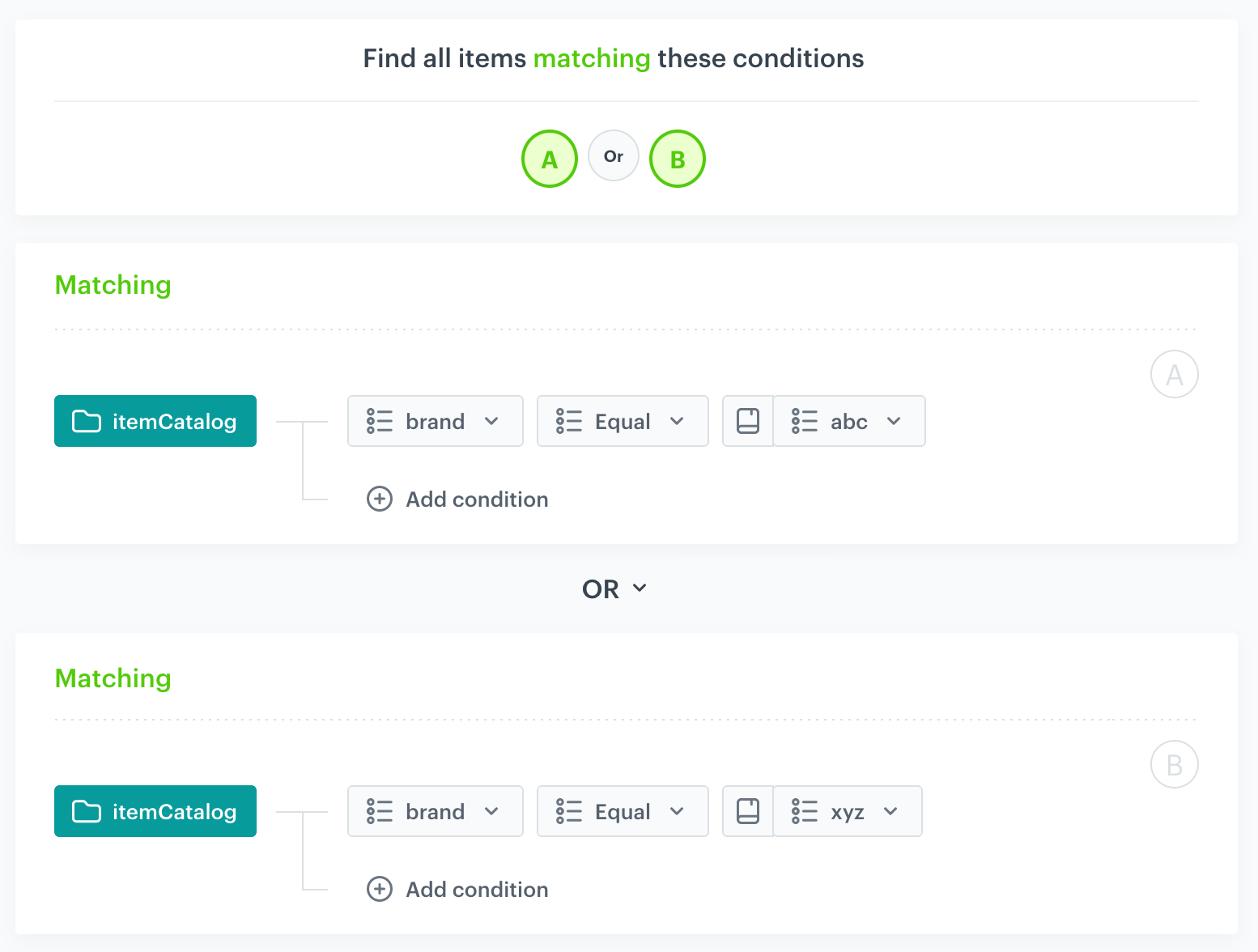
In this use case, we present a prediction that returns the probability of purchase if the item matches one of two brands selected for the analysis. If you want to create a prediction for only one brand, you will need to skip a few steps in the instructions.
Propensity to buy items from one of the brands added to the analysis
## Prerequisites
---
- [Enable the Propensity prediction type](/docs/ai-hub/predictions/enabling-predictions#enabling-propensity-and-best-fit-predictions).
- The item catalog must include information about item brand and that attribute must be added to [filterable attributes](/docs/ai-hub/ai-search/define-attributes#filterable-attributes).
## Creating the prediction
---
1. Go to **(AI Predictions) Models > New prediction** and select **Propensity** as the prediction type.
2. Select an audience for the prediction.
For more information, see the [Predictions quick start article](/docs/ai-hub/predictions/propensity#select-customers-to-be-analyzed).
### Define the brands
In this section, you define the brands for which you want to calculate the prediction. This is done by creating a filter that will limit the calculation to items that match one of the selected brands
1. In the **Item feed** section, click **Define**.
2. Click **Choose item feed**.
3. Select the catalog that contains the items you want to make the prediction for.
**Result**: the **Item filter** section appears.
4. Click **Define item filter**.
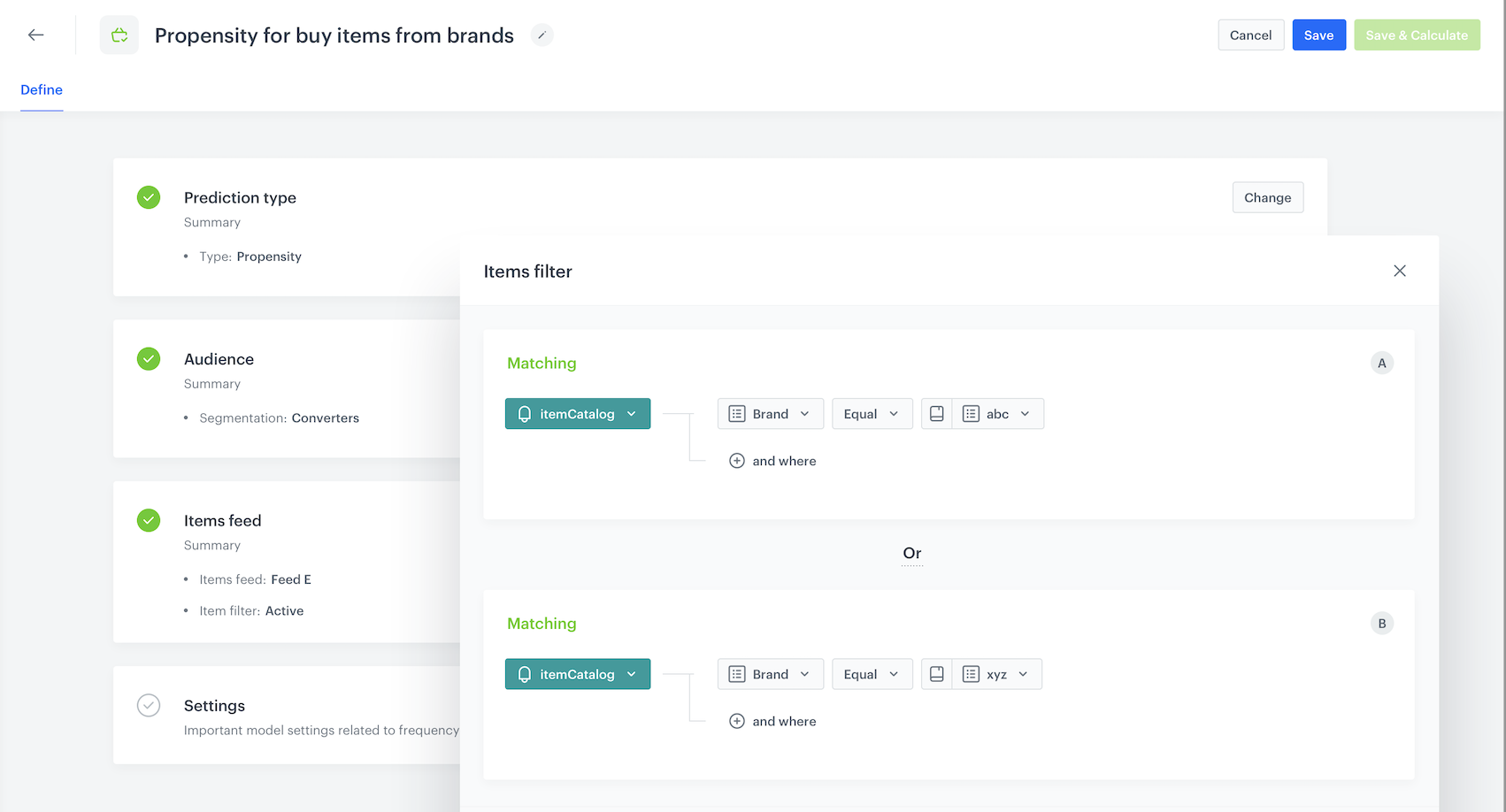
5. From the **Select attribute** drop-down list, select the attribute that denotes the brand in your item feed.
You can use the search field.
6. From the drop-down list that appears, select the **Equal** operator.
7. From the list of available values that appears, select a brand.
You can use the search field.
You can only choose brands which already exist in the item feed.
8. If you want to add a second brand to the analysis:
1. Under the condition, click **Add filter**.
2. From the list that opens, select the same item filter as before.
3. Add the second brand by repeating steps 5-7.
4. Between the two brand filters, click **AND** and change the logic to **OR**.
Item filter that matches one of two brands
9. Click **Save**.
10. Save the item feed configuration by clicking **Apply**.
### Additional settings and saving
Configure the [additional settings](/docs/ai-hub/predictions/propensity#additional-settings) (or leave them at default) and click **Save & Calculate**.
## What's next
---
After the calculation is completed, a `snr.propensity.score` event is saved in the profiles of each customer in the audience. The event data includes detailed results of the prediction.
Based on the `snr.propensity.score` event, you can create segmentations of customers with different propensity and use those segmentations as campaign targets:
- [email](/docs/campaign/e-mail)
- [SMS](/docs/campaign/SMS)
- [web push](/docs/campaign/Webpush)
- [mobile push](/docs/campaign/Mobile)
- [dynamic content](/docs/campaign/dynamiccontent)
- [screen views](/docs/campaign/screen-views)
Email, SMS, web push and mobile push can be sent manually or you can launch them by using [Automation Hub](/docs/automation).
## Check the use case set up on the Synerise Demo workspace
---
You can check the configuration of the [Propensity prediction](https://app.synerise.com/ai-v2/predictions/propensity/ozylkkojxbru) directly in Synerise Demo workspace.
If you’re our partner or client, you already have automatic access to the **Synerise Demo workspace (1590)**, where you can explore all the configured elements of this use case and copy them to your workspace.
If you’re not a partner or client yet, we encourage you to fill out the contact [form](https://demo.synerise.com/request) to schedule a meeting with our representatives. They’ll be happy to show you how our demo works and discuss how you can apply this use case in your business.
## Read more
---
- [Predictions](/docs/ai-hub/predictions)
 **(AI Predictions) Models > New prediction** and select **Propensity** as the prediction type.
2. Select an audience for the prediction.
For more information, see the [Predictions quick start article](/docs/ai-hub/predictions/propensity#select-customers-to-be-analyzed).
### Define the brands
In this section, you define the brands for which you want to calculate the prediction. This is done by creating a filter that will limit the calculation to items that match one of the selected brands
1. In the **Item feed** section, click **Define**.
2. Click **Choose item feed**.
3. Select the catalog that contains the items you want to make the prediction for.
**Result**: the **Item filter** section appears.
4. Click **Define item filter**.
5. From the **Select attribute** drop-down list, select the attribute that denotes the brand in your item feed.
You can use the search field.
6. From the drop-down list that appears, select the **Equal** operator.
7. From the list of available values that appears, select a brand.
You can use the search field.
You can only choose brands which already exist in the item feed.
8. If you want to add a second brand to the analysis:
1. Under the condition, click **Add filter**.
2. From the list that opens, select the same item filter as before.
3. Add the second brand by repeating steps 5-7.
4. Between the two brand filters, click **AND** and change the logic to **OR**.
**(AI Predictions) Models > New prediction** and select **Propensity** as the prediction type.
2. Select an audience for the prediction.
For more information, see the [Predictions quick start article](/docs/ai-hub/predictions/propensity#select-customers-to-be-analyzed).
### Define the brands
In this section, you define the brands for which you want to calculate the prediction. This is done by creating a filter that will limit the calculation to items that match one of the selected brands
1. In the **Item feed** section, click **Define**.
2. Click **Choose item feed**.
3. Select the catalog that contains the items you want to make the prediction for.
**Result**: the **Item filter** section appears.
4. Click **Define item filter**.
5. From the **Select attribute** drop-down list, select the attribute that denotes the brand in your item feed.
You can use the search field.
6. From the drop-down list that appears, select the **Equal** operator.
7. From the list of available values that appears, select a brand.
You can use the search field.
You can only choose brands which already exist in the item feed.
8. If you want to add a second brand to the analysis:
1. Under the condition, click **Add filter**.
2. From the list that opens, select the same item filter as before.
3. Add the second brand by repeating steps 5-7.
4. Between the two brand filters, click **AND** and change the logic to **OR**.