As customer expectations grow, they expect personalized experiences and customized content, promotions, and recommendations to help them find what they are looking for quickly and easily. This challenge can be met by using algorithms that can predict customer behavior using propensity scores. Such insight into customers' future actions allows you to deliver hyper-personalized messages at the right time for the right users.

This use case describes how to create a promotion for customers who have the highest propensity to buy products from the wireless headphones category.

## Prerequisites
---

- Implement promotions in your [mobile application](/developers/mobile-sdk/loyalty) or website, [API](https://developers.synerise.com/LoyaltyandEngagement/LoyaltyandEngagement.html#operation/profileLogin).
- [Import your product feed to catalog](/use-cases/import-product-feed-to-catalog).
- [Enable the Propensity prediction type](/docs/ai-hub/predictions/enabling-predictions#enabling-propensity-and-best-fit-predictions).
- The `category` attribute must be added to [filterable attributes](/docs/ai-hub/ai-search/define-attributes#filterable-attributes).

## Security configuration
---
Before you start working with this hub, if you are a Synerise customer or partner, consider reading [the section about denylisting events](/docs/settings/tool/api#denylist). This natively accessible configuration will allow you to manage the restrictions in points management that may help you prevent fraud.

## Process 
---
1. [Create a prediction](/use-cases/propensity_based_promotion#create-a-prediction) to find customers with the highest propensity to buy wireless headsets. 
2. [Prepare a segmentation](/use-cases/propensity_based_promotion#prepare-a-segmentation) of customers who have the highest propensity to buy wireless headsets.
3. [Create a filter in the product catalog](/use-cases/propensity_based_promotion#create-a-filter-in-the-product-catalog) with wireless headphones that will be used in the promotion. 
4. [Create a promotion](/use-cases/propensity_based_promotion#create-a-promotion) for the customers with the highest propensity.

## Create a prediction
---

1. Go to <img src="/api/docs/image/54176ad07f146575310749eba44b7c2f42c1b327/icons/ai-hub-icon.svg" alt="Image presents the AI Hub icon" class="icon"> **(AI Predictions) Models > New prediction** and select **Propensity** as the prediction type.
2. Define the prediction name.
3. Select an audience for the prediction.  
    For more information, see the [Predictions quick start article](/docs/ai-hub/predictions/propensity#select-customers-to-be-analyzed).

### Define the item

In this section, you define the category for which you want to calculate the prediction. This is done by creating a filter that matches the category in the catalog.

1. In the **Item selection** section, click **Define**.
2. Click **Choose item feed**.
3. Select the catalog that contains the items you want to make the prediction for.  
    **Result**: The **Item filter** section appears.
4. Click **Define item filter**.
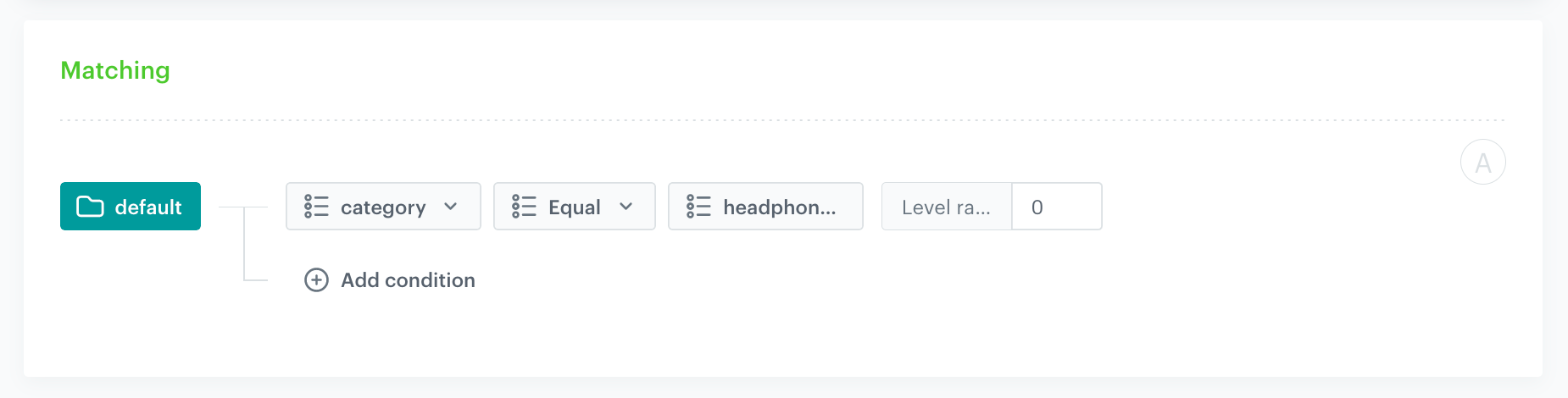
5. From the **Select attribute** dropdown list, select the `category` attribute.
    You can use the search field.
6. From the dropdown list that appears, select the **Equal** operator.    
   **Result**: The **Select category** button and **Level range** field appear.
7. Click **Select category** and  select the desired product category - `headphones>wireless headphones`.  
    You can use the search field.  
8. In the **Level range** field, enter `0`.  
        Enter `0` for wireless headphones or `1` for the entire headphone category.
    <figure><img src="/api/docs/image/54176ad07f146575310749eba44b7c2f42c1b327/use-cases/all-cases/_gfx/propensity-itemfilter-category.png" class="full" alt="Screenshot: filter matches wireless headphone category"><figcaption>The filter matches wireless headphone category</figcaption></figure>
9. Click **Save**.
10. Save the item feed configuration by clicking **Apply**.

### Additional settings and saving

Configure the [additional settings](/docs/ai-hub/predictions/propensity#additional-settings) (or leave them at default) and click **Save & Calculate**.


<div class="admonition admonition-note"><div class="admonition-icon"><svg xmlns="http://www.w3.org/2000/svg" fill="none" viewBox="0 0 24 24" stroke="currentColor" stroke-width="2.5"><path stroke-linecap="round" stroke-linejoin="round" d="M13 16h-1v-4h-1m1-4h.01M21 12a9 9 0 11-18 0 9 9 0 0118 0z" /></svg></div><div class="admonition-body"><div class="admonition-content">

After the calculation, a `snr.propensity.score` event is saved in the profiles of each customer in the audience. The event data includes detailed results of the prediction.

</div></div></div>


## Prepare a segmentation
---
In this part of the process based on the `snr.propensity.score` event, create a segmentation of customers with the highest propensity score. 

1. Go to <img src="/api/docs/image/54176ad07f146575310749eba44b7c2f42c1b327/icons/decision-hub-icon.svg" alt="Behavioral Data Hub icon" class="icon"> **Decision Hub > Segmentations > New segmentation**.
2. Enter the name of segmentation. 
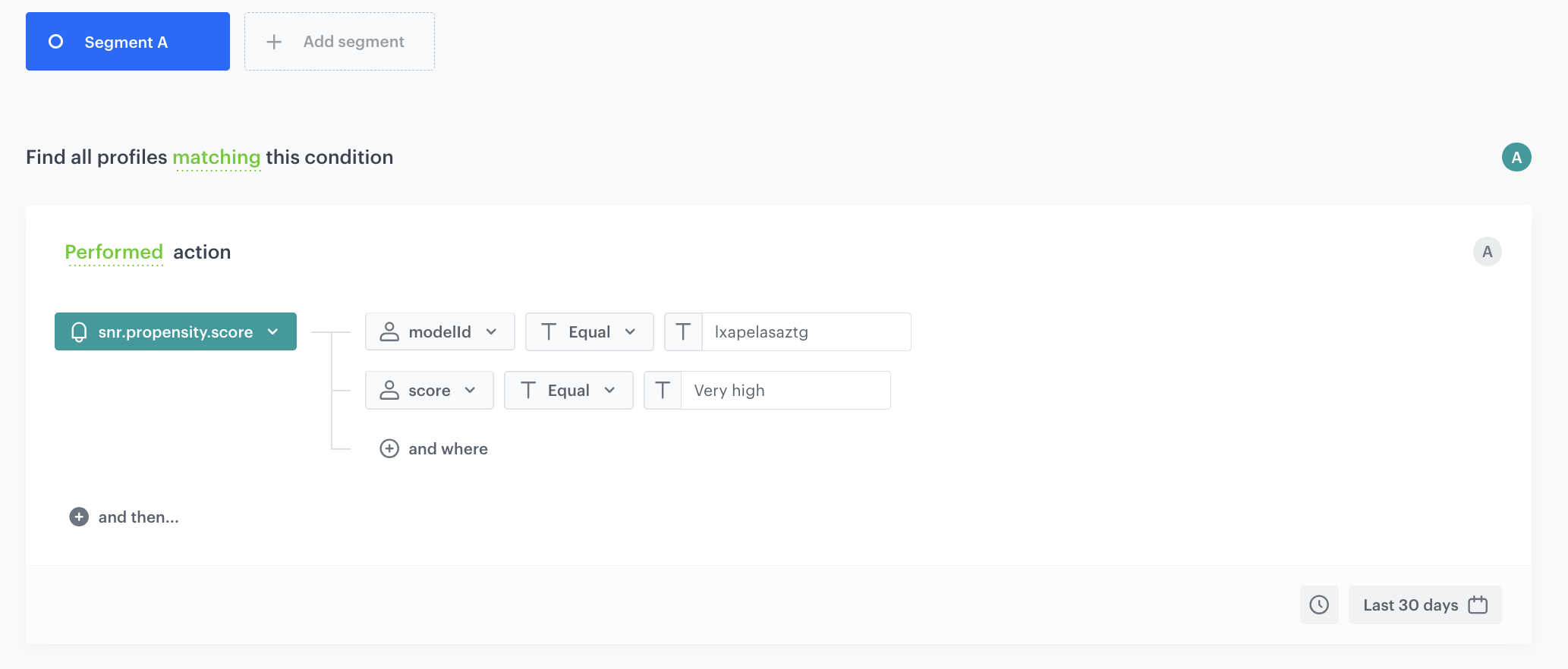
3. From the **Choose filter** dropdown list, select the `snr.propensity.score` event.
4. From the **Choose parameter** dropdown list, select **modelId**.
5. From the dropdown list that appears, select the **Equal** operator.
6. Enter the ID of the propensity model that was created in [this part of the process](/use-cases/propensity-product#creating-the-prediction).
7. Click **Add condition**.
8. From the **Choose parameter** dropdown list, select **score_label**.
9. From the dropdown list, select the **Equal** operator.
10. Enter the **Very high** score.  
   
    <div class="admonition admonition-important"><div class="admonition-icon"><svg xmlns="http://www.w3.org/2000/svg" fill="none" viewBox="0 0 24 24" stroke="currentColor" stroke-width="2.5"><path stroke-linecap="round" stroke-linejoin="round" d="M12 8v4m0 4h.01M21 12a9 9 0 11-18 0 9 9 0 0118 0z" /></svg></div><div class="admonition-body"><div class="admonition-content">

    If you selected a 2-point scale in the settings of the prediction, enter `High` instead of `Very high`.

    </div></div></div>

11. Click **Save**.

<figure><img src="/api/docs/image/54176ad07f146575310749eba44b7c2f42c1b327/use-cases/all-cases/_gfx/snr.propensity-segmentation.png" class="full" alt="An example of a segmentation of customers with the highest propensity score"><figcaption>An example of a segmentation of customers with the highest propensity score</figcaption></figure>


<div class="admonition admonition-important"><div class="admonition-icon"><svg xmlns="http://www.w3.org/2000/svg" fill="none" viewBox="0 0 24 24" stroke="currentColor" stroke-width="2.5"><path stroke-linecap="round" stroke-linejoin="round" d="M12 8v4m0 4h.01M21 12a9 9 0 11-18 0 9 9 0 0118 0z" /></svg></div><div class="admonition-body"><div class="admonition-content">

The conditions used in the segmentation will vary depending on your business needs (for example, the score level may be different).

</div></div></div>
 

## Create a filter in the product catalog
---
In this part of the process, create a filter with wireless headphones in the catalog with the product feed you will use as a source in the promotion. 

1. Go to **Data Modeling Hub>Catalogs**.
2. Select product feed.
3. On the upper right, click <img src="/api/docs/image/54176ad07f146575310749eba44b7c2f42c1b327/use-cases/all-cases/_gfx/filter-icon2.png" alt="Filter icon" class="icon"> **> Define.**
4. Click **Choose filter**. 
5. Choose **Category>equal>**`wireless headphones`.
6. To save the filter, click **Save filter**.
7. Enter the name of the filter.
8. To only save the filter, click **Save**.
9. To save the filter and filter out promotions on the list, click **Save and Apply**.   
   **Result**: The filter is available in the <img src="/api/docs/image/54176ad07f146575310749eba44b7c2f42c1b327/icons/filter-folder.png" alt="Filter folder icon" class="icon"> folder

## Create a promotion
---
In this part of the process, create a promotion for the group of customers with the highest propensity to purchase. These customers will be entitled to a 15% discount on the wireless headphones.
1. Go to <img src="/api/docs/image/54176ad07f146575310749eba44b7c2f42c1b327/icons/ai-hub-icon.svg" alt="AI Hub icon" class="icon" > **AI Hub > Regular Promotions > Add promotion**.
2. Select the **For selected items** option.
3. In the **Audience** section, select the segmentation created in [this step](/use-cases/propensity_based_promotion#prepare-a-segmentation).
4. In the **Content** section:
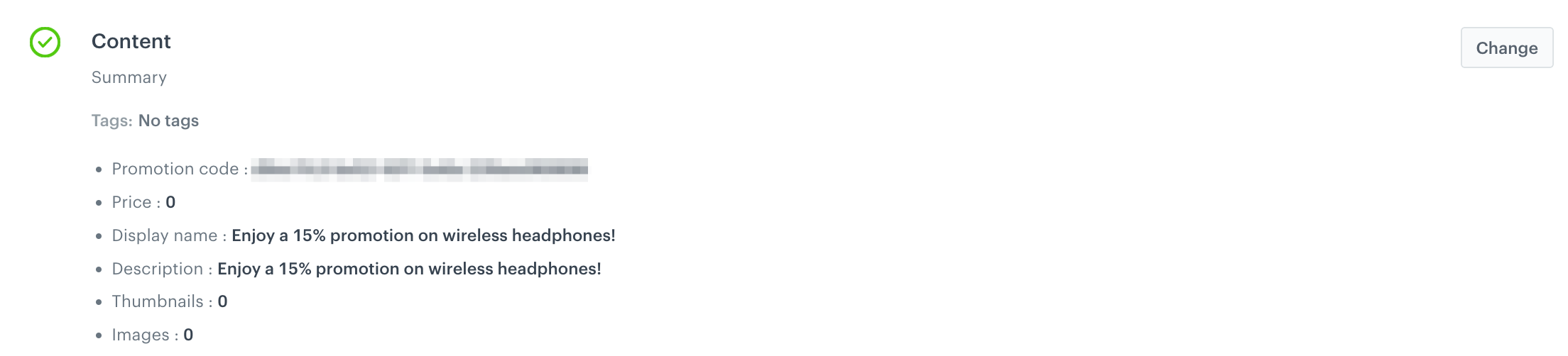
    1. Define the name, description, and image of the promotion. 
    2. In the **Price** field, enter `0`. 
    3. Confirm the settings by clicking **Apply**. 
     <figure>
    <img src="/api/docs/image/54176ad07f146575310749eba44b7c2f42c1b327/use-cases/all-cases/_gfx/propensity-content-promotion.png" class="all" alt="Example of promotion content">
    <figcaption>Example of promotion content</figcaption>
    </figure>

5. In the **Type and limits** section:
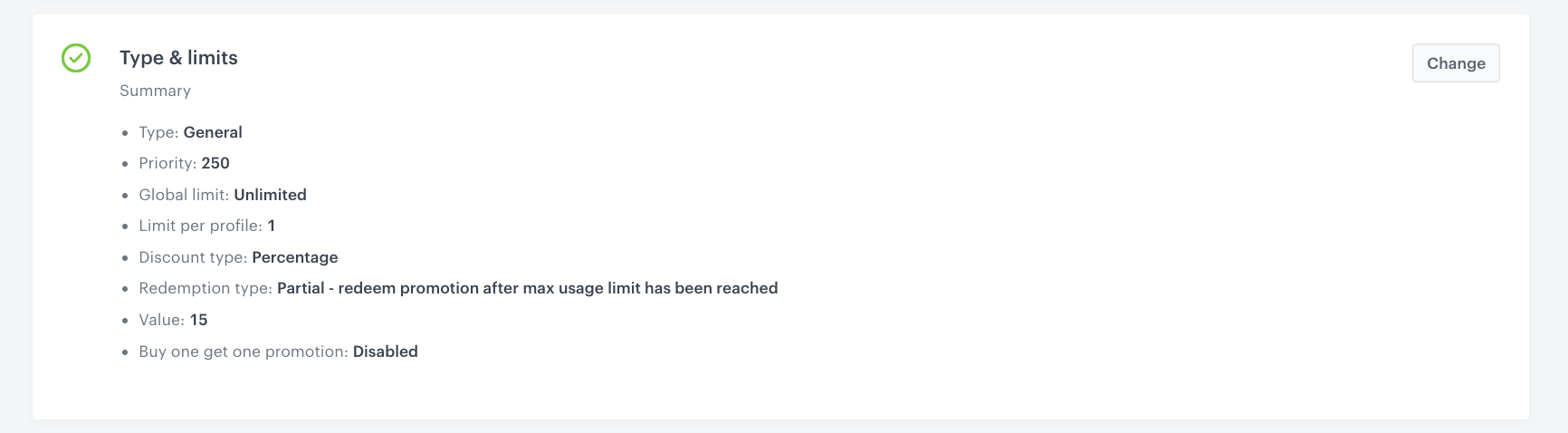
    1. As the **Type**, choose **General**.
    2. Select the **Single** tab.
    3. In the **Limit per profile** section, enter `1`.
    4. From the **Discount type** dropdown list, choose **Percentage**.
    5. From the **Discount mode** dropdown list, choose **Static**.
    6. In the **Value** field, enter `15`.
    7. Leave the rest of the settings in this section at default.

        <figure>
        <img src="/api/docs/image/54176ad07f146575310749eba44b7c2f42c1b327/use-cases/all-cases/_gfx/type-limits-promotion.png" class="full" alt="The configuration of the Type and limits section">
        <figcaption>The configuration of the Type and limits section </figcaption>
        </figure>

6. In the **Schedule** section, define the promotion distribution period according to your business needs.
7. *Optionally*, in the **Stores** section, specify stores where the promotion is available.

    
   <div class="admonition admonition-note"><div class="admonition-icon"><svg xmlns="http://www.w3.org/2000/svg" fill="none" viewBox="0 0 24 24" stroke="currentColor" stroke-width="2.5"><path stroke-linecap="round" stroke-linejoin="round" d="M13 16h-1v-4h-1m1-4h.01M21 12a9 9 0 11-18 0 9 9 0 0118 0z" /></svg></div><div class="admonition-body"><div class="admonition-content">

   This is possible only if the list of stores is imported into a [catalog](/docs/assets/catalogs).

   </div></div></div>
 

8. In the **Items** section:
    1. In the **Source catalog** field, select an item catalog from which the items will be discounted.
    2. Select **Filtered items**.
    3. From **Select filter** dropdown list, select the filter that includes the wireless headphone product group you created [earlier in the catalog](/use-cases/propensity_based_promotion#create-a-filter-in-the-product-catalog).

9. To apply configuration and run the promotion, click **Publish**.

## Check the use case set up on the Synerise Demo workspace
---

You can check the configuration of each step from this use case in our Synerise Demo workspace:

- [Propensity prediction](https://app.synerise.com/ai-v2/predictions/propensity/pngsuydybpkq),
- [Segmentation](https://app.synerise.com/analytics-v2/segmentations/15226481-541f-4ad0-8293-cc508a223d08),
- [Promotions](https://app.synerise.com/campaigns/promotions/c71bdcfc-8573-4f44-884c-f84e01bd7f13).

If you’re our partner or client, you already have automatic access to the **Synerise Demo workspace (1590)**, where you can explore all the configured elements of this use case and copy them to your workspace.  

If you’re not a partner or client yet, we encourage you to fill out the contact [form](https://demo.synerise.com/request) to schedule a meeting with our representatives. They’ll be happy to show you how our demo works and discuss how you can apply this use case in your business.

## Read more
---
- [Promotions](/docs/ai-hub/promotions)
- [Propensity predictions](/docs/ai-hub/predictions)
- [Segmentations](/docs/analytics/segmentations)