The main goal of AI search engine is to provide the best possible experience for the customer. That means delivering relevant and accurate results for their queries, whether they’re looking for information or looking to make a purchase. To that end, you should improve the customer experience on your site. One way is to use [A/B tests](/docs/ai-hub/ai-search/configuring-ab-test) and check whether the used filters have a positive effect on conversions.
Another way we can optimize search engine is by promoting products customer might actually like in the search results - for example those from their favorite brands.
Knowing that customers often use search engines when they’re shopping online, you should make sure that they can easily find the brands they like. Boosting search results with customer favorite brands makes it easier for customers to find the products they could be interested in and makes their shopping experience more enjoyable. In this way, you not only promote specific brands in the search results, but also personalize customer experience and make customers more satisfied.
In this use case, you will create an aggregate that returns 5 favorite brands. In the further part of the process, you will proceed to create a rule to present in the top of the search results items from the brands most often bought by the specific customer during last year.
## Prerequisites
---
- Enable [the Search Engine](/docs/ai-hub/ai-search/introduction-to-ai-search#configuring-ai-search) for your workspace.
- Create and configure [search index](/docs/ai-hub/ai-search/create-index) and in the [filterable attributes](/docs/ai-hub/ai-search/define-attributes#filterable-attributes) add `Brand` as an attribute.
- Implement transaction events using [SDK](/developers/web/transactions-sdk) or [API](https://developers.synerise.com/DataManagement/DataManagement.html#operation/CreateATransaction).
- [Implement AI search](https://developers.synerise.com/AISearch/AISearch.html) in any of your channels (mobile app, website, and so on).
### Process
---
1. [Create an aggregate](/use-cases/query-filtering-brand#create-an-aggregate) that returns the customer's 5 most frequently purchased product brands.
2. [Create a query rule](/use-cases/query-filtering-brand#create-a-query-rule) which promotes products from customers' favorite brands at the top of search results.
## Create an aggregate
---
In this part of the process, create an aggregate that returns customer's 5 most frequently purchased product brands during last year.
1. Go to **Behavioral Data Hub > Live Aggregates > Create aggregate**.
2. As the aggregate type, select **Profile**.
2. Enter the name of the aggregate.
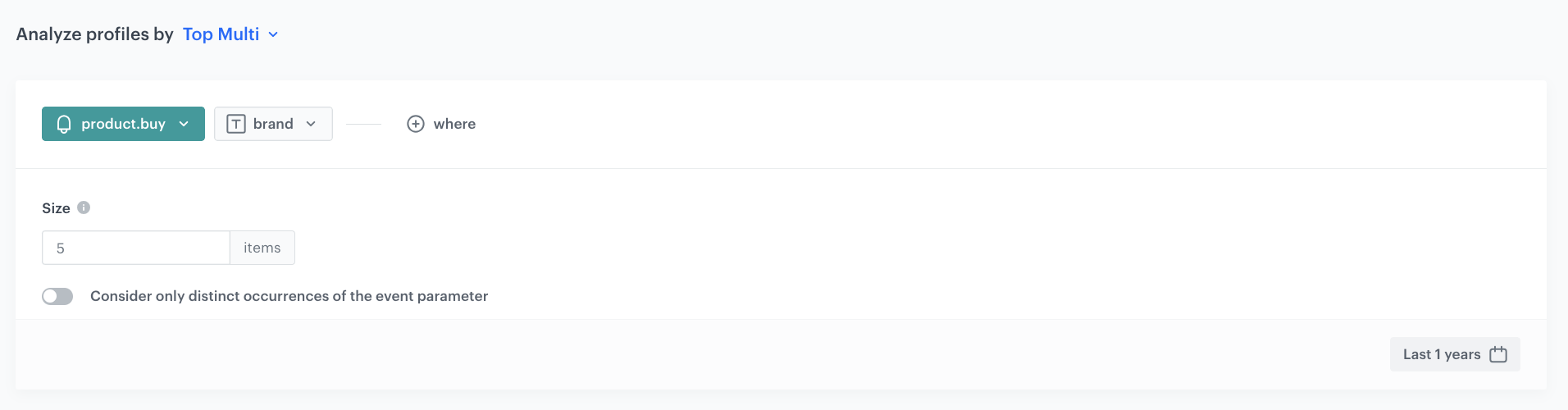
3. Click **Analyze profiles by** and select **Top Multi**, and set the size to `5`.
4. From the **Choose event** dropdown list, select the **product.buy** event.
5. As the event parameter, select **brand**.
6. Define the period which the aggregate will analyze. In this case it will be 1 last year.
7. Save the aggregate.
Configuration of the aggregate
## Create a query rule
---
In this part of the process, create a query rule which promotes products from customer' 5 favorite brands at the top of search results.
1. Go to **AI Hub > Indexes**.
2. Select an index from the list.
3. Go to the **Rules** section.
4. On the right side of the screen, click **Add rule**.
5. Name the rule.
6. To adjust the query conditions, in the **Conditions** section, click **Define**.
1. Choose the **All queries** tab.
2. Click **Apply**.
7. To define how the search engine reacts to the defined conditions, in the **Consequences** section, click **Define**.
1. Click **Add consequence** and choose **Filter query results** from the dropdown list.
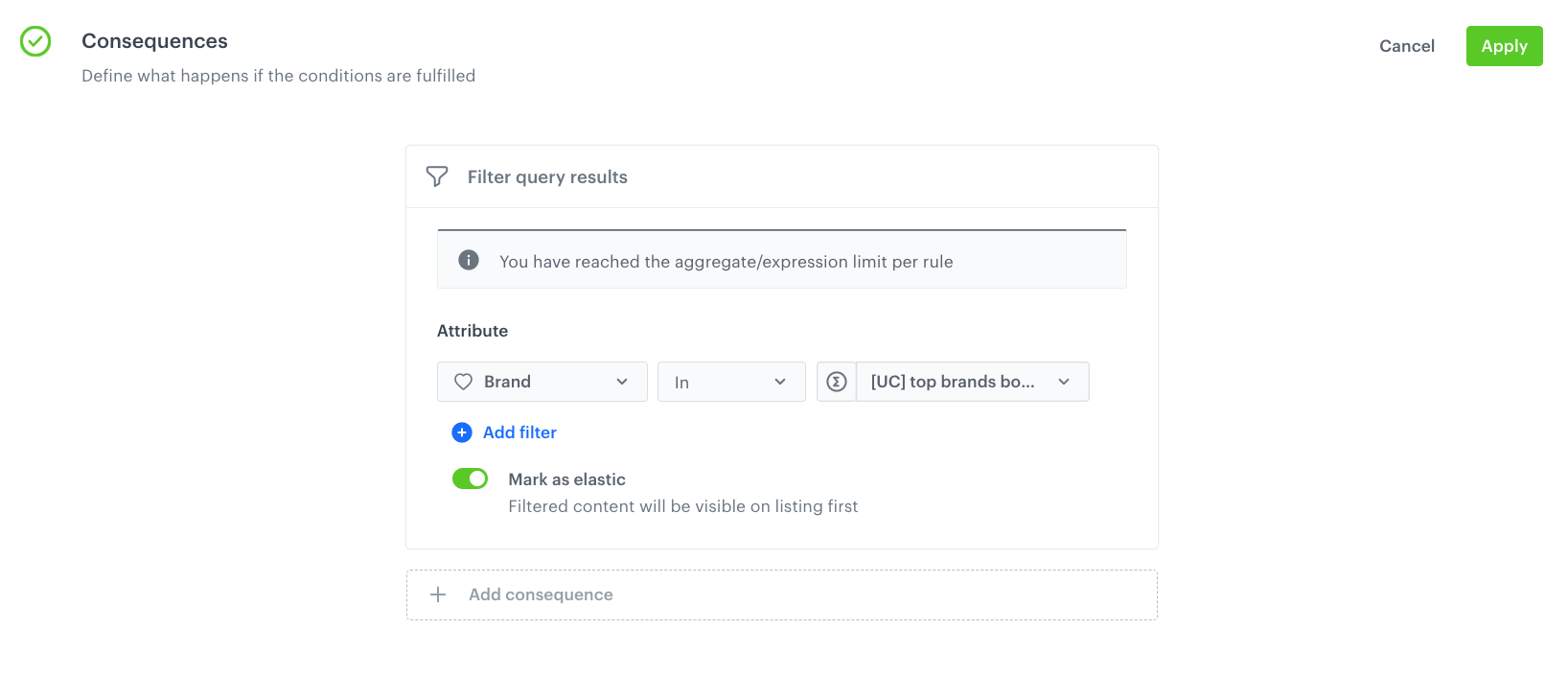
9. From the **Attribute** dropdown list, choose `Brand`.
10. Choose the **In** operator.
10. In the left field, click the **T** icon and from the dropdown list, select **Aggregate**.
11. From the list, choose [aggregate](/use-cases/query-filtering-brand#create-an-aggregate) created in the previous step.
12. Enable the **Mark as elastic** option, to make sure that the products from favorite brands appear at the top of search results. If you do not activate this option, search results will show only products from favorite brands.
13. Click **Apply**.
8. In the **Schedule** section, define when the query rule applies.
8. Click **Save & Publish**.
Query rule settings
## Check the use case set up on the Synerise Demo workspace
---
You can check the [aggregate](https://app.synerise.com/analytics/aggregates/a9adc80b-026b-3de6-9f33-215f289a6599) and [query rule settings](https://app.synerise.com/ai-v2/search/indices/98167fa2726dc2460deb41870c0e6d1c1729168383/query-rules/33492) directly in Synerise Demo workspace.
If you’re our partner or client, you already have automatic access to the **Synerise Demo workspace (1590)**, where you can explore all the configured elements of this use case and copy them to your workspace.
If you’re not a partner or client yet, we encourage you to fill out the contact [form](https://demo.synerise.com/request) to schedule a meeting with our representatives. They’ll be happy to show you how our demo works and discuss how you can apply this use case in your business.
## Read more
---
- [Aggregates](/docs/analytics/aggregates)
- [AI Search](/docs/ai-hub/ai-search)
 **Behavioral Data Hub > Live Aggregates > Create aggregate**.
2. As the aggregate type, select **Profile**.
2. Enter the name of the aggregate.
3. Click **Analyze profiles by** and select **Top Multi**, and set the size to `5`.
4. From the **Choose event** dropdown list, select the **product.buy** event.
5. As the event parameter, select **brand**.
6. Define the period which the aggregate will analyze. In this case it will be 1 last year.
7. Save the aggregate.
**Behavioral Data Hub > Live Aggregates > Create aggregate**.
2. As the aggregate type, select **Profile**.
2. Enter the name of the aggregate.
3. Click **Analyze profiles by** and select **Top Multi**, and set the size to `5`.
4. From the **Choose event** dropdown list, select the **product.buy** event.
5. As the event parameter, select **brand**.
6. Define the period which the aggregate will analyze. In this case it will be 1 last year.
7. Save the aggregate.
 **AI Hub > Indexes**.
2. Select an index from the list.
3. Go to the **Rules** section.
4. On the right side of the screen, click **Add rule**.
5. Name the rule.
6. To adjust the query conditions, in the **Conditions** section, click **Define**.
1. Choose the **All queries** tab.
2. Click **Apply**.
7. To define how the search engine reacts to the defined conditions, in the **Consequences** section, click **Define**.
1. Click **Add consequence** and choose **Filter query results** from the dropdown list.
9. From the **Attribute** dropdown list, choose `Brand`.
10. Choose the **In** operator.
10. In the left field, click the **T** icon and from the dropdown list, select **Aggregate**.
11. From the list, choose [aggregate](/use-cases/query-filtering-brand#create-an-aggregate) created in the previous step.
12. Enable the **Mark as elastic** option, to make sure that the products from favorite brands appear at the top of search results. If you do not activate this option, search results will show only products from favorite brands.
13. Click **Apply**.
8. In the **Schedule** section, define when the query rule applies.
8. Click **Save & Publish**.
**AI Hub > Indexes**.
2. Select an index from the list.
3. Go to the **Rules** section.
4. On the right side of the screen, click **Add rule**.
5. Name the rule.
6. To adjust the query conditions, in the **Conditions** section, click **Define**.
1. Choose the **All queries** tab.
2. Click **Apply**.
7. To define how the search engine reacts to the defined conditions, in the **Consequences** section, click **Define**.
1. Click **Add consequence** and choose **Filter query results** from the dropdown list.
9. From the **Attribute** dropdown list, choose `Brand`.
10. Choose the **In** operator.
10. In the left field, click the **T** icon and from the dropdown list, select **Aggregate**.
11. From the list, choose [aggregate](/use-cases/query-filtering-brand#create-an-aggregate) created in the previous step.
12. Enable the **Mark as elastic** option, to make sure that the products from favorite brands appear at the top of search results. If you do not activate this option, search results will show only products from favorite brands.
13. Click **Apply**.
8. In the **Schedule** section, define when the query rule applies.
8. Click **Save & Publish**.