Today's customers are fans of convenience and are looking for quick and efficient solutions to meet their needs. When it comes to food, customers usually purchase products with a specific dish in mind or look for inspiration to create a delicious meal.
By matching products with recipes and vice versa, businesses can inspire customers to purchase the products needed for their next culinary adventure while also providing them with creative recipe ideas. This approach not only increases the average order value, but it also enhances the overall shopping and cooking experience. By seamlessly integrating shopping and recipe discovery, businesses can provide a more intuitive and satisfying experience for their customers, ultimately leading to increased loyalty and revenue growth.
This use case illustrates a scenario in which product and recipe information are linked to each other. As a result, we achieve a scenario where the product page displays recipes featuring the viewed product, and the recipe page displays the products required to prepare the described dish. This approach enhances the user experience on the site and promotes up-selling, ultimately leading to an increase in the average order value.
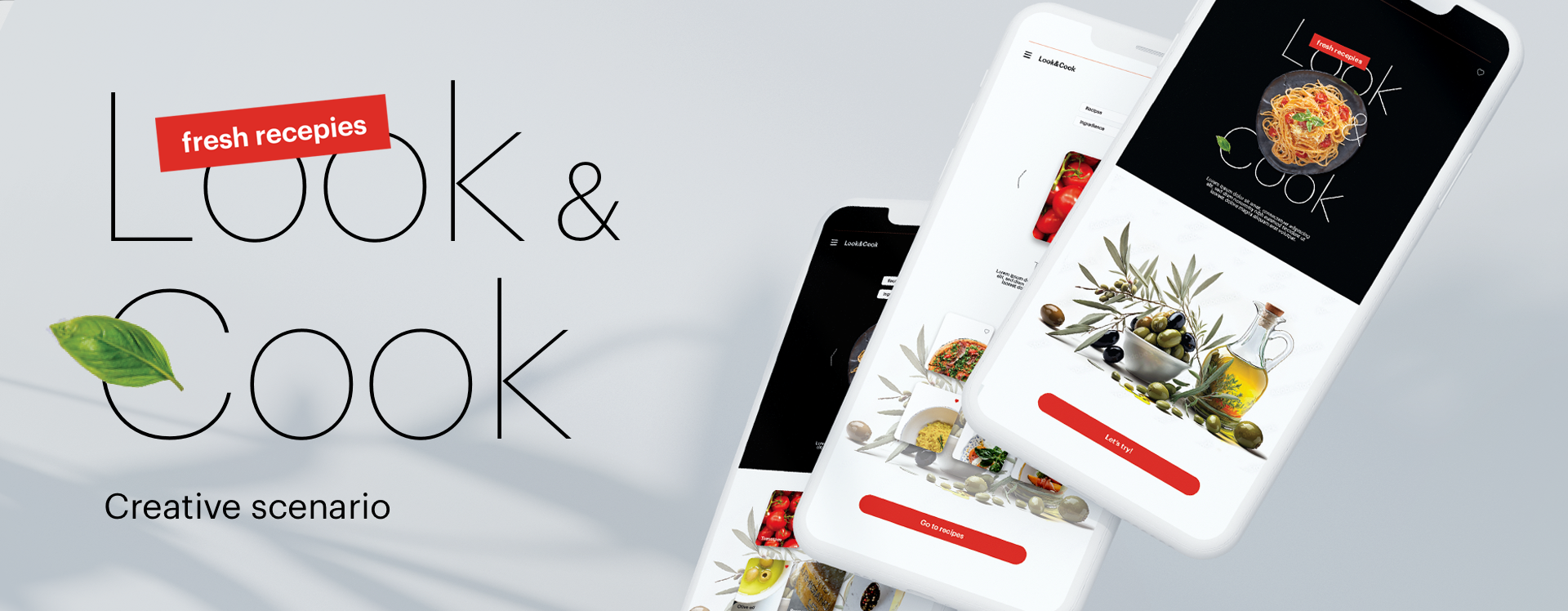
We have created an interactive web page that demonstrates the described solution in a practical manner. This page showcases the relationship between ingredients and recipes, with all the necessary ingredients conveniently listed on recipe pages and vice versa. You can easily navigate to each ingredient from the recipe page and explore other recipes that utilize the same ingredient. **Check out [the page](https://snrmarketing.blob.core.windows.net/pages/look-and-cook.html) now!**
## Prerequisites
---
- Implement Synerise web SDK.
- Implement [OG Tags](/developers/web/og-tags) on your website.
- [Import product feed into the Synerise catalog](/use-cases/import-product-feed-to-catalog)
In this use case, we use two separate product feeds:
- A standard product feed (A) - which additionally contains an itemId array with recipes that match the product. In our example, we use the **c:recipesHandle** parameter.
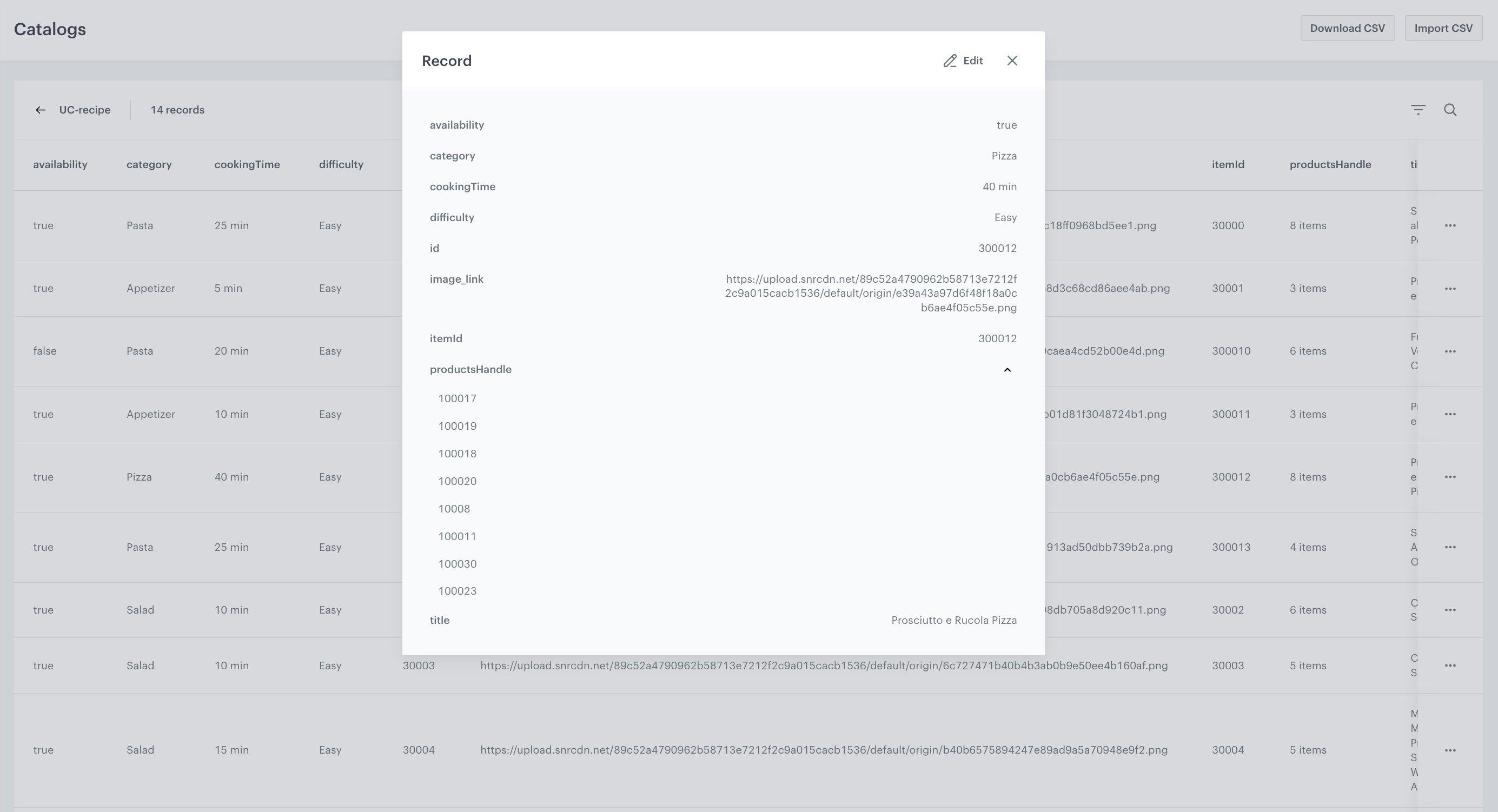
- An additional feed with recipes (B) - which contains an array of itemId of products from the previous feed needed to make the recipe. In the example, we use the **c:productsHandle** parameter.
Click to see a sample catalog with recipes
Example of a catalog with recipes
- [Configure AI Engine for AI Search](/docs/settings/configuration/ai-engine-configuration/engine-configuration-for-search)
## Prepare two search indexes
---
Create two separate search indexes for ingredients and recipe catalogs.
We will start by creating an index for the ingredients catalog.
1. Go to **AI Hub > Indexes**.
2. Click **Add index**.
**Result**: The index creation screen opens.
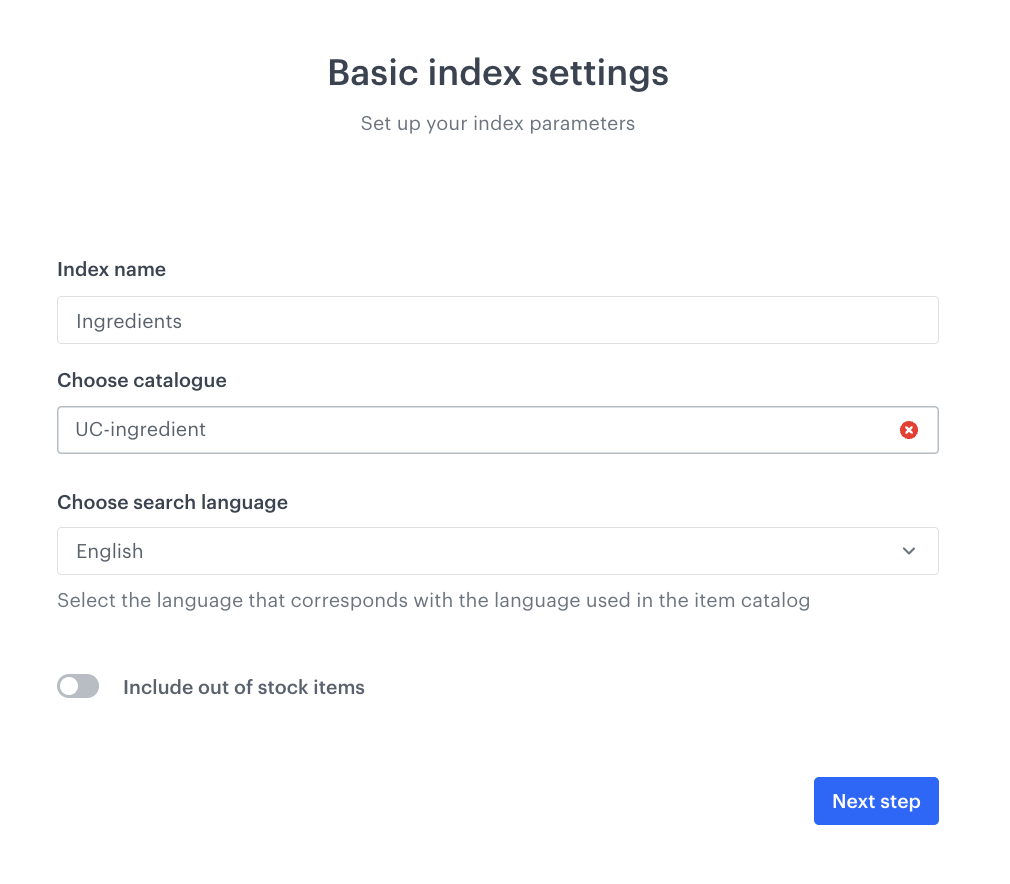
3. In the **Index name** field, type the meaningful name of the index.
1. From the **Choose catalog** dropdown list, select an [item catalog](/use-cases/ai-search-store-location#configure-ai-engine) to use as the source for the search results.
Remember that the value of an item attribute in the item catalog cannot be longer than 1000 characters. It applies both for creating a new index and updating it.
2. From the **Choose search engine language** dropdown, select the language of your search engine.
4. Click **Next step**.
Example of basic index settings
5. Define response and searchable attributes.
More detailed information about these attributes can be found [here](/docs/ai-hub/ai-search/define-attributes/?helpCenterAi=define#response-attributes).
6. Click **Next step**.
**Result**: The Filters & Facets screen opens.
7. Define filterable and facetable attributes. More information about these attributes can be found [here](/docs/ai-hub/ai-search/define-attributes/?helpCenterAi=define#filterable-attributes).
8. Click **Next step**.
**Result**: The Ranking screen opens.
9. Click **Complete**.
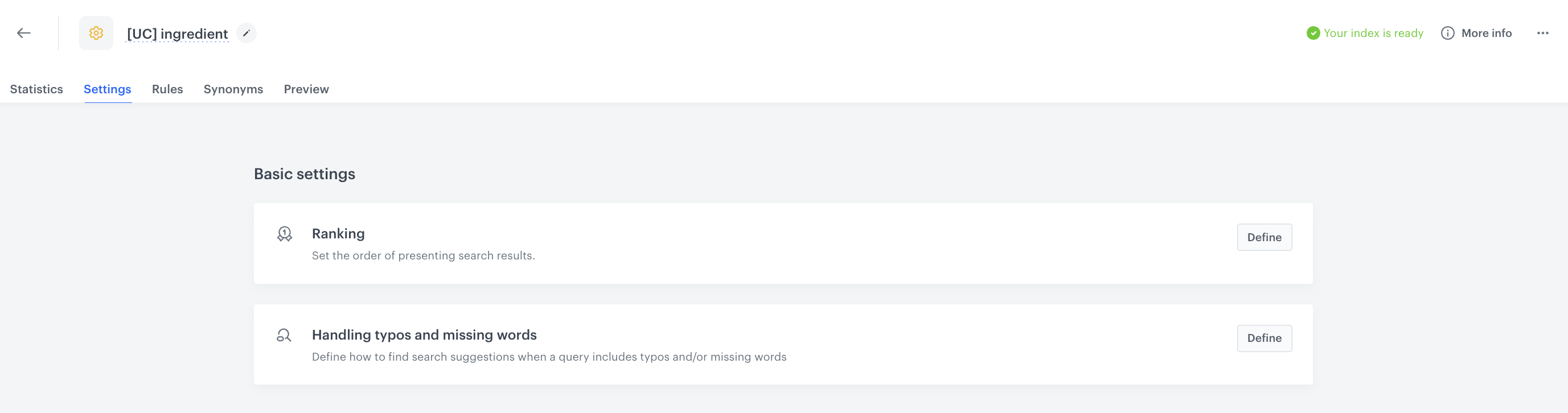
10. Wait until the index is ready. Refresh the page until you receive information in the upper right corner of the screen that the index is ready.
The time required to prepare the index depends on the size of the feed and can range from 5 minutes to 2 hours.
Your index is ready
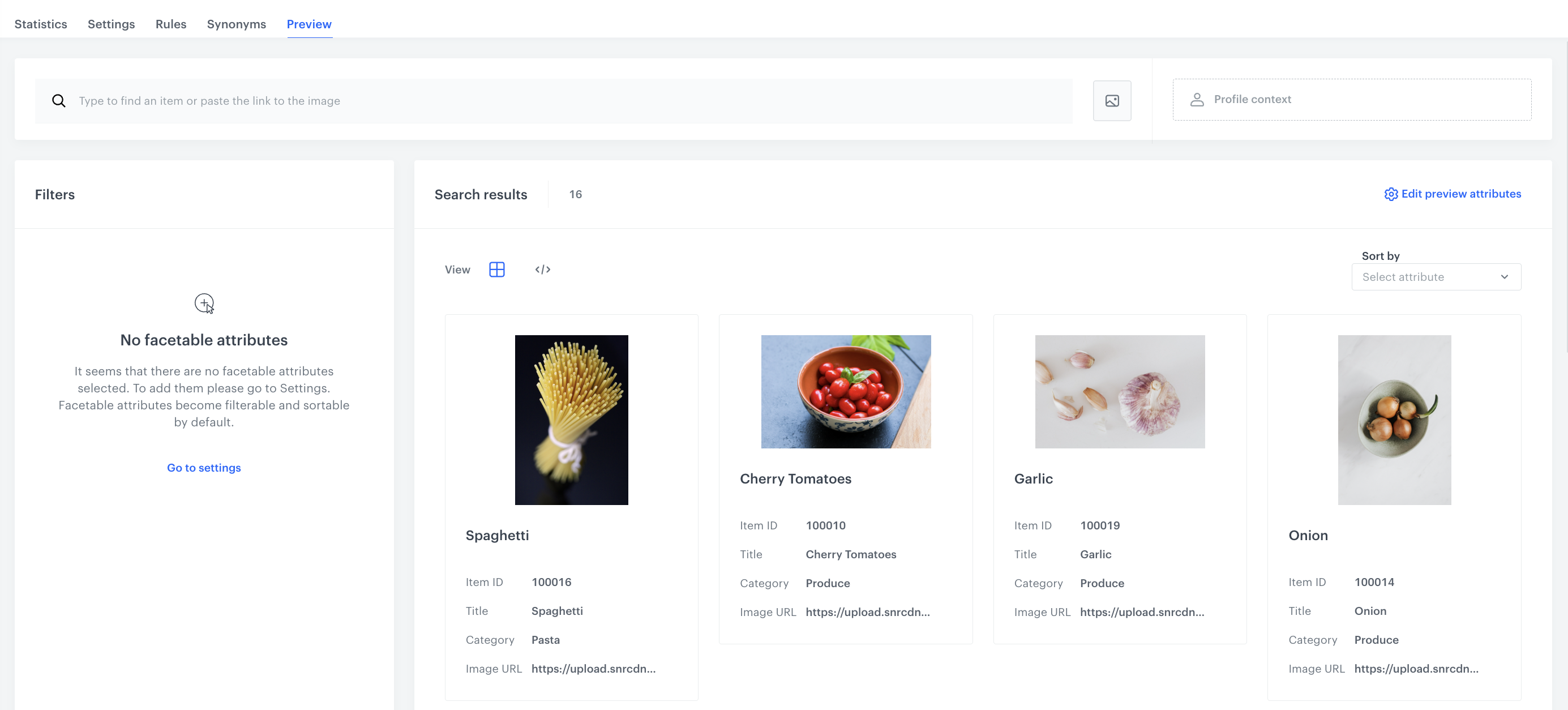
11. Check the performance of the filters in the **Preview** tab.
12. In the search field, enter the name of the product.
**Result**: A list with the defined search results appears.
Preview of inngredient catalog
13. Create a recipe search index. Follow the same instructions as described for the product index.
## Implement a solution on your site
---
According to the [Synerise API Reference](https://developers.synerise.com/AISearch/AISearch.html#tag/Listing) documentation and the description of how to construct filters for [Filters queries](/developers/iql/filters), you can use Synerise Search to expand the page using two scenarios:
1. [when you are on the recipe page, show the required ingredients](/use-cases/recipe#display-the-required-ingredients-on-the-recipe-card),
2. [when you are on the ingredient page, show the related recipes](/use-cases/recipe#show-related-recepies-on-the-ingredient-page).
### Display the required ingredients on the recipe card
---
An example of cURL request:
Explanation of the respective elements of the request:
https://api.synerise.com/search/v2/indices/8f3a20c375803e5807244e6bbc803fea1688306195/list
token=FEE539C0-D206-A685-88F8-0E433FCDFD1D
clientUUID=bbe22634-0105-41f3-ad7f-b2766071a012
filters=itemId IN ["10001","10006"]
- **token**: the token parameter contains the authentication UUID (tracker key) that gives access to API,
- **clientUUID**: the parameter contains the identifier of the customer for which the request is sent,
- **filters**: is a parameter that specifies the criteria by which the elements should be retrieved. In this case, we are looking for items whose title matches one of the values in the array (10001, 10006). In other words, with **itemId** we retrieve the ingredients from which we can prepare the meals we are currently reviewing.
### Show related recepies on the ingredient page
---
An example of cURL request:
Explanation of the respective elements of the request:
https://api.synerise.com/search/v2/indices/0036645cd9413eccbd31877a8c967e991688311535/list
token=FEE539C0-D206-A685-88F8-0E433FCDFD1D
clientUUID=bbe22634-0105-41f3-ad7f-b2766071a012
filters=itemId IN ["30001","30002"]
- **token**: the token parameter contains the authentication UUID (tracker key) that gives access to the API,
- **clientUUID**: the parameter contains the identifier of the customer for which the request is sent,
- **filters**: is a parameter that specifies the criteria by which the elements should be retrieved. In this case, we are looking for items whose title matches one of the values in the array (30001, 30002). In other words, with **itemId** we retrieve recipes for meals we can prepare from the ingredient we are currently viewing.
## Check the use case set up on the Synerise Demo workspace
---
You can check all the analytics directly in the Synerise Demo workspace:
- [Ingredients catalog](https://app.synerise.com/assets/catalogs/17889)
- [Recipe catalog](https://app.synerise.com/assets/catalogs/17890)
- [Ingredients index](https://app.synerise.com/ai-v2/search/indices/8f3a20c375803e5807244e6bbc803fea1688306195/stats/global)
- [Recipe index](https://app.synerise.com/ai-v2/search/indices/0036645cd9413eccbd31877a8c967e991688311535/stats/global)
If you’re our partner or client, you already have automatic access to the **Synerise Demo workspace (1590)**, where you can explore all the configured elements of this use case and copy them to your workspace.
If you’re not a partner or client yet, we encourage you to fill out the contact [form](https://demo.synerise.com/request) to schedule a meeting with our representatives. They’ll be happy to show you how our demo works and discuss how you can apply this use case in your business.
## Read more
---
- [AI engine configuration](/docs/settings/configuration/ai-engine-configuration/engine-configuration-for-search#selecting-attributes-for-preview)
- [AI search](/docs/ai-hub/ai-search/introduction-to-ai-search)
- [Catalogs](/docs/assets/catalogs)
 **AI Hub > Indexes**.
2. Click **Add index**.
**Result**: The index creation screen opens.
3. In the **Index name** field, type the meaningful name of the index.
1. From the **Choose catalog** dropdown list, select an [item catalog](/use-cases/ai-search-store-location#configure-ai-engine) to use as the source for the search results.
**AI Hub > Indexes**.
2. Click **Add index**.
**Result**: The index creation screen opens.
3. In the **Index name** field, type the meaningful name of the index.
1. From the **Choose catalog** dropdown list, select an [item catalog](/use-cases/ai-search-store-location#configure-ai-engine) to use as the source for the search results.