Personalized product recommendations are incredibly effective because they use your customers' search, browsing, and purchase history to recommend products that are tailored to their specific requirements and preferences. To create even better communication, you can exclude from recommendations the categories of items recently bought by a customer.

In this use case, you will learn how to create a personalized recommendation campaign which uses an aggregate to exclude the categories of recently purchased products.

## Prerequisites
---
- Configure an [item feed](/docs/ai-hub/recommendations-v2/item-feed-requirements).
- [Configure an item catalog for recommendations](/docs/settings/configuration/ai-engine-configuration/engine-configuration-for-recommendations). Enable the personalized recommendation model.
- Implement transaction events using [SDK](/developers/web/transactions-sdk) or [API](https://developers.synerise.com/DataManagement/DataManagement.html#operation/CreateATransaction).

## Process
---
1. [Create an aggregate](/use-cases/reco-excluding-recently-purchased-category#create-an-aggregate) of recently purchased products' categories to exclude them from personalized recommendation campaign.
2. [Create a recommendation](/use-cases/reco-excluding-recently-purchased-category#create-a-recommendation).

## Create an aggregate
---
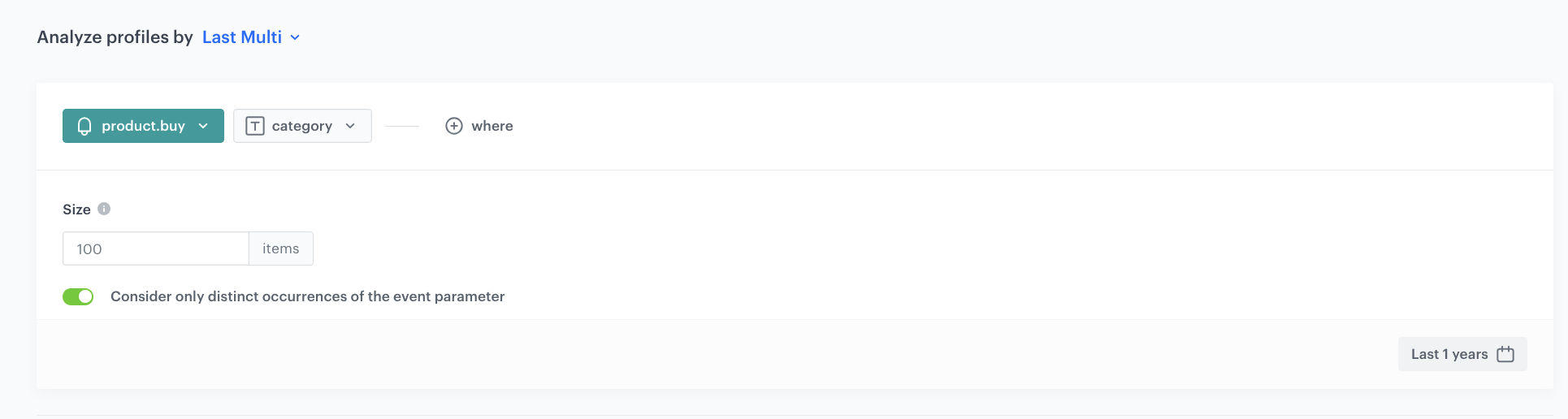
In this part of the process, create an aggregate that will return categories of products already bought by the customer.

1. Go to <img src="/api/docs/image/54176ad07f146575310749eba44b7c2f42c1b327/icons/behavioral-data-hub-icon.svg" alt="Behavioral Data Hub icon" class="icon"> **Behavioral Data Hub > Live Aggregates > Create aggregate**.
2. As the aggregate type, select **Profile**.  
2. Enter the name of the aggregate.
3. Click **Analyze profiles by** and select **Last Multi**.
4. Select **Consider only distinct occurrences of the event parameter**.
5. In the **Size** field, enter the number of returned categories.
5. Select the **product.buy** event.
6. Select the **category** parameter.
7. Define the period from which the aggregate will return products from the event.  
    This period will affect which purchases are included when checking for categories to exclude from the recommendation.
8. Save the aggregate.

<figure>
    <img src="/api/docs/image/54176ad07f146575310749eba44b7c2f42c1b327/use-cases/all-cases/_gfx/recently-bought-cat.png" alt="Configuration of the aggregate" class="full no-frame">   
    <figcaption> Configuration of the aggregate</figcaption>
    </figure>

## Create a recommendation
---
1. Go to <img src="/api/docs/image/54176ad07f146575310749eba44b7c2f42c1b327/icons/ai-hub-icon.svg" alt="AI Hub icon" class="icon" > **AI Hub > (AI Recommendations) Models > Add recommendation**.
3. In the top left corner, enter the name of your recommendation.
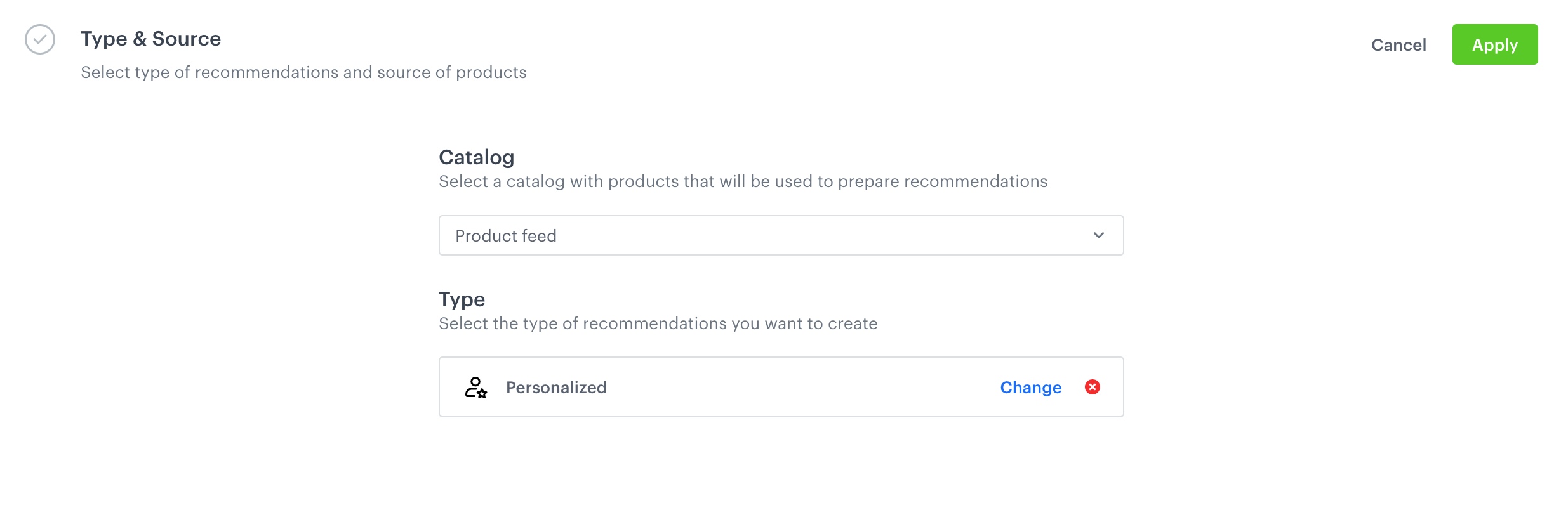
4. In the **Type & Items feed** section, click **Define**.
5. From the **Items feed** dropdown menu, choose the provided feed.
6. Choose the **Personalized** recommendation type.
7. Click **Apply**.
  
     <figure>
    <img src="/api/docs/image/54176ad07f146575310749eba44b7c2f42c1b327/use-cases/all-cases/_gfx/personalized-recommendations-type.png" alt="Configuraion of the catalog and recommendation type section" class="full no-frame">   
    <figcaption>Configuraion of the catalog and recommendation type section</figcaption>
    </figure>  

8. In the **Items** section, click **Define**.
    1. Click **Add slot**. 
    2. Define the minimum and maximum number of items that will be recommended to the user in each slot. In our example, one slot returns 4 products. In the **Items** section, click the **Define** button. Click the plus button to add more slots. This will allow you to define new slots for your recommendation setup. In the slot settings, specify the minimum and maximum number of items to be recommended to the user within this slot.
    3. Click **Static filter**.  
    
       <div class="admonition admonition-note"><div class="admonition-icon"><svg xmlns="http://www.w3.org/2000/svg" fill="none" viewBox="0 0 24 24" stroke="currentColor" stroke-width="2.5"><path stroke-linecap="round" stroke-linejoin="round" d="M13 16h-1v-4h-1m1-4h.01M21 12a9 9 0 11-18 0 9 9 0 0118 0z" /></svg></div><div class="admonition-body"><div class="admonition-content">

       Learn about the difference between [elastic, static](/docs/ai-hub/recommendations-v2/creating-recommendation-campaign#select-conditions-of-displaying-items), and [distinct](/docs/ai-hub/recommendations-v2/creating-recommendation-campaign#distinct-filter) filters.

       </div></div></div>

    4. From the dropdown list, choose **Visual Builder**.  
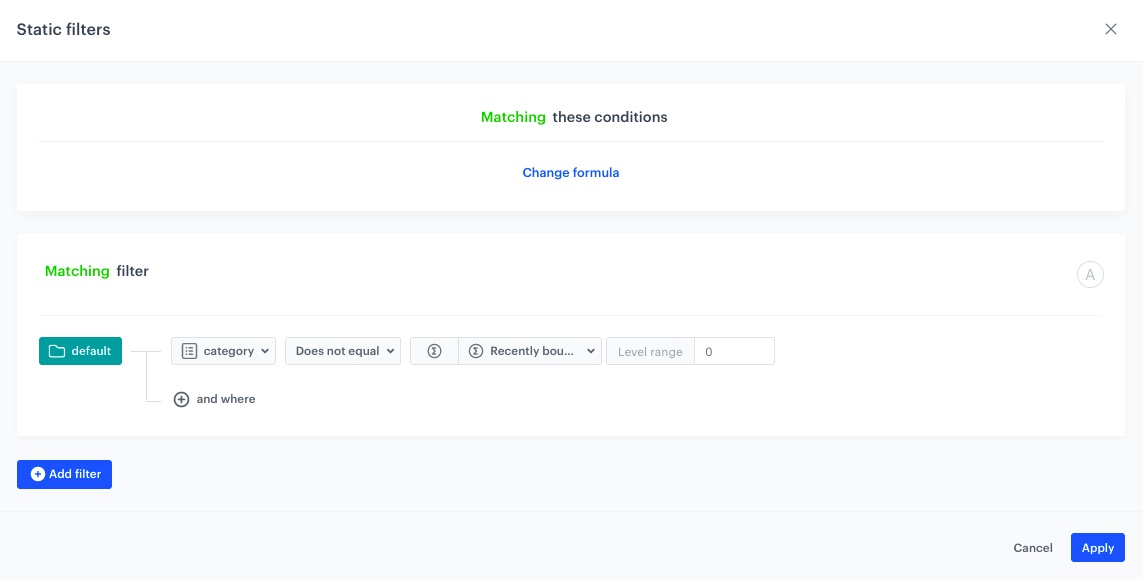
    2. Click **Select attribute**.
    3. From the dropdown list, choose the **category** attribute.
    4. Click **Operator**.
    5. From the dropdown list, choose **Does not equal**.
    6. Click the value type icon (<img src="/api/docs/image/54176ad07f146575310749eba44b7c2f42c1b327/icons/value-icon.png" alt="Value icon" class="icon">) and choose the aggregate icon from the list. 
    7. From the dropdown list, choose [the aggregate you have created](/use-cases/reco-excluding-recently-purchased-category#create-an-aggregate).
    8. In the **Level range** input area that appear, you can choose how you want to select your category level. Choose: **Whole category.**
    
       <div class="admonition admonition-note"><div class="admonition-icon"><svg xmlns="http://www.w3.org/2000/svg" fill="none" viewBox="0 0 24 24" stroke="currentColor" stroke-width="2.5"><path stroke-linecap="round" stroke-linejoin="round" d="M13 16h-1v-4h-1m1-4h.01M21 12a9 9 0 11-18 0 9 9 0 0118 0z" /></svg></div><div class="admonition-body"><div class="admonition-content">

       If your products categories have a `X > Y > Z` structure, level 0 will be `X > Y > Z`. Level 1 will be `X > Y` and so on. Here, you define how granular the category recommendations will be. For example, if you are selling shoes, you will have an `Outdoor > Sport > Running` category and an `Outdoor > Sport > Football` category. If level 0 is selected, the two categories are excluded. If level 1 is provided, the `Outdoor > Sport` category and any of its subcategories will be excluded.

       </div></div></div>
 
    14. Click **Apply**.

        <figure>
        <img src="/api/docs/image/54176ad07f146575310749eba44b7c2f42c1b327/use-cases/all-cases/_gfx/exclude-filters.png" alt="Example of static filter conditions" class="full no-frame">   
        <figcaption> Example of static filter conditions </figcaption>
        </figure>

9. In the **Items** section, click **Apply**.  
10. Optionally, you can define the settings in the **Boosting** and **Additional settings** sections.

    <div class="admonition admonition-tip"><div class="admonition-icon"><svg xmlns="http://www.w3.org/2000/svg" fill="none" viewBox="0 0 24 24" stroke="currentColor" stroke-width="2.5"><path stroke-linecap="round" stroke-linejoin="round" d="M9.663 17h4.673M12 3v1m6.364 1.636l-.707.707M21 12h-1M4 12H3m3.343-5.657l-.707-.707m2.828 9.9a5 5 0 117.072 0l-.548.547A3.374 3.374 0 0014 18.469V19a2 2 0 11-4 0v-.531c0-.895-.356-1.754-.988-2.386l-.548-.547z" /></svg></div><div class="admonition-body"><div class="admonition-content">

    Learn more about [boosting](/docs/ai-hub/recommendations-v2/creating-recommendation-campaign#define-the-boosting-factors) and [additional settings](/docs/ai-hub/recommendations-v2/creating-recommendation-campaign#additional-settings).

    </div></div></div>
 
11. Save the recommendation.


## What's next
---
You can display the recommendation to customers in a number of ways. For example by using the [recommendation insert](/developers/inserts/recommendations-v2) in [dynamic content](/docs/campaign/dynamiccontent/creating-dynamic-content), or in mobile application with content widget, both on [Android](/developers/mobile-sdk/displaying-recommendations/content-widget/android) and [iOS](/developers/mobile-sdk/displaying-recommendations/content-widget/ios).


## Check the use case set up on the Synerise Demo workspace
---
You can also check [the aggregate](https://app.synerise.com/analytics/aggregates/474a464f-175e-34e4-9890-ce922955390e) and [recommendation configuration](https://app.synerise.com/ai-v2/recommendations/wWmX7O8uxptZ) directly in Synerise Demo workspace.

If you’re our partner or client, you already have automatic access to the **Synerise Demo workspace (1590)**, where you can explore all the configured elements of this use case and copy them to your workspace.  

If you’re not a partner or client yet, we encourage you to fill out the contact [form](https://demo.synerise.com/request) to schedule a meeting with our representatives. They’ll be happy to show you how our demo works and discuss how you can apply this use case in your business. 

## Read more
---
- [Creating aggregates](/docs/analytics/aggregates/creating-aggregates)
- [Creating recommendations](/docs/ai-hub/recommendations-v2/creating-recommendation-campaign)
- [Filters in recommendations](/docs/ai-hub/recommendations-v2/recommendation-filters)
- [Requirements for item feed](/docs/ai-hub/recommendations-v2/item-feed-requirements)
