To improve the effectiveness of recommendations, you can use the Predictions feature to set customers with a high lifetime value (LV) as the target group.

Based on the prediction results on lifetime value estimation for each customer, you can prepare a segmentation that consists of customers organized according to the score for a customer lifetime value. With an efficient customer segmentation, you have a better understanding of customers and can design a strategy for recommendations that is tailored for these groups.  

The last step is to combine all information while creating a recommendation - you can encourage customers with low propensity to buy, but to those with a high livetime value (LV) score, you can recommend items that, apart from the matching criterion based on previous interactions, will meet the condition of low price and high margin. The potential purchase won't lower the profit margin generated by the customer.

## Prerequisites
---

- Enable the [personalized recommendation model](/docs/settings/configuration/ai-engine-configuration/engine-configuration-for-recommendations). 
- Create a segmentation based on [the results of the customer lifetime value prediction](/use-cases/ltv-prediction).
- Your item catalog must include the attribute that describes profit margin (in this use case, the value of the margin is expressed as a string). 

## Create a recommendation
---
1. Go to <img src="/api/docs/image/54176ad07f146575310749eba44b7c2f42c1b327/icons/ai-hub-icon.svg" alt="AI Hub icon" class="icon" > **AI Hub > (AI Recommendations) Models > Add recommendation**.
2. Enter a meaningful name of the recommendation.
3. In the **Type & Items feed** section, click **Define**.
    1. From the **Items feed** dropdown list, select the catalog that contains items for the recommendation. 
    2. As the type, select **Personalized**.
    3. Click **Apply**.
4. In the **Items** section, click **Add slot**. You can name the slot for later reference. 
5. In the **Number of items** subsection, set the minimum number of items to `4` and maximum number of items to `6`. 
6. Click **Static filter**.  
    
   <div class="admonition admonition-note"><div class="admonition-icon"><svg xmlns="http://www.w3.org/2000/svg" fill="none" viewBox="0 0 24 24" stroke="currentColor" stroke-width="2.5"><path stroke-linecap="round" stroke-linejoin="round" d="M13 16h-1v-4h-1m1-4h.01M21 12a9 9 0 11-18 0 9 9 0 0118 0z" /></svg></div><div class="admonition-body"><div class="admonition-content">

   Learn about the difference among [elastic, static filters](/docs/ai-hub/recommendations-v2/creating-recommendation-campaign#select-conditions-of-displaying-items), and [distinct filters](/docs/ai-hub/recommendations-v2/creating-recommendation-campaign#distinct-filter).

   </div></div></div>

7. From the dropdown list, choose **IQL Query**.  
7. Click **Select**.
8. From the dropdown list, select **Function**.  
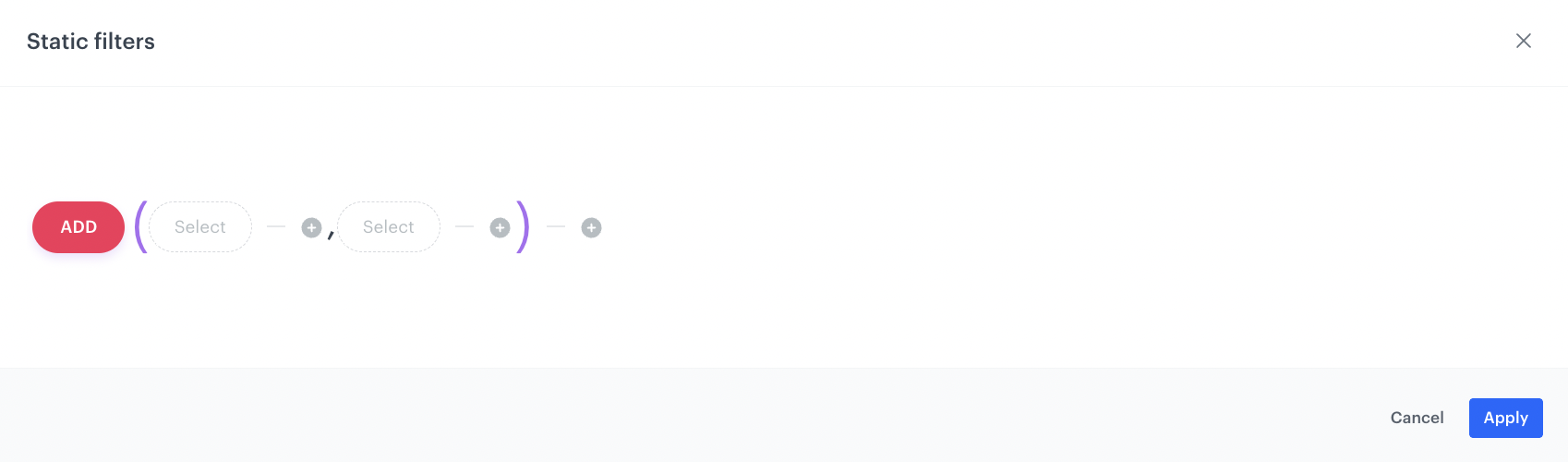
    **Result**: The **ADD** function appears.
8. Click **ADD** and from the dropdown list, select the **IF** function.  
    **Result**: <figure><img src="/api/docs/image/54176ad07f146575310749eba44b7c2f42c1b327/use-cases/all-cases/_gfx/iql-query.png" class="full" alt="If function syntax"><figcaption>If function syntax</figcaption></figure>
8. Click the first **Select** node. 
    1. From the dropdown list, select **Profile segmentations**.
    2. Next to the **client.segmentations** node, click the <img src="/api/docs/image/54176ad07f146575310749eba44b7c2f42c1b327/icons/plus-icon-expressions.png" class="icon" alt= "Plus icon"> icon.
    3. From the dropdown list, select **Attribute**.  
    3. Click the **null** node.  
        **Result**: <img src="/api/docs/image/54176ad07f146575310749eba44b7c2f42c1b327/icons/property-attribute-iql.png" class="icon" alt= "Property selector"> appears below.
    4. Click **Attribute**.
    5. From the dropdown menu, select **Segmentation**.
    5. Click **Select value**. 
    6. From the dropdown list, choose the name of the segment that you created based on the customer lifetime value prediction.
    6. Between the **client.segmentations** node and the selected segmentation node, click the plus icon.
    7. From the dropdown, choose **HAS**.
9. In the **IF** function, click the middle **Select** node.
    1. From the dropdown menu, choose **Attribute**.
    2. Click the **null** node.  
        **Result**: <img src="/api/docs/image/54176ad07f146575310749eba44b7c2f42c1b327/icons/property-attribute-iql.png" class="icon" alt= "Property option"> appears below.
    3. Click **Select value**.
    4. From the dropdown list, choose the attribute that describes the items' margin.
    4. Next to the selected attribute, click the <img src="/api/docs/image/54176ad07f146575310749eba44b7c2f42c1b327/icons/plus-icon-expressions.png" class="icon" alt= "Plus icon"> icon and choose **String**.
    5. Click the **value** node.  
        **Result**: <img src="/api/docs/image/54176ad07f146575310749eba44b7c2f42c1b327/icons/property-manual-value-iql.png" class="icon" alt= "Property selector"> appears below. 

    6. Click **Manual value**.
    7. From the dropdown list, select **Attribute value**.
    7. Click **Select value**.
    8. From the dropdown list, select the attribute that describes items' margin.
    8. Click **Select value**.
    9. From the dropdown list, choose the margin attribute value. In our example, it is `high`. 
    9. Between the margin attribute and the **high** node, click the plus icon.
    10. Choose the <img src="/api/docs/image/54176ad07f146575310749eba44b7c2f42c1b327/icons/equals-sign-expressions.png" class="icon" alt= "Equal icon"> sign.
10. In the **IF** function, click the last **Select** node.
11. From the dropdown list, choose **Take all**.  
    **Result**: <figure><img src="/api/docs/image/54176ad07f146575310749eba44b7c2f42c1b327/use-cases/all-cases/_gfx/static-filter-reco.png" class="full" alt="The final configuration of the IQL query"><figcaption>The final configuration of the IQL query </figcaption></figure>
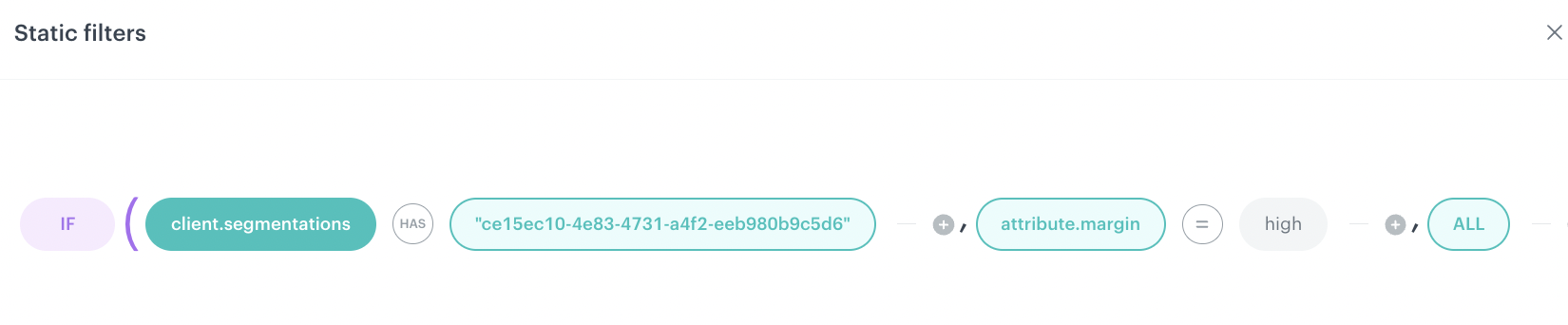
11. At the bottom of the static filters pop-up, click **Apply**. 
12. In the **Items** section, click **Apply**. 
13. In **Boosting**, you can enable [boosting](/docs/ai-hub/recommendations-v2/creating-recommendation-campaign#define-the-boosting-factors).
14. In **Additional settings**, optionally you can exclude already bought products and set a metric to sort by. 
15. Save the recommendation by clicking **Save**. 

## What's next
---

You can display the recommendation to customers in a number of ways, for example by using the [recommendation insert](/developers/inserts/recommendations-v2) in [dynamic content](/docs/campaign/dynamiccontent/creating-dynamic-content).

## Check the use case set up on the Synerise Demo workspace
---
Check the prepared [recommendations](https://app.synerise.com/ai-v2/recommendations/lvodHInFzhkP) and [segmentation](https://app.synerise.com/analytics-v2/segmentations/2c0ddbb3-261b-4d41-adb3-bc73ec4c29f3) directly in the Synerise Demo workspace.

If you’re our partner or client, you already have automatic access to the **Synerise Demo workspace (1590)**, where you can explore all the configured elements of this use case and copy them to your workspace.  

If you’re not a partner or client yet, we encourage you to fill out the contact [form](https://demo.synerise.com/request) to schedule a meeting with our representatives. They’ll be happy to show you how our demo works and discuss how you can apply this use case in your business.

## Read more
---
- [Building elements in IQL builder](/docs/ai-hub/recommendations-v2/recommendation-filters#elements-of-the-formula)
- [Calculate customer lifetime value](/use-cases/ltv-prediction)
- [Creating recommendations](/docs/ai-hub/recommendations-v2/creating-recommendation-campaign)
- [Enable Predictions](/docs/ai-hub/predictions/predictions-introduction#how-can-i-get-started)
- [Filters in recommendations](/docs/ai-hub/recommendations-v2/recommendation-filters)
- [Requirements for item feed](/docs/ai-hub/recommendations-v2/item-feed-requirements)
- [Setting up the predictions](/docs/ai-hub/predictions/predictions-introduction#what-are-predictions)

