{ "name": "Top Products", "recommendations": "{% recommendations_json3 campaignId=COhsCCOdu8Cg %} {% endrecommendations_json3 %}" }Where "campaignId" is the ID of your recommendation.
 **Decision Hub > Segmentations > New segmentation**.
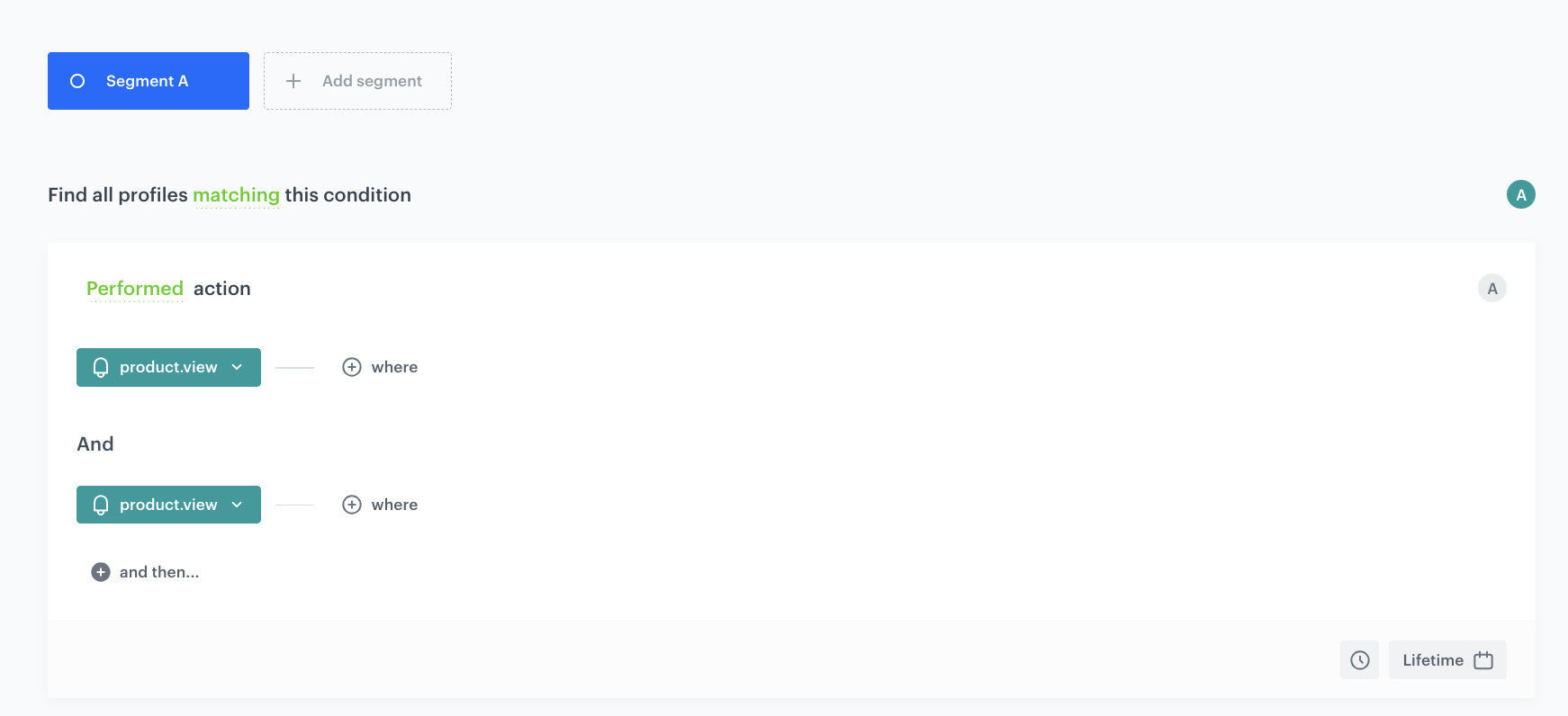
2. Give the segmentation a meaningful name, for example `Returning users`.
3. Click **Choose filter** and select the **product.view** event.
4. Click **Add funnel step** and select the **product.view** event once again.
5. As the date range, select **Lifetime**.
6. Click **Apply**.
**Decision Hub > Segmentations > New segmentation**.
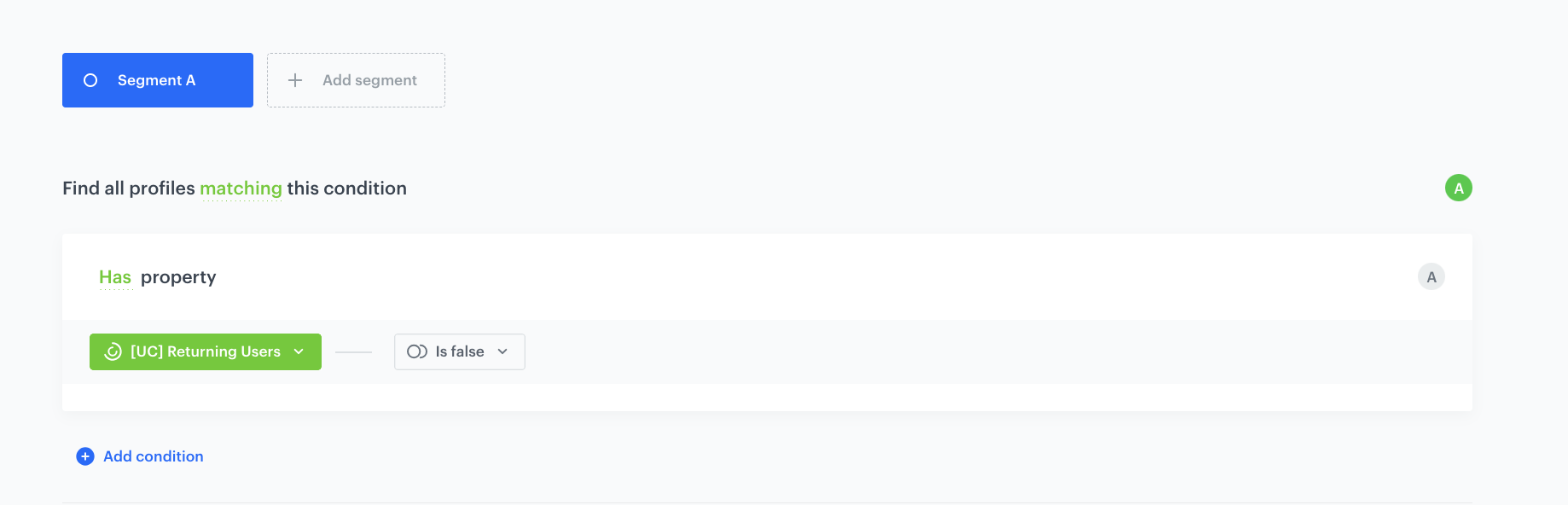
2. Give the segmentation a meaningful name, for example `New users`.
3. Click **Choose filter** and select the segment you created in the [previous step](/use-cases/recommendations-for-new-and-returning-users#segmentation-for-returning-users).
4. From the **Choose operator** dropdown list, select **Is false (Boolean)**.
5. Click **Apply**.
**Decision Hub > Segmentations > New segmentation**.
2. Give the segmentation a meaningful name, for example `Returning users`.
3. Click **Choose filter** and select the **product.view** event.
4. Click **Add funnel step** and select the **product.view** event once again.
5. As the date range, select **Lifetime**.
6. Click **Apply**.
**Decision Hub > Segmentations > New segmentation**.
2. Give the segmentation a meaningful name, for example `New users`.
3. Click **Choose filter** and select the segment you created in the [previous step](/use-cases/recommendations-for-new-and-returning-users#segmentation-for-returning-users).
4. From the **Choose operator** dropdown list, select **Is false (Boolean)**.
5. Click **Apply**.
 **Experience Hub > Screen views > Create screen view**.
2. Enter the name of the screen view.
3. Optionally, to let other users know about the purpose of this screen view, write a short description.
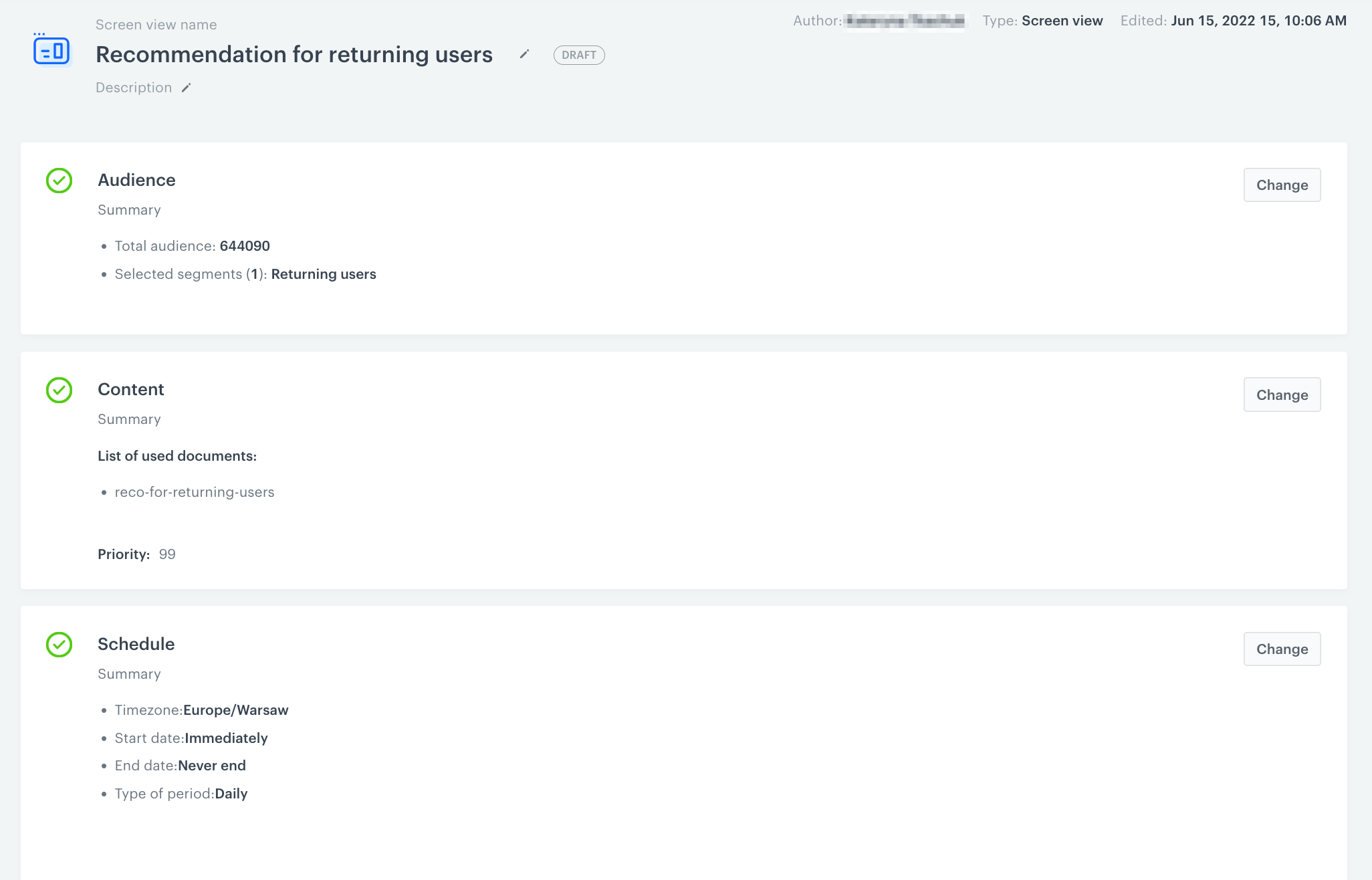
4. To define the recipients of your screen view, in the **Audience** section click the **Define** button and choose the [returning users segmentation](/use-cases/recommendations-for-new-and-returning-users#segmentation-for-returning-users).
5. Confirm your choice by clicking the **Apply** button.
6. To create the content of your screen view, in the **Content** section click the **Define** button.
7. Prepare and paste the JSON code with the collection of dashboards you want to include in the screen view. The code needs to define the way of presenting the dashboards (for example, as a vertical list).
8. Below the code text field, select the document with the recommendation for returning users by clicking the **Add document** button.
9. To define the schedule of the screen view, in the **Schedule** section click the **Define** button.
10. From the Timezone dropdown list, select a timezone for the schedule.
11. Select the start date by performing one of the following actions:
- To launch the screen view immediately, select the **Immediately** option.
- To select the start date:
1. Select the **Scheduled** option.
2. Click the **Select time** field.
3. Pick a date and select time.
4. Confirm by clicking **Apply**.
**Experience Hub > Screen views > Create screen view**.
2. Enter the name of the screen view.
3. Optionally, to let other users know about the purpose of this screen view, write a short description.
4. To define the recipients of your screen view, in the **Audience** section click the **Define** button and choose the [returning users segmentation](/use-cases/recommendations-for-new-and-returning-users#segmentation-for-returning-users).
5. Confirm your choice by clicking the **Apply** button.
6. To create the content of your screen view, in the **Content** section click the **Define** button.
7. Prepare and paste the JSON code with the collection of dashboards you want to include in the screen view. The code needs to define the way of presenting the dashboards (for example, as a vertical list).
8. Below the code text field, select the document with the recommendation for returning users by clicking the **Add document** button.
9. To define the schedule of the screen view, in the **Schedule** section click the **Define** button.
10. From the Timezone dropdown list, select a timezone for the schedule.
11. Select the start date by performing one of the following actions:
- To launch the screen view immediately, select the **Immediately** option.
- To select the start date:
1. Select the **Scheduled** option.
2. Click the **Select time** field.
3. Pick a date and select time.
4. Confirm by clicking **Apply**.
 **Experience Hub > Screen views > Create screen view**.
2. Enter the name of the screen view.
3. Follow the same steps mentioned in the [previous step](/use-cases/recommendations-for-new-and-returning-users#create-a-screen-view-for-returning-users) using the [segmentation of new users](/use-cases/recommendations-for-new-and-returning-users#segmentation-for-new-users) and relevant document dedicated to those users.
## What's next
---
For a campaign to be visible in a mobile app, it must fetch screen views and display defined campaigns using the appropriate SDK Method for [iOS](/developers/mobile-sdk/method-reference/ios/content#generate-screen-view) and [Android](/developers/mobile-sdk/method-reference/android/content#generate-screen-view), [React Native](/developers/mobile-sdk/method-reference/react-native/content#generate-screen-view), [Flutter](/developers/mobile-sdk/method-reference/flutter/content#generate-screen-view).
## Check the use case set up on the Synerise Demo workspace
---
You can also check the configuration for [returning users](https://app.synerise.com/analytics-v2/segmentations/2ebfc8cb-a030-41f7-af7b-b19cc165b532) and [new users](https://app.synerise.com/analytics-v2/segmentations/605f7434-8544-4a1d-a0c0-6ba4c49aff3e) directly in the Synerise Demo workspace.
If you’re our partner or client, you already have automatic access to the **Synerise Demo workspace (1590)**, where you can explore all the configured elements of this use case and copy them to your workspace.
If you’re not a partner or client yet, we encourage you to fill out the contact [form](https://demo.synerise.com/request) to schedule a meeting with our representatives. They’ll be happy to show you how our demo works and discuss how you can apply this use case in your business.
## Read more
---
- [Documents](/docs/assets/documents/introduction-to-documents)
- [Recommendations](/docs/ai-hub/recommendations-v2)
- [Screen views](/docs/campaign/screen-views/introduction-to-screen-views)
- [Segmentations](/docs/analytics/segmentations/introduction-to-segmentations)
**Experience Hub > Screen views > Create screen view**.
2. Enter the name of the screen view.
3. Follow the same steps mentioned in the [previous step](/use-cases/recommendations-for-new-and-returning-users#create-a-screen-view-for-returning-users) using the [segmentation of new users](/use-cases/recommendations-for-new-and-returning-users#segmentation-for-new-users) and relevant document dedicated to those users.
## What's next
---
For a campaign to be visible in a mobile app, it must fetch screen views and display defined campaigns using the appropriate SDK Method for [iOS](/developers/mobile-sdk/method-reference/ios/content#generate-screen-view) and [Android](/developers/mobile-sdk/method-reference/android/content#generate-screen-view), [React Native](/developers/mobile-sdk/method-reference/react-native/content#generate-screen-view), [Flutter](/developers/mobile-sdk/method-reference/flutter/content#generate-screen-view).
## Check the use case set up on the Synerise Demo workspace
---
You can also check the configuration for [returning users](https://app.synerise.com/analytics-v2/segmentations/2ebfc8cb-a030-41f7-af7b-b19cc165b532) and [new users](https://app.synerise.com/analytics-v2/segmentations/605f7434-8544-4a1d-a0c0-6ba4c49aff3e) directly in the Synerise Demo workspace.
If you’re our partner or client, you already have automatic access to the **Synerise Demo workspace (1590)**, where you can explore all the configured elements of this use case and copy them to your workspace.
If you’re not a partner or client yet, we encourage you to fill out the contact [form](https://demo.synerise.com/request) to schedule a meeting with our representatives. They’ll be happy to show you how our demo works and discuss how you can apply this use case in your business.
## Read more
---
- [Documents](/docs/assets/documents/introduction-to-documents)
- [Recommendations](/docs/ai-hub/recommendations-v2)
- [Screen views](/docs/campaign/screen-views/introduction-to-screen-views)
- [Segmentations](/docs/analytics/segmentations/introduction-to-segmentations)