Loyalty programs are designed to guide customers through specific marketing scenarios in accordance with the loyalty point thresholds they reached. You can make recommendations the essence of these scenarios. This use case focuses on a recommendation that presents 4 items above $500 for the customers in the VIP segment.

Very often, VIP customers have additional discounts such as vouchers for a specified amount, the consumption of which from the seller's perspective should not excessively diminish the profit margin from the customer's purchases. Using the information about the VIP segment to which the customer belongs, we can recommend items from the highest price range or those whose margin allows the customer to "safely" use the discount.

## Prerequisites
---

- Enable the [personalized recommendation model](/docs/settings/configuration/ai-engine-configuration/engine-configuration-for-recommendations). 
- Assign a VIP tag to your customers.  
    
  <div class="admonition admonition-note"><div class="admonition-icon"><svg xmlns="http://www.w3.org/2000/svg" fill="none" viewBox="0 0 24 24" stroke="currentColor" stroke-width="2.5"><path stroke-linecap="round" stroke-linejoin="round" d="M13 16h-1v-4h-1m1-4h.01M21 12a9 9 0 11-18 0 9 9 0 0118 0z" /></svg></div><div class="admonition-body"><div class="admonition-content">

  Assign the tag to the customers who meet your requirements for premium customers.

  </div></div></div>


## Create a recommendation
---
1. Go to <img src="/api/docs/image/54176ad07f146575310749eba44b7c2f42c1b327/icons/ai-hub-icon.svg" alt="AI Hub icon" class="icon" > **AI Hub > (AI Recommendations) Models > Add recommendation**.
2. Enter a meaningful name of the recommendation.
3. In the **Type & Items feed** section, click **Define**.  
    1. From the **Items feed** dropdown list, select the catalog that contains items for the recommendation.  
    2. As the type, select **Personalized**.
    3. Click **Apply**.
4. In the **Items** section, click **Define**.
5. Click **Add slot**. You can name the slot for later reference. 
5. In the **Number of items** subsection, set the minimum and maximum number of items to `4`. 
    
   <div class="admonition admonition-tip"><div class="admonition-icon"><svg xmlns="http://www.w3.org/2000/svg" fill="none" viewBox="0 0 24 24" stroke="currentColor" stroke-width="2.5"><path stroke-linecap="round" stroke-linejoin="round" d="M9.663 17h4.673M12 3v1m6.364 1.636l-.707.707M21 12h-1M4 12H3m3.343-5.657l-.707-.707m2.828 9.9a5 5 0 117.072 0l-.548.547A3.374 3.374 0 0014 18.469V19a2 2 0 11-4 0v-.531c0-.895-.356-1.754-.988-2.386l-.548-.547z" /></svg></div><div class="admonition-body"><div class="admonition-content">

   Setting the minimum and maximum number of items to the same number ensures that exactly this many items will appear in the slot.

   </div></div></div>
 
6. Click **Static filter** and choose **IQL Query**.  
    
   <div class="admonition admonition-note"><div class="admonition-icon"><svg xmlns="http://www.w3.org/2000/svg" fill="none" viewBox="0 0 24 24" stroke="currentColor" stroke-width="2.5"><path stroke-linecap="round" stroke-linejoin="round" d="M13 16h-1v-4h-1m1-4h.01M21 12a9 9 0 11-18 0 9 9 0 0118 0z" /></svg></div><div class="admonition-body"><div class="admonition-content">

   Learn about the difference among [elastic, static filters](/docs/ai-hub/recommendations-v2/creating-recommendation-campaign#select-conditions-of-displaying-items), and [distinct filters](/docs/ai-hub/recommendations-v2/creating-recommendation-campaign#distinct-filter).

   </div></div></div>

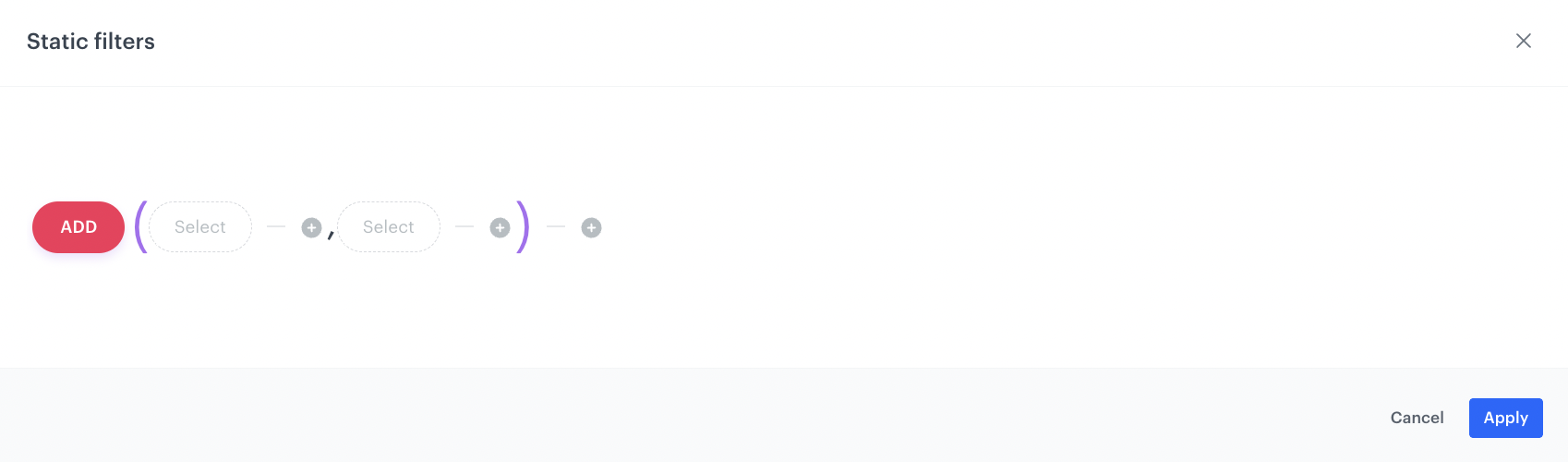
7. Click **Select** and from the dropdown list, select **Function**.    
    **Result**: The **ADD** function appears.
8. Click **ADD** and from the dropdown list, select the **IF** function.  
    **Result**: <figure><img src="/api/docs/image/54176ad07f146575310749eba44b7c2f42c1b327/use-cases/all-cases/_gfx/iql-query.png" class="full" alt="If function syntax"><figcaption>If function syntax</figcaption></figure>
8. Click the first **Select** node. 
    1. From the dropdown list, select click **Client Tags**. 
    2. Next to the **client.tag** node, click the <img src="/api/docs/image/54176ad07f146575310749eba44b7c2f42c1b327/icons/plus-icon-expressions.png" class="icon" alt= "Plus icon"> icon.
    3. From the dropdown list, select **String**.
    4. Click the **value** node.  
        **Result**: <img src="/api/docs/image/54176ad07f146575310749eba44b7c2f42c1b327/icons/property-manual-value-iql.png" class="icon" alt= "Property selector"> appears below. 

    3. Click **Manual value** and choose **Tag**. 
    4. Click **Select value** and choose the tag that specifies if a customer is a VIP customer. In this example, it is `VIP`.
    6. Between the **client.tag** node and the **VIP** node, change the plus sign to **HAS**. 
9. Click the next **Select** node in the **IF** function.
    1. From the dropdown menu, choose **Attribute**.
    2. Click tne **null** node.  
        **Result**: <img src="/api/docs/image/54176ad07f146575310749eba44b7c2f42c1b327/icons/property-attribute-iql.png" class="icon" alt= "Property selector"> appears below.
    3. Click **Select value** and choose the attribute that describes the items' price.
    4. Next to the price attribute, click the <img src="/api/docs/image/54176ad07f146575310749eba44b7c2f42c1b327/icons/plus-icon-expressions.png" class="icon" alt= "Plus icon"> icon and choose **Number**.
    5. Click the **0** node.  
        **Result**: <img src="/api/docs/image/54176ad07f146575310749eba44b7c2f42c1b327/icons/property-number-iql.png" class="icon" alt= "Property selector"> appears below.
    6. Enter the bottom price limit for items. In our example, it is `500`.
    7. Between the price attribute and the 500 nodes, click on the <img src="/api/docs/image/54176ad07f146575310749eba44b7c2f42c1b327/icons/plus-icon-expressions.png" class="icon" alt= "Plus icon"> icon.
    8. Choose <img src="/api/docs/image/54176ad07f146575310749eba44b7c2f42c1b327/icons/great-or-equal.png" class="icon" alt= "Greater than or equal sign">(greater than or equal).
10. Click the last **Select** in the **IF** function.
11. From the dropdown menu, choose **Take all**.  
    **Result**: <figure><img src="/api/docs/image/54176ad07f146575310749eba44b7c2f42c1b327/use-cases/all-cases/_gfx/iql-vip-customers.png" class="full" alt="The final configuration of the IQL query"><figcaption>The final configuration of the IQL query </figcaption></figure>

11. Click **Apply**.
12. In the **Items** section, click **Apply**. 
13. In **Boosting**, you can enable [boosting](/docs/ai-hub/recommendations-v2/creating-recommendation-campaign#define-the-boosting-factors).
14. In **Additional settings**, optionally, you can exclude already bought products and set a metric to sort by. 
15. Save the recommendation by clicking **Save**. 

## What's next
---
You can display the recommendation to customers in a number of ways, for example by using the [recommendation insert](/developers/inserts/recommendations-v2) in [dynamic content](/docs/campaign/dynamiccontent/creating-dynamic-content).

## Check the use case set up on the Synerise Demo workspace
---

Check the [recommendations settings](https://app.synerise.com/ai-v2/recommendations/Ut9xo2SHlBis) in Synerise Demo workspace.

If you’re our partner or client, you already have automatic access to the **Synerise Demo workspace (1590)**, where you can explore all the configured elements of this use case and copy them to your workspace.  

If you’re not a partner or client yet, we encourage you to fill out the contact [form](https://demo.synerise.com/request) to schedule a meeting with our representatives. They’ll be happy to show you how our demo works and discuss how you can apply this use case in your business.

## Read more
---
- [Building elements in IQL builder](/docs/ai-hub/recommendations-v2/recommendation-filters#elements-of-the-formula)
- [Creating recommendations](/docs/ai-hub/recommendations-v2/creating-recommendation-campaign)
- [Filters in recommendations](/docs/ai-hub/recommendations-v2/recommendation-filters)
- [Requirements for item feed](/docs/ai-hub/recommendations-v2/item-feed-requirements)
- [Tags](/docs/assets/tags)