 **Behavioral Data Hub > Live Aggregates > Create aggregate**.
2. As the aggregate type, select **Profile**.
2. Enter the name of the aggregate.
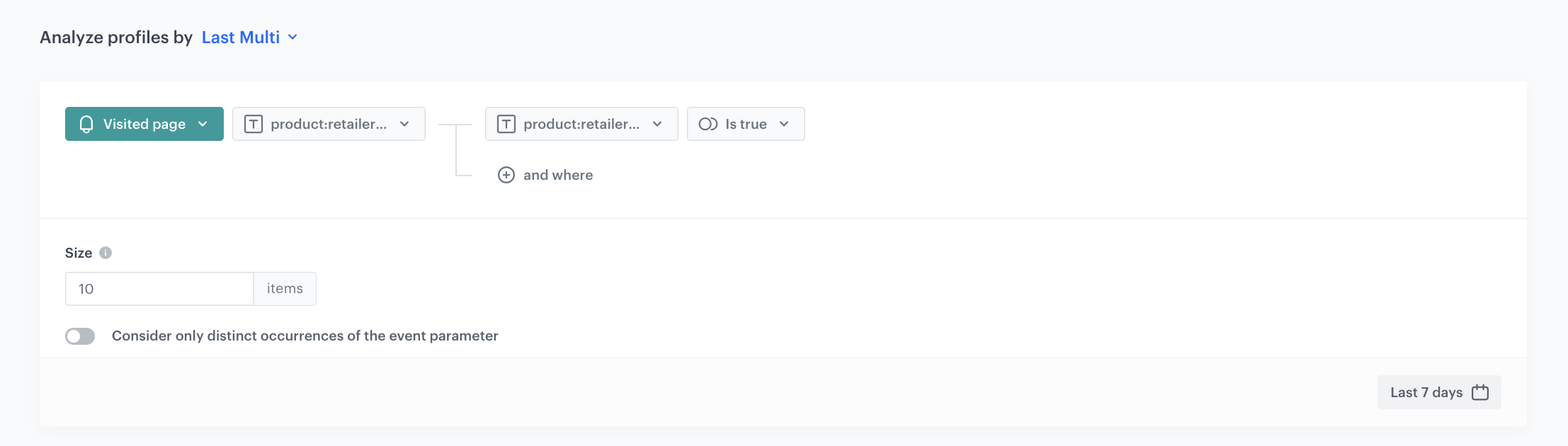
3. Click **Analyze profiles by** and select **Last Multi**. In **Size**, enter `10`. You can also add more results.
4. From the **Choose event** dropdown list, select the **Visited page** event.
5. As the event parameter, select **product:retailer_part_no**.
6. Click the **+ where** button.
7. From the **Choose parameter** dropdown list, select the **product:retailer_part_no** parameter.
8. From the **Choose operator** dropdown list, select **Is true (Boolean)**.
9. Using the date picker in the lower-right corner, set the time range to **Last 7 days**. Confirm your choice with the **Apply** button.
7. Click **Save**.
**Behavioral Data Hub > Live Aggregates > Create aggregate**.
2. As the aggregate type, select **Profile**.
2. Enter the name of the aggregate.
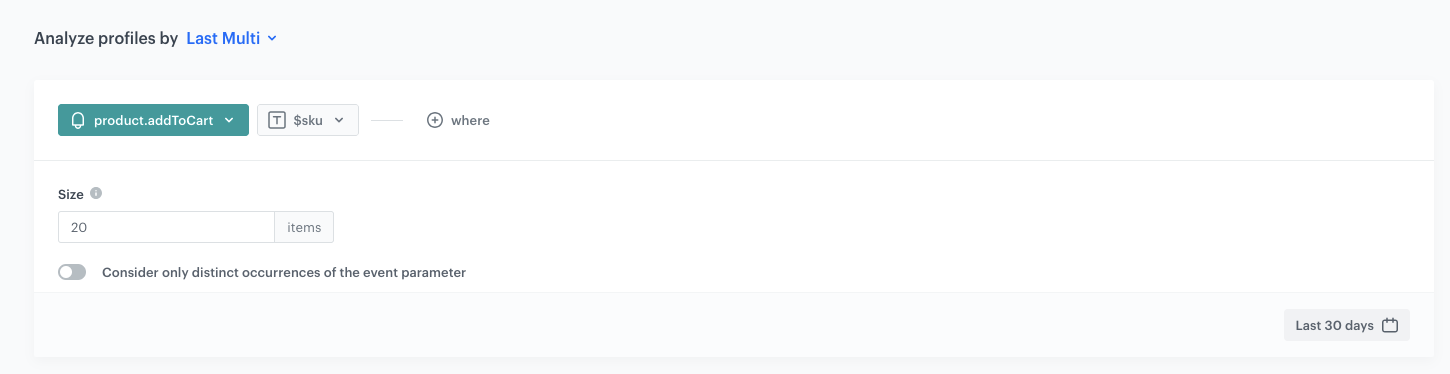
3. Click **Analyze profiles by** and select **Last Multi**. In **Size**, enter `20`. You can also add more results.
4. From the **Choose event** dropdown list, select the **product.addToCart** event.
5. As the event parameter, select **$sku**.
9. Using the date picker in the lower-right corner, set the time range to **Last 30 days**. Confirm your choice with the **Apply** button.
7. Click **Save**.
**Behavioral Data Hub > Live Aggregates > Create aggregate**.
2. As the aggregate type, select **Profile**.
2. Enter the name of the aggregate.
3. Click **Analyze profiles by** and select **Last Multi**. In **Size**, enter `10`. You can also add more results.
4. From the **Choose event** dropdown list, select the **Visited page** event.
5. As the event parameter, select **product:retailer_part_no**.
6. Click the **+ where** button.
7. From the **Choose parameter** dropdown list, select the **product:retailer_part_no** parameter.
8. From the **Choose operator** dropdown list, select **Is true (Boolean)**.
9. Using the date picker in the lower-right corner, set the time range to **Last 7 days**. Confirm your choice with the **Apply** button.
7. Click **Save**.
**Behavioral Data Hub > Live Aggregates > Create aggregate**.
2. As the aggregate type, select **Profile**.
2. Enter the name of the aggregate.
3. Click **Analyze profiles by** and select **Last Multi**. In **Size**, enter `20`. You can also add more results.
4. From the **Choose event** dropdown list, select the **product.addToCart** event.
5. As the event parameter, select **$sku**.
9. Using the date picker in the lower-right corner, set the time range to **Last 30 days**. Confirm your choice with the **Apply** button.
7. Click **Save**.
 **AI Hub > (AI Recommendations) Models > Add recommendation**.
2. Enter the name of the recommendation (it is only visible on the list of recommendations).
3. In the **Type & Items Feed** section, click **Define**.
4. From the **Items Feed** dropdown list, select an item feed.
5. In the **Type** section, choose the **Last seen** recommendation type.
6. Confirm the settings by clicking **Apply**.
7. In the **Items** section, click **Define**.
2. Define the minimum and maximum number of items that will be recommended to the customer in each slot.
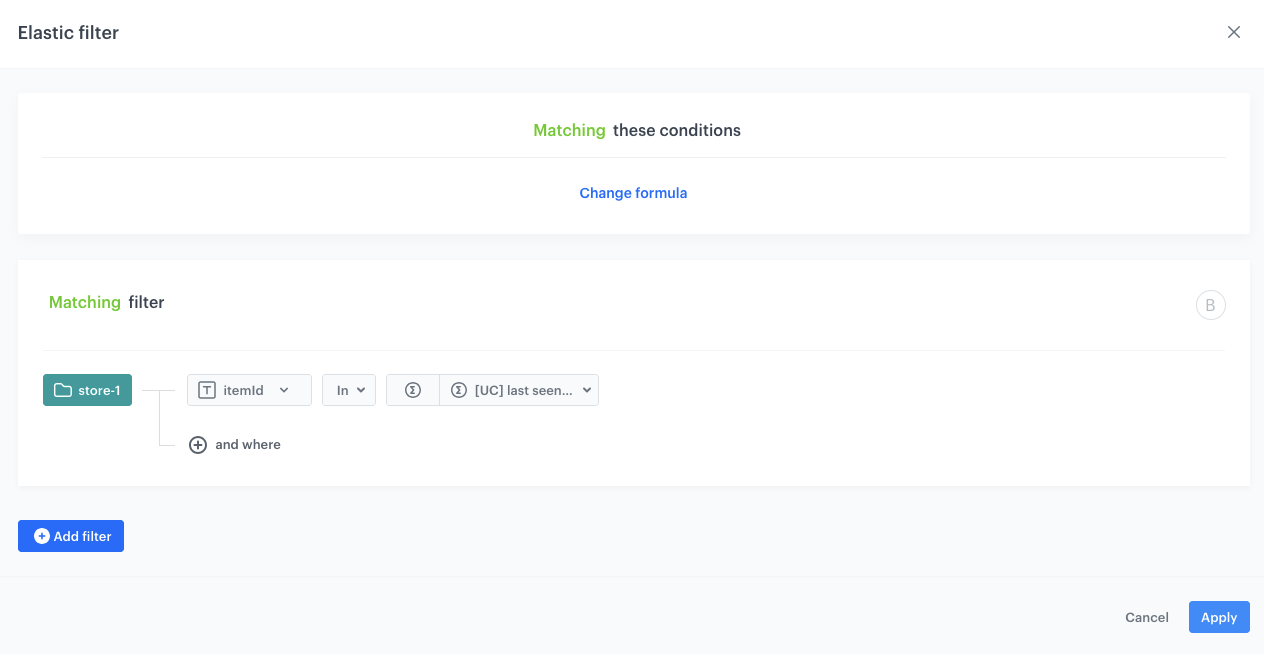
3. Define [Static filters](/docs/ai-hub/recommendations-v2/creating-recommendation-campaign#static-filters) and [Elastic filters](/docs/ai-hub/recommendations-v2/creating-recommendation-campaign#elastic-filters).
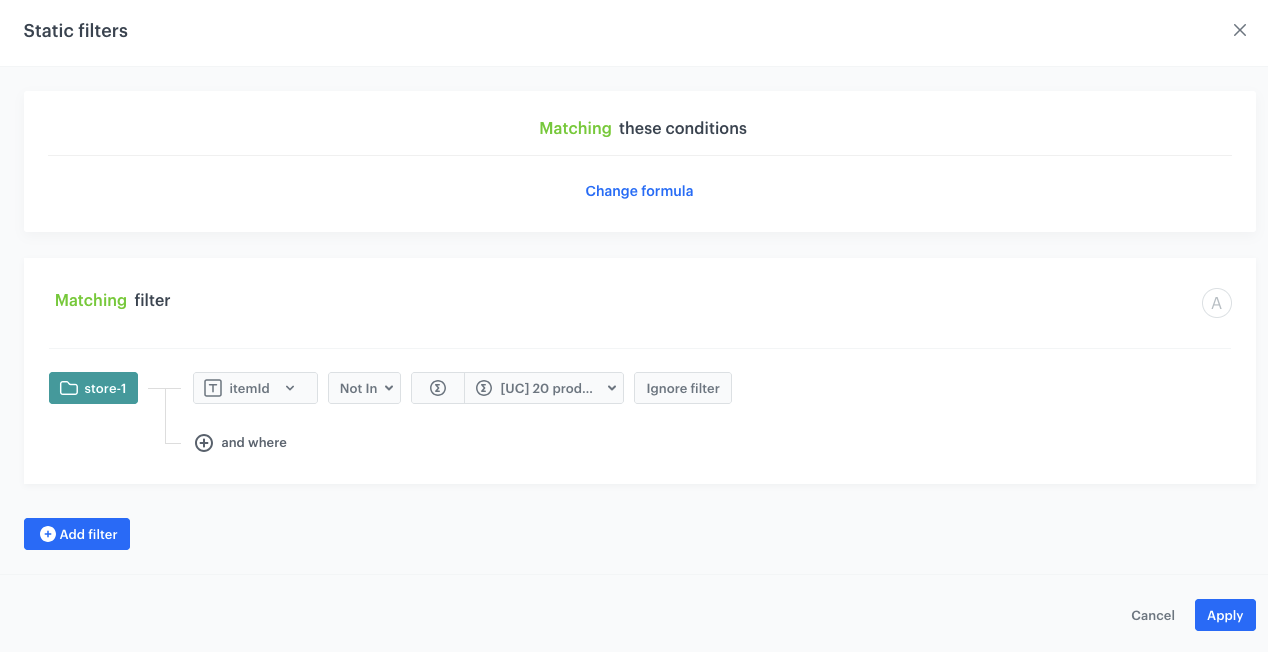
4. In our case, in the **Static filter** section, click **Define filter**.
5. Select **Visual Builder**.
6. Click **Select value**.
5. Choose **itemId**.
6. As an operator, choose **Not in**.
7. Click the icon which appeared next to the field with operator and from the dropdown list, select **Aggregate**.
8. From the list, choose the [aggregate, with 20 products added to the cart, created in the previous step](#create-an-aggregate-returning-last-20-products-added-to-cart).
4. Confirm by clicking **Apply**.
**AI Hub > (AI Recommendations) Models > Add recommendation**.
2. Enter the name of the recommendation (it is only visible on the list of recommendations).
3. In the **Type & Items Feed** section, click **Define**.
4. From the **Items Feed** dropdown list, select an item feed.
5. In the **Type** section, choose the **Last seen** recommendation type.
6. Confirm the settings by clicking **Apply**.
7. In the **Items** section, click **Define**.
2. Define the minimum and maximum number of items that will be recommended to the customer in each slot.
3. Define [Static filters](/docs/ai-hub/recommendations-v2/creating-recommendation-campaign#static-filters) and [Elastic filters](/docs/ai-hub/recommendations-v2/creating-recommendation-campaign#elastic-filters).
4. In our case, in the **Static filter** section, click **Define filter**.
5. Select **Visual Builder**.
6. Click **Select value**.
5. Choose **itemId**.
6. As an operator, choose **Not in**.
7. Click the icon which appeared next to the field with operator and from the dropdown list, select **Aggregate**.
8. From the list, choose the [aggregate, with 20 products added to the cart, created in the previous step](#create-an-aggregate-returning-last-20-products-added-to-cart).
4. Confirm by clicking **Apply**.