**Behavioral Data Hub > Live Aggregates > Create aggregate**.
2. As the aggregate type, select **Profile**.
2. Enter the name of the aggregate.
3. Click **Analyze profiles by** and select **Last**.
4. Select the **product.addToFavorite** event.
5. Select the **sku** parameter.
6. Define the period from which the aggregate will return products from the event.
7. Save the aggregate.
**Behavioral Data Hub > Live Aggregates > Create aggregate**.
2. As the aggregate type, select **Profile**.
2. Enter the name of the aggregate.
3. Click **Analyze profiles by** and select **Last**.
4. Select the **product.addToFavorite** event.
5. Select the **sku** parameter.
6. Define the period from which the aggregate will return products from the event.
7. Save the aggregate.
 **AI Hub > (AI Recommendations) Models > Add recommendation**.
2. Enter the name of the recommendation (it is only visible on the list of recommendation).
3. In the **Type & Items feed** section, click **Define**.
4. From the **Items feed** dropdown list, select an item feed.
5. In the **Type** section, choose the **Similar items** recommendation type.
6. Confirm the settings by clicking **Apply**.
7. In the **Items** section, click **Define**.
1. Click **Add slot**.
2. Define the minimum and maximum number of items that will be recommended to the customer in each slot.
3. Optionally, define [Static filters](/docs/ai-hub/recommendations-v2/creating-recommendation-campaign#static-filters), [Elastic filters](/docs/ai-hub/recommendations-v2/creating-recommendation-campaign#elastic-filters) and [Distinct filters](/docs/ai-hub/recommendations-v2/creating-recommendation-campaign#distinct-filter)
4. Confirm by clicking **Apply**.
8. Optionally, you can define settings in the **Slots and items ordering** and **Boosting** sections.
9. In the **Additional settings** section click **Define**.
1. Enable the **Item context from analytics (aggregate, expression)** switch.
2. From the dropdown list, select the aggregate you created [in this part of the process](#create-an-aggregate).
3. Click **Apply**.
9. In the right upper corner, click **Save**.
10. Copy the recommendation ID from its URL and save it in the notepad. It will be needed in the further part of the process.
## Prepare cross-sell AI recommendations
---
In this part of the process, you will configure a cros-sell recommendation with context of items that customers added to their favorites. This recommendation will be later used in the dynamic content.
1. Go to **AI Hub > (AI Recommendations) Models > Add recommendation**.
2. Enter the name of the recommendation (it is only visible on the list of recommendation).
3. In the **Type & Items feed** section, click **Define**.
4. From the **Items feed** dropdown list, select an item feed.
5. In the **Type** section, choose the **Cross-sell** recommendation type.
6. Confirm the settings by clicking **Apply**.
7. In the **Items** section, click **Define**.
1. Click **Add slot**.
2. Define the minimum and maximum number of items that will be recommended to the customer in each slot.
3. Optionally, define [Static filters](/docs/ai-hub/recommendations-v2/creating-recommendation-campaign#static-filters), [Elastic filters](/docs/ai-hub/recommendations-v2/creating-recommendation-campaign#elastic-filters) and [Distinct filters](/docs/ai-hub/recommendations-v2/creating-recommendation-campaign#distinct-filter)
4. Confirm by clicking **Apply**.
8. Optionally, you can define settings in the **Slots and items ordering** and **Boosting** sections.
9. In the **Additional settings** section click **Define**.
1. Enable the **Item context from analytics (aggregate, expression)** switch.
2. From the dropdown list, select the aggregate you created [in this part of the process](#create-an-aggregate).
3. Click **Apply**.
9. In the right upper corner, click **Save**.
10. Copy the recommendation ID from its URL and save it in the notepad. It will be needed in the further part of the process.
## Create two variants of the dynamic content campaign
---
Create two variants of a dynamic content campaign (each must be a web layer type). Every variant must reference a recommendation generated earlier in the process. The dynamic content campaigns will be displayed as a pop-up on your site for the customers who have added products to their favorites.
1. Go to
**AI Hub > (AI Recommendations) Models > Add recommendation**.
2. Enter the name of the recommendation (it is only visible on the list of recommendation).
3. In the **Type & Items feed** section, click **Define**.
4. From the **Items feed** dropdown list, select an item feed.
5. In the **Type** section, choose the **Similar items** recommendation type.
6. Confirm the settings by clicking **Apply**.
7. In the **Items** section, click **Define**.
1. Click **Add slot**.
2. Define the minimum and maximum number of items that will be recommended to the customer in each slot.
3. Optionally, define [Static filters](/docs/ai-hub/recommendations-v2/creating-recommendation-campaign#static-filters), [Elastic filters](/docs/ai-hub/recommendations-v2/creating-recommendation-campaign#elastic-filters) and [Distinct filters](/docs/ai-hub/recommendations-v2/creating-recommendation-campaign#distinct-filter)
4. Confirm by clicking **Apply**.
8. Optionally, you can define settings in the **Slots and items ordering** and **Boosting** sections.
9. In the **Additional settings** section click **Define**.
1. Enable the **Item context from analytics (aggregate, expression)** switch.
2. From the dropdown list, select the aggregate you created [in this part of the process](#create-an-aggregate).
3. Click **Apply**.
9. In the right upper corner, click **Save**.
10. Copy the recommendation ID from its URL and save it in the notepad. It will be needed in the further part of the process.
## Prepare cross-sell AI recommendations
---
In this part of the process, you will configure a cros-sell recommendation with context of items that customers added to their favorites. This recommendation will be later used in the dynamic content.
1. Go to **AI Hub > (AI Recommendations) Models > Add recommendation**.
2. Enter the name of the recommendation (it is only visible on the list of recommendation).
3. In the **Type & Items feed** section, click **Define**.
4. From the **Items feed** dropdown list, select an item feed.
5. In the **Type** section, choose the **Cross-sell** recommendation type.
6. Confirm the settings by clicking **Apply**.
7. In the **Items** section, click **Define**.
1. Click **Add slot**.
2. Define the minimum and maximum number of items that will be recommended to the customer in each slot.
3. Optionally, define [Static filters](/docs/ai-hub/recommendations-v2/creating-recommendation-campaign#static-filters), [Elastic filters](/docs/ai-hub/recommendations-v2/creating-recommendation-campaign#elastic-filters) and [Distinct filters](/docs/ai-hub/recommendations-v2/creating-recommendation-campaign#distinct-filter)
4. Confirm by clicking **Apply**.
8. Optionally, you can define settings in the **Slots and items ordering** and **Boosting** sections.
9. In the **Additional settings** section click **Define**.
1. Enable the **Item context from analytics (aggregate, expression)** switch.
2. From the dropdown list, select the aggregate you created [in this part of the process](#create-an-aggregate).
3. Click **Apply**.
9. In the right upper corner, click **Save**.
10. Copy the recommendation ID from its URL and save it in the notepad. It will be needed in the further part of the process.
## Create two variants of the dynamic content campaign
---
Create two variants of a dynamic content campaign (each must be a web layer type). Every variant must reference a recommendation generated earlier in the process. The dynamic content campaigns will be displayed as a pop-up on your site for the customers who have added products to their favorites.
1. Go to  **Experience Hub > Dynamic content > Create new**.
2. Enter the name of the dynamic content.
3. Choose the **Web layer** type.
4. In the **Audience** section, click **Define**.
1. In the **New Audience** section, click **Define conditions**.
2. From **Choose filter** dropdown menu, choose **product.addToFavorite** event.
3. Define the period from which the segmentation will return customers.
4. Confirm the settings by clicking **Apply**.
5. Confirm the settings by clicking **Apply**.
### Define the first variant content
5. In the **Content** section, click **Define**.
6. In the **Content** tab, click **Create Message**.
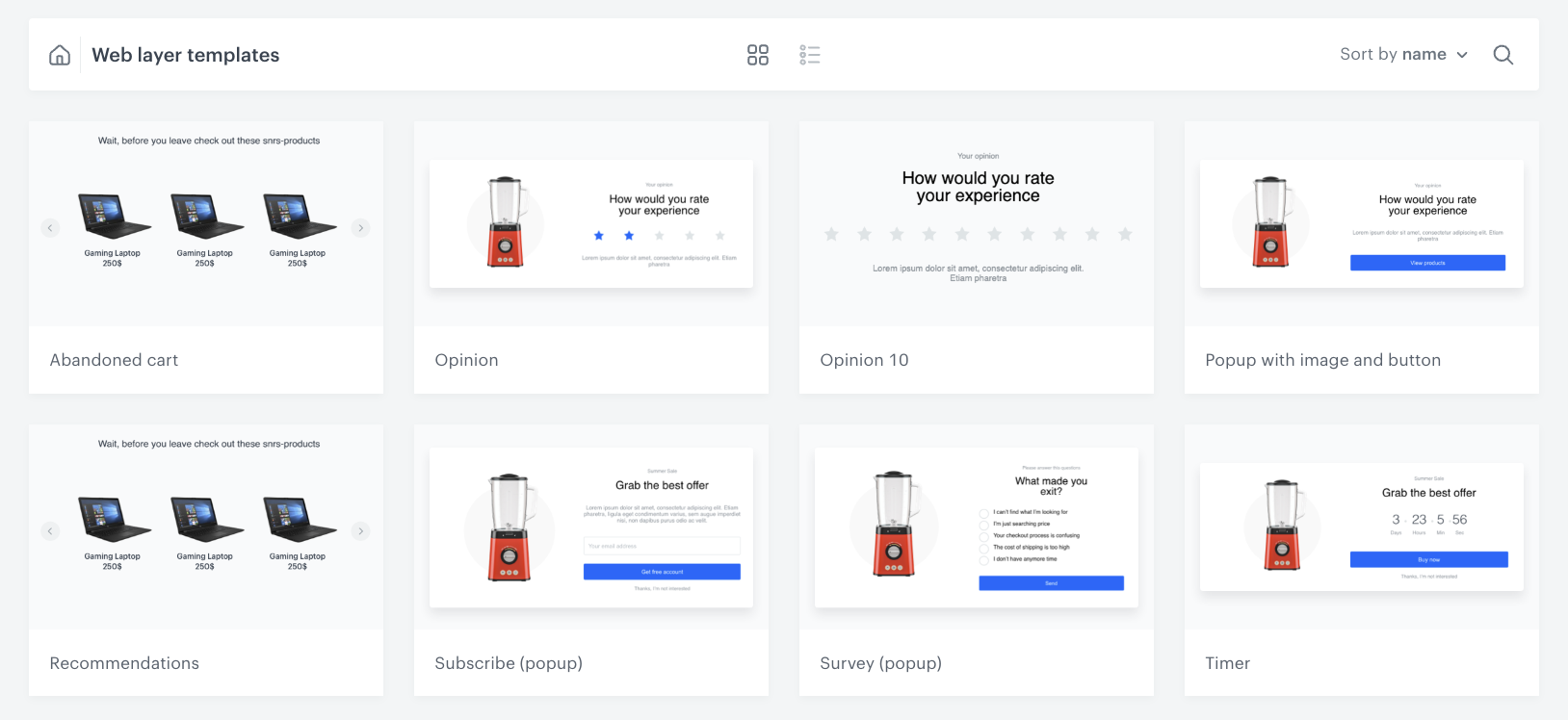
7. From the list of template folders, select a folder with the predefined **Web layer templates**.
**Result**: You are redirected to the list of predefined templates.
**Experience Hub > Dynamic content > Create new**.
2. Enter the name of the dynamic content.
3. Choose the **Web layer** type.
4. In the **Audience** section, click **Define**.
1. In the **New Audience** section, click **Define conditions**.
2. From **Choose filter** dropdown menu, choose **product.addToFavorite** event.
3. Define the period from which the segmentation will return customers.
4. Confirm the settings by clicking **Apply**.
5. Confirm the settings by clicking **Apply**.
### Define the first variant content
5. In the **Content** section, click **Define**.
6. In the **Content** tab, click **Create Message**.
7. From the list of template folders, select a folder with the predefined **Web layer templates**.
**Result**: You are redirected to the list of predefined templates.