When building product recommendations in the checkout flow, it's important to avoid redundancy and overexposure. Showing users items they’ve just viewed or recently bought can reduce relevance and lower conversion potential.

In this use case, we implement a recommendation that suggests products related to items currently in the cart. To ensure the results remain fresh and relevant, we apply the following filters:

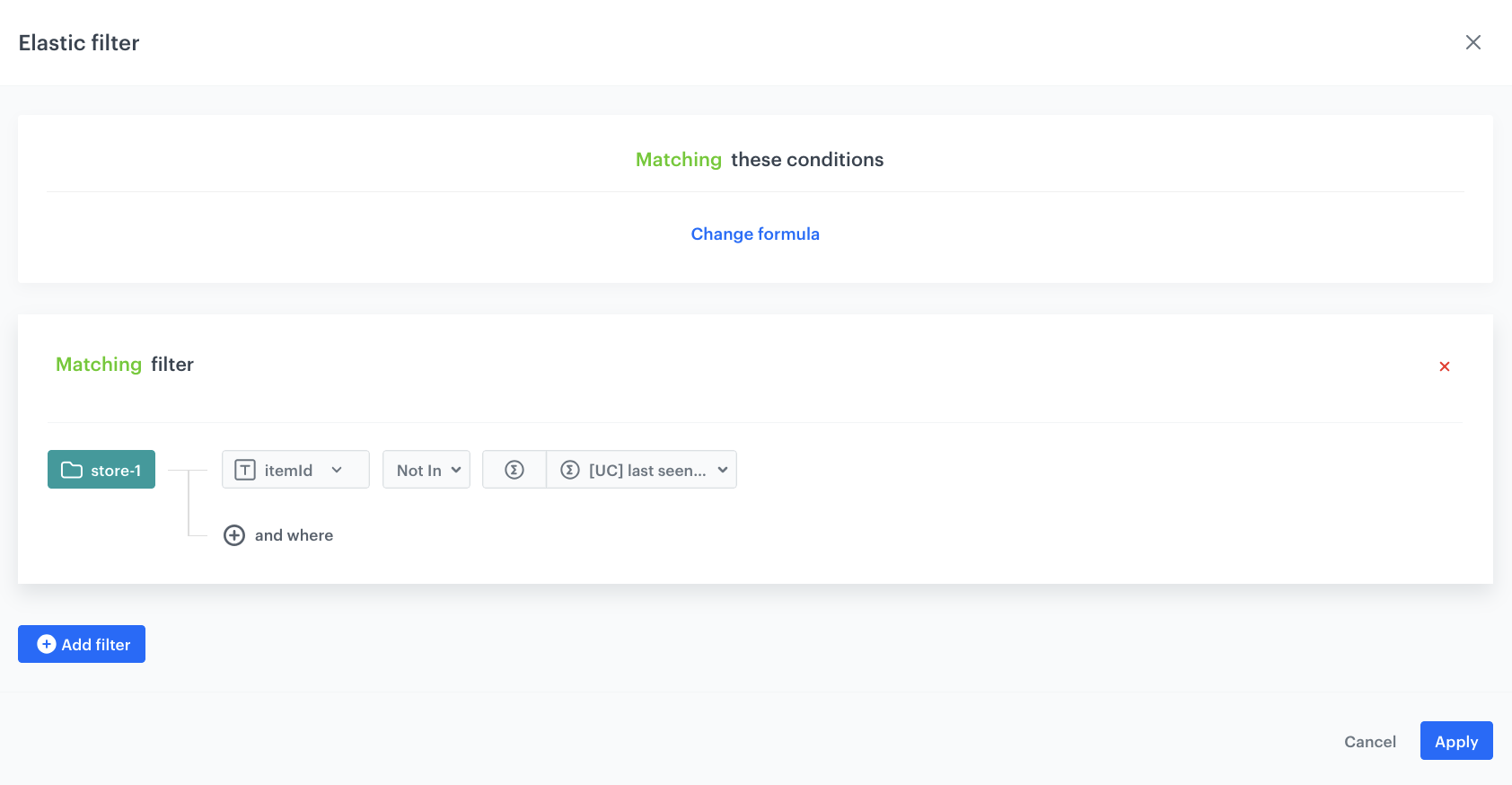
- one to exclude last seen products,
- and another to exclude items recently purchased,
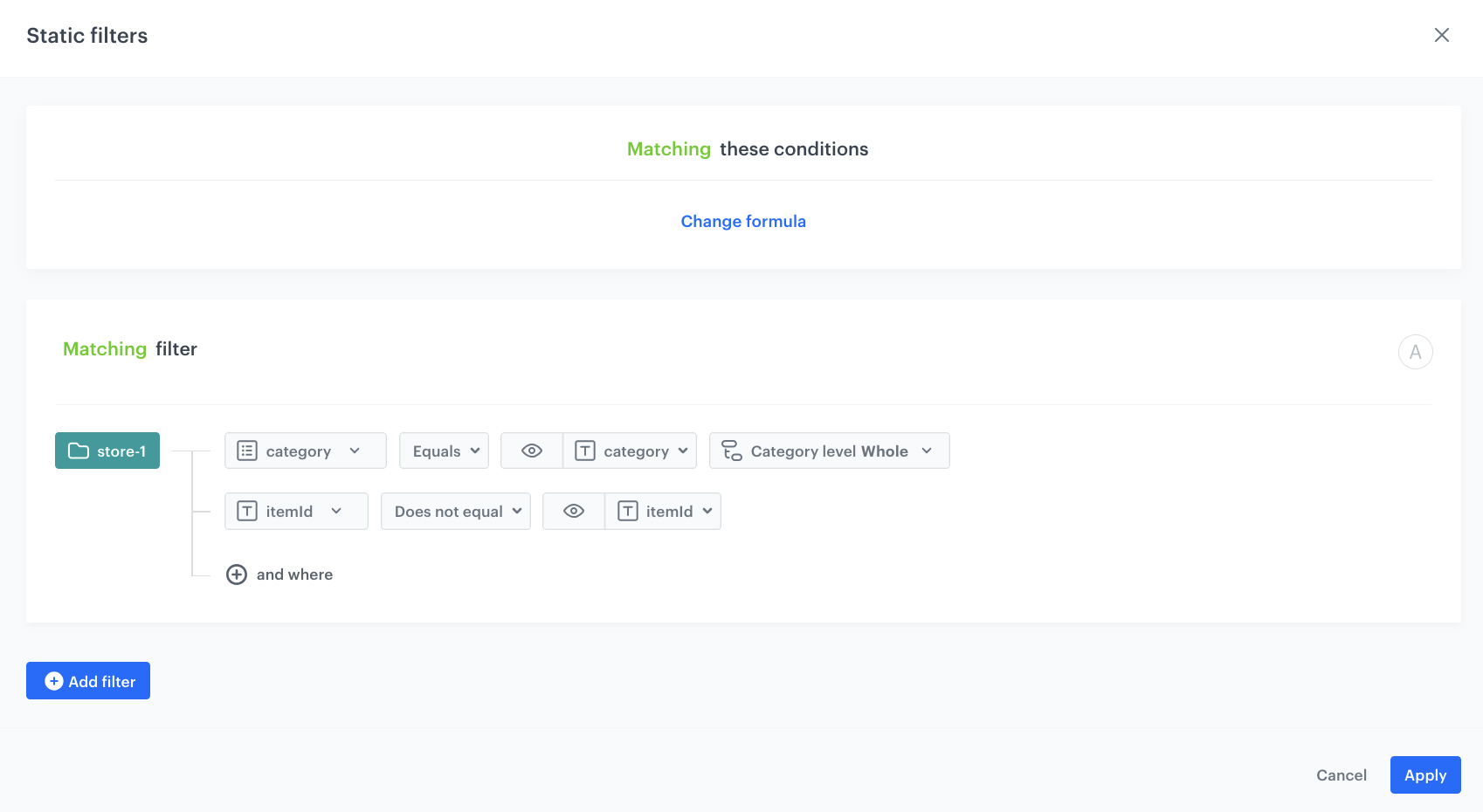
- using product context – excluding the currently viewed product from recommendations 
- considering the product context – displaying recommendations from the same category as the currently viewed product.

  <div class="admonition admonition-note"><div class="admonition-icon"><svg xmlns="http://www.w3.org/2000/svg" fill="none" viewBox="0 0 24 24" stroke="currentColor" stroke-width="2.5"><path stroke-linecap="round" stroke-linejoin="round" d="M13 16h-1v-4h-1m1-4h.01M21 12a9 9 0 11-18 0 9 9 0 0118 0z" /></svg></div><div class="admonition-body"><div class="admonition-content">

  You can refine the item context even more by displaying items in the same color, style, or size as the item currently viewed, using the available item attributes in your product feed.

  </div></div></div>


  What is more, we will use boosting factors, to promote in recommendations products which:
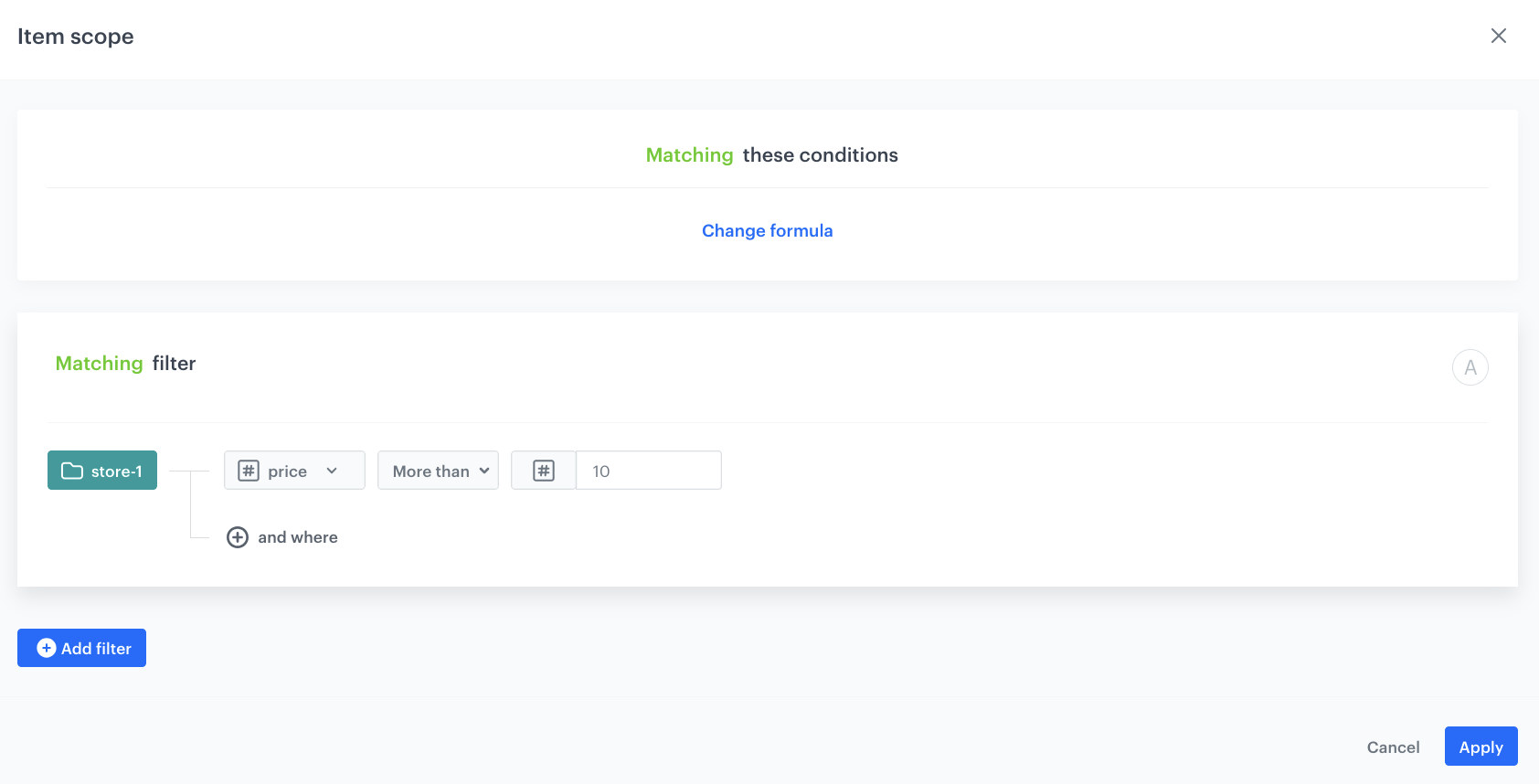
- costs more than 10$. In this way, you exclude recommending products that are too cheap and encourage the purchase of more expensive ones.

This setup ensures that recommendations stay distinct from other modules on the page (like last seen or personalized offers) and avoid repeating content the user already interacted with — helping drive meaningful discovery and cross-sell opportunities. Additional boosting and filters let you present more personalized recommendations using the product context.  

## Prerequisites 
---
- Implement a [tracking code](/developers/web/installation-and-configuration) into your website.
- [Configure AI engine](/docs/settings/configuration/ai-engine-configuration/engine-configuration-for-recommendations). Enable similar item recommendation model.
- Implement the [transaction events](/developers/web/transactions-sdk) using [SDK](/developers/web/transactions-sdk) or [API](https://developers.synerise.com/DataManagement/DataManagement.html#operation/CreateATransaction).

## Process
---

In this use case, you will go through the following steps:
1. [Create an aggregate returning last seen products](#create-an-aggregate-returning-last-seen-products) that returns the ID of the last seen product.
3. [Prepare an AI recommendation](#prepare-an-ai-recommendation) with the exclusion of last bought and last seen products.

## Create an aggregate returning last seen products
---
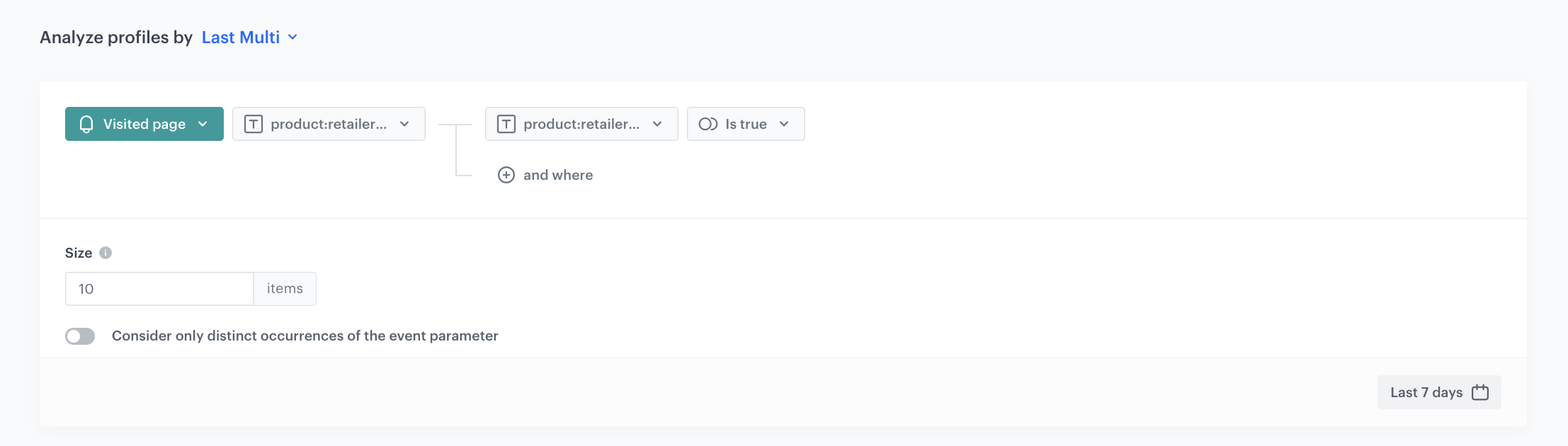
In this part of the process, create an aggregate that returns the ID of the last 10 products a customer had visited. The recently viewed product itself will not display in the template, but will serve as a context for recommendations.

1. Go to <img src="/api/docs/image/54176ad07f146575310749eba44b7c2f42c1b327/icons/behavioral-data-hub-icon.svg" alt="Behavioral Data Hub icon" class="icon"> **Behavioral Data Hub > Live Aggregates > Create aggregate**.
2. As the aggregate type, select **Profile**.  
2. Enter the name of the aggregate.
3. Click **Analyze profiles by** and select **Last Multi**. As a size add **10**. You can also add more results.
4. From the **Choose event** dropdown list, select the **Visited page** event.
5. As the event parameter, select **product:retailer_part_no**.
6. Click the **+ where** button.
7. From the **Choose parameter** dropdown list, select the **product:retailer_part_no** parameter.
8. From the **Choose operator** dropdown list, select **Is true (Boolean)**.
9. Using the date picker in the lower-right corner, set the time range to **Last 7 days**. Confirm your choice with the **Apply** button.
7. Click **Save**.

<figure>
<img src="/api/docs/image/54176ad07f146575310749eba44b7c2f42c1b327/use-cases/all-cases/_gfx/email_aggregate_lsp.png" alt="The view of the aggregate configuration"  class="large">
<figcaption>Configuration of the aggregate returing the ID of the last seen product</figcaption>
</figure> 

## Prepare an AI recommendation
---
In this part of the process, you will configure AI Recommendations which exclude last seen and last bought products. AI Recommendations will be added to the website to the product page. 

1. Go to <img src="/api/docs/image/54176ad07f146575310749eba44b7c2f42c1b327/icons/ai-hub-icon.svg" alt="AI Hub icon" class="icon" > **AI Hub > (AI Recommendations) Models > Add recommendation**.
2. Enter the name of the recommendation (it is only visible on the list of recommendations).
3. In the **Type & Items Feed** section, click **Define**.
4. From the **Items Feed** dropdown list, select an item feed.
5. In the **Type** section, choose the **Similar items** recommendation type.
6. Confirm the settings by clicking **Apply**.
7. In the **Items** section, click **Define**.
    2. Define the minimum and maximum number of items that will be recommended to the customer in each slot.
    3. Define [Static filters](/docs/ai-hub/recommendations-v2/creating-recommendation-campaign#static-filters) and [Elastic filters](/docs/ai-hub/recommendations-v2/creating-recommendation-campaign#elastic-filters).
    4. In our case, in the **Elastic filter** section, click **Define filter**.  
    5. Select **Visual Builder**.  
    6. Click **Select value**. 
    5. Choose **itemId**.
    6. As an operator, choose **Not in**.
    7. Click the icon which appeared next to the field with operator and from the dropdown list, select **Aggregate**.
    8. From the list, choose the [aggregate created in the previous part of the process](#create-an-aggregate-returning-last-seen-products).
    4. Confirm by clicking **Apply**. 
        <figure>
        <img src="/api/docs/image/54176ad07f146575310749eba44b7c2f42c1b327/use-cases/all-cases/_gfx/elastic.png" alt="The view of the aggregate configuration"  class="large">
        <figcaption>Configuration of the elastic filter</figcaption>
        </figure> 
    
    10. In the **Static filters** section, click **Define filter**.  
    11. Select **Visual Builder**.  
    5. From the **Select value** dropdown list, choose **category**.
    6. As an operator, choose **Equals**.
    7. Click the icon which appeared next to the field with operator and from the dropdown list select **Context** (eye icon).  
    8. From the **Select value** dropdown list, choose the **category**. Then, choose how you want to select your category level. In our case it will be **Whole**.
    9. Click **and where** to add another filter.
    5. From the **Select value** dropdown list, choose **itemId**.
    6. As an operator, choose **Does not equal**.
    7. Click the icon which appeared next to the field with operator and from the dropdown list, select **Context** (eye icon).
    8. From the **Select value** dropdown list, choose **itemID**.
    4. Confirm by clicking **Apply**. 
    
       <figure>
       <img src="/api/docs/image/54176ad07f146575310749eba44b7c2f42c1b327/use-cases/all-cases/_gfx/static.png" alt="The view of the aggregate configuration"  class="large">
       <figcaption>Configuration of the static filter</figcaption>
       </figure> 

     
   <div class="admonition admonition-note"><div class="admonition-icon"><svg xmlns="http://www.w3.org/2000/svg" fill="none" viewBox="0 0 24 24" stroke="currentColor" stroke-width="2.5"><path stroke-linecap="round" stroke-linejoin="round" d="M13 16h-1v-4h-1m1-4h.01M21 12a9 9 0 11-18 0 9 9 0 0118 0z" /></svg></div><div class="admonition-body"><div class="admonition-content">

   You can refine the item context even more by displaying items in the same color, style, or size as the item currently viewed, using the available item attributes in your product feed.

   </div></div></div>


8. Define the boosting rules by clicking **Define** in the **Boosting** section.
    1. In **Attributes** section, click **Add rule**. 
    2. Click **Define rule**.
    3. Choose **Visual builder**.
    3. From the **Select value** dropdown list, choose **price**.
    4. As **Operator**, choose **More than**. 
    5. As the value, enter the minimum price a product should cost to be included in the recommendations. This way, you exclude recommending products that are too cheap and encourage the purchase of more expensive ones.
    6. Click **Apply**.
    7. Click **Promote**.
    8. In the **Impact** section, set the impact of this rule to **High**.

   <figure>
   <img src="/api/docs/image/54176ad07f146575310749eba44b7c2f42c1b327/use-cases/all-cases/_gfx/boosting.png" alt="The view of the aggregate configuration"  class="large">
   <figcaption>Configuration of the aggregate</figcaption>
   </figure> 


9. In the **Additional settings** section:
    1. Choose **Exclude already bought products**. If your company sells replenishable products, you can set exclusion for specific number of days, for example, exclude products bought not later than 30 days ago.
    2. To make sure that you only display available products in the recommendations, click **Apply default filters**.
9. In the right upper corner, click **Save**.

## Check the use case set up on the Synerise Demo workspace
---
You can check the configuration of each step directly in our Synerise Demo workspace:
- [Aggregate returning last seen products](https://app.synerise.com/analytics/aggregates/1162c599-338f-32f7-ba20-b1bb64fcaed0)
- [AI Recommendation](https://app.synerise.com/ai-v2/recommendations/nNL1ec4aj19V)

If you’re our partner or client, you already have automatic access to the **Synerise Demo workspace (1590)**, where you can explore all the configured elements of this use case and copy them to your workspace.  

If you’re not a partner or client yet, we encourage you to fill out the contact [form](https://demo.synerise.com/request) to schedule a meeting with our representatives. They’ll be happy to show you how our demo works and discuss how you can apply this use case in your business. 

## Read more
---
- [Aggregates](/docs/analytics/aggregates)
- [Recommendations](/docs/ai-hub/recommendations-v2)