 **Behavioral Data Hub > Live Aggregates > Create aggregate**.
2. As the aggregate type, select **Profile**.
2. Enter the name of the aggregate.
3. Click **Analyze profiles by** and select **Last**.
6. From the **Choose event** dropdown list, select the `product.buy` event.
7. From the **Choose parameter** dropdown list, select `$sku` parameter.
8. In the calendar in the right bottom of the page define the period from which the aggregate will return products from the event.
1. In this case, in the **Relative date range** section, click **Custom**, type 30 and from the the dropdown list, select **Days**.
2. Click **Apply**.
9. In the right upper corner, click **Save**.
10. Copy the aggregate ID from its URL to use in [Jinjava later](#prepare-an-email-template).
**Behavioral Data Hub > Live Aggregates > Create aggregate**.
2. As the aggregate type, select **Profile**.
2. Enter the name of the aggregate.
3. Click **Analyze profiles by** and select **Last**.
6. From the **Choose event** dropdown list, select the `product.buy` event.
7. From the **Choose parameter** dropdown list, select `$sku` parameter.
8. In the calendar in the right bottom of the page define the period from which the aggregate will return products from the event.
1. In this case, in the **Relative date range** section, click **Custom**, type 30 and from the the dropdown list, select **Days**.
2. Click **Apply**.
9. In the right upper corner, click **Save**.
10. Copy the aggregate ID from its URL to use in [Jinjava later](#prepare-an-email-template).

 **AI Hub > (AI Recommendations) Models > Add recommendation**.
2. Enter the name of the recommendation (it is only visible on the list of recommendation).
3. In the **Type & Items feed** section, click **Define**.
4. From the **Items feed** dropdown list, select an item feed.
5. In the **Type** section, choose the **Cross-sell** recommendation type.
6. Confirm the settings by clicking **Apply**.
7. In the **Items** section, click **Define**.
1. Click **Add slot**.
2. Define the minimum and maximum number of items that will be recommended to the user in each slot.
3. Optionally, define [Static filters](/docs/ai-hub/recommendations-v2/creating-recommendation-campaign#static-filters) and [Elastic filters](/docs/ai-hub/recommendations-v2/creating-recommendation-campaign#elastic-filters).
4. Confirm by clicking **Apply**.
8. Optionally, you can define the **Boosting** factors and settings in the **Additional settings** sections.
9. In the right upper corner, click **Save**.
10. Copy the recommendation ID from its URL to use in [Jinjava later](#prepare-an-email-template).
## Prepare an email template
---
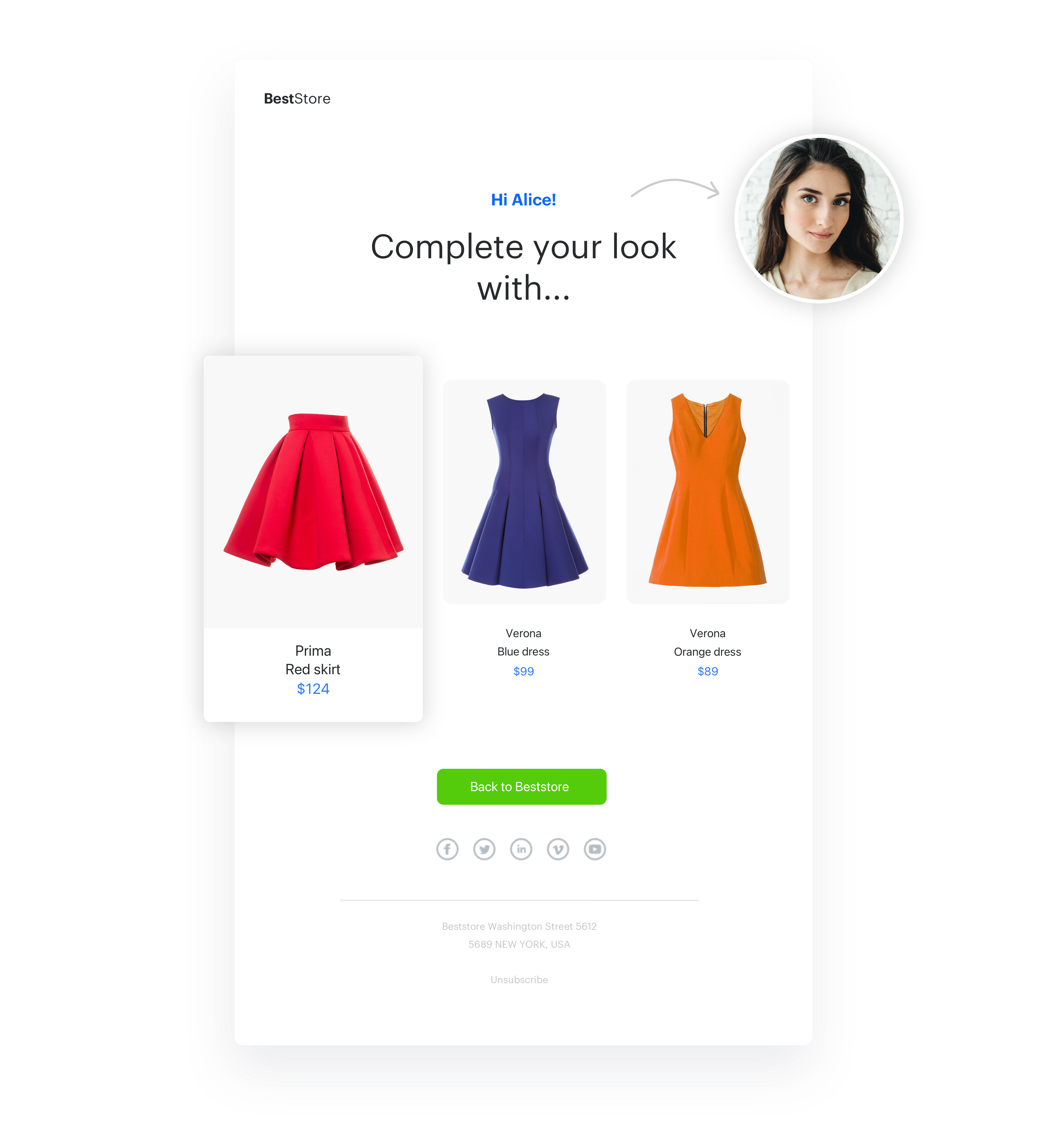
In this part of the process, you will create an email template with a Jinjava code that contains the IDs of the [aggregate](#create-an-aggreagate) and the [recommendation](#prepare-ai-recommendations) you created in the previous steps.
1. Go to
**AI Hub > (AI Recommendations) Models > Add recommendation**.
2. Enter the name of the recommendation (it is only visible on the list of recommendation).
3. In the **Type & Items feed** section, click **Define**.
4. From the **Items feed** dropdown list, select an item feed.
5. In the **Type** section, choose the **Cross-sell** recommendation type.
6. Confirm the settings by clicking **Apply**.
7. In the **Items** section, click **Define**.
1. Click **Add slot**.
2. Define the minimum and maximum number of items that will be recommended to the user in each slot.
3. Optionally, define [Static filters](/docs/ai-hub/recommendations-v2/creating-recommendation-campaign#static-filters) and [Elastic filters](/docs/ai-hub/recommendations-v2/creating-recommendation-campaign#elastic-filters).
4. Confirm by clicking **Apply**.
8. Optionally, you can define the **Boosting** factors and settings in the **Additional settings** sections.
9. In the right upper corner, click **Save**.
10. Copy the recommendation ID from its URL to use in [Jinjava later](#prepare-an-email-template).
## Prepare an email template
---
In this part of the process, you will create an email template with a Jinjava code that contains the IDs of the [aggregate](#create-an-aggreagate) and the [recommendation](#prepare-ai-recommendations) you created in the previous steps.
1. Go to  **Experience Hub > Email > Templates**.
1. To create a new template, click **Create new**.
2. To create a template out of an existing template, click **From template**.
2. Select the template.
3. Select the wizard:
1. **Drag&drop** builder - Create email templates with ready-made components.
2. **Code editor** - Create email templates in CSS and HTML.
4. To add the dynamic part to the email template (last bought product and AI recommendations), you use Jinjava and add your own CSS. Below you can find an example Jijnava code.
**Experience Hub > Email > Templates**.
1. To create a new template, click **Create new**.
2. To create a template out of an existing template, click **From template**.
2. Select the template.
3. Select the wizard:
1. **Drag&drop** builder - Create email templates with ready-made components.
2. **Code editor** - Create email templates in CSS and HTML.
4. To add the dynamic part to the email template (last bought product and AI recommendations), you use Jinjava and add your own CSS. Below you can find an example Jijnava code.
<!-- Opening the tag that retrieves the value from the aggregate prepared in step 1--> {% aggregate 6b009acf-d86a-3ac6-b299-cb3c5d64c04f %} <!-- Assign an aggregate value to skuValue --> {% set skuValue = aggregate_result[0] %} <!-- Referencing with the help of variable to the snrs-product-ogTag directory built by default from OG tags. The variable names depend on the name of the OG tags on your page --> <div class="wrapper-card"> <h2 style="text-align:center">Product Card</h2> <div class="card"> <img src="{% catalog.Snrs-produktu-ogTag(skuValue).og:image %}" alt="Product image" style="width:100%"> <h1>{% catalog.Snrs-produktu-ogTag(skuValue).product:brand %}</h1> <p class="price">$ {% catalog.Snrs-produktu-ogTag(skuValue).product:price:amount %}</p> <p>{% catalog.Snrs-produktu-ogTag(skuValue).og:title %}</p> <p><button>Add to Cart</button></p> </div> </div> <!-- Adding the skuValue variable to the array for which we will retrieve cross-sell products --> {% set itemContext = [] %} {% do itemContext.append(skuValue) %} <!-- Downloading the cross-sell campaign for the product in the table --> {% recommendations3 campaignId=tFwEUKvZLj4d itemsIds=itemContext %} <!-- Iterating loop through the received products --> {% for item in recommended_products3 %} <!-- Listing the attributes assigned to the product in the feed --> <div class="wrapper-card" style="width:25%;float:left"> <h2 style="text-align:center">Product Card</h2> <div class="card"> <img src="{{ item.imageLink }}" alt="Product image" style="width:100%"> <h1>{{ item.brand }}</h1> <p class="price">$ {{ item.priceValue }}</p> <p>{{ item.title }}</p> <p><button>Add to Cart</button></p> </div> </div> {% endfor %} {% endrecommendations3 %} <!-- Closing of the tag that gets the value from the aggregate prepared in point 1 --> {% endaggregate %} **Automation Hub > Workflows > New workflow**.
2. Enter the name of the workflow.
3. As the first node, add **Profile Event**. In the configuration of the node, select the event that triggers the workflow. In this use case, it’s a `product.buy` event.
4. As the second node, add **Delay**. In the configuration of the node, set the period according to your business needs.
5. As the next node, add the **Send Email** node.
6. In the **Send Email** node configuration:
1. In the **Sender details**, define the account from which the email will be sent.
2. In the **Content** section:
3. Enter the subject of the email which will be visible in the customer’s inbox.
4. Select the email template created in [the previous step](#prepare-an-email-template).
5. Optionally, you can add UTM and URL parameters.
7. Confirm by clicking **Apply**.
8. Add the **End** node to finish the workflow.
9. Optionally, you can set up the capping for this workflow based on your business needs.
10. Click **Save & Run**.
**Automation Hub > Workflows > New workflow**.
2. Enter the name of the workflow.
3. As the first node, add **Profile Event**. In the configuration of the node, select the event that triggers the workflow. In this use case, it’s a `product.buy` event.
4. As the second node, add **Delay**. In the configuration of the node, set the period according to your business needs.
5. As the next node, add the **Send Email** node.
6. In the **Send Email** node configuration:
1. In the **Sender details**, define the account from which the email will be sent.
2. In the **Content** section:
3. Enter the subject of the email which will be visible in the customer’s inbox.
4. Select the email template created in [the previous step](#prepare-an-email-template).
5. Optionally, you can add UTM and URL parameters.
7. Confirm by clicking **Apply**.
8. Add the **End** node to finish the workflow.
9. Optionally, you can set up the capping for this workflow based on your business needs.
10. Click **Save & Run**.
