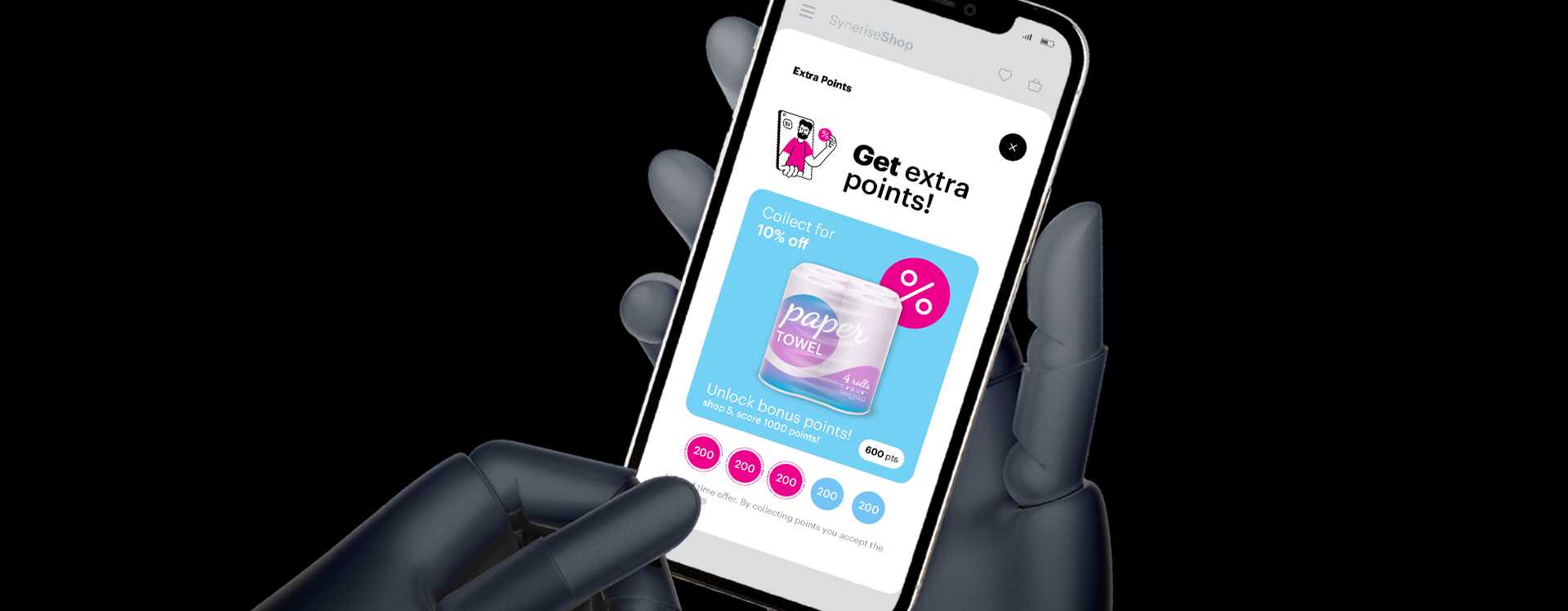
There are several ways to make a loyalty program an engaging experience for users. One way is to include personalized and frequently updated content, along with special promotions and attractive rewards. Another method can include gamification, which we will explore more deeply in this use case.

In Synerise, you can create gamification scenarios based on various user actions collected within the profile history like transactions, consents, form submissions, watching videos, rating products, and more. However, scenarios based on transaction events are the most popular. These scenarios involve completing quests that lead to rewards such as promotions, free products, extra loyalty points, or access to premium content.

<figure>
<img src="/api/docs/image/54176ad07f146575310749eba44b7c2f42c1b327/use-cases/all-cases/_gfx/renewable-quest.png" alt="Cover photo"  class="full">
<figcaption>Cover photo for renewable quest use case</figcaption>
</figure> 

In this use case, we will guide you through the process of building a renewable quest. This quest allows customers to earn 1000 loyalty points by purchasing 10 products from a specific category within a set timeframe.

## Prerequisites 
---

- Implement transaction events using [SDK](/developers/web/transactions-sdk) or [API](https://developers.synerise.com/DataManagement/DataManagement.html#operation/CreateATransaction). Make sure that you implement **category** parameter in the transaction events and **quantity** of products.
- Integrate mechanism for awarding loyalty points. Find more in the [Loyalty programs basics](/use-cases/loyalty-programs-basics) use case.

## Security configuration
---
Before you start working with this hub, if you are a Synerise customer or partner, consider reading [the section about denylisting events](/docs/settings/tool/api#denylist). This natively accessible configuration will allow you to manage the restrictions in points management that may help you prevent fraud.

## Process
---

In this use case, you will go through the following steps:
1. [Create a quest.renewableComplete event](/use-cases/renewable-quest#create-a-questrenewablecomplete-event)
2. [Create the aggregate that returns the timestamp of the last finished quest](/use-cases/renewable-quest#create-an-aggregate-that-returns-the-timestamp-of-the-last-finished-quest)
3. [Create the aggregate with the number of product purchased](/use-cases/renewable-quest#create-an-aggregate-that-returns-the-number-of-products-purchased-from-the-defined-product-category) 
4. [Create an expression with the number of products required to complete the quest](/use-cases/renewable-quest#create-an-expression-with-the-number-of-products-required-to-complete-the-quest)
5. [Create an expression that returns the number of products purchased](/use-cases/renewable-quest#create-an-expression-that-returns-the-number-of-products-purchased)
6. [Create an expression checking the conditions for completing the quest](/use-cases/renewable-quest#create-an-expression-that-determines-the-number-of-products-required-to-complete-the-quest)
7. [Create a workflow](/use-cases/renewable-quest#create-a-workflow) which adds points to the customer's account
8. [Create a document](/use-cases/renewable-quest#create-a-document) with all necessary data conected with this loyalty scenario

## Create a quest.renewableComplete event
---

In this part of the process, create a **quest.renewableComplete** event, which will be later generated in the workflow when the customer completes the quest. In addition, this event must contain a parameter that contains the name of the completed quest to facilitate identification of the quest. In our case, we use the `gameName` parameter. 

1.  Go to <img src="/api/docs/image/54176ad07f146575310749eba44b7c2f42c1b327/icons/data-modeling-hub-icon.svg" alt="Data Modeling Hub icon" class="icon"> **Data Modeling Hub > Events > Add event**.
2. In the **Name** field, enter `quest.renewableComplete`.  
    In the API and SDK, the name parameter is usually called `action` or `action name`.
3. Optionally, define a human-friendly display name that will be shown in **Data Modeling Hub** and **Decision Hub**.
4. Optionally, in the **Description** field, enter the description of the event.
5. Enable the **Make this event available to anonymous profiles without JWT** toggle.
6. Click **Apply**. 
8. In the list of events, find the event you just created. 
9. On the right side of the screen, click **Add property**.
10. In the **Source parameter** field, enter `gameName`.
11. In the **Property name** field, enter a human-readable label for display in the Synerise platform.
12. Optionally, in the **Description** field, you can add an explanation about the purpose of this parameter. 
13. In **Property type** and **Link** fields, leave the default `string` and `-`. 
13. To complete the process, click **Save**.  


## Create an aggregate that returns the timestamp of the last finished quest
---

In this step, we create an aggregate that provides the timestamp of the most recently completed quest. The timeframe for the quest begins on the day it starts and continues until the expected completion time.


1. Go to <img src="/api/docs/image/54176ad07f146575310749eba44b7c2f42c1b327/icons/behavioral-data-hub-icon.svg" alt="Behavioral Data Hub icon" class="icon"> **Behavioral Data Hub > Live Aggregates > Create aggregate**.
2. As the aggregate type, select **Profile**.  
2. Enter the name of the aggregate as `[UC] Timestamp of last finished quest`.
3. Click **Analyze profiles by** and select **Last**.  
4. From the **Choose event** dropdown, select the `questRenewableComplete` event, that you created in the [previous](/use-cases/renewable-quest#create-a-questrenewablecomplete-event) step.
5. As the event parameter, choose **TIMESTAMP**.
6. From the **Choose parameter** dropdown list, select the **gameName** parameter. 
7. From the **Choose operator** dropdown list, select **Equal**.
8. Enter the name of the quest. In our case, it’s `Towel's quest`.
7. Set the period for the aggregate to **Custom** and specify the desired data range. In this scenario, we will select the following time range `02.06.2023 - 30.05.2024`.
8. To save the aggregate, click **Save**.

<figure>
<img src="/api/docs/image/54176ad07f146575310749eba44b7c2f42c1b327/use-cases/all-cases/_gfx/renewable-quest1.png" alt="Configuration of the aggregate"  class="full">
<figcaption>Configuration of the aggregate</figcaption>
</figure> 

## Create an aggregate that returns the number of products purchased from the defined product category
---

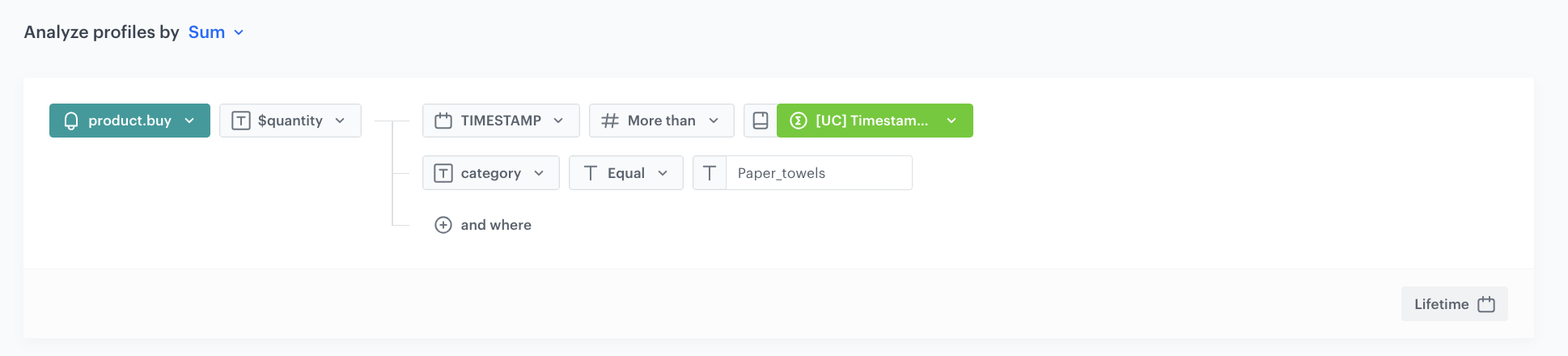
In this part of the process, create an aggregate that will calculate the number of products that were purchased from the `Paper_towels` category after the last quest was completed.


1. Go to <img src="/api/docs/image/54176ad07f146575310749eba44b7c2f42c1b327/icons/behavioral-data-hub-icon.svg" alt="Behavioral Data Hub icon" class="icon"> **Behavioral Data Hub > Live Aggregates > Create aggregate**.
2. As the aggregate type, select **Profile**.  
2. Enter the name of the aggregate as `[UC]Number of products purchased after last finished quest`.
3. Click **Analyze profiles by** and select **Sum**.  
4. From the **Choose event** dropdown, select the **product.buy** event.
5. As the event parameter, choose **$quantity**.
5. Click the **+ where** button and from the **Choose parameter** dropdown menu, choose **category** parameter.
6. From the **Choose operator** dropdown menu, select **Equal**. 
7. Type the name of the product category - `Paper_towels`. 
8. Click the **+ where** button and from the **Choose parameter** dropdown menu, choose **TIMESTAMP** parameter.
9. From the **Choose operator** dropdown menu, select **More than** number operator. 
10. Click the <img src="/api/docs/image/54176ad07f146575310749eba44b7c2f42c1b327/icons/value_aggregate.png" alt="Choose value icon" class="icon" > (Choose value icon).
11. From the **Choose value** dropdown list, select the aggregate you created [earlier in the process](/use-cases/renewable-quest#create-an-aggregate-that-returns-the-timestamp-of-the-last-finished-quest). 
12. Set the period for the aggregate to **Lifetime**. 
13. Save the aggregate.
<figure>
<img src="/api/docs/image/54176ad07f146575310749eba44b7c2f42c1b327/use-cases/all-cases/_gfx/renewable-quest2.png" alt="Configuration of the aggregate"  class="full">
<figcaption>Configuration of the aggregate</figcaption>
</figure>

## Create an expression with the number of products required to complete the quest
---

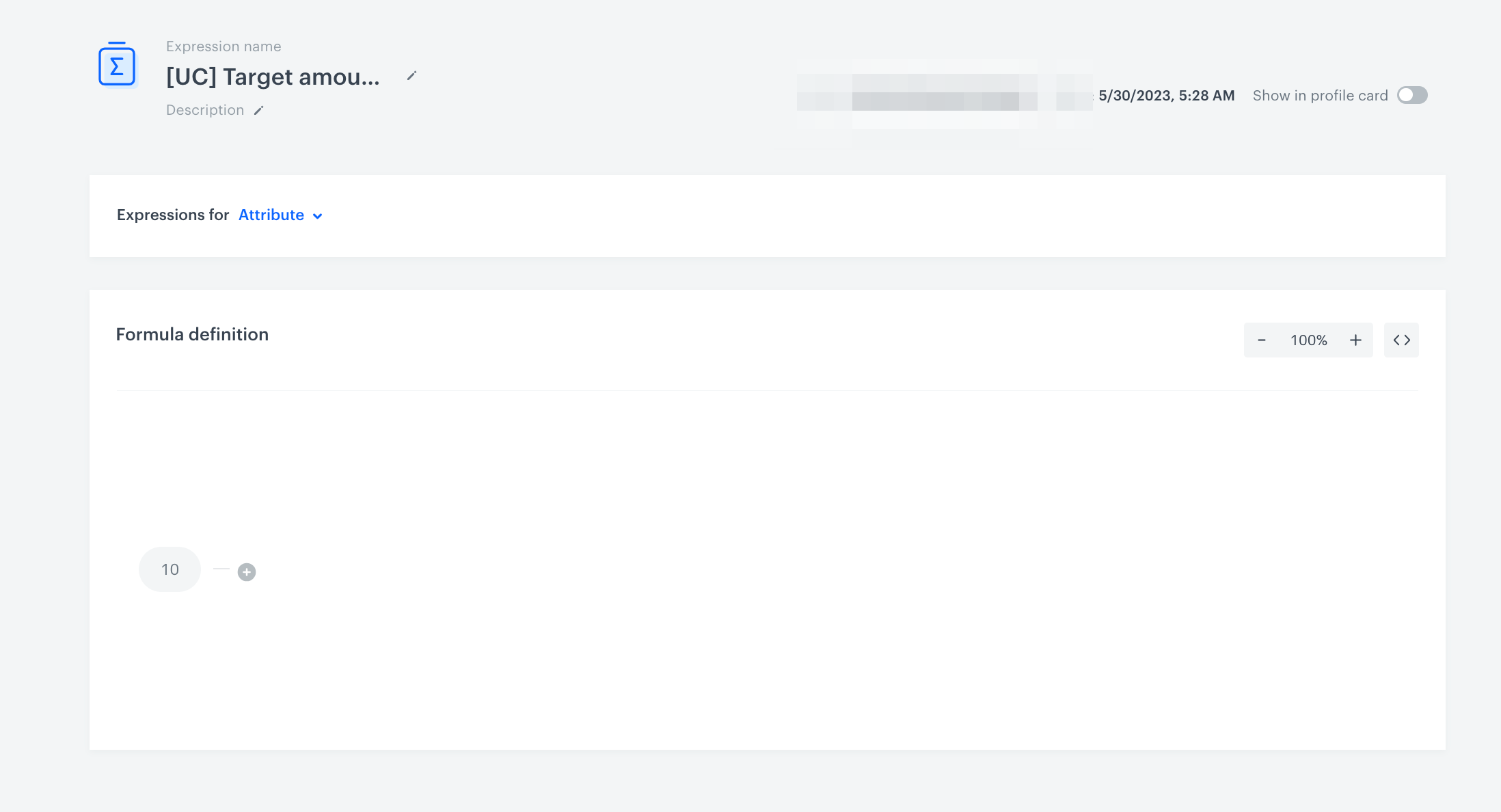
In this step, create an expression that determines the number of products needed to complete the quest. Based on the assumptions of this use case, the assumed requirement for purchase is 10 units.

1. Go to <img src="/api/docs/image/54176ad07f146575310749eba44b7c2f42c1b327/icons/behavioral-data-hub-icon.svg" alt="Behavioral Data Hub icon" class="icon"> **Behavioral Data Hub > Expressions > New expression**.
2. Enter the name of the expression as `[UC]Target amount`.
3. Leave the **Expression** option at default **(Attribute)**.
4. Click the **Select** button.  
5. Choose **# Constant**. 
6. Open the settings of Constant value by clicking `0`.
7. In the field below, type `10`
8. Click **Save**.
<figure>
<img src="/api/docs/image/54176ad07f146575310749eba44b7c2f42c1b327/use-cases/all-cases/_gfx/renewable-quest3.png" alt="The graphic shows the expressions settings"  class="full">
<figcaption>Final configuration of the expression</figcaption></figure>

## Create an expression that returns the number of products purchased
---

In this part of the process, create an expression that returns the number of products purchased from the `Paper_towels` category. This expression uses the [aggregate](/use-cases/renewable-quest#create-an-aggregate-that-returns-the-number-of-products-purchased-from-the-defined-product-category) and [expression](/use-cases/renewable-quest#create-an-expression-with-the-number-of-products-required-to-complete-the-quest) created in the previous steps.


<details class="accordion"><summary>Explanation of the expression logic</summary><div class="accordion-content"><p>The logic in the expression compares the number of products purchased after the last finished quest to the target amount, which is 10 units needed to complete the quest. There are two possible scenarios:</p> <ul> <li>If the number of products purchased from the &quot;Paper_towels&quot; category is equal to or greater than the target (<strong>10</strong>), the expression will return <strong>10</strong>, indicating that the quest has been successfully completed.</li> <li>If the number of products purchased from the &quot;Paper_towels&quot; category is less than the target, the expression will return the actual number of products purchased.</li> </ul> <p>If the number of products purchased in a single transaction exceeds the target of 10, the surplus is not carried over to the next quest.</p></div></details>


1. Go to <img src="/api/docs/image/54176ad07f146575310749eba44b7c2f42c1b327/icons/behavioral-data-hub-icon.svg" alt="Behavioral Data Hub icon" class="icon"> **Behavioral Data Hub > Expression > New expression**. 
2. Enter the name of the expression as `[UC]Products purchased`
3. Leave the **Expression** option at default (**Attribute**).
4. Build the following formula of the expression:  
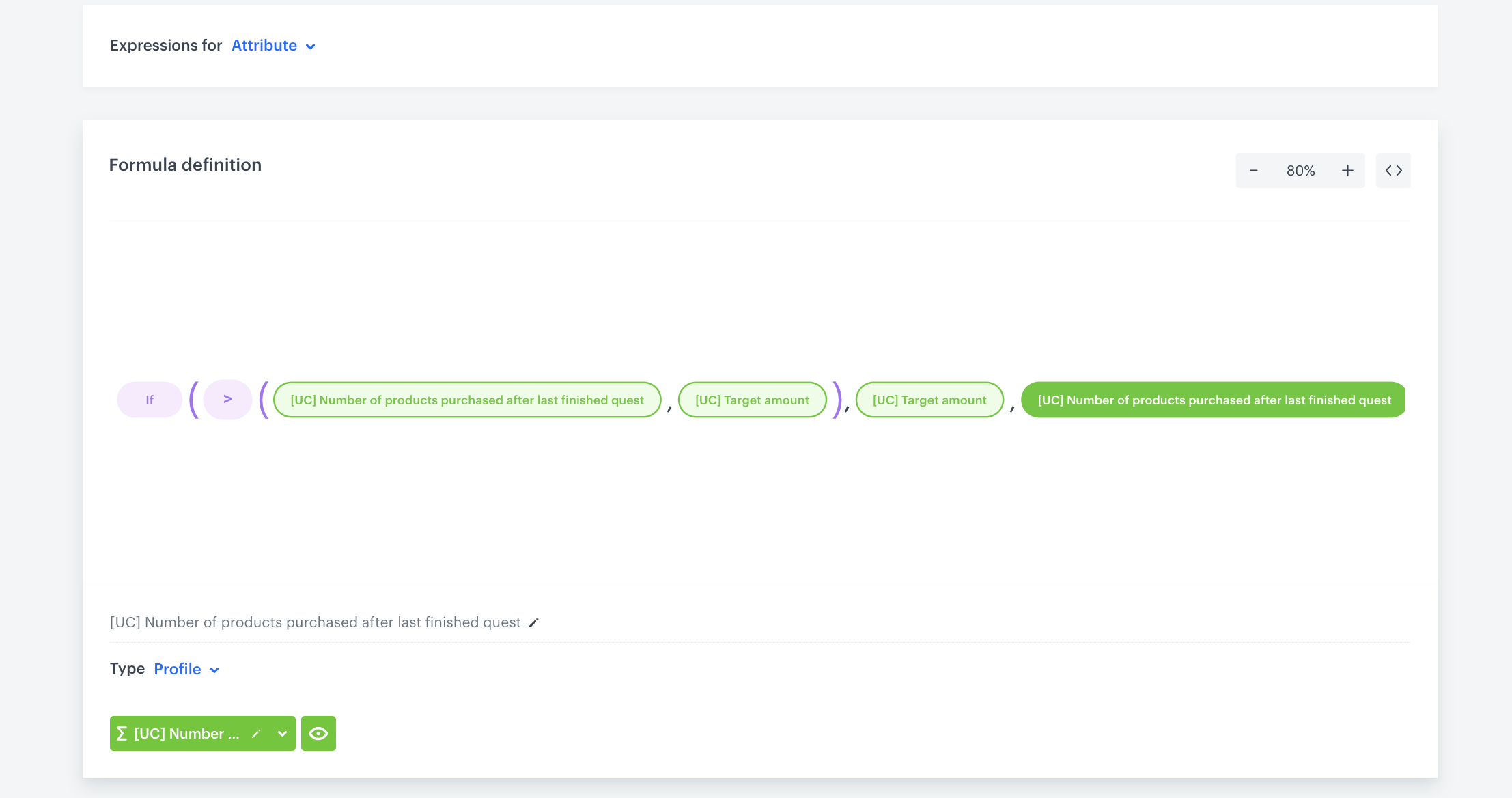
    <figure>
    <img src="/api/docs/image/54176ad07f146575310749eba44b7c2f42c1b327/use-cases/all-cases/_gfx/renewable-quest4.png" alt="Final configuration of the expression"  class="full">
    <figcaption>Final configuration of the expression</figcaption>
    </figure>
5. Save the expression.

## Create an expression that determines the number of products required to complete the quest
---

In this step, create an expression that checks if the number of products bought is equal to or greater than the target amount, indicating whether the customer has met all the conditions to finish the quest.


<details class="accordion"><summary>Explanation of the expression logic</summary><div class="accordion-content"><p>The expression will produce one of two results based on certain conditions:</p> <ul> <li>If the number of products purchased from the &quot;Paper_towels&quot; category is <strong>10</strong> or greater, the expression will return <strong>true</strong>.</li> <li>If the number of products purchased from the &quot;Paper_towels&quot; category is less than <strong>10</strong>, the expression will return <strong>false</strong>.</li> </ul></div></details>


1. Go to <img src="/api/docs/image/54176ad07f146575310749eba44b7c2f42c1b327/icons/behavioral-data-hub-icon.svg" alt="Behavioral Data Hub icon" class="icon"> **Behavioral Data Hub > Expression > New expression**. 
2. Enter the name of the expression as `[UC]Comparing amount of products bought`
3. Leave the **Expression** option at default (**Attribute**). 
5. Build the following formula of the expression:
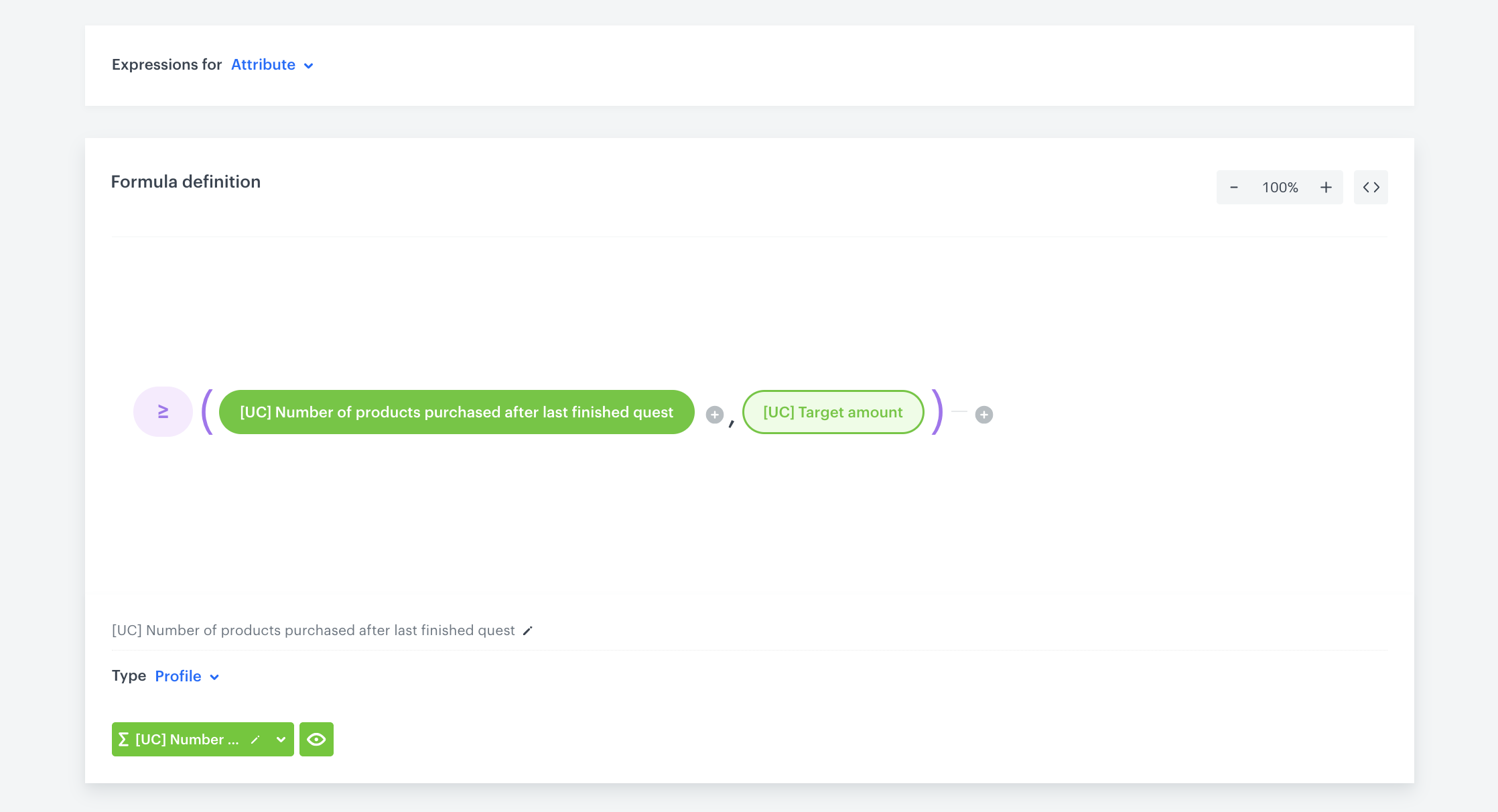
    <figure>
    <img src="/api/docs/image/54176ad07f146575310749eba44b7c2f42c1b327/use-cases/all-cases/_gfx/renewable-quest5.png" alt="Final configurationj of the expression"  class="full">
    <figcaption>Final configurationj of the expression</figcaption>
    </figure>
6. Save the expression.

## Create a workflow 
---

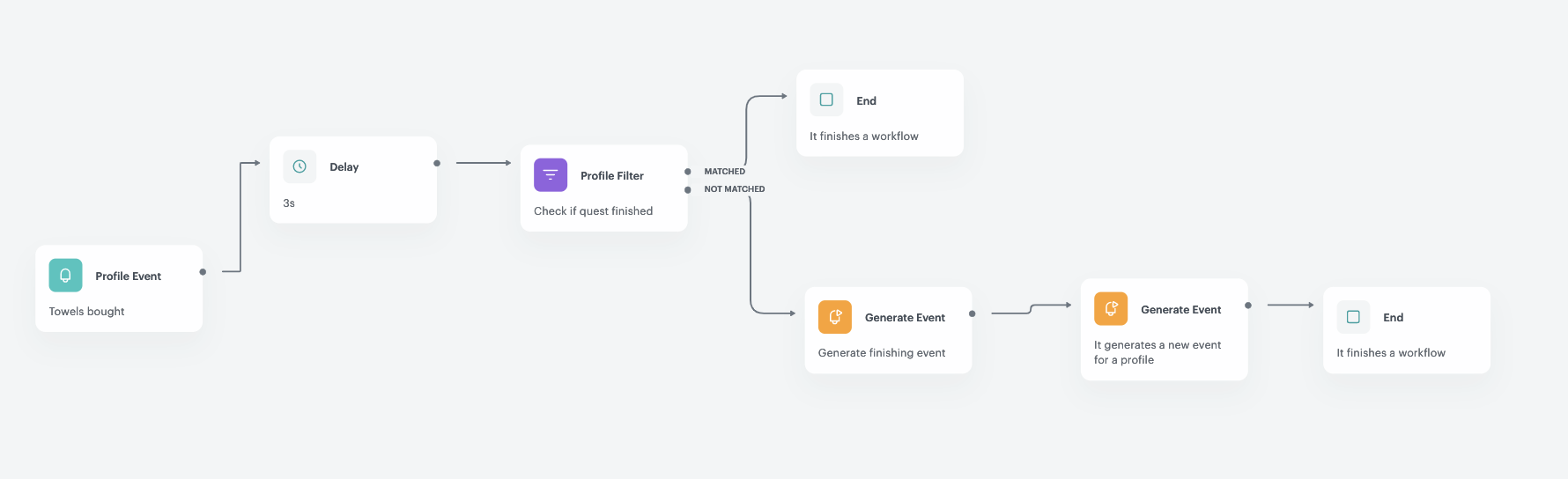
In this part of the process, create a workflow to determine if the customer has successfully completed the quest. The condition that needs to be met is the purchase of 10 products from the "Paper_towels" category. If the condition is met, two events will be generated for the customer:

- An event `quest.renewableComplete` will be generated to inform about the quest completion.
- An event `points.upcharge` will be generated to assign 1000 loyalty points to the customer.

1. Go to <img src="/api/docs/image/54176ad07f146575310749eba44b7c2f42c1b327/icons/automation-hub-icon.svg" alt="Automation Hub icon" class="icon" > **Automation Hub > Workflows > New workflow**.  
2. Enter the name of the workflow as `[UC]Renewable Quest`.

### Define the Profile Event node 
---

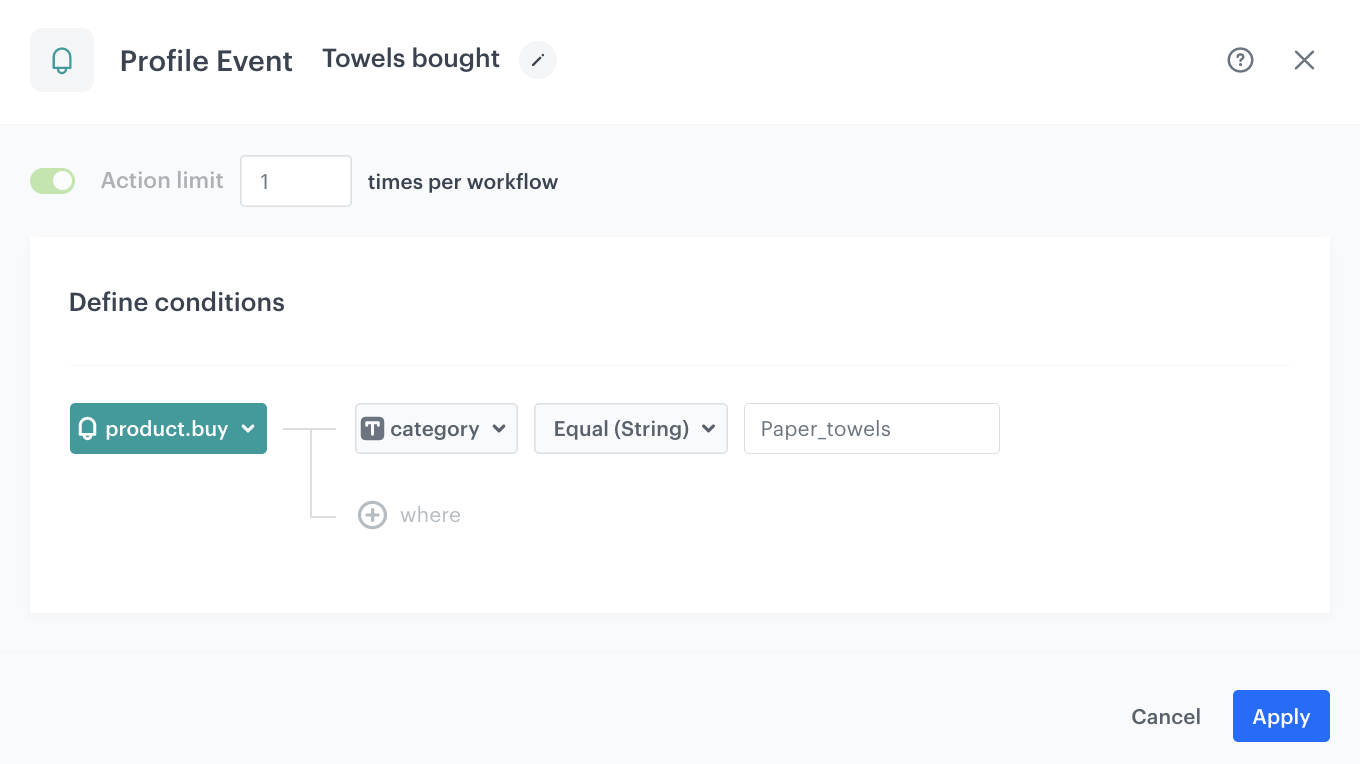
The workflow will be triggered by the `product.buy` when customers will purchase any product from the `Paper_towels` category. 

1. As the first node of the workflow, add **Profile Event**. 
    1. From the **Choose event** dropdown menu, choose the `product.buy` event,
    2. As the parameter, choose **category**,
    3. As the operator, choose **Equal**,
    4. As the value of the parameter, add `Paper_towels`,
2. Confirm by clicking **Apply**.
<figure>
<img src="/api/docs/image/54176ad07f146575310749eba44b7c2f42c1b327/use-cases/all-cases/_gfx/renewable_quest6.png" alt="The graphic shows profile filter settings"  class="full">
<figcaption>The configuration of the Profile Event node</figcaption>
</figure>

### Define the delay
---

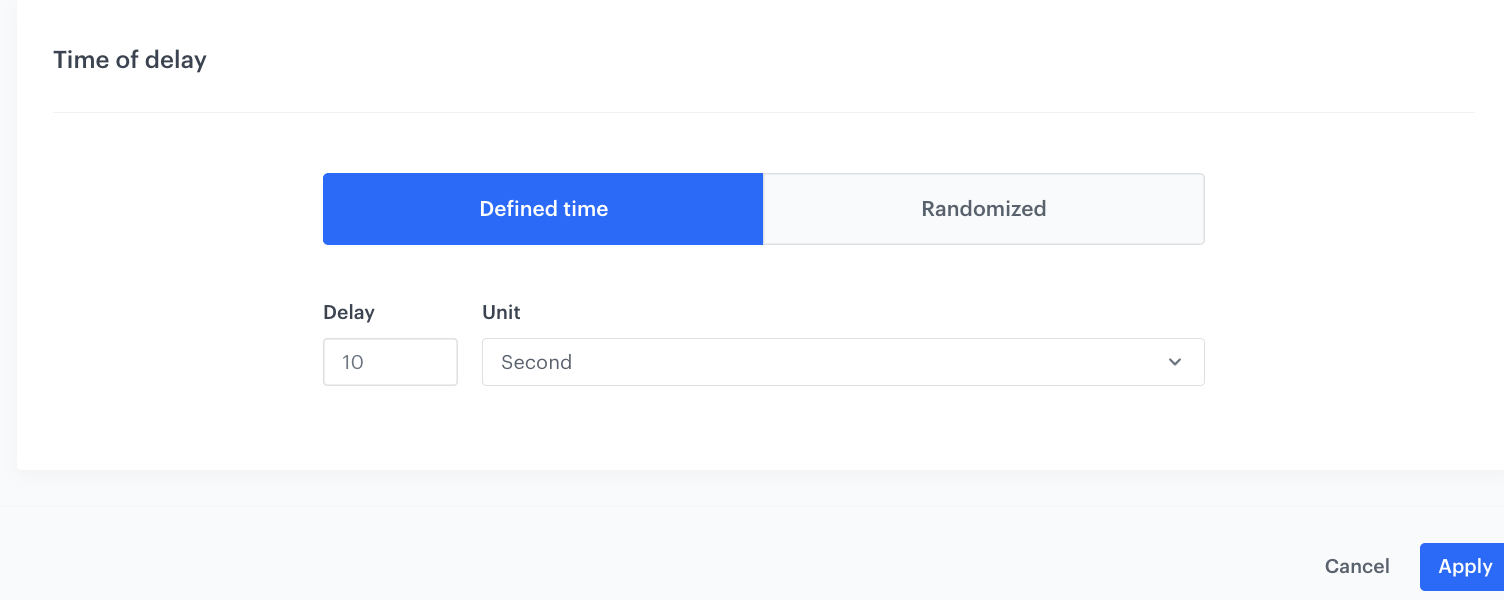
We need to set up a short delay of 10 seconds to ensure that events have been calculated before proceeding to the next condition in the workflow.

1. Add the **Deley** node,
    1. Enter the name of the delay as `10s`,
    2. Set the **Delay** number as `10`,
    3. In **Unit** section choose **Second**, 
2. Confirm by clicking **Apply**. 

<figure>
<img src="/api/docs/image/54176ad07f146575310749eba44b7c2f42c1b327/use-cases/all-cases/_gfx/renewable_quest7.png" alt="The Delay node configuration"  class="full">
<figcaption>The Delay node configuration</figcaption>
</figure>

### Define the Profile Filter node
---

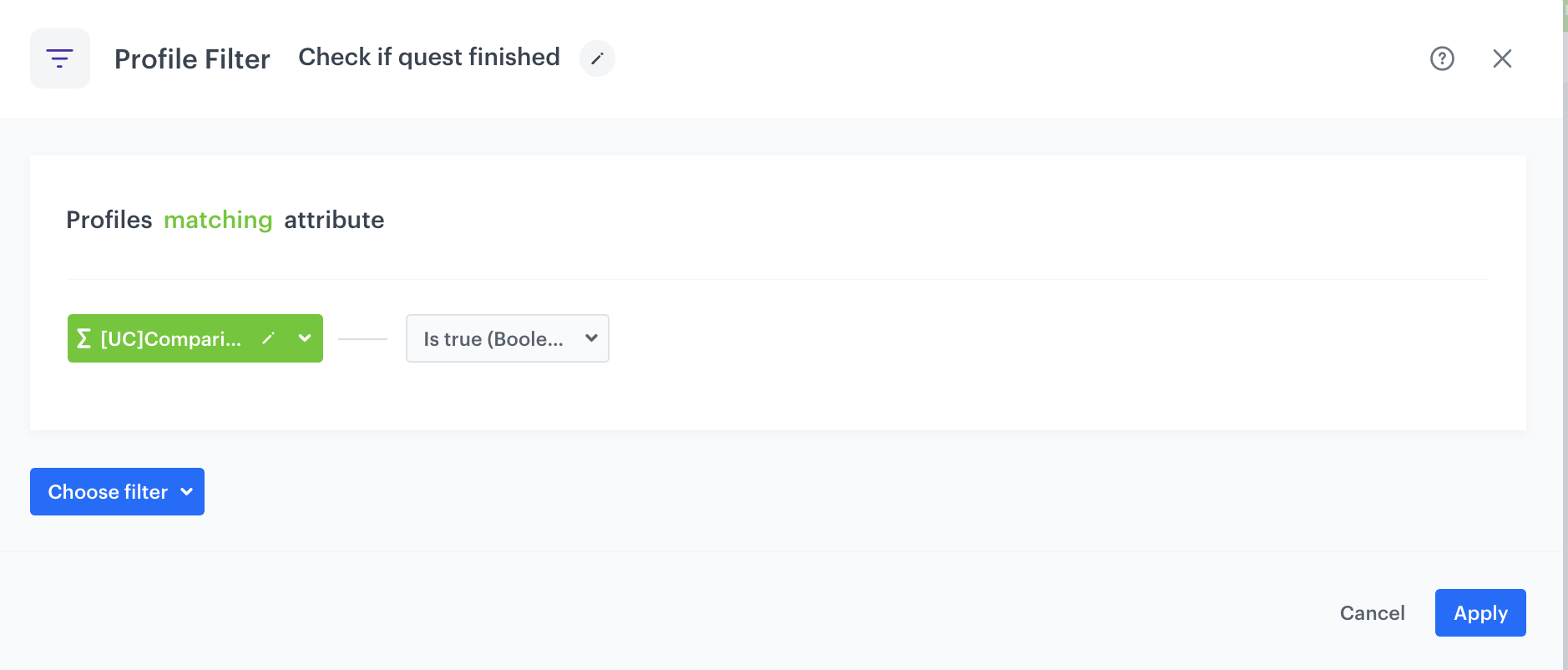
In this part of the process, we will check if the customer has completed the quest. We will use the previously created expression that determines whether the customer has met all the conditions to finish the quest. If the quest has been completed, the next step in the workflow will generate the `quest.renewableComplete` event. Otherwise, the process ends. 

1. Add the **Profile Filter** node. In the node settings:
    1. Click **Choose event** and select **expression** created [earlier in the process](/use-cases/renewable-quest#create-an-expression-that-determines-the-number-of-products-required-to-complete-the-quest),
    2. From the **operator** drop-down, choose **Is true (Boolean)**,  
2. Confirm by clicking **Apply**.

<figure>
<img src="/api/docs/image/54176ad07f146575310749eba44b7c2f42c1b327/use-cases/all-cases/_gfx/renewable_quest8.png" alt="The Profile Filter node configuration"  class="full">
<figcaption>The Profile Filter node configuration</figcaption>
</figure> 

### Define the Generate Event node
---

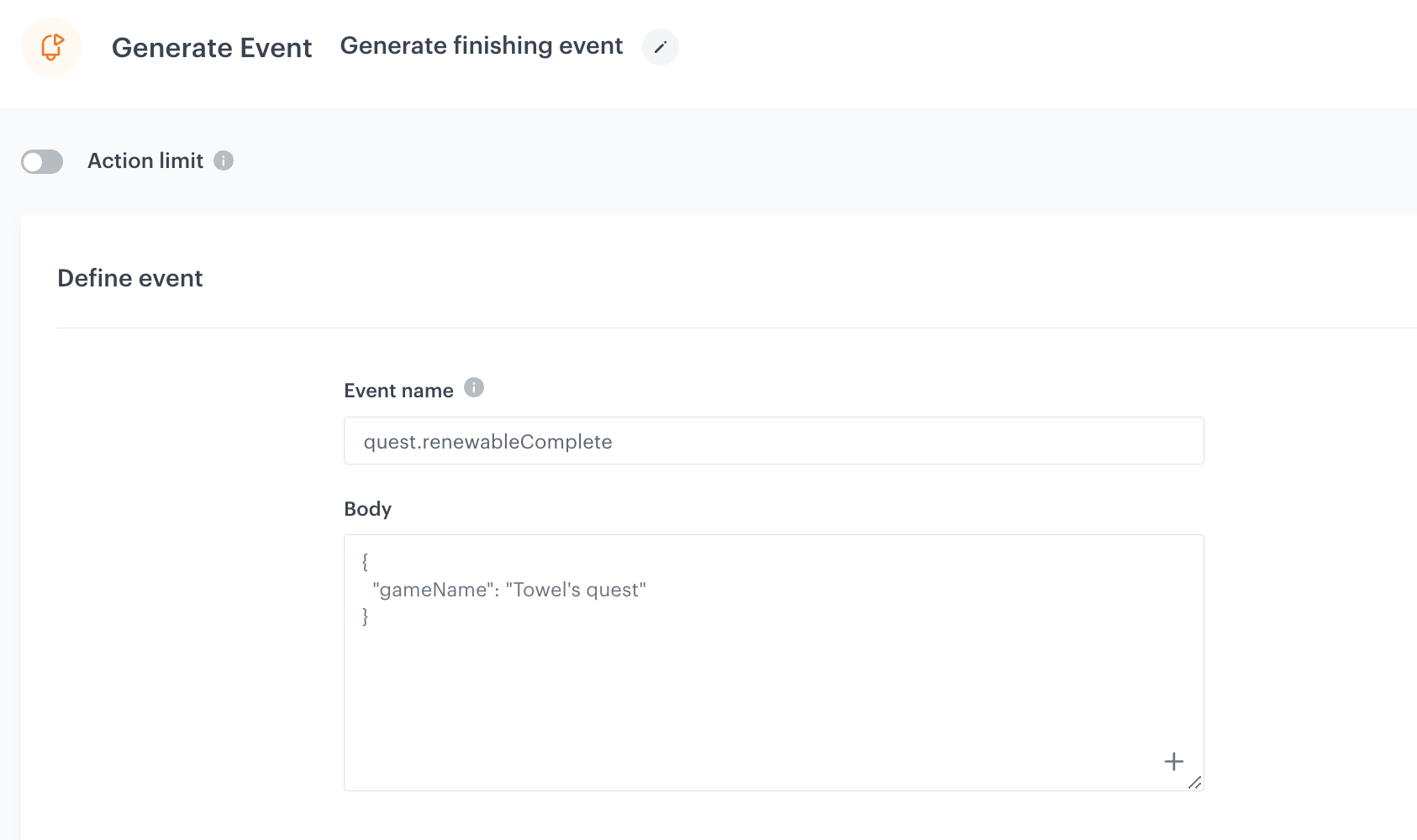
In this part of the process the `quest.renewableComplete` event is generated, which informs us about the completion of the quest.

1. To the **matched** path, add the **Generate Event** node. 
2. In the configuration of the node:
    1. Enter the **Event name**. In our case, we are using `quest.renewableComplete` event.  
    2. In the **Body** section, use the following Jinjava and modify it to your needs: 

        
       <pre><code class="language-jinja">{
                   "gameName": "Towel's quest"
               }</code></pre>
2. Confirm by clicking **Apply**.

<figure>
    <img src="/api/docs/image/54176ad07f146575310749eba44b7c2f42c1b327/use-cases/all-cases/_gfx/renewable_quest9.1.png" alt="An example of a generated quest.renewableComplete event"  class="full">
    <figcaption>Configuration of the Generate Event node with a quest.renewableComplete event</figcaption>
  </figure>

### Define the secound Generate Event node
---

In this part of the process, a `points.upcharge` event will be generated, assigning 1000 loyalty points to customers who have finished the quest.

1. Add the **Generate Event** node. 
   2. In the configuration of the node:
    1. Enter the **Event name**. In our case, we are using `points.upcharge` event.
    2. In the **Body** section, use the following Jinjava and modify it to your needs:
       
       <pre><code class="language-jinja">{
                   "gameName": "Towel's quest",
                   "points": 1000
               }</code></pre>
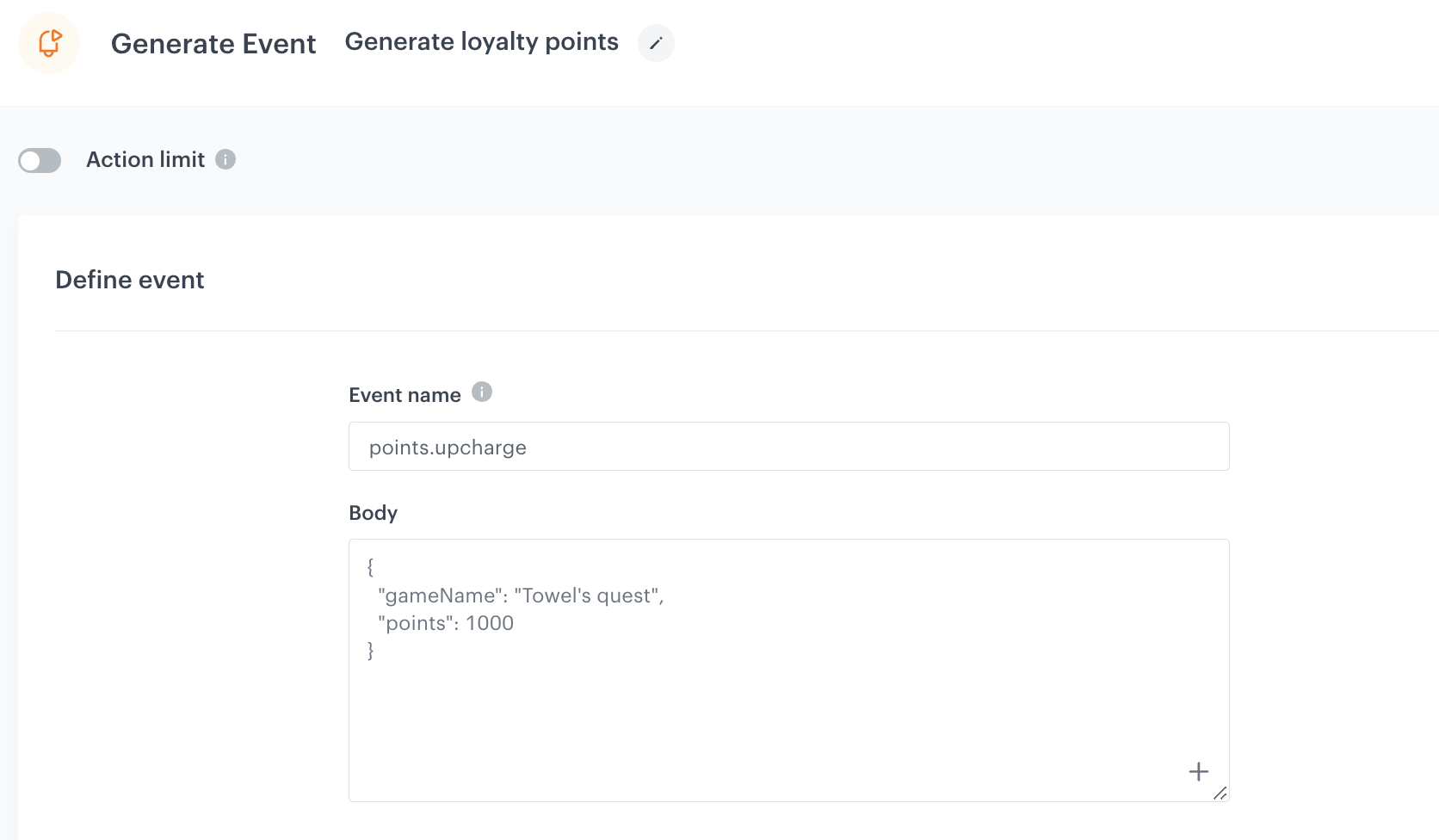
2. Confirm by clicking **Apply**.

  <figure>
     <img src="/api/docs/image/54176ad07f146575310749eba44b7c2f42c1b327/use-cases/all-cases/_gfx/renewable_quest9.2.png" alt="The graphic shows generate event settings"  class="full">
    <figcaption>Configuration of the points.upcharge event </figcaption>
    </figure>

### Add the finishing node and set capping

1. Add the **End** node.
2. In the upper right corner, click **Set Capping** and define the limit of workflows a profile can start in a specific time range.
3. In the upper right corner, click **Save & Run**.

<figure>
<img src="/api/docs/image/54176ad07f146575310749eba44b7c2f42c1b327/use-cases/all-cases/_gfx/renewable_quest10.png" alt="Configuration of the workflow"  class="full">
<figcaption>Configuration of the workflow</figcaption>
</figure>

## Create a document
---

In the final step of this process, you will create a document that will display in a selected channel (for example, a mobile application) the results of the expressions you created before, showing your customers how far are they in their quest.

1. Go to <img src="/api/docs/image/54176ad07f146575310749eba44b7c2f42c1b327/docs/assets/_gfx/assets-icon.png" alt="Data Modeling Hub icon" class="icon"> **Data Modeling Hub > Documents > Add document**.
2. Enter the name for your document. 

To create a document, you have to set up three steps of settings: audience, configuration, and schedule. 

### Set up Audience
---

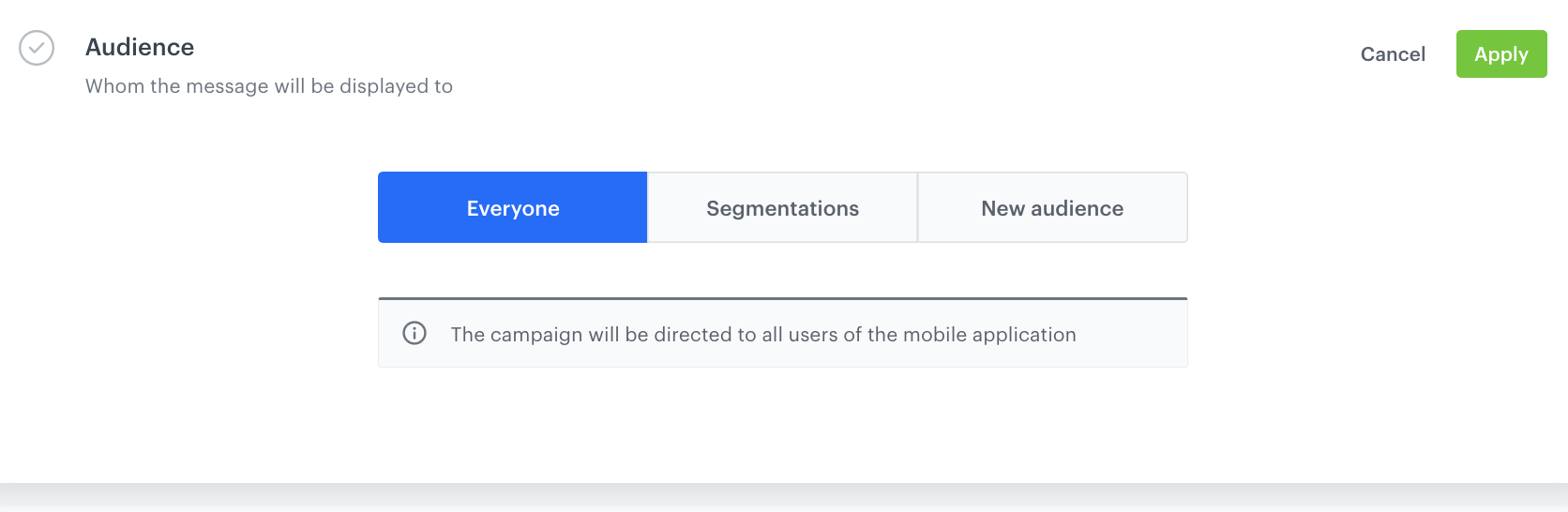
In the audience section, determine who will be the recipient of the document.

2. Click **Define**,
3. Select **Everyone**,
4. Save by clicking **Apply**.
<figure>
<img src="/api/docs/image/54176ad07f146575310749eba44b7c2f42c1b327/use-cases/all-cases/_gfx/renewable_quest12.png" alt="Audience configuration in Document settings"  class="full">
<figcaption>Audience configuration in Document settings</figcaption>
</figure>

### Set up the Configuration section
---

In the configuration section, determine the content of the document.

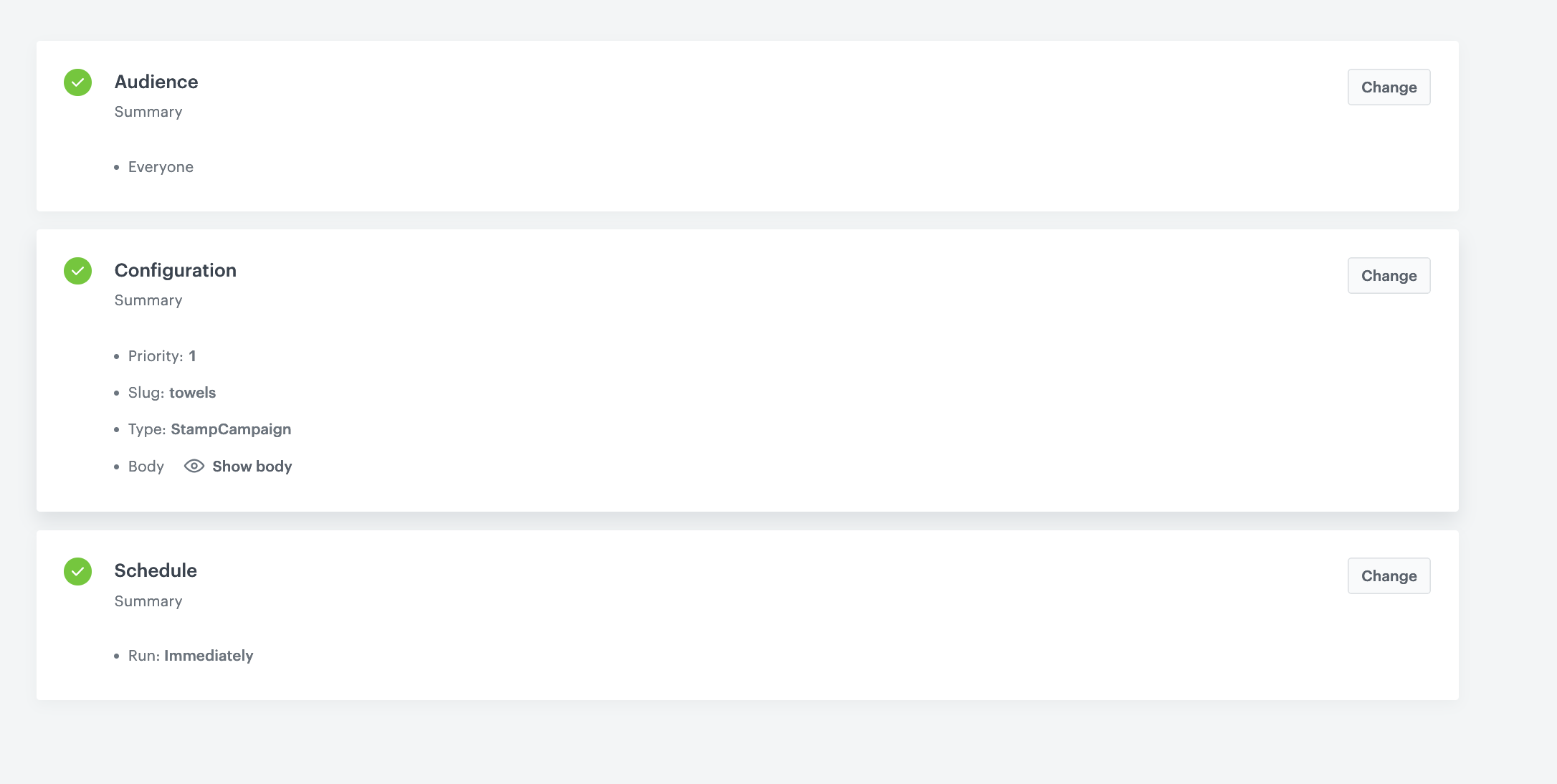
1. In the **Slug** field, enter the slug of the document, we recommend using the following name convention: this-is-slug-name. In our example enter the name of the event as `towels`.
2. In the **Priority** field, use a number to define the document priority. The order of documents is defined by the priority value (1 is the highest, 100 is the lowest). In our example it will be `1`.
3. From the **Type** dropdown list, select a document type. Document type defines how the document is validated by your mobile application. To create a new type, from the dropdown list, click Add type. In our example it will be `StampCampaign`.
4. In the **Body** field, add the content of the promotion in the JSON format. Body content will depend on the scenario of loyalty program. In our case, we display the results of the expressions created in previous parts of the process, a description, image, and some more information about the conditions of completing quest. 

   <pre><code class="language-jinja">{
               "current_status": " {% expression %} 1c92f585-3342-4fbd-af05-93f53ebe5882 {% endexpression %} ",
               "description": "Buy 10 product from towels category and get 1000 loyalty points",
               "format": "stamps",
               "image": "https://ecommerce.pl/media/catalog/product/towels/1/image/9df78eab33525d08d6e5fb8d27136e95/94989/regina-wish-recznik-papierowy-bialy-2-rolki-reczniki-papierowe-artykuly-higieniczne_0.jpg",
               "name": "Towels",
               "prize": "1000",
               "prizeType": "points",
               "target": "{% expression %} 930673cb-28d2-4a81-9100-7306bdfcce86 {% endexpression %}",
               "visibility": "1"
       }</code></pre>
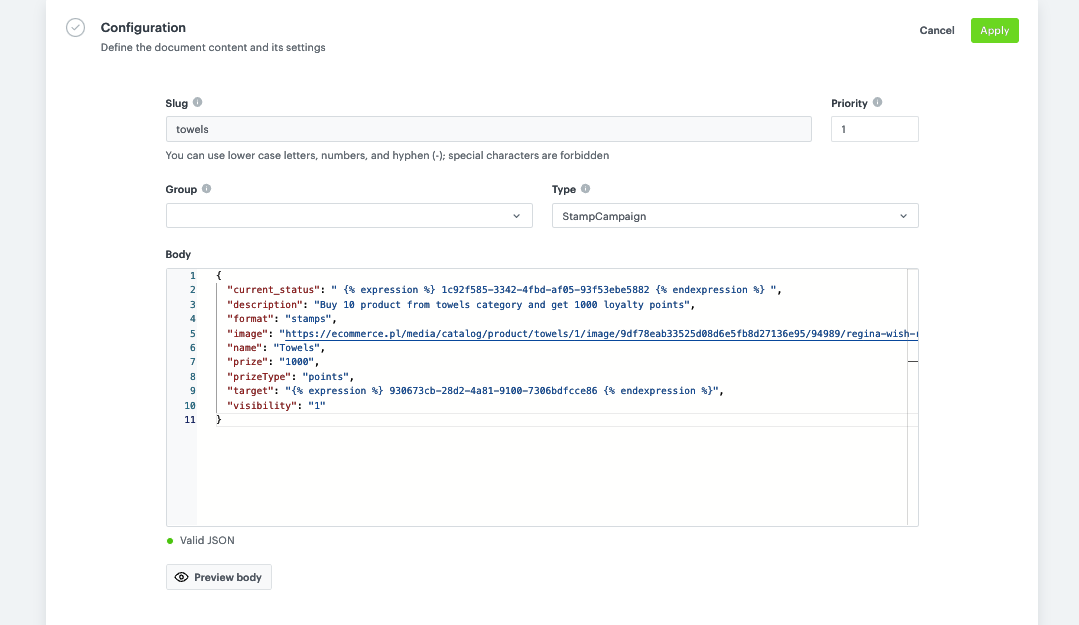
   In the `current_status` and `target` parameters, we are referring to the expressions created earlier in the process. The `current_status` expression returns the actual number of products bought by the client, while the `target` expression determines the number of products needed to complete the quest.

5. Save by clicking **Apply**.

<figure>
    <img src="/api/docs/image/54176ad07f146575310749eba44b7c2f42c1b327/use-cases/all-cases/_gfx/renewable-quest-13.png" alt="Document settings configuration"  class="full">
    <figcaption>Document settings configuration</figcaption>
    </figure>

### Set up Schedule

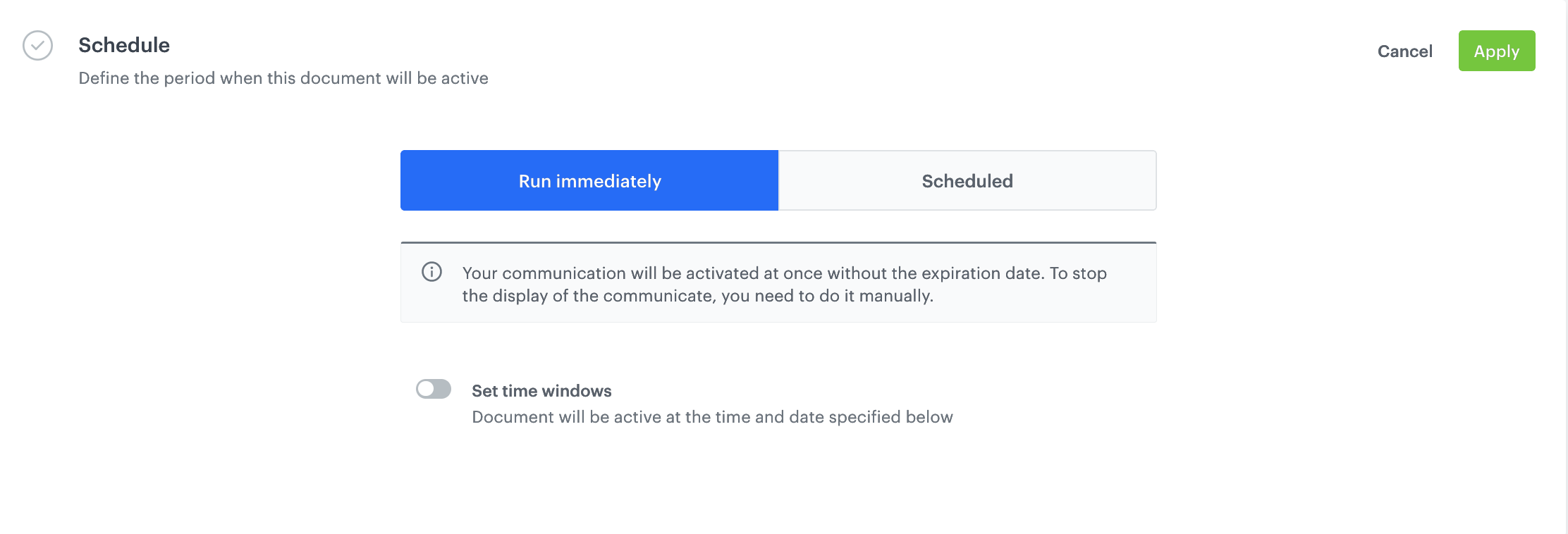
In the schedule section, set the document activation date. 

1. Define the period as **Run Imediately**
2. Save by clicking **Apply**.

<figure>
<img src="/api/docs/image/54176ad07f146575310749eba44b7c2f42c1b327/use-cases/all-cases/_gfx/renewable_quest14.png" alt="The configuration of document schedule"  class="full">
<figcaption>The configuration of document schedule</figcaption>
</figure>

To activate immediately or at a scheduled date, click the **Activate** button.

<figure>
<img src="/api/docs/image/54176ad07f146575310749eba44b7c2f42c1b327/use-cases/all-cases/_gfx/renewable_quest15.png" alt="The graphic shows document settings"  class="full">
<figcaption>The graphic shows document settings</figcaption>
</figure>

## What’s next 
---

For a screen view to be visible in a mobile application, you must fetch it using the appropriate SDK method for:

- [Android](/developers/mobile-sdk/method-reference/android/content),
- [iOS](/developers/mobile-sdk/method-reference/ios/content),
- [React Native](/developers/mobile-sdk/method-reference/react-native/content).

## Check the use case set up on the Synerise Demo workspace
---
You can check the configuration of every element of this process directly in Synerise [Demo workspace](https://demo.synerise.com/request):
- [Aggregates with timestamp of last finished quest](https://app.synerise.com/analytics-v2/aggregates/f5c5f07e-0d37-3f9c-ac3a-7bb50ab0d8a9)
- [Aggregates with number of products purchased after last finished quest](https://app.synerise.com/analytics/aggregates/8255900e-01e7-3ecd-9b31-21700ca7a8cf)
- [Expressions with the number of products required to complete the quest](https://app.synerise.com/analytics/expressions/930673cb-28d2-4a81-9100-7306bdfcce86)
- [Expressions that returns the number of products purchased](https://app.synerise.com/analytics/expressions/1c92f585-3342-4fbd-af05-93f53ebe5882)
- [Expressions checking the conditions for completing the quest](https://app.synerise.com/analytics/expressions/4ad6113a-3f18-44f0-8a50-cf40cc57e895)
- [Documents](https://app.synerise.com/assets/documents/33da9fe3-c317-46e5-93fb-cae73c2f889a)
- [Workflow](https://app.synerise.com/automations/automation-diagram/6e9a80ef-065b-4bd6-a13a-2601e40b4111)

If you’re our partner or client, you already have automatic access to the **Synerise Demo workspace (1590)**, where you can explore all the configured elements of this use case and copy them to your workspace.  

If you’re not a partner or client yet, we encourage you to fill out the contact [form](https://demo.synerise.com/request) to schedule a meeting with our representatives. They’ll be happy to show you how our demo works and discuss how you can apply this use case in your business. 

## Read more
---

- [Automation Hub](/docs/automation)
- [Aggregates](/docs/analytics/aggregates)
- [Expressions](/docs/analytics/expressions)
- [Documents](/docs/assets/documents/introduction-to-documents)