 **Behavioral Data Hub > Live Aggregates > Create aggregate**.
2. As the aggregate type, select **Profile**.
2. Enter the name of the aggregate.
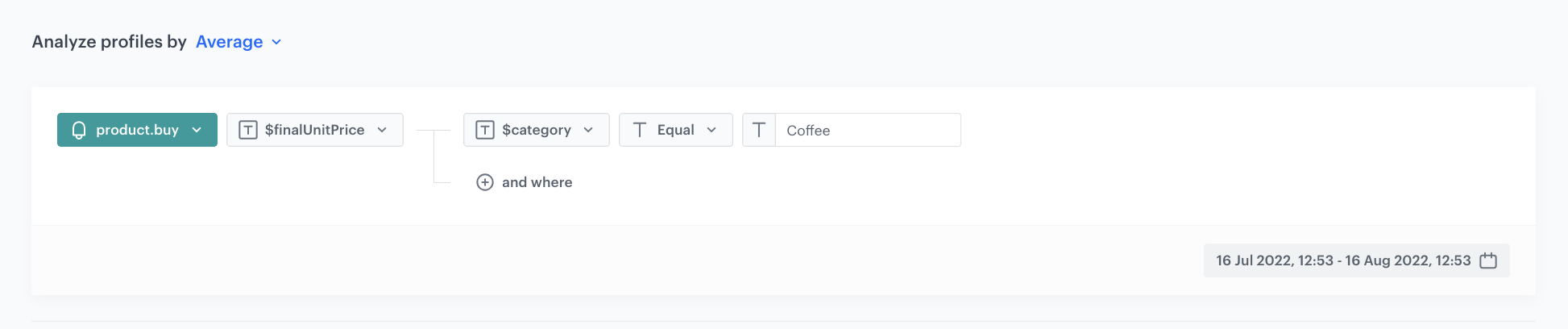
3. Click **Analyze profiles by** and select **Average**.
4. From the **Choose event** dropdown list, select the `product.buy` event.
4. As the event parameter, select **$finalUnitPrice**.
5. Next to the **$finalUnitPrice**, click **+where**.
6. From the dropdown list, select **$category**.
7. As the operator, choose **Equal**.
9. In the text field, enter the value of the category you want to use in replenishment campaign - in this use case, it will be `Coffee`.
8. Define the period analyzed in the aggregate.
9. Save the aggregate.
**Behavioral Data Hub > Live Aggregates > Create aggregate**.
2. As the aggregate type, select **Profile**.
2. Enter the name of the aggregate.
3. Click **Analyze profiles by** and select **Average**.
4. From the **Choose event** dropdown list, select the `product.buy` event.
4. As the event parameter, select **$finalUnitPrice**.
5. Next to the **$finalUnitPrice**, click **+where**.
6. From the dropdown list, select **$category**.
7. As the operator, choose **Equal**.
9. In the text field, enter the value of the category you want to use in replenishment campaign - in this use case, it will be `Coffee`.
8. Define the period analyzed in the aggregate.
9. Save the aggregate.
 **AI Hub > (AI Recommendations) Models > Add recommendation**.
2. In the **Type & Items feed** section:
1. Select an item catalog.
2. As a recommendation type, select **Personalized recommendations**.
3. Click **Apply**.
3. In the **Items** section, configure at least one slot.
1. Choose the minimum and maximum number of products to be displayed in the recommendation frame.
2. In the **Static filter** section, click **Choose filter**.
3. Select **Visual Builder**.
**Result**: The Visual Builder window appears.
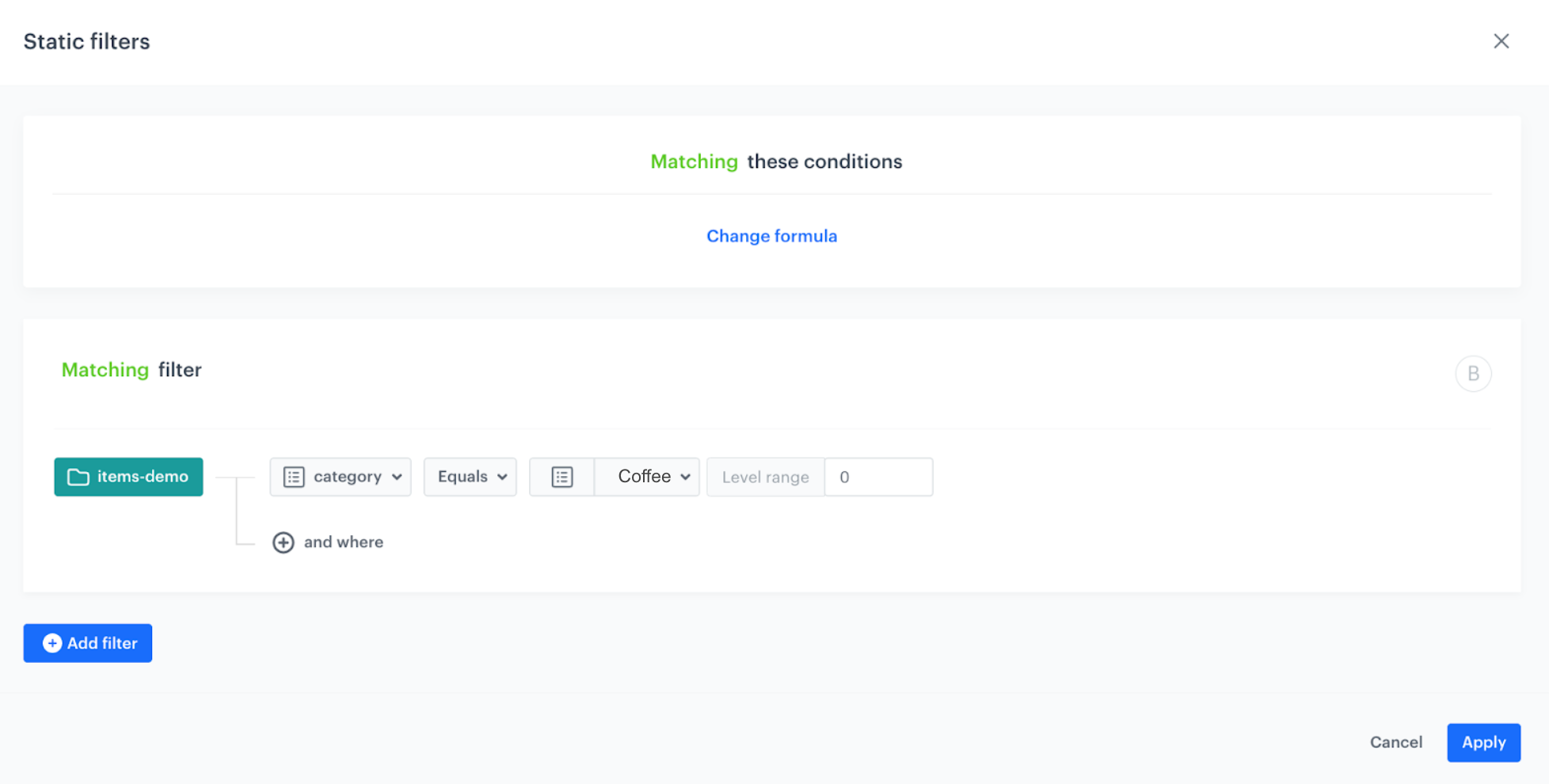
4. From the **Select attribute** dropdown list, choose the **category** attribute.
5. As the logical operator, select **Equals**.
6. From the **Select value** dropdown list, select **Coffee**.
7. In the **Level range** field, enter `0`.
4. Click **Apply**.
**AI Hub > (AI Recommendations) Models > Add recommendation**.
2. In the **Type & Items feed** section:
1. Select an item catalog.
2. As a recommendation type, select **Personalized recommendations**.
3. Click **Apply**.
3. In the **Items** section, configure at least one slot.
1. Choose the minimum and maximum number of products to be displayed in the recommendation frame.
2. In the **Static filter** section, click **Choose filter**.
3. Select **Visual Builder**.
**Result**: The Visual Builder window appears.
4. From the **Select attribute** dropdown list, choose the **category** attribute.
5. As the logical operator, select **Equals**.
6. From the **Select value** dropdown list, select **Coffee**.
7. In the **Level range** field, enter `0`.
4. Click **Apply**.
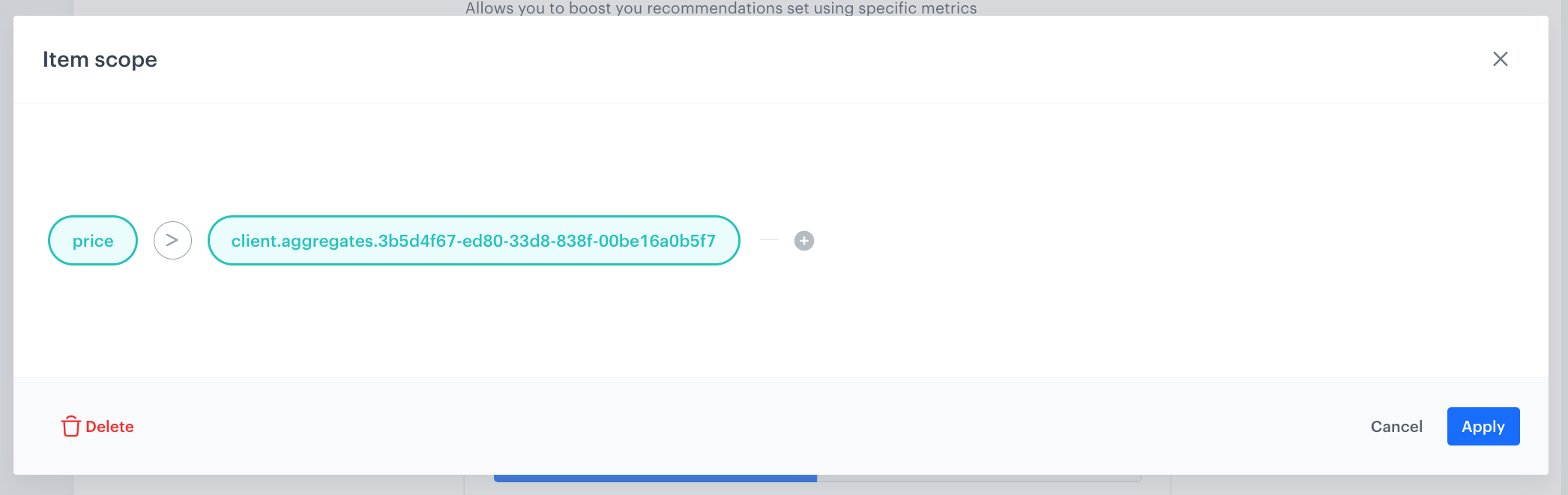
 10. From the dropdown list, select **Context**.
11. Click the **null** node.
**Result**: The **Select value** and **Property** buttons appear.
12. From the **Property** dropdown list, select **Aggregate context**.
13. From the **Select value** dropdown list, select an aggregate created in [the previous step](/use-cases/replenishment#create-an-aggregate).
14. Change the mathematical operator between the nodes to the greater-than sign (**>**).
8. Click **Apply**.
10. From the dropdown list, select **Context**.
11. Click the **null** node.
**Result**: The **Select value** and **Property** buttons appear.
12. From the **Property** dropdown list, select **Aggregate context**.
13. From the **Select value** dropdown list, select an aggregate created in [the previous step](/use-cases/replenishment#create-an-aggregate).
14. Change the mathematical operator between the nodes to the greater-than sign (**>**).
8. Click **Apply**.
 **Experience Hub > Emails > Templates > Drag&drop builder** or **Code editor** to create an email template.
2. In the upper right corner, click **Inserts**. In the **AI Cart Recommendations 2** catalog, find [previously build recommendations](/use-cases/replenishment#create-the-recommendation-with-boosting-rules) on the list of inserts.
3. Copy and paste the Jinjava code of the recommendation and insert it to the template of your email.
4. Adjust the visual layer of the email to your needs.
4. Save your template.
## Create a workflow
---
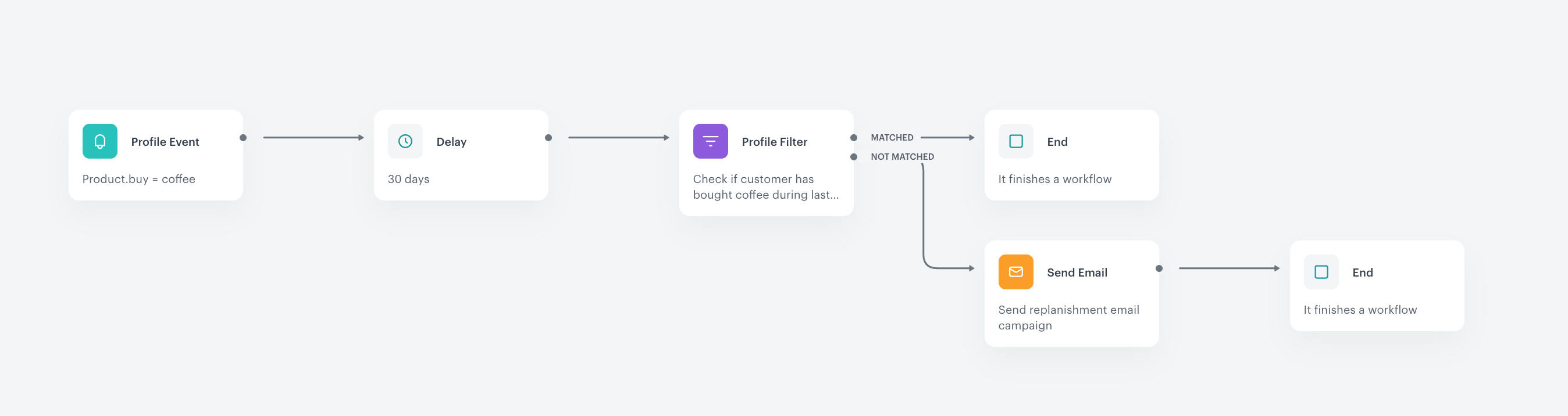
In this part of the process, create a workflow which is triggered by the `product.buy` event from `Coffee` category. The workflow will wait 30 days. If a customer did not make another purchase from this category after that period, we will send the email with the recommended products.
1. In Synerise, go to
**Experience Hub > Emails > Templates > Drag&drop builder** or **Code editor** to create an email template.
2. In the upper right corner, click **Inserts**. In the **AI Cart Recommendations 2** catalog, find [previously build recommendations](/use-cases/replenishment#create-the-recommendation-with-boosting-rules) on the list of inserts.
3. Copy and paste the Jinjava code of the recommendation and insert it to the template of your email.
4. Adjust the visual layer of the email to your needs.
4. Save your template.
## Create a workflow
---
In this part of the process, create a workflow which is triggered by the `product.buy` event from `Coffee` category. The workflow will wait 30 days. If a customer did not make another purchase from this category after that period, we will send the email with the recommended products.
1. In Synerise, go to  **Automation Hub > Workflows > New workflow**.
2. Enter the name of the workflow.
3. As the first node, add **Profile Event**. In the configuration of the node, select the event that triggers the workflow. In this use case, it's a `product.buy` event,
4. Click **+ where** and choose **$category**.
5. As the logical operator, select **Equal**.
6. In the text field, enter `Coffee`.
4. Confirm by clicking **Apply**.
5. As the second node, add **Delay**. In the configuration of the node, set the period to `30 days`.
6. As the next node, choose **Profile Filter** to check if customers have bought a product from the coffee category during last 30 days. To do this:
1. Choose the `product.buy` event.
2. As the parameter, choose **$category**.
5. As the logical operator, select **Equal**.
6. In the text field, enter `Coffee`.
3. Set the time range to last 30 days.
4. Click **Apply**.
7. To the **Matched** path, add the **End** node.
8. To the **Not matched** path, add the **Send Email** node.
9. In the **Send email** node configuration:
1. In the **Sender details**, define the account from which the email will be sent.
2. In the **Content** section:
1. Enter the subject of the email which will be visible in the customer's inbox.
2. Select the email template created in [the previous step](/use-cases/replenishment#create-an-email-template).
3. Optionally, you can add UTM and URL parameters. If not, click **Skip step**.
10. Confirm by clicking **Apply**.
7. Add the **End** node to finish the workflow.
8. Optionally, you can set up the capping for this workflow based on your business needs.
8. Click **Save & Run**.
**Automation Hub > Workflows > New workflow**.
2. Enter the name of the workflow.
3. As the first node, add **Profile Event**. In the configuration of the node, select the event that triggers the workflow. In this use case, it's a `product.buy` event,
4. Click **+ where** and choose **$category**.
5. As the logical operator, select **Equal**.
6. In the text field, enter `Coffee`.
4. Confirm by clicking **Apply**.
5. As the second node, add **Delay**. In the configuration of the node, set the period to `30 days`.
6. As the next node, choose **Profile Filter** to check if customers have bought a product from the coffee category during last 30 days. To do this:
1. Choose the `product.buy` event.
2. As the parameter, choose **$category**.
5. As the logical operator, select **Equal**.
6. In the text field, enter `Coffee`.
3. Set the time range to last 30 days.
4. Click **Apply**.
7. To the **Matched** path, add the **End** node.
8. To the **Not matched** path, add the **Send Email** node.
9. In the **Send email** node configuration:
1. In the **Sender details**, define the account from which the email will be sent.
2. In the **Content** section:
1. Enter the subject of the email which will be visible in the customer's inbox.
2. Select the email template created in [the previous step](/use-cases/replenishment#create-an-email-template).
3. Optionally, you can add UTM and URL parameters. If not, click **Skip step**.
10. Confirm by clicking **Apply**.
7. Add the **End** node to finish the workflow.
8. Optionally, you can set up the capping for this workflow based on your business needs.
8. Click **Save & Run**.