 **Behavioral Data Hub > Live Aggregates > Create aggregate**.
2. As the aggregate type, select **Profile**.
2. Enter a meaningful name of the aggregate.
3. Set the **Analyze profiles by** option to **Count**.
4. Click the **Choose event** dropdown list.
5. From the dropdown list, select the event that signifies a purchase.
**Behavioral Data Hub > Live Aggregates > Create aggregate**.
2. As the aggregate type, select **Profile**.
2. Enter a meaningful name of the aggregate.
3. Set the **Analyze profiles by** option to **Count**.
4. Click the **Choose event** dropdown list.
5. From the dropdown list, select the event that signifies a purchase.
 **Behavioral Data Hub > Live Aggregates > Create aggregate**.
2. As the aggregate type, select **Profile**.
2. Enter a meaningful name of the aggregate.
3. Set the **Analyze profiles by** option to **First**.
4. Click the **Choose event** dropdown list.
5. From the dropdown list, select the event that signifies a purchase.
**Behavioral Data Hub > Live Aggregates > Create aggregate**.
2. As the aggregate type, select **Profile**.
2. Enter a meaningful name of the aggregate.
3. Set the **Analyze profiles by** option to **First**.
4. Click the **Choose event** dropdown list.
5. From the dropdown list, select the event that signifies a purchase.
 > **Specials**.
8. Choose **TIMESTAMP**.
9. Using the date picker in the lower-right corner, set the time range to **Lifetime**.
10. Save the aggregate.
> **Specials**.
8. Choose **TIMESTAMP**.
9. Using the date picker in the lower-right corner, set the time range to **Lifetime**.
10. Save the aggregate.
 **Behavioral Data Hub > Live Aggregates > Create aggregate**.
2. As the aggregate type, select **Profile**.
2. Enter a meaningful name of the aggregate.
3. Set the **Analyze profiles by** option to **Last**.
4. Click the **Choose event** dropdown list.
5. From the dropdown list, select the event that signifies a purchase.
> **Specials**.
8. Choose **TIMESTAMP**.
9. Using the date picker in the lower-right corner, set the time range to **Lifetime**.
10. Save the aggregate.
**Behavioral Data Hub > Live Aggregates > Create aggregate**.
2. As the aggregate type, select **Profile**.
2. Enter a meaningful name of the aggregate.
3. Set the **Analyze profiles by** option to **Last**.
4. Click the **Choose event** dropdown list.
5. From the dropdown list, select the event that signifies a purchase.
> **Specials**.
8. Choose **TIMESTAMP**.
9. Using the date picker in the lower-right corner, set the time range to **Lifetime**.
10. Save the aggregate.
 **Behavioral Data Hub > Live Aggregates > Create aggregate**.
2. As the aggregate type, select **Profile**.
2. Enter a meaningful name of the aggregate.
3. Set the **Analyze profiles by** option to **Sum**.
4. Click the **Choose event** dropdown list.
5. From the dropdown list, select the event that signifies a purchase.
**Behavioral Data Hub > Live Aggregates > Create aggregate**.
2. As the aggregate type, select **Profile**.
2. Enter a meaningful name of the aggregate.
3. Set the **Analyze profiles by** option to **Sum**.
4. Click the **Choose event** dropdown list.
5. From the dropdown list, select the event that signifies a purchase.
 **Behavioral Data Hub > Expressions > New expression**.
2. Enter a meaningful name of the expression.
3. Leave the expression type at default (**Attribute**).
4. Build the following expression formula:
**Behavioral Data Hub > Expressions > New expression**.
2. Enter a meaningful name of the expression.
3. Leave the expression type at default (**Attribute**).
4. Build the following expression formula:
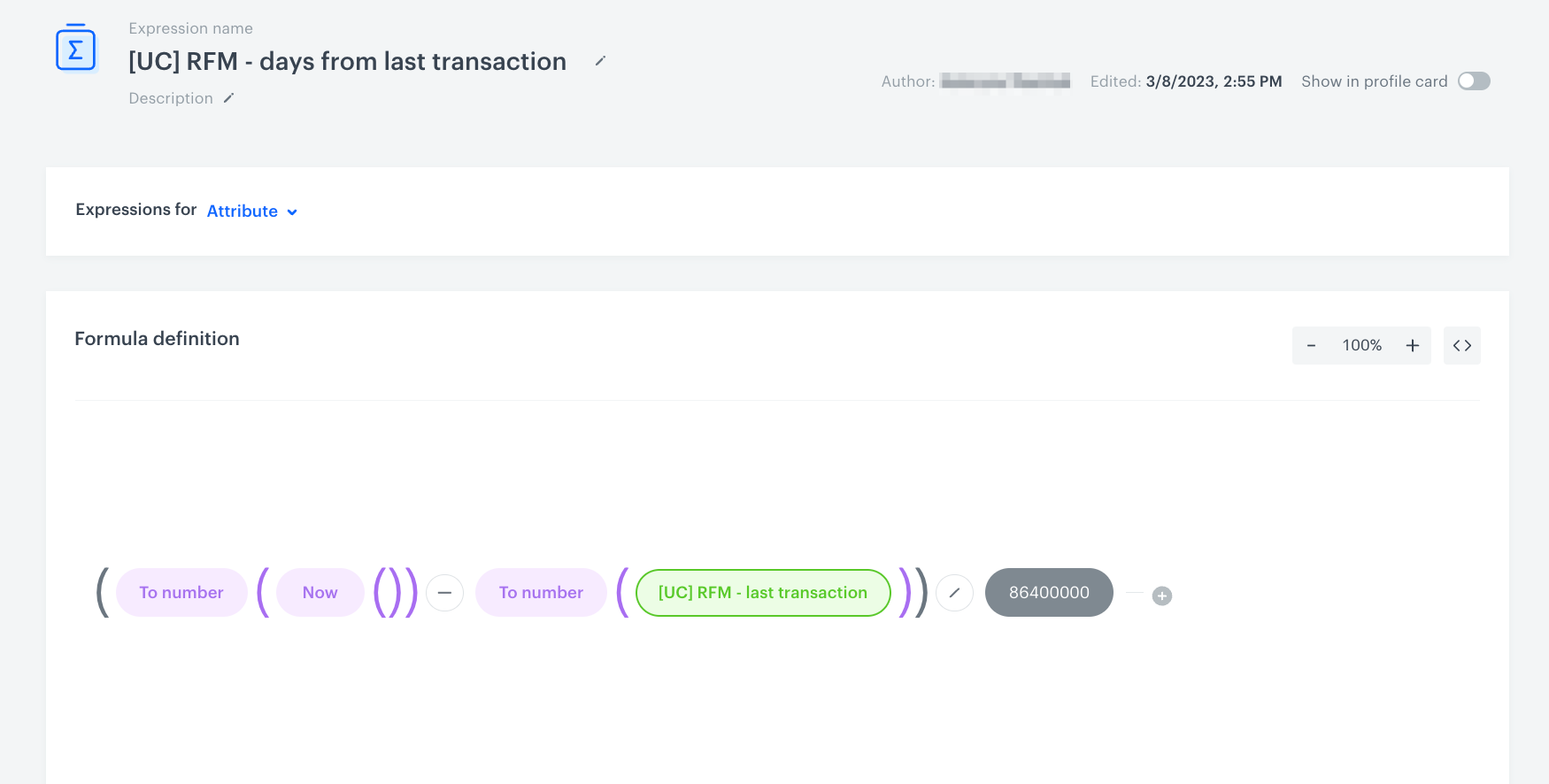 **Behavioral Data Hub > Expressions > New expression**.
2. Enter a meaningful name of the expression.
3. Leave the expression type at default (**Attribute**).
4. Build the following expression formula:
**Behavioral Data Hub > Expressions > New expression**.
2. Enter a meaningful name of the expression.
3. Leave the expression type at default (**Attribute**).
4. Build the following expression formula:
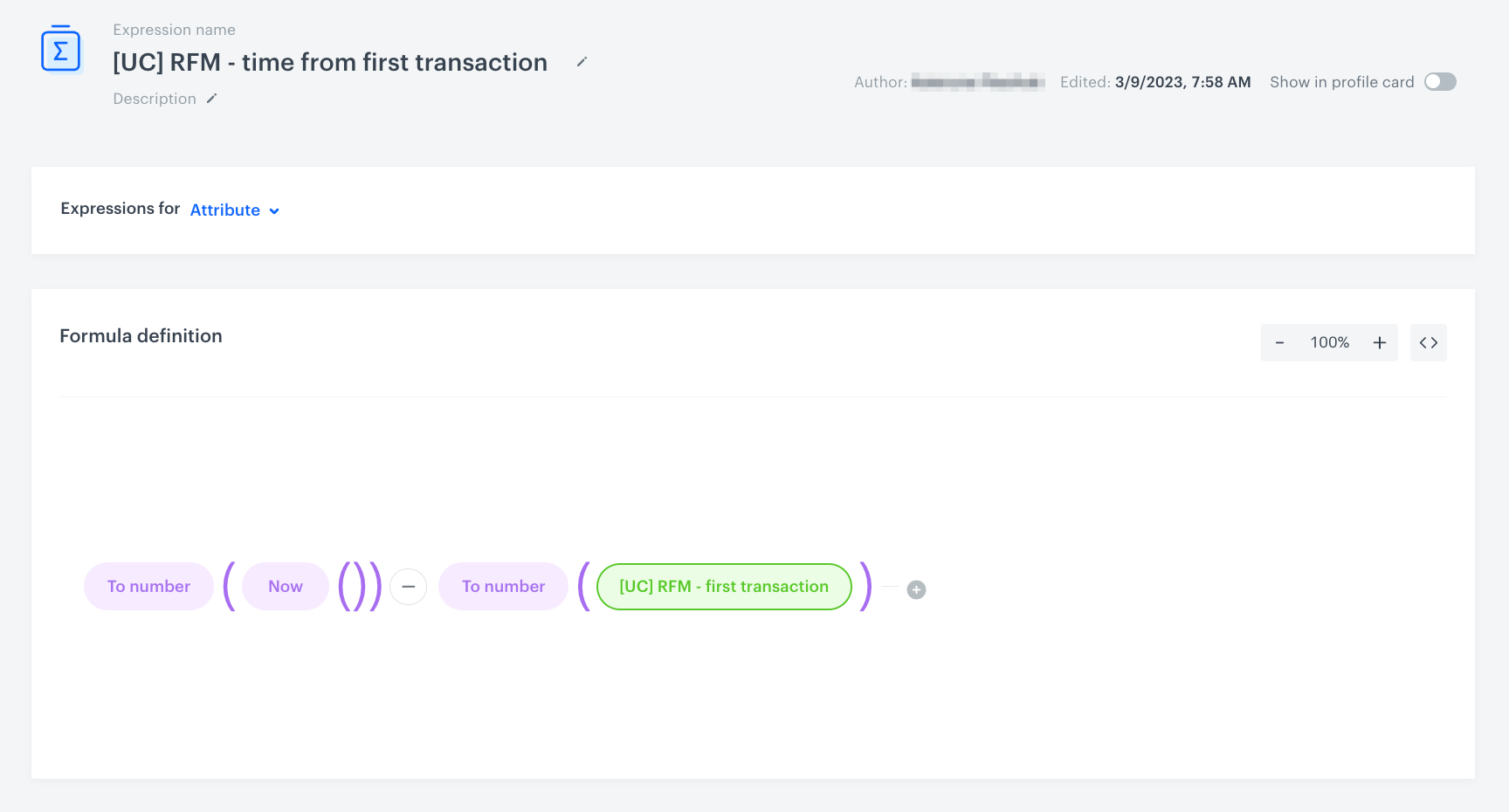 **Behavioral Data Hub > Expressions > New expression**.
2. Enter a meaningful name of the expression.
3. Leave the expression type at default (**Attribute**).
4. Build the following expression formula:
1. Click the **Select** node.
2. From the dropdown list, select **Profile**.
3. Click the **unnamed** node that has been added to the canvas.
4. Scroll down the page and click **Choose attribute**.
5. Search and select [the expression that calculates the time from the first transaction](/use-cases/rfm-analysis#number-of-days-since-the-first-transaction).
6. Next to the expression on the canvas, click the plus button icon.
7. Select **Constant**.
8. Click **0** that has been added to the canvas.
9. Change the number to `604800000`.
10. Click the mathematical operator between the nodes and change it to a division sign.
5. Save the expression.
**Behavioral Data Hub > Expressions > New expression**.
2. Enter a meaningful name of the expression.
3. Leave the expression type at default (**Attribute**).
4. Build the following expression formula:
1. Click the **Select** node.
2. From the dropdown list, select **Profile**.
3. Click the **unnamed** node that has been added to the canvas.
4. Scroll down the page and click **Choose attribute**.
5. Search and select [the expression that calculates the time from the first transaction](/use-cases/rfm-analysis#number-of-days-since-the-first-transaction).
6. Next to the expression on the canvas, click the plus button icon.
7. Select **Constant**.
8. Click **0** that has been added to the canvas.
9. Change the number to `604800000`.
10. Click the mathematical operator between the nodes and change it to a division sign.
5. Save the expression.
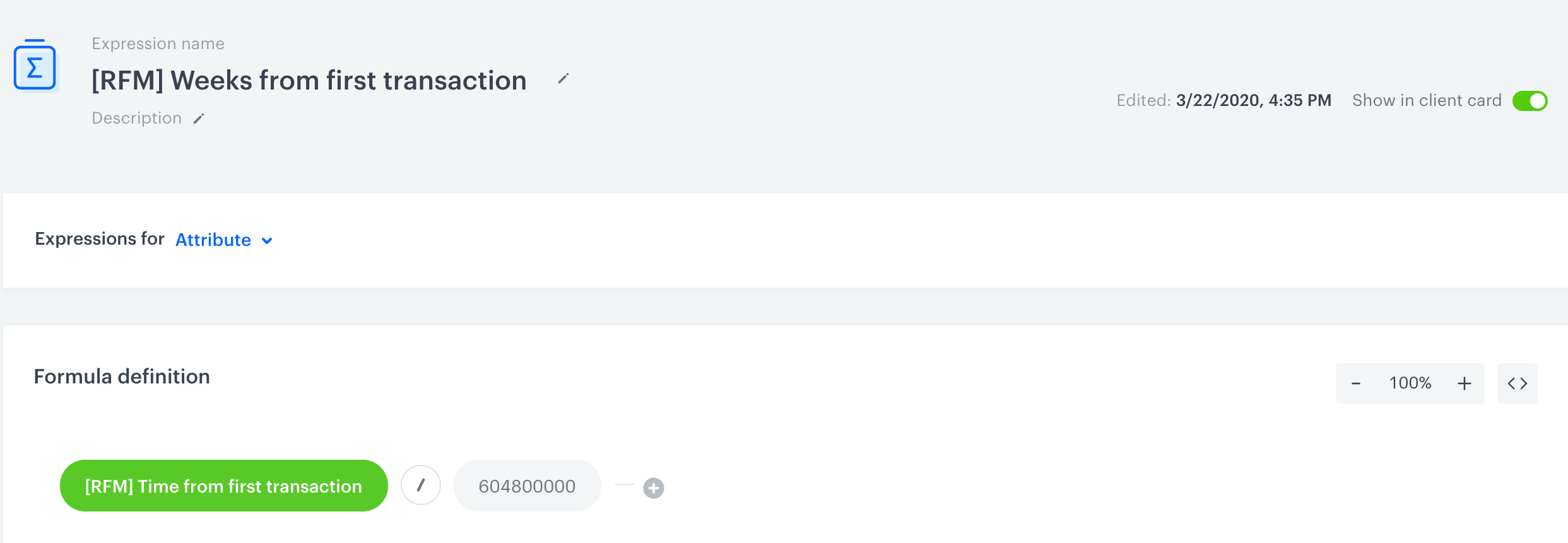 **Behavioral Data Hub > Expressions > New expression**.
2. Enter a meaningful name of the expression.
3. Leave the expression type at default (**Attribute**).
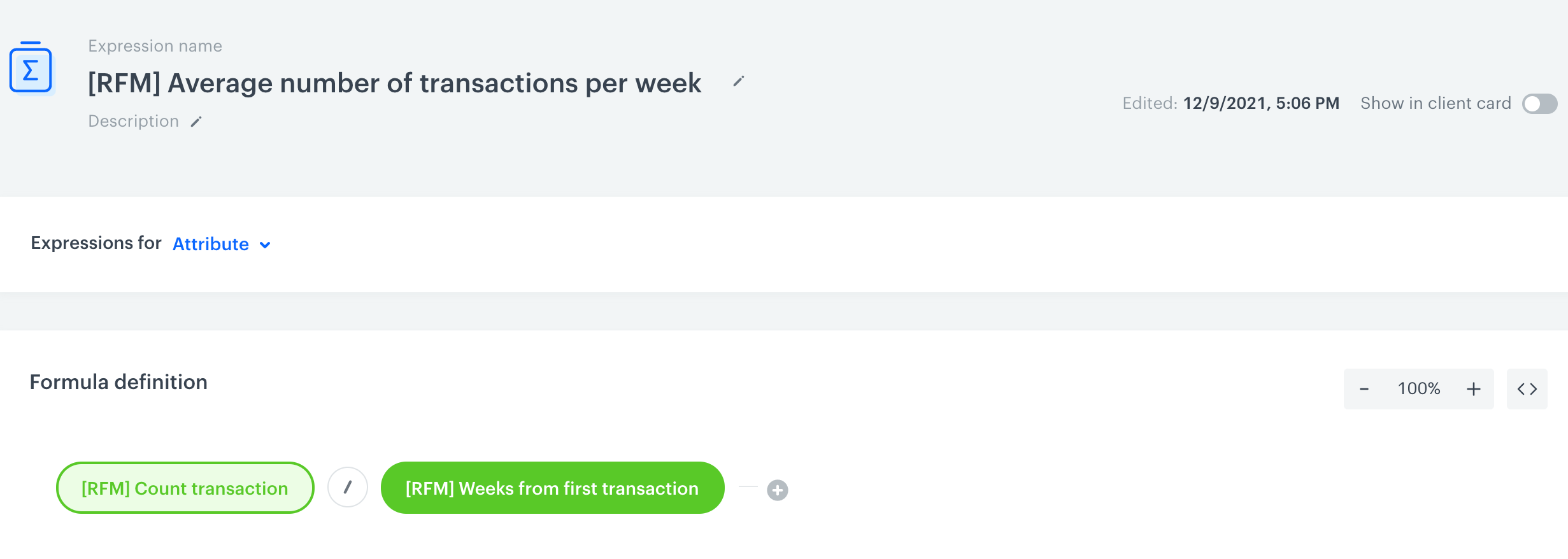
4. Build the following expression formula:
1. Click the **Select** node.
2. From the dropdown list, select **Profile**.
3. Click the **unnamed** node that has been added to the canvas.
4. Scroll down the page and click **Choose attribute**.
5. Search and select the [aggregate that calculates the number of transactions](/use-cases/rfm-analysis#number-of-transactions).
6. Next to the expression on the canvas, click the plus button icon.
7. Select **Profile**.
8. Click the **unnamed** node that has been added to the canvas.
9. Scroll down the page and click **Choose attribute**.
10. Search and select the [expression that calculates weeks from first transactions](/use-cases/rfm-analysis#weeks-from-the-first-transaction).
11. Click the mathematical operator between the nodes and change it to a division sign.
5. Save the expression.
**Behavioral Data Hub > Expressions > New expression**.
2. Enter a meaningful name of the expression.
3. Leave the expression type at default (**Attribute**).
4. Build the following expression formula:
1. Click the **Select** node.
2. From the dropdown list, select **Profile**.
3. Click the **unnamed** node that has been added to the canvas.
4. Scroll down the page and click **Choose attribute**.
5. Search and select the [aggregate that calculates the number of transactions](/use-cases/rfm-analysis#number-of-transactions).
6. Next to the expression on the canvas, click the plus button icon.
7. Select **Profile**.
8. Click the **unnamed** node that has been added to the canvas.
9. Scroll down the page and click **Choose attribute**.
10. Search and select the [expression that calculates weeks from first transactions](/use-cases/rfm-analysis#weeks-from-the-first-transaction).
11. Click the mathematical operator between the nodes and change it to a division sign.
5. Save the expression.
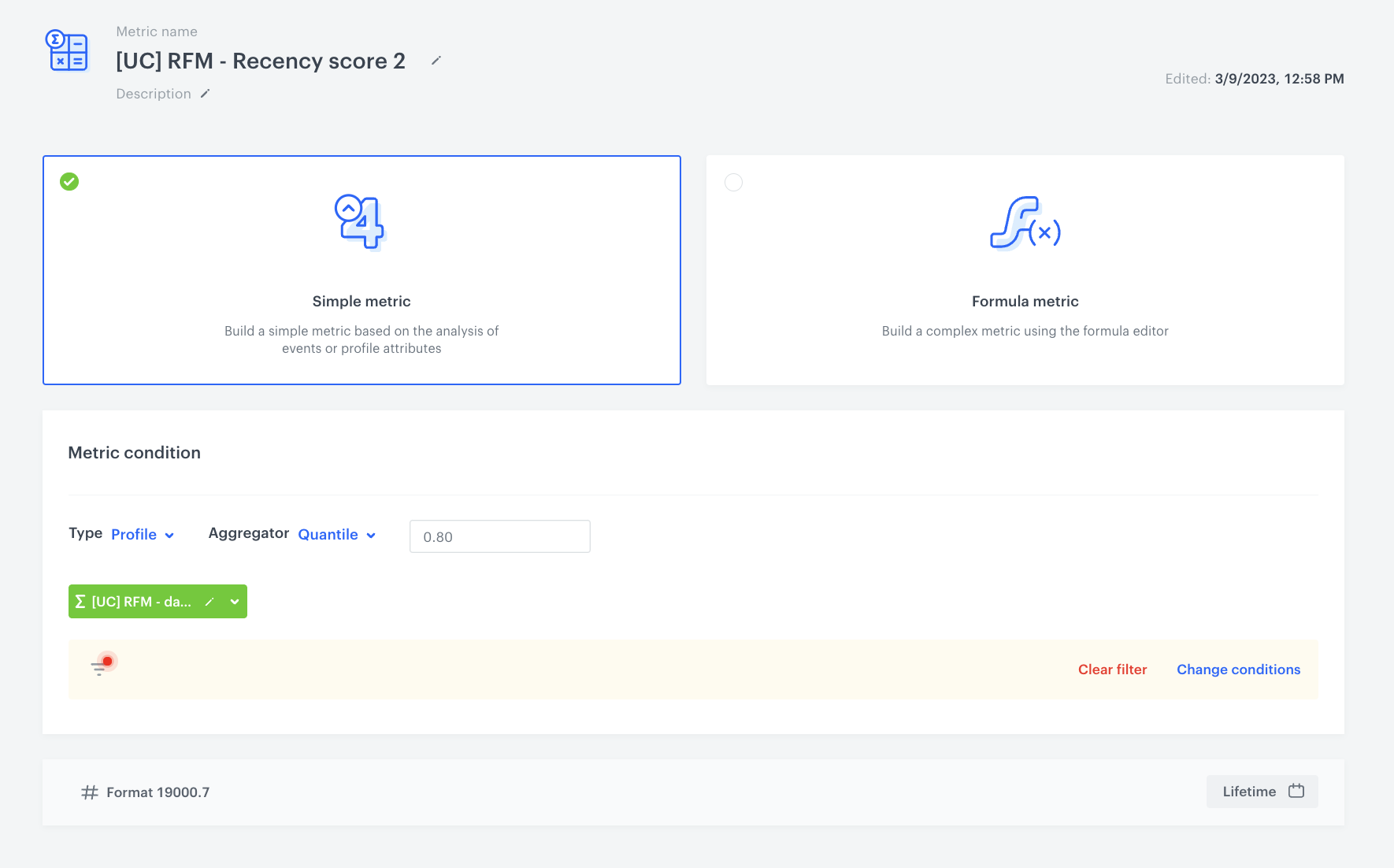
 **Decision Hub > Metrics > New metric**.
2. Enter a meaningful metric name.
3. Leave the metric kind at default (**Simple**).
4. Change the **Metric** type to **Profile**.
5. Change the **Aggregator** option to **Quantile**.
5. Next to the **Quantile** option, in the text field, enter `0.80`.
6. Click **Choose value**.
7. Search and select the [expression that returns the number of days that passed since the last transaction](/use-cases/rfm-analysis#number-of-days-since-last-transaction).
8. Click **Enable filter**.
9. Click **Choose filter**.
10. Search and select the **transaction.charge** event.
11. Set the time range to **Lifetime**.
12. Confirm the filter settings by clicking **Apply**.
13. Save the metric.
14. Create three metrics with the same settings for the following quantile values: `0.60`, `0.40`, and `0.20`.
**Decision Hub > Metrics > New metric**.
2. Enter a meaningful metric name.
3. Leave the metric kind at default (**Simple**).
4. Change the **Metric** type to **Profile**.
5. Change the **Aggregator** option to **Quantile**.
5. Next to the **Quantile** option, in the text field, enter `0.80`.
6. Click **Choose value**.
7. Search and select the [expression that returns the number of days that passed since the last transaction](/use-cases/rfm-analysis#number-of-days-since-last-transaction).
8. Click **Enable filter**.
9. Click **Choose filter**.
10. Search and select the **transaction.charge** event.
11. Set the time range to **Lifetime**.
12. Confirm the filter settings by clicking **Apply**.
13. Save the metric.
14. Create three metrics with the same settings for the following quantile values: `0.60`, `0.40`, and `0.20`.
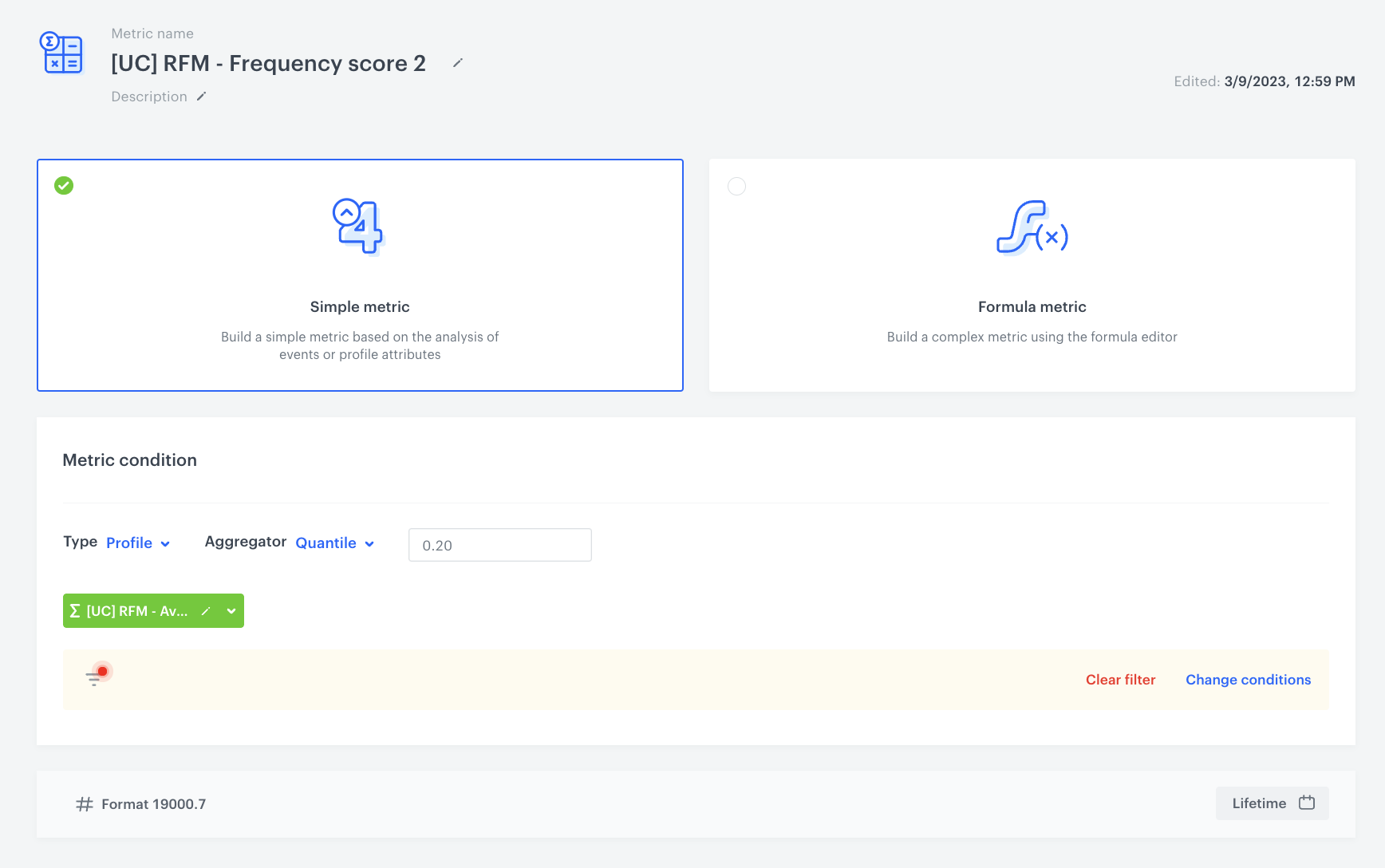
 **Decision Hub > Metrics > New metric**.
2. Enter a meaningful metric name.
3. Leave the metric kind at default (**Simple**).
4. Change the **Metric** type to **Profile**.
5. Change the **Aggregator** option to **Quantile**.
5. Next to the **Quantile** option, in the text field, enter `0.20`.
6. Click **Choose value**.
7. Search and select the [expression that returns the average number of transactions in a week](/use-cases/rfm-analysis#average-number-of-transactions-per-week).
8. Click **Enable filter**.
9. Click **Choose filter**.
10. Search and select the **transaction.charge** event.
11. Set the time range to **Lifetime**.
12. Confirm the filter settings by clicking **Apply**.
13. Save the metric.
14. Create three metrics with the same settings for the following quantile values: `0.40`, `0.60`, and `0.80`.
**Decision Hub > Metrics > New metric**.
2. Enter a meaningful metric name.
3. Leave the metric kind at default (**Simple**).
4. Change the **Metric** type to **Profile**.
5. Change the **Aggregator** option to **Quantile**.
5. Next to the **Quantile** option, in the text field, enter `0.20`.
6. Click **Choose value**.
7. Search and select the [expression that returns the average number of transactions in a week](/use-cases/rfm-analysis#average-number-of-transactions-per-week).
8. Click **Enable filter**.
9. Click **Choose filter**.
10. Search and select the **transaction.charge** event.
11. Set the time range to **Lifetime**.
12. Confirm the filter settings by clicking **Apply**.
13. Save the metric.
14. Create three metrics with the same settings for the following quantile values: `0.40`, `0.60`, and `0.80`.
 **Decision Hub > Metrics > New metric**.
2. Enter a meaningful metric name.
3. Leave the metric kind at default (**Simple**).
4. Change the **Metric** type to **Profile**.
5. Change the **Aggregator** option to **Quantile**.
5. Next to the **Quantile** option, in the text field, enter `0.20`.
6. Click **Choose value**.
7. Search and select the [aggregate that returns the value of purchases in last 90 days](/use-cases/rfm-analysis#value-of-purchase).
8. Click **Enable filter**.
9. Click **Choose filter**.
10. Search and select the **transaction.charge** event.
11. Set the time range to **Lifetime**.
12. Confirm the filter settings by clicking **Apply**.
13. Save the metric.
14. Create three metrics with the same settings for the following quantile values: `0.40`, `0.60`, and `0.80`.
**Decision Hub > Metrics > New metric**.
2. Enter a meaningful metric name.
3. Leave the metric kind at default (**Simple**).
4. Change the **Metric** type to **Profile**.
5. Change the **Aggregator** option to **Quantile**.
5. Next to the **Quantile** option, in the text field, enter `0.20`.
6. Click **Choose value**.
7. Search and select the [aggregate that returns the value of purchases in last 90 days](/use-cases/rfm-analysis#value-of-purchase).
8. Click **Enable filter**.
9. Click **Choose filter**.
10. Search and select the **transaction.charge** event.
11. Set the time range to **Lifetime**.
12. Confirm the filter settings by clicking **Apply**.
13. Save the metric.
14. Create three metrics with the same settings for the following quantile values: `0.40`, `0.60`, and `0.80`.
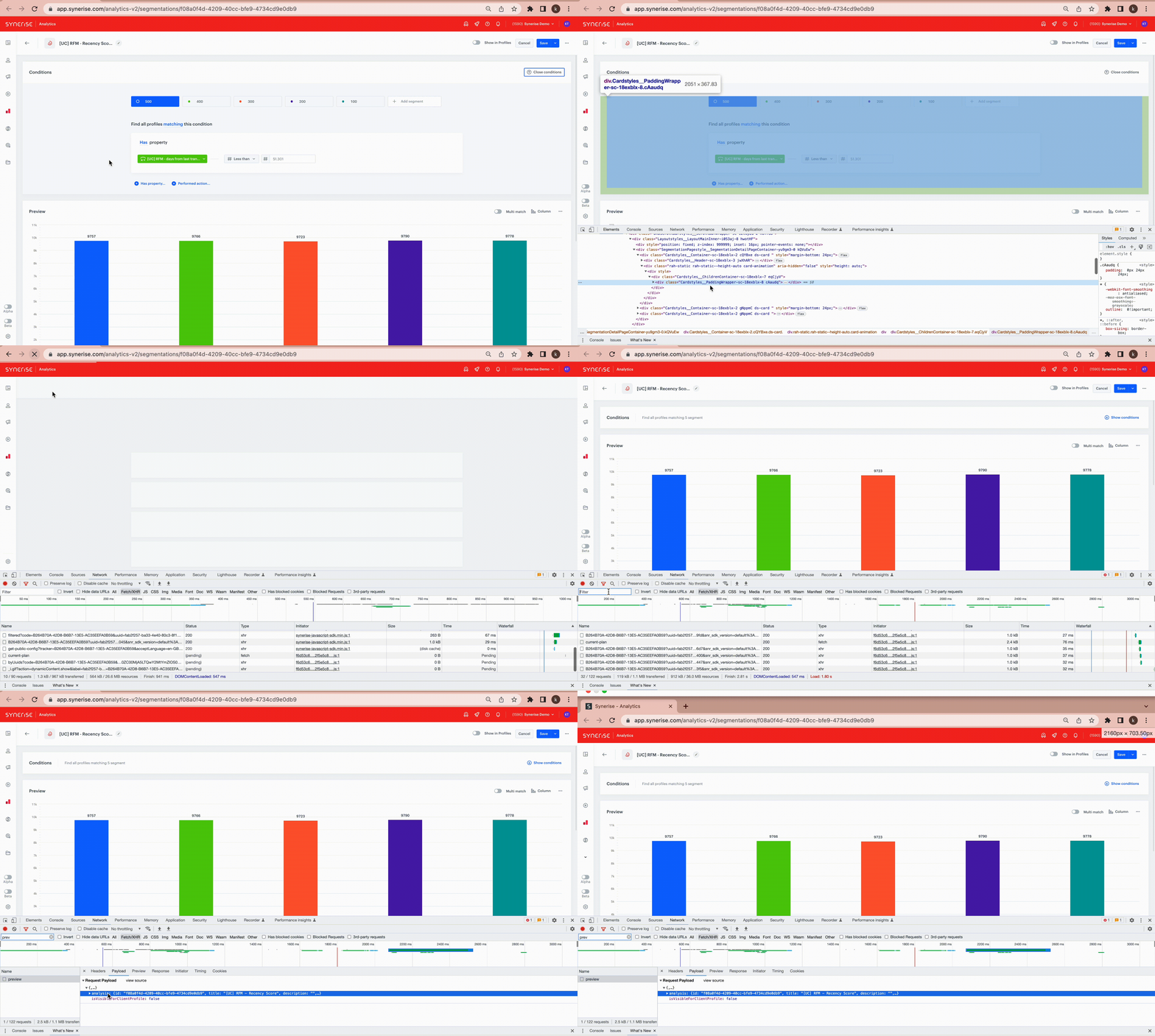
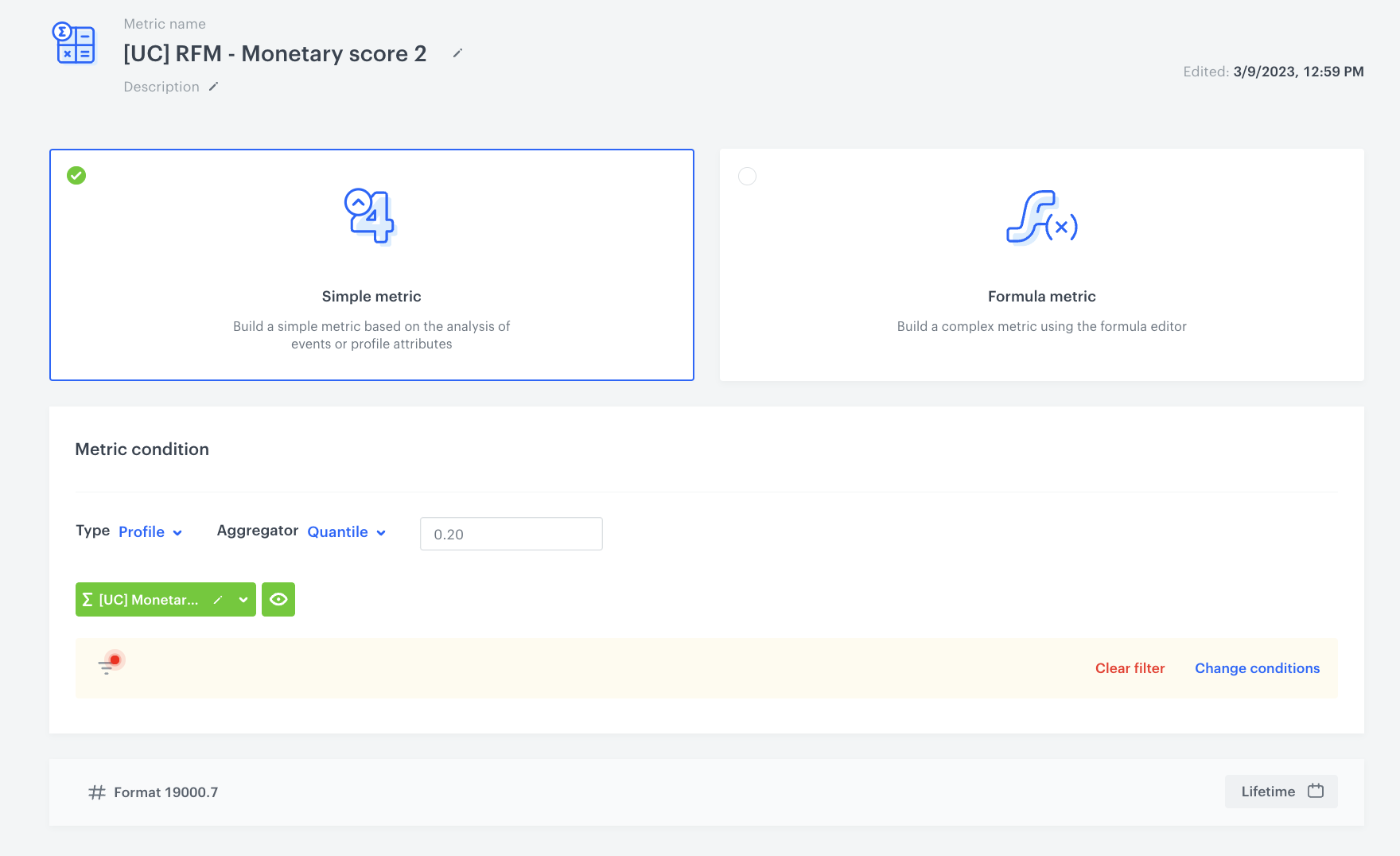 **Decision Hub > Segmentations > New segmentation**.
2. Enter a meaningful name of the segmentation.
3. As the name of the segment, enter `500`.
4. Click **Add condition**.
5. Search and select the [expression that returns the number of days since the last transaction](/use-cases/rfm-analysis#number-of-days-since-last-transaction).
6. As the logical operator select **Less than**.
7. In the text field, next to the logical operator, enter the number returned by the metrics that calculate the `0.20` quantile. In this use case, the quantile result amounts to `43.3`, so the customers who made a transaction less than 43 days after the date of the last transaction, belong to 500. It means that the R score of the customer is 500, which is the highest.
6. Add the rest of segments by clicking the
**Decision Hub > Segmentations > New segmentation**.
2. Enter a meaningful name of the segmentation.
3. As the name of the segment, enter `500`.
4. Click **Add condition**.
5. Search and select the [expression that returns the number of days since the last transaction](/use-cases/rfm-analysis#number-of-days-since-last-transaction).
6. As the logical operator select **Less than**.
7. In the text field, next to the logical operator, enter the number returned by the metrics that calculate the `0.20` quantile. In this use case, the quantile result amounts to `43.3`, so the customers who made a transaction less than 43 days after the date of the last transaction, belong to 500. It means that the R score of the customer is 500, which is the highest.
6. Add the rest of segments by clicking the  icon.
7. For the following segments, add the conditions listed below:
- For the 400 segment: more than the value of the `0.20` quantile **AND** less than `0.40` quantile
- For the 300 segment: more than the value of the `0.40` quantile **AND** less than `0.60` quantile
- For the 200 segment: more than the value of the `0.60` quantile **AND** less than `0.80` quantile
- For the 100 segment: less than the value of the `0.80` quantile **AND** segment of loyal customers **AND** add the **transaction.charge** event with the **Lifetime** time range.
icon.
7. For the following segments, add the conditions listed below:
- For the 400 segment: more than the value of the `0.20` quantile **AND** less than `0.40` quantile
- For the 300 segment: more than the value of the `0.40` quantile **AND** less than `0.60` quantile
- For the 200 segment: more than the value of the `0.60` quantile **AND** less than `0.80` quantile
- For the 100 segment: less than the value of the `0.80` quantile **AND** segment of loyal customers **AND** add the **transaction.charge** event with the **Lifetime** time range.
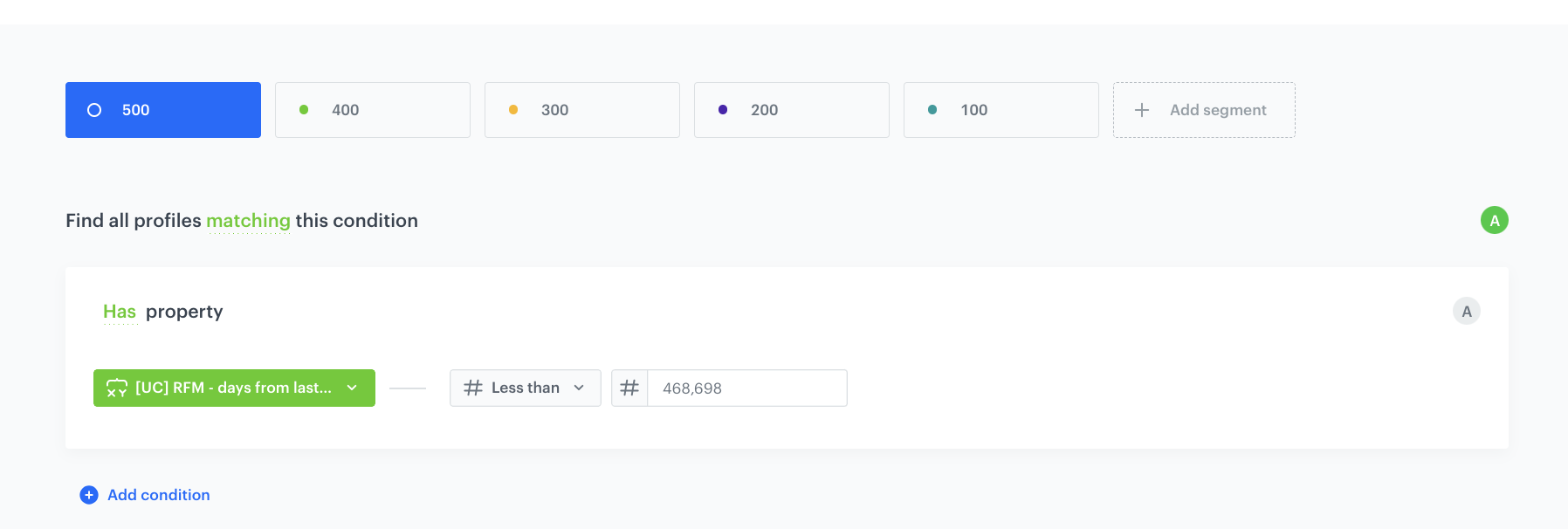 **Decision Hub > Segmentations > New segmentation**.
2. Enter a meaningful name of the segmentation.
3. As the name of the segment, enter `50`.
4. Click **Add condition**.
5. Search and select the [expression that returns the average number of transactions per week](/use-cases/rfm-analysis#average-number-of-transactions-per-week).
6. As the logical operator select **More than or equal**.
7. In the text field, next to the logical operator, enter the number returned by the metrics that calculate the `0.80` quantile. In this use case, the quantile result amounts to `0.4`, so the customers who make more than 0.4 transaction a week, belong to 50. It means that the F score of the customer is 50, which is the highest.
6. Add the rest of segments by clicking the icon.
7. For the following segments, add the conditions listed below:
- For the 40 segment: more than the value of the `0.60` quantile **AND** less than `0.80` quantile
- For the 30 segment: more than the value of the `0.40` quantile **AND** less than `0.60` quantile
- For the 20 segment: more than the value of the `0.20` quantile **AND** less than `0.40` quantile
- For the 10 segment: less than the value of the `0.20` quantile **AND** segment of loyal customers **AND** add the **transaction.charge** event with the **Lifetime** time range.
**Decision Hub > Segmentations > New segmentation**.
2. Enter a meaningful name of the segmentation.
3. As the name of the segment, enter `50`.
4. Click **Add condition**.
5. Search and select the [expression that returns the average number of transactions per week](/use-cases/rfm-analysis#average-number-of-transactions-per-week).
6. As the logical operator select **More than or equal**.
7. In the text field, next to the logical operator, enter the number returned by the metrics that calculate the `0.80` quantile. In this use case, the quantile result amounts to `0.4`, so the customers who make more than 0.4 transaction a week, belong to 50. It means that the F score of the customer is 50, which is the highest.
6. Add the rest of segments by clicking the icon.
7. For the following segments, add the conditions listed below:
- For the 40 segment: more than the value of the `0.60` quantile **AND** less than `0.80` quantile
- For the 30 segment: more than the value of the `0.40` quantile **AND** less than `0.60` quantile
- For the 20 segment: more than the value of the `0.20` quantile **AND** less than `0.40` quantile
- For the 10 segment: less than the value of the `0.20` quantile **AND** segment of loyal customers **AND** add the **transaction.charge** event with the **Lifetime** time range.
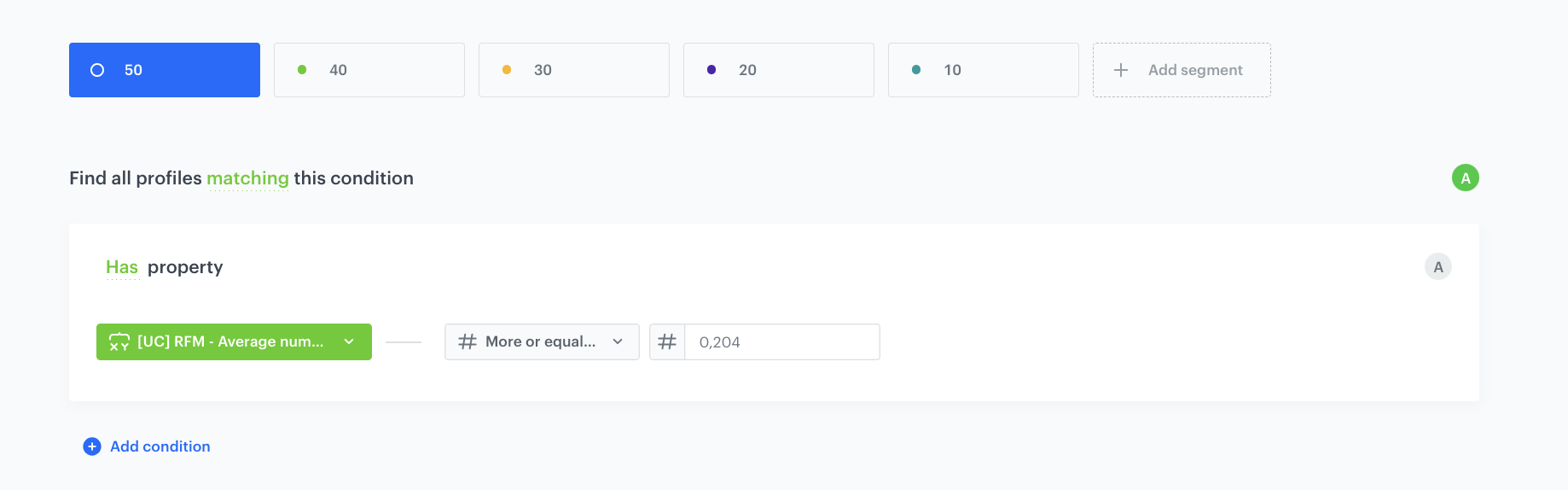 **Decision Hub > Segmentations > New segmentation**.
2. Enter a meaningful name of the segmentation.
3. As the name of the segment, enter `5`.
4. Click **Add condition**.
5. Search and select the [aggregate that returns the value of transactions](/use-cases/rfm-analysis#value-of-purchase).
6. As the logical operator select **More than or equal**.
7. In the text field, next to the logical operator, enter the number returned by the metrics that calculate the `0.80` quantile. In this use case, the quantile result amounts to `2243 PLN`, so the customers who spent this amount of money or more, belong to 5. It means that the M score of the customer is 5, which is the highest.
6. Add the rest of segments by clicking the icon.
7. For the following segments, add the conditions listed below:
- For the 4 segment: more than the value of the `0.60` quantile **AND** less than `0.80` quantile
- For the 3 segment: more than the value of the `0.40` quantile **AND** less than `0.60` quantile
- For the 2 segment: more than the value of the `0.20` quantile **AND** less than `0.40` quantile
- For the 1 segment: less than the value of the `0.20` quantile **AND** add the **transaction.charge** event with the **Lifetime** time range.
**Decision Hub > Segmentations > New segmentation**.
2. Enter a meaningful name of the segmentation.
3. As the name of the segment, enter `5`.
4. Click **Add condition**.
5. Search and select the [aggregate that returns the value of transactions](/use-cases/rfm-analysis#value-of-purchase).
6. As the logical operator select **More than or equal**.
7. In the text field, next to the logical operator, enter the number returned by the metrics that calculate the `0.80` quantile. In this use case, the quantile result amounts to `2243 PLN`, so the customers who spent this amount of money or more, belong to 5. It means that the M score of the customer is 5, which is the highest.
6. Add the rest of segments by clicking the icon.
7. For the following segments, add the conditions listed below:
- For the 4 segment: more than the value of the `0.60` quantile **AND** less than `0.80` quantile
- For the 3 segment: more than the value of the `0.40` quantile **AND** less than `0.60` quantile
- For the 2 segment: more than the value of the `0.20` quantile **AND** less than `0.40` quantile
- For the 1 segment: less than the value of the `0.20` quantile **AND** add the **transaction.charge** event with the **Lifetime** time range.
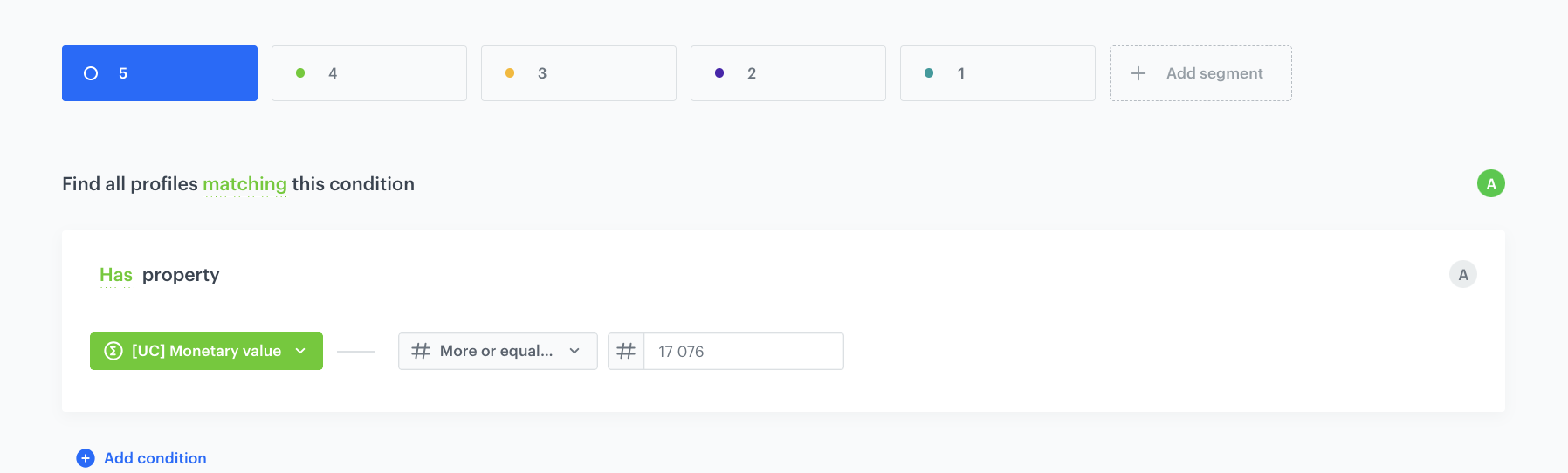 **Behavioral Data Hub > Expressions > New expression**.
2. Enter a meaningful name of the expression.
3. Leave the expression type at default (**Attribute**).
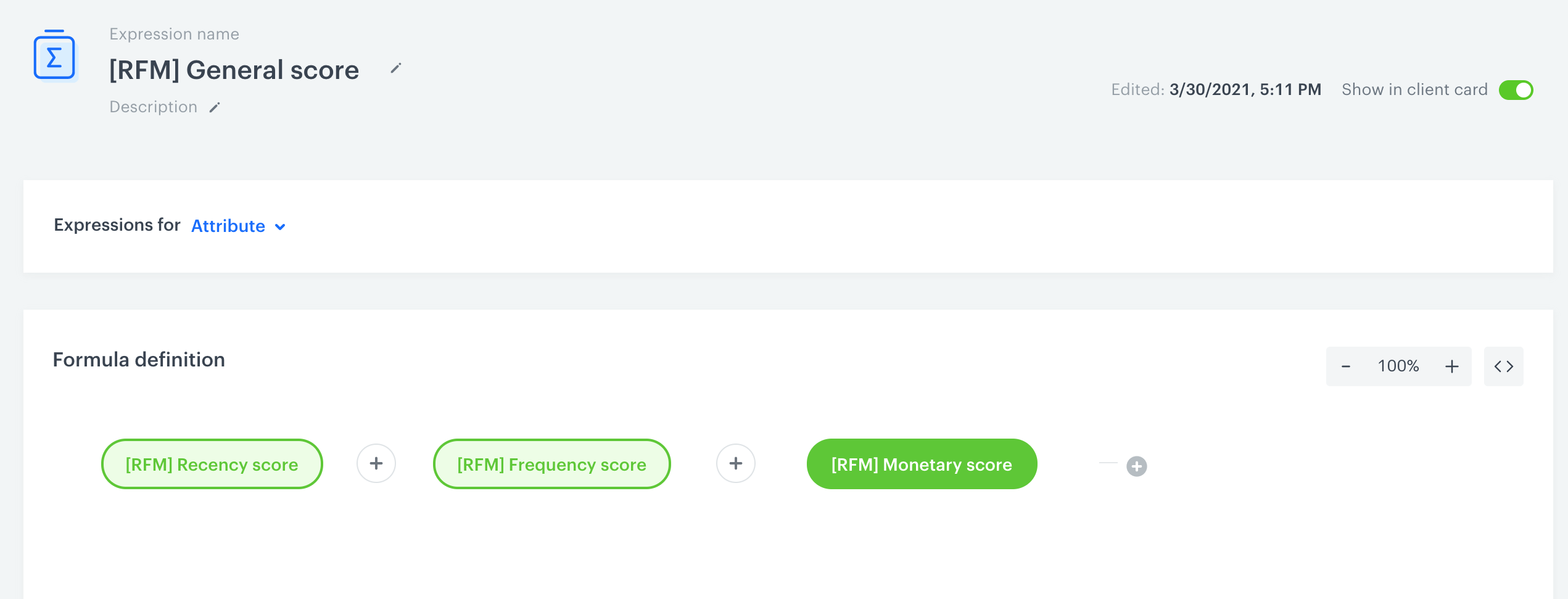
4. Build the formula of the expression that adds the [three segmentations](/use-cases/rfm-analysis#create-segmentations) you created in the previous part of the procedure.
1. Click the **Select** node.
2. From the dropdown list, select **Profile**.
3. Click the **unnamed** node that appeared on the canvas.
4. Scroll down the page and click **Choose attribute**.
5. On the dropdown list select the [Recency](/use-cases/rfm-analysis#recency) segmentation.
6. Next to the segmentation added to the canvas, click the plus button.
6. Repeat steps from 1 to 6 for the [Frequency](/use-cases/rfm-analysis#frequency) and [Monetary](/use-cases/rfm-analysis#monetary) segmentations.
7. Click the mathematical operator between the nodes and change it to a plus sign.
**Behavioral Data Hub > Expressions > New expression**.
2. Enter a meaningful name of the expression.
3. Leave the expression type at default (**Attribute**).
4. Build the formula of the expression that adds the [three segmentations](/use-cases/rfm-analysis#create-segmentations) you created in the previous part of the procedure.
1. Click the **Select** node.
2. From the dropdown list, select **Profile**.
3. Click the **unnamed** node that appeared on the canvas.
4. Scroll down the page and click **Choose attribute**.
5. On the dropdown list select the [Recency](/use-cases/rfm-analysis#recency) segmentation.
6. Next to the segmentation added to the canvas, click the plus button.
6. Repeat steps from 1 to 6 for the [Frequency](/use-cases/rfm-analysis#frequency) and [Monetary](/use-cases/rfm-analysis#monetary) segmentations.
7. Click the mathematical operator between the nodes and change it to a plus sign.
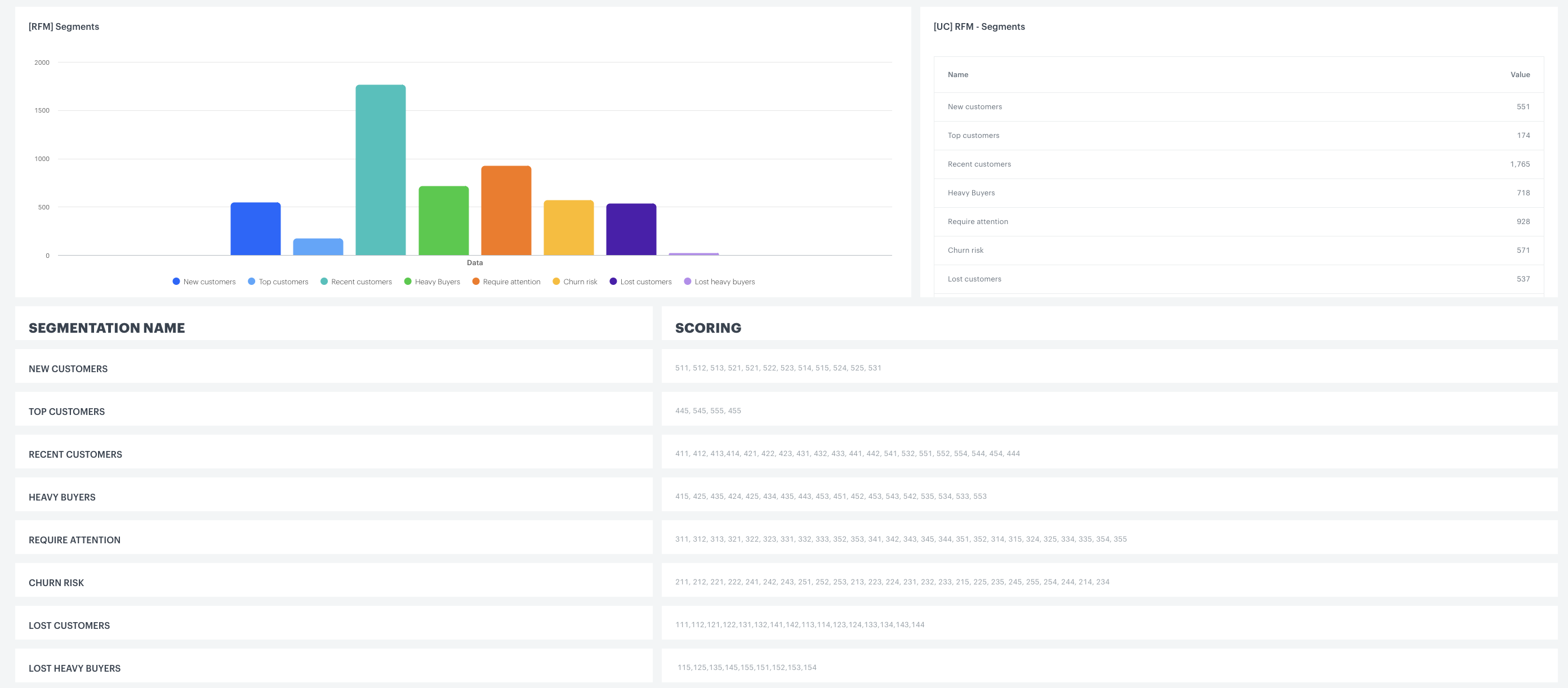
 **Decision Hub > Segmentations > New segmentation**.
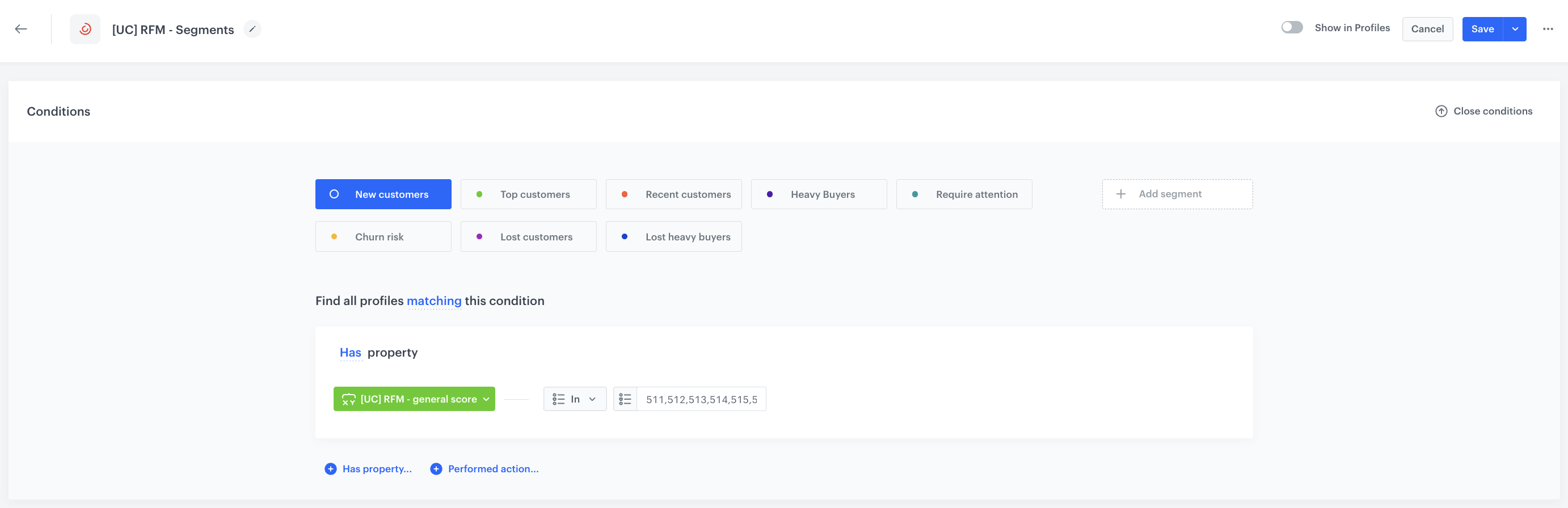
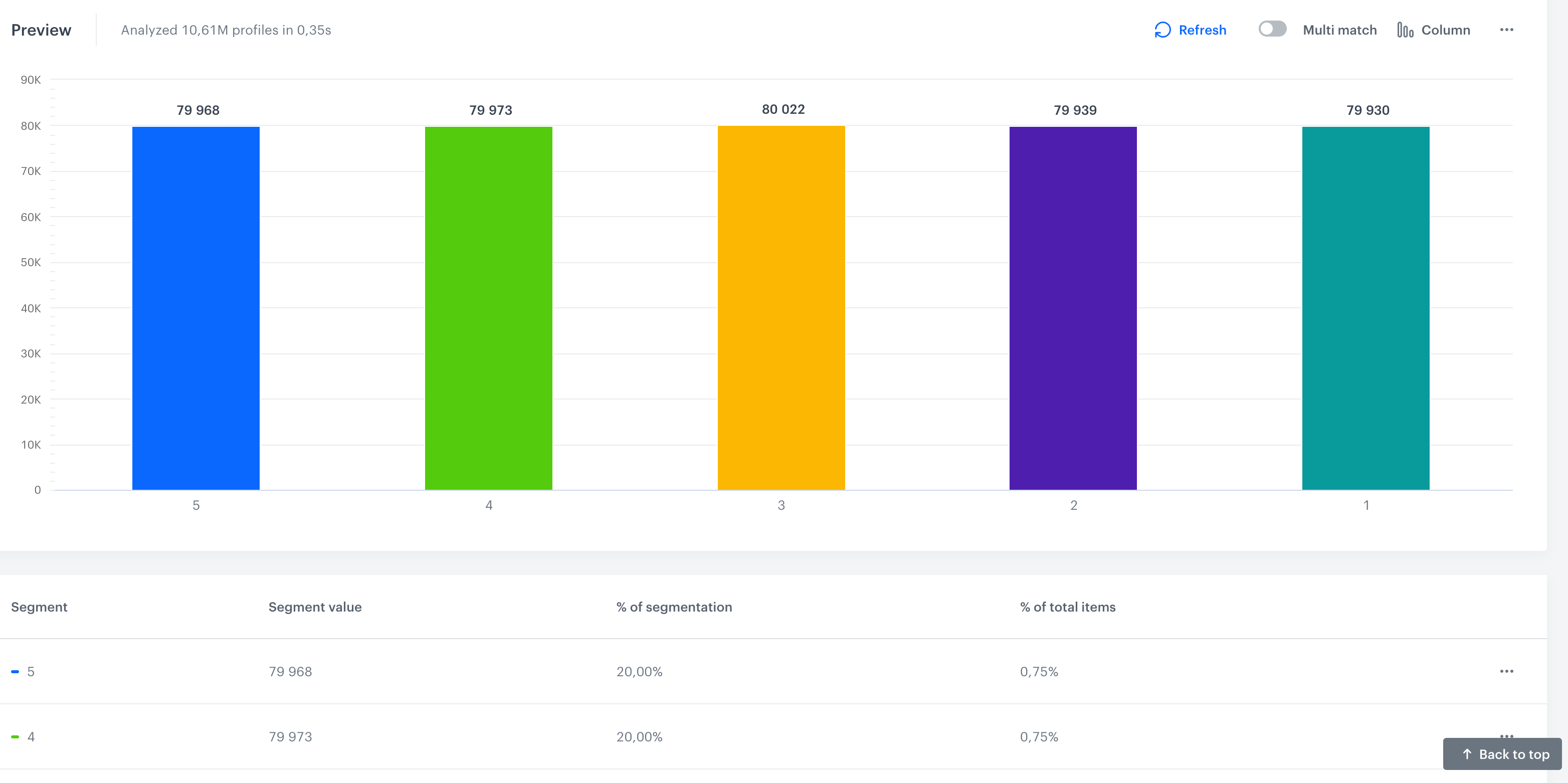
2. Enter a meaningful title of the segmentation.
3. Click **Add condition**.
4. On the dropdown list, search and select the [expression created in the previous part of the process](/use-cases/rfm-analysis#create-an-expression).
5. As the logical operator, select **In**.
6. Enter the score that fall into a category.
7. Click the icon.
7. Repeat steps from 3 to 7 for the rest of the categories.
**Decision Hub > Segmentations > New segmentation**.
2. Enter a meaningful title of the segmentation.
3. Click **Add condition**.
4. On the dropdown list, search and select the [expression created in the previous part of the process](/use-cases/rfm-analysis#create-an-expression).
5. As the logical operator, select **In**.
6. Enter the score that fall into a category.
7. Click the icon.
7. Repeat steps from 3 to 7 for the rest of the categories.
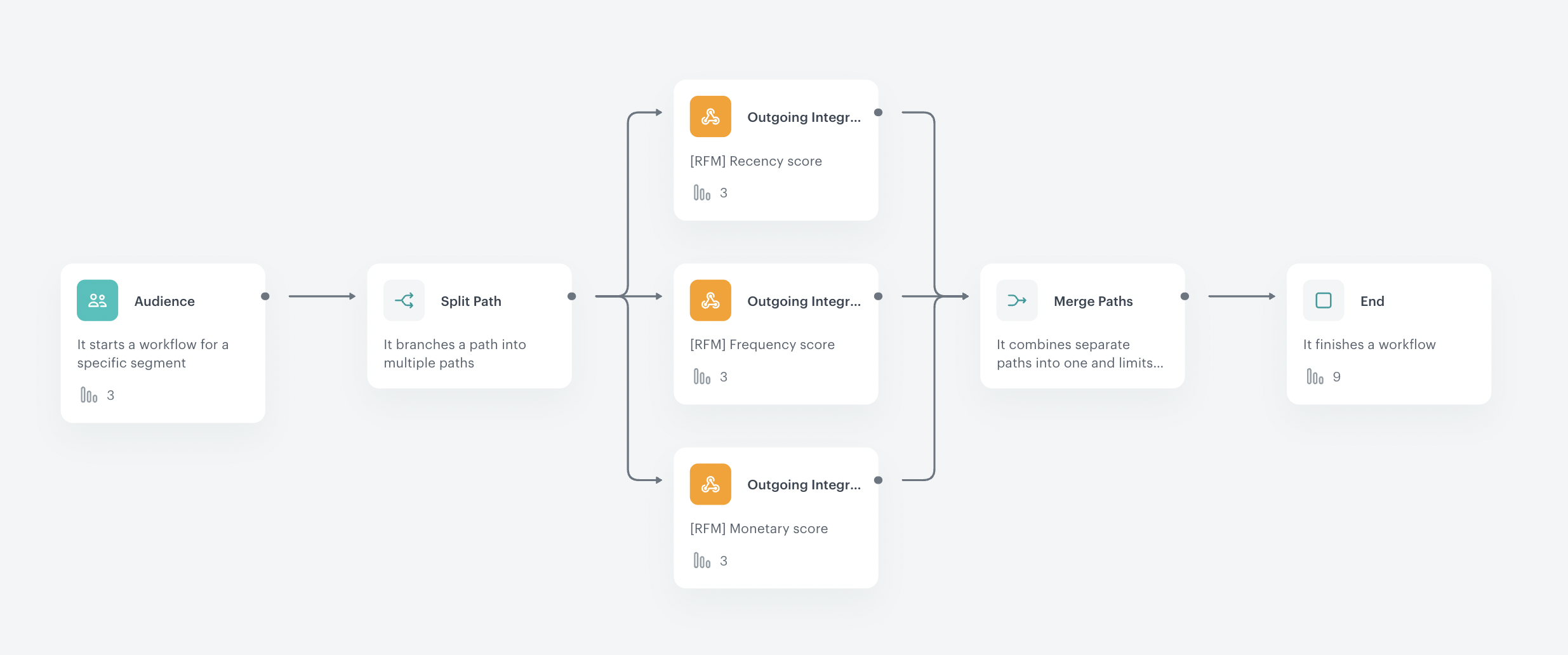
 **Automation Hub > Workflows > New workflow**.
2. Enter the name of the workflow.
### Define the Audience node
---
Choose the **Audience** node as the trigger. In this step, you will select a test user for whom the automation will be run.
1. Start the workflow with the **Audience** node.
2. In the configuration of the node, set the **Run trigger** option to **repeatable**.
3. Set the interval to 1 per day.
4. Choose the day and time when the process starts.
5. Select the time zone.
6. In **Define audience**, choose **New Audience** and click **Define conditions**.
1. As the first condition, from **Choose filter** dropdown menu, choose `Email address` attribute.
**Automation Hub > Workflows > New workflow**.
2. Enter the name of the workflow.
### Define the Audience node
---
Choose the **Audience** node as the trigger. In this step, you will select a test user for whom the automation will be run.
1. Start the workflow with the **Audience** node.
2. In the configuration of the node, set the **Run trigger** option to **repeatable**.
3. Set the interval to 1 per day.
4. Choose the day and time when the process starts.
5. Select the time zone.
6. In **Define audience**, choose **New Audience** and click **Define conditions**.
1. As the first condition, from **Choose filter** dropdown menu, choose `Email address` attribute.
"constant": {% metricsvar metric_id:97488c6a-746e-42fc-a1ca-b2fb4b8dfa94%}{{ metric_result|round(3,'floor') }} {% endmetricsvar %}{ "analysis": { "title": "[UC] RFM - Recency Score", "description": "", "segments": [ { "title": "500", "description": "", "filter": { "matching": true, "expressions": [ { "name": "", "type": "ATTRIBUTE", "matching": true, "attribute": { "expressions": [ { "constraint": { "type": "NUMBER_ONE", "logic": "LESS", "value": { "type": "CONSTANT", "constant": {% metricsvar metric_id:97488c6a-746e-42fc-a1ca-b2fb4b8dfa94%}{{ metric_result|round(3,'floor') }} {% endmetricsvar %} } }, "attribute": { "type": "EXPRESSION", "id": "73d13360-2074-463c-9978-79861889dff0" } } ] } } ], "expression": { "name": "", "type": "ATTRIBUTE", "matching": true, "attribute": { "expressions": [ { "constraint": { "type": "NUMBER_ONE", "logic": "LESS", "value": { "type": "CONSTANT", "constant": {% metricsvar metric_id:97488c6a-746e-42fc-a1ca-b2fb4b8dfa94%}{{ metric_result|round(3,'floor') }} {% endmetricsvar %} } }, "attribute": { "type": "EXPRESSION", "id": "73d13360-2074-463c-9978-79861889dff0" } } ] } } }, "profileMetrics": [] }, { "title": "400", "description": "", "filter": { "matching": true, "expressions": [ { "name": "", "type": "ATTRIBUTE", "matching": true, "attribute": { "expressions": [ { "constraint": { "type": "NUMBER_ONE", "logic": "MORE_OR_EQUAL", "value": { "type": "CONSTANT", "constant": {% metricsvar metric_id:97488c6a-746e-42fc-a1ca-b2fb4b8dfa94%}{{ metric_result|round(3,'floor') }} {% endmetricsvar %} } }, "attribute": { "type": "EXPRESSION", "id": "73d13360-2074-463c-9978-79861889dff0" } } ] } }, { "type": "OPERATOR", "logic": "AND" }, { "name": "", "type": "ATTRIBUTE", "matching": true, "attribute": { "expressions": [ { "constraint": { "type": "NUMBER_ONE", "logic": "LESS", "value": { "type": "CONSTANT", "constant": {% metricsvar metric_id:e571679c-0f04-466f-aa43-ff6d5023bb09%}{{ metric_result|round(3,'floor') }} {% endmetricsvar %} } }, "attribute": { "type": "EXPRESSION", "id": "73d13360-2074-463c-9978-79861889dff0" } } ] } } ], "expression": { "type": "FUNCTION", "function": "AND", "arg1": { "name": "", "type": "ATTRIBUTE", "matching": true, "attribute": { "expressions": [ { "constraint": { "type": "NUMBER_ONE", "logic": "LESS", "value": { "type": "CONSTANT", "constant": {% metricsvar metric_id:e571679c-0f04-466f-aa43-ff6d5023bb09%}{{ metric_result|round(3,'floor') }} {% endmetricsvar %} } }, "attribute": { "type": "EXPRESSION", "id": "73d13360-2074-463c-9978-79861889dff0" } } ] } }, "arg2": { "name": "", "type": "ATTRIBUTE", "matching": true, "attribute": { "expressions": [ { "constraint": { "type": "NUMBER_ONE", "logic": "MORE_OR_EQUAL", "value": { "type": "CONSTANT", "constant": {% metricsvar metric_id:97488c6a-746e-42fc-a1ca-b2fb4b8dfa94%}{{ metric_result|round(3,'floor') }} {% endmetricsvar %} } }, "attribute": { "type": "EXPRESSION", "id": "73d13360-2074-463c-9978-79861889dff0" } } ] } } } }, "profileMetrics": [] }, { "title": "300", "description": "", "filter": { "matching": true, "expressions": [ { "name": "", "type": "ATTRIBUTE", "matching": true, "attribute": { "expressions": [ { "constraint": { "type": "NUMBER_ONE", "logic": "MORE_OR_EQUAL", "value": { "type": "CONSTANT", "constant": {% metricsvar metric_id:e571679c-0f04-466f-aa43-ff6d5023bb09%}{{ metric_result|round(3,'floor') }} {% endmetricsvar %} } }, "attribute": { "type": "EXPRESSION", "id": "73d13360-2074-463c-9978-79861889dff0" } } ] } }, { "type": "OPERATOR", "logic": "AND" }, { "name": "", "type": "ATTRIBUTE", "matching": true, "attribute": { "expressions": [ { "constraint": { "type": "NUMBER_ONE", "logic": "LESS", "value": { "type": "CONSTANT", "constant": {% metricsvar metric_id:8031ccf4-2444-42bf-8eba-ba61d952d52f%}{{ metric_result|round(3,'floor') }} {% endmetricsvar %} } }, "attribute": { "type": "EXPRESSION", "id": "73d13360-2074-463c-9978-79861889dff0" } } ] } } ], "expression": { "type": "FUNCTION", "function": "AND", "arg1": { "name": "", "type": "ATTRIBUTE", "matching": true, "attribute": { "expressions": [ { "constraint": { "type": "NUMBER_ONE", "logic": "LESS", "value": { "type": "CONSTANT", "constant": {% metricsvar metric_id:8031ccf4-2444-42bf-8eba-ba61d952d52f%}{{ metric_result|round(3,'floor') }} {% endmetricsvar %} } }, "attribute": { "type": "EXPRESSION", "id": "73d13360-2074-463c-9978-79861889dff0" } } ] } }, "arg2": { "name": "", "type": "ATTRIBUTE", "matching": true, "attribute": { "expressions": [ { "constraint": { "type": "NUMBER_ONE", "logic": "MORE_OR_EQUAL", "value": { "type": "CONSTANT", "constant": {% metricsvar metric_id:e571679c-0f04-466f-aa43-ff6d5023bb09%}{{ metric_result|round(3,'floor') }} {% endmetricsvar %} } }, "attribute": { "type": "EXPRESSION", "id": "73d13360-2074-463c-9978-79861889dff0" } } ] } } } }, "profileMetrics": [] }, { "title": "200", "description": "", "filter": { "matching": true, "expressions": [ { "name": "", "type": "ATTRIBUTE", "matching": true, "attribute": { "expressions": [ { "constraint": { "type": "NUMBER_ONE", "logic": "MORE_OR_EQUAL", "value": { "type": "CONSTANT", "constant": {% metricsvar metric_id:8031ccf4-2444-42bf-8eba-ba61d952d52f%}{{ metric_result|round(3,'floor') }} {% endmetricsvar %} } }, "attribute": { "type": "EXPRESSION", "id": "73d13360-2074-463c-9978-79861889dff0" } } ] } }, { "type": "OPERATOR", "logic": "AND" }, { "name": "", "type": "ATTRIBUTE", "matching": true, "attribute": { "expressions": [ { "constraint": { "type": "NUMBER_ONE", "logic": "LESS", "value": { "type": "CONSTANT", "constant": {% metricsvar metric_id:fb1c9bff-ce29-42c0-93ee-b56f092ae03f%}{{ metric_result|round(3,'floor') }} {% endmetricsvar %} } }, "attribute": { "type": "EXPRESSION", "id": "73d13360-2074-463c-9978-79861889dff0" } } ] } } ], "expression": { "type": "FUNCTION", "function": "AND", "arg1": { "name": "", "type": "ATTRIBUTE", "matching": true, "attribute": { "expressions": [ { "constraint": { "type": "NUMBER_ONE", "logic": "LESS", "value": { "type": "CONSTANT", "constant": {% metricsvar metric_id:fb1c9bff-ce29-42c0-93ee-b56f092ae03f%}{{ metric_result|round(3,'floor') }} {% endmetricsvar %} } }, "attribute": { "type": "EXPRESSION", "id": "73d13360-2074-463c-9978-79861889dff0" } } ] } }, "arg2": { "name": "", "type": "ATTRIBUTE", "matching": true, "attribute": { "expressions": [ { "constraint": { "type": "NUMBER_ONE", "logic": "MORE_OR_EQUAL", "value": { "type": "CONSTANT", "constant": {% metricsvar metric_id:8031ccf4-2444-42bf-8eba-ba61d952d52f%}{{ metric_result|round(3,'floor') }} {% endmetricsvar %} } }, "attribute": { "type": "EXPRESSION", "id": "73d13360-2074-463c-9978-79861889dff0" } } ] } } } }, "profileMetrics": [] }, { "title": "100", "description": "", "filter": { "matching": true, "expressions": [ { "name": "", "type": "ATTRIBUTE", "matching": true, "attribute": { "expressions": [ { "constraint": { "type": "NUMBER_ONE", "logic": "MORE_OR_EQUAL", "value": { "type": "CONSTANT", "constant": {% metricsvar metric_id:fb1c9bff-ce29-42c0-93ee-b56f092ae03f%}{{ metric_result|round(3,'floor') }} {% endmetricsvar %} } }, "attribute": { "type": "EXPRESSION", "id": "73d13360-2074-463c-9978-79861889dff0" } } ] } }, { "type": "OPERATOR", "logic": "AND" }, { "name": "", "type": "FUNNEL", "matching": true, "funnel": { "title": "unnamed", "completedWithin": {}, "dateFilter": { "type": "ABSOLUTE" }, "steps": [ { "action": { "id": 68600, "name": "transaction.charge" }, "title": "Unnamed Step", "expressions": [], "eventName": "transaction.charge" } ], "exact": false } } ], "expression": { "type": "FUNCTION", "function": "AND", "arg1": { "name": "", "type": "FUNNEL", "matching": true, "funnel": { "title": "unnamed", "completedWithin": null, "dateFilter": { "type": "ABSOLUTE" }, "steps": [ { "action": { "id": 68600, "name": "transaction.charge" }, "title": "Unnamed Step", "expressions": [], "eventName": "transaction.charge" } ], "exact": false } }, "arg2": { "name": "", "type": "ATTRIBUTE", "matching": true, "attribute": { "expressions": [ { "constraint": { "type": "NUMBER_ONE", "logic": "MORE_OR_EQUAL", "value": { "type": "CONSTANT", "constant": {% metricsvar metric_id:fb1c9bff-ce29-42c0-93ee-b56f092ae03f%}{{ metric_result|round(3,'floor') }} {% endmetricsvar %} } }, "attribute": { "type": "EXPRESSION", "id": "73d13360-2074-463c-9978-79861889dff0" } } ] } } } }, "profileMetrics": [] } ], "unique": true }, "allowNull": true }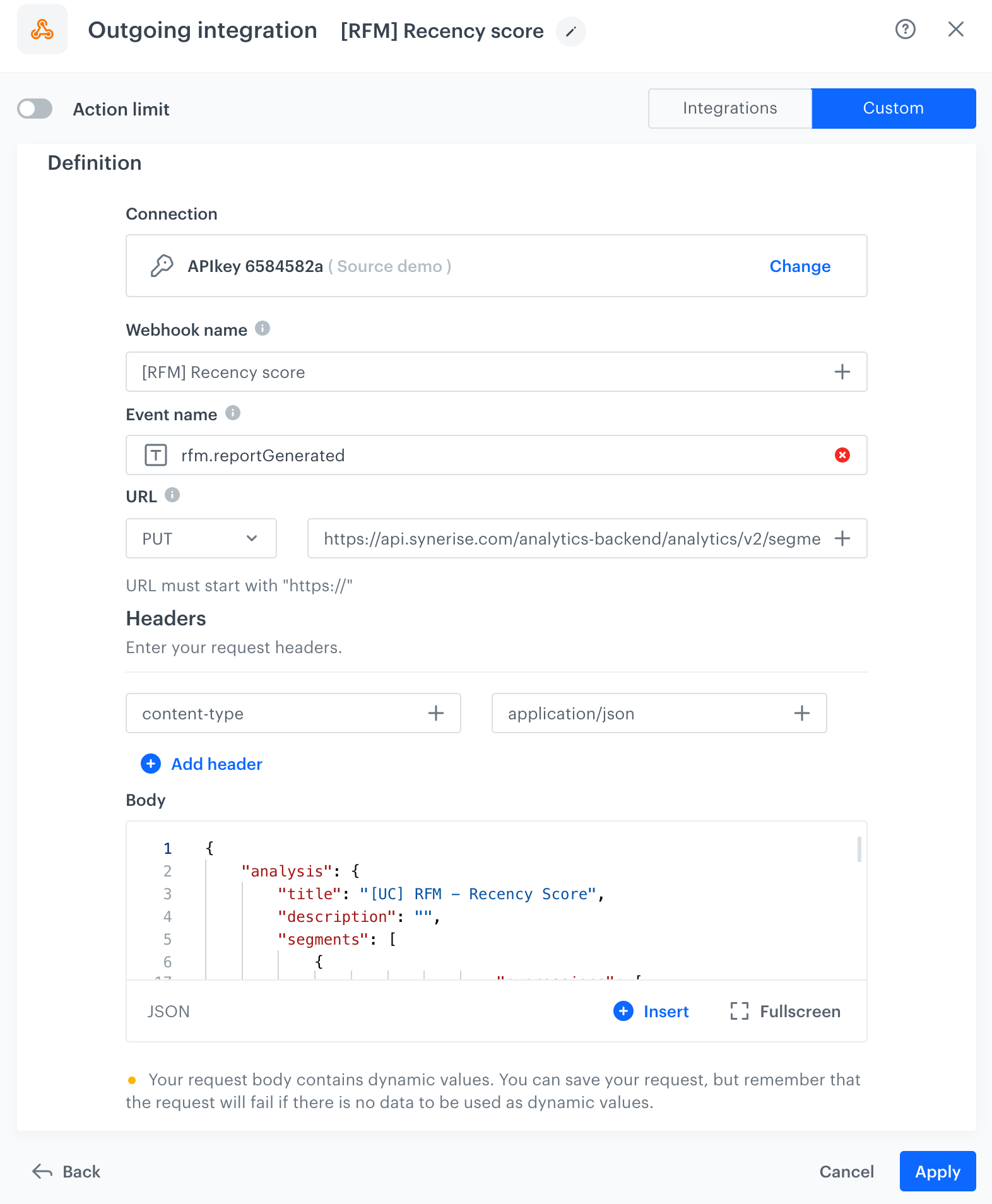
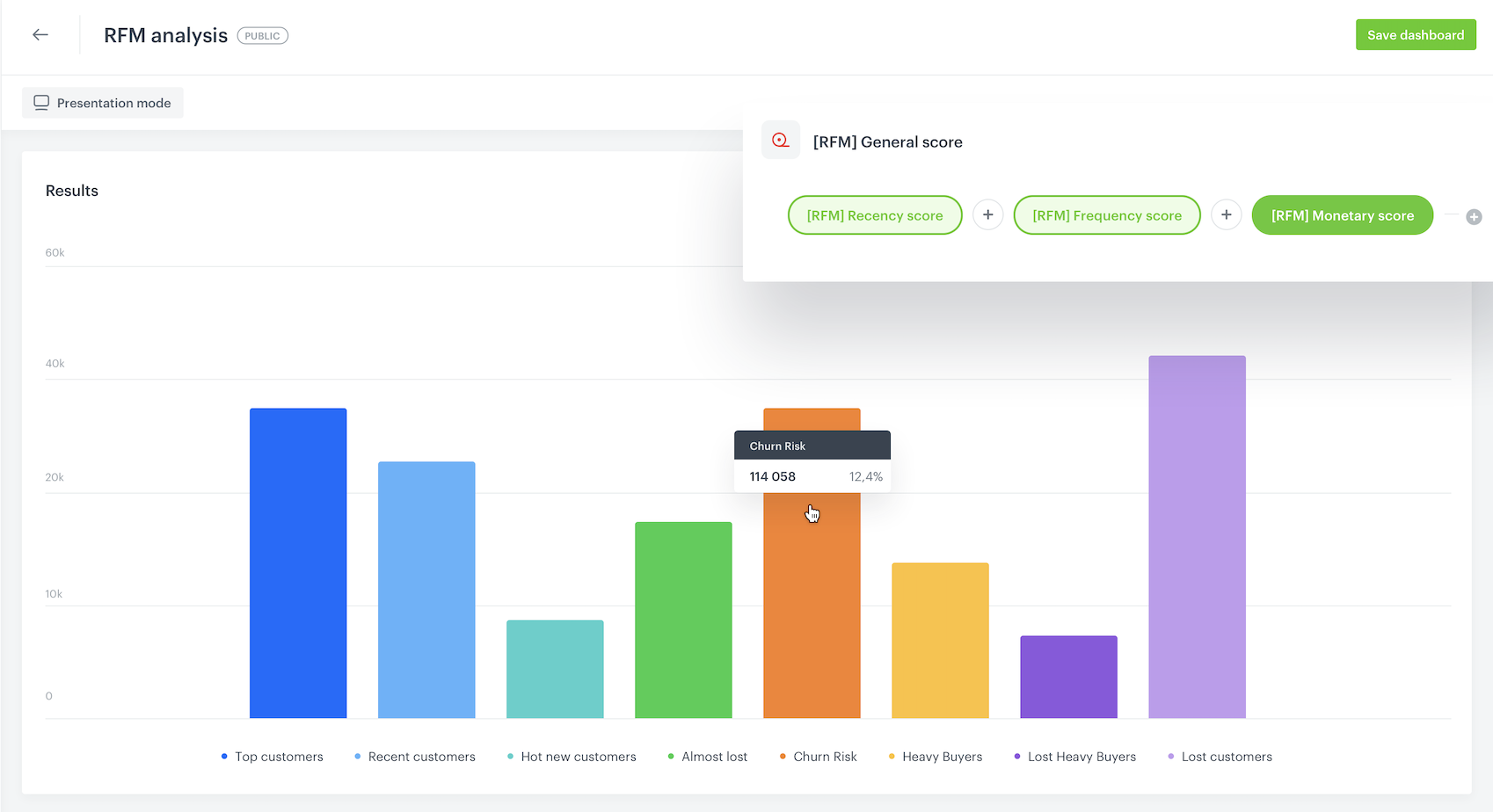
 **Decision Hub > Dashboard > New dashboard**.
2. Enter a meaningful name of the dashboard.
3. Add all metrics you created earlier in the process.
**Decision Hub > Dashboard > New dashboard**.
2. Enter a meaningful name of the dashboard.
3. Add all metrics you created earlier in the process.