In many loyalty programs, points remain valid only for a limited period of time. To manage this process effectively, it is important to accurately calculate when points expire and update customer balances accordingly.

There are two common approaches to handling point expiration. The first is rolling cancellation, where each points-earning event has its own expiration date calculated from the moment the points were awarded. The second is batch expiration, where points are removed periodically for the entire customer base according to predefined rules.

In this use case, we focus on the more flexible rolling expiration model, in which points expire individually after a defined validity period. This approach allows you to maintain accurate point balances, monitor expiring points continuously, easily modify point expiration rules, and proactively inform customers about upcoming point reductions.

#### Use case assumptions

The expiration mechanism can be configured in many different ways depending on business requirements. For the purpose of this use case, we assume the following setup:

- Loyalty points are awarded through the `points.loyalty` event based on the `transaction.charge` event which generates the points. Optionally, you can implement other loyalty point-earning events for different actions (such as completing a survey, newsletter subscription, fast order pickup etc).
- Points can be spent on rewards through the `client.activatePromotion` event.
- The default retention of the two above mentioned events is set to 30 days, however we recommend to change it to infinite.
- Each point-earning event can have its own configurable expiration time, however in this case we assume that points which have not been redeemed expire after 6 months (182 days) from the moment they are awarded.
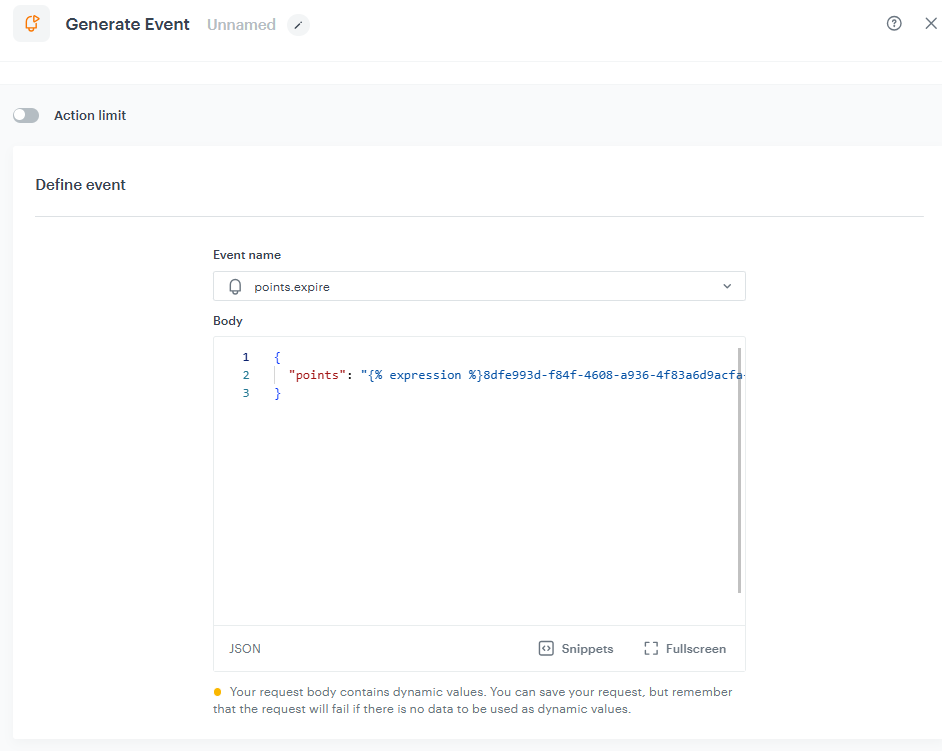
- Expired points are recorded with the `points.expire` event generated by workflow and later used in expressions calculating the current balance.
- The expiration process runs daily.


## Prerequisites 
---

Integrate mechanism for awarding loyalty points. With the help of Synerise support implement the `points.loyalty` and `client.activatePromotion` events, as well as necessary custom loyalty events. 


<div class="admonition admonition-note"><div class="admonition-icon"><svg xmlns="http://www.w3.org/2000/svg" fill="none" viewBox="0 0 24 24" stroke="currentColor" stroke-width="2.5"><path stroke-linecap="round" stroke-linejoin="round" d="M13 16h-1v-4h-1m1-4h.01M21 12a9 9 0 11-18 0 9 9 0 0118 0z" /></svg></div><div class="admonition-body"><div class="admonition-content">

Find more in the [Loyalty programs basics](/use-cases/loyalty-programs-basics) use case.

</div></div></div>


## Security configuration
---
Before you start working with this hub, if you are a Synerise customer or partner, consider reading [the section about denylisting events](/docs/settings/tool/api#denylist). This natively accessible configuration will allow you to manage the restrictions in points management that may help you prevent fraud.


## Process 
---
In this use case, you will go through the following steps:

1. [Create an aggregate summing collected points](/use-cases/rolling-points-expiration#create-an-aggregate-summing-collected-points).
2. [Create an aggregate summing expired points](/use-cases/rolling-points-expiration#create-an-aggregate-summing-expired-points).
3. [Create an aggregate summing points redeemed on promotions](/use-cases/rolling-points-expiration#create-an-aggregate-summing-points-redeemed-on-promotions).
4. [Create an aggregate summing all points are to potentially expire](/use-cases/rolling-points-expiration#create-an-aggregate-summing-all-points-that-are-to-potentially-expire).
5. [Create an expression summing aggregates with all lost points](/use-cases/rolling-points-expiration#create-an-expression-summing-aggregates-with-all-lost-points)
6. [Create an expression calculating current point balance](/use-cases/rolling-points-expiration#create-an-expression-calculating-current-point-balance) 
7. [Create an expression calculating points to expire](/use-cases/rolling-points-expiration#create-an-expression-calculating-points-to-expire) 
8. [Create a segmentation of customers with points to expire](/use-cases/rolling-points-expiration#create-a-segmentation-of-customers-with-points-to-expire) 
9. [Create a workflow](/use-cases/rolling-points-expiration#create-a-workflow) 


## Create an aggregate summing collected points
--- 
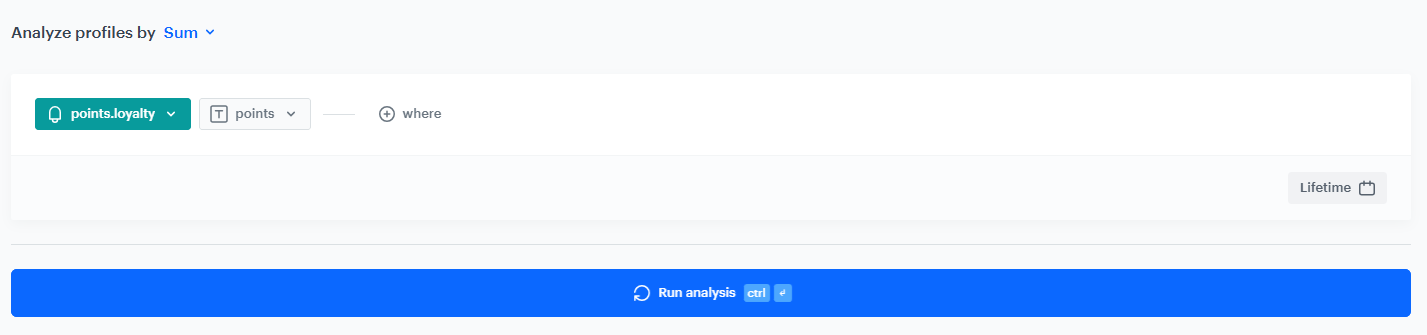
Start with creating an aggregate which returns the sum of points for the `points.loyalty` event. We recommend setting the analyzed period to **Lifetime**. The result of the aggregate will be used in an expression calculating current point balance.

1. Go to <img src="/api/docs/image/54176ad07f146575310749eba44b7c2f42c1b327/icons/behavioral-data-hub-icon.svg" alt="Behavioral Hub icon" class="icon" > **Behavioral Data Hub > Live Aggregates > Create aggregate**.
2. As the aggregate type, select **Profile**.  
3. Enter the name of the aggregate.
4. Click **Analyze profiles by** and select **Sum**.  
5. Select the `points.loyalty` event.
6. As a parameter, choose `points`.
7. Set the analyzed period to **Lifetime**. 
8. Click **Save**.
<figure>
    <img src="/api/docs/image/54176ad07f146575310749eba44b7c2f42c1b327/use-cases/all-cases/_gfx/agg-points-collected.png" class="full" alt="Configuration of the aggregate">
    <figcaption>The configuration of an aggregate summing all points.loyalty events in a customer’s lifetime</figcaption>
    </figure>

## Create an aggregate summing expired points
---
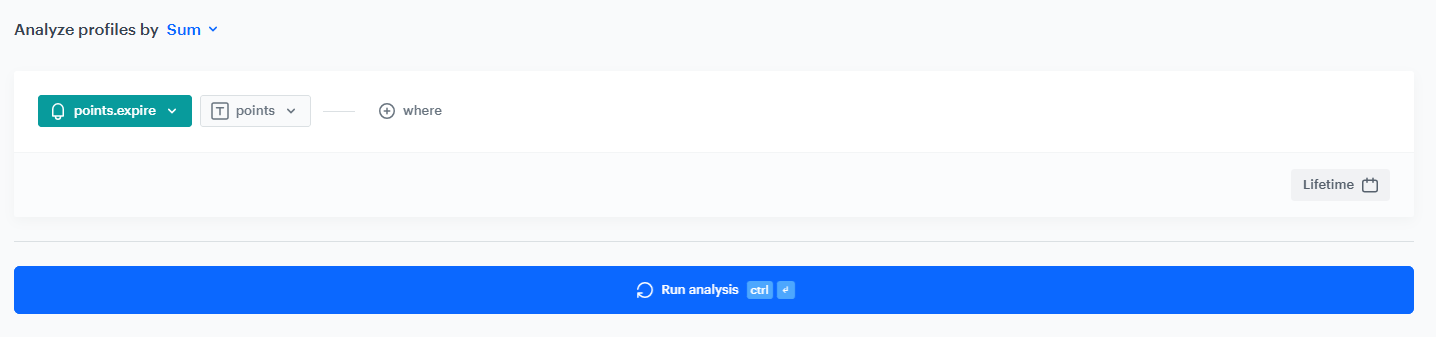
In this part of the process, create an aggregate which returns the sum of expired points based on the `points.expire` event. We recommend setting the analyzed period to **Lifetime**. The result of the aggregate will be used in an expression calculating all lost points.

1. Go to <img src="/api/docs/image/54176ad07f146575310749eba44b7c2f42c1b327/icons/behavioral-data-hub-icon.svg" alt="Behavioral Hub icon" class="icon" > **Behavioral Data Hub > Live Aggregates > Create aggregate**.
2. As the aggregate type, select **Profile**.  
3. Enter the name of the aggregate.
4. Click **Analyze profiles by** and select **Sum**. 
5. Select the `points.expire` event.
6. As a parameter, choose `points`.
7. Set the analyzed period to **Lifetime**. 
8. Click **Save**.

<figure>
<img src="/api/docs/image/54176ad07f146575310749eba44b7c2f42c1b327/use-cases/all-cases/_gfx/agg-points-expired.png" alt="Configuration of the aggregate" class="full">   
<figcaption>The configuration of an aggregate summing all points.expire events in a customer’s lifetime</figcaption></figure>

## Create an aggregate summing points redeemed on promotions
---
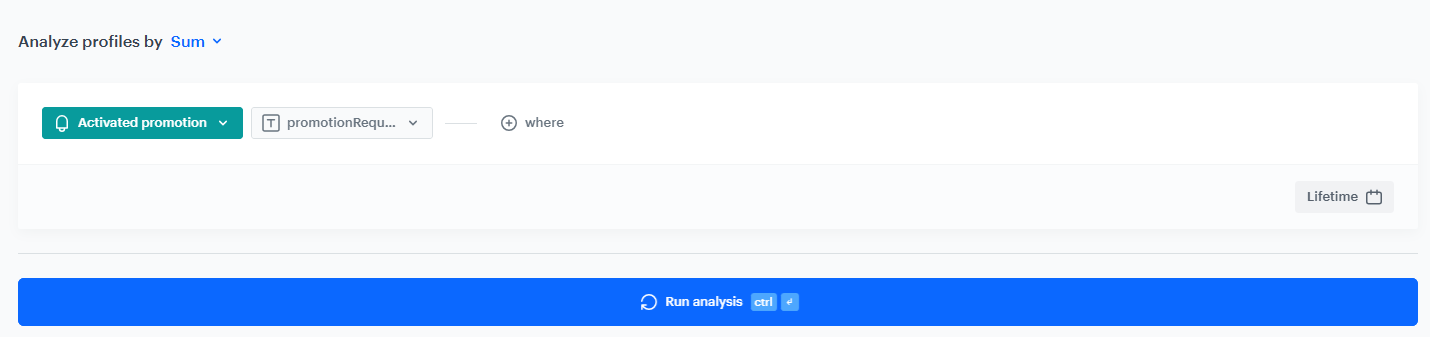
In this stage of the process, create an aggregate that counts the sum of redeemed points based on `client.activatePromotion` event. We recommend setting the analyzed period to **Lifetime**. The result of the aggregate will be used in an expression calculating all lost points.

1. Go to <img src="/api/docs/image/54176ad07f146575310749eba44b7c2f42c1b327/icons/behavioral-data-hub-icon.svg" alt="Behavioral Hub icon" class="icon" > **Behavioral Data Hub > Live Aggregates > Create aggregate**.
2. As the aggregate type, select **Profile**.  
3. Enter the name of the aggregate.  
4. Click **Analyze profiles by** and select **Sum**.   
5. Select the `client.activatePromotion` event.  
6. As the event parameter, select `promotionRequireRedeemedPoints`. 
7. Set the analyzed period to **Lifetime**. 
8. Click **Save**.
<figure>
<img src="/api/docs/image/54176ad07f146575310749eba44b7c2f42c1b327/use-cases/all-cases/_gfx/agg-redeemed-points.png" alt="Configuration of the aggregate" class="full">   
<figcaption>The configuration of an aggregate summing all client.activatePromotion events in a customer’s lifetime.</figcaption></figure>

## Create an aggregate summing all points that are to potentially expire
---
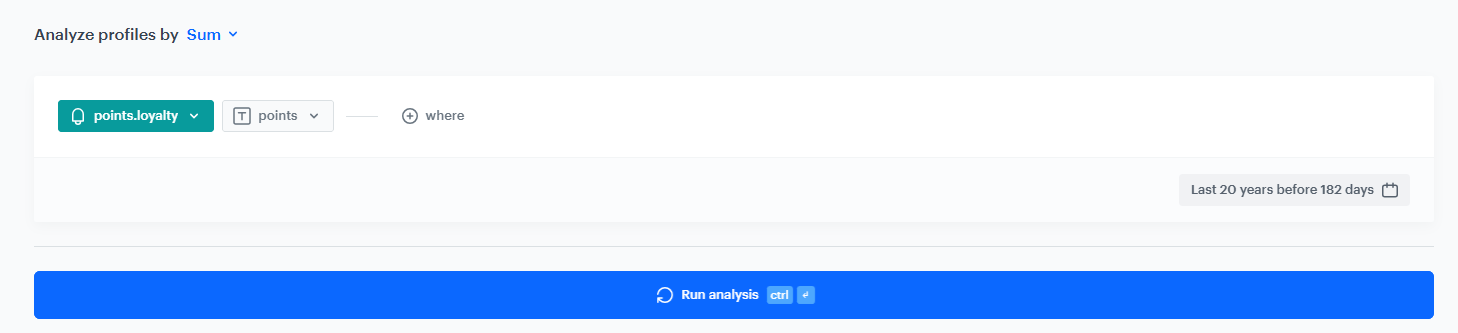
In this step, create an aggregate that returns the total number of loyalty points awarded more than 182 days ago based on the `points.loyalty` event. These points may have reached the expiration threshold and could potentially expire at the time of calculation.

The analyzed time range is set from 20 years ago up to 182 days before today. This allows the aggregate to include all historical point-earning events that are old enough to be considered for expiration. Since the system does not allow setting an infinite time range, 20 years is safe to use instead of lifetime.

The result of this aggregate will be used later in an expression that calculates how many points should expire. 

1. Go to <img src="/api/docs/image/54176ad07f146575310749eba44b7c2f42c1b327/icons/behavioral-data-hub-icon.svg" alt="Behavioral Hub icon" class="icon" > **Behavioral Data Hub > Live Aggregates > Create aggregate**.
2. As the aggregate type, select **Profile**.  
3. Enter the name of the aggregate.
4. Click **Analyze profiles by** and select **Sum**. 
5. Select the `points.loyalty` event.
6. As a parameter, choose `points`.
7. Set the analyzed period to last **20 years** before **182 days**. 
8. Click **Save**.
<figure>
<img src="/api/docs/image/54176ad07f146575310749eba44b7c2f42c1b327/use-cases/all-cases/_gfx/agg-old-points.png" alt="Configuration of the aggregate" class="full">   
<figcaption>The configuration of an aggregate summing all points.loyalty historical events up to the date points are to potentially expire in 6 months</figcaption></figure>

## Create an expression summing aggregates with all lost points
---
In this part of the process, prepare an expression which is a sum of two aggregates created in the previous steps: [aggregate summing expired points](#create-an-aggregate-summing-expired-points) and [aggregate summing redeemed points](#create-an-aggregate-summing-points-redeemed-on-promotions).  

1. Go to <img src="/api/docs/image/54176ad07f146575310749eba44b7c2f42c1b327/icons/behavioral-data-hub-icon.svg" alt="Behavioral Hub icon" class="icon" > **Behavioral Data Hub > Expressions > New expression**.
2. From the **Expressions for** dropdown list, select **Attribute**.
3. Build the following formula of the expression:  
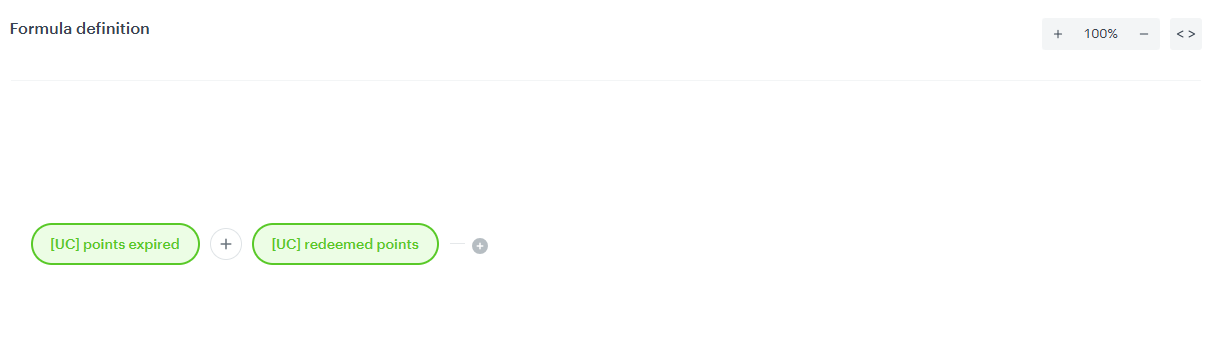
    <figure>
    <img src="/api/docs/image/54176ad07f146575310749eba44b7c2f42c1b327/use-cases/all-cases/_gfx/exp-points-lost.png" alt="Formula of the expression" class="full">
    <figcaption>Formula of an expression summing up aggregates with all lost points</figcaption>
    </figure>
4. Save the expression.

## Create an expression calculating current point balance
---
In this part of the process, prepare a current point balance expression by substracting lost points (the sum of [aggregate summing expired points](#create-an-aggregate-summing-expired-points) and [aggregate summing redeemed points](#create-an-aggregate-summing-points-redeemed-on-promotions)) from all points gathered ([aggregate summing collected points](#create-an-aggregate-summing-collected-points)).  

1. Go to <img src="/api/docs/image/54176ad07f146575310749eba44b7c2f42c1b327/icons/behavioral-data-hub-icon.svg" alt="Behavioral Hub icon" class="icon" > **Behavioral Data Hub > Expressions > New expression**.
2. From the **Expressions for** dropdown list, select **Attribute**.
3. Build the following formula of the expression:  
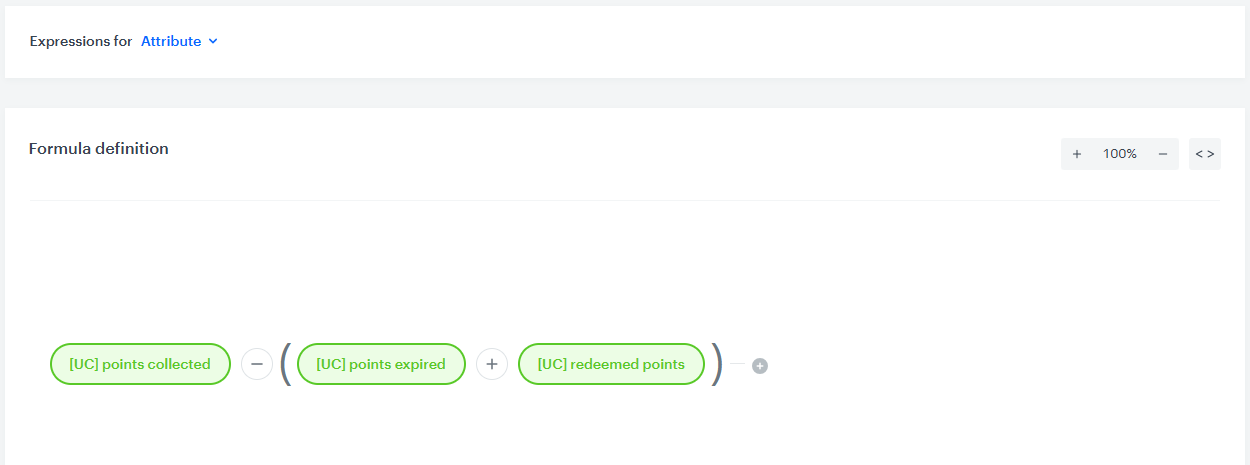
    <figure>
    <img src="/api/docs/image/54176ad07f146575310749eba44b7c2f42c1b327/use-cases/all-cases/_gfx/exp-points-balance.png" alt="Formula of the expression" class="full">
    <figcaption> Formula of an expression calculating the current point balance</figcaption>
    </figure>
5. Save the expression.

## Create an expression calculating points to expire
---
In this part of the process, we create a formula that will tell how many points should be counted as expired, taking into account that some of them may already have been used on rewards. The result of this expression will be used in the segmentation of customers whose points should expire.

This expression is based on the condition that if the number of collected points returned by the [aggregate summing all points that reached the expiration threshold](#create-an-aggregate-summing-all-points-that-are-to- potentially-expire) is equal to or lower than the results of the [expression summing aggregates with all lost points](#create-an-expression-summing-aggregates-with-all-lost-points) which includes all points already deducted from the balance up to this moment (in this case, up to 6 months ago), then we assume that all points eligible for expiration have already been redeemed or expired. In this case, the expression returns 0.  

Otherwise, we subtract the value of the [expression summing aggregates with all lost points](#create-an-expression-summing-aggregates-with-all-lost-points) from the result of the [aggregate summing all points that reached the expiration threshold](#create-an-aggregate-summing-all-points-that-are-to-potentially- expire). The returned value equals the number of points that should expire.


1. Go to <img src="/api/docs/image/54176ad07f146575310749eba44b7c2f42c1b327/icons/behavioral-data-hub-icon.svg" alt="Behavioral Hub icon" class="icon" > **Behavioral Data Hub > Expressions > New expression**.
2. From the **Expressions for** dropdown list, select **Attribute**.
3. Build the following formula of the expression:  
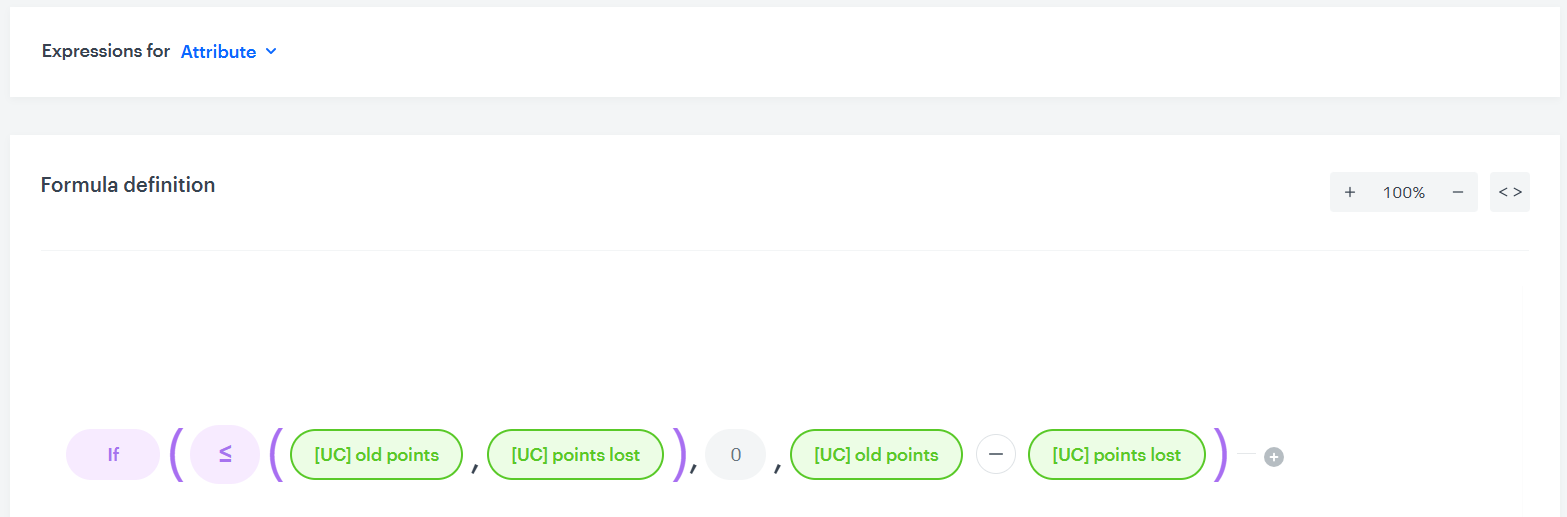
    <figure>
    <img src="/api/docs/image/54176ad07f146575310749eba44b7c2f42c1b327/use-cases/all-cases/_gfx/exp-points-to-expire.png" alt="Formula of the expression" class="full">
    <figcaption> Formula of an expression calculating points to expire</figcaption>
    </figure>
4. Save the expression.

## Create a segmentation of customers with points to expire
---
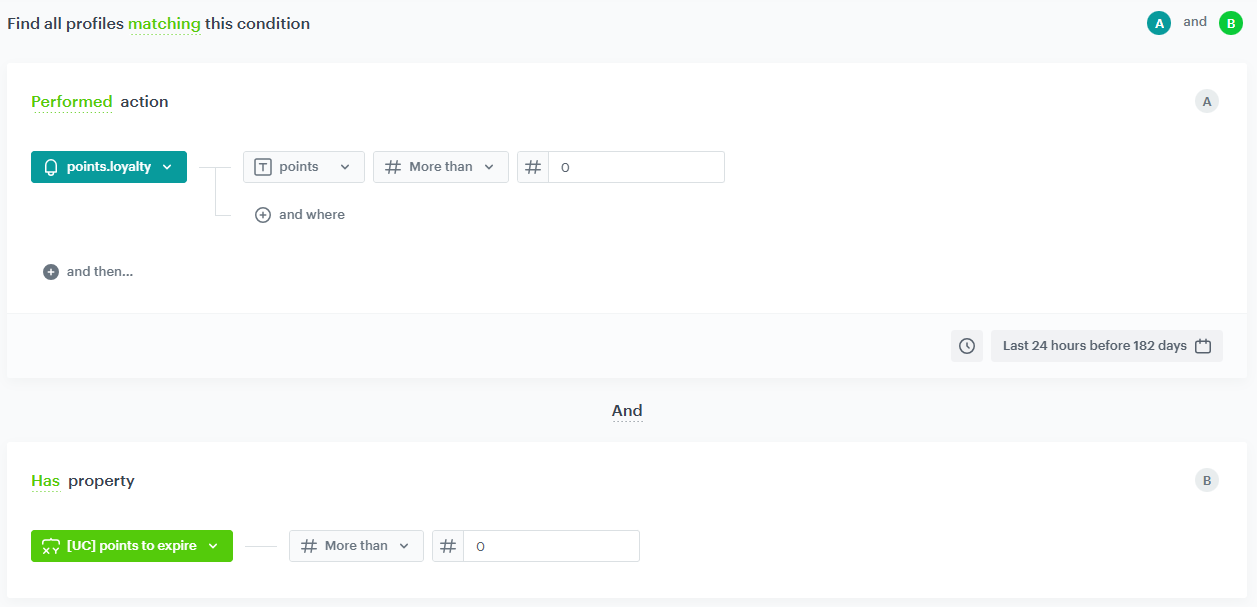
In this step, create a segment of users who have loyalty points eligible for expiration. This segment will serve as the audience for the daily workflow responsible for generating the `points.expire` event.


The segmentation is based on the following conditions:

- The user received loyalty points at least 182 days ago. In this simplified example, we check the occurrence of the `points.loyalty` event. If your loyalty program awards points through multiple events, you can include them using the OR operator.

- The result of the [expression calculating points to expire](#create-an-expression-calculating-points-to-expire) is greater than 0.

1. Go to <img src="/api/docs/image/54176ad07f146575310749eba44b7c2f42c1b327/icons/decision-hub-icon.svg" alt="Decision Hub icon" class="icon" > **Decision Hub > Segmentations > New segmentation**.
2. Enter the name of the segmentation. 
3. Choose **Add condition**.
4. From the dropdown list, choose the `points.loyalty` event.
5. As a parameter, choose `points`.
6. Select the **More than** operator.
7. In the left field, leave the **#** icon and enter `0` in the value field.
8. Using the date picker in the lower-right corner, set the time range to **Last 24 hours before 182 days**.
9. Choose **Add condition** once again.
10. From the dropdown list, choose the [expression calculating points to expire](#create-an-expression-calculating-points-to-expire) you have created in the previous part of the process.
11. Select the **More than** operator.
12. In the left field, leave the **#** icon and enter `0` in the value field.
13. Save the segmentation.

<figure>
<img src="/api/docs/image/54176ad07f146575310749eba44b7c2f42c1b327/use-cases/all-cases/_gfx/segm-points-to-expire.png" alt="Segmentation settings"  class="full">
<figcaption>The configuration of a segmentation of users who have points to expire</figcaption>
</figure> 

## Create a workflow
---
In this part of the process, you will create a simple workflow that runs daily, preferably shortly after midnight.

1. Go to <img src="/api/docs/image/54176ad07f146575310749eba44b7c2f42c1b327/icons/automation-hub-icon.svg" alt="Automation Hub icon" class="icon" > **Automation Hub > Workflows > New workflow**.  
2. Enter the name of the workflow. 

### Define the trigger node
---
The workflow is triggered for customers who belong to the [segmentation](#create-a-segmentation-of-customers-with-points-to-expire) created in the previous step every day at a defined time.

1. As the first node, add the **Audience** node.
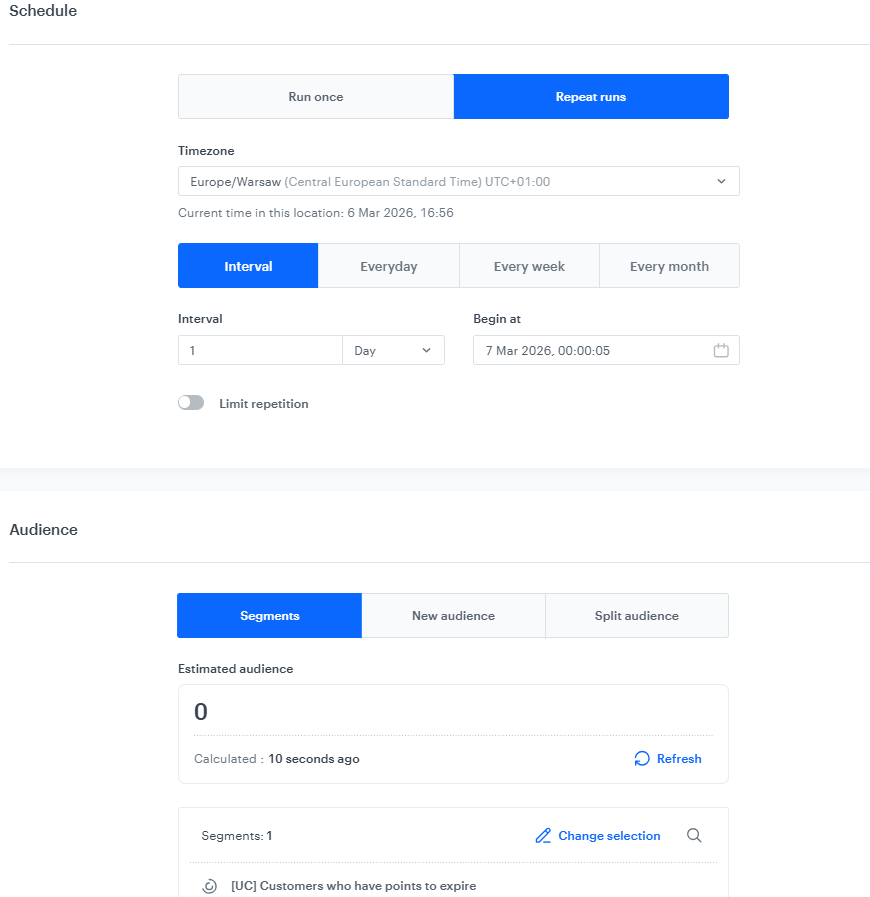
2. In the configuration of the node, set the **Schedule** option to **Repeat runs**.
3. Select the correct time zone.
4. Set the interval to 1 per day.
5. Choose the day and time when the process starts. We recommend scheduling it a few seconds (5–10) after midnight.
6. In **Define audience**, choose **Segments**, click **Select segments** and select the [segmentation](#create-a-segmentation-of-customers-with-points-to-expire) created in the previous step.
7. Click **Apply**.
<figure>
<img src="/api/docs/image/54176ad07f146575310749eba44b7c2f42c1b327/use-cases/all-cases/_gfx/workflow-audience-points-to-expire.png" alt="The view of the audience configuration"  class="full">
<figcaption>The configuration of Audience node</figcaption>
</figure> 


### Define the Generate Event node
---
1. Add the **Generate Event** node. In the node settings:
    1. In the **Event name**, enter `points.expire`.
    2. In the **Body section**, use the following Jinjava, entering the UUID of the [expression calculating points to expire](#create-an-expression-calculating-points-to-expire) which allows to dynamically generate events with points number personalized for each user.

    
       <pre><code class="language-jinja">{
                       "points": " {% expression %} a7d340ac-906d-49af-83a1-fbe4015bc76f {% endexpression %} ",
               }</code></pre>
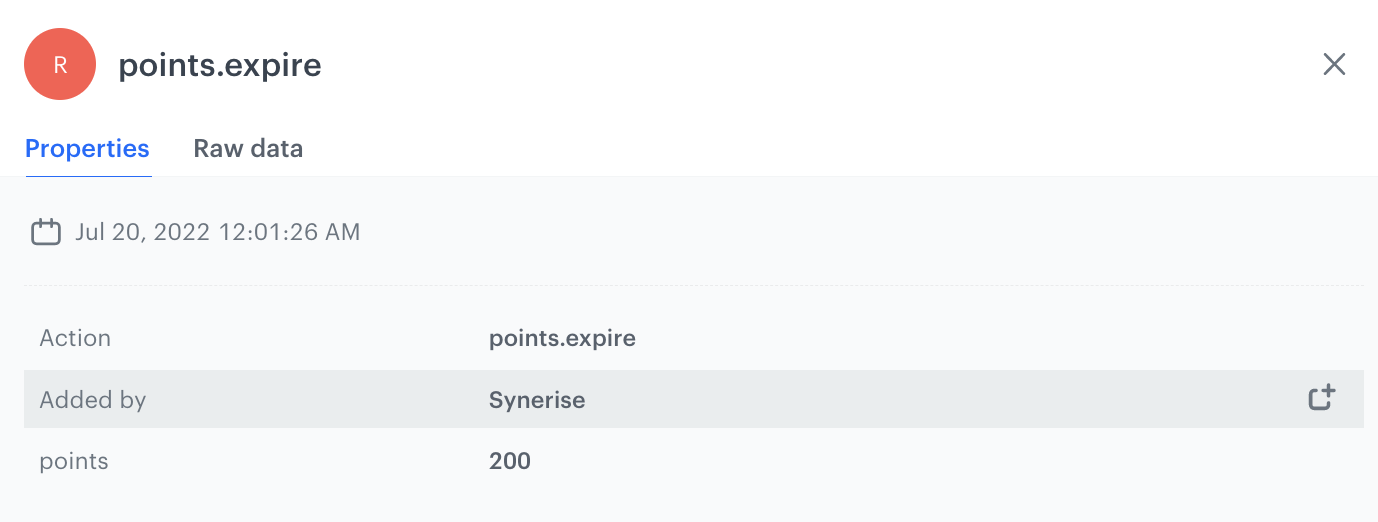

    The result of such action will be such an event:

    <figure>
    <img src="/api/docs/image/54176ad07f146575310749eba44b7c2f42c1b327/use-cases/all-cases/_gfx/points-expire-event.png" alt="The view of the points.expire event"  class="full">
    <figcaption>The view of the points.expire event on customer's profile</figcaption>
    </figure> 


2. Click **Apply**.

<figure>
<img src="/api/docs/image/54176ad07f146575310749eba44b7c2f42c1b327/use-cases/all-cases/_gfx/workflow-generate-event-points-expire.png" alt="The view of the generate event node configuration"  class="full">
<figcaption>The configuration of Generate Event node </figcaption>
</figure> 

### Add the finishing node
---
1. Add the **End** node.
2. In the upper right corner, click **Save & Run**.

<figure>
<img src="/api/docs/image/54176ad07f146575310749eba44b7c2f42c1b327/use-cases/all-cases/_gfx/workflow-points-expire.png" alt="The view of the workflow configuration"  class="full">
<figcaption>The configuration of the workflow for expiring points</figcaption>
</figure> 


## What's next
---
Once the rolling expiration mechanism is configured, you can extend this setup with additional communication scenarios.

For example, you can create a campaign that informs customers in advance about points that will expire soon. Sending a notification a few days or weeks before the expiration date helps customers use their points before they disappear.

Such communication can include personalized information about the number of points that will expire and highlight rewards or promotions where those points can be redeemed. This approach not only improves the customer experience but also increases engagement with the loyalty program and can boost the number of transactions.


## Check the use case set up on the Synerise Demo workspace
---
You can check all the analytics directly in the Synerise Demo workspace:
- [Aggregate returning the sum of collected loyalty points](https://app.synerise.com/analytics-v2/aggregates/2d104df4-9de2-378e-ad28-1e3e70b66a23) 
- [Aggregate returning the sum of expired loyalty points](https://app.synerise.com/analytics-v2/aggregates/65310b9f-ec28-3317-8292-215891bb26a7)
- [Aggregate returning the loyalty points redeemed on promotions](https://app.synerise.com/analytics-v2/aggregates/2d7417d3-38ce-3704-9cea-9940cdb4d8aa)
- [Aggregate returning the sum of points that are potentially to expire](https://app.synerise.com/analytics-v2/aggregates/053abceb-b1a3-32f2-b960-fed98a97e4fa)
- [Expression returning the sum of aggregates with all lost points](https://app.synerise.com/analytics/expressions/23785c1e-9093-48cf-8c83-6b4f6099689e)
- [Expression calculating current point balance](https://app.synerise.com/analytics/expressions/66fa052f-434c-4a54-901f-0c7483c38160) 
- [Expression calculating points to expire](https://app.synerise.com/analytics/expressions/8dfe993d-f84f-4608-a936-4f83a6d9acfa)
- [Segmentation of customers with points to expire](https://app.synerise.com/analytics-v2/segmentations/f616b0d0-d615-4f4a-af6c-4907d33f5b4a) 
- [Workflow for expiring points](https://app.synerise.com/automations/workflows/automation-diagram/0c21290d-cdeb-4493-a83b-90a8db22d0b6) 


If you’re our partner or client, you already have automatic access to the **Synerise Demo workspace (1590)**, where you can explore all the configured elements of this use case and copy them to your workspace.  

If you’re not a partner or client yet, we encourage you to fill out the contact [form](https://demo.synerise.com/request) to schedule a meeting with our representatives. They’ll be happy to show you how our demo works and discuss how you can apply this use case in your business. 

## Read more
---

- [Aggregates](/docs/analytics/aggregates)
- [Expressions](/docs/analytics/expressions)
- [Segmentations](/docs/analytics/segmentations)
- [Audience node](/docs/automation/triggers/audience-node)
- [Generate Event node](/docs/automation/actions/send-client-event)
- [End node](/docs/automation/flow-control/end-node)
- [Loyalty events](/docs/assets/events/event-reference/loyalty)

Check our other [loyalty use cases](/use-cases/?ordering=DESC&sortBy=publishDate&filters=tags%3D%3D%22loyalty%22)