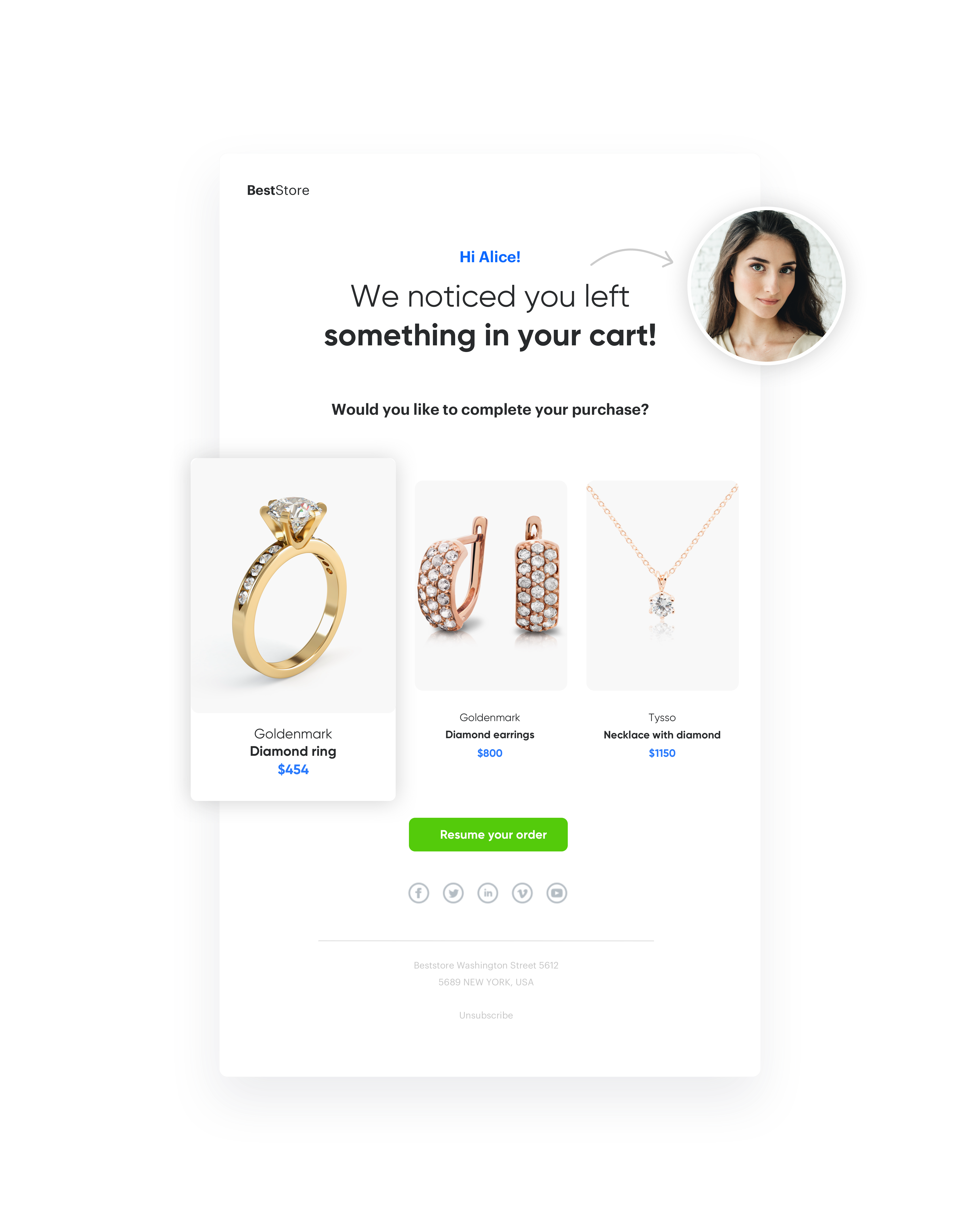
The most common way that stores reduce abandoned carts is by setting up an automated email sequence. Thanks to the collected database with email addresses, you can easily reach customers and send them messages reminding them about unfinished purchases. The message contains products left by users in the cart, with the goal of “saving” abandoned carts and convicing the customer to make a purchase.

<figure>
<img src="/api/docs/image/54176ad07f146575310749eba44b7c2f42c1b327/use-cases/all-cases/_gfx/abandoned-cart-email.png" alt="Screenshot presenting email with abandoned cart" class="full no-frame">
<figcaption> Email with abandoned cart </figcaption>
</figure>

## Prerequisites 
---
- Implement a [tracking code](/docs/settings/tool/tracking_codes).
- Import a product feed to Synerise.
  You can import your feed following these [instructions](/use-cases/import-product-feed-to-catalog) or you can use Snrs-product-ogTag catalog which is automatically built from product page og tags.  

  <div class="admonition admonition-important"><div class="admonition-icon"><svg xmlns="http://www.w3.org/2000/svg" fill="none" viewBox="0 0 24 24" stroke="currentColor" stroke-width="2.5"><path stroke-linecap="round" stroke-linejoin="round" d="M12 8v4m0 4h.01M21 12a9 9 0 11-18 0 9 9 0 0118 0z" /></svg></div><div class="admonition-body"><div class="admonition-content">

  Both options are correct and can be used in this use case to extract and present data about the products. However, we highly recommended using the product feed. 
- Product feed is updated more frequently than the OG tag catalog, so the feed uses up-to-date data. The OG catalog is updated when a customer visits the page with the product, in consequence less visited items are rarely updated, so the risk of sending out-of-date product information is higher.
- Product feed contains more information about items than the OG tag catalog.
- When you use the product feed, you use one source of truth, so you minimize the risk of displaying divergent information about your products.

  </div></div></div>

- Implement [transaction events](/developers/web/transactions-sdk).
- Implement [cart status event](/developers/web/cart) which stores the current status of the basket in the form of an event on the customer's card. Event has to be sent to Synerise, after every change in the cart status.
- Configure an [email account](/docs/settings/configuration/email-account).
- Implement [form data tracking](/developers/web/tracking-form-data).

## Process
---
In this use case, you will go through the following steps:
1. [Prepare an aggregate](/use-cases/save-abandoned-cart#prepare-an-aggregate).
2. [Prepare an email template](/use-cases/save-abandoned-cart#prepare-an-email-template).
3. [Prepare a workflow](/use-cases/save-abandoned-cart#prepare-a-workflow).

## Prepare an aggregate
---
Create an aggregate that returns the last **cart.status** event and returns the product parameter from the last 120 minutes. Thanks to this, it will be possible to use in the email data that are labeled as products.  

1. Go to <img src="/api/docs/image/54176ad07f146575310749eba44b7c2f42c1b327/icons/behavioral-data-hub-icon.svg" alt="Behavioral Data Hub icon" class="icon"> **Behavioral Data Hub > Live Aggregates > Create aggregate**.
2. As the aggregate type, select **Profile**.  
3. Set **Analyze profiles by** to **Last**. 
3. From the **Choose event** dropdown list, select the **cart.status** event.
4. As the event parameter select **products**. 

  <figure>
  <img src="/api/docs/image/54176ad07f146575310749eba44b7c2f42c1b327/use-cases/all-cases/_gfx/save_abandoned_cart1.png" alt="Screenshot presenting AB test" class="large">
  <figcaption> Final settings </figcaption>
  </figure>
  
## Prepare an email template
---
In this part of the procedure, you create an email template that contains items from an abandoned cart.

1. Go to **Experience Hub > Email**. 
2. On the left side of the screen, click **Templates**.
3. Select **Code editor**.
4. In the HTML section add the following Jinjava code that contains the items from the abandoned cart. 

   <details class="accordion"><summary>Click to see the Jinjava code with items from abandoned cart</summary><div class="accordion-content"><pre><code class="language-jinja">&lt;!-- Opening the tag that retrieves the value from the aggregate prepared in the Prepare an aggregate section in the article--&gt; {% aggregate XXXXXXXXXXX %} for loop below: &lt;!-- In the section {% for r in aggregate_result %} a {% endfor %} there is access to all variables from a given object (products here) - which parameters you add to the template depends on you. -&gt; {% for r in aggregate_result %} next item: &lt;!-- {{ r.brand }} {{ r.category }} {{ r.sku }} - parameters taken from the cart.status event - the sku is key. The use of brand and category is optional--&gt; {{ r.brand }} {{ r.category }} {{ r.sku }} &lt;!-- {% catalog.Snrs-produktu-ogTag(r.sku).og:XXX %} downloads additional data from a catalog built on the basis of og tags - which information about the product you want to add in the template depends on you. If you want to add the product name, photo, link, price in the e-mail - you can take it from the catalog --&gt; {% catalog.Snrs-produktu-ogTag(r.sku).og:image %} {% catalog.Snrs-produktu-ogTag(r.sku).og:title %} {% catalog.Snrs-produktu-ogTag(r.sku).product:price:amount %}{% catalog.Snrs-produktu-ogTag(r.sku).product:price:currency %} {% catalog.Snrs-produktu-ogTag(r.sku).og:url %} {% endfor %} &lt;!-- Closing of the tag that gets the value from the aggregate prepared in point 1 --&gt; {% endaggregate %}</code></pre></div></details>


   <div class="admonition admonition-note"><div class="admonition-icon"><svg xmlns="http://www.w3.org/2000/svg" fill="none" viewBox="0 0 24 24" stroke="currentColor" stroke-width="2.5"><path stroke-linecap="round" stroke-linejoin="round" d="M13 16h-1v-4h-1m1-4h.01M21 12a9 9 0 11-18 0 9 9 0 0118 0z" /></svg></div><div class="admonition-body"><div class="admonition-content">

   To find the aggregate ID to replace XXX in the code, simply navigate to the aggregate in the Synerise application. The ID is the part of the URL that comes after /aggregates/, for example: **bfba46b4-e0d6-3ea9-8ae6-c7a2495c54c7** in the URL `https://app.synerise.com/analytics-v2/aggregates/bfba46b4-e0d6-3ea9-8ae6-c7a2495c54c7`. Copy this ID and use it in your code where needed.

   </div></div></div>

5. Use CSS to style the email according to your preferences.
6. Click **Save this template > Save as**.
7. Enter the name of the template and select the folder in which the template will be saved. 

## Prepare a workflow
---
To start sending emails with items from an abandoned cart to customers, prepare a workflow. Optionally, you can add additional nodes, depending on your business needs.

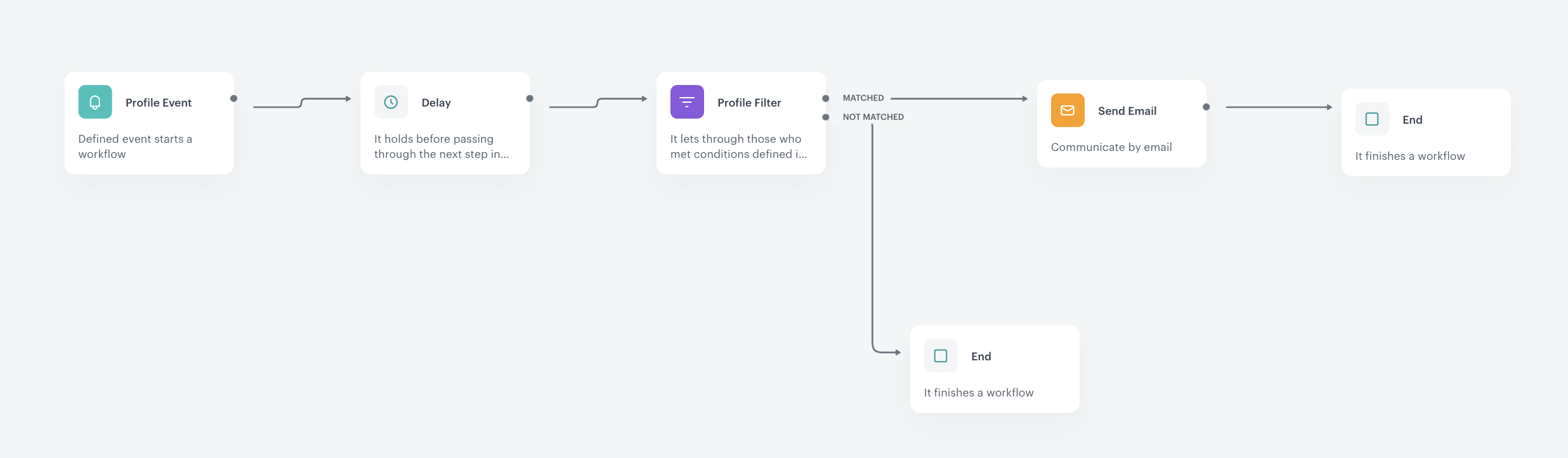
The diagram contains the following nodes:
1. **Profile Event** - the workflow is triggered by the event of adding an item to the cart.
2. **Delay** - before the workflow continues it waits 24 hours.
3. **Profile Filter** - the workflow rejects all customers who made a transaction in the last 24 hours.
4. **Send Email** - the workflow sends the email with items from an abandoned cart to the customers who didn't finish the purchase.
5. Two **End** nodes:  
    - one for the **not matched** path - customers who made the purchase in the last 24 hours end the workflow there.
    - one at the end of the diagram - after the email is sent to customers. 

<figure>
<img src="/api/docs/image/54176ad07f146575310749eba44b7c2f42c1b327/use-cases/all-cases/_gfx/save_abandoned_cart2.png"  alt="`Screenshot presenting prepare Automation" class="large">
<figcaption> The diagram of the workflow </figcaption>
</figure>

1. Go to **Automation > Workflows > New worklfow**.
2. Enter the name of the worklfow. 
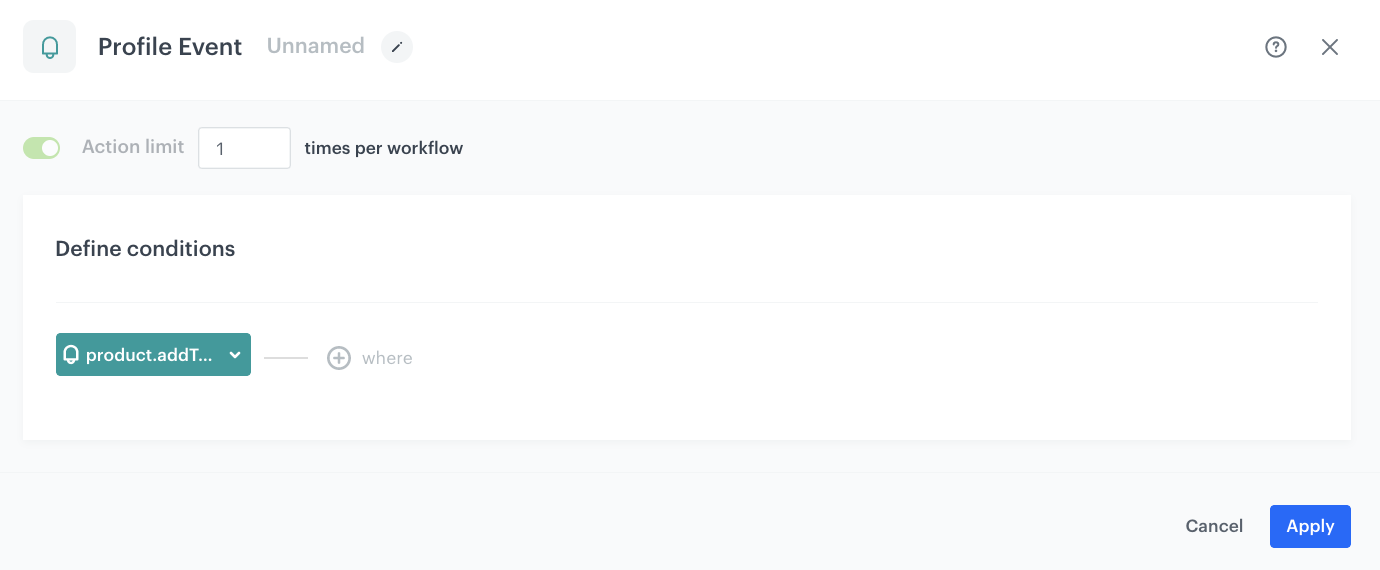
3. As the first node, add the **Profile Event**. In the settings of the node, select the **productAddToCart** event.
    <figure>
    <img src="/api/docs/image/54176ad07f146575310749eba44b7c2f42c1b327/use-cases/all-cases/_gfx/save_abandoned_cart1_1.png" alt="Screenshot presenting prepare Automation" class="large">
    <figcaption> Configuration of the Profile Event node </figcaption>
    </figure>

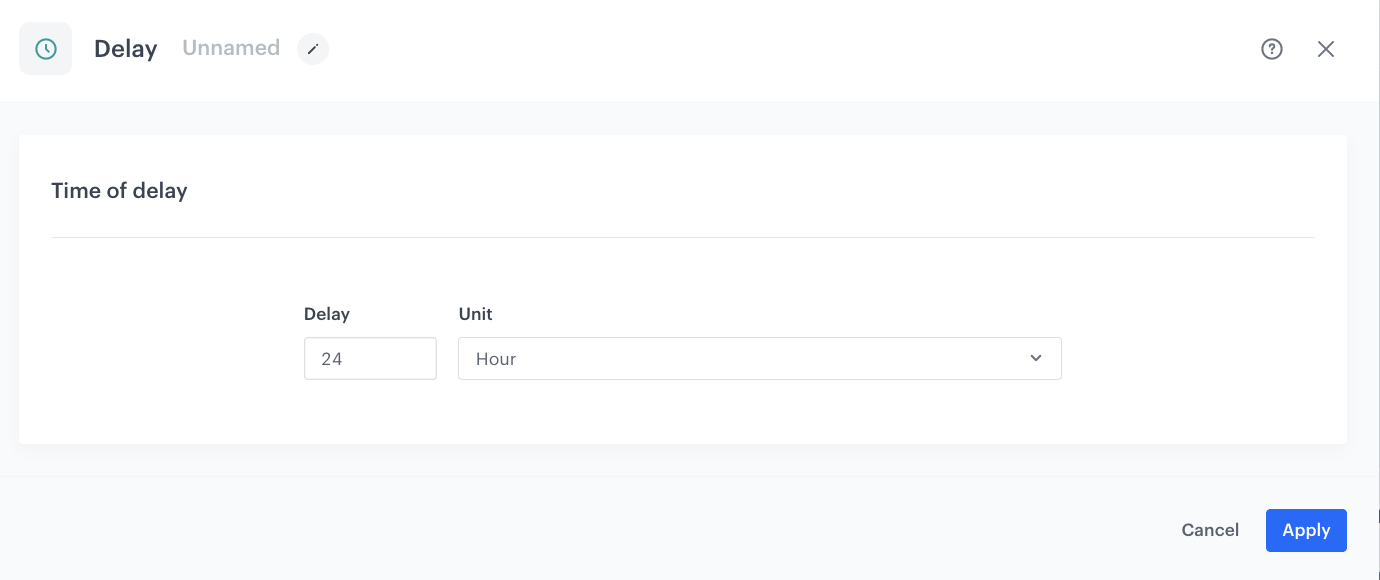
2. As the second node, add **Delay**. In the configuration of the node, set delay to 24 hours. 
    <figure>
    <img src="/api/docs/image/54176ad07f146575310749eba44b7c2f42c1b327/use-cases/all-cases/_gfx/save_abandoned_cart3.png" alt="Screenshot using the Delay" class="large">
    <figcaption> Configuration of the Delay node </figcaption>
    </figure>

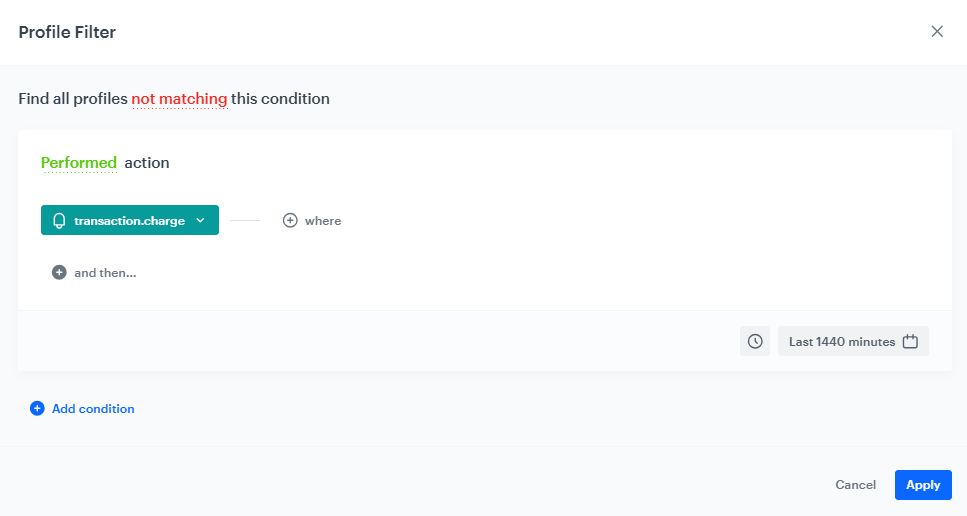
3. As the third node, add **Profile Filter**. In the settings of the node:  
    1. Select **transaction.charge** event.
    2. On the top of the pop-up, click the green **matching** word.  
        **Result**: The word changes to **not matching**. 
    2. Set the date range to the last 1440 minutes.     
    
       <div class="admonition admonition-important"><div class="admonition-icon"><svg xmlns="http://www.w3.org/2000/svg" fill="none" viewBox="0 0 24 24" stroke="currentColor" stroke-width="2.5"><path stroke-linecap="round" stroke-linejoin="round" d="M12 8v4m0 4h.01M21 12a9 9 0 11-18 0 9 9 0 0118 0z" /></svg></div><div class="admonition-body"><div class="admonition-content">

       Use 1440 minutes instead of 1 day – smaller granulation is recommended as in this case 1 day would take the time from current hour till the midnight, so such analysis will not take into consideration all necessary users.

       </div></div></div>

    3. Confirm by clicking **Apply**. 
    4. Click the plus button on the **Profile Filter** node. 
    5. Select **Send Email**.  
    **Result**: The **Matched** path leads to the **Send Email** node.
    6. Click the plus button on the **Profile Filter** node.  
    7. Select the **End** node.  
    **Result**: The **Not matched** path leads to the **End** node. 

   <figure>
    <img src="/api/docs/image/54176ad07f146575310749eba44b7c2f42c1b327/use-cases/all-cases/_gfx/abandoned-cart-profile-filter.png" alt="Screenshot presenting Profile Filter"  class="large">
    <figcaption> Configuration of the Profile Filter node </figcaption>
    </figure>
     
4. Click the **Send Email** node. In the settings of the node:
    1. In the **Sender details** section, choose the email account from which the email is sent.
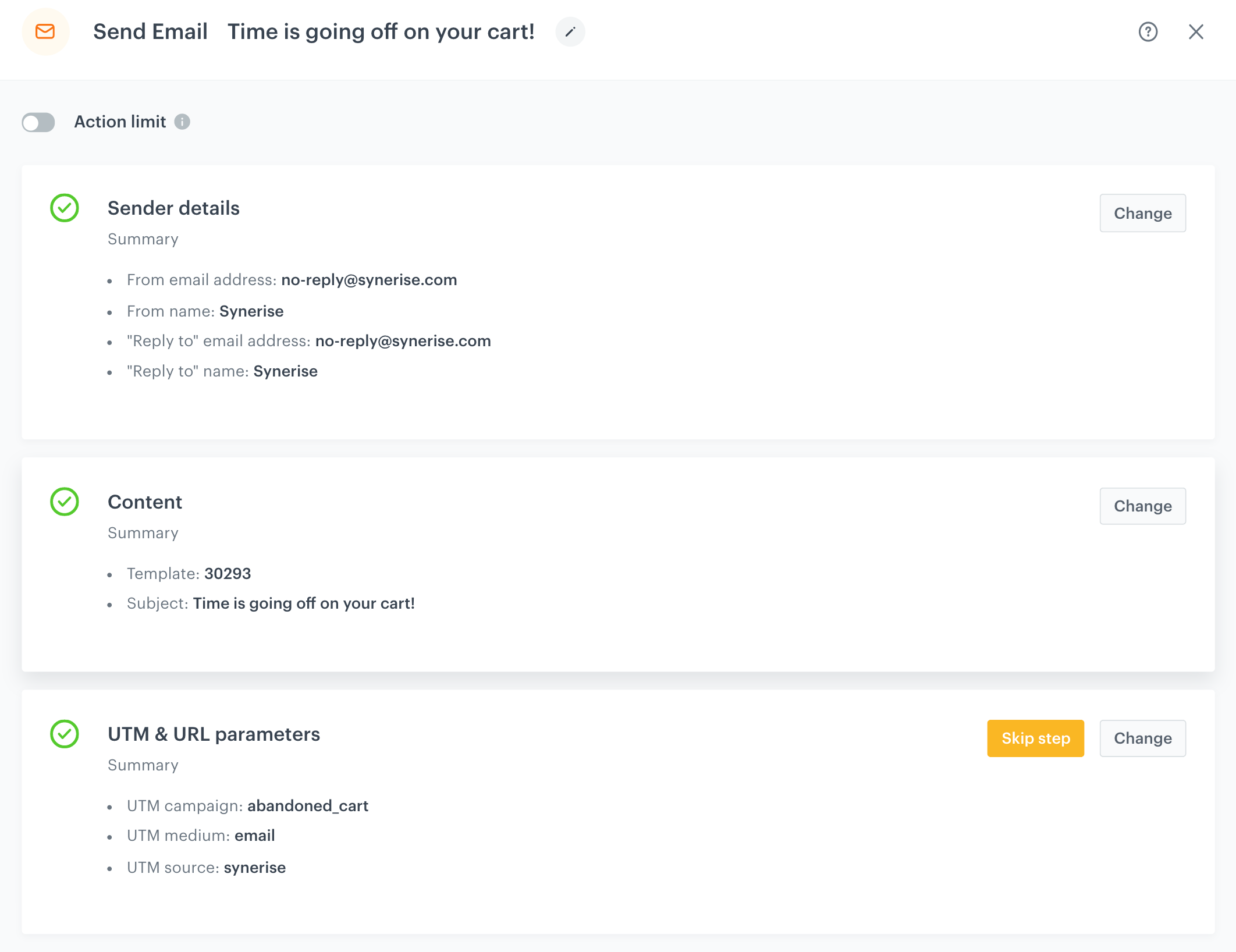
    2. In the **Content** section, select the template that you prepared in the [Prepare an email template section](/use-cases/save-abandoned-cart#prepare-an-email-template), add the subject of the email and UTM parameters.
    3. In the **UTM & URL parameters** section, define the UTM parameters for the email. 

    <figure>
    <img src="/api/docs/image/54176ad07f146575310749eba44b7c2f42c1b327/use-cases/all-cases/_gfx/save_abandoned_cart5.png" alt="Screenshot selecting the appropriate email account" class="large">
    <figcaption> Send Configuration of the Send Email node </figcaption>
    </figure>

5. After the **Send Email** node, add the **End** node.
5. Configure the final settings:
    - Define capping - 1 for 1 day.
    - Optionally, add titles to each node so the workflow will be more understandable to your colleagues.
    - To save it as a draft, click **Save it** or activate by clicking **Save & Run**.

## Check the use case set up on the Synerise Demo workspace
---
You can check the configuration of all steps directly in the Synerise Demo workspace:
- [Aggregate](https://app.synerise.com/analytics/aggregates/5aeb4fcd-d679-3c56-8369-a52f63e0b46c)
- [Workflow](https://app.synerise.com/automations/automation-diagram/bd183f9c-e4b7-4b4f-b5a5-ec869c007b94)

If you don't have access to the Synerise Demo workspace, please leave your contact details in this [form](https://demo.synerise.com/request) and our representative will contact you shortly. 

## Read more
---
- [Automation Hub](/docs/automation)
- [Creating aggregates](/docs/analytics/aggregates/creating-aggregates)
- [Email templates](/docs/campaign/e-mail/creating-email-templates)
- [Event Cart status](/developers/web/event-tracking#declarative-tracking-custom-events)
- [Importing product feed to catalog](/use-cases/import-product-feed-to-catalog)
- [Jinjava inserts](/developers/inserts/insert-usage)