 **Experience Hub > Dynamic content > Create new**.
2. Enter the name of the dynamic content.
3. Choose **Insert Object** type.
4. As the audience, select **everyone**.
5. In the **Content** section, select **Simple message**, and specify the CSS selector where you want to insert your campaign.
6. In the **Content** tab, click **Create Message**.
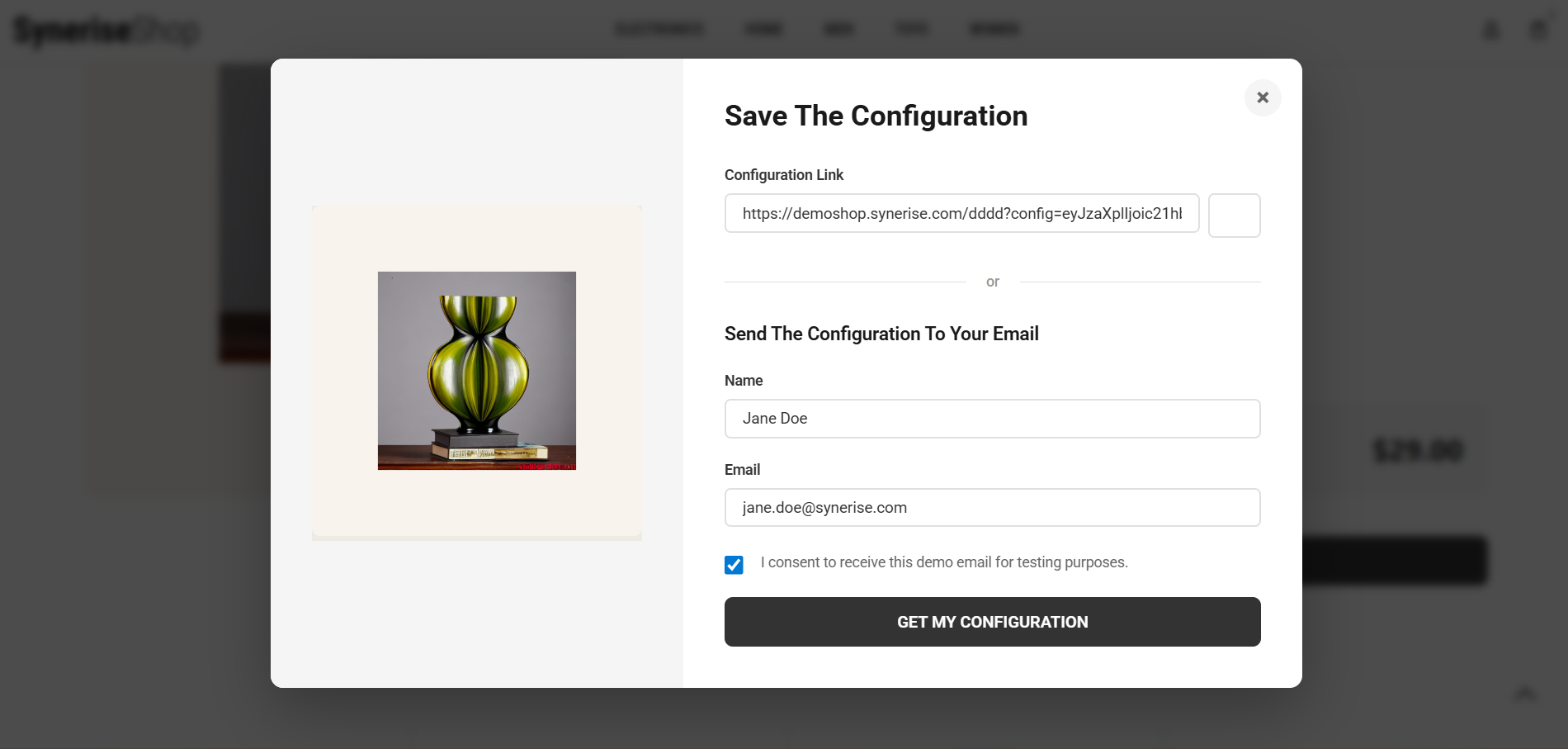
7. In the code editor, create a dynamic content based on your preferences and your own CSS styles. The JavaScript should track the configuration options selected at each step and save them as parameters within the `configuration.saved` event.
8. Save the template.
9. In the **Schedule** section, select the date when the dynamic content is activated.
10. In **Display settings**, configure the settings based on your business needs.
11. Confirm by clicking **Apply**.
12. Optionally, you can define the UTM parameters in the **UTM & URL parameters** section. Otherwise, click **Skip step**.
13. Activate the dynamic content.
**Experience Hub > Dynamic content > Create new**.
2. Enter the name of the dynamic content.
3. Choose **Insert Object** type.
4. As the audience, select **everyone**.
5. In the **Content** section, select **Simple message**, and specify the CSS selector where you want to insert your campaign.
6. In the **Content** tab, click **Create Message**.
7. In the code editor, create a dynamic content based on your preferences and your own CSS styles. The JavaScript should track the configuration options selected at each step and save them as parameters within the `configuration.saved` event.
8. Save the template.
9. In the **Schedule** section, select the date when the dynamic content is activated.
10. In **Display settings**, configure the settings based on your business needs.
11. Confirm by clicking **Apply**.
12. Optionally, you can define the UTM parameters in the **UTM & URL parameters** section. Otherwise, click **Skip step**.
13. Activate the dynamic content.
 **Behavioral Data Hub > Live Aggregates > Create aggregate**.
2. As the aggregate type, select **Profile**.
3. Enter the name of the aggregate.
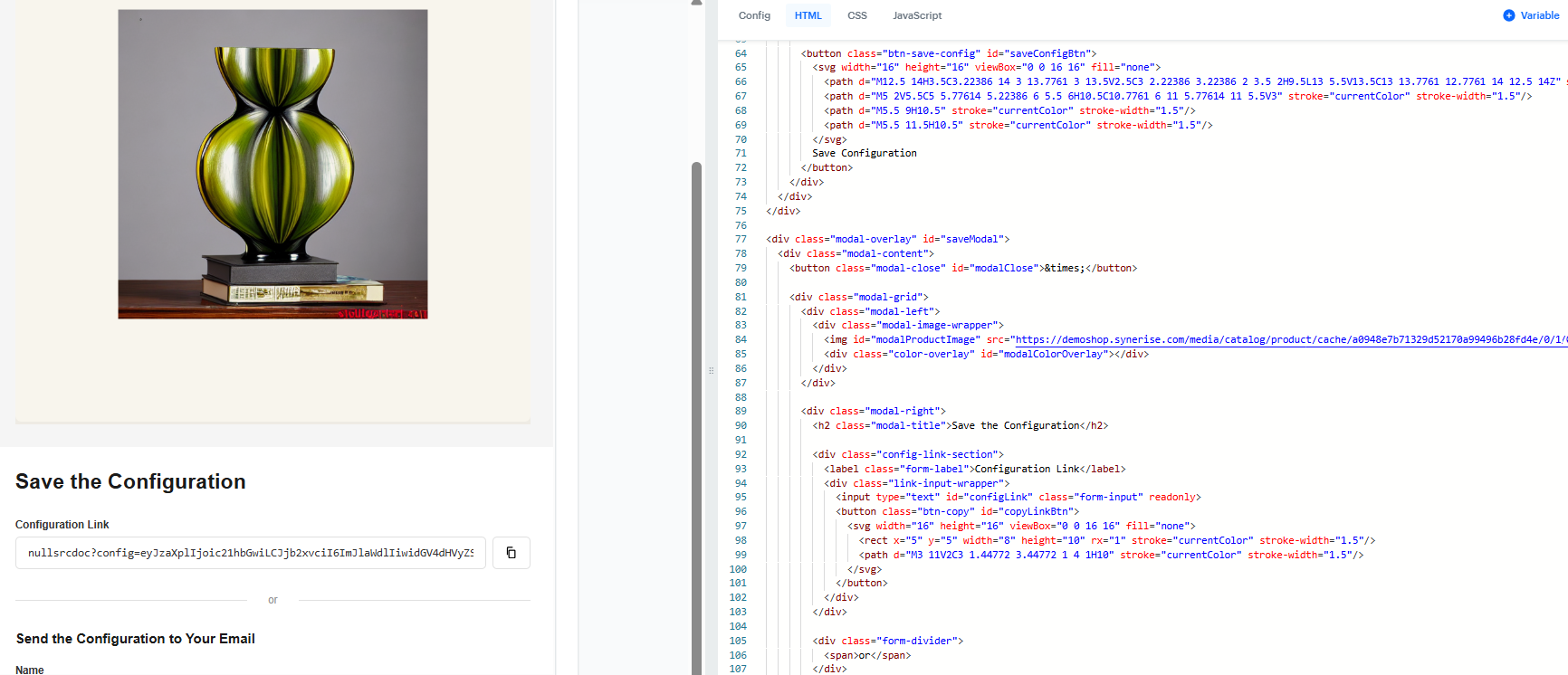
4. Click **Analyze profiles by** and select **Last**.
5. From the **Choose event** dropdown list, select the `configuration.saved` event.
6. As the event parameter, select `configuration_data`.
7. Define the period which the aggregate will analyze. Confirm your choice with the **Apply** button.
8. Click **Save**.
**Behavioral Data Hub > Live Aggregates > Create aggregate**.
2. As the aggregate type, select **Profile**.
3. Enter the name of the aggregate.
4. Click **Analyze profiles by** and select **Last**.
5. From the **Choose event** dropdown list, select the `configuration.saved` event.
6. As the event parameter, select `configuration_data`.
7. Define the period which the aggregate will analyze. Confirm your choice with the **Apply** button.
8. Click **Save**.
 **AI Hub > (AI Recommendations) Models > Add recommendation**.
2. Enter the name of the recommendation (it is only visible on the list of recommendations).
3. In the **Type & Items feed** section, click **Define**.
4. From the **Items feed** dropdown list, select an item feed.
5. In the **Type** section, choose the **Similar items** recommendation type.
6. Confirm the settings by clicking **Apply**.
7. In the **Items** section, click **Define**.
1. Click **Add slot**.
2. Define the minimum and maximum number of items that will be recommended to the customer in each slot.
3. Optionally, define [Static filters](/docs/ai-hub/recommendations-v2/creating-recommendation-campaign#static-filters) and [Elastic filters](/docs/ai-hub/recommendations-v2/creating-recommendation-campaign#elastic-filters).
4. Confirm by clicking **Apply**.
8. Optionally, you can define the **Boosting** factors and settings in the **Additional settings** section.
9. In the right upper corner, click **Save**.
## Create an email template
---
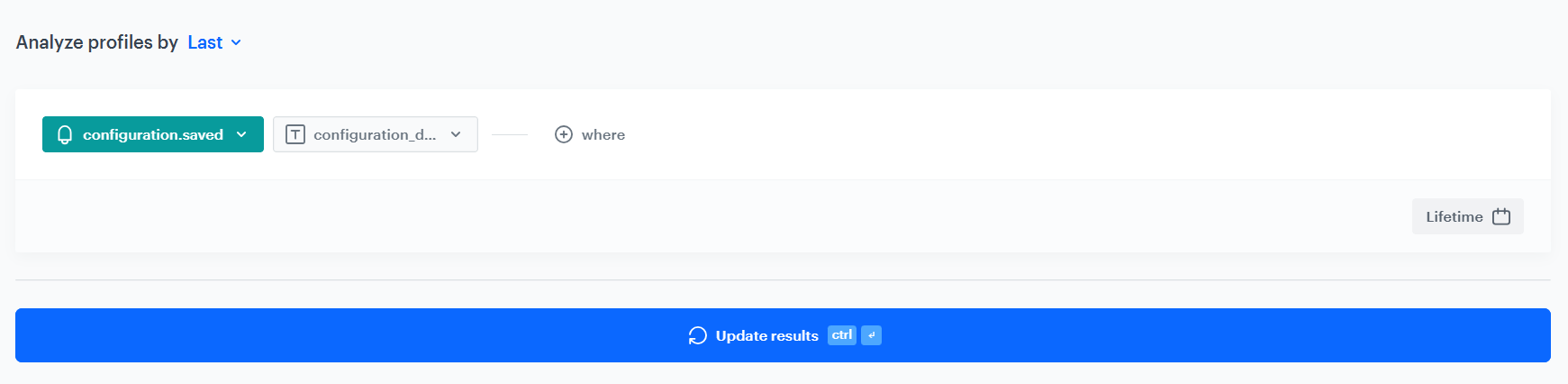
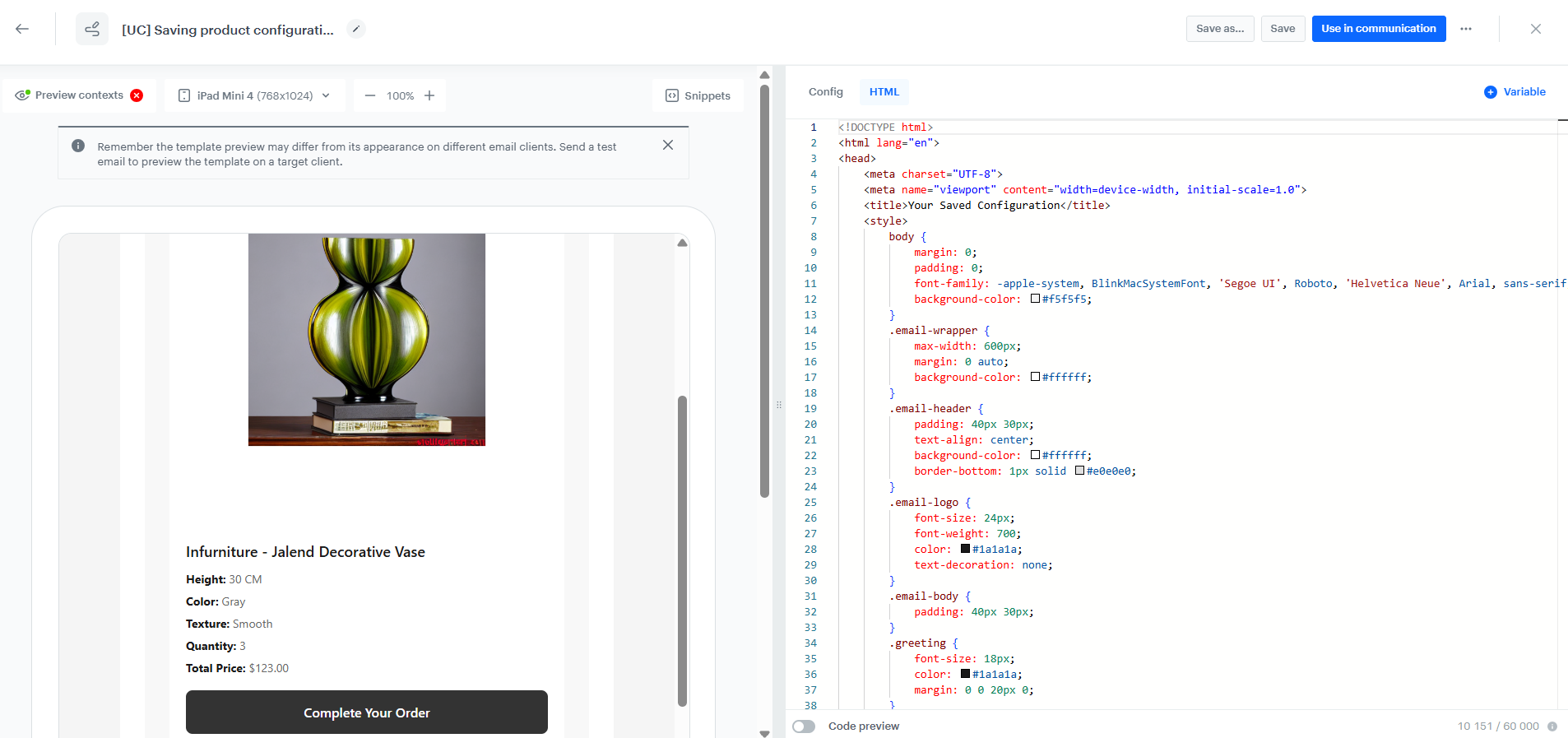
You can use a [ready-made template with an HTML block](https://app.synerise.com/campaigns/email/content-manager/template/249686) (available on the Synerise Demo workspace). Copy it and edit according to your needs. In the configuration, we will use the [aggregate](#create-an-aggregate) and [AI recommendation](#create-an-ai-recommendation) created in the previous steps.
1. Go to **Experience Hub > Email**.
2. On the left pane, click **Templates** and from the list of template folders, select **USE CASE**.
4. Select **[UC] Saving product configuration** template.
**Result**: You are redirected to the code editor.
4. Edit the template according to your needs. Use the [aggregate](#create-an-aggregate) and [recommendation](#create-an-ai-recommendation) created in the previous steps.
**AI Hub > (AI Recommendations) Models > Add recommendation**.
2. Enter the name of the recommendation (it is only visible on the list of recommendations).
3. In the **Type & Items feed** section, click **Define**.
4. From the **Items feed** dropdown list, select an item feed.
5. In the **Type** section, choose the **Similar items** recommendation type.
6. Confirm the settings by clicking **Apply**.
7. In the **Items** section, click **Define**.
1. Click **Add slot**.
2. Define the minimum and maximum number of items that will be recommended to the customer in each slot.
3. Optionally, define [Static filters](/docs/ai-hub/recommendations-v2/creating-recommendation-campaign#static-filters) and [Elastic filters](/docs/ai-hub/recommendations-v2/creating-recommendation-campaign#elastic-filters).
4. Confirm by clicking **Apply**.
8. Optionally, you can define the **Boosting** factors and settings in the **Additional settings** section.
9. In the right upper corner, click **Save**.
## Create an email template
---
You can use a [ready-made template with an HTML block](https://app.synerise.com/campaigns/email/content-manager/template/249686) (available on the Synerise Demo workspace). Copy it and edit according to your needs. In the configuration, we will use the [aggregate](#create-an-aggregate) and [AI recommendation](#create-an-ai-recommendation) created in the previous steps.
1. Go to **Experience Hub > Email**.
2. On the left pane, click **Templates** and from the list of template folders, select **USE CASE**.
4. Select **[UC] Saving product configuration** template.
**Result**: You are redirected to the code editor.
4. Edit the template according to your needs. Use the [aggregate](#create-an-aggregate) and [recommendation](#create-an-ai-recommendation) created in the previous steps.
 **Automation Hub > Workflows > New workflow**.
2. Enter the name of the workflow.
### Define the Profile Event trigger node
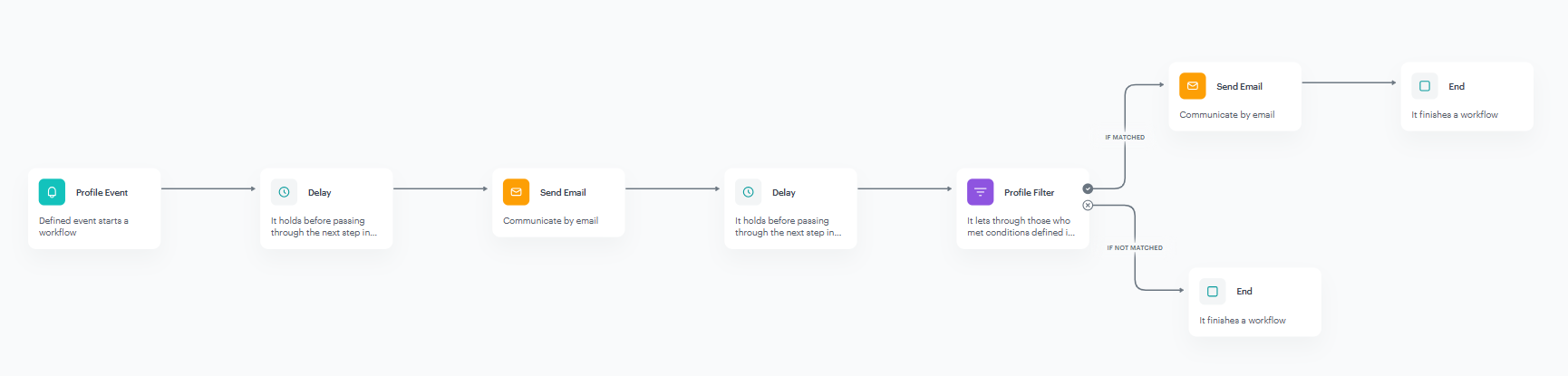
At this stage, you will configure conditions that launch the workflow. As a trigger, we will use the `configuration.saved` event, which is generated after submitting the form.
1. As the first node of the workflow, add **Profile Event**. In the configuration of the node:
1. From the **Choose event** dropdown menu, choose `configuration.saved` event.
2. Confirm by clicking **Apply**.
### Define the first Delay node
---
This node creates a 10 seconds delay before moving to the next condition of the workflow. It helps you minimize the risk that possible server errors or delays will influence your workflow.
1. Add the **Delay** node. In the node settings:
1. In the **Delay** field, type `10`.
2. From the dropdown list, choose **Second**.
2. Click **Apply**.
### Configure the first Send Email node
At this stage, you will send an email with confirmation for users who fill out the form requesting sending configuration link to their email address.
1. As the next node, add **Send Email**. Configure it according to your business needs.
2. Configure the Sender details section.
3. Configure the Content section.
1. In the **Subject** field, enter your message subject.
2. In the **Template** section, choose the template [email template](#create-an-email-template) prepared in the previous step.
3. You can define **UTM & URL parameters**.
4. Confirm by clicking **Apply**.
### Define the second Delay node
---
This node creates delay before checking whether the transaction has been made prior to sending a reminder. In our case, we assumed it will be 24 hours.
1. Add the **Delay** node. In the node settings:
1. In the **Delay** field, type `24`.
2. From the dropdown list, choose **Hours**.
2. Click **Apply**.
### Define the Profile Filter node
As the next step, add the **Profile Filter** node, which checks if the customer made a transaction in the last 24 hours. If the customer has not made a purchase, we will send them a reminder email, optionally with a discount coupon, and if they have, then the workflow ends.
1. Add the **Profile Filter** node.
2. Select **New Audience**, click **Define conditions**, change **Find all profiles matching this condition** to **Find all profiles not matching this condition** and from the **Add condition** dropdown list, select the `transaction.charge` event.
3. As the date range, select **Last 24 hours**. Confirm your choice with the **Apply** button.
4. To the *matched* path, add the **Send Email** node.
5. To the *not matched* path, add the **End** node.
6. Click **Apply**.
### Configure the second Send Email node
At this stage, you will send an email with reminder for users who filled out the form requesting sending configuration link to their email address and didn't make any purchase within last 24 hours.
1. As the next node, add **Send Email**. Configure it according to your business needs.
2. Configure the Sender details section.
3. Configure the Content section.
1. In the **Subject** field, enter your message subject.
2. In the **Template** section, choose the template [email template](#create-an-email-template) prepared in the previous step.
3. You can define **UTM & URL parameters**.
4. Confirm by clicking **Apply**.
### Add the finishing node
1. Add the **End** node.
2. In the upper right corner, click **Save & Run**.
**Automation Hub > Workflows > New workflow**.
2. Enter the name of the workflow.
### Define the Profile Event trigger node
At this stage, you will configure conditions that launch the workflow. As a trigger, we will use the `configuration.saved` event, which is generated after submitting the form.
1. As the first node of the workflow, add **Profile Event**. In the configuration of the node:
1. From the **Choose event** dropdown menu, choose `configuration.saved` event.
2. Confirm by clicking **Apply**.
### Define the first Delay node
---
This node creates a 10 seconds delay before moving to the next condition of the workflow. It helps you minimize the risk that possible server errors or delays will influence your workflow.
1. Add the **Delay** node. In the node settings:
1. In the **Delay** field, type `10`.
2. From the dropdown list, choose **Second**.
2. Click **Apply**.
### Configure the first Send Email node
At this stage, you will send an email with confirmation for users who fill out the form requesting sending configuration link to their email address.
1. As the next node, add **Send Email**. Configure it according to your business needs.
2. Configure the Sender details section.
3. Configure the Content section.
1. In the **Subject** field, enter your message subject.
2. In the **Template** section, choose the template [email template](#create-an-email-template) prepared in the previous step.
3. You can define **UTM & URL parameters**.
4. Confirm by clicking **Apply**.
### Define the second Delay node
---
This node creates delay before checking whether the transaction has been made prior to sending a reminder. In our case, we assumed it will be 24 hours.
1. Add the **Delay** node. In the node settings:
1. In the **Delay** field, type `24`.
2. From the dropdown list, choose **Hours**.
2. Click **Apply**.
### Define the Profile Filter node
As the next step, add the **Profile Filter** node, which checks if the customer made a transaction in the last 24 hours. If the customer has not made a purchase, we will send them a reminder email, optionally with a discount coupon, and if they have, then the workflow ends.
1. Add the **Profile Filter** node.
2. Select **New Audience**, click **Define conditions**, change **Find all profiles matching this condition** to **Find all profiles not matching this condition** and from the **Add condition** dropdown list, select the `transaction.charge` event.
3. As the date range, select **Last 24 hours**. Confirm your choice with the **Apply** button.
4. To the *matched* path, add the **Send Email** node.
5. To the *not matched* path, add the **End** node.
6. Click **Apply**.
### Configure the second Send Email node
At this stage, you will send an email with reminder for users who filled out the form requesting sending configuration link to their email address and didn't make any purchase within last 24 hours.
1. As the next node, add **Send Email**. Configure it according to your business needs.
2. Configure the Sender details section.
3. Configure the Content section.
1. In the **Subject** field, enter your message subject.
2. In the **Template** section, choose the template [email template](#create-an-email-template) prepared in the previous step.
3. You can define **UTM & URL parameters**.
4. Confirm by clicking **Apply**.
### Add the finishing node
1. Add the **End** node.
2. In the upper right corner, click **Save & Run**.