AI Search allows you to improve the search experience of your users by customizing search results to individual requirements by setting rules. The possibilities are endless.

Define a rule condition and consequence which tailors results based on the context of the search, so customers can find the products they're looking for easier and faster than ever before. 

This use case describes the process of creating a rule in AI search which promotes mobile chargers when a customer searches for `charger` from a mobile device. 

## Prerequisites

- An item feed must be provided.
- Enable [the search engine](/docs/ai-hub/ai-search/introduction-to-ai-search) for your workspace and create an [index](/docs/ai-hub/ai-search/create-index).
- [Implement AI search](https://developers.synerise.com/AISearch/AISearch.html#operation/profileLogin) in any of your channels (mobile app, website etc.).
- Implement the context parameter with value mobile to search request. It should be added when your customer enters the query on the mobile device.

## Create rules
---
1. Go to <img src="/api/docs/image/54176ad07f146575310749eba44b7c2f42c1b327/icons/ai-hub-icon.svg" alt="AI Hub icon" class="icon" > **AI Hub > Indexes**.
2. Select an index from the list.
3. Go to the **Rules** section. 
4. On the right side of the screen, click **Add rule**.  
5. Enter the name of the rule.
6. To adjust the query conditions, in the **Conditions** section, click **Define**.  
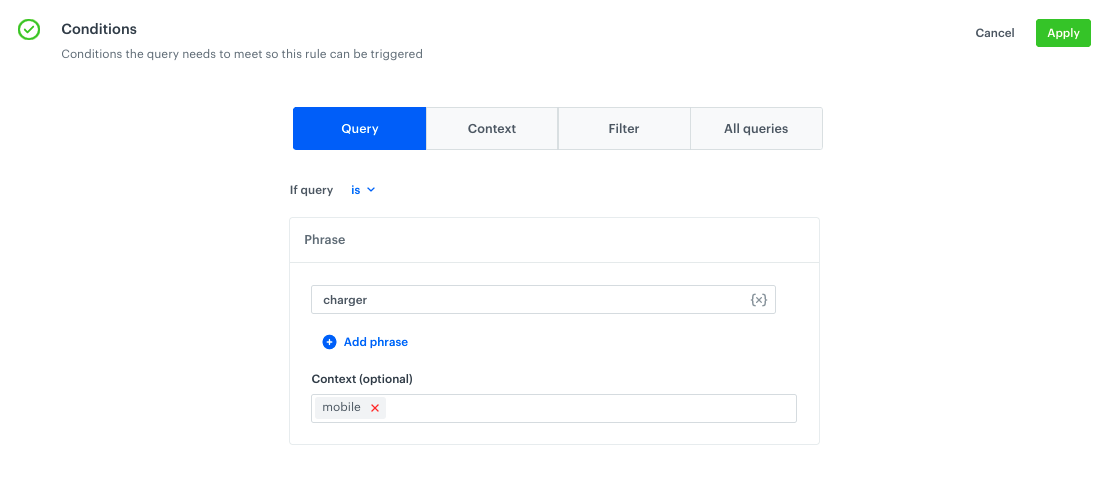
    1. On the **Query** tab, to define the method of checking the query, choose the **is** condition.  
        The **is** condition means the rule works only if a customer searches exactly for the phrase defined in the rule.
    2. In the text field, enter: `charger`
    3. In the **Context (optional)** field, enter: `mobile`.  
        This means that the rule only works when the search request has the `context = mobile` parameter.  
        <figure><img src="/api/docs/image/54176ad07f146575310749eba44b7c2f42c1b327/use-cases/all-cases/_gfx/search-rules-conditions.png" class="full" alt="Example of query conditions"><figcaption>Example of query conditions</figcaption></figure>  
    1. Confirm the settings by clicking the **Apply** button.
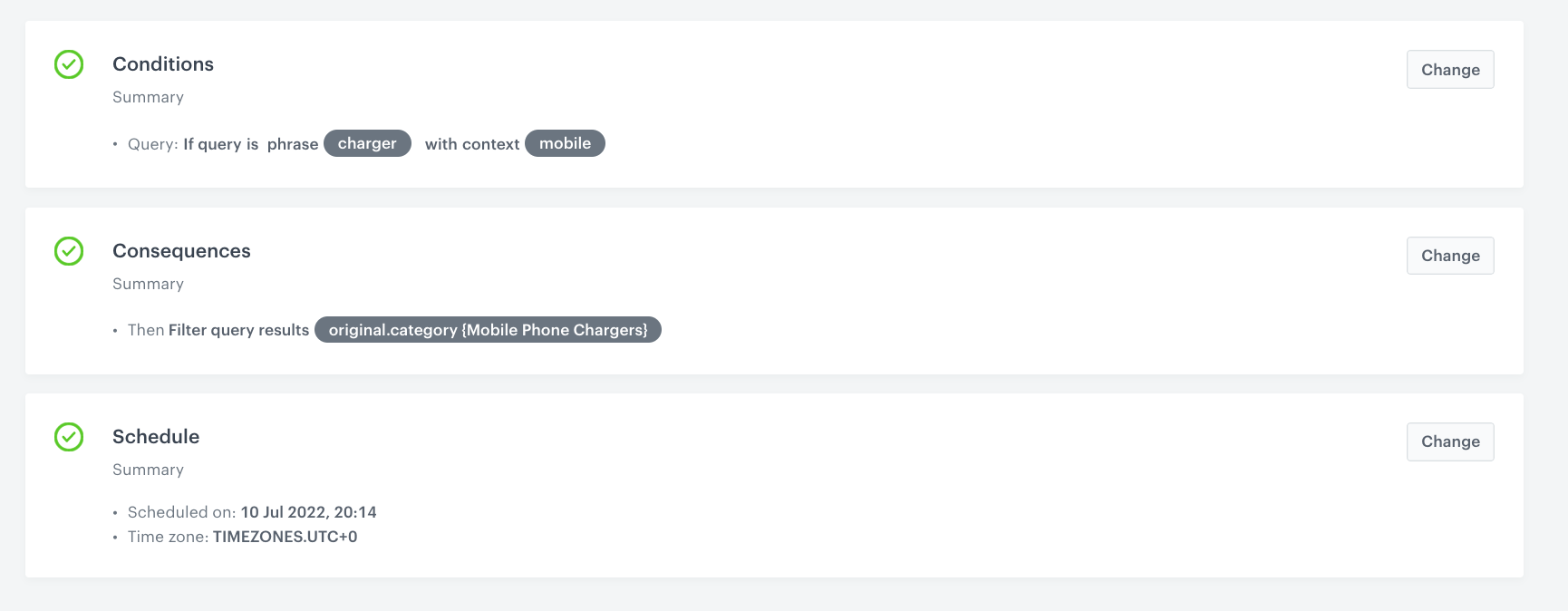
7. To define how the search engine reacts to the defined conditions, in the **Consequences** section, click **Define**.
    1. Click **Add consequence**.
    2. From the dropdown list, select the **Filter query results** consequence.
    3. Click **Add filter**.
    4. Select attribute that corresponds to **product type**.
    5. In the field next to the attribute name, enter the value that denotes mobile phone chargers or select it from the dropdown list.

        
   <div class="admonition admonition-note"><div class="admonition-icon"><svg xmlns="http://www.w3.org/2000/svg" fill="none" viewBox="0 0 24 24" stroke="currentColor" stroke-width="2.5"><path stroke-linecap="round" stroke-linejoin="round" d="M13 16h-1v-4h-1m1-4h.01M21 12a9 9 0 11-18 0 9 9 0 0118 0z" /></svg></div><div class="admonition-body"><div class="admonition-content">

   Please note that the attribute name and its value depends on the rules used in the implementation process.

   </div></div></div>
 

8. Toggle the **Mark as elastic** switch on.
9. Confirm by clicking **Apply**.
10. To save and enable the query rule, click **Publish**.

<figure>
<img src="/api/docs/image/54176ad07f146575310749eba44b7c2f42c1b327/use-cases/all-cases/_gfx/search-context.png" alt="Search context promotion settings"  class="full">
<figcaption>Search context promotion settings</figcaption>
</figure> 

## Check the use case set up on the Synerise Demo workspace
---

You can check the [rule configuration](https://app.synerise.com/ai-v2/search/indices/1c7fac97ddd2c12b7cf1e71d7b4489261657270872/query-rules/14432) directly in Synerise Demo workspace.

If you’re our partner or client, you already have automatic access to the **Synerise Demo workspace (1590)**, where you can explore all the configured elements of this use case and copy them to your workspace.  

If you’re not a partner or client yet, we encourage you to fill out the contact [form](https://demo.synerise.com/request) to schedule a meeting with our representatives. They’ll be happy to show you how our demo works and discuss how you can apply this use case in your business.


## Read more
---

- [Configuring AI Search](/docs/ai-hub/ai-search/introduction-to-ai-search#configuring-ai-search)
- [Creating rules in AI Search](/docs/ai-hub/ai-search/query-rules)