 **Behavioral Data Hub > Live Aggregates > Create aggregate**.
2. As the aggregate type, select **Profile**.
2. Enter the name of the aggregate.
3. Click **Analyze profiles by** and select **Average**.
4. From the **Choose event** dropdown list, select the `product.buy` event.
5. As the event parameter, select **$finalUnitPrice**.
6. Define the period from which data will be analyzed. In our case it will be last 30 days.
7. Save the aggregate.
**Behavioral Data Hub > Live Aggregates > Create aggregate**.
2. As the aggregate type, select **Profile**.
2. Enter the name of the aggregate.
3. Click **Analyze profiles by** and select **Average**.
4. From the **Choose event** dropdown list, select the `product.buy` event.
5. As the event parameter, select **$finalUnitPrice**.
6. Define the period from which data will be analyzed. In our case it will be last 30 days.
7. Save the aggregate.
 **Behavioral Data Hub > Live Aggregates > Create aggregate**.
2. As the aggregate type, select **Profile**.
2. Enter the name of the aggregate.
3. Click **Analyze profiles by** and select **Top**.
4. From the **Choose event** dropdown list, select the **product.buy** event.
5. As the event parameter, select **brand**.
6. Define the period from which the aggregate will return products from the event.
7. Save the aggregate.
**Behavioral Data Hub > Live Aggregates > Create aggregate**.
2. As the aggregate type, select **Profile**.
2. Enter the name of the aggregate.
3. Click **Analyze profiles by** and select **Top**.
4. From the **Choose event** dropdown list, select the **product.buy** event.
5. As the event parameter, select **brand**.
6. Define the period from which the aggregate will return products from the event.
7. Save the aggregate.

 **AI Hub > Indexes**.
2. Select an index from the list.
3. Go to the **Rules** section.
4. On the right side of the screen, click **Add rule**.
5. Name the rule.
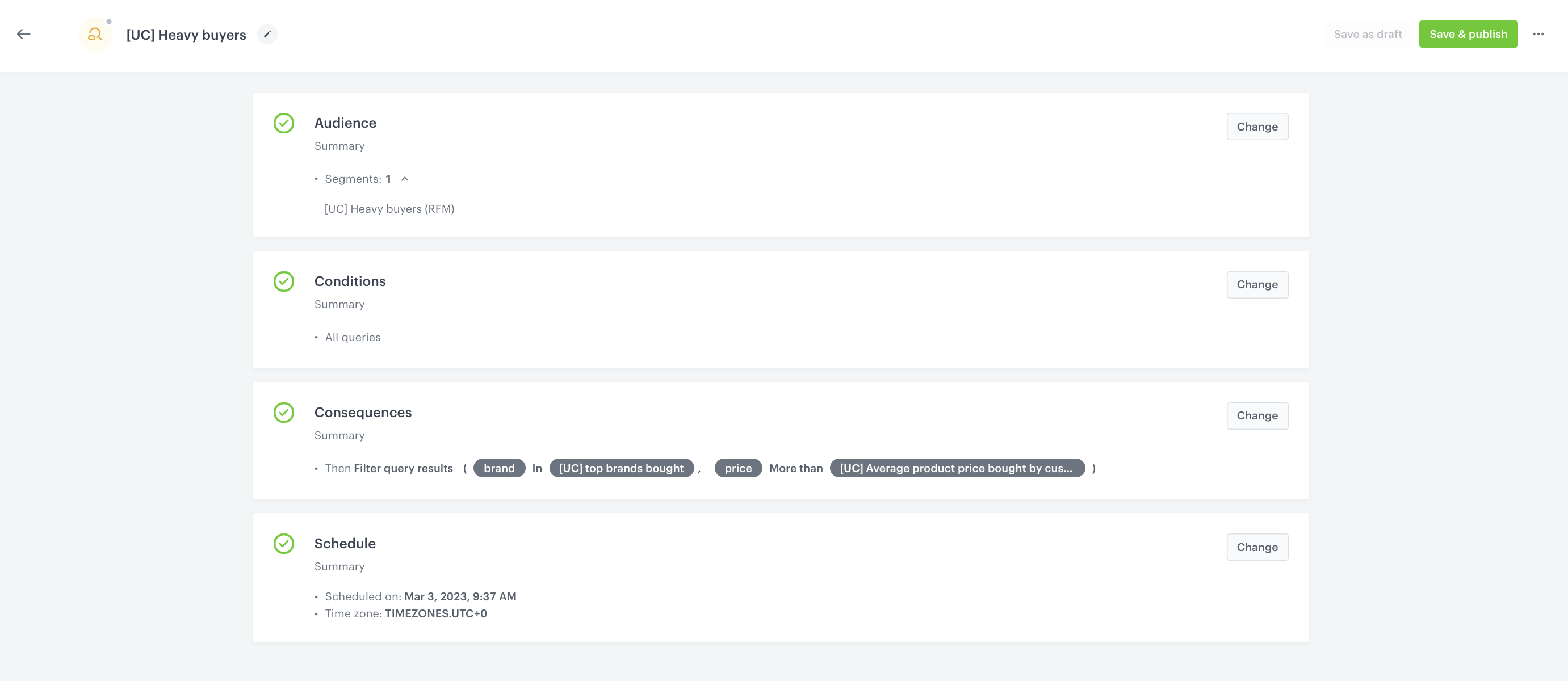
6. To define the audience group for the rule, in the **Audience** section, click **Change**.
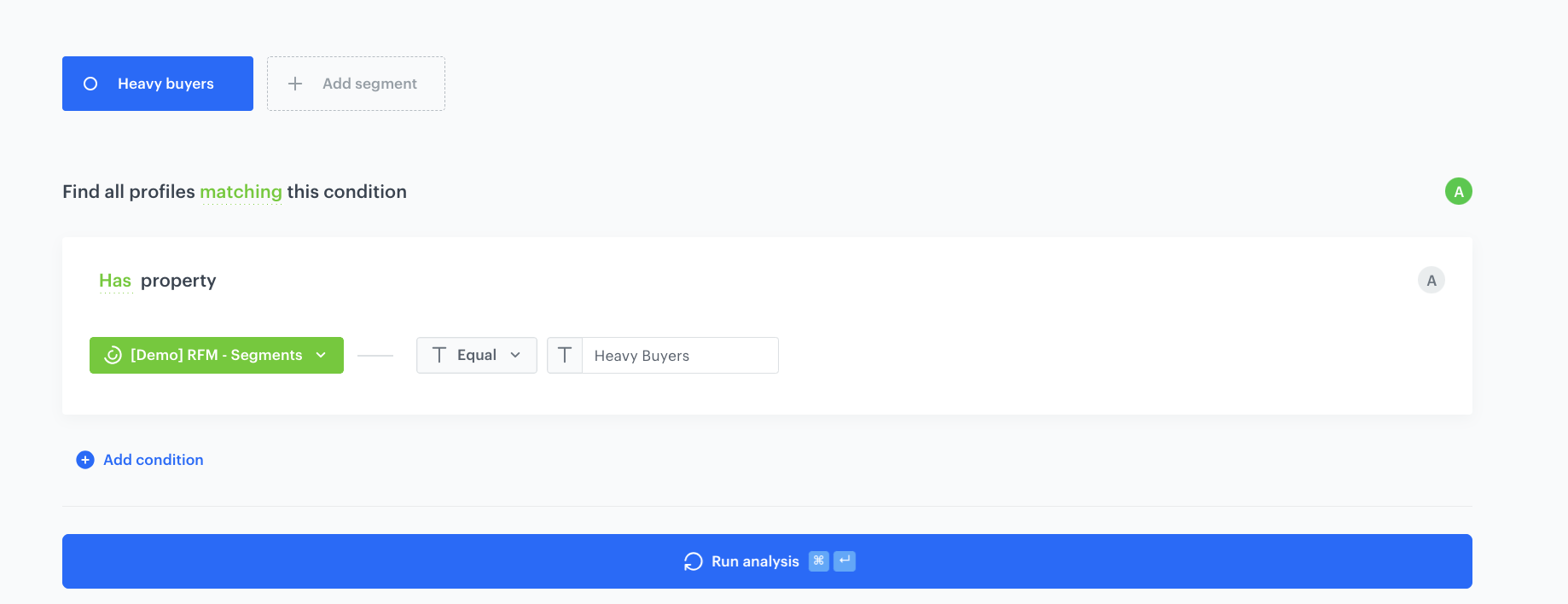
1. Choose the **Segments** tab and click **Add segments**.
2. Find the segment of heavy buyers you created [earlier in the process](/use-cases/segment-as-a-rule-condition#create-a-segmentation-of-heavy-buyers) and apply that segment.
7. To adjust the query conditions, in the **Conditions** section, click **Define**.
1. Choose the **All queries** tab.
2. Click **Apply**.
8. To define how the search engine reacts to the defined conditions, in the **Consequences** section, click **Define**.
1. Click **Add consequence** and choose **Filter query results** from the dropdown list.
2. From the **Attribute** dropdown list, choose `Price`.
3. Choose the **More than** operator.
4. In the left field, click the **#** icon and from the dropdown list, select **Aggregate**.
5. From the list, choose [aggregate](/use-cases/segment-as-a-rule-condition#create-an-aggregate-for-average-customer-purchase-expenses) created earlier in the process.
6. Click **Add filter** and from the **Attribute** dropdown list, choose **Brand**.
7. Choose the **In** operator.
8. In the left field, click the **T** icon and from the dropdown list, select **Aggregate**.
9. From the list, choose [aggregate](/use-cases/segment-as-a-rule-condition#create-aggregates-to-identify-top-bought-brands) created earlier in the process.
10. Enable the **Mark as elastic** option to make sure that the items you set will appear at the top of the search results. If you do not activate this option, search results will show only those products.
11. Click **Apply**.
9. In the **Schedule** section, you can define when the query rule applies.
10. Click **Save & Publish**.
**AI Hub > Indexes**.
2. Select an index from the list.
3. Go to the **Rules** section.
4. On the right side of the screen, click **Add rule**.
5. Name the rule.
6. To define the audience group for the rule, in the **Audience** section, click **Change**.
1. Choose the **Segments** tab and click **Add segments**.
2. Find the segment of heavy buyers you created [earlier in the process](/use-cases/segment-as-a-rule-condition#create-a-segmentation-of-heavy-buyers) and apply that segment.
7. To adjust the query conditions, in the **Conditions** section, click **Define**.
1. Choose the **All queries** tab.
2. Click **Apply**.
8. To define how the search engine reacts to the defined conditions, in the **Consequences** section, click **Define**.
1. Click **Add consequence** and choose **Filter query results** from the dropdown list.
2. From the **Attribute** dropdown list, choose `Price`.
3. Choose the **More than** operator.
4. In the left field, click the **#** icon and from the dropdown list, select **Aggregate**.
5. From the list, choose [aggregate](/use-cases/segment-as-a-rule-condition#create-an-aggregate-for-average-customer-purchase-expenses) created earlier in the process.
6. Click **Add filter** and from the **Attribute** dropdown list, choose **Brand**.
7. Choose the **In** operator.
8. In the left field, click the **T** icon and from the dropdown list, select **Aggregate**.
9. From the list, choose [aggregate](/use-cases/segment-as-a-rule-condition#create-aggregates-to-identify-top-bought-brands) created earlier in the process.
10. Enable the **Mark as elastic** option to make sure that the items you set will appear at the top of the search results. If you do not activate this option, search results will show only those products.
11. Click **Apply**.
9. In the **Schedule** section, you can define when the query rule applies.
10. Click **Save & Publish**.