Having more product categories in your store, you can easily measure which category a customer visits most frequently. 

Based on the URL of the visited page, you can find a lot of information. In this use case, we treat visits to specific URL as visits to specific categories (for example, if the URL contains "/shoes/", we assume that the customer has visited the "Shoes" category).

Using the Decision Hub, we can define how many times a customer visited specific categories and then extract the one most frequently visited by them. Additionally, you can create a segmentation by grouping these customers by favorite category. In this use case, we will show you how to create such a segmentation on the example of 4 selected categories using aggregates and expressions that use the URL fragment in the page visit event.

## Prerequisites 
---
Implement [tracking code](/developers/web/installation-and-configuration#creating-a-tracking-code) on your website.


<div class="admonition admonition-tip"><div class="admonition-icon"><svg xmlns="http://www.w3.org/2000/svg" fill="none" viewBox="0 0 24 24" stroke="currentColor" stroke-width="2.5"><path stroke-linecap="round" stroke-linejoin="round" d="M9.663 17h4.673M12 3v1m6.364 1.636l-.707.707M21 12h-1M4 12H3m3.343-5.657l-.707-.707m2.828 9.9a5 5 0 117.072 0l-.548.547A3.374 3.374 0 0014 18.469V19a2 2 0 11-4 0v-.531c0-.895-.356-1.754-.988-2.386l-.548-.547z" /></svg></div><div class="admonition-body"><div class="admonition-content">

If there are more product categories, we recommend additionally implementing [OG tags](/developers/web/og-tags). Thanks to that, an additional parameter will be collected in the `page.visit` event with the exact path of the category visited by the customer. Based on that, you can simplify the presented analyses and reduce them to one aggregate with the "TOP" aggregator and segmentation (there would be no need to create an expression and aggregates for each category).

</div></div></div>

## Process 
---
This procedure consists of three stages: 
1. Create [aggregates](/use-cases/segmentation-based-on-interests#create-aggregates) that count visits on each of four product categories.
2. Create an [expression](/use-cases/segmentation-based-on-interests#create-an-expression) that returns the highest result for every category.
3. Create a [segmentation](/use-cases/segmentation-based-on-interests#create-a-segmentation) that groups customers by the most frequently visited category.

## Create aggregates
---
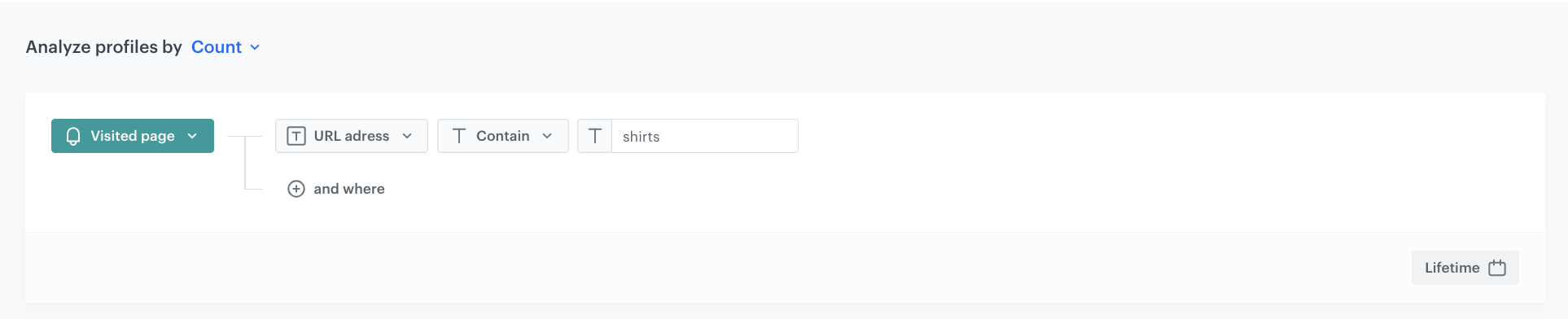
Create aggregates that count visits on each of product categories. In this stage, we assume that visiting a given fragment of the URL equals visiting a category. To measure the results, create 4 aggregates that count the number of visits to each of the four categories.

1. Go to <img src="/api/docs/image/54176ad07f146575310749eba44b7c2f42c1b327/icons/behavioral-data-hub-icon.svg" alt="Behavioral Data Hub icon" class="icon"> **Behavioral Data Hub > Live Aggregates > Create aggregate**.
2. As the aggregate type, select **Profile**.  
2. Enter the name of the aggregate (in this example, the name of the aggregate will be the same as the category name).
3. By clicking the <img src="/api/docs/image/54176ad07f146575310749eba44b7c2f42c1b327/docs/analytics/_gfx/blue-arrow.png" alt="Expander arrow icon" class="icon"> button, set **Count** as the type of the aggregate result.
4. From the **Choose event** dropdown list, select the `page.visit` event.
5. Click the **Where** button and from the **Choose parameter** dropdown list, select `uri`.
6. Select the **Contain** logical operator.
7. In the text field, next to the logical operator, enter the name of the product category. 
8. Save the aggregate.
9. Create another one or more aggregates for their respective categories. Repeat the steps 1-8.  
**Result**: The aggregates will count visits of individual users to the product category. The aggregates are available in <img src="/api/docs/image/54176ad07f146575310749eba44b7c2f42c1b327/icons/behavioral-data-hub-icon.svg" alt="Behavioral Data Hub icon" class="icon"> **Behavioral Data Hub > Live Aggregates**.  

 <figure>
    <img src="/api/docs/image/54176ad07f146575310749eba44b7c2f42c1b327/use-cases/all-cases/_gfx/use-case-aggregate1.png" alt="Filled settings of the category A aggregate" class="large" >
    <figcaption>Filled settings of the category A aggregate</figcaption>
    </figure>

## Create an expression
---
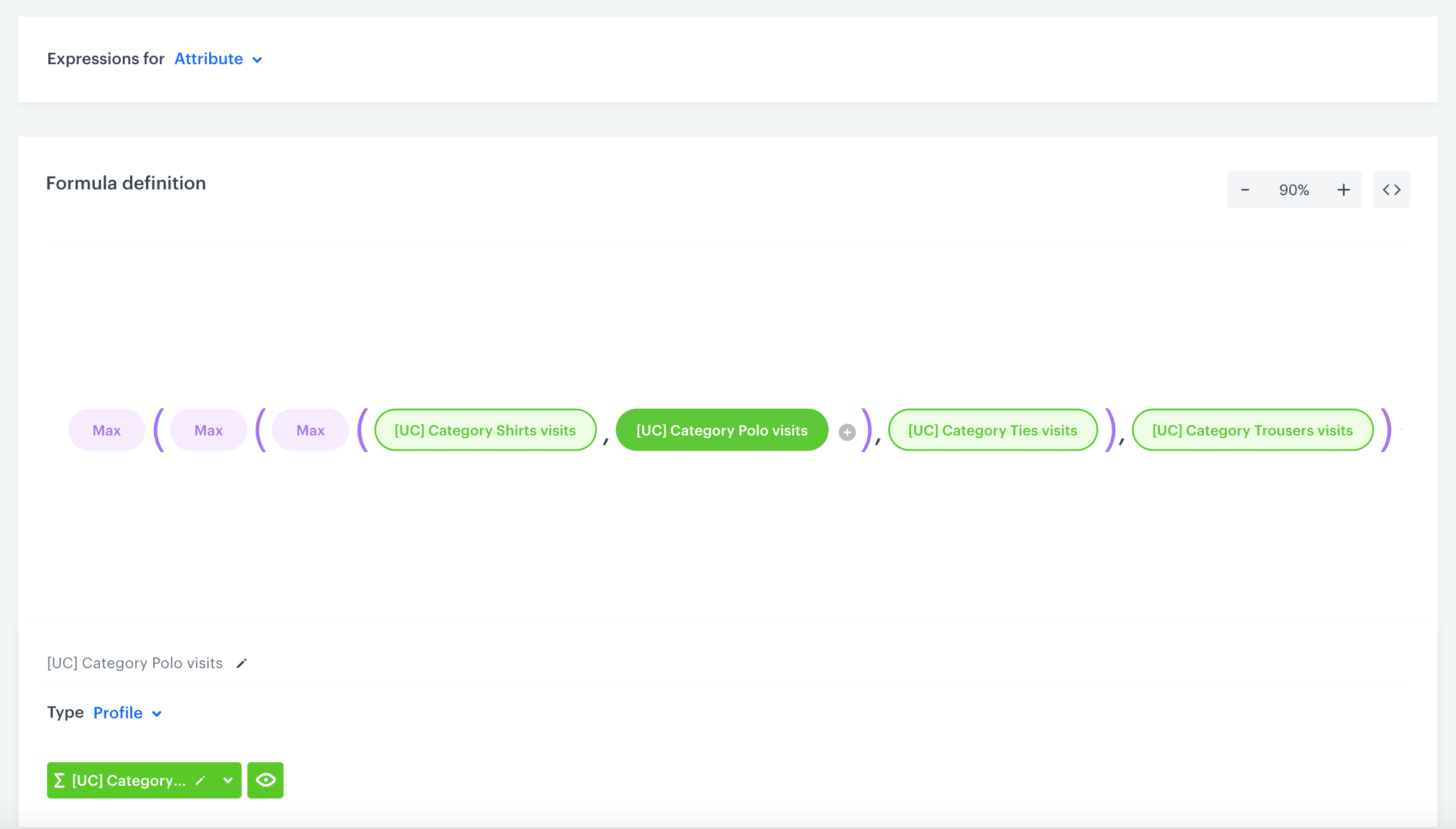
In this step, create an expression that will use the max function. This function returns the highest value in a set of values. Use it in order to return the result of the category most frequently visited by the user. It will be used later in building the segmentation.

1. Go to <img src="/api/docs/image/54176ad07f146575310749eba44b7c2f42c1b327/icons/behavioral-data-hub-icon.svg" alt="Behavioral Data Hub icon" class="icon"> **Behavioral Data Hub > Expressions > New expression**.
2. Enter the name of the expression.
3. From the dropdown list, select **Attribute**.
4. To start creating the formula of the expression, click the **Select** button. 
5. Create the formula as presented on the video below:
    
6. Save the expression by clicking **Save**. The expression returns the highest values for every category.
 <figure>
    <img src="/api/docs/image/54176ad07f146575310749eba44b7c2f42c1b327/use-cases/all-cases/_gfx/create-expression.png" alt="Filled settings of the expression" class="large" >
    <figcaption>Filled settings of the expression</figcaption>
    </figure>
    
## Create a segmentation
---

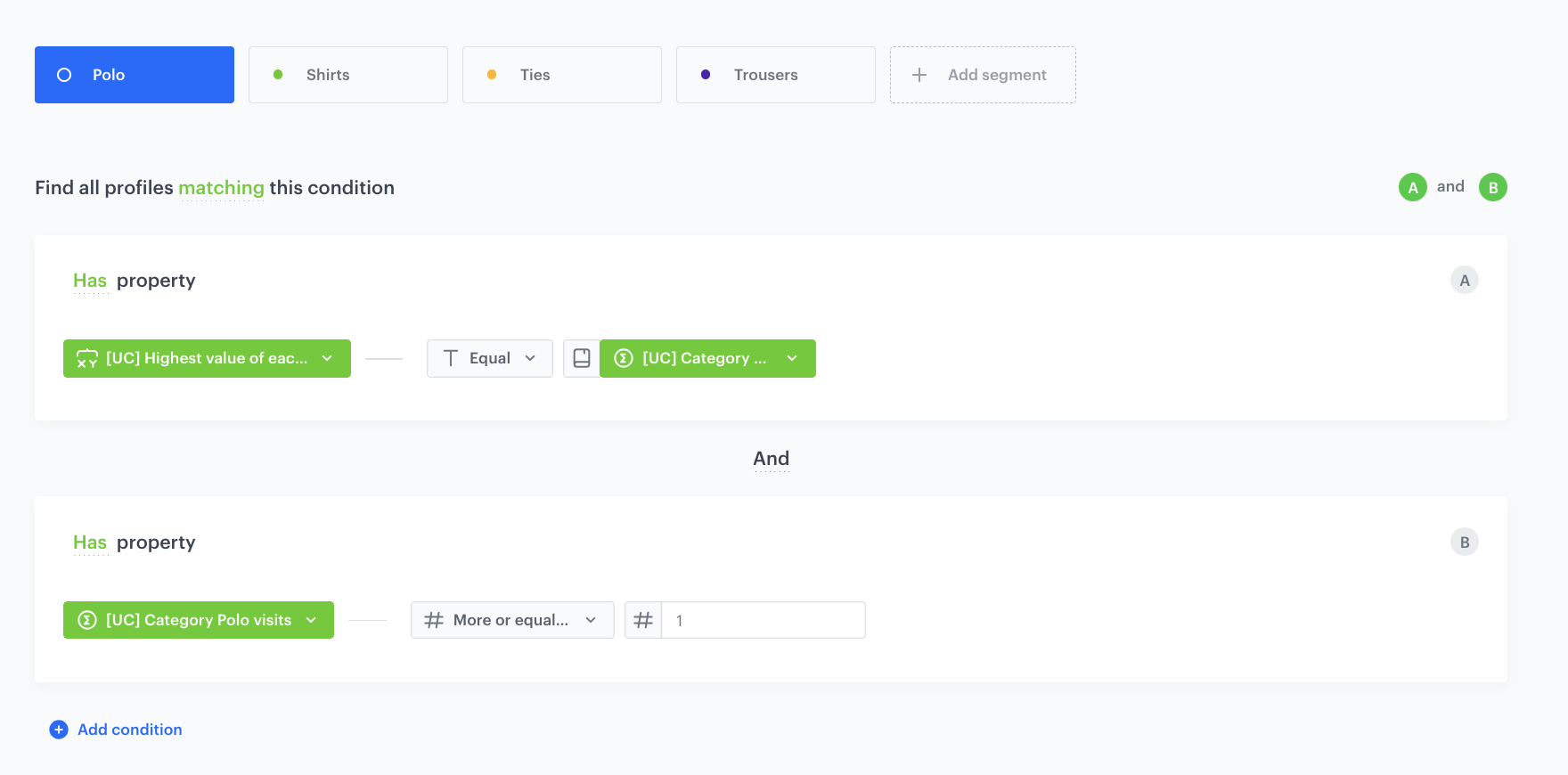
In this stage, create a segmentation based on previously created aggregates and expression. It will contain four segments, each dedicated to one category. This way you will find out which of the categories is most popular.

1. Go to <img src="/api/docs/image/54176ad07f146575310749eba44b7c2f42c1b327/icons/decision-hub-icon.svg" alt="Decision Hub icon" class="icon"> **Decision Hub > Segmentations > New segmentation**.
2. Enter the name of the segmentation.
3. Click **Choose filter**.
4. Select the **Profiles** tab. 
5. Select **Expressions**.
6. Find the expression created in the previous steps.
7. Choose the **Equal** operator.
8. Click the icon next to the logic operator and keep clicking until you get <img src="/api/docs/image/54176ad07f146575310749eba44b7c2f42c1b327/icons/choose-value.png" alt="Choose value icon" class="icon">.
9. From the **Choose value** dropdown list, click the <img src="/api/docs/image/54176ad07f146575310749eba44b7c2f42c1b327/icons/threedoticon.png" alt="Three-dot icon" class="icon"> icon, and then select **Aggregates**. 
10. Find the aggregate for the first product category.
11. From the **Choose filter** dropdown list, select an aggregate for the same product category for which you are creating a segment.
12. From the **Choose operator** dropdown, choose **Number**, and then select **More or equal to**.
13. Next to the logical operator, in the text field, enter `1`.  

    <div class="admonition admonition-note"><div class="admonition-icon"><svg xmlns="http://www.w3.org/2000/svg" fill="none" viewBox="0 0 24 24" stroke="currentColor" stroke-width="2.5"><path stroke-linecap="round" stroke-linejoin="round" d="M13 16h-1v-4h-1m1-4h.01M21 12a9 9 0 11-18 0 9 9 0 0118 0z" /></svg></div><div class="admonition-body"><div class="admonition-content">

    With this additional condition, you ensure to include in the segment only those users who have at least 1 visit on the selected page category.

    </div></div></div>

14. Create the next segments for the remaining product categories by clicking the <img src="/api/docs/image/54176ad07f146575310749eba44b7c2f42c1b327/icons/add-variant-icon.png" alt="Plus icon" class="icon"> icon.  
15. To save the segmentation, click **Save**.
16. To preview the visual form of the segmentation, click **Preview analyze**.  

   <div class="admonition admonition-note"><div class="admonition-icon"><svg xmlns="http://www.w3.org/2000/svg" fill="none" viewBox="0 0 24 24" stroke="currentColor" stroke-width="2.5"><path stroke-linecap="round" stroke-linejoin="round" d="M13 16h-1v-4h-1m1-4h.01M21 12a9 9 0 11-18 0 9 9 0 0118 0z" /></svg></div><div class="admonition-body"><div class="admonition-content">

   If you want to include a customer in more than one segment when the customer met all the conditions, you can enable the **Multi-match** toggle. Remember, however, that **this option is only available for preview proposals and cannot be used for targeting, communication or in building further analyses**.

   </div></div></div>


<figure>
    <img src="/api/docs/image/54176ad07f146575310749eba44b7c2f42c1b327/use-cases/all-cases/_gfx/use-case-sub-segmentation.png" alt="Adjusted segmentation form" class="large" >
    <figcaption>Adjusted segmentation settings</figcaption>
    </figure>

## What's next
---
You can use the created segmentation on the [dashboard](/docs/analytics/analytics-dashboard) or use it as an audience in any [communication channel](/docs/campaign). You can also display personalized communicates on the website using [dynamic content](/docs/campaign/dynamiccontent) depending on the most often visited category by your customers.
## Check the use case set up on the Synerise Demo workspace
---
The list below contains the aggregates from the use case with example categories created in our Synerise Demo workspace:
- [Aggregate that returns the number of visits to the men shirts category](https://app.synerise.com/analytics/aggregates/15dfe25c-49d0-3f55-a148-6948ebc96de6)
- [Aggregate that returns the number of visits to the men trousers category](https://app.synerise.com/analytics/aggregates/4bcc37f7-ca21-3fac-91fe-344532d1203e)
- [Aggregate that returns the number of visits to the men ties category](https://app.synerise.com/analytics/aggregates/84e94e08-75df-39a7-a361-0fd1e440c726)
- [Aggregate that returns the number of visits to the men polo category](https://app.synerise.com/analytics/aggregates/8850e1eb-6a9c-3147-8ad0-b306f2a55b32)

In our Synerise Demo workspace you can also find the configuration of [the expression that returns the most frequently visited category by a customer](https://app.synerise.com/analytics/expressions/a2d2b9ca-dc01-484a-8c6b-b5d6d1e83f3a) and [segmentation that organizes customers according to the visits to the categories](https://app.synerise.com/analytics/segmentations/b641998d-d035-4fd4-9b57-d7829c5e1528).

If you’re our partner or client, you already have automatic access to the **Synerise Demo workspace (1590)**, where you can explore all the configured elements of this use case and copy them to your workspace.  

If you’re not a partner or client yet, we encourage you to fill out the contact [form](https://demo.synerise.com/request) to schedule a meeting with our representatives. They’ll be happy to show you how our demo works and discuss how you can apply this use case in your business. 

## Read more
---
- [Aggregates](/docs/analytics/aggregates) 
- [Expressions](/docs/analytics/expressions)
- [Segmentation](/docs/analytics/segmentations/creating-segmentations)