In this scenario, you will create a segmentation that allows you to understand the distribution of traffic to your website, in this example - mobile vs desktop visits.
This scenario assumes the default setup, in which a `page.visit` event has a **source** parameter that equals `WEB_DESKTOP` or `MOBILEWEB` depending on the client device.
## Prerequisites
---
- Add a [tracking code](/developers/web/installation-and-configuration) to your website.
## Create segmentation
---
Create a segmentation that organizes customers by sources from which they visited the website.
1. Go to **Decision Hub > Segmentations > New segmentation**.
2. Enter a meaningful name of the segmentation.
3. Add three segments by clicking **Add segment**.
4. Name the segments as follows: `Mobile and Desktop`, `Mobile`, and `Desktop`.
5. Define the conditions for each segment:
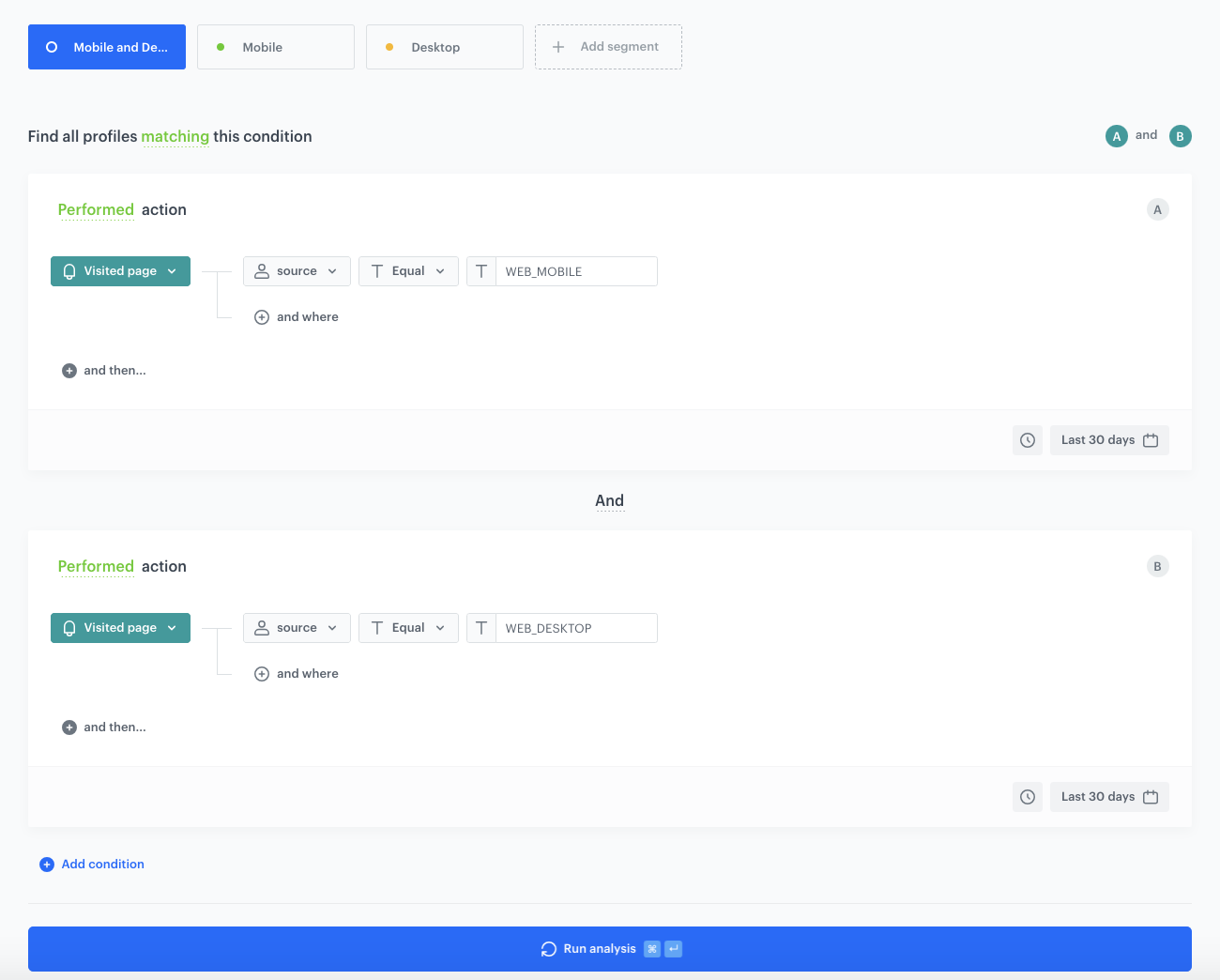
Mobile and Desktop
Click Performed event....
From the dropdown list, select page.visit.
As the event parameter, select source.
As the logical operator, select EQUAL.
In the text field, enter WEB_DESKTOP.
Click Performed event....
From the dropdown list, select page.visit.
As the event parameter, select source.
As the logical operator, select EQUAL.
In the text field, enter MOBILEWEB.
Join the two conditions with the And logical operator.
Mobile
Click Performed event....
From the dropdown list, select page.visit.
As the event parameter, select source.
As the logical operator, select EQUAL.
In the text field, enter MOBILEWEB.
Desktop
Click Performed event....
From the dropdown list, select page.visit.
As the event parameter, select source.
As the logical operator, select EQUAL.
In the text field, enter WEB_DESKTOP.
11. Save your segmentation.
Conditions of the segmentation
### Preview segmentation
1. Switch the **Multi-match** option on.
2. Click **Show preview**.
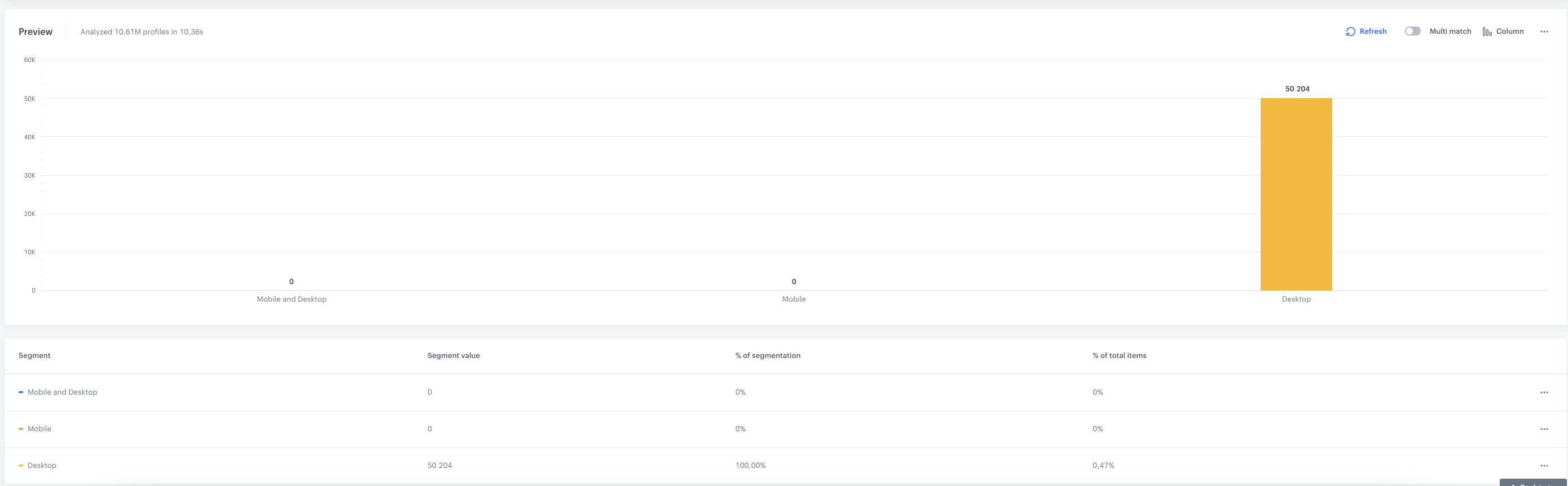
You receive the number of customers in each segment and the percentage of each segment in relation to the whole population in the segmentation.
Additionally:
- You can change the chart type - pie chart and column chart
- You can also export the information to CSV/XLSX (data) or JPEG/PNG/PDF (chart)
Preview of the segmentation
## Check the use case set up on the Synerise Demo workspace
---
You can check the [segmentation configuration](https://app.synerise.com/analytics-v2/segmentations/e02acab7-a40f-4004-8a1d-703491d704d7) directly in Synerise Demo workspace.
If you’re our partner or client, you already have automatic access to the **Synerise Demo workspace (1590)**, where you can explore all the configured elements of this use case and copy them to your workspace.
If you’re not a partner or client yet, we encourage you to fill out the contact [form](https://demo.synerise.com/request) to schedule a meeting with our representatives. They’ll be happy to show you how our demo works and discuss how you can apply this use case in your business.
## Read more
---
- [Segmentation](/docs/analytics/segmentations)