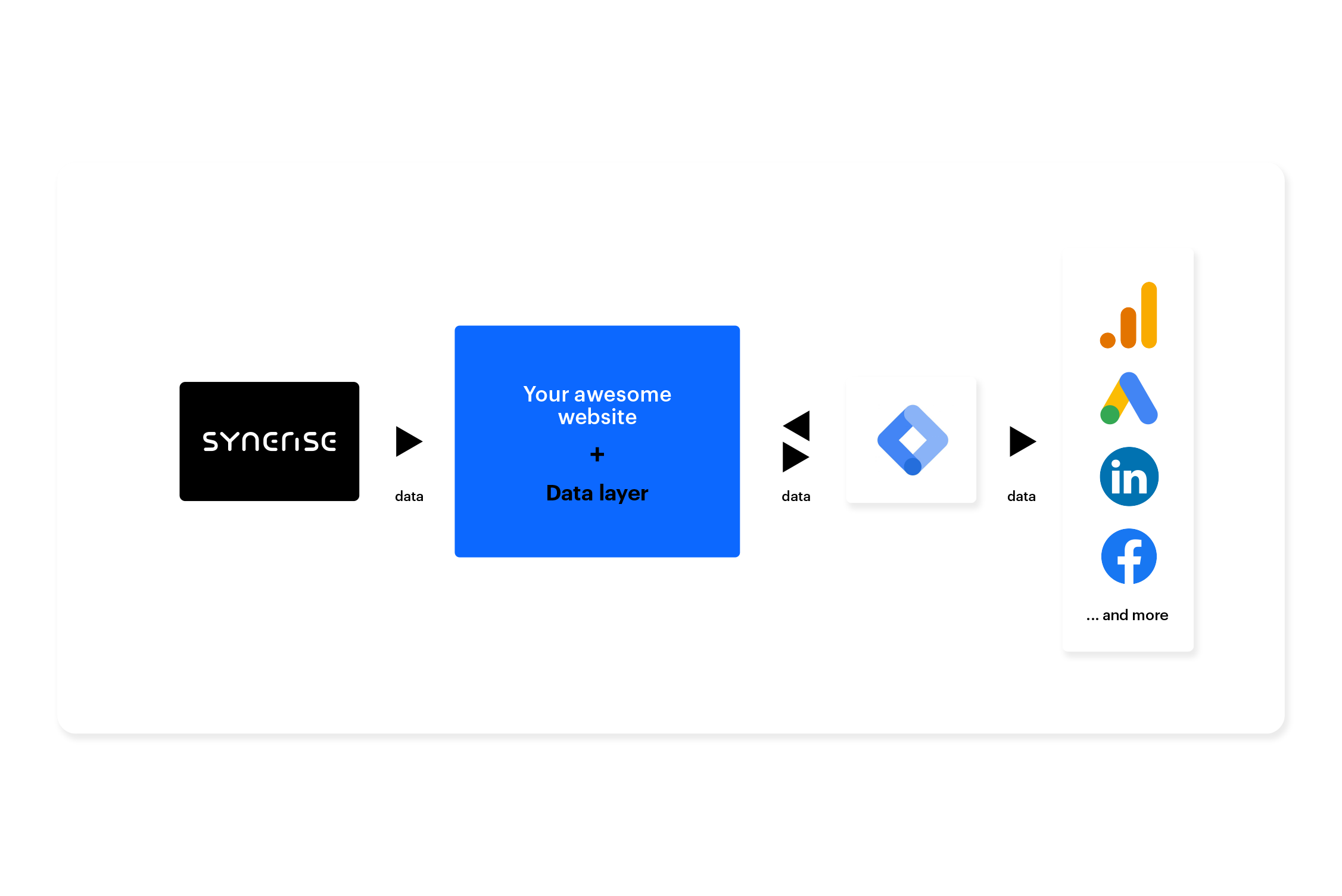
Transferring data to DataLayer is a common practice for companies to collect and store customer data in a centralized location. DataLayer is a powerful tool that allows companies to integrate customer data with other business applications, analytics tools, and third-party platforms. By storing data in a centralized location, businesses can gain valuable insights into their customers' behaviors and preferences, which they can use to create targeted marketing campaigns.

With the new predefined Dynamic Content templates, you can easily send aggregates and expression results to DataLayer. In this use case, the propensity to buy prediction results for a specific brand are sent to the DataLayer (along with the propensity to buy score for individual customers).

<figure>
<img src="/api/docs/image/54176ad07f146575310749eba44b7c2f42c1b327/use-cases/all-cases/_gfx/send-data-to-datalayer-v2.png" alt="Sending data to DataLayer"  class="full no-frame">
</figure> 

## Prerequisites 
---
- Implement a [tracking code](/developers/web/installation-and-configuration) into your website.
- Create an [item feed](/developers/product-feed).
- [Enable the Propensity prediction type](/docs/ai-hub/predictions/enabling-predictions#enabling-propensity-and-best-fit-predictions).
- [Implement Google Data Layer on your website](https://developers.google.com/tag-platform/tag-manager/web/datalayer).

## Process 
---

In this use case, you will go through the following steps:
1. [Create a prediction](/use-cases/send-aggregate-to-datalayer#create-a-prediction).
2. [Create an aggregate](/use-cases/send-aggregate-to-datalayer#create-an-aggregate) that returns the last propensity score received by each customer. 
2. [Create dynamic content](/use-cases/send-aggregate-to-datalayer#create-dynamic-content) that send the results of aggregate to DataLayer.

## Create a prediction 
---
Create a prediction of the propensity to buy a specific brand. The results of this prediction will be sent to DataLayer.

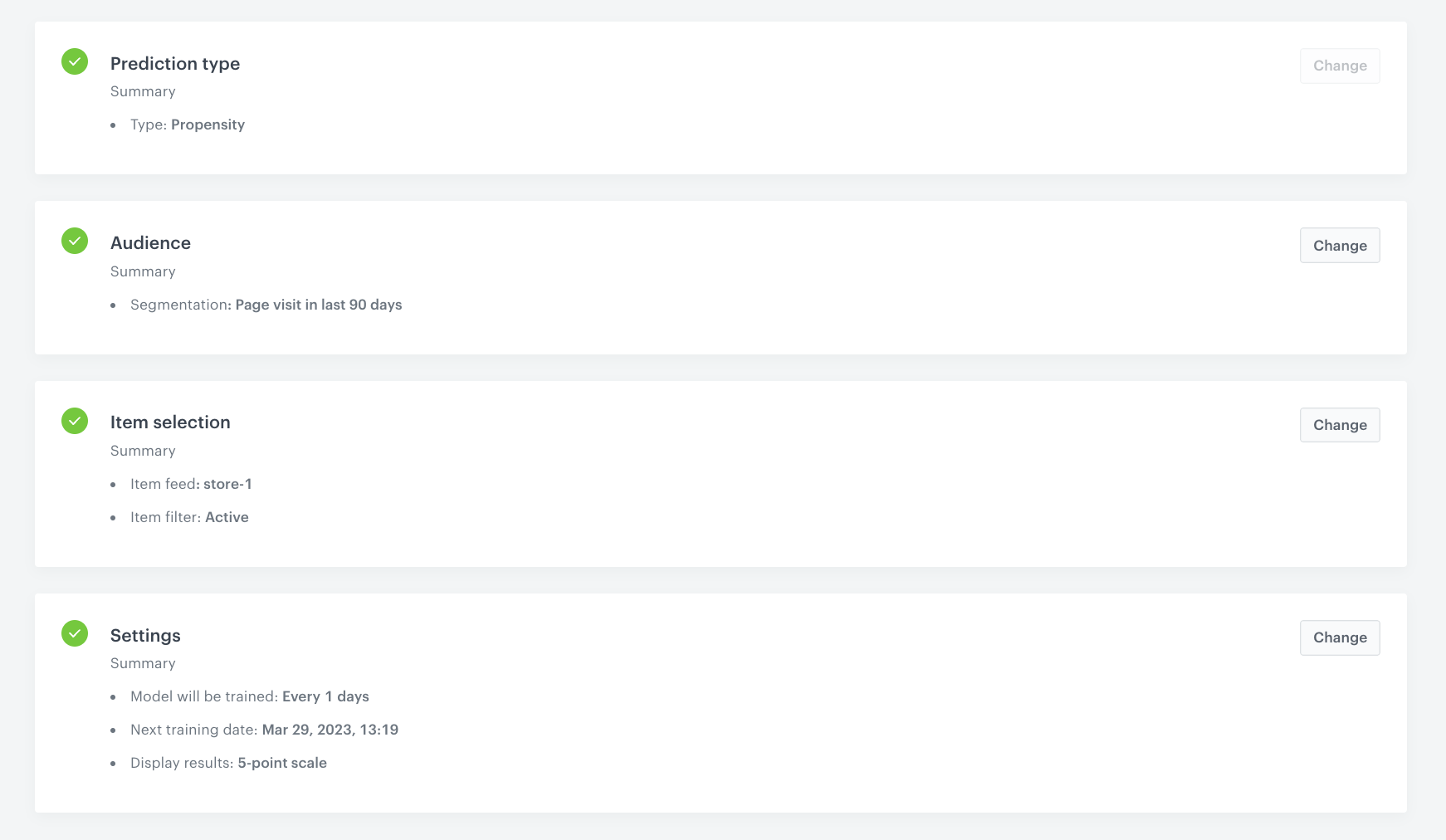
1. Go to <img src="/api/docs/image/54176ad07f146575310749eba44b7c2f42c1b327/icons/ai-hub-icon.svg" alt="Image presents the AI Hub icon" class="icon"> **(AI Predictions) Models > New prediction** and select **Propensity** as the prediction type.
2. Select the audience for the prediction. In our case, we will use segmentation of customers who have visited the website in the last 90 days. You can find the configuration of this segmentation [in this part](/use-cases/send-aggregate-to-datalayer#check-the-use-case-set-up-on-the-synerise-demo-workspace) of the use case.  
For more information, see the [Predictions quick start article](/docs/ai-hub/predictions/propensity#select-customers-to-be-analyzed).

### Define the item

In this part of the process, define the brand(s) for which you want to calculate the prediction by defining the item filter conditions.

1. In the **Item selection** section, click **Define**.
2. Click **Choose item feed**.
3. Select the catalog that contains the items you want to make the prediction for.  
    **Result**: The **Item filter** section appears.
4. Click **Define item filter**.
5. From the **Select attribute** dropdown list, select the `brand` attribute.
    You can use the search field.
6. From the dropdown list that appears, select the **Equal** operator.
7. Select the desired brand(s). 
8. Click **Save**.
9. Save the item feed configuration by clicking **Apply**.
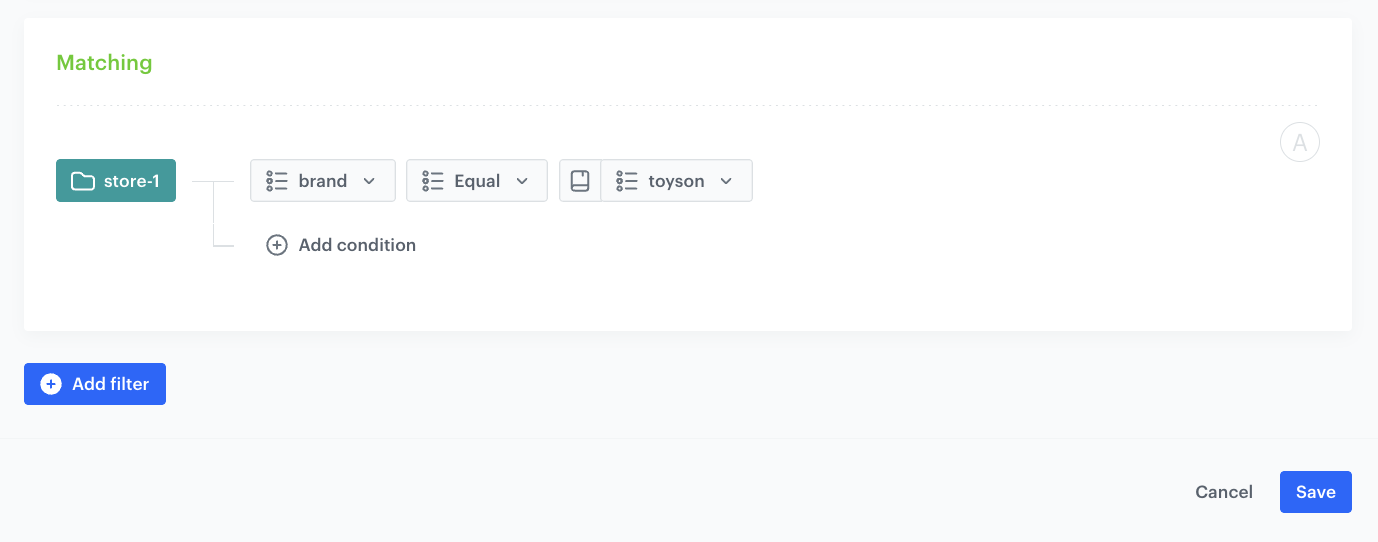
<figure>
<img src="/api/docs/image/54176ad07f146575310749eba44b7c2f42c1b327/use-cases/all-cases/_gfx/propensity-item-filter.png" class="full" alt="Item filter configuration">
<figcaption>Item filter configuration</figcaption>
</figure>

### Additional settings and saving

Configure the [additional settings](/docs/ai-hub/predictions/propensity#additional-settings) (or leave them at default) and click **Save & Calculate**.


<div class="admonition admonition-note"><div class="admonition-icon"><svg xmlns="http://www.w3.org/2000/svg" fill="none" viewBox="0 0 24 24" stroke="currentColor" stroke-width="2.5"><path stroke-linecap="round" stroke-linejoin="round" d="M13 16h-1v-4h-1m1-4h.01M21 12a9 9 0 11-18 0 9 9 0 0118 0z" /></svg></div><div class="admonition-body"><div class="admonition-content">

After the calculation, a `snr.propensity.score` event is saved in the profiles of each customer in the audience. The event data includes detailed results of the prediction.

</div></div></div>
  

<figure>
<img src="/api/docs/image/54176ad07f146575310749eba44b7c2f42c1b327/use-cases/all-cases/_gfx/propensity-to-buy-specific-brand.png" class="full" alt="Configuration of the prediction">
<figcaption>Configuration of the prediction</figcaption>
</figure>

## Create an aggregate
---
In this part of the process, create an aggregate that returns the last propensity score obtained by each customer.

1. Go to <img src="/api/docs/image/54176ad07f146575310749eba44b7c2f42c1b327/icons/behavioral-data-hub-icon.svg" alt="Behavioral Data Hub icon" class="icon"> **Behavioral Data Hub > Live Aggregates > Create aggregate**.
2. As the aggregate type, select **Profile**.  
2. Enter the name of the aggregate.
3. Click **Analyze profiles by** and select **Last**.
4. From the **Choose event** dropdown list, select the **snr.propensity.score** event.
5. As the event parameter, select **score_label**.
6. Click **+ where** button.
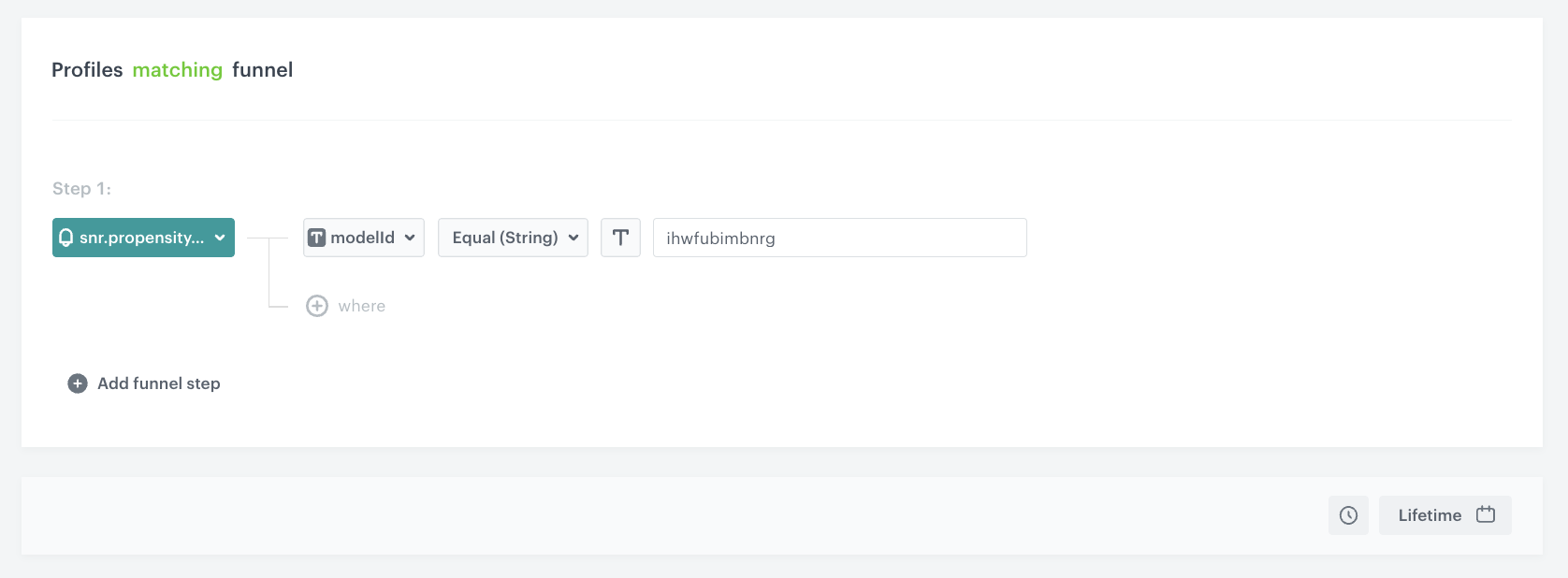
7. From the **Choose parameter** dropdown list, select the **modelId** parameter.
8. From the **Choose operator** dropdown list, select **Equal**.
9. Enter the ID of the propensity model created earlier in the process. In our case, it's `ihwfubimbnrg`. 
10. Set the period from which the aggregate will analyze the results to the **Lifetime**. 
11. Save the aggregate.
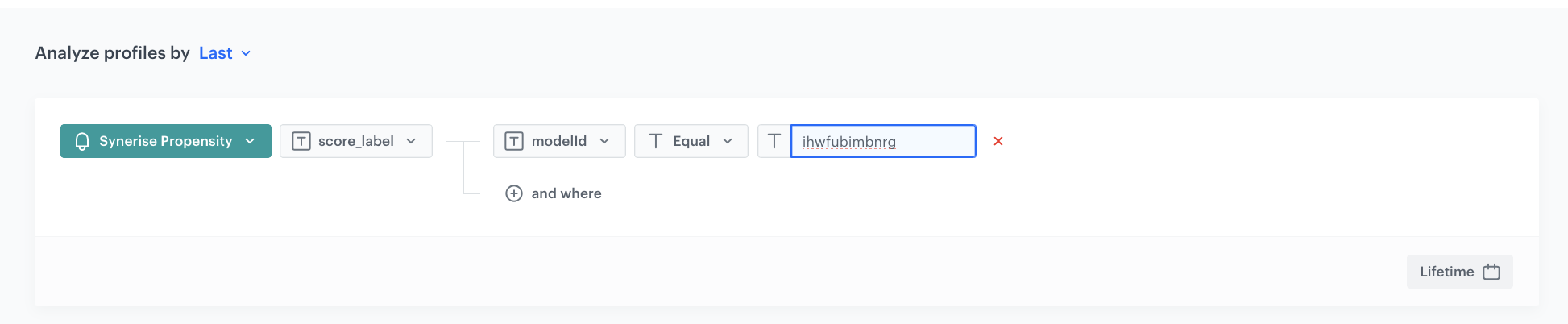
<figure>
<img src="/api/docs/image/54176ad07f146575310749eba44b7c2f42c1b327/use-cases/all-cases/_gfx/last-propensity-score-result.png" class="full" alt="Configuration of the aggregate">
<figcaption>Configuration of the aggregate</figcaption>
</figure>

## Create dynamic content 
---

1. Go to **Experience Hub > Dynamic content > Create new**.
2. Enter the name of the dynamic content.
3. Choose **Insert Object** type.
### Define Audience
4. As the Audience select **New Audience** and click **Define conditions**.  
    1. From the **Choose filter** dropdown list, select the **snr.propensity.score** event.
    2. Click **+ where** button.
    3. From the **Choose parameter** dropdown list, select the **modelId** parameter.
    4. From the **Choose operator** dropdown list, select **Equal**.
    5. Enter the ID of the propensity model created earlier in the process. In our case, it's `ihwfubimbnrg`. 
    6. Set the period from which the aggregate will analyze the results to the **Lifetime**. 
    7. Apply all conditions.
    8. Click **Apply** to save the audience.

<figure>
<img src="/api/docs/image/54176ad07f146575310749eba44b7c2f42c1b327/use-cases/all-cases/_gfx/dc-audience.png" class="full" alt="Audience configuration">
<figcaption>Audience configuration</figcaption>
</figure>

### Define content
5. In the **Content** section, select **Simple message**, and specify the CSS selector where you want to insert your search. In our case, we use the following selector: `.srns-modal-wrapper`
6. In the **Content** tab, click **Create Message**.
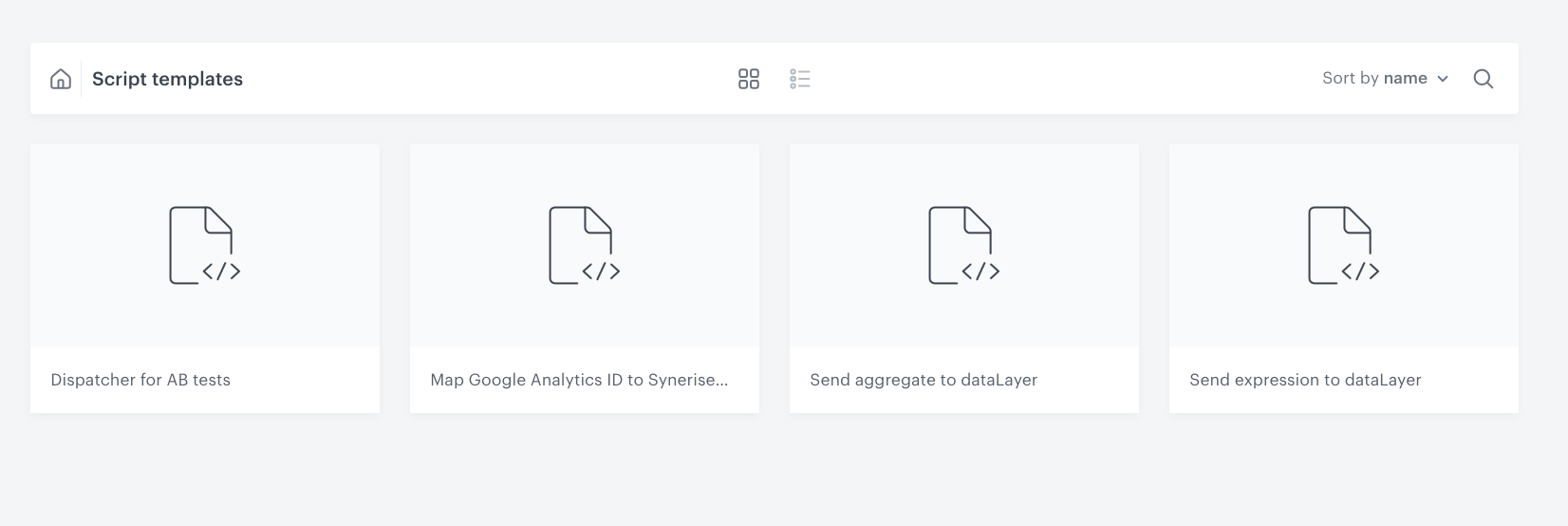
7. From the list of template folders, select a folder with the predefined script templates.  
    **Result**: You are redirected to the list of predefined templates.
    <figure>
    <img src="/api/docs/image/54176ad07f146575310749eba44b7c2f42c1b327/use-cases/all-cases/_gfx/script-templates.png" class="full" alt="Script templates folder">
    <figcaption>Script templates folder</figcaption>
    </figure>
8. Select the **Send aggregate to dataLayer** template.
    **Result**: You are redirected to the template builder.

   <div class="admonition admonition-note"><div class="admonition-icon"><svg xmlns="http://www.w3.org/2000/svg" fill="none" viewBox="0 0 24 24" stroke="currentColor" stroke-width="2.5"><path stroke-linecap="round" stroke-linejoin="round" d="M13 16h-1v-4h-1m1-4h.01M21 12a9 9 0 11-18 0 9 9 0 0118 0z" /></svg></div><div class="admonition-body"><div class="admonition-content">

   You can edit the template in two ways, by editing the code of the template ([add snippets](/docs/campaign/dynamiccontent/creating-dynamic-content-templates/dynamic-content-template-builder#adding-a-snippet-to-the-template-code), [add variables](/docs/campaign/dynamiccontent/creating-dynamic-content-templates/dynamic-content-template-builder#adding-a-variable)) and/or by filling out the form in the Config tab. In this use case, we will use the capabilities of the predefined Config tab.

   </div></div></div>


#### Edit the form in the Config tab 
The form in the **Config** tab is already filled in with default values. You can keep them or change them to fit your business needs.  

1. From the **Aggregate ID** dropdown list, select the [aggregate you created in the previous step](/use-cases/send-aggregate-to-datalayer#create-an-aggregate). You can find it by typing its name or ID in the search box.
2. In the **Event parameter name** field, define the name of event parameter that stores the aggregate value pushed in event to DataLayer. You can leave the default name of the event parameter defined in the template or change its name to a different one you want to see in the DataLayer.
3. In the **Event name** field, define the name of event pushed to DataLayer. 
4. If the template is ready, in the upper right corner, click **Save this template > Save as**.
5. On the pop-up:
    1. In the **Template name field**, enter the name of the template.
    2. From the **Template folder** dropdown list, select the folder where the template will be saved.
    3. Confirm by clicking **Apply**.
6. To continue the process of configuring the dynamic content campaign, click **Next**.
7. To save your content changes, click **Apply**.

### Define schedule and display settings
1. In the **Schedule** section, click **Define** and set the time when the message will be active. 
2. In the **Display Settings** section, click **Define**.
3. Specify circumstances for dynamic content to be displayed. Optionally, you can also define the Advanced options. In our case, we will define the frequency of dynamic content to be displayed to **Once per day**.
4. Click **Apply**. 
5. Optionally, you can define the UTM parameters and additional parameters for your dynamic content campaign.
6. Click **Activate**.

## Check the use case set up on the Synerise Demo workspace
---

You can check the configuration of each step from this use case in our Synerise Demo workspace:

- [Segmentation](https://app.synerise.com/analytics-v2/segmentations/11312171-ac93-4c81-a176-a096f7ec2538)
- [Propensity prediction](https://app.synerise.com/ai-v2/predictions/propensity/sqkrtvagceac)
- [Aggregate](https://app.synerise.com/analytics/aggregates/05775fe2-307f-3180-94d1-b7b9339f7c3f)
- [Dynamic content](https://app.synerise.com/campaigns/create/6491e0aa-e0c0-4c8e-a5d1-8dd9f5970cea)

If you’re our partner or client, you already have automatic access to the **Synerise Demo workspace (1590)**, where you can explore all the configured elements of this use case and copy them to your workspace.  

If you’re not a partner or client yet, we encourage you to fill out the contact [form](https://demo.synerise.com/request) to schedule a meeting with our representatives. They’ll be happy to show you how our demo works and discuss how you can apply this use case in your business.

## Read more
---
- [Aggregates](/docs/analytics/aggregates)
- [Dynamic content](/docs/campaign/dynamiccontent)
- [Dynamic content template builder](/docs/campaign/dynamiccontent/dynamic-content-template-builder)
- [Jinjava inserts](/developers/inserts)
- [Snippets](/docs/assets/snippets)