Synerise enables you to collect data from various sources and create advanced analyses based on this data. In short, Synerise enables you to gain insights from your data as well as create segments. The power of Synerise is that not only it allows you to gather, process and analyze data but also it lets you reuse it in the external sources.

In this use case, you will use the native Facebook integration in Automation Hub to send a group of customers who were active in the web and mobile channels during last 30 days to Custom Audience.  

## Prerequisites
---
- [Generate the system user access token in Facebook](https://developers.facebook.com/docs/audience-network/optimization/report-api/system-user/); as the `scope` value, select `ads_management`.
- [Create Custom Audience in Facebook](https://developers.facebook.com/docs/marketing-api/reference/custom-audience/).

## Process 
---
To send Custom Audience, follow the steps listed below in the following order:
1. [Create a segmentation of customers](/use-cases/send-custom-audience-webhook#create-a-segmentation) who are the most active in the web and mobile channels during last 30 days.
2. [Create a workflow](/use-cases/send-custom-audience-webhook#create-a-workflow) in which you will send the group of customers to Custom Audience in Facebook.

## Create a segmentation
---
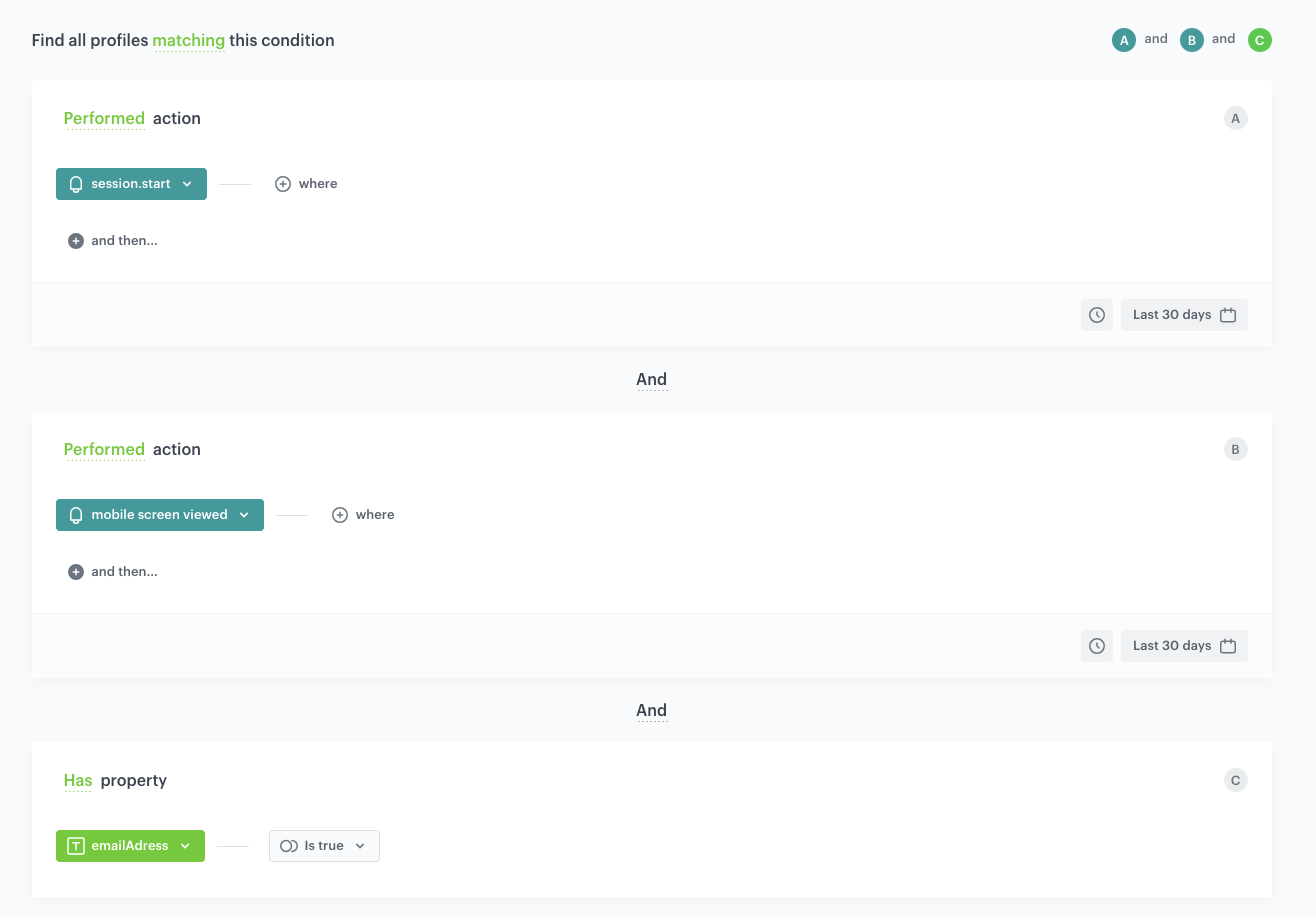
As the first part of the process, create a group of customers who were active in the mobile and web channels during last 30 days. The segmentation includes only customers with an email address. In the further part of the process, this group will be exported to Custom Audience in Facebook.  


<div class="admonition admonition-warning"><div class="admonition-icon"><svg xmlns="http://www.w3.org/2000/svg" fill="none" viewBox="0 0 24 24" stroke="currentColor" stroke-width="2.5"><path stroke-linecap="round" stroke-linejoin="round" d="M12 9v2m0 4h.01m-6.938 4h13.856c1.54 0 2.502-1.667 1.732-2.5L13.732 4c-.77-.833-1.964-.833-2.732 0L4.082 16.5c-.77.833.192 2.5 1.732 2.5z" /></svg></div><div class="admonition-body"><div class="admonition-content">

You must always narrow down the segmentation to customers who have an email address or a phone number.

</div></div></div>


1. Go to <img src="/api/docs/image/54176ad07f146575310749eba44b7c2f42c1b327/icons/decision-hub-icon.svg" alt="Decision Hub icon" class="icon" > **Decision Hub > Segmentations > New segmentation**.  
2. Enter a meaningful name of the segmentation. 
3. Click **Choose filter**.   
5. From the dropdown list, select the **session.start** event.  
4. As the time range, set **Last 30 days**.
6. Click **Choose filter**.  
7. From the dropdown list, select the **screen.view** event.
8. As the time range, set **Last 30 days**.
9. Click **Choose filter**.  
10. From the dropdown list, select the **Email address** attribute.  
11. As the logical operator, by clicking <img src="/api/docs/image/54176ad07f146575310749eba44b7c2f42c1b327/icons/boolean-icon.png" alt="Boolean icon" class="icon" > icon, select **Is true**. 
12. Connect these conditions by the **And** operator.  
13. Click **Save**. 

    <figure><img src="/api/docs/image/54176ad07f146575310749eba44b7c2f42c1b327/use-cases/all-cases/_gfx/send-custom-audience-segmentation.png" class="large" alt="The configuration of the segmentation"><figcaption>The configuration of the segmentation</figcaption></figure>

## Create a workflow
---
In this part of the process, create a workflow for the group of customers you created in the [previous step](/use-cases/send-custom-audience-webhook#create-a-segmentation). This workflow sends the group of customers to Custom Audience in Facebook.  

### Choose the segmentation of customers

1. Go to <img src="/api/docs/image/54176ad07f146575310749eba44b7c2f42c1b327/icons/automation-hub-icon.svg" alt="Automation Hub icon" class="icon" > **Automation Hub > Workflows > New workflow**.
2. On the dashboard, click the plus icon.
3. From the dropdown list, select **Audience**.  
    **Results**: The **Audience** node is added to the dashboard. 
4. Double-click the node.  
    **Result**: A pop-up appears.
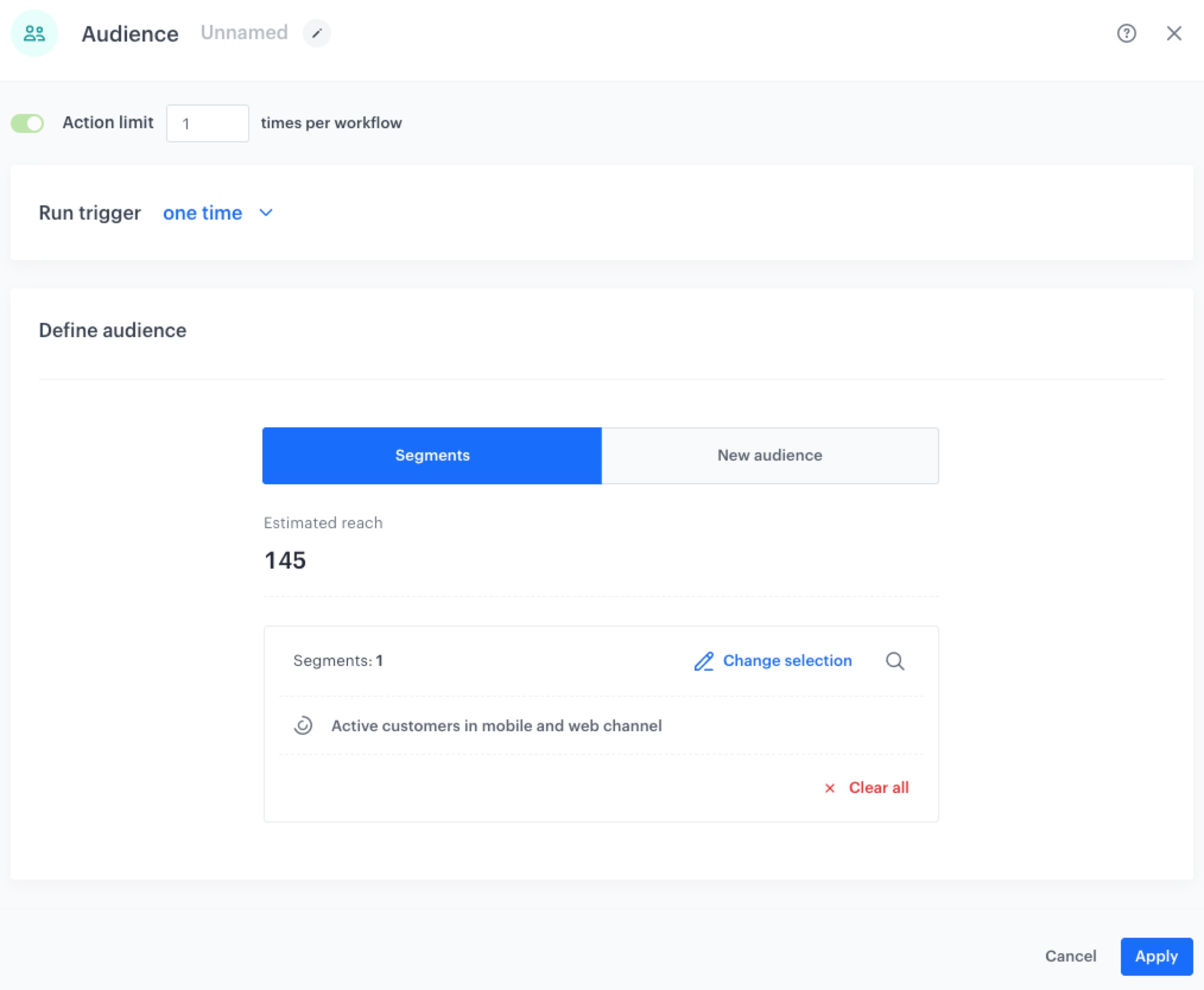
5. Leave the **Run trigger** option at default.
6. Click the **Select segment** button.
7. From the dropdown list, select the [segmentation you created in the previous step](/use-cases/send-custom-audience-webhook#create-a-segmentation).  
    **Result**:  
    <figure>
    <img src="/api/docs/image/54176ad07f146575310749eba44b7c2f42c1b327/docs/automation/_gfx/test-custom-audience.png" alt="The Audience node" class="large">
    <figcaption> The configuration of the Audience node </figcaption>
    </figure> 
7. Click **Apply**.

### Configure the Facebook integration

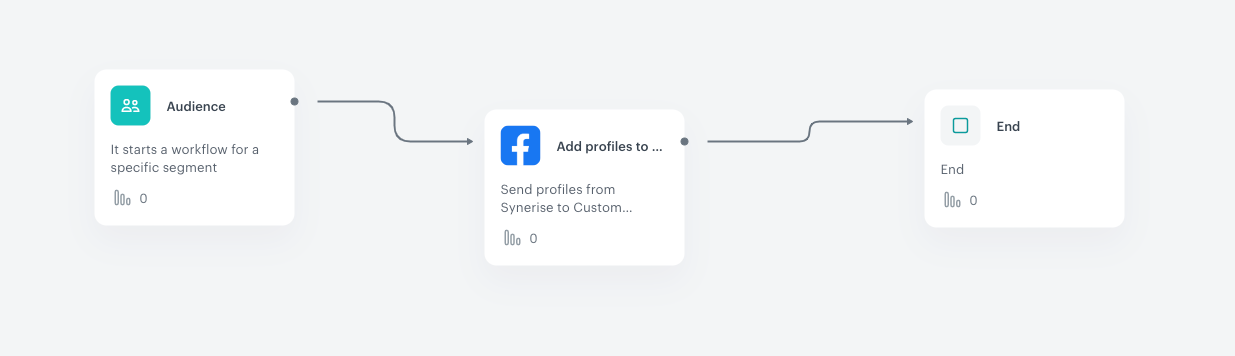
1. Click the plus button on the **Audience** node.
2. From the dropdown list, select the **Add Profiles to Custom Audience** node.
2. Double-click the node.
2. From the **Select connection** dropdown list, select an existing connection which allows you to authorize in Facebook Ad.  
    If you haven't established a connection yet:  
    1. At the bottom of the dropdown list, click **Add connection**.  
    2. In the **Access token** field, paste the token generated as a part of [prerequisites](/use-cases/send-custom-audience-webhook#prerequisites).
    3. Click **Next**.  
    4. In the **Connection name**, enter the name of the connection (it will be only visible on the list of connections).
    
   <div class="admonition admonition-tip"><div class="admonition-icon"><svg xmlns="http://www.w3.org/2000/svg" fill="none" viewBox="0 0 24 24" stroke="currentColor" stroke-width="2.5"><path stroke-linecap="round" stroke-linejoin="round" d="M9.663 17h4.673M12 3v1m6.364 1.636l-.707.707M21 12h-1M4 12H3m3.343-5.657l-.707-.707m2.828 9.9a5 5 0 117.072 0l-.548.547A3.374 3.374 0 0014 18.469V19a2 2 0 11-4 0v-.531c0-.895-.356-1.754-.988-2.386l-.548-.547z" /></svg></div><div class="admonition-body"><div class="admonition-content">

   The connection can be re-used to any custom audience created in the Facebook Ad Account related to the token generated as a part of [prerequisites](/use-cases/send-custom-audience-webhook#prerequisites).

   </div></div></div>

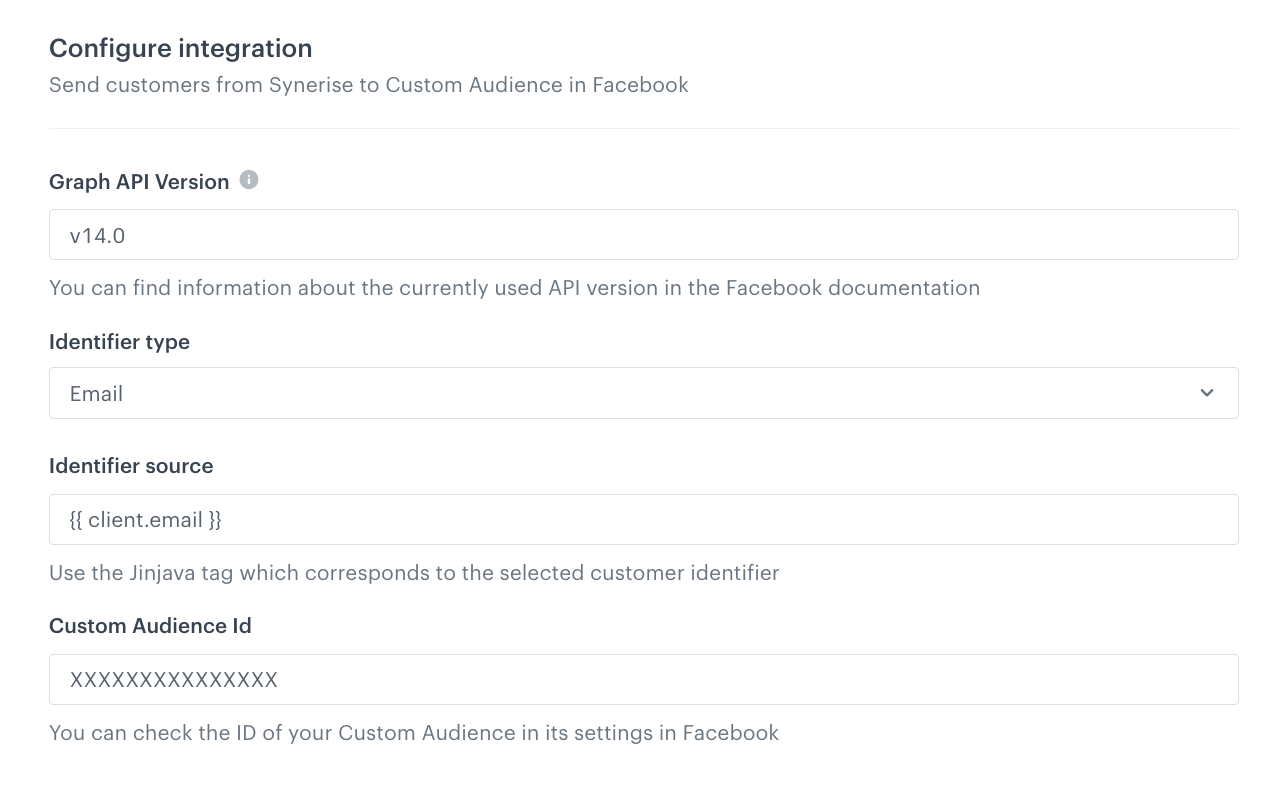
3. In the **API version** field, enter the Facebook API version according to the [Facebook documentation](https://developers.facebook.com/docs/marketing-api/audiences/guides/custom-audiences/).
5. From the **Identified type** dropdown list, select **Email**.
6. In the **Identifier source** field, enter `{{ client.email }}`.  
    
   <div class="admonition admonition-tip"><div class="admonition-icon"><svg xmlns="http://www.w3.org/2000/svg" fill="none" viewBox="0 0 24 24" stroke="currentColor" stroke-width="2.5"><path stroke-linecap="round" stroke-linejoin="round" d="M9.663 17h4.673M12 3v1m6.364 1.636l-.707.707M21 12h-1M4 12H3m3.343-5.657l-.707-.707m2.828 9.9a5 5 0 117.072 0l-.548.547A3.374 3.374 0 0014 18.469V19a2 2 0 11-4 0v-.531c0-.895-.356-1.754-.988-2.386l-.548-.547z" /></svg></div><div class="admonition-body"><div class="admonition-content">

   You can read more about Jinjava tags in Automation Hub [here](/developers/inserts/automation).

   </div></div></div>

4. In the **Audience ID** field, enter the ID of the Custom Audience to which you want to send your group of customers.  
    **Result**: 
    <figure>
    <img src="/api/docs/image/54176ad07f146575310749eba44b7c2f42c1b327/use-cases/all-cases/_gfx/send-custom-audience-native.png" alt="The configuration of the Add Profiles to Custom Audience node" class="large">
    <figcaption> The configuration of the Add Profiles to Custom Audience node </figcaption>
    </figure> 
6. Confirm by clicking **Apply**.  

### Add the End node

1. Click the plus icon on the **Add Profiles to Custom Audience** node.
2. From the dropdown list, select **End**.
3. In the upper right corner, click **Save & Run**.  

    <figure><img src="/api/docs/image/54176ad07f146575310749eba44b7c2f42c1b327/use-cases/all-cases/_gfx/send-custom-audience-workflow.png" class="large" alt="The final configuration of the workflow"><figcaption>The final configuration of the workflow</figcaption></figure>
4. Wait a few minutes for the response of the webhook. 

**Result**: An **automation** event is saved to the profiles of the customers. Then, go Facebook, to **Facebook Manager > Audiences** to check your Custom Audience.

<figure>
<img src="/api/docs/image/54176ad07f146575310749eba44b7c2f42c1b327/docs/automation/_gfx/webhook-response-custom-audience.png" alt="A webhook response with 200 status on a profile of a test customer" class="large">
<figcaption> A webhook response with the OK status (200) on a customer's profile </figcaption>
</figure>

## What's next
---
You can start creating personalized ads to your customers in Facebook. You can see your custom audience in **Facebook Manager > Audiences**.

## Check the use case set up on the Synerise Demo workspace
---

You can also check the [segmentation configuration](https://app.synerise.com/analytics/segmentations/6474998d-d04a-40cd-866c-c0f484d9eae1) and [workflow configuration](https://app.synerise.com/automations/automation-diagram/36e343c7-9d80-4600-b2c4-8f92cab368ed) directly in Synerise Demo workspace.

If you’re our partner or client, you already have automatic access to the **Synerise Demo workspace (1590)**, where you can explore all the configured elements of this use case and copy them to your workspace.  

If you’re not a partner or client yet, we encourage you to fill out the contact [form](https://demo.synerise.com/request) to schedule a meeting with our representatives. They’ll be happy to show you how our demo works and discuss how you can apply this use case in your business.


## Read more
---
- [Automation inserts](/developers/inserts/automation)
- [Automation Hub](/docs/automation)
- [Creating segmentations](/docs/analytics/segmentations/creating-segmentations)
- [Add Profiles to Custom Audience node](/docs/automation/integration/facebook/send-custom-audience)