In your business you probably use various tools to store customer information from different sources. With the help of Incoming Integration, Synerise can collect this data and store it in your workspace in any way you want - for example as customer data (attributes, events) or in a catalog. 

This use case describes how to prepare an automated workflow that synchronizes an updated list of customers opinions on your company stored in Google Spreadsheet with Synerise. The workflow is triggered with an incoming webhook and it creates an event with opinion on the customers' profiles. In Google Spreadsheet, we use Apps Script to send data every day to the incoming webhook. This article describes the example of custom events but you can perform other actions in Synerise using the data in Google Spreadsheet depending on what you store there, for example, you can update data in a Synerise catalog or add new customers.


<div class="admonition admonition-note"><div class="admonition-icon"><svg xmlns="http://www.w3.org/2000/svg" fill="none" viewBox="0 0 24 24" stroke="currentColor" stroke-width="2.5"><path stroke-linecap="round" stroke-linejoin="round" d="M13 16h-1v-4h-1m1-4h.01M21 12a9 9 0 11-18 0 9 9 0 0118 0z" /></svg></div><div class="admonition-body"><div class="admonition-content">

Completing this procedure requires some knowledge on sending API requests using cURL, Postman, or similar tools.

</div></div></div>
 

## Prerequisites 
---
Create a [Google Spreadsheet](https://www.google.com/sheets/about/) with data you would like to synchronise with Synerise. In our case, the spreadsheet document contains two columns: 
- `opinion` which contains information about the feedback that customer gave about the company 
- `email` which contains the customer's email.

## Process
---

In this use case, you will go through the following steps:
1. [Create an iconming integration](#create-an-incoming-integration).
2. [Configure a Google Spreadsheet](#configure-a-google-spreadsheet).
3. [Create a workflow](#create-a-workflow).

## Create an incoming integration
---
In this part of the process, create an incoming integration to which you will send the data submitted through Google Spreadsheet.

1. Go to <img src="/api/docs/image/54176ad07f146575310749eba44b7c2f42c1b327/icons/automation-hub-icon.svg" alt="Automation Hub icon" class="icon" > **Automation Hub > Incoming > New integration**.
2. On the pop-up, select **Without authentication**.
2. Enter the name of the webhook.
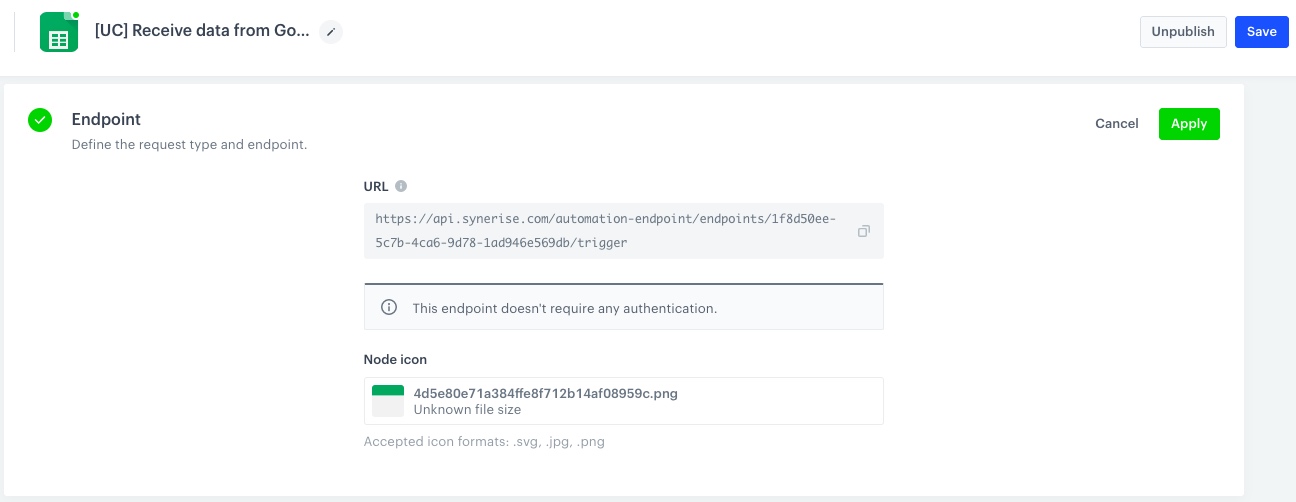
3. In the **Endpoint** section, click **Define**.  
        
   <div class="admonition admonition-important"><div class="admonition-icon"><svg xmlns="http://www.w3.org/2000/svg" fill="none" viewBox="0 0 24 24" stroke="currentColor" stroke-width="2.5"><path stroke-linecap="round" stroke-linejoin="round" d="M12 8v4m0 4h.01M21 12a9 9 0 11-18 0 9 9 0 0118 0z" /></svg></div><div class="admonition-body"><div class="admonition-content">

   The URL field is already filled in with the endpoint to which the data submitted throught the form will be sent.

   </div></div></div>
 
    1. Optionally, you can add an icon to this integration.
    3. Confirm by clicking **Apply**.  

    <figure>
    <img src="/api/docs/image/54176ad07f146575310749eba44b7c2f42c1b327/use-cases/all-cases/_gfx/endpoint_iw.png" alt="The view of configuration of the Endpoint section"  class="large">
    <figcaption>Configuration of the Endpoint section</figcaption>
    </figure> 

4. In the **Incoming data** section, click **Define**.
5. Click **Retrieve data**. Right after you click the button, send a request to the endpoint in the **Endpoint** section with the sample of data that will be sent through forms. The system waits for the incoming request for 1 minute and 30 seconds. Example request:  

    
   <div class="admonition admonition-important"><div class="admonition-icon"><svg xmlns="http://www.w3.org/2000/svg" fill="none" viewBox="0 0 24 24" stroke="currentColor" stroke-width="2.5"><path stroke-linecap="round" stroke-linejoin="round" d="M12 8v4m0 4h.01M21 12a9 9 0 11-18 0 9 9 0 0118 0z" /></svg></div><div class="admonition-body"><div class="admonition-content">

   Replace the endpoint URL from the example with the endpoint URL from step 4.

   </div></div></div>


   <pre><code class="language-plaintext">curl --location --request POST 'https://{SYNERISE_API_BASE_PATH}/automation-endpoint/endpoints/END_ID/trigger' \
   --header 'Content-Type: application/json' \
   --data-raw '{
    "opinion": "Great company",
    "email": "xyz@test.com"
   }'</code></pre>
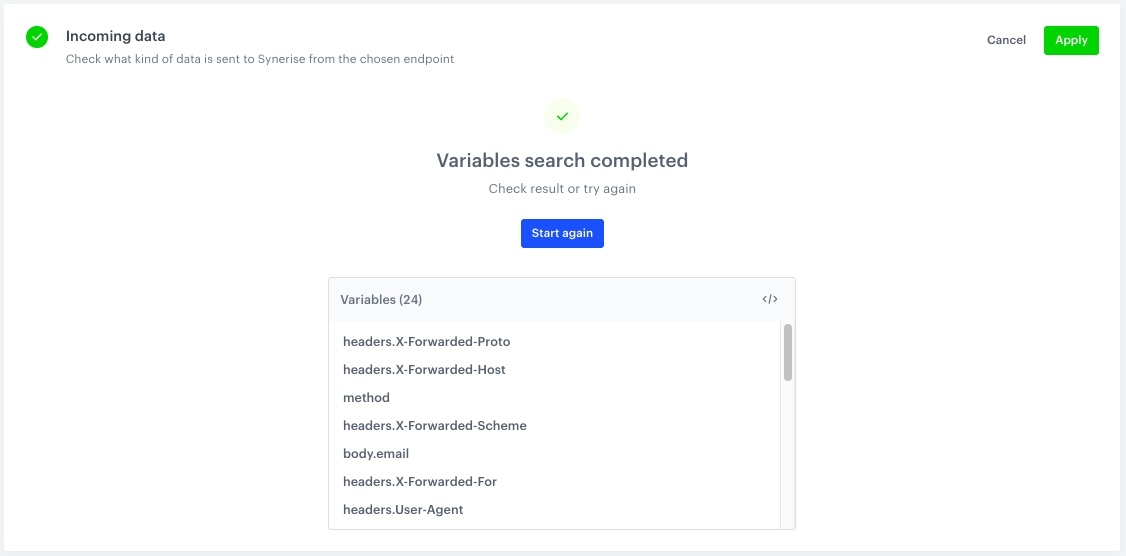

6. When the endpoint receives data from the request, verify the list of variables. If the variables include those which are in the payload (in this case, opinion and email), click **Define**. If not, click **Start again** re-send request, and wait for the results.
    <figure>
    <img src="/api/docs/image/54176ad07f146575310749eba44b7c2f42c1b327/use-cases/all-cases/_gfx/incoming_data.png" alt="The view of collected variables from the request"  class="large">
    <figcaption>Collected variables from the request</figcaption>
    </figure> 

7. Click **Save & publish**.  

## Configure a Google Spreadsheet
---
In this part of the process, you will create and schedule a script that sends data from your spreadsheet to Synerise at a specific time, everyday. The script will be created in Apps Script - one of the extensions available in Google Spreadsheets.

1. Go to your **Google Sheets** account and select the Spreadsheet with customers' opinions.
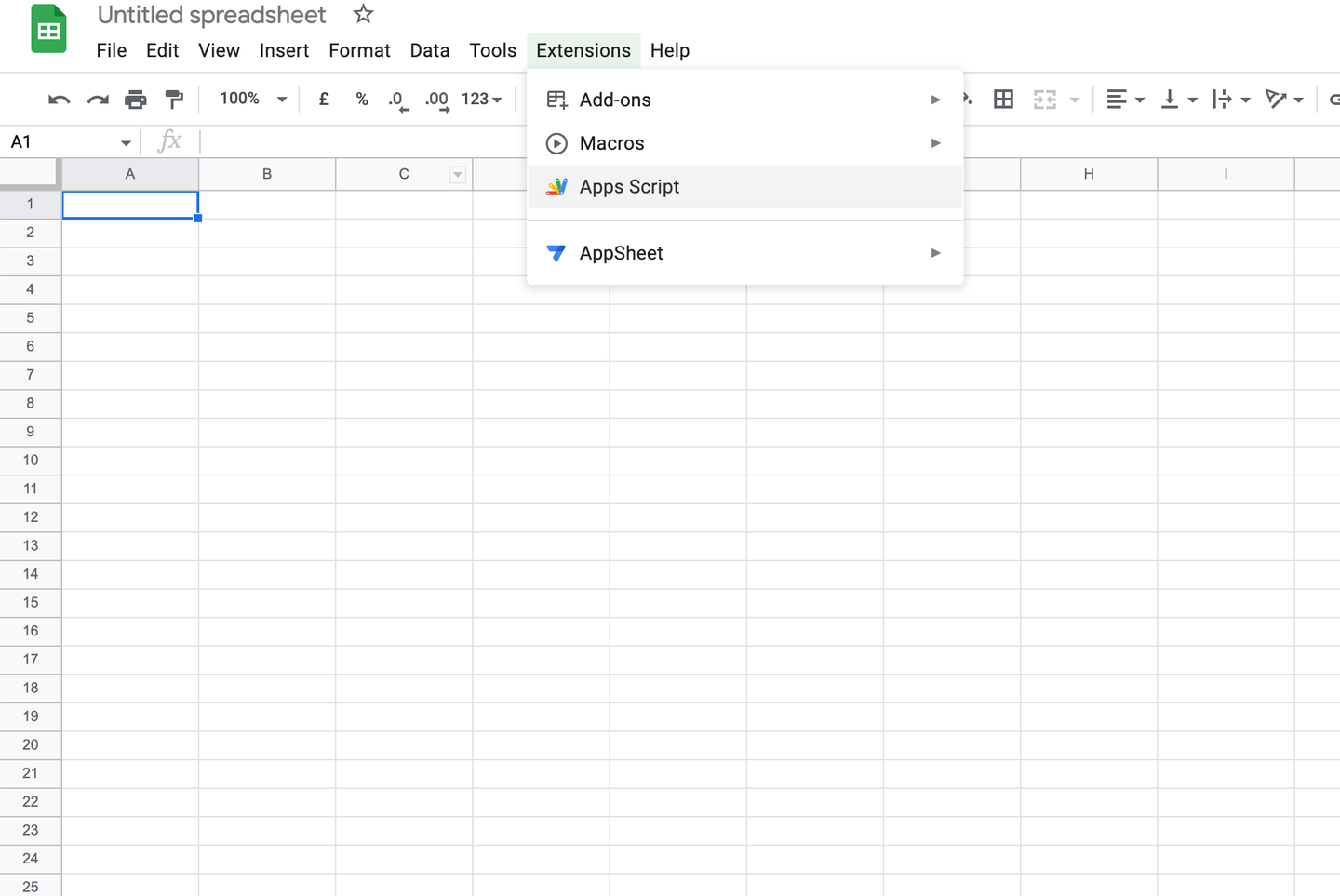
2. Click on **Extensions** and from the dropdown list, selct **Apps Script**.

    <figure>
    <img src="/api/docs/image/54176ad07f146575310749eba44b7c2f42c1b327/use-cases/all-cases/_gfx/appscript.png" alt="The view of Google Sheet toolbar"  class="large">
    <figcaption>Google Sheet toolbar</figcaption>
    </figure>

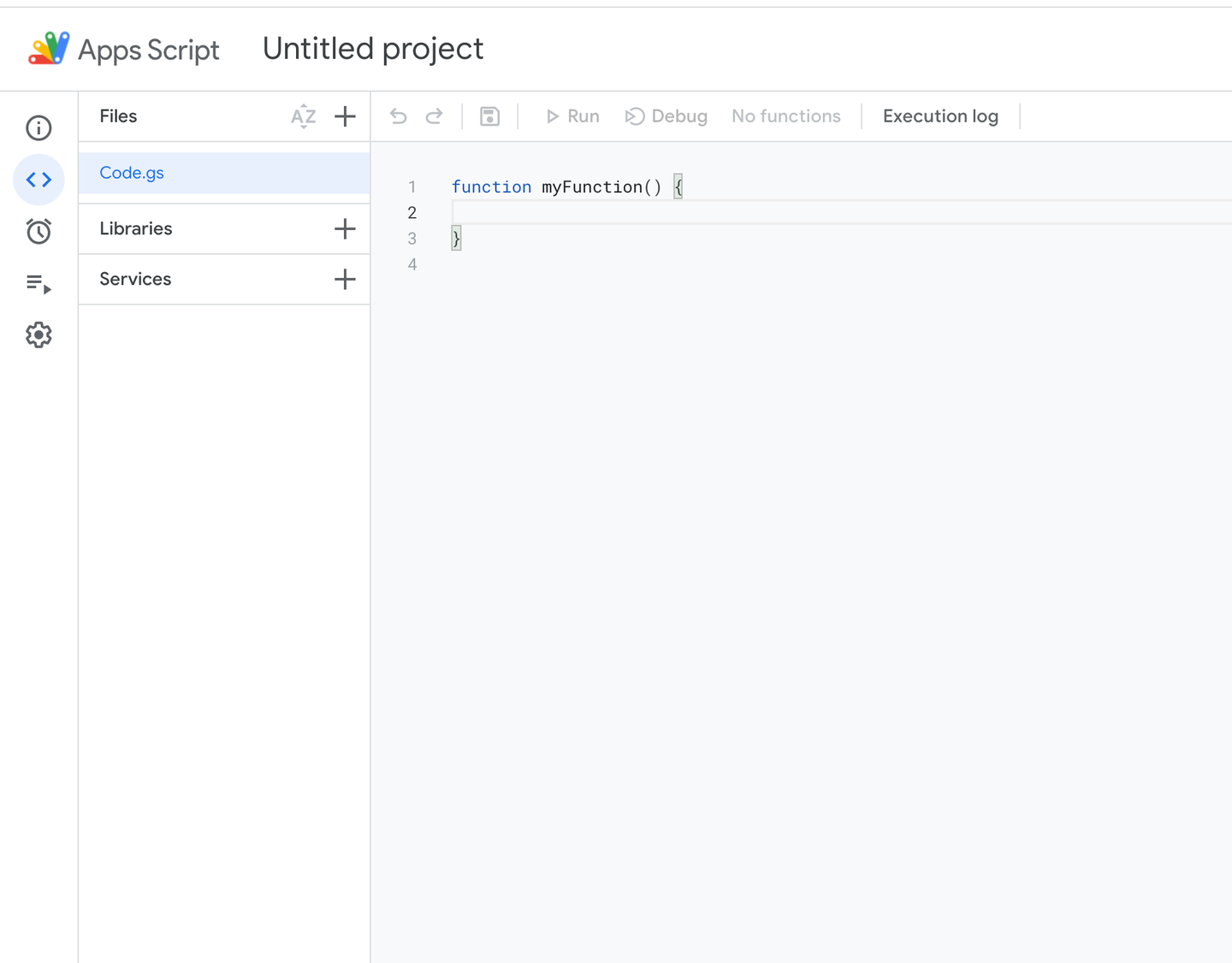
    **Result**: A window opens.
 
    <figure>
    <img src="/api/docs/image/54176ad07f146575310749eba44b7c2f42c1b327/use-cases/all-cases/_gfx/appscript 2.png" alt="The view of App Script"  class="large">
    <figcaption>Apps Script view</figcaption>
    </figure> 
  
4. Paste the below JavaScript into code window.
5. In the fragment of the code marked as `#insert_endpoint_URL_here#`, insert the endpoint URL from [first step](#create-an-incoming-integration). 
   This script is responsible for sending requests to the incoming webhook with maximum 1000 rows (this limit is configurable in the below code), if the `email` or `opinion` columns are not empty. 

    
   <pre><code class="language-javascript">function onOpen() {
    var ss = SpreadsheetApp.getActiveSpreadsheet();
    var menuEntries = [
        { name: "Send to Synerise ", functionName: "doGet" },
    ];
    ss.addMenu("Export to Synerise", menuEntries);
   }
   function doGet() {
    var ss = SpreadsheetApp.getActiveSpreadsheet();
    var sheet = ss.getSheets()[0];
    var range = sheet.getRange(2, 1, 1000, 2); // 1000 is number of last row
    var values = range.getValues();
    for (var row in values) {
        if (values[row][0].length != 0 &amp;&amp; values[row][1].length != 0) {
            var obj = {};
            obj.email = values[row][0]
            obj.opinion = values[row][1]
            UrlFetchApp.fetch('#insert_endpoint_URL_here#', {
                "method": "post",
                payload: JSON.stringify(obj), headers: { "content-type": "application/json" }
            })
        }
    }
   }</code></pre>

5. To save the script, in the program controls bar, click the disk icon.
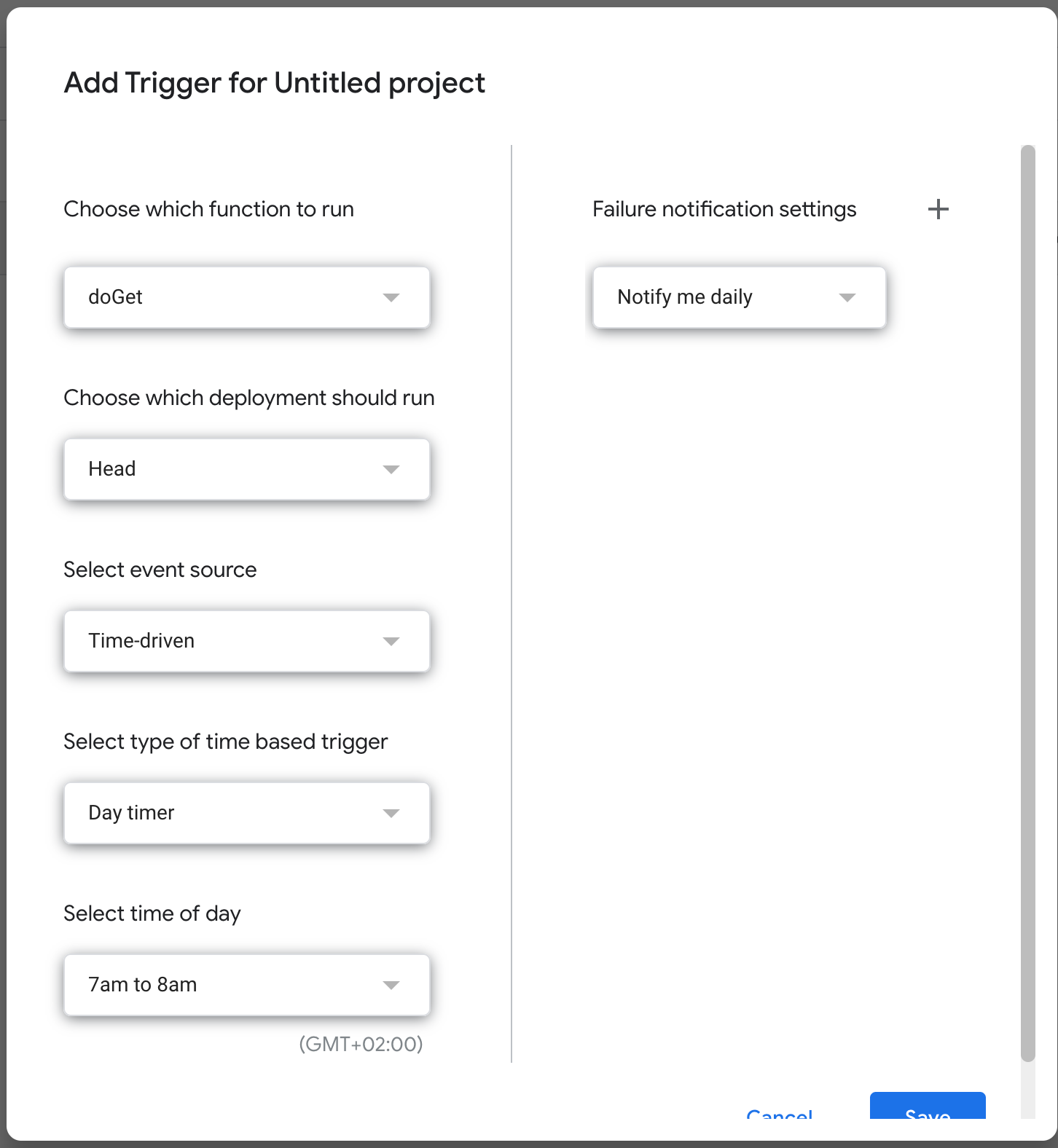
6. In the menu on the left side, click the clock icon > **Triggers** .
7. In the right bottom corner, click the **Add Trigger** button.
8. Configure as below:

    <figure>
    <img src="/api/docs/image/54176ad07f146575310749eba44b7c2f42c1b327/use-cases/all-cases/_gfx/timetrigger.png" alt="The view of Time trigger configuration in Apps Script"  class="large">
    <figcaption>Time trigger configuration in Apps Script</figcaption>
    </figure> 
    
9. Click **Save**.

**Result:** The data from your Google Sheet spreadsheet will be sent to the endpoint in Synerise everyday between 7 and 8 A.M.


<div class="admonition admonition-note"><div class="admonition-icon"><svg xmlns="http://www.w3.org/2000/svg" fill="none" viewBox="0 0 24 24" stroke="currentColor" stroke-width="2.5"><path stroke-linecap="round" stroke-linejoin="round" d="M13 16h-1v-4h-1m1-4h.01M21 12a9 9 0 11-18 0 9 9 0 0118 0z" /></svg></div><div class="admonition-body"><div class="admonition-content">

This schedule and script are just for reference and both can be adapted to your business needs. For example, sending data can be triggered by making changes in cells, or adding a new row. You can find more information on triggers [here](https://developers.google.com/apps-script/guides/triggers).

</div></div></div>


## Create a workflow
---
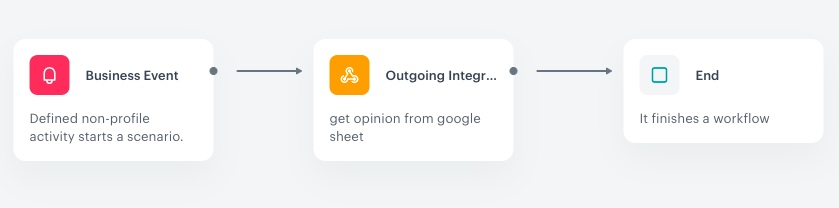
As the final part of the process, create a workflow which captures data sent to incoming integration and creates custom events on the customers' profiles. The workflow starts with the business event trigger that is launched every time the data from Google sheet is sent to Synerise. In response to that, a custom event with an opinion about the company is created.

1.  Go to <img src="/api/docs/image/54176ad07f146575310749eba44b7c2f42c1b327/icons/automation-hub-icon.svg" alt="Automation Hub icon" class="icon" > **Automation Hub > Workflows > New workflow**.
2. Enter the name of the workflow.
3. As the first node, select **Business Event**. In the configuration of the node, select the [incoming integration](#create-an-incoming-integration) you created as the first part of the process.
2. Confirm by clicking **Apply**.
4. On the **Buisness Event** node, click **then**.
5. From the dropdown list, select the **Outgoing Integration** node.
6. Click the node. In the configuration of the node:  
    1. Select the **Custom webhook**.
    2. Enter the name of the webhook.
    2. Select the **POST** method.
    3. Enter the endpoint URL: 
        - For workspaces hosted in Microsoft Azure EU: `https://api.synerise.com/v4/events/custom`
        - For workspaces hosted in Microsoft Azure USA: `https://api.azu.synerise.com/v4/events/custom`
        - For workspaces hosted in Google Cloud Platform: `https://api.geb.synerise.com/v4/events/custom`
    4. Enter the following headers:  
        - set the `content-type` header to `application/json` (default),
        - set the `accept` header to `application/json`,
        - set the `api-version` header to `4.4`
    5. Enter the request body. For the sheet used in this case, the body is as follows:  
        
       <pre><code class="language-json">{
           "label":"customer made an opinion about company",
           "client":{
               "email":"{{ request.body.email }}"
           },
           "action":"company.opinion",
           "params":{
               "opinion":"{{ request.body.opinion }}"
           }
           }</code></pre>

        
       <div class="admonition admonition-note"><div class="admonition-icon"><svg xmlns="http://www.w3.org/2000/svg" fill="none" viewBox="0 0 24 24" stroke="currentColor" stroke-width="2.5"><path stroke-linecap="round" stroke-linejoin="round" d="M13 16h-1v-4h-1m1-4h.01M21 12a9 9 0 11-18 0 9 9 0 0118 0z" /></svg></div><div class="admonition-body"><div class="admonition-content">

       This is just an example, you can create JSON according to your business needs. In the example request body, we used the event context from the trigger which inserts an email address and opinion received in the Business Event trigger. You can read more about it [here](/developers/inserts/automation#context).

       </div></div></div>
    

    6. In the **Authorization** section, select **By API key**.  
    6. From the dropdown list, select API key that has permissions to create custom events.  
    
   <div class="admonition admonition-tip"><div class="admonition-icon"><svg xmlns="http://www.w3.org/2000/svg" fill="none" viewBox="0 0 24 24" stroke="currentColor" stroke-width="2.5"><path stroke-linecap="round" stroke-linejoin="round" d="M9.663 17h4.673M12 3v1m6.364 1.636l-.707.707M21 12h-1M4 12H3m3.343-5.657l-.707-.707m2.828 9.9a5 5 0 117.072 0l-.548.547A3.374 3.374 0 0014 18.469V19a2 2 0 11-4 0v-.531c0-.895-.356-1.754-.988-2.386l-.548-.547z" /></svg></div><div class="admonition-body"><div class="admonition-content">

   You can read more about API keys [here](/docs/settings/tool/api) and you can find more information about the endpoint and required API key permissions [here](https://developers.synerise.com/DataManagement/DataManagement.html#operation/CustomEvent).

   </div></div></div>

6. Confirm by clicking **Apply**.  
7. On the **Outgoing Integration** node, click **then**.
8. From the dropdown list, select **End**.
8. In the upper right corner, click **Save & Run**.

<figure>
<img src="/api/docs/image/54176ad07f146575310749eba44b7c2f42c1b327/use-cases/all-cases/_gfx/workflow_gs.png" alt="The view of workflow configuration"  class="large">
<figcaption>Workflow configuration</figcaption>
</figure> 

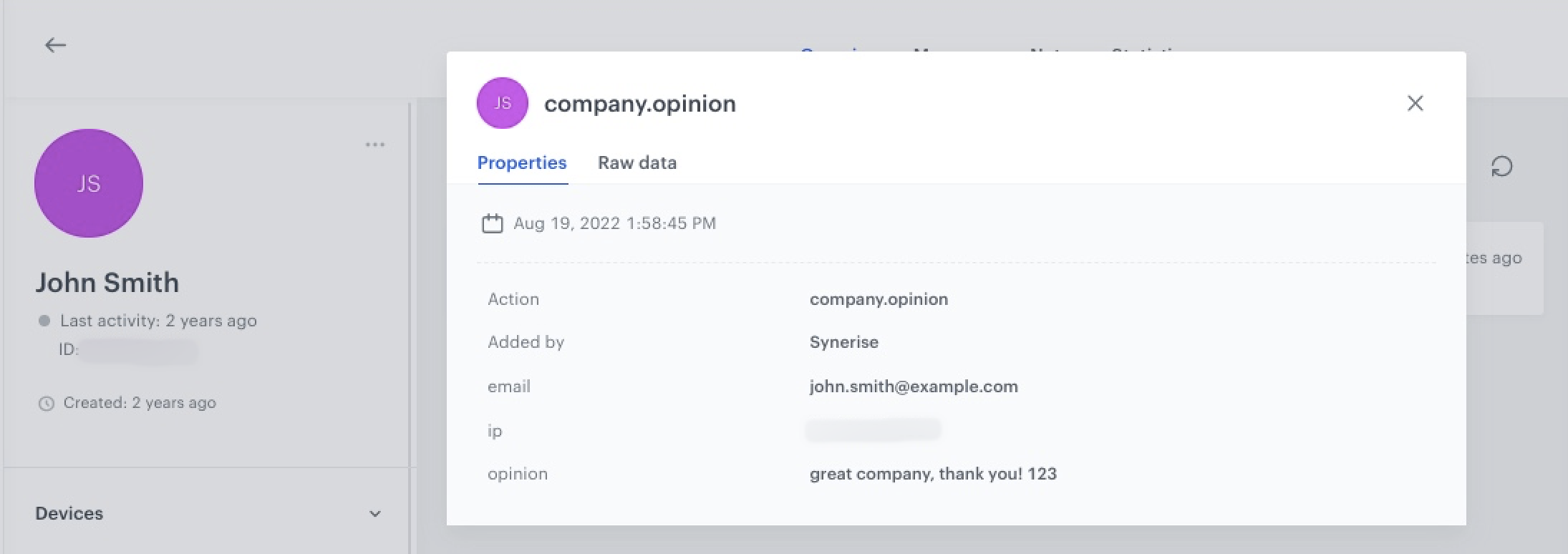
**Result:** A `company.opinion` event is saved to the profiles of the customers.

<figure>
<img src="/api/docs/image/54176ad07f146575310749eba44b7c2f42c1b327/use-cases/all-cases/_gfx/company_opinion_event_1.png" alt="The view of custom event in customer's profile"  class="large">
<figcaption>Custom event in customer's profile</figcaption>
</figure> 

## Check the use case set up on the Synerise Demo workspace
---
You can check the [incoming webhook configuration](https://app.synerise.com/automations/custom-blocks/integrations/incoming/edit/1f8d50ee-5c7b-4ca6-9d78-1ad946e569db) and [workflow configuration](https://app.synerise.com/automations/automation-diagram/68e3eb29-6d9e-4439-8100-73ef3e03c022) directly in Synerise Demo workspace. 

If you’re our partner or client, you already have automatic access to the **Synerise Demo workspace (1590)**, where you can explore all the configured elements of this use case and copy them to your workspace.  

If you’re not a partner or client yet, we encourage you to fill out the contact [form](https://demo.synerise.com/request) to schedule a meeting with our representatives. They’ll be happy to show you how our demo works and discuss how you can apply this use case in your business. 

## Read more
---
- [Apps Script documentation](https://developers.google.com/apps-script/reference/spreadsheet/sheet)
- [Automation Hub](/docs/automation)
- [Incoming integration](/docs/automation/integration/incoming-webhook-node)
- [Triggers provided by Apps Script](https://developers.google.com/apps-script/guides/triggers)