Synerise allows you to collect data from any touchpoint with a customer. With advanced Synerise Decision Hub, you can create precise customer segments that you can use not only in Synerise, but also pass them to external tools. Using Synerise's seamless integration with Amazon S3, you can transfer any data collected in Synerise and use it in other Amazon services.
In this use case, we will export a database of customers with the highest propensity to buy to Amazon S3. The process of creating a Propensity prediction and segmentation is already described in [this use case](/use-cases/propensity_based_promotion). The segmentation used in this use case is only an example. You can export any other segmentation or different data types as needed, such as transactions, event data, metrics results, aggregates, expressions, reports, and more.
## Prerequisites
---
- You must have an account on AWS.
- Create propensity prediction and segmentation with customers with the highest propensity to buy selected product category based on [this use case](/use-cases/propensity_based_promotion).
## Create a workflow
---
Create a workflow which sends the customers' data to Amazon S3 every day.
1. Go to **Automation Hub > Workflows > New workflow**.
2. Enter the name of the workflow.
### Define the launch date
3. As the trigger node, add **Scheduled Run**.
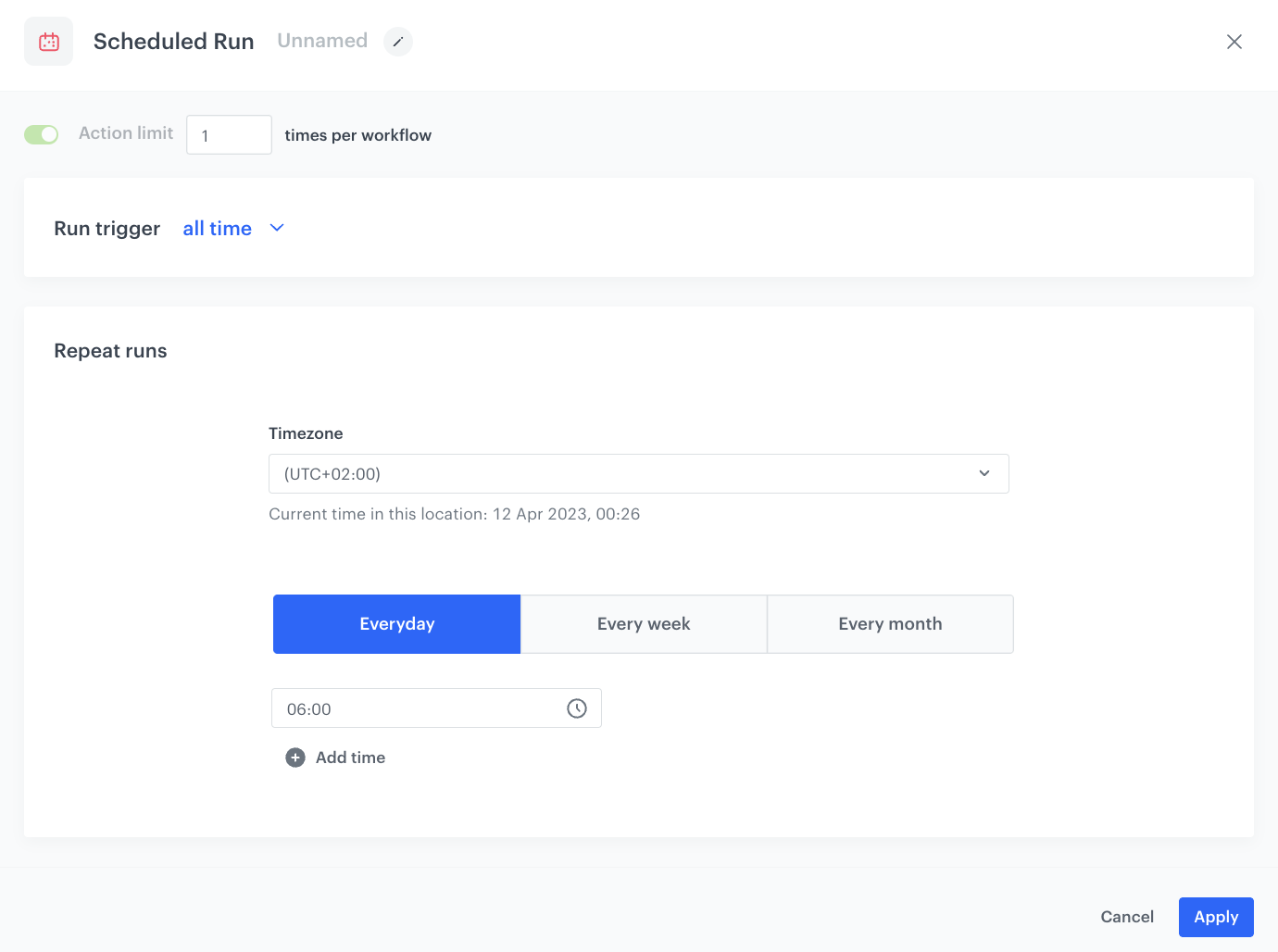
4. In the configuration of the node:
1. Leave the **Run trigger** option at default (**all time**).
2. From the **Timezone** dropdown list, select the time zone consistent with the timezone selected for your workspace.
3. Define the frequency of the workflow (for example, every day at 6.00 A.M.).
The workflow will automatically launch at the scheduled time.
4. Confirm by clicking **Apply**.
The configuration of the Scheduled Run node
### Select customers to export
5. Add a **Get Profiles** node.
6. In the configuration of the node:
1. Select the segmentation you created earlier.
2. In the **Attributes** section, select the profile attributes which you want to export.
In the example, `email`, `newsletter_agreement`, `firstName` and `lastName` are selected.
3. Confirm by clicking **Apply**.
### Configure Send file to Amazon S3 Bucket node
1. Click **Amazon S3 Bucket > Send File**.
2. Click **Select connection**.
3. From the dropdown list, select the connection.
- If no connections are available or you want to create a new one, see [Create a connection](/docs/automation/integration/amazon-s3-bucket/send-file-amazon-s3-bucket#create-a-connection).
- If you selected an existing connection, proceed with the integration settings.
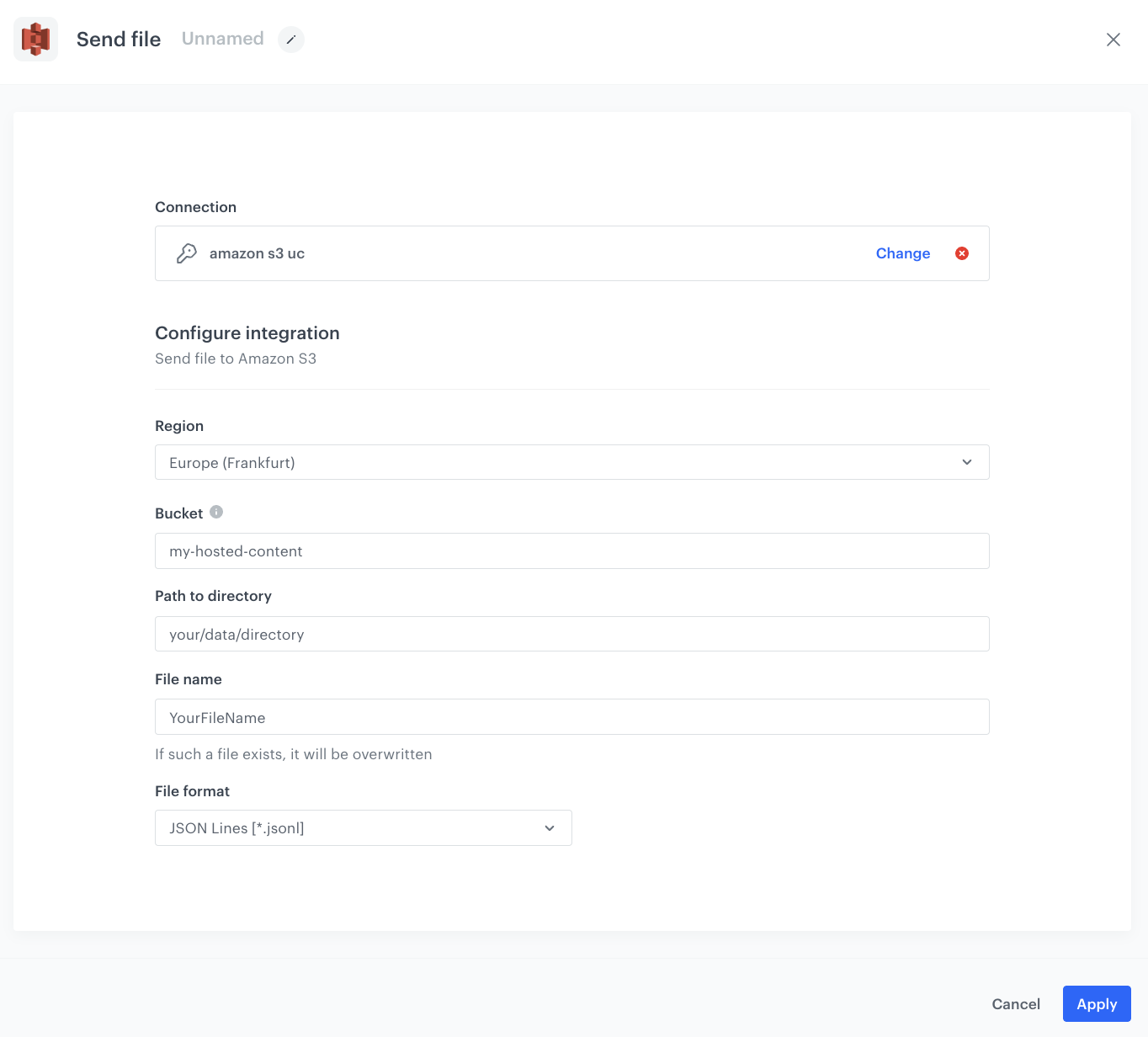
4. In the **Region** field, enter the region of your bucket.
5. In the **Bucket** field, enter the name of an existing container in your storage.
6. In the **Path to directory** field, enter the path to the existing bucket in which the file will be saved.
7. In the **File name** field, enter the name of the file you want to send to the storage. If the file already exists, the contents of the file will be overwritten.
8. From the **File format** dropdown list, select the format in which the file will be saved in the storage.
9. Confirm by clicking **Apply**.
The configuration of the Send File node
### Add the finishing node
12. Add the **End** node.
13. In the upper right corner, click **Save & Run**.
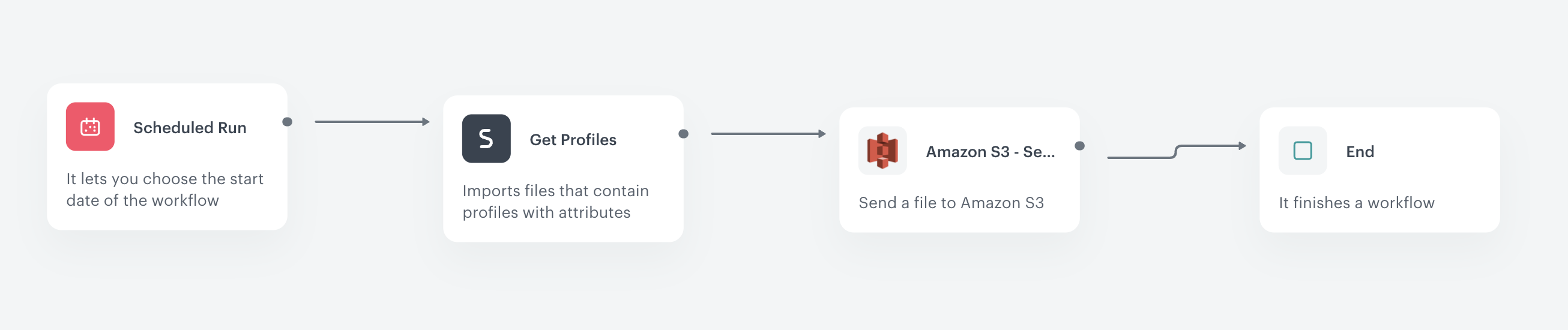
The workflow configuration
## Check the use case set up on the Synerise Demo workspace
---
You can check the configuration of the [workflow](https://app.synerise.com/automations/automation-diagram/1a6f82da-b364-4d5a-aebb-e7c411783daf) created in this use case on our Synerise Demo workspace.
If you’re our partner or client, you already have automatic access to the **Synerise Demo workspace (1590)**, where you can explore all the configured elements of this use case and copy them to your workspace.
If you’re not a partner or client yet, we encourage you to fill out the contact [form](https://demo.synerise.com/request) to schedule a meeting with our representatives. They’ll be happy to show you how our demo works and discuss how you can apply this use case in your business.
## Read more
---
- [Send File (Amazon S3 Bucket)](/docs/automation/integration/amazon-s3-bucket/send-file-amazon-s3-bucket)
- [Workflows](/docs/automation)
 **Automation Hub > Workflows > New workflow**.
2. Enter the name of the workflow.
### Define the launch date
3. As the trigger node, add **Scheduled Run**.
4. In the configuration of the node:
1. Leave the **Run trigger** option at default (**all time**).
2. From the **Timezone** dropdown list, select the time zone consistent with the timezone selected for your workspace.
3. Define the frequency of the workflow (for example, every day at 6.00 A.M.).
The workflow will automatically launch at the scheduled time.
4. Confirm by clicking **Apply**.
**Automation Hub > Workflows > New workflow**.
2. Enter the name of the workflow.
### Define the launch date
3. As the trigger node, add **Scheduled Run**.
4. In the configuration of the node:
1. Leave the **Run trigger** option at default (**all time**).
2. From the **Timezone** dropdown list, select the time zone consistent with the timezone selected for your workspace.
3. Define the frequency of the workflow (for example, every day at 6.00 A.M.).
The workflow will automatically launch at the scheduled time.
4. Confirm by clicking **Apply**.