Make use of the built-in Google Cloud Storage integration in Automation Hub and export prediction results of lifetime value (LTV) and customer's loyalty status to your external resources for further analysis.
 
This use case combines three Synerise hubs:

- Decision Hub - to create analyses required for the prediction configuration, including an expression to calculate the total transaction value over the last 90 days, a segmentation based on website visits in the past 30 days to use it for a prediction, segmentation of customers who participate in a loyalty program, and later on an aggregate that retrieves the prediction result.
- Predictions (from AI Hub) - to create a prediction that forecasts the transaction value in the next 90 days for the customers who visited your website in the last 30 days, and assess the probability of this transaction value.
- Automation Hub - to create a workflow in which you will re-select the segmentation with visits in the last 30 days, select the aggregate with prediction results and the segmentation of customers who are in the loyalty program to export to your Google Cloud Storage.


## Prerequisites 
---
- [Enable the Custom prediction model](/docs/ai-hub/predictions/enabling-predictions#enabling-regression-and-classification-predictions).
- Make sure you meet all [prerequisites](/docs/automation/integration/google-cloud-storage/send-file-to-gcp#prerequisites) to integrate Synerise with Google Cloud Storage.
- Create a segmentation of customers who are members of the company's loyalty program.
The conditions used in the segmentation will vary depending on your loyalty program logic (for example, you may use custom attributes related to loyalty program).

## Process 
---
In this use case, you will go through the following steps:
1. [Create prediction target](/use-cases/send-ltv-to-gcs#create-prediction-target) based on an aggregate and expression.
2. [Create the segmentation](/use-cases/send-ltv-to-gcs#create-a-segmentation) for whom the prediction will be made (users who have visited the website in the past 30 days).
3. [Create the prediction](/use-cases/send-ltv-to-gcs#create-the-prediction) to predict the transaction value in the next 90 days and determine its likelihood.
4. [Create an aggregate](/use-cases/send-ltv-to-gcs#create-an-aggregate) that retrieves the prediction results.
3. [Create a workflow](/use-cases/send-ltv-to-gcs#create-a-workflow) that will send results of the prediction and loyalty program status of selected customers.

## Create prediction target
---
In the first part of the process, create an expression that calculates the total value of purchases. This expression will also serve as data input to forecast the total purchase value for the next 90 days.
In order to create such expression, you have to start with creating aggregate whose results will be retrieved in the expression. This is because only expressions can be used as prediction goals in the prediction configuration.

1. Go to <img src="/api/docs/image/54176ad07f146575310749eba44b7c2f42c1b327/icons/behavioral-data-hub-icon.svg" alt="Behavioral Data Hub icon" class="icon"> **Behavioral Data Hub > Live Aggregates > Create aggregate**.
2. As the aggregate type, select **Profile**.  
2. Enter the name of the aggregate.
3. Set the **Analyze profiles by** option to **Sum**.
4. Click **Choose event**. 
5. From the dropdown list, select **transaction.charge**.
    
   <div class="admonition admonition-note"><div class="admonition-icon"><svg xmlns="http://www.w3.org/2000/svg" fill="none" viewBox="0 0 24 24" stroke="currentColor" stroke-width="2.5"><path stroke-linecap="round" stroke-linejoin="round" d="M13 16h-1v-4h-1m1-4h.01M21 12a9 9 0 11-18 0 9 9 0 0118 0z" /></svg></div><div class="admonition-body"><div class="admonition-content">

   Events may have different labels among workspaces, but you can always find them by their action name (in this step, it's **transaction.charge**).

   </div></div></div>

6. As the parameter of the event, select **$totalAmount**.
5. Using the date picker in the lower-right corner, set the time range to **Relative time range > Custom > last 90 days**.  
6. Save the aggregate. 

<figure>
    <img src="/api/docs/image/54176ad07f146575310749eba44b7c2f42c1b327/use-cases/all-cases/_gfx/ltv-prediction-aggregate.png" alt="The formula of the aggregate" class="full">
    <figcaption>The formula of the aggregate</figcaption>
    </figure>

After saving the aggregate, proceed to creating an expression.

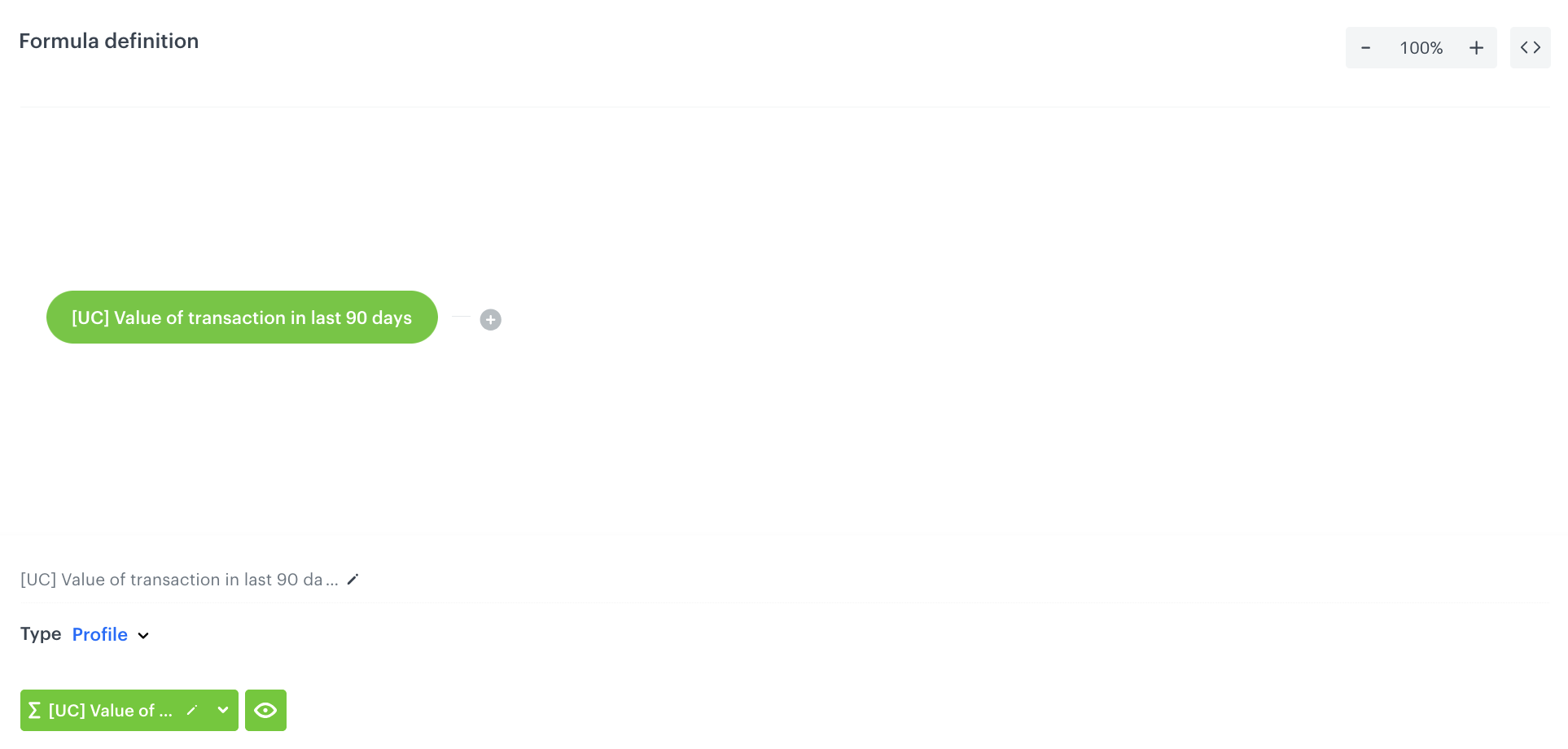
1. Go to <img src="/api/docs/image/54176ad07f146575310749eba44b7c2f42c1b327/icons/behavioral-data-hub-icon.svg" alt="Behavioral Data Hub icon" class="icon"> **Behavioral Data Hub > Expressions > New expression**.
2. Enter the name of the expression.
3. Set the **Expression** to **Attribute**. Predictions work only with attribute expressions.
4. On the canvas, click **Select**.
5. From the dropdown list, select **Profile**.
6. Click the **unnamed** input that appeared on the canvas. 
7. From the **Choose attribute** dropdown list, select the aggregate you have created before.
8. Click **Save**.
 <figure>
    <img src="/api/docs/image/54176ad07f146575310749eba44b7c2f42c1b327/use-cases/all-cases/_gfx/ltv-prediction-expression.png" alt="The formula of the expression" class="full">
    <figcaption>The formula of the expression</figcaption>
    </figure>

## Create a segmentation
---
In this part of the process, create a group of customers for whom the prediction will be made.


<div class="admonition admonition-tip"><div class="admonition-icon"><svg xmlns="http://www.w3.org/2000/svg" fill="none" viewBox="0 0 24 24" stroke="currentColor" stroke-width="2.5"><path stroke-linecap="round" stroke-linejoin="round" d="M9.663 17h4.673M12 3v1m6.364 1.636l-.707.707M21 12h-1M4 12H3m3.343-5.657l-.707-.707m2.828 9.9a5 5 0 117.072 0l-.548.547A3.374 3.374 0 0014 18.469V19a2 2 0 11-4 0v-.531c0-.895-.356-1.754-.988-2.386l-.548-.547z" /></svg></div><div class="admonition-body"><div class="admonition-content">

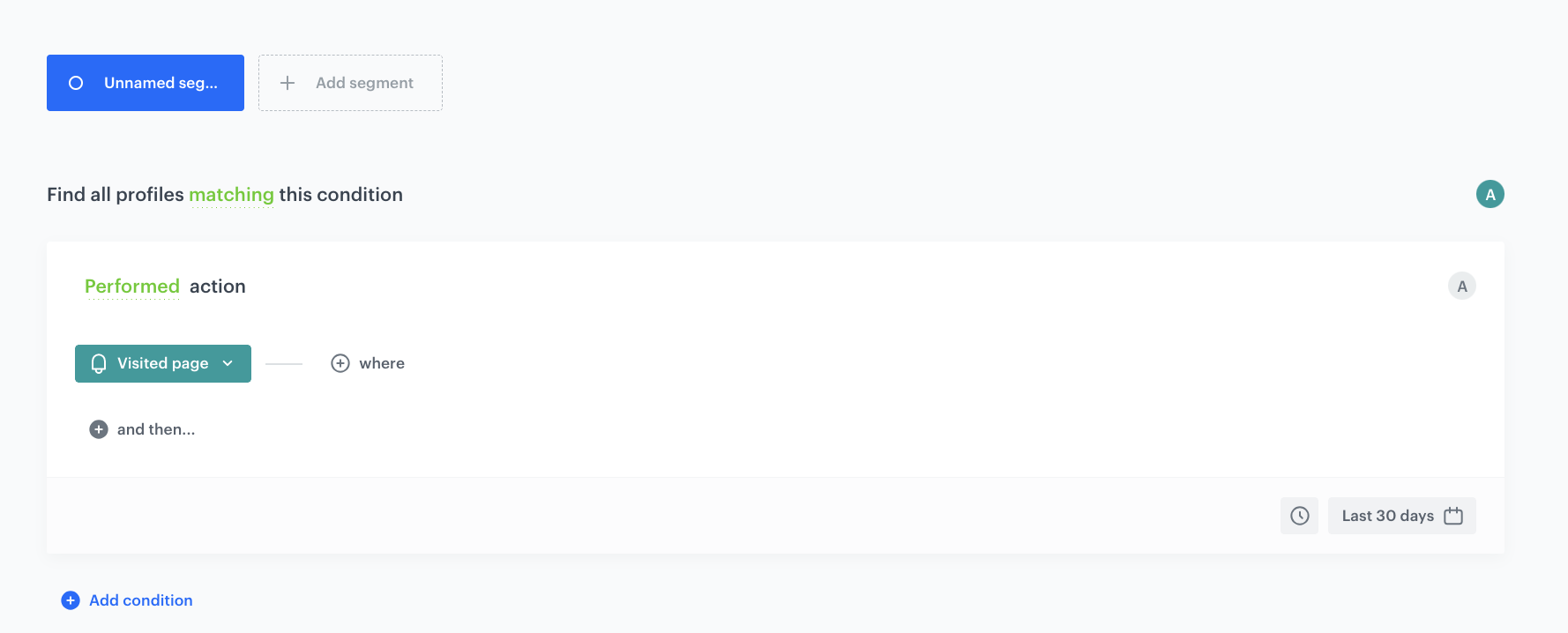
The conditions of the segmentation can be very complex. It usually makes sense to analyze customers with some activities observed, so in this use case, the segmentation contains customers who have at least one page visit during the last 30 days.

</div></div></div>


1. Go to **Decision Hub > Segmentation > New segmentation**.  
2. Enter the name of the segmentation.  
3. Create a segmentation of customers who visited your website in the last 30 days.
    
   <div class="admonition admonition-note"><div class="admonition-icon"><svg xmlns="http://www.w3.org/2000/svg" fill="none" viewBox="0 0 24 24" stroke="currentColor" stroke-width="2.5"><path stroke-linecap="round" stroke-linejoin="round" d="M13 16h-1v-4h-1m1-4h.01M21 12a9 9 0 11-18 0 9 9 0 0118 0z" /></svg></div><div class="admonition-body"><div class="admonition-content">

   You can find the instructions on creating segmentations in the ["Creating segmentations"](/docs/analytics/segmentations/creating-segmentations) article.

   </div></div></div>

4. Click **Save**.

<figure>
    <img src="/api/docs/image/54176ad07f146575310749eba44b7c2f42c1b327/use-cases/all-cases/_gfx/ltv-prediction-segment.png" alt="The formula of the aggregate" class="full">
    <figcaption>Segmentation</figcaption>
    </figure>

## Create the prediction
---
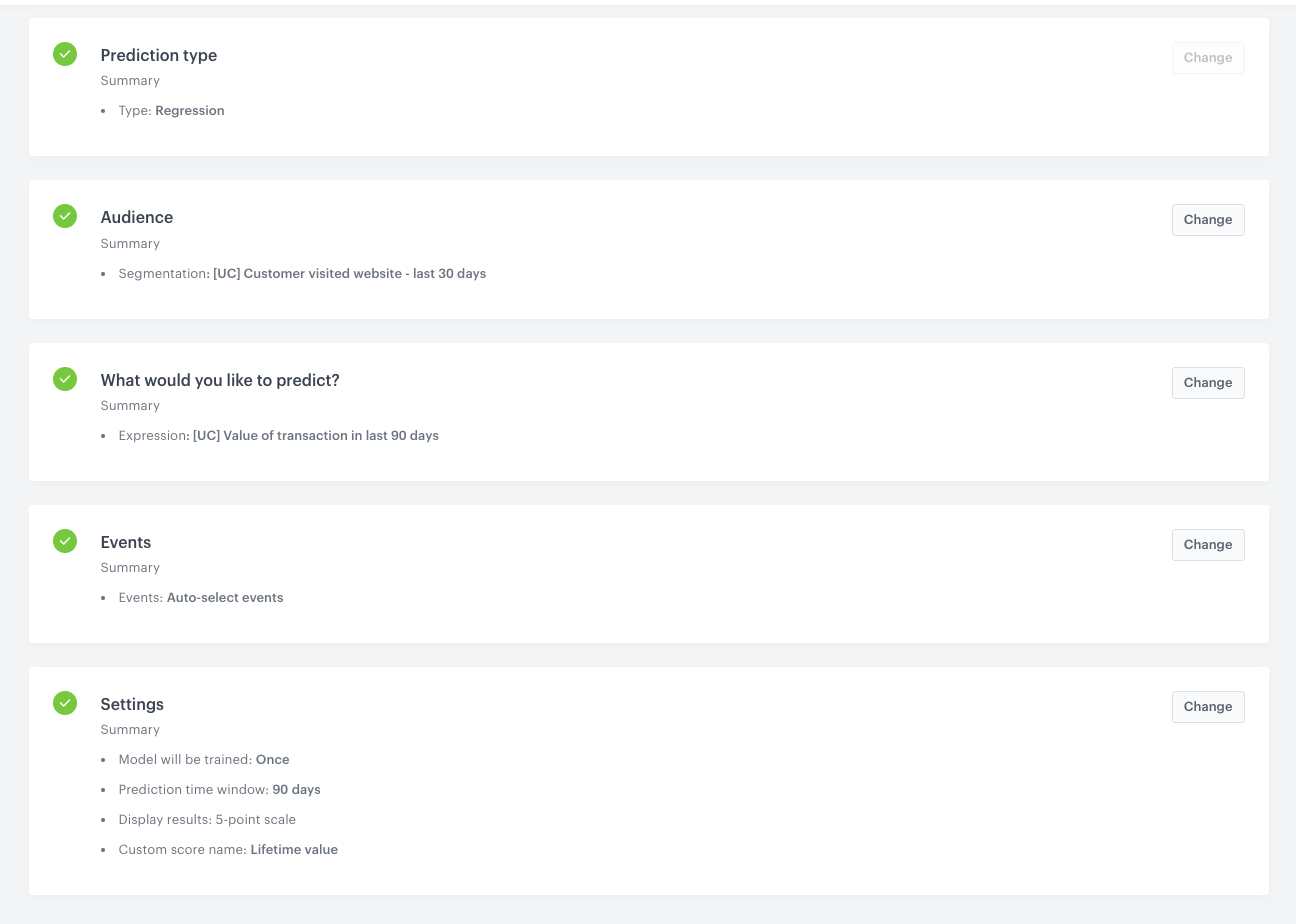
In this part of the process, create a prediction for a selected group of customers. The prediction result will be available on the profile cards of these customers as a [`snr.prediction.score` event](/docs/ai-hub/predictions/custom#understanding-prediction-events). This event will contain the forecast result of the expression created in ["Create prediction target"](#create-prediction-target) and probability of receiving such result expressed in 5-point scale.

1. Go to <img src="/api/docs/image/54176ad07f146575310749eba44b7c2f42c1b327/icons/ai-hub-icon.svg" alt="AI Hub icon" class="icon" > **(AI Predictions) Models > New prediction**.
2. On the pop-up, select **Create from scratch**, and then select **Regression**. 

### Select the audience

In this section, select the group of customers you created in [this part](#create-a-segmentation) of the process.

1. In the **Audience** section, click **Define**.
2. Click **Choose segmentation**. 
3. Select the group of customers you created in [Create a segmentation](#create-a-segmentation) part of the process.
4. Click **Apply**.

### Select the target

1. In the **What would you like to predict?** section, click **Define**.
2. Click **Select expression**. 
3. From the dropdown list, select the expression you created in the [Create prediction target](#create-prediction-target) part of the process.

### Select events

[Events](/docs/assets/events/introduction-to-events) are customer activities on the website (visits to a website, adding a product to a shopping cart, and so on) and also your activities towards customers (such as sending messages to them). Select the events that the system will use as input to make a prediction. By default, the list already contains the events recommended for the prediction you are creating. The contents of the list is defined while enabling [Custom predictions](/docs/ai-hub/predictions/enabling-predictions#enabling-regression-and-classification-predictions).

1. Leave the **Auto-select events** option toggle on.

### Schedule recalculation and result settings

In this section, define the frequency of recalculating the prediction and settings of the event that is generated for customers for whom the prediction is made.

1. In the **Prediction time window** section, from the **How many days in advance do you want to make a prediction?** dropdown list, select **90 days** as the number of days in advance.  
    The time must correspond to the time range selected earlier in the prediction target.
2. In the **Calculation frequency** section, leave the settings at default (**One-time calculation**). As a result, the prediction is run only one time.
3. In the **Prediction start** section, leave the settings at default (**Immediately**). As a result, the prediction is calculated immediately after saving.
4. In the **How would you like to display results?** section, leave the settings at default (**5-point scale**).
5. In the **Define the value of the score name parameter** section, in the **Name** field, enter the user friendly name of predictions scores. The score name parameter is shown in the `snr.prediction.score` event. In our case it is `Lifetime value`.
6. Click **Apply**.
7. Complete the prediction by clicking **Save&Calculate**.  
    **Result**: The calculation begins. After it completes, an event named [`snr.prediction.score`](/docs/ai-hub/predictions/custom#understanding-prediction-events) is saved to the customer profiles selected in the segmentation. The event will be available in the platform, for instance in Decision Hub, Behavioral Data Hub, and Automation Hub.

<figure>
<img src="/api/docs/image/54176ad07f146575310749eba44b7c2f42c1b327/use-cases/all-cases/_gfx/ltv-prediction-1.png" alt="The prediction" class="full">
<figcaption>The prediction</figcaption>
</figure>

## Create an aggregate
---  
In this part of the process, create an aggregate that returns the prediction score.

1. Go to <img src="/api/docs/image/54176ad07f146575310749eba44b7c2f42c1b327/icons/behavioral-data-hub-icon.svg" alt="Behavioral Data Hub icon" class="icon"> **Behavioral Data Hub > Live Aggregates > Create aggregate**.
2. As the aggregate type, select **Profile**.  
2. Enter the name of the aggregate.
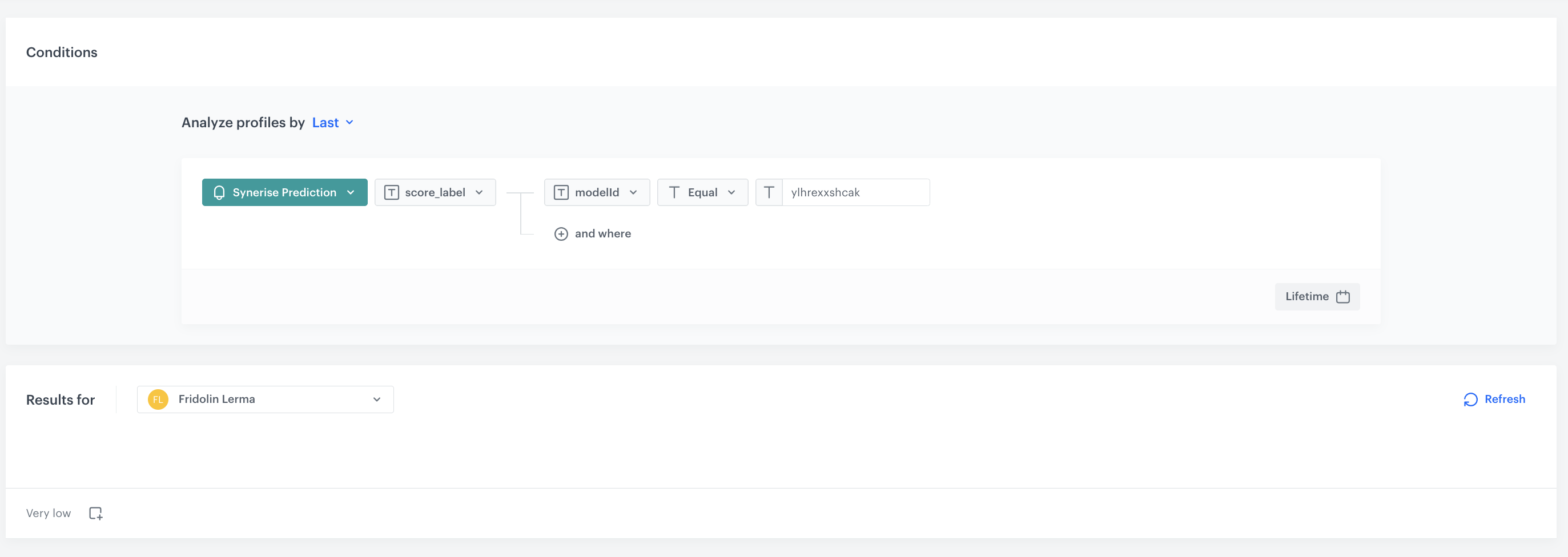
3. Click **Analyze profiles by** and select **Last**.
5. From the **Choose event** dropdown list, select the `snr.prediction.score` event.
6. As the event parameter, select **score_label**.
7. Click **+where** and choose **modelId**. 
  
   <div class="admonition admonition-note"><div class="admonition-icon"><svg xmlns="http://www.w3.org/2000/svg" fill="none" viewBox="0 0 24 24" stroke="currentColor" stroke-width="2.5"><path stroke-linecap="round" stroke-linejoin="round" d="M13 16h-1v-4h-1m1-4h.01M21 12a9 9 0 11-18 0 9 9 0 0118 0z" /></svg></div><div class="admonition-body"><div class="admonition-content">

   To find the model ID, simply navigate to the prediction in the Synerise application. The ID is the part of the URL that comes after /prediction/, for example: **deoojrhqdkpp** in the URL `https://app.synerise.com/ai-v2/predictions/deoojrhqdkpp`. Copy this ID and use it in your code where needed.

   </div></div></div>

8. As the operator choose **equal** and as the value add the ID of the prediction creadted [before](#create-the-prediction).
7. Set the period from which the aggregate will analyze the results to **Lifetime**. 
12. **Save** the aggregate.

<figure>
<img src="/api/docs/image/54176ad07f146575310749eba44b7c2f42c1b327/use-cases/all-cases/_gfx/ltv-prediction-2.png" alt="The aggregate" class="full">
<figcaption>The aggregate</figcaption>
</figure>

## Create a workflow
---
As the final part of the process, create a workflow which sends the customers' data to Google Cloud Storage. 

1. Go to <img src="/api/docs/image/54176ad07f146575310749eba44b7c2f42c1b327/icons/automation-hub-icon.svg" alt="Automation Hub icon" class="icon" > **Automation Hub > Workflows > New workflow**.  
2. Enter the name of the workflow.

### Define the launch date

3. As the trigger node, add **Scheduled Run**.  
4. In the configuration of the node:  
    1. Leave the **Run trigger** option at default (**one time**).  
    2. Choose option **Immediately**. 
    4. Confirm by clicking **Apply**.
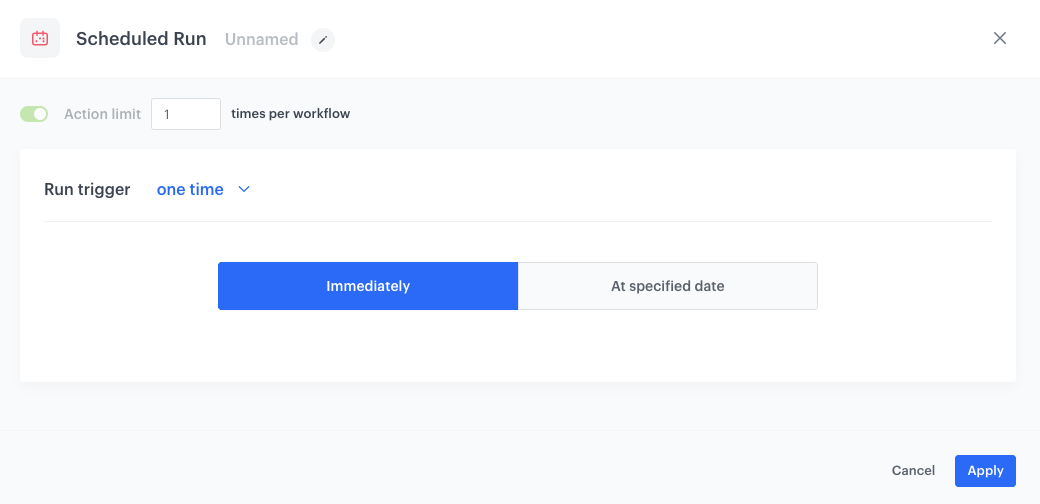
<figure><img src="/api/docs/image/54176ad07f146575310749eba44b7c2f42c1b327/use-cases/all-cases/_gfx/ltv-prediction-3.png" class="full" alt="The configuration of the Scheduled Run node"><figcaption>The configuration of the Scheduled Run node</figcaption></figure>

### Select customers to export

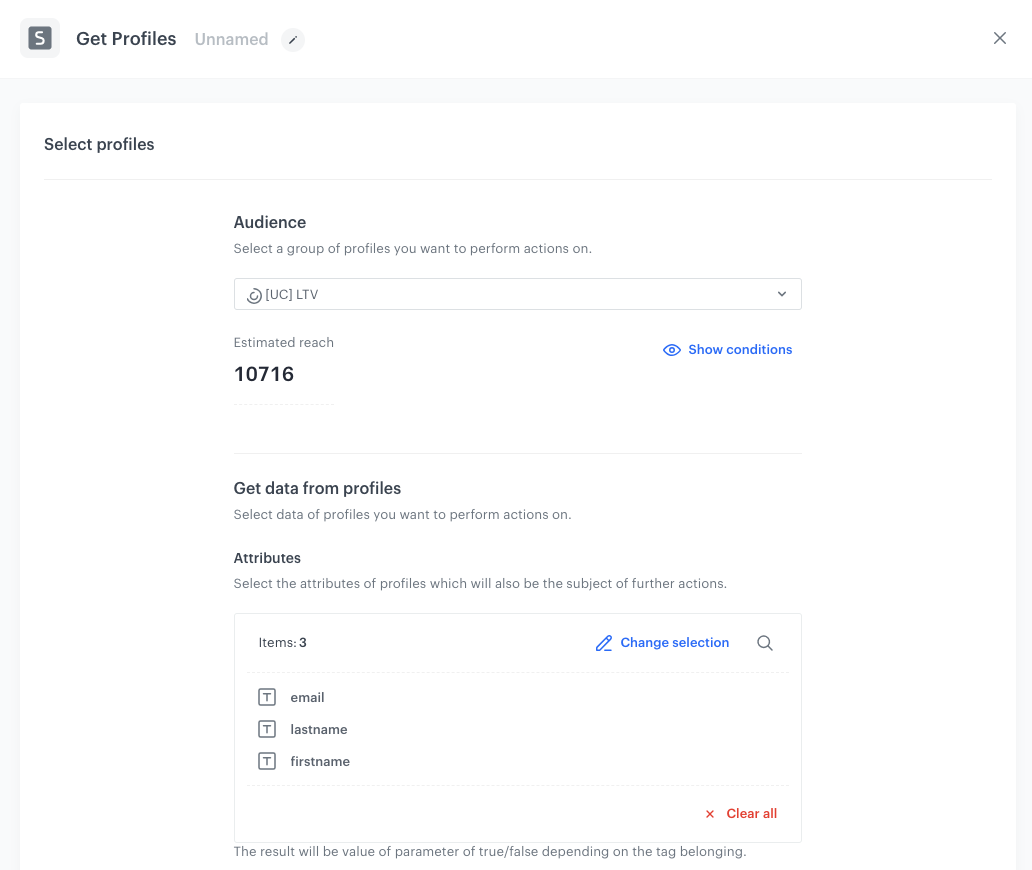
5. Add a **Get Profiles** node.  
6. In the configuration of the node:  
    1. Select the segmentation you [created in the first part of the process](#create-a-segmentation).  
    2. In the **Attributes** section, select **name** **lastname** and **email**. You can also add more attributes based on your business needs.

    <figure><img src="/api/docs/image/54176ad07f146575310749eba44b7c2f42c1b327/use-cases/all-cases/_gfx/ltv-prediction-5.png" class="full" alt="The configuration Get Profiles node"><figcaption>The configuration of the Get Profiles node</figcaption></figure>
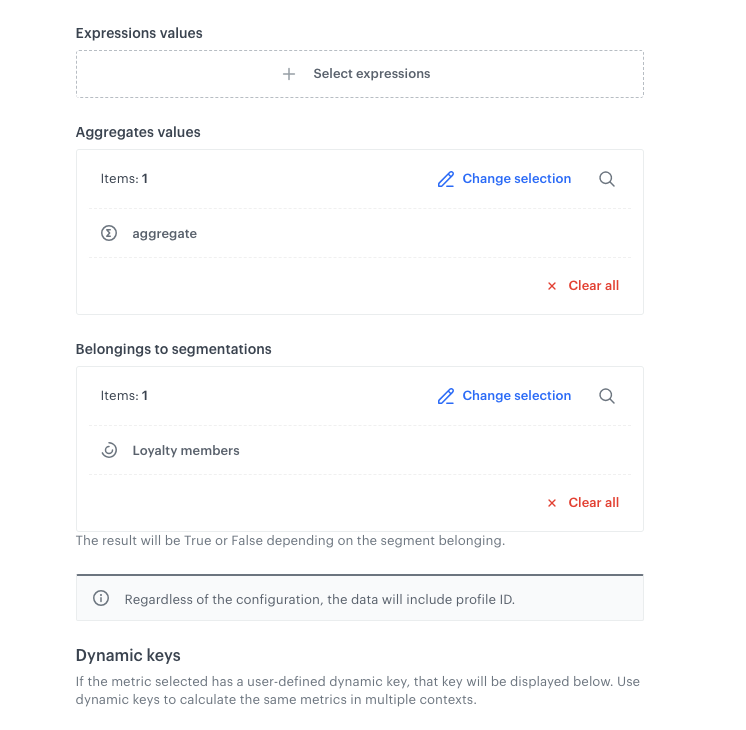
7.  In the **Aggregate Values** section, select the [aggregate which retrieves the prediction result](#create-an-aggregate).
8.  In the **Belonging to segmentation** section, add the segmentation of loyalty members created as the part of the [prerequisites](#prerequisites).
3. Confirm by clicking **Apply**.  

<figure><img src="/api/docs/image/54176ad07f146575310749eba44b7c2f42c1b327/use-cases/all-cases/_gfx/ltv-prediction-6.png" class="full" alt="The configuration of the Get Profiles node"><figcaption>The configuration of the Get Profiles node</figcaption></figure>

### Configure Send File node

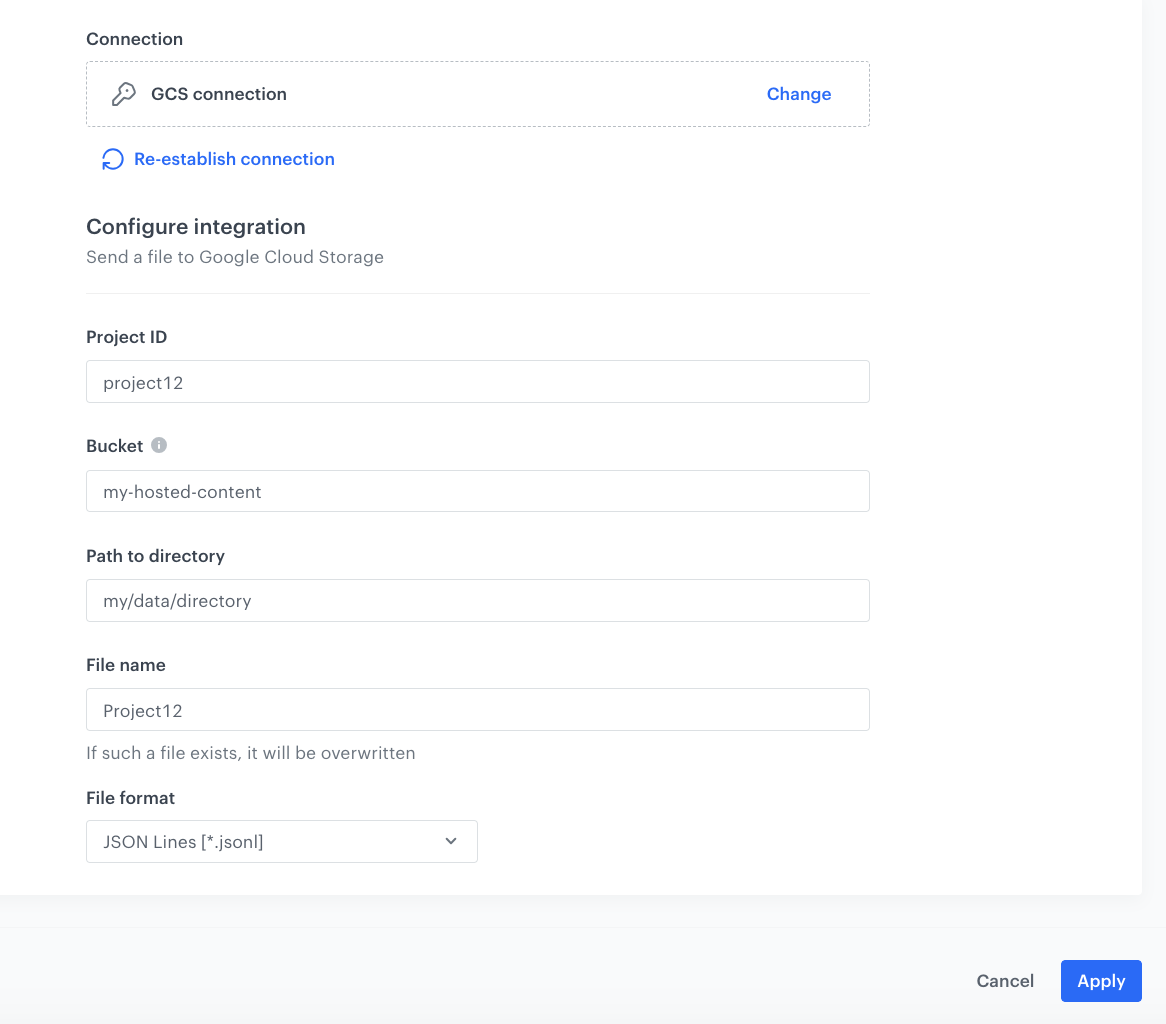
1. Add **Google Cloud Storage > Send File** node. 
2. Click **Select connection**.  
3. From the dropdown list, select the connection.  
   - If no connections are available or you want to create a new one, see [Create a connection](/docs/automation/integration/google-cloud-storage/send-file-to-gcp#create-a-connection).
   - If you selected an existing connection, proceed with the integration settings.
1. In the **Project ID** field, enter the unique identifier of your project in Google Cloud.  
    You can learn how to find the project ID [here](https://support.google.com/googleapi/answer/7014113).
2. In the **Bucket** field, enter the name of an existing bucket (container) to which you will send a file with data.
3. In the **Path to directory** field, enter the path to which the file will be saved in the bucket. 
4. In the **File name** field, enter the name of the file you want to send to the storage. If the file already exists, the contents of the file will be overwritten.
5. From the **File format** dropdown list, select the format in which the file will be saved in the storage.
6. Confirm by clicking **Apply**.

<figure><img src="/api/docs/image/54176ad07f146575310749eba44b7c2f42c1b327/use-cases/all-cases/_gfx/gsc-send-file.png" class="full" alt="The configuration of the Send file to Google Cloud Storage node"><figcaption>The configuration of the Send File node</figcaption></figure>


<div class="admonition admonition-note"><div class="admonition-icon"><svg xmlns="http://www.w3.org/2000/svg" fill="none" viewBox="0 0 24 24" stroke="currentColor" stroke-width="2.5"><path stroke-linecap="round" stroke-linejoin="round" d="M13 16h-1v-4h-1m1-4h.01M21 12a9 9 0 11-18 0 9 9 0 0118 0z" /></svg></div><div class="admonition-body"><div class="admonition-content">

In this case, we use the Google Cloud Storage export node. However, Synerise offers various built-in integrations for data exports, including Amazon, Facebook, and others. Additionally, by using Outgoing Integration, you can send data as a request to any external tool, providing flexibility and extensive possibilities for data distribution.

</div></div></div>


### Add the finishing node

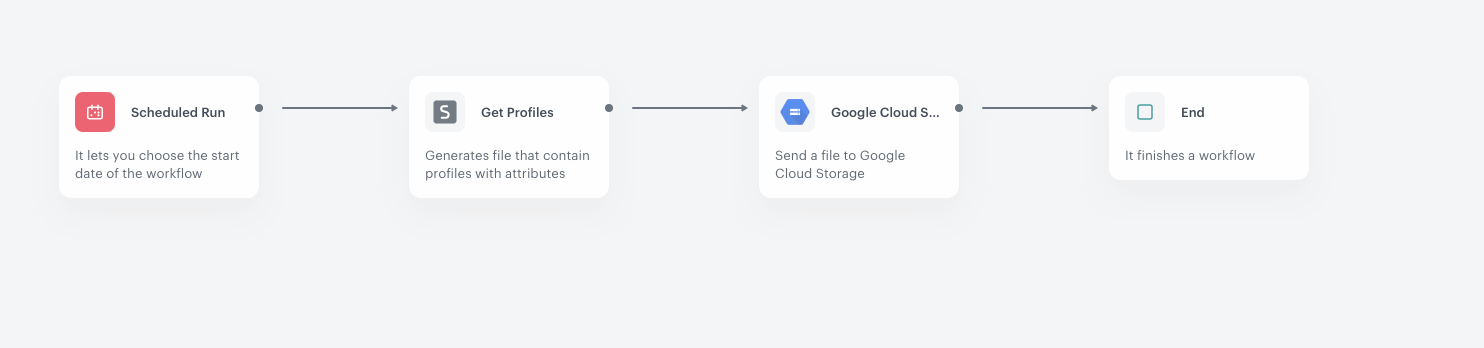
12. Add the **End** node. 
13. In the upper right corner, click **Save & Run**.  

    <figure><img src="/api/docs/image/54176ad07f146575310749eba44b7c2f42c1b327/use-cases/all-cases/_gfx/ltv-prediction-4.png" class="full" alt="The workflow configuration"><figcaption>The workflow configuration</figcaption></figure>


## Check the use case set up on the Synerise Demo workspace
---
You can check the configuration of each item created in this use case on our Synerise Demo workspace:  
- [Aggregate - prediction target](https://app.synerise.com/analytics/aggregates/84991085-f72c-3684-a1eb-57fc643830a8)
- [Expression](https://app.synerise.com/analytics/expressions/ee582e83-0667-4580-b509-1ad1cd4aaad0)
- [Segmentation](https://app.synerise.com/analytics-v2/segmentations/11295db2-80c2-464e-b9be-61fa8e78b98b)
- [Prediction](https://app.synerise.com/ai-v2/predictions/ylhrexxshcak)
- [Aggregate](https://app.synerise.com/analytics-v2/aggregates/fe0e4e86-a1bc-392e-9ff9-1ecb48b508dc) which retrieves the prediction results
- [Workflow](https://app.synerise.com/automations/workflows/automation-diagram/d4259a0a-5488-4b4a-92d9-ba65ee376c4e)  

If you’re our partner or client, you already have automatic access to the **Synerise Demo workspace (1590)**, where you can explore all the configured elements of this use case and copy them to your workspace.  

If you’re not a partner or client yet, we encourage you to fill out the contact [form](https://demo.synerise.com/request) to schedule a meeting with our representatives. They’ll be happy to show you how our demo works and discuss how you can apply this use case in your business.

## Read more
---
- [Send File](/docs/automation/integration/google-cloud-storage/send-file-to-gcp)
- [Segmentations](/docs/analytics/segmentations)
- [Workflows](/docs/automation) 
- [Prediction - Quick Start](/docs/ai-hub/predictions/custom)