Integrating Synerise with Google BigQuery enables you to easily export data from Synerise to BigQuery tables using the **Upload Data to Table** node. This connection can be used to export various types of data, such as NPS survey data. 

By integrating with Google BigQuery, Synerise sends data to be directly uploaded into BigQuery tables, facilitating easy exportation and further analysis. The uploaded data can also be used in other Google tools, such as Google Analytics.

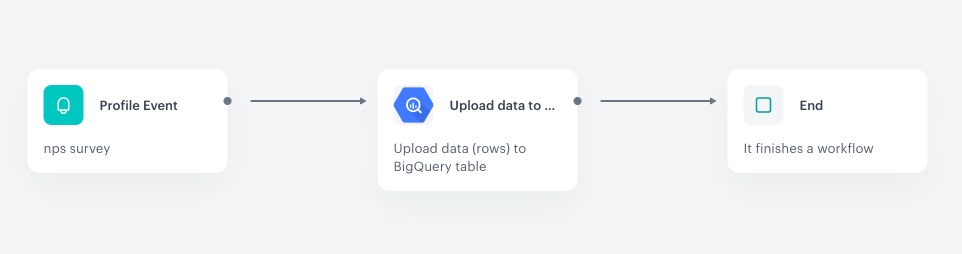
In this use case, we will create a workflow which sends information with NPS survey data to Google BigQuery using a dedicated node in our Automation.

## Prerequisites 
---
- Implement a custom event for NPS survey data, which will be available in the customer profile. In this example, the event is called `nps.send`. Implement custom events in your [mobile application](/developers/mobile-sdk/event-tracking#basic-custom-event) or website [Web](/developers/web/event-tracking#declarative-tracking-custom-events). You can learn more about NPS survey in [this use case](/use-cases/dynamic-nps).
- Check [the requirements](/docs/automation/integration/google-bigquery/upload-data-to-bigquery#prerequisites) you must meet to integrate Synerise with BigQuery.

## Create a workflow 
---
Create a workflow which sends information with NPS survey data to Google BigQuery. Every time the `nps.send` event is generated, the data from the event is sent automatically to BigQuery.

1. Go to <img src="/api/docs/image/54176ad07f146575310749eba44b7c2f42c1b327/icons/automation-hub-icon.svg" alt="Automation Hub icon" class="icon" > **Automation Hub > Workflows > New workflow**.  
2. Enter the name of the workflow.

### Define the Profile Event trigger node
---
At this stage, we will configure conditions that launch the workflow. As a trigger, we will use the `nps.send` event.

1. As the first node of the workflow, add **Profile Event**. In the configuration of the node: 
    1. Enter the following title to the node: `nps survey`.
    2. From the **Choose event** dropdown menu, choose the `nps.send` event.
2.  Confirm by clicking **Apply**


   <details class="accordion"><summary>Click here to see example event and its parameters for an example customer</summary><div class="accordion-content"><pre><code class="language-json">{ "time": "2023-02-15T15:24:49Z", "action": "nps.sent", "label": "", "client": { "id": 5092159999, "email": "e0097757-d1e2-44ac-ba3c-d97979a354c1@anonymous.invalid", "uuid": "e0097757-d1e2-44ac-ba3c-d97979a354c1" }, "params": { "eventCreateTime": "2023-02-15T15:25:08.861Z", "name": "John", "surname": "Doe", "location": "Warsaw", "age": "23", "feedback": "Great customer serviece and product selection." } }</code></pre></div></details>


### Configure the Upload Data to Table node
---
At this stage, we will configure the BigQuery node.

1. As the next node, add **Google BigQuery > Upload Data to Table**. 
2. Click **Select connection**.
3. From the dropdown list, select the connection. 
- If no connections are available or you want to create a new one, see [Create a connection](/docs/automation/integration/google-bigquery/upload-data-to-bigquery#create-a-connection).
- If you selected an existing connection, proceed to defining the integration settings.
4. In the configuration of the node: 
    1. In the **Project ID** field, enter the unique identifier of your project in Google BigQuery.
    You can learn how to find the project ID [here](https://support.google.com/googleapi/answer/7014113).
    2. In the **Dataset ID** field, enter the unique identifier of the dataset in the BigQuery project.
    3. In the **Table ID** field, enter the unique identifier of the table in the dataset.
    4. In the **Rows** field, enter JSON that extracts name, surname, location and the contents of feedback from the event selected in the **Profile Event** node. The example body contains the [Automation inserts](/developers/inserts/automation) that retrieve data from the event included in the **Profile Event** node.


   <div class="admonition admonition-note"><div class="admonition-icon"><svg xmlns="http://www.w3.org/2000/svg" fill="none" viewBox="0 0 24 24" stroke="currentColor" stroke-width="2.5"><path stroke-linecap="round" stroke-linejoin="round" d="M13 16h-1v-4h-1m1-4h.01M21 12a9 9 0 11-18 0 9 9 0 0118 0z" /></svg></div><div class="admonition-body"><div class="admonition-content">

   In this JSON you define only those parameters you want to send to BigQuery.

   </div></div></div>


<pre><code class="language-json">[
    {
      "insertId": "{{ currentStep.actionId }}",
      "json": {
        "name": "{{ automationPathSteps['nps survey'].event.params.name }}",
        "surname": "{{ automationPathSteps['nps survey'].event.params.surname }}",
        "location": "{{ automationPathSteps['nps survey'].event.params.location }}",
        "feedback": "{{ automationPathSteps['nps survey'].event.params.feedback }}"
      }
    }
]</code></pre>


### Add the finishing node
---

1. Add the **End** node.
2. In the upper right corner, click **Save & Run**.  

<figure>
<img src="/api/docs/image/54176ad07f146575310749eba44b7c2f42c1b327/use-cases/all-cases/_gfx/nps_bq.png" alt="The view of the workflow configuration"  class="full">
<figcaption>The workflow configuration</figcaption>
</figure> 

## Check the use case set up on the Synerise Demo workspace
---
You can check the [workflow configuration](https://app.synerise.com/automations/automation-diagram/c1765019-5e46-46c9-bf5d-2def3b13d2c2) directly in Synerise Demo workspace. 

If you’re our partner or client, you already have automatic access to the **Synerise Demo workspace (1590)**, where you can explore all the configured elements of this use case and copy them to your workspace.  

If you’re not a partner or client yet, we encourage you to fill out the contact [form](https://demo.synerise.com/request) to schedule a meeting with our representatives. They’ll be happy to show you how our demo works and discuss how you can apply this use case in your business. 

## Read more
---
- [Automation Hub](/docs/automation)
- [Uploading data to BigQuery](/docs/automation/integration/google-bigquery/upload-data-to-bigquery)