[Google Could Pub/Sub](https://cloud.google.com/pubsub/docs/overview) is a messaging service for exchanging event data among applications and services. It lets you create systems of event producers and consumers, called **publishers** and **subscribers**. Publishers communicate with subscribers asynchronously by broadcasting events to a **topic** regardless of how or when these events are to be processed. Pub/Sub then delivers events to all the subscribers of that topic, and each subscriber has its own logic of reacting to the event.

Integrating Synerise with Google Cloud Pub/Sub provides a seamless solution for exporting data from Synerise to Pub/Sub through dedicated nodes, including the valuable NPS survey data.

With Google Cloud Pub/Sub integration, you can send selected data to this messaging service. This service makes data available to all subscribers, which can include any Google service or other third-party tools.

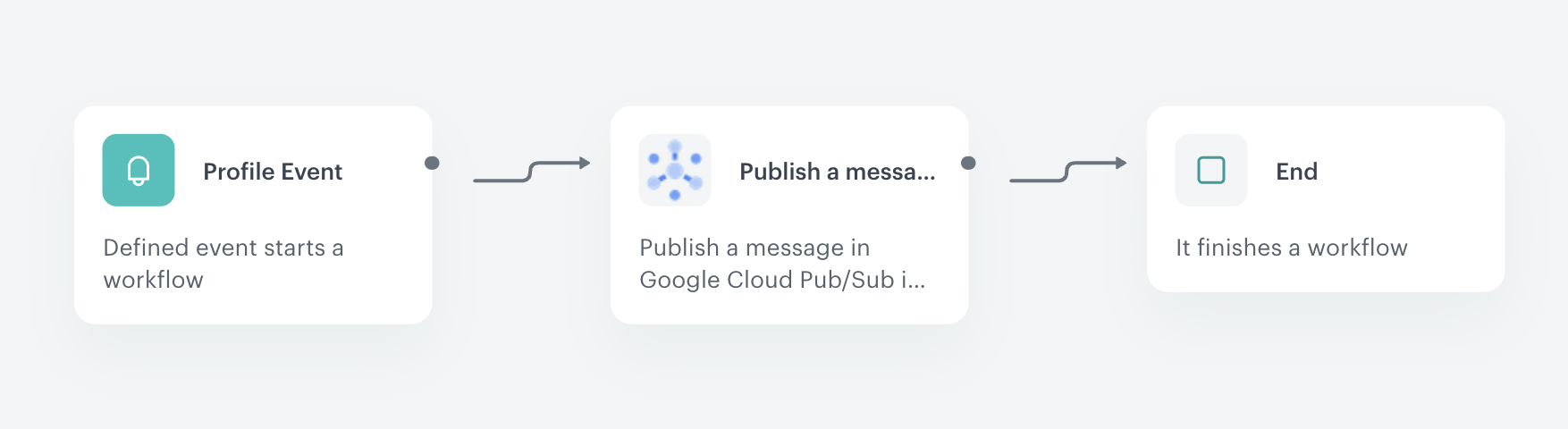
In this use case, we will create a workflow that sends information with NPS survey data to Google Cloud Pub/Sub using a dedicated node in our Automation.

## Prerequisites 
---
- Implement a custom event for NPS survey data, which will be available in the customer profile. In this example, the event is called `nps.sent`. Implement custom events in your [mobile application](/developers/mobile-sdk/event-tracking#basic-custom-event) or website [Web](/developers/web/event-tracking#declarative-tracking-custom-events). You can learn more about NPS survey in [this use case](/use-cases/dynamic-nps).
- Check [the requirements](/docs/automation/integration/google-cloud-pubsub/publish-message#prerequisites) you must meet to integrate Synerise with Google Cloud Pub/Sub.

## Create a workflow 
---
Create a workflow which sends information with NPS survey data to Google Cloud Pub/Sub. Every time the `nps.sent` event is generated, the data from the event is sent automatically to Pub/Sub.

1. Go to <img src="/api/docs/image/54176ad07f146575310749eba44b7c2f42c1b327/icons/automation-hub-icon.svg" alt="Automation Hub icon" class="icon" > **Automation Hub > Workflows > New workflow**.  
2. Enter the name of the workflow.

### Define the Profile Event trigger node
---
At this stage, we will configure conditions that launch the workflow. As a trigger, we will use the `nps.sent` event.


<details class="accordion"><summary>Click here to see example event and its parameters for an example customer</summary><div class="accordion-content"><pre><code class="language-json">{ "time": "2023-02-15T15:24:49Z", "action": "nps.sent", "label": "", "client": { "id": 5092159999, "email": "e0097757-d1e2-44ac-ba3c-d97979a354c1@anonymous.invalid", "uuid": "e0097757-d1e2-44ac-ba3c-d97979a354c1" }, "params": { "eventCreateTime": "2023-02-15T15:25:08.861Z", "name": "John", "surname": "Doe", "location": "Warsaw", "age": "23", "feedback": "I am very satisfied with the service. The support team was responsive and helpful.", "product_id": "PROD123", "order_id": "ORD456", "nps_score": 9, "NPSsource": "mobile_app" } }</code></pre></div></details>


1. As the first node of the workflow, add **Profile Event**. In the configuration of the node: 
    1. Enter the name of the node. 
    2. From the **Choose event** dropdown menu, choose the `nps.sent` event.
2.  Confirm by clicking **Apply**

### Configure the Publish Message node
---
At this stage, we will configure the Google Cloud Pub/Sub **Publish Message** node.


<div class="admonition admonition-note"><div class="admonition-icon"><svg xmlns="http://www.w3.org/2000/svg" fill="none" viewBox="0 0 24 24" stroke="currentColor" stroke-width="2.5"><path stroke-linecap="round" stroke-linejoin="round" d="M13 16h-1v-4h-1m1-4h.01M21 12a9 9 0 11-18 0 9 9 0 0118 0z" /></svg></div><div class="admonition-body"><div class="admonition-content">

We recommend publishing data in Google Cloud Pub/Sub using the CloudEvents standard, however, if you want to publish a message out of this standard or if you want to publish more than one message at once, proceed with [“Publish raw messages” node](/docs/automation/integration/google-cloud-pubsub/publish-raw-messages).

</div></div></div>


1. As the next node, add **Google Cloud Pub/Sub > Publish Message**. 
2. Click **Select connection**.
3. From the dropdown list, select the connection. 
    - If no connections are available or you want to create a new one, see [Create a connection](/docs/automation/integration/google-cloud-pubsub/publish-message#create-a-connection).  
    - If you selected an existing connection, proceed to defining the integration settings.
4. In the configuration of the node: 
    1. In the **Project ID** field, enter the unique identifier of your project in Google Cloud Console.
    You can learn how to find the project ID [here](https://support.google.com/googleapi/answer/7014113).
    2. In the **Topic ID** field, enter the unique identifier of the topic (a named resource that represents a feed of messages).   
    Learn more about [creating and managing topics](https://cloud.google.com/pubsub/docs/create-topic).
    3. In the **Attributes (optional)** field, enter a JSON key-value object with message attributes.  
       This can be used to filter messages in the subscription. Learn more about [building the "attributes" object](https://cloud.google.com/pubsub/docs/reference/rest/v1/PubsubMessage). The Attributes object can contain up to 100 attributes. In this use case, we will add source of the NPS event as an attribute. This will allow subscribers in Pub/Sub to filter the proper messages to be consumed. The example of Attributes object contains [the Automation inserts](/developers/inserts/automation) that retrieve data from the event included in the **Profile Event** node.
    
       <details class="accordion"><summary>Click here to see an example of Attributes object used in this use case</summary><div class="accordion-content"><pre><code class="language-json">{ "NPSsource": "{{ event.params.NPSsource }}" }</code></pre></div></details>

    4. In the **CloudEvent type** field, enter the type of data sent in the CloudEvent.  
    Learn more about [CloudEvent types](https://github.com/cloudevents/spec/blob/v1.0.2/cloudevents/spec.md#type).
    5. In the **Data (optional)** field, enter the event data.  
    It will be sent to Pub/Sub as the `data` object in a [CloudEvent JSON Object](https://github.com/cloudevents/spec/blob/v1.0.2/cloudevents/formats/json-format.md). The CloudEvent object will be automatically encoded with base64 and sent as the `data` field in a [Pub/Sub Message](https://cloud.google.com/pubsub/docs/reference/rest/v1/PubsubMessage). In this use case, we will send values of `nps.sent` event parameters such as, among others, **name**, **surname** and **feedback**. The example of Data field contains [the Automation inserts](/developers/inserts/automation) that retrieve data from the event included in the **Profile Event** node.

        
       <details class="accordion"><summary>Click here to see an example of the Data field used in this use case</summary><div class="accordion-content"><pre><code class="language-json">{ "eventCreateTime": "{{ event.params.eventCreateTime }}", "name": "{{ event.params.name }}", "surname": "{{ event.params.surname }}", "location": "{{ event.params.location }}", "age": "{{ event.params.age }}", "feedback": "{{ event.params.feedback }}", "product_id": "{{ event.params['product_id'] }}", "order_id": "{{ event.params['order_id'] }}", "nps_score": "{{ event.params['nps_score'] }}" }</code></pre></div></details>

6. Confirm the settings by clicking **Apply**. 


### Add the finishing node
---

1. Add the **End** node.
    <figure>
    <img src="/api/docs/image/54176ad07f146575310749eba44b7c2f42c1b327/use-cases/all-cases/_gfx/nps_pubsub.png" alt="The view of the workflow configuration"  class="full">
    <figcaption>The workflow configuration</figcaption>
    </figure> 
2. In the upper right corner, click **Save & Run**.
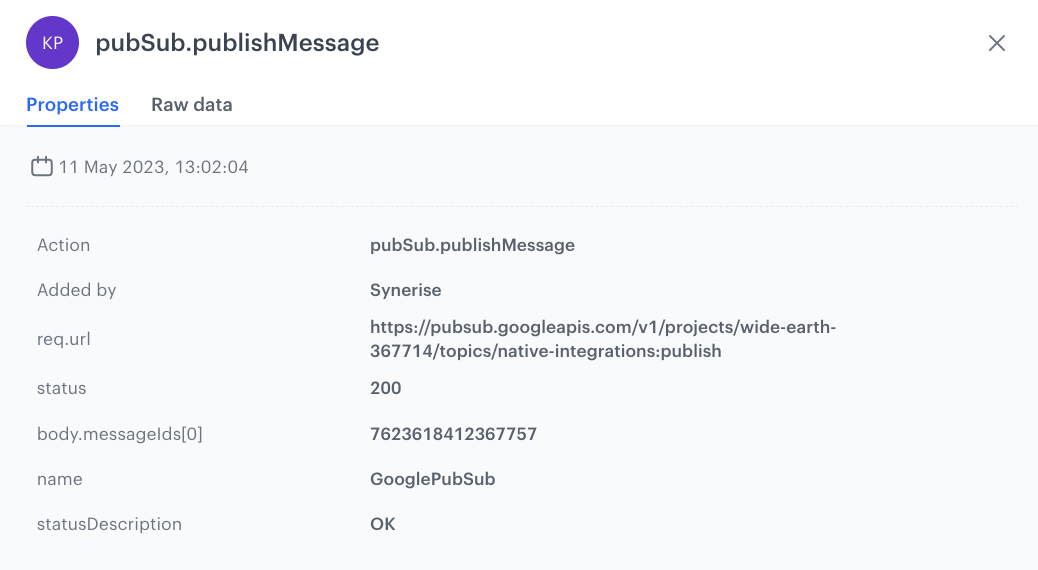
    **Result**: Every time the `nps.sent` event is performed on the profil of customer, data from this event is streamed to Pub/Sub. After each such action, a response event (`pubSub.publishMessage`) is generated on the customer's profile. 

<figure>
<img src="/api/docs/image/54176ad07f146575310749eba44b7c2f42c1b327/use-cases/all-cases/_gfx/nps-event-response.png" alt="The response event example"  class="medium">
<figcaption>Example of pubSub.publishMessage event, generated after sending data to Google Cloud Pub/Sub</figcaption>
</figure> 

## Check the use case set up on the Synerise Demo workspace
---
You can check the [workflow configuration](https://app.synerise.com/automations/automation-diagram/1fbf41b2-7e9e-46e1-b450-8ceff9289695) directly in Synerise Demo workspace. 

If you’re our partner or client, you already have automatic access to the **Synerise Demo workspace (1590)**, where you can explore all the configured elements of this use case and copy them to your workspace.  

If you’re not a partner or client yet, we encourage you to fill out the contact [form](https://demo.synerise.com/request) to schedule a meeting with our representatives. They’ll be happy to show you how our demo works and discuss how you can apply this use case in your business. 

## Read more
---
- [Automation Hub](/docs/automation)
- [Publish Message node](/docs/automation/integration/google-cloud-pubsub/publish-message)
- [Jinjava inserts](/developers/inserts/automation)