 **Automation Hub > Workflows > New workflow**.
2. Enter the name of the workflow.
### Define the trigger node
As a trigger, we will use the `offline.transaction` custom event for a transaction made in brick-and-mortar store when picking up an order.
1. As the first node of the workflow, add **Profile Event**.
2. In the configuration of the node, from the **Choose event** dropdown menu, choose `offline.transaction` event.
2. Click **Apply**.
### Configure the Send Offline Conversion node
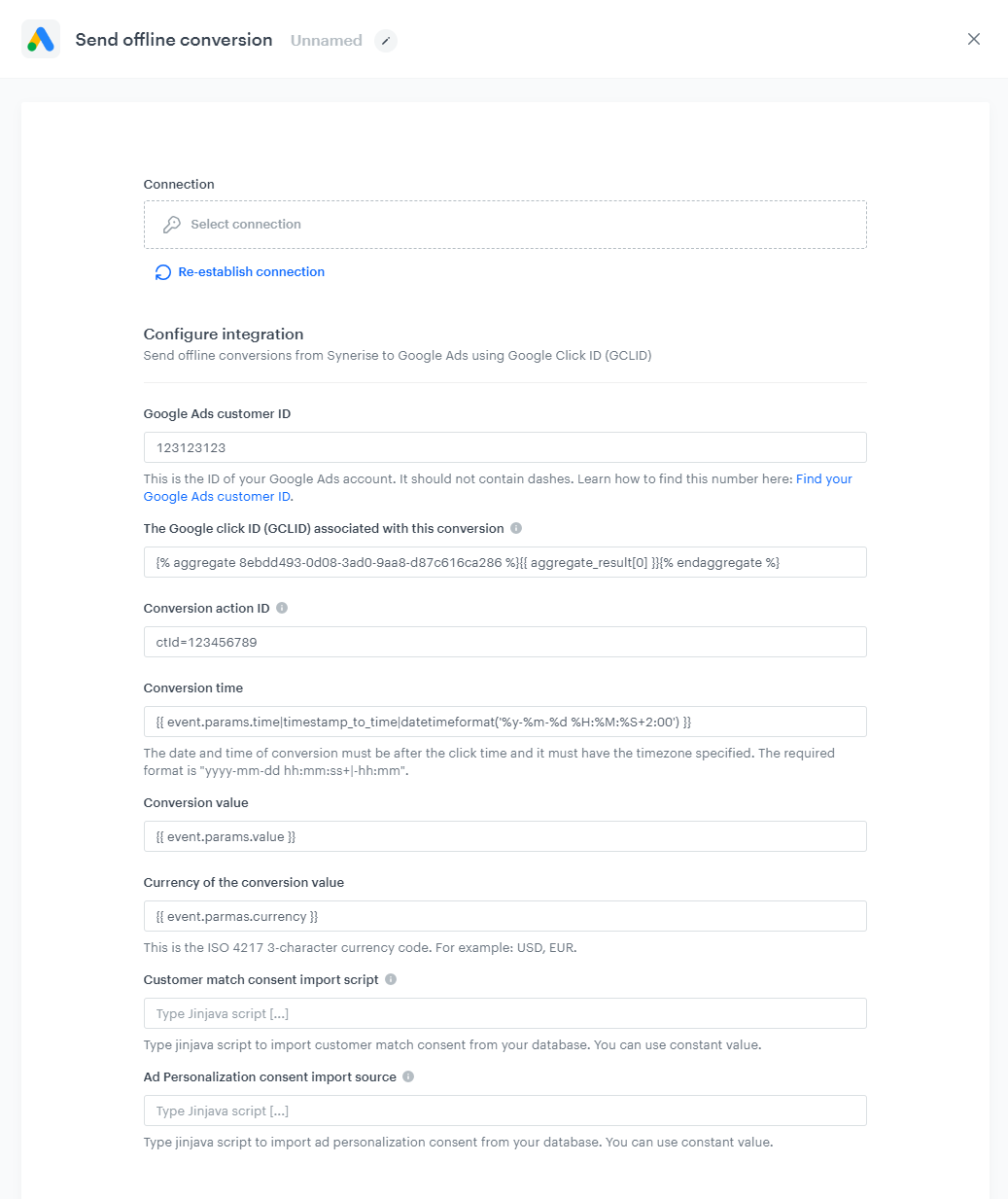
1. As the next node, add **Google Ads > Send Offline Conversion**.
2. In the configuration of the node, from the dropdown list, select the connection.
- If no connections are available or you want to create a new one, see [Create a connection](/docs/automation/integration/google-ads/google-ads-send-offline-conversions#create-a-connection).
- If you selected an existing connection, proceed to next step.
2. In the **Google Ads customer ID** field, enter the ID of the Google Ads account. It can't contain dashes. [Learn how to find this number](https://support.google.com/google-ads/answer/1704344?hl=en).
2. In the **The Google click ID (GCLID) associated with this conversion** field, enter the part of the URL that starts with `?gclid=`.
For that purpose, you can enter a Jinjava tag that inserts the value of the [aggregate you created as the part of the prerequisites](#prerequisites): `{% aggregate AGGREGATE_ID %}{{ aggregate_result[0] }}{% endaggregate %}`. Replace the `AGGREGATE_ID` with an actual ID of the aggregate, you can find it in the URL while previewing the aggregate.
5. In the **Conversion action ID** field, enter the ID of the conversion. You can find it in the Google Ads panel. When you go to conversion action details, the URL contains the `ctId` parameter (for example, `ctId=123456789`) whose value is the conversion action ID. [Learn more about conversion action in Google Ads](https://support.google.com/google-ads/answer/6032150?hl=en).
6. In the **Conversion time** field, enter the time of the conversion in the following format: `yyyy-mm-dd hh:mm:ss+|-hh:mm`.
For that purpose, you can use [a Jinjava code](/developers/inserts/automation) that inserts date of conversion dynamically, from the trigger, that is, offline conversion. For example, `{{ event.params.time|timestamp_to_time|datetimeformat('%y-%m-%d %H:%M:%S+2:00') }}`.
7. Optionally, in the **Conversion value for the advertiser** field, enter the value. For that purpose, you can use [a Jinjava code](/developers/inserts/automation) that inserts the value dynamically based on the event context from the trigger, that is, offline conversion. For example, `{{ event.params.value }}`.
8. Optionally, in the **Currency associated with the conversion value** field, enter the currency. For that purpose, you can use [a Jinjava code](/developers/inserts/automation) that inserts the value dynamically based on the event context from the trigger, that is, offline conversion `{{ event.parmas.currency }}`.
9. In **Customer match consent import script** type jinjava script to import customer match consent from your database. You can use constant value.
10. In **Ad Personalization consent import source** type jinjava script to import ad personalization consent from your database. You can use sonstant value.
9. Confirm the settings by clicking **Apply**.
**Automation Hub > Workflows > New workflow**.
2. Enter the name of the workflow.
### Define the trigger node
As a trigger, we will use the `offline.transaction` custom event for a transaction made in brick-and-mortar store when picking up an order.
1. As the first node of the workflow, add **Profile Event**.
2. In the configuration of the node, from the **Choose event** dropdown menu, choose `offline.transaction` event.
2. Click **Apply**.
### Configure the Send Offline Conversion node
1. As the next node, add **Google Ads > Send Offline Conversion**.
2. In the configuration of the node, from the dropdown list, select the connection.
- If no connections are available or you want to create a new one, see [Create a connection](/docs/automation/integration/google-ads/google-ads-send-offline-conversions#create-a-connection).
- If you selected an existing connection, proceed to next step.
2. In the **Google Ads customer ID** field, enter the ID of the Google Ads account. It can't contain dashes. [Learn how to find this number](https://support.google.com/google-ads/answer/1704344?hl=en).
2. In the **The Google click ID (GCLID) associated with this conversion** field, enter the part of the URL that starts with `?gclid=`.
For that purpose, you can enter a Jinjava tag that inserts the value of the [aggregate you created as the part of the prerequisites](#prerequisites): `{% aggregate AGGREGATE_ID %}{{ aggregate_result[0] }}{% endaggregate %}`. Replace the `AGGREGATE_ID` with an actual ID of the aggregate, you can find it in the URL while previewing the aggregate.
5. In the **Conversion action ID** field, enter the ID of the conversion. You can find it in the Google Ads panel. When you go to conversion action details, the URL contains the `ctId` parameter (for example, `ctId=123456789`) whose value is the conversion action ID. [Learn more about conversion action in Google Ads](https://support.google.com/google-ads/answer/6032150?hl=en).
6. In the **Conversion time** field, enter the time of the conversion in the following format: `yyyy-mm-dd hh:mm:ss+|-hh:mm`.
For that purpose, you can use [a Jinjava code](/developers/inserts/automation) that inserts date of conversion dynamically, from the trigger, that is, offline conversion. For example, `{{ event.params.time|timestamp_to_time|datetimeformat('%y-%m-%d %H:%M:%S+2:00') }}`.
7. Optionally, in the **Conversion value for the advertiser** field, enter the value. For that purpose, you can use [a Jinjava code](/developers/inserts/automation) that inserts the value dynamically based on the event context from the trigger, that is, offline conversion. For example, `{{ event.params.value }}`.
8. Optionally, in the **Currency associated with the conversion value** field, enter the currency. For that purpose, you can use [a Jinjava code](/developers/inserts/automation) that inserts the value dynamically based on the event context from the trigger, that is, offline conversion `{{ event.parmas.currency }}`.
9. In **Customer match consent import script** type jinjava script to import customer match consent from your database. You can use constant value.
10. In **Ad Personalization consent import source** type jinjava script to import ad personalization consent from your database. You can use sonstant value.
9. Confirm the settings by clicking **Apply**.
