This recommendation focuses on showing similar products to the one currently viewed on the page. It aims to help users discover alternatives within the same category while avoiding exact duplicates. The logic is split into two slots to balance precision and completeness, ensuring a consistent and meaningful recommendation experience.
In this use case, the recommendation returns 12 products, divided into two slots:
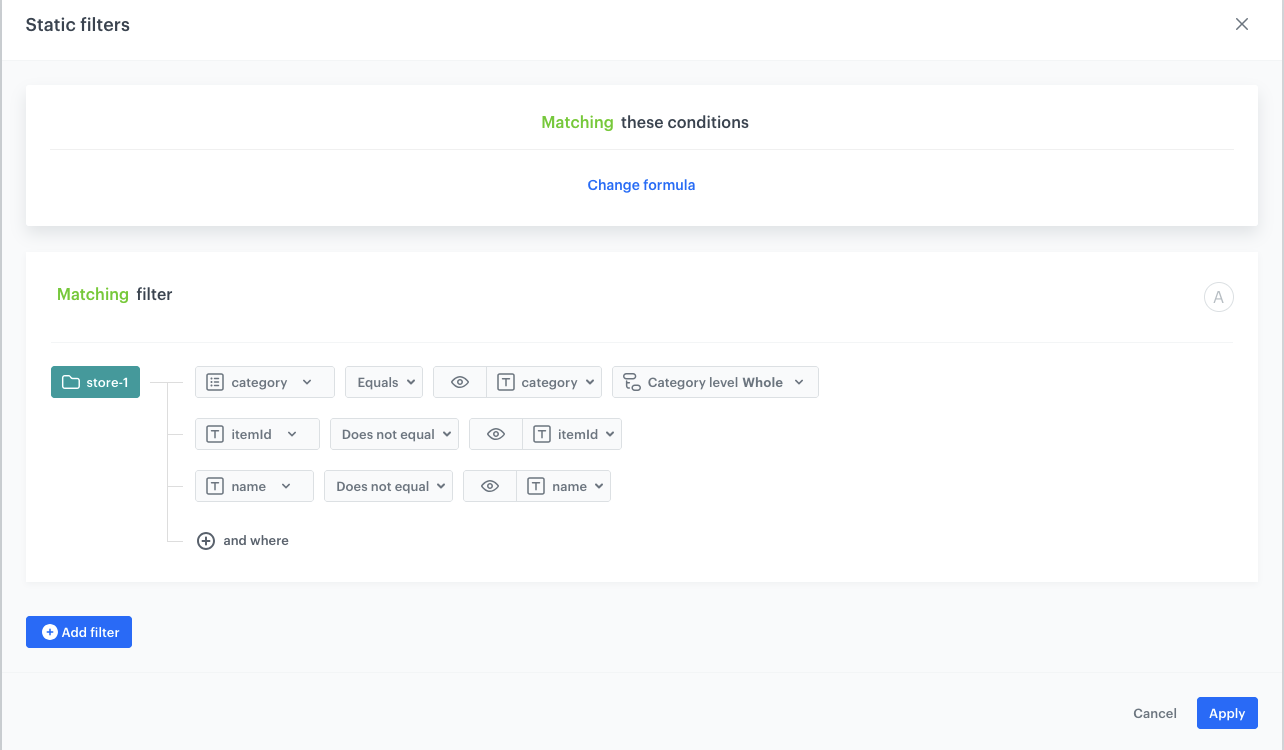
- Slot A returns 1 to 4 items using a static filter. Recommended products must have the same category and categoryId as the context product but a different title and item ID, ensuring that only distinct alternatives are shown.
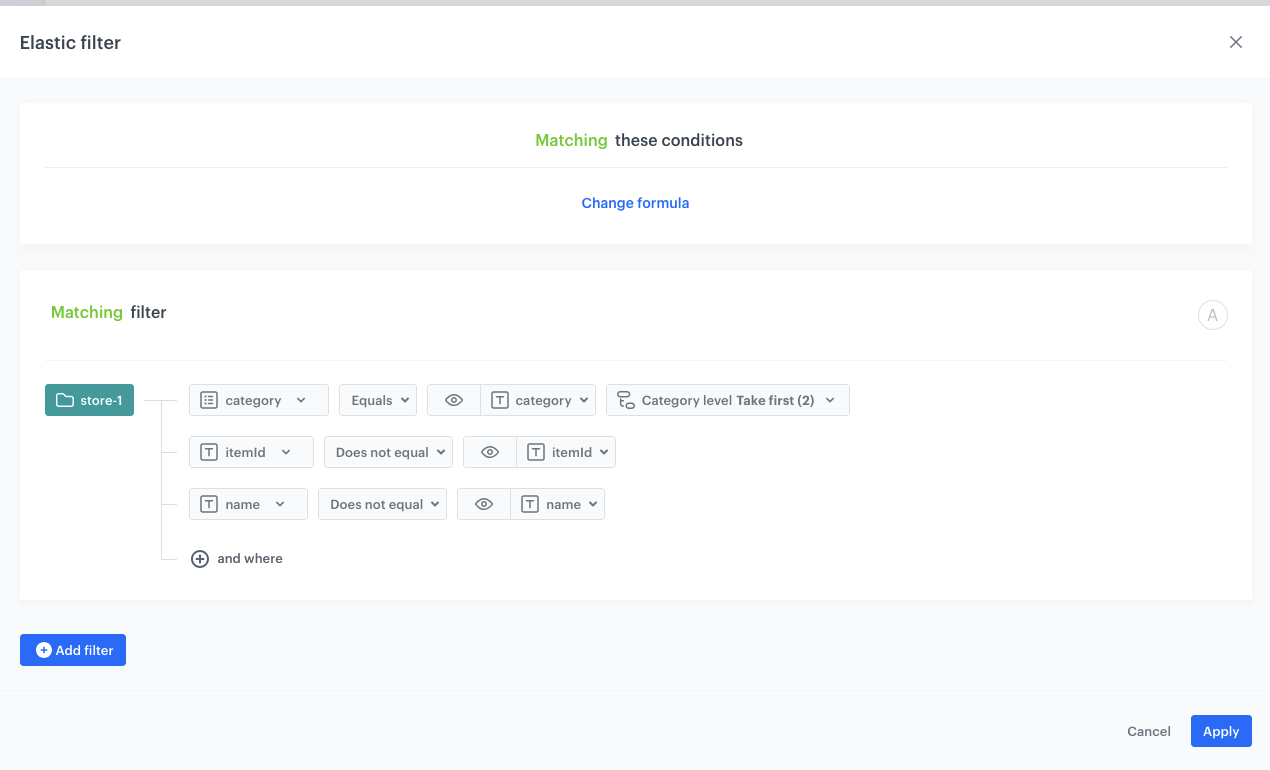
- Slot B fills the remaining space with 4 to 8 products using an elastic filter. It still excludes items with the same title or ID but allows for more variation, such as partial name matches or model variants, to increase coverage when Slot A produces limited results.
These two slots together form a complete "You may also like" recommendation block, where:
Slot A focuses on quality (diverse alternatives), Slot B ensures quantity (variants and similar products).
## Prerequisites
---
- Implement a [tracking code](/developers/web/installation-and-configuration) into your website.
- [Configure AI engine](/docs/settings/configuration/ai-engine-configuration/engine-configuration-for-recommendations). Enable similar recommendation model.
- Implement the [transaction events](/developers/web/transactions-sdk).
## Prepare an AI recommendation
---
We will configure similar recommendation which returns 2 slots.
1. Go to **AI Hub > (AI Recommendations) Models > Add recommendation**.
2. Enter the name of the recommendation (it is only visible on the list of recommendations).
3. In the **Type & Items Feed** section, click **Define**.
4. From the **Items Feed** dropdown list, select an item feed.
5. In the **Type** section, choose the **Similar recommendation** type.
6. Confirm the settings by clicking **Apply**.
7. In the **Items** section, click **Define**.
2. Define the minimum and maximum number of items that will be recommended to the customer in the first slot. In our case it will be 1-4.
3. Define [Static filters](/docs/ai-hub/recommendations-v2/creating-recommendation-campaign#static-filters).
4. Click **Define filter**.
5. Select **Visual Builder**.
6. Click **Select value**.
5. Choose **category**.
6. As an operator, choose **Equals**.
7. Click the icon which appeared next to the field with operator and from the dropdown list, select **Context** (eye icon).
7. As the value, choose `category`, to be sure that the category of recommended products will be the same as the category of the currently viewed item.
8. In the **Category level** input, select **Category as a whole**.
9. Click **and where** to add another condition.
10. Choose **itemId**.
6. As an operator, choose **Does not equal**.
7. Click the icon which appeared next to the field with operator and from the dropdown list, select **Context** (eye icon).
7. As the value, choose `itemId`, to be sure that the itemId of recommended products will not be the same as the ID of the currently viewed item.
9. Click **and where** to add another condition.
10. Choose **name**.
6. As an operator, choose **Does not equal**.
7. Click the icon which appeared next to the field with operator and from the dropdown list, select **Context** (eye icon).
7. As the value, choose `name`, to be sure that the title of recommended products will not be the same as the name of the currently viewed item.
4. Confirm by clicking **Apply**.
Configuration of the static filter
5. Add the second slot.
2. Define the minimum and maximum number of items that will be recommended to the customer in the first slot. In our case it will be 4-8.
4. In the **Elastic filter** section, click **Define filter**.
5. Select **Visual Builder**.
6. Click **Select value**.
5. Choose **category**.
6. As an operator, choose **Equals**.
7. Click the icon which appeared next to the field with operator and from the dropdown list, select **Context** (eye icon).
7. As the value, choose `category`, to be sure that the category of recommended products will be the same as the category of the currently viewed item.
8. In the **Category level** input, select **Category level - Take first (2)**.
9. Click **and where** to add another condition.
10. Choose **itemId**.
6. As an operator, choose **Does not equal**.
7. Click the icon which appeared next to the field with operator and from the dropdown list, select **Context** (eye icon).
7. As the value, choose `itemId`, to be sure that the itemId of recommended products will not be the same as the ID of the currently viewed item.
9. Click **and where** to add another condition.
10. Choose **name**.
6. As an operator, choose **Does not equal**.
7. Click the icon which appeared next to the field with operator and from the dropdown list, select **Context** (eye icon).
7. As the value, choose `name`, to be sure that the title of recommended products will not be the same as the name of the currently viewed item.
4. Confirm by clicking **Apply**.
Configuration of the elastic filter
8. Additionally define the boosting rules by clicking **Define** in the **Boosting** section.
9. In the **Additional settings** section, choose **Exclude already bought products**. If your company sells replenishable products, you can set exclusion for specific number of days, for example, exclude products bought not later than 30 days ago.
9. In the right upper corner, click **Save**.
## Check the use case set up on the Synerise Demo workspace
---
You can check the configuration of the [AI Recommendation](https://app.synerise.com/ai-v2/recommendations/6gKg9VwwoAyC) in our Synerise Demo workspace.
If you’re our partner or client, you already have automatic access to the **Synerise Demo workspace (1590)**, where you can explore all the configured elements of this use case and copy them to your workspace.
If you’re not a partner or client yet, we encourage you to fill out the contact [form](https://demo.synerise.com/request) to schedule a meeting with our representatives. They’ll be happy to show you how our demo works and discuss how you can apply this use case in your business.
## Read more
---
- [Aggregates](/docs/analytics/aggregates)
- [Recommendations](/docs/ai-hub/recommendations-v2)
 **AI Hub > (AI Recommendations) Models > Add recommendation**.
2. Enter the name of the recommendation (it is only visible on the list of recommendations).
3. In the **Type & Items Feed** section, click **Define**.
4. From the **Items Feed** dropdown list, select an item feed.
5. In the **Type** section, choose the **Similar recommendation** type.
6. Confirm the settings by clicking **Apply**.
7. In the **Items** section, click **Define**.
2. Define the minimum and maximum number of items that will be recommended to the customer in the first slot. In our case it will be 1-4.
3. Define [Static filters](/docs/ai-hub/recommendations-v2/creating-recommendation-campaign#static-filters).
4. Click **Define filter**.
5. Select **Visual Builder**.
6. Click **Select value**.
5. Choose **category**.
6. As an operator, choose **Equals**.
7. Click the icon which appeared next to the field with operator and from the dropdown list, select **Context** (eye icon).
7. As the value, choose `category`, to be sure that the category of recommended products will be the same as the category of the currently viewed item.
8. In the **Category level** input, select **Category as a whole**.
9. Click **and where** to add another condition.
10. Choose **itemId**.
6. As an operator, choose **Does not equal**.
7. Click the icon which appeared next to the field with operator and from the dropdown list, select **Context** (eye icon).
7. As the value, choose `itemId`, to be sure that the itemId of recommended products will not be the same as the ID of the currently viewed item.
9. Click **and where** to add another condition.
10. Choose **name**.
6. As an operator, choose **Does not equal**.
7. Click the icon which appeared next to the field with operator and from the dropdown list, select **Context** (eye icon).
7. As the value, choose `name`, to be sure that the title of recommended products will not be the same as the name of the currently viewed item.
4. Confirm by clicking **Apply**.
**AI Hub > (AI Recommendations) Models > Add recommendation**.
2. Enter the name of the recommendation (it is only visible on the list of recommendations).
3. In the **Type & Items Feed** section, click **Define**.
4. From the **Items Feed** dropdown list, select an item feed.
5. In the **Type** section, choose the **Similar recommendation** type.
6. Confirm the settings by clicking **Apply**.
7. In the **Items** section, click **Define**.
2. Define the minimum and maximum number of items that will be recommended to the customer in the first slot. In our case it will be 1-4.
3. Define [Static filters](/docs/ai-hub/recommendations-v2/creating-recommendation-campaign#static-filters).
4. Click **Define filter**.
5. Select **Visual Builder**.
6. Click **Select value**.
5. Choose **category**.
6. As an operator, choose **Equals**.
7. Click the icon which appeared next to the field with operator and from the dropdown list, select **Context** (eye icon).
7. As the value, choose `category`, to be sure that the category of recommended products will be the same as the category of the currently viewed item.
8. In the **Category level** input, select **Category as a whole**.
9. Click **and where** to add another condition.
10. Choose **itemId**.
6. As an operator, choose **Does not equal**.
7. Click the icon which appeared next to the field with operator and from the dropdown list, select **Context** (eye icon).
7. As the value, choose `itemId`, to be sure that the itemId of recommended products will not be the same as the ID of the currently viewed item.
9. Click **and where** to add another condition.
10. Choose **name**.
6. As an operator, choose **Does not equal**.
7. Click the icon which appeared next to the field with operator and from the dropdown list, select **Context** (eye icon).
7. As the value, choose `name`, to be sure that the title of recommended products will not be the same as the name of the currently viewed item.
4. Confirm by clicking **Apply**.