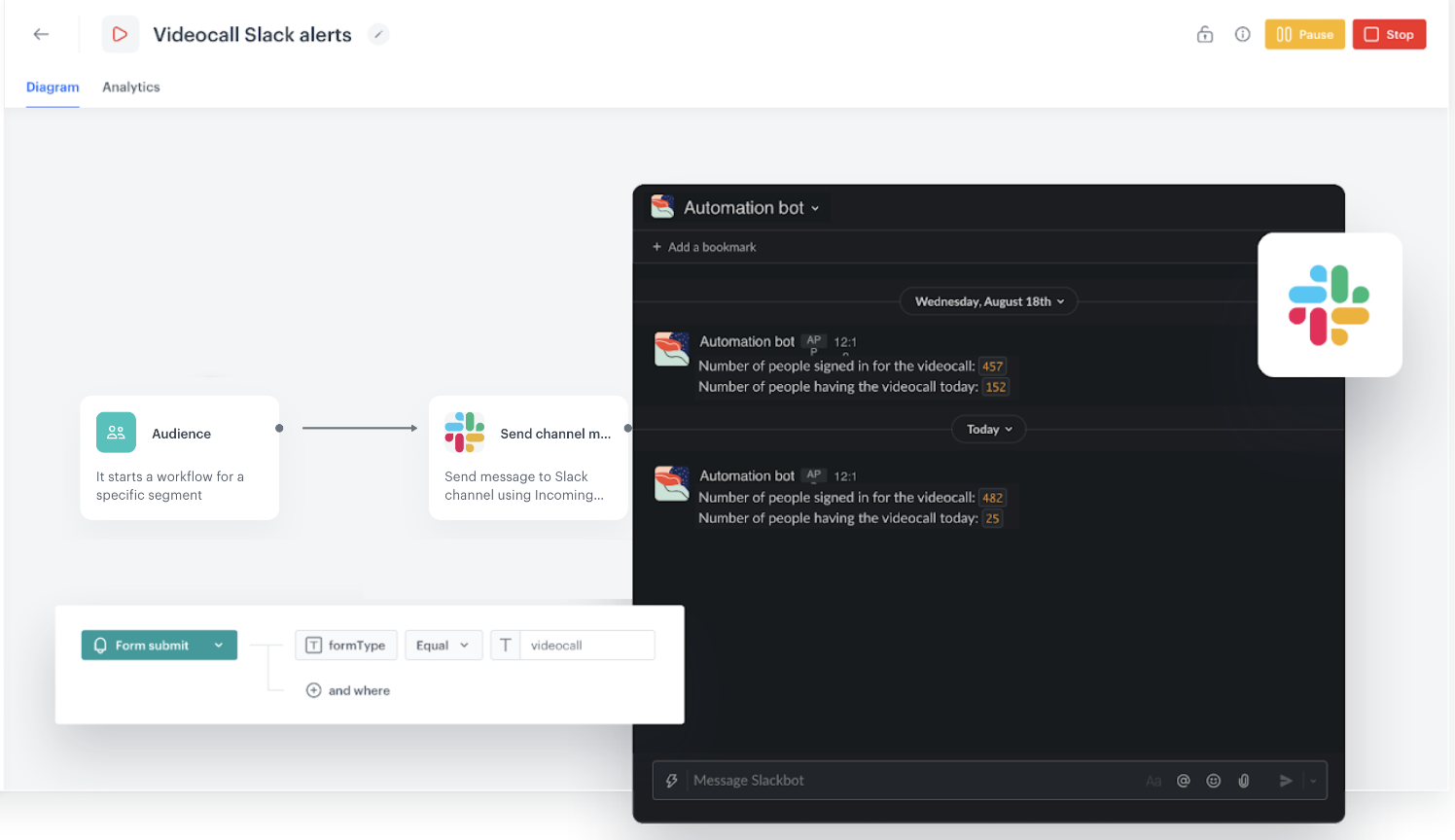
You can integrate Synerise with Slack using a dedicated node to build a variety of business scenarios. One of them is building a workflow that sends messages to a Slack channel based on metrics, expressions, reports or any other analyses created in Synerise.

This particular use case reuses a metric (which is a part of an analytical dashboard) that counts the number of customers who signed up for the video call the day before. The message to the channel contains information with the value of the metric. 

<figure>
<img src="/api/docs/image/54176ad07f146575310749eba44b7c2f42c1b327/use-cases/all-cases/_gfx/slack-integration.png" alt="Screenshot presenting personalized search on a website with no results" class="full no-frame">
<figcaption> Slack integration </figcaption>
</figure>

## Prerequisites
---
- Create [an incoming webhook in Slack](https://api.slack.com/messaging/webhooks).
- Implement [an event](/docs/assets/events) that you want to use in the metric whose result will be sent in a message to a Slack channel.


  <div class="admonition admonition-note"><div class="admonition-icon"><svg xmlns="http://www.w3.org/2000/svg" fill="none" viewBox="0 0 24 24" stroke="currentColor" stroke-width="2.5"><path stroke-linecap="round" stroke-linejoin="round" d="M13 16h-1v-4h-1m1-4h.01M21 12a9 9 0 11-18 0 9 9 0 0118 0z" /></svg></div><div class="admonition-body"><div class="admonition-content">

  In this use case, we track data from the form that enables to sign up for the video call using [SDK form tracking method](/developers/web/tracking-form-data/tracking-form-data-sdk). This method generates a `form.submit` event which we will later used in the metric. Learn more about other ways to implement events using [web SDK](/developers/web/event-tracking#declarative-tracking-custom-events), [mobile SDK](/developers/mobile-sdk/event-tracking) or [API](https://developers.synerise.com/DataManagement/DataManagement.html#operation/CustomEvent).

  </div></div></div>


## Process 
---
1. [Create a metric in Synerise](/use-cases/slack-integration#create-a-metric-in-synerise).
3. [Create a workflow in Synerise](/use-cases/slack-integration#create-a-workflow-in-synerise).

## Create a metric in Synerise
---

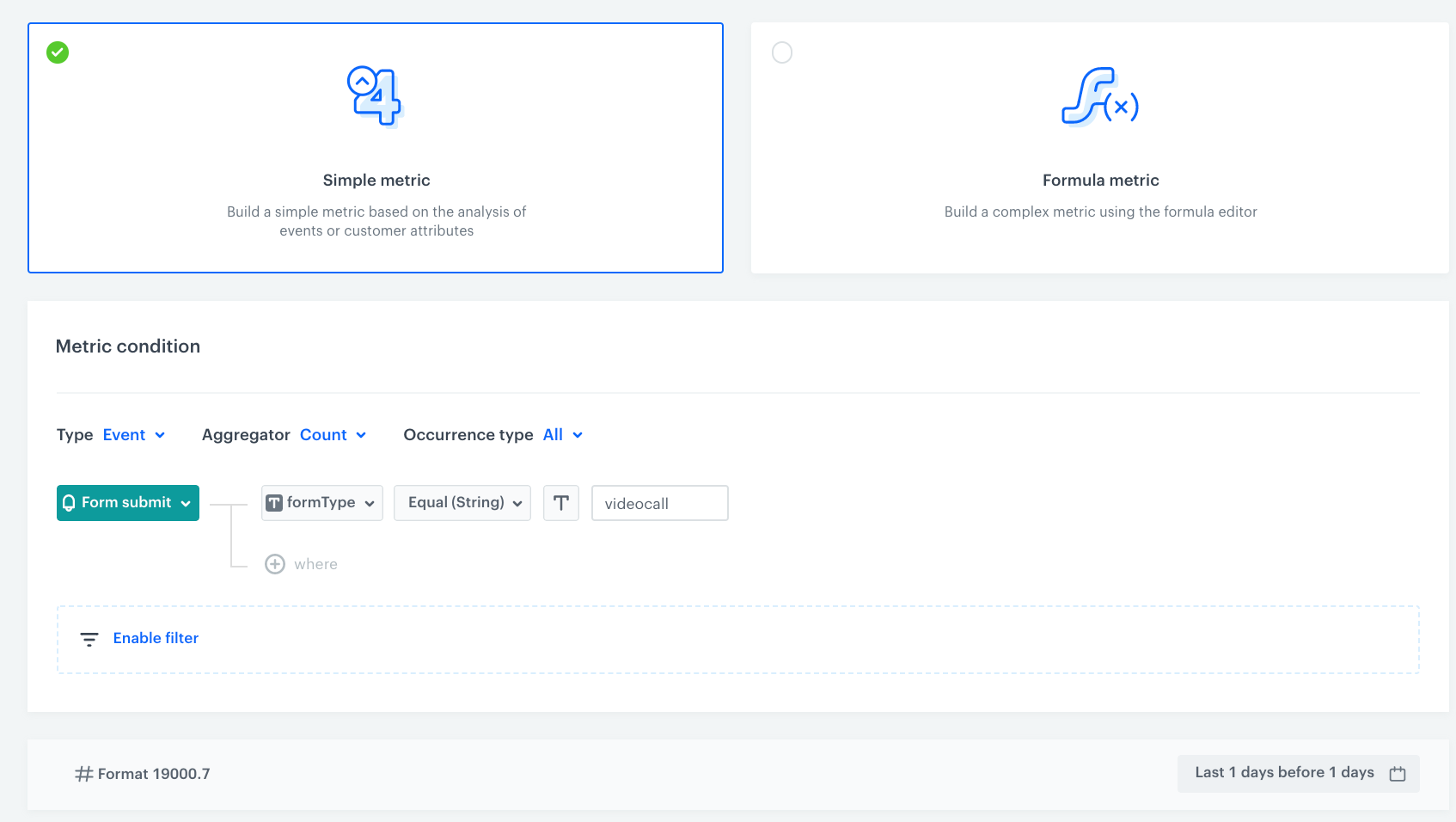
In this step, we will create a metric whose result will be later sent in the Slack message. The configuration is exemplary, it may vary depending on your implementation of events.

1. In Synerise, go to <img src="/api/docs/image/54176ad07f146575310749eba44b7c2f42c1b327/icons/decision-hub-icon.svg" alt="Decision Hub icon" class="icon" > **Decision Hub > Metrics > New metric**.
2. Leave the metric kind at default (**Simple**).
3. Leave the metric type at default (**Event**)
2. From the **Choose event** dropdown list, select the **form.submit** event.
3. As the event parameter, select the **formType**.
4. As a logical operator, select **Equal (String)**.
5. In the text field, enter `videocall`.
<figure>
<img src="/api/docs/image/54176ad07f146575310749eba44b7c2f42c1b327/use-cases/all-cases/_gfx/metric-form-submit-videocall.png" alt="Configuration of the metric that calculates the number of sign-ups for a video call the day before" class="full">
<figcaption> Configuration of the metric that calculates the number of sign-ups for a video call the day before </figcaption>
</figure>


<div class="admonition admonition-note"><div class="admonition-icon"><svg xmlns="http://www.w3.org/2000/svg" fill="none" viewBox="0 0 24 24" stroke="currentColor" stroke-width="2.5"><path stroke-linecap="round" stroke-linejoin="round" d="M13 16h-1v-4h-1m1-4h.01M21 12a9 9 0 11-18 0 9 9 0 0118 0z" /></svg></div><div class="admonition-body"><div class="admonition-content">

In this use case, the metric is included in the [analytical dashboard](/docs/analytics/analytics-dashboard) which is later linked in the alert message in Slack.

</div></div></div>


## Create a workflow in Synerise
---
In this part of the process, you will create a workflow that sends a message to a Slack channel with the number of customers who signed up for a video call. The message will contain the metric result and the link to the analytical dashboard that contains the metric.
1. In Synerise, go to **Automation Hub > Workflows > New workflow**.
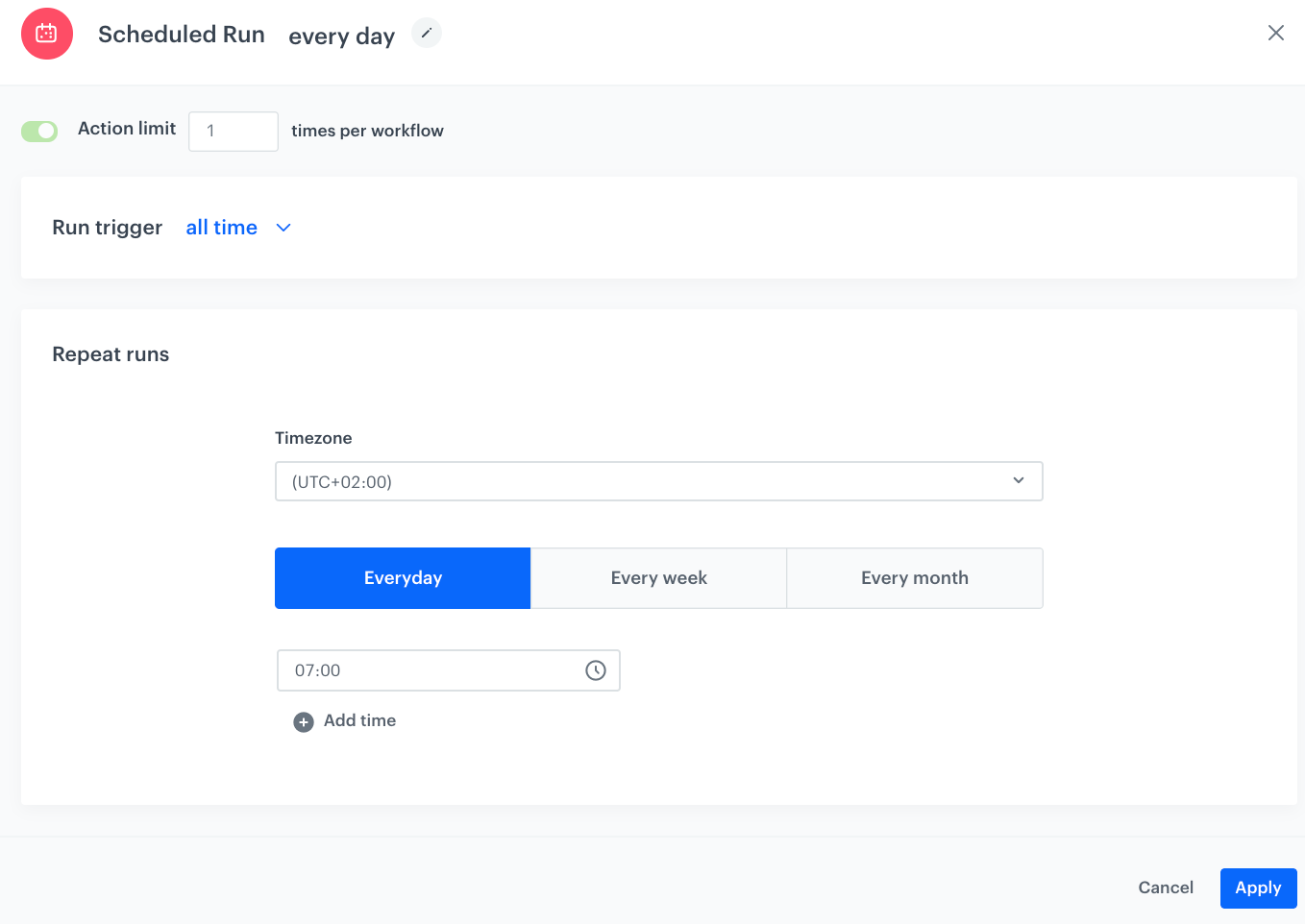
2. Start with the **Scheduled Run** node. In the configuration of the node:
    1. Set the **Run trigger** option to **all time**.
    2. Select the **Everyday** tab.
    3. Select the time zone.
    3. Select the time when the workflow will be launched.  
    4. Confirm by clicking **Apply**.
    <figure>
    <img src="/api/docs/image/54176ad07f146575310749eba44b7c2f42c1b327/use-cases/all-cases/_gfx/scheduled-run-slack.png" alt="Configuration of the workflow that sends alert messages with the metric results to the Slack channel" class="full">
    <figcaption> Configuration of the workflow that sends alert messages with the metric results to the Slack channel</figcaption>
    </figure>

### Configure Slack Integration node

In this step, you will configure the settings of the outgoing integration that sends the message to a Slack channel. 

#### Create a connection

1. On the **Scheduled Run** node, click **THEN**.
2. From the dropdown list, select **Slack > Send Channel Message**.  
3. In the configuration of the node:  
    - If you already create a connection, select the connection from the list.  
    - If you haven't created any connection yet:  
      1. At the bottom of the dropdown list, click **Add connection**.
      2. In the **Incoming Webhook URL** field, enter the incoming webhook URL you created as a part of [prerequisites](/use-cases/slack-integration#prerequisites).
      3. Click **Next**.  
      4. In the **Connection name** field, enter the name for the connection you created. 
      5. Click **Apply**.  
            **Result**: A connection is created and selected. 

#### Define the integration parameters

1. In the **Type of message** field, choose **interactive message (JSON)**.
2. Below add JSON body of message which should be sent to Slack channel.

    
   <pre><code class="language-json">{
       "blocks": [
           {
               "type": "section",
               "text": {
                   "type": "mrkdwn",
                   "text": "Number of people signed in for the videocall: `{% metricsvar metric_id:XXXXXXXX-XXXX-XXXX-XXXX-XXXXXXXXXXXX %}{{ metric_result }}{% endmetricsvar %}`\nNumber of people having the videocall today: `{% metricsvar metric_id:XXXXXXXX-XXXX-XXXX-XXXX-XXXXXXXXXXXX %}{{ metric_result }}{% endmetricsvar %}`"
               },
               "accessory": {
                   "type": "button",
                   "text": {
                       "type": "plain_text",
                       "text": "check dashboard",
                       "emoji": true
                   },
                   "url": "https://app.synerise.com/spa/modules/dashboards/analytics/dashboards/XXXXXXX-XXXX-XXXX-XXXX-XXXXXXXXXXXX"
               }
           }
       ]
       }</code></pre>

   In the JSON body:
- Insert the ID of the metric you created in the [previous step](/use-cases/slack-integration#create-a-metric-in-synerise).
- Optionally, if you want to refer users to the analytical dashboard, for the `url` parameter, insert the link to the dashboard. If you choose not to, remove the `accessory` object from the JSON body.


3. Confirm by clicking **Apply**.
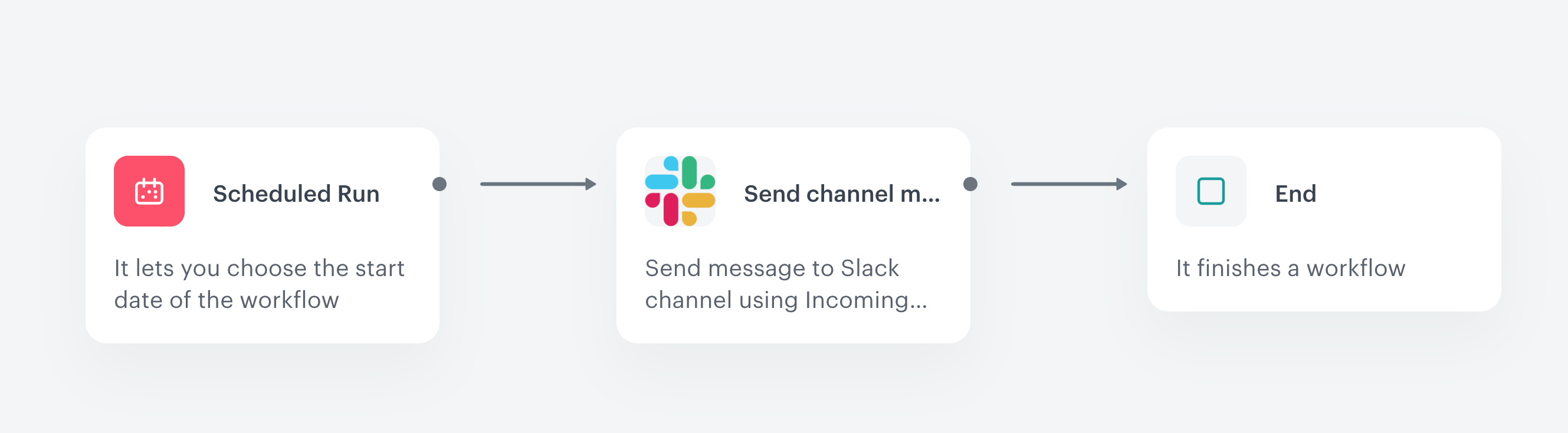
5. Add the **End** node.
6. Launch the workflow by clicking **Save&Run**. 

    <figure>
    <img src="/api/docs/image/54176ad07f146575310749eba44b7c2f42c1b327/use-cases/all-cases/_gfx/videocall-slac-alerts.png" alt="Configuration of the workflow that sends alert messages based on the metric results to the Slack channel" class="full">
    <figcaption> Configuration of the workflow that sends alert messages based on the metric results to the Slack channel</figcaption>
    </figure>

**Result**: The message is sent to the Slack channel.  
        <figure>
        <img src="/api/docs/image/54176ad07f146575310749eba44b7c2f42c1b327/use-cases/all-cases/_gfx/slack-message.png" alt="Message on the Slack channel" class="full">
        <figcaption> Message on the Slack channel </figcaption>
        </figure>


## Check the use case set up on the Synerise Demo workspace
---
You can check the configuration of use case in Synerise Demo workspace:
- [Metric](https://app.synerise.com/analytics/metrics/b4a6958d-7f86-47d6-a8c8-c89fe1c76aba)
- [Workflow configuration](https://app.synerise.com/automations/workflows/automation-diagram/3509dfae-73b4-4333-9e16-c3d957568748) 

If you’re our partner or client, you already have automatic access to the **Synerise Demo workspace (1590)**, where you can explore all the configured elements of this use case and copy them to your workspace.  

If you’re not a partner or client yet, we encourage you to fill out the contact [form](https://demo.synerise.com/request) to schedule a meeting with our representatives. They’ll be happy to show you how our demo works and discuss how you can apply this use case in your business. 

## Read more
---
- [Automation Hub](/docs/automation)
- [Integration](/docs/automation/integration)
- [Inserts](/developers/inserts)
- [Building JSON of interactive messages in Slack](https://app.slack.com/block-kit-builder/)
