A lot of purchases are made due to the recommendation heard from friends or people with similar preferences. People generally choose products that regularly sell out and get positive feedback.

That is why it is worth putting social proof on the product page to authenticate the fact that customers like a new product. Then the visitors to your website are more likely to buy a product that other customers are happy with. Social proof can shape our decisions and increase the sales. 

We encourage you to add different types of social proof to the product page: 

- number of products already purchased during a specific range of time,
- number of people who have viewed this product during specific range of time,
- number of downloaded materials,
- stock availability.

## Example of use - Electronics industry

**Challenge**

Our client from Electronics industry decided to inform customers how many users were interested in a particular item to convince them to make a purchase. The client did it in 2 ways:

- If a product was visited by more than 1 person, customers get the notification how many users were watching the product in the last 1 hour. 
- Additionally, if a product was bought in last 24 hours, the social proof was enriched with information how many customers bought this product.

<figure>
 <img src="/api/docs/image/54176ad07f146575310749eba44b7c2f42c1b327/use-cases/all-cases/_gfx/social-proof.png" alt="Screenshot presenting website with social proof dynamic content" class="full no-frame">
 <figcaption> Social proof campaign  </figcaption>
 </figure>

**Results**

4% higher coversion than in group without Social proof 

## Prerequisites
---

- Implement a [tracking code](/docs/settings/tool/tracking_codes).
- Manage [transaction events section](/developers/web/transactions-sdk).


## Process
---
To prepare social proof, you have to create dynamic content with a metric, which will dynamically count particular event occurrence for each product. Perform the steps in the following order:

1. [Create metric with dynamic key](/use-cases/social-proof-particular-product#create-metric-with-dynamic-key).
2. [Prepare a dynamic content](/use-cases/social-proof-particular-product#prepare-a-dynamic-content).
 
## Create metric with dynamic key
---

Social proof is a metric with a dynamic key, thanks to which the statistics on a product page will be displayed in real time and they will adjust to the product that is being currently viewed.

In our case, we will follow two scenarios for the implementation of social proof:

- [Metric with a page visit](/use-cases/social-proof-particular-product#metric-with-a-page-visit).
- [Metric with the number of bought items](/use-cases/social-proof-particular-product#metric-with-the-number-of-bought-items).


### Metric with a page visit 

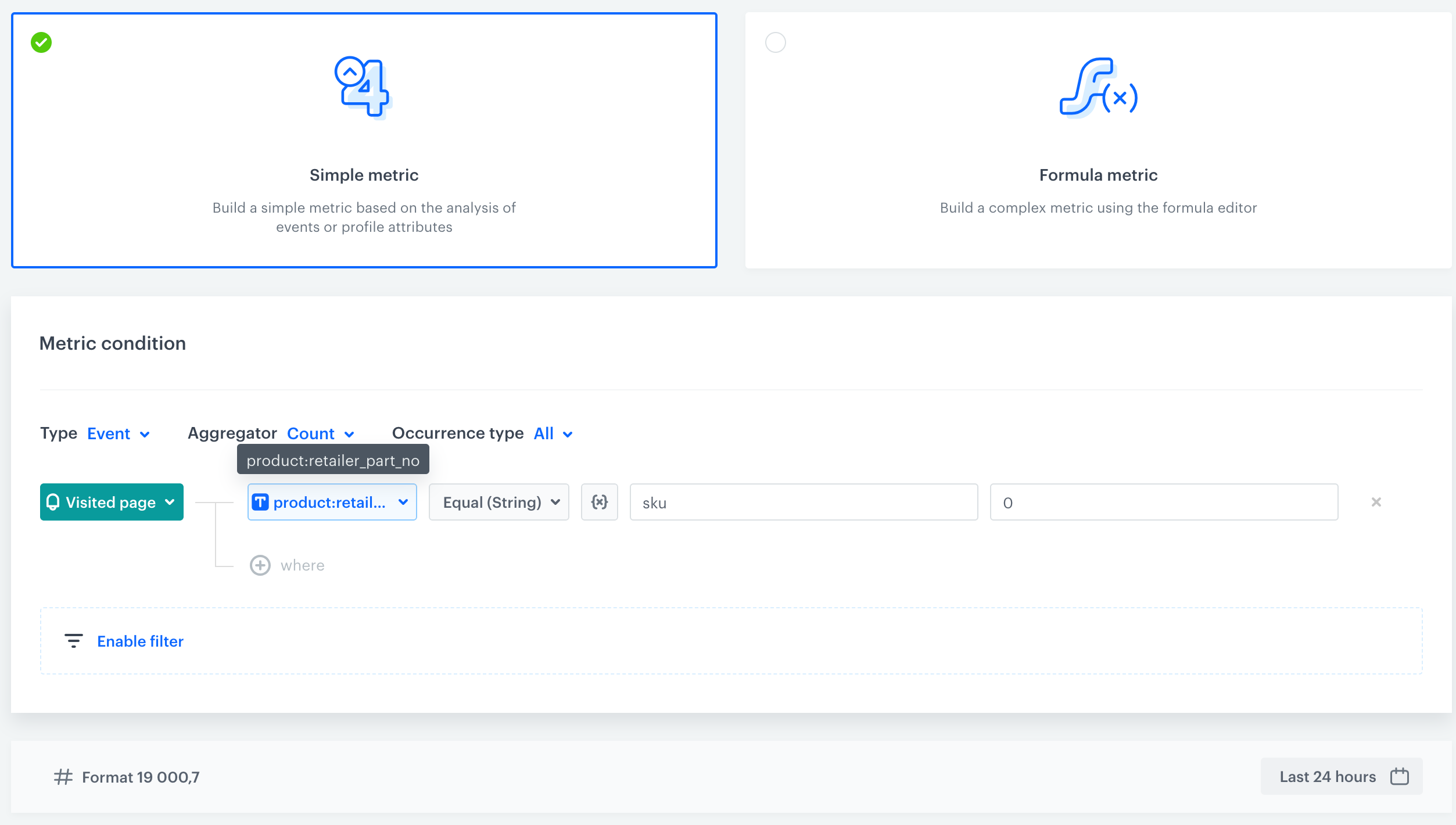
If you want to display a message that X users watched the product in the last X hours, you have to prepare a metric for **page.visit event**.   

1. Go to **Decision Hub > Metrics > New metric**.
2. Leave the **type**, **aggregator** and **occurrence** to default.
3. From the **Choose events** dropdown list, select **page.visit** (product:**retailer_part_no** in our example).
4. Click the **+ where button** and select a parameter that indicated a product ID - in this case its **$sku**.
5. From the **Choose operator** select **Contain**(product id in our example). 
6. Click the icon next to the logic operator and keep clicking until you get <img src="/api/docs/image/54176ad07f146575310749eba44b7c2f42c1b327/icons/dynamic-key-analytics.png" alt="Choose value icon" class="icon">.
6. In the left field, enter `sku`.
7. In the right field, enter the value of the SKU (0 in our example).
8. Define time from which metric counts the page visit, for example last 24 hours (60 minutes in our example)
    <figure>
     <img src="/api/docs/image/54176ad07f146575310749eba44b7c2f42c1b327/use-cases/all-cases/_gfx/social-proof-particular-product2.png" alt="Screenshot presenting Metric with page visit" class="large">
     <figcaption> Metric for page visit </figcaption>
     </figure>

### Metric with the number of bought items 

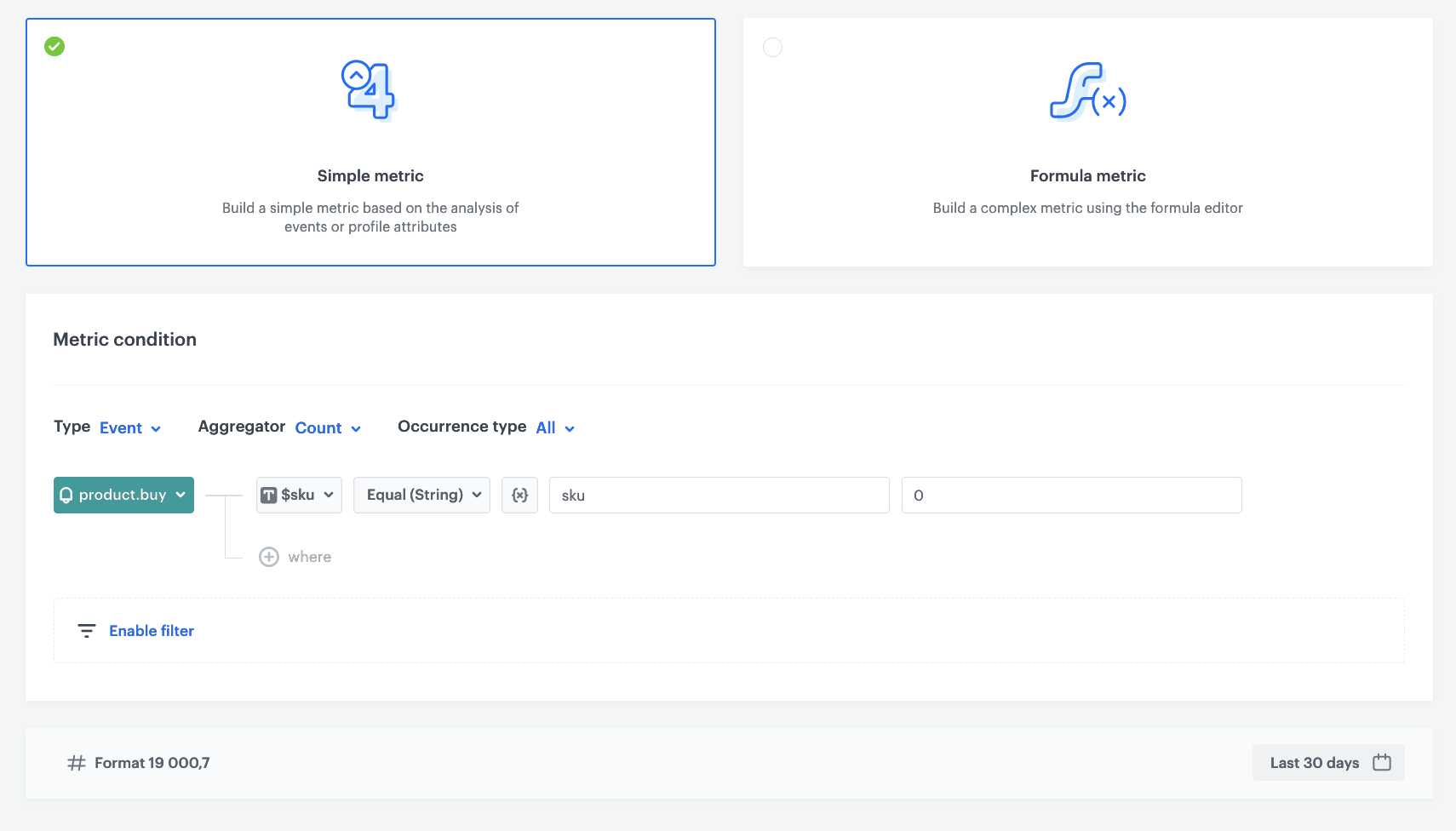
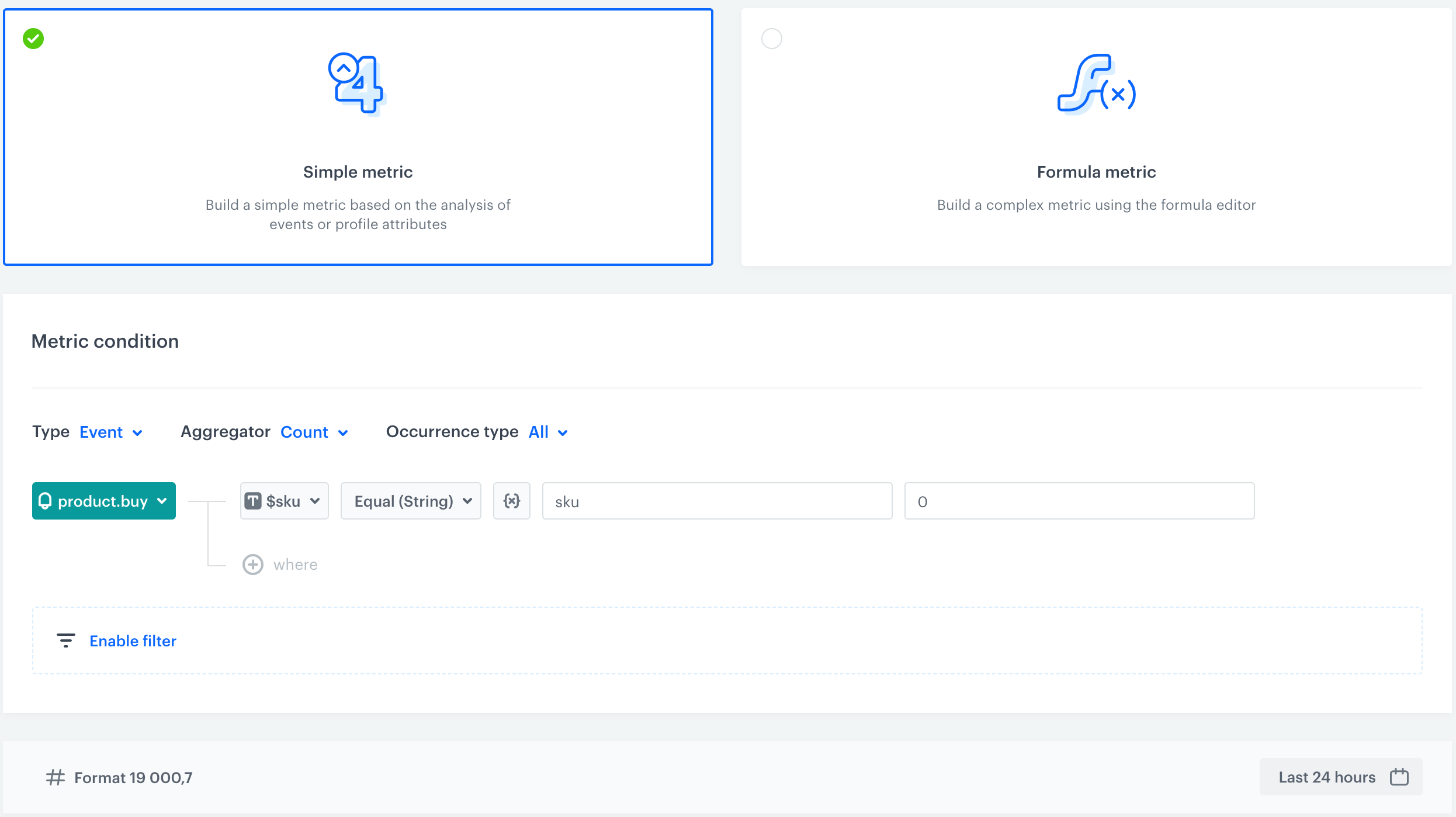
If you want to display a message that X users bought the product in the last x hours, you have to prepare a metric for **product.buy**.   

1. Go to **Decision Hub > Metrics > New metric**.
2. Leave the **type**, **aggregator** and **occurrence** to default.
3. From the **Choose events** dropdown list, select **product.buy**.
4. Click the **+ where button** and select a parameter that indicated a product ID (in this case its **$sku**).
5. From the **Choose operator** select **Contain** (product id. in our example).
6. Click the icon next to the logic operator and keep clicking until you get <img src="/api/docs/image/54176ad07f146575310749eba44b7c2f42c1b327/icons/dynamic-key-analytics.png" alt="Choose value icon" class="icon">.
6. In the left field, enter `sku`.
7. In the right field, enter the value of the SKU (0 in our example).
8. Define time from which metric counts the page visit (24 hours in our example). 

    <figure>
     <img src="/api/docs/image/54176ad07f146575310749eba44b7c2f42c1b327/use-cases/all-cases/_gfx/social-proof-particular-product1.png" alt="Screenshot presenting Metric Filter" class="large">
     <figcaption> Metric Filter </figcaption>
     </figure>


   <div class="admonition admonition-tip"><div class="admonition-icon"><svg xmlns="http://www.w3.org/2000/svg" fill="none" viewBox="0 0 24 24" stroke="currentColor" stroke-width="2.5"><path stroke-linecap="round" stroke-linejoin="round" d="M9.663 17h4.673M12 3v1m6.364 1.636l-.707.707M21 12h-1M4 12H3m3.343-5.657l-.707-.707m2.828 9.9a5 5 0 117.072 0l-.548.547A3.374 3.374 0 0014 18.469V19a2 2 0 11-4 0v-.531c0-.895-.356-1.754-.988-2.386l-.548-.547z" /></svg></div><div class="admonition-body"><div class="admonition-content">

   In the same way you can prepare metric for **addToCart** event

   </div></div></div>
 

## Prepare a dynamic content 
---

To show a social prooof on your website, prepare a dynamic content.

1. Go to **Experience Hub > Dynamic content > Create communication**.
2. Choose **Insert Object** type.
3. In the **Audience** section, select **Everyone**.
4. In the **Content** section, select **Simple message** and by inserting CSS selector define where the social proof will display on your website.
5. In the **Content** tab, click **Create Message** and insert a code of the metrics which you prepared in the previous steps. 
- The customer will receive information about the number of visits to a given page and then how many times the product has been bought.
   
  <details class="accordion"><summary>Check the Javascript with gif</summary><div class="accordion-content"><pre><code class="language-javascript">(function(){ var availableMetrics = []; //Adding metric prepared in point 1.1 var firstMetricsVal = "{% socialproof %} xxx {% endsocialproof %}"; //Adding metric prepared in point 1.2 var secondMetricsVal = "{% socialproof %} xxx {% endsocialproof %}"; //Adding variant text for 1st metric one for person var textFirstMetricOnePerson = 'person is watching this product now.'; //Adding variant text for 1st metric for few people var textFirstMetricPeople = 'people are watching this product now.'; //Adding variant text for 2nd metric for person var textSecondMetricOnePerson = 'sold in the last 1 hour.'; //Adding variant text for 2nd metric for few people var textSecondMetricPeople = 'sold in the last 1 hour.'; function handleCounterText(val, variantA, variantB) { if (val.length === 1) { let finalVariant = getWordVariant(+val, variantA, variantB); return `${val} ${finalVariant}`; } else { let lastNumber = val.slice(-1); let finalVariant = getWordVariant(+lastNumber, variantA, variantB); return `${val} ${finalVariant}`; } } function getWordVariant(num, variantA, variantB) { if (num == 1) { return variantA; } else { return variantB; } } var firstMetrics = ` &lt;div id="synerise-social-proof"&gt; &lt;p class="socialproof-text"&gt;${handleCounterText(firstMetricsVal, textFirstMetricOnePerson,textFirstMetricPeople )}&lt;/p&gt; &lt;/div&gt;`; var secondMetrics = ` &lt;div id="synerise-social-proof"&gt; &lt;p class="socialproof-text"&gt;${handleCounterText(secondMetricsVal, textSecondMetricOnePerson, textSecondMetricPeople)}&lt;/p&gt; &lt;/div&gt;`; if (firstMetricsVal &gt;= 1) { availableMetrics.push(firstMetrics); } if (secondMetricsVal &gt;= 1) { availableMetrics.push(secondMetrics); } var wrapper = document.querySelector('#synerise-social-proof-place'); wrapper.style.position = "fixed"; var availableMetricsCounter = 0; setInterval(function() { if (document.querySelector('#synerise-social-proof') !== null&amp;&amp;document.querySelector('#synerise-social-proof&gt;p')){ wrapper.removeChild(document.querySelector('#synerise-social-proof')); }; wrapper.insertAdjacentHTML('beforeend', availableMetrics[availableMetricsCounter]); if (availableMetrics.length === 1) { return; } if (availableMetricsCounter &gt;= availableMetrics.length - 1) { availableMetricsCounter = 0; } else { availableMetricsCounter++; } }, 3000); })()</code></pre></div></details>
 

- The customer will get a graphic that will contain information about the number of visits and purchases of the product.

   
  <details class="accordion"><summary>Check the Javascript with graphic</summary><div class="accordion-content"><pre><code class="language-javascript">(function(){ //Adding metric prepared in point 1.1 var firstMetricsVal = "{% socialproof %} xxx {% endsocialproof %}"; //Adding metric prepared in point 1.2 var secondMetricsVal = "{% socialproof %} xxx {% endsocialproof %}"; //Adding variant text for 1st metric one for person var textFirstMetricOnePerson = 'person is watching this product now.'; //Adding variant text for 1st metric for few people var textFirstMetricPeople = 'people are watching this product now.'; //Adding variant text for 2nd metric for person var textSecondMetricOnePerson = 'sold in the last 1 hour.'; //Adding variant text for 2nd metric for few people var textSecondMetricPeople = 'sold in the last 1 hour.'; function handleCounterText(val, variantA, variantB) { if (val.length === 1) { let finalVariant = getWordVariant(+val, variantA, variantB); return `${val} ${finalVariant}`; } else { let lastNumber = val.slice(-1); let finalVariant = getWordVariant(+lastNumber, variantA, variantB); return `${val} ${finalVariant}`; } } function getWordVariant(num, variantA, variantB) { if (num == 1) { return variantA; } else { return variantB; } } var firstMetrics = ` &lt;div id="synerise-social-proof"&gt; ${firstMetricsVal &gt;= 1?('&lt;p class="socialproof-text"&gt;'+handleCounterText(firstMetricsVal, textFirstMetricOnePerson,textFirstMetricPeople)+"&lt;/p&gt;"):''} ${secondMetricsVal &gt;=1?('&lt;p class="socialproof-text"&gt;'+handleCounterText(secondMetricsVal, textSecondMetricOnePerson, textSecondMetricPeople)+'&lt;/p&gt;'):''} &lt;/div&gt;`; var wrapper = document.querySelector('#synerise-social-proof-place'); wrapper.style.position = "fixed"; if(firstMetricsVal &gt;=1||secondMetricsVal &gt;= 1){ if (document.querySelector('#synerise-social-proof') !== null){ wrapper.removeChild(document.querySelector('#synerise-social-proof')); }; wrapper.insertAdjacentHTML('beforeend',firstMetrics ); } })()</code></pre></div></details>
 

6. Schedule when the dynamic content has to be active

    <figure>
    <img src="/api/docs/image/54176ad07f146575310749eba44b7c2f42c1b327/use-cases/all-cases/_gfx/social-proof-particular-product3.png" alt="Screenshot presenting display settings" class="large">
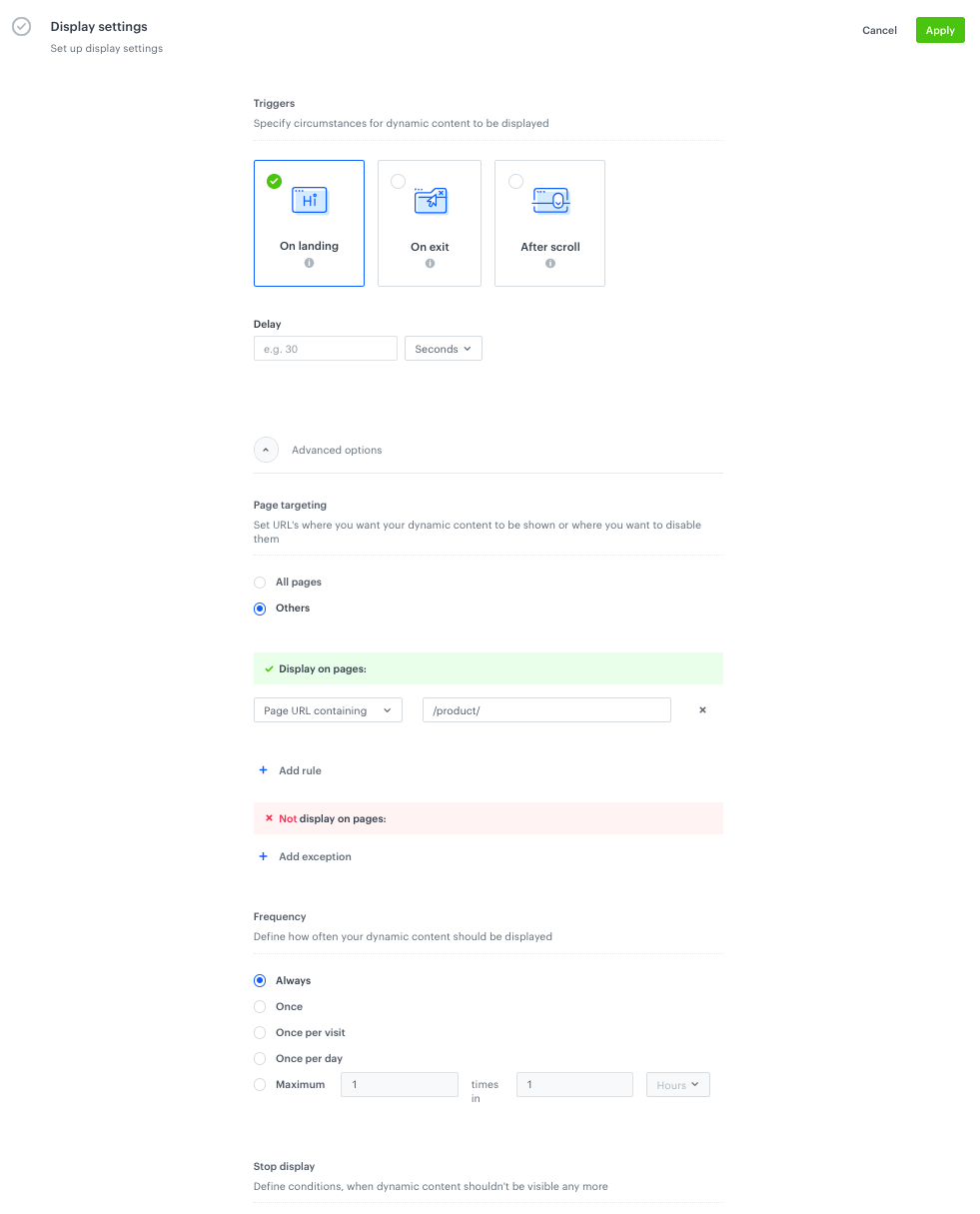
    <figcaption> Set up display settings </figcaption>
    </figure>

1. Schedule when the dynamic content has to be active.
2. In the **Display settings**, define the circumstances the dynamic content will be shown:
  - **Always on landing**, on All pages if in CSS selector is unique selector for a product page.
  - Always on landing, **on a specific URL** which indicates a product page (for example, if a URL contains product), if CSS selector is not unique for a product page.


## Check the use case set up on the Synerise Demo workspace
---

Check all items (metrics and dynamic content) created in this use case in our Synerise Demo workspace: 
- [Metric that returns the number of visits in last 60 minutes](https://app.synerise.com/analytics/metrics/623eaf91-2203-4974-aa1a-4226574d0ff7),
-[Metric that returns the number of items sold in last 24 hours](https://app.synerise.com/analytics/metrics/bcf165b4-200b-4efb-8842-dff13d7df829),
- [Dynamic content settings](https://app.synerise.com/campaigns/create/88c84fe3-db25-45c9-aef0-17bd1acbf861).

If you’re our partner or client, you already have automatic access to the **Synerise Demo workspace (1590)**, where you can explore all the configured elements of this use case and copy them to your workspace.  

If you’re not a partner or client yet, we encourage you to fill out the contact [form](https://demo.synerise.com/request) to schedule a meeting with our representatives. They’ll be happy to show you how our demo works and discuss how you can apply this use case in your business.

## Read more  
---
- [Dynamic content](/docs/campaign/dynamiccontent)
- [Dynamic key](/docs/analytics/i_events-parameter-value#dynamic-key)
- [Metrics](/docs/analytics/metrics/introduction-to-metrics)