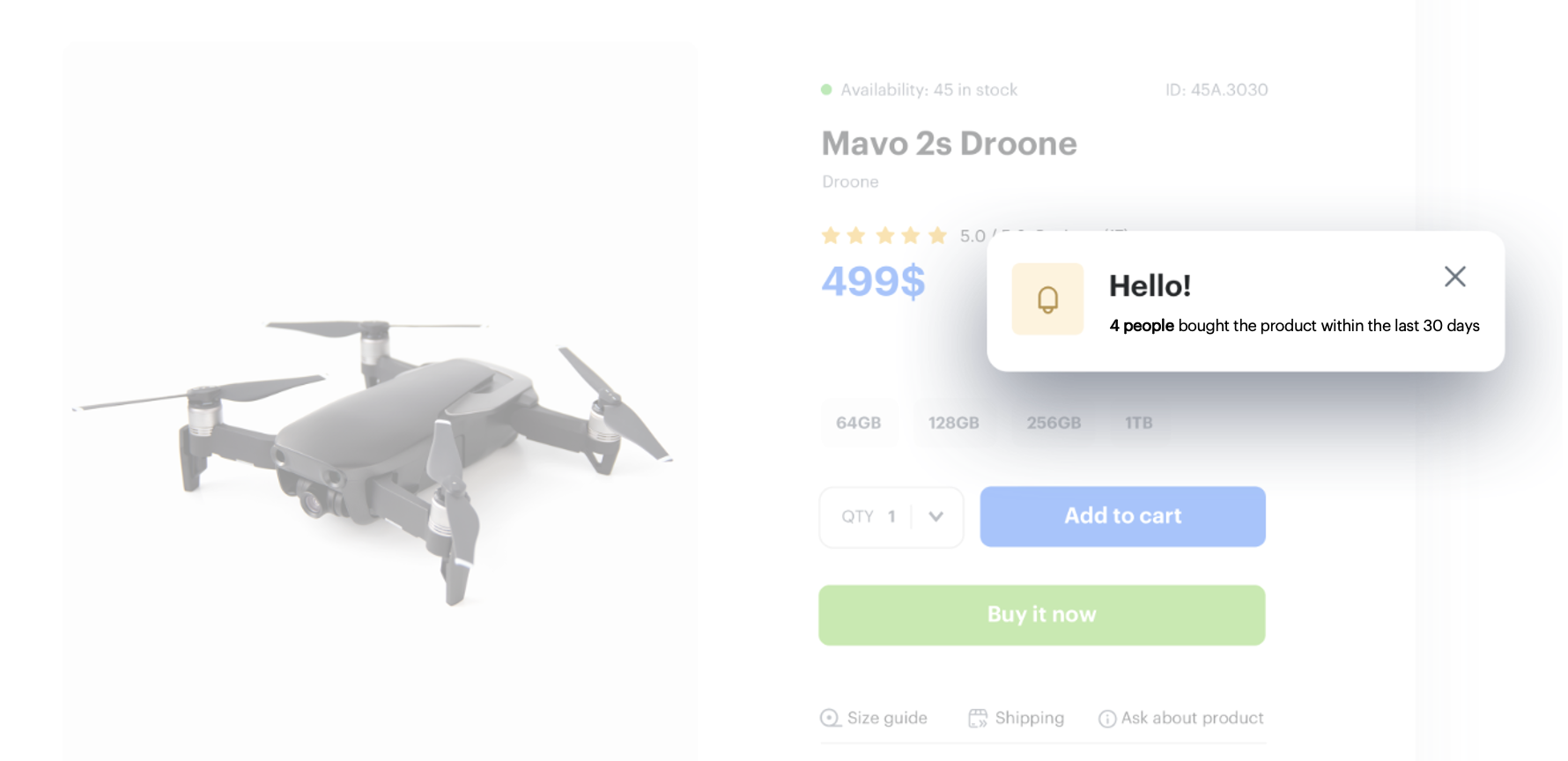
Social proof effectively harnesses the power of the crowd, conveying the persuasive message that if many others have bought and are happy, a new customer is likely to experience the same satisfaction, further amplifying the impact of social proof in driving sales. 

<figure>
 <img src="/api/docs/image/54176ad07f146575310749eba44b7c2f42c1b327/use-cases/all-cases/_gfx/social-proof-cover.png" alt="Screenshot presenting website with social proof dynamic content" class="full no-frame">
 <figcaption> Social proof campaign  </figcaption>
 </figure>

In this particular use case contains instruction on implementing a dynamic social proof strategy on a website to drive sales and build brand credibility. The cornerstone of this strategy is the display of real-time data showing purchase trends. This approach taps into the psychological principle of social proof, where potential customers are more likely to make a purchase if they see that a product is popular and trusted by many others.

## Prerequisites
---

- Implement a [tracking code](/docs/settings/tool/tracking_codes).
- [Implement transactions](/developers/web/transactions-sdk).


## Process
---
In this use case, you will go through the following steps:

1. [Create metrics with dynamic key](/use-cases/social-proof-trends#create-metrics-with-dynamic-key).
2. [Prepare a dynamic content](/use-cases/social-proof-trends#prepare-a-dynamic-content).
 
## Create metrics with dynamic key
---

Implementation of social proof on a website involves creating a metric that counts occurrence of a specific event, such as product purchase in the context of a specific item. Then, the metric ID is used in the template of the [dynamic content](/docs/campaign/dynamiccontent) which will be displayed on product pages. The result of the metric will adapt to the currently viewed product thanks to the dynamic key used in the metric.

In our case, we will create two metrics with the same conditions but analyzing different time ranges:  

- [Metric with the number of bought items in the last 30 days](/use-cases/social-proof-trends#metric-with-the-number-of-bought-items-in-the-last-30-days).
- [Metric with the number of bought items in the last 30 days before 30 days](/use-cases/social-proof-trends#metric-with-the-number-of-bought-items-in-the-last-30-days-before-30-days).


### Metric with the number of bought items in the last 30 days 

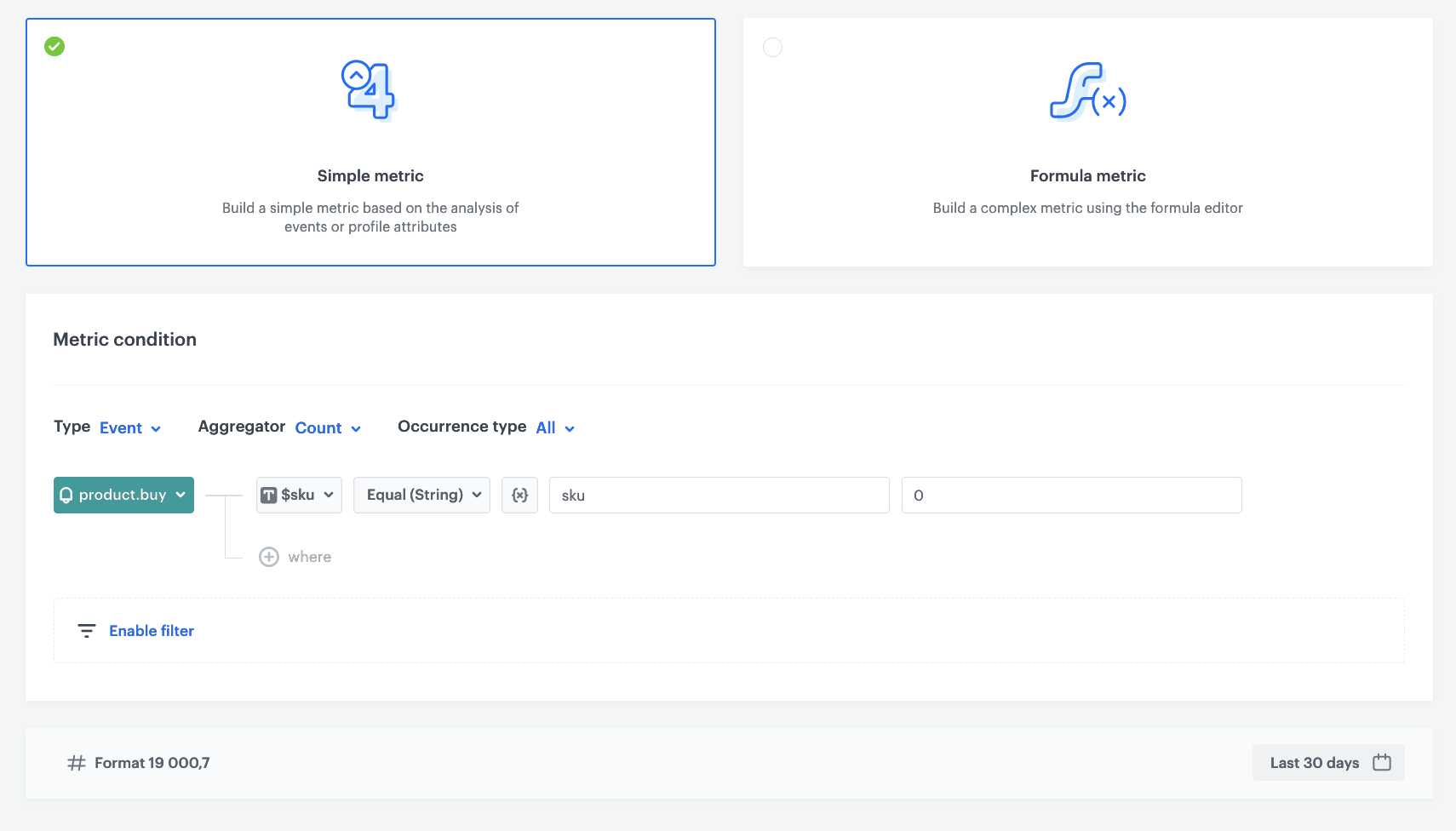
In this part of the process, you will create a metric that counts the occurrences of the [product.buy event](/docs/assets/events/event-reference/items#productbuy) in the context of the specific item in the last 30 days. Instead of defining the exact value of the item, we will create a dynamic key that will take the values sent through the `sku` parameter of the `product.buy` event. This solution will let the metric results to adjust to the product page currently viewed by a customer.

1. Go to **Decision Hub > Metrics > New metric**.
2. Leave the **Type**, **Aggregator** and **Occurrence type** options at default (**Event**, **Count**, **all**).
3. From the **Choose events** dropdown list, select **product.buy**.
4. Click the **+ where button** and select a parameter that indicated a product ID (in this case its **$sku**).
5. From the **Choose operator** dropdown list, select **Contain**.
6. Click the icon next to the logic operator and keep clicking until you get <img src="/api/docs/image/54176ad07f146575310749eba44b7c2f42c1b327/icons/dynamic-key-analytics.png" alt="Choose value icon" class="icon">.
6. In the left field, enter `sku`.
7. In the right field, enter a default value of the dynamic key (0 in our example). At this stage, the default value of the dynamic key is not important.
8. Define the analyzed period (last 30 days in our example).
    <figure>
     <img src="/api/docs/image/54176ad07f146575310749eba44b7c2f42c1b327/use-cases/all-cases/_gfx/social-proof.png" alt="Screenshot presenting Metric filter" class="large">
     <figcaption> Metric filter </figcaption></figure>

### Metric with the number of bought items in the last 30 days before 30 days 

In this part of the process, you will create a metric that counts the occurrences of the [product.buy event](/docs/assets/events/event-reference/items#productbuy) in the context of the specific item in last 30 days before 30 days.

Duplicate the [previous metric](/use-cases/social-proof-trends#metric-with-the-number-of-bought-items-in-the-last-30-days) and change the analyzed period to last 30 days before 30 days.


<div class="admonition admonition-important"><div class="admonition-icon"><svg xmlns="http://www.w3.org/2000/svg" fill="none" viewBox="0 0 24 24" stroke="currentColor" stroke-width="2.5"><path stroke-linecap="round" stroke-linejoin="round" d="M12 8v4m0 4h.01M21 12a9 9 0 11-18 0 9 9 0 0118 0z" /></svg></div><div class="admonition-body"><div class="admonition-content">

You can prepare metrics based on other events such as [`product.addToCart`](/docs/assets/events/event-reference/items#productaddtocart) or [`page.visit`](/docs/assets/events/event-reference/web-and-app#pagevisit). By preparing metrics for these or other events, it's important to keep their retention in mind while defining the analyzed period, if you select period longer than the event retention, you will receive inaccurate results.

</div></div></div>
 

## Prepare a dynamic content 
---

To show a social proof on your product pages, prepare a dynamic content.

1. Go to **Experience Hub > Dynamic content > Create communication**.
2. Choose **Insert Object** type.
3. In the **Audience** section, select **Everyone**.
4. In the **Content** section, select **Simple message** and by inserting CSS selector define where the social proof will display on your website.
5. In the **Content** tab, click **Create Message** and insert a code of the metrics which you prepared in the previous steps. The customer will receive information about how many times the product has been bought. You can use the following JavaScript:

   
   <details class="accordion"><summary>Check the Javascript with a product image</summary><div class="accordion-content"><pre><code class="language-javascript">(function () { const metricPrevious30 = +`{% metrics %} 2f11b5f7-ddc0-4ea1-a1c2-628dd2de0d29 {% endmetrics %}`; const metricLast30 = +`{% metrics %} d798b895-19ce-44b0-b54c-06996f7898e5 {% endmetrics %}`; const imageLink = `{{ metric_additional_params["og:image"] }}`; // For example metricPrevious30 is 100, and metricLast30 is 130. That gives 30% const percent = ((metricLast30 - metricPrevious30) / metricPrevious30) * 100; // if percent is below limit or one of metric gives 0 stop the script if (Number.isNaN(percent) || percent &lt; +`#### type: "number", id: "Percent", defaultValue: "30" !####`) return; const wrapperEl = document.querySelector(".snr-sp__main-wrapper"); const counterEl = wrapperEl.querySelector(".snr-sp__counter"); const imgEl = document.querySelector(".snr-sp__image img"); const peopleEl = document.querySelector(".snr-sp__people"); const showLabel = () =&gt; wrapperEl.classList.remove("snr-sp__hidden"); const hideLabel = () =&gt; wrapperEl.classList.add("snr-sp__hidden"); const getPeople = (num) =&gt; (num &gt; 1 || num == 0 ? "people" : "person"); wrapperEl.addEventListener("click", hideLabel); counterEl.innerText = metricLast30 + ""; imgEl.src = imageLink; peopleEl.innerText = getPeople(metricLast30); setTimeout(() =&gt; { showLabel(); setTimeout(hideLabel, +`#### type: "number", id: "Display time in ms", defaultValue: "5000" !####`); }, +`#### type: "number", id: "Delay time in ms", defaultValue: "2000" !####`); })();</code></pre></div></details>
 

6. Schedule when the dynamic content will be active.

    <figure>
    <img src="/api/docs/image/54176ad07f146575310749eba44b7c2f42c1b327/use-cases/all-cases/_gfx/social-proof-particular-product3.png" alt="Screenshot presenting display settings" class="large">
    <figcaption> Set up display settings </figcaption>
    </figure>

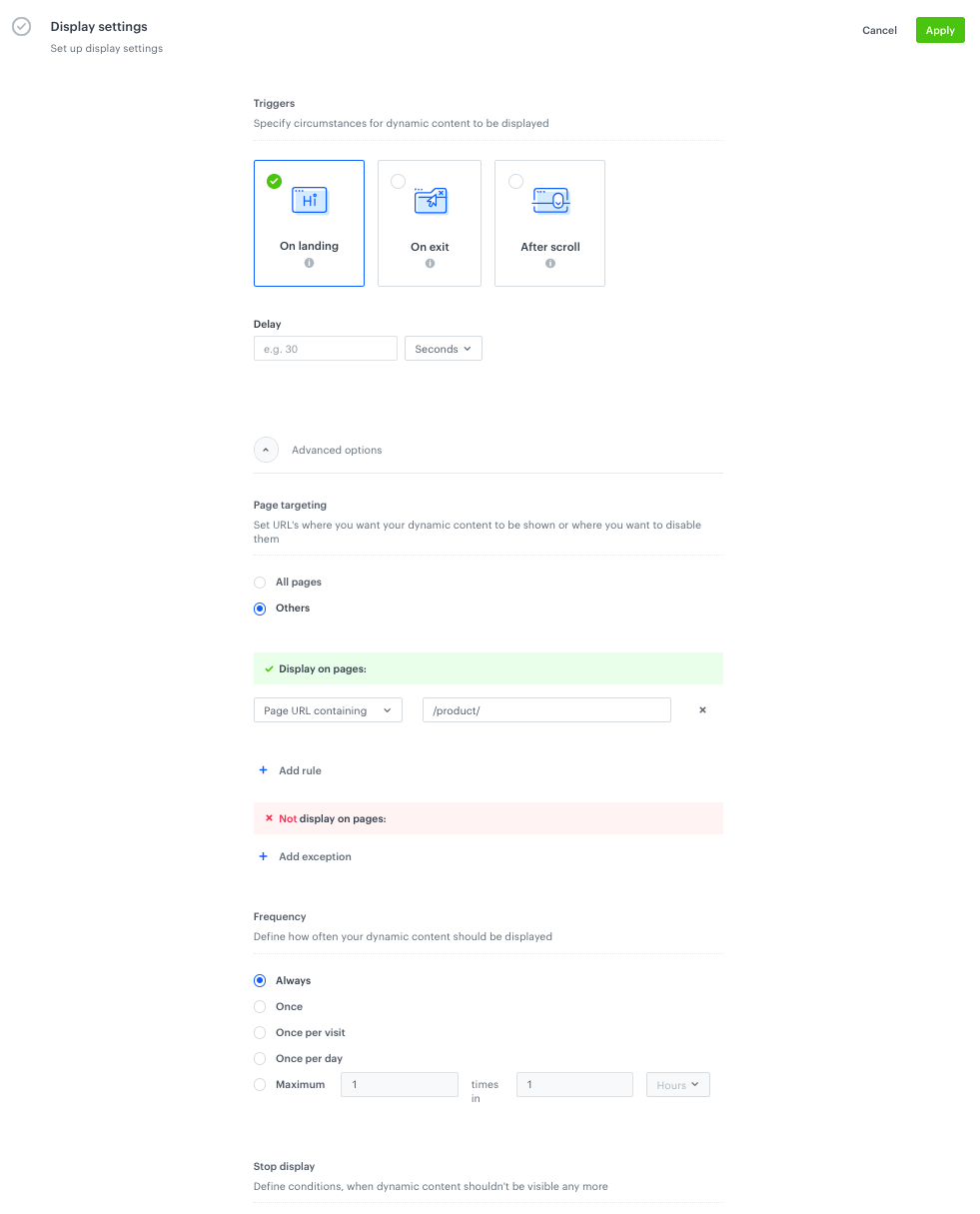
7. In the **Display settings** section, define the circumstances the dynamic content will be shown:
  - Always on landing, on All pages if **in CSS selector** is unique selector for a product page.
  - Always on landing, **on a specific URL** which indicates a product page (for example, if a URL contains product), if CSS selector is not unique for a product page.


   <div class="admonition admonition-note"><div class="admonition-icon"><svg xmlns="http://www.w3.org/2000/svg" fill="none" viewBox="0 0 24 24" stroke="currentColor" stroke-width="2.5"><path stroke-linecap="round" stroke-linejoin="round" d="M13 16h-1v-4h-1m1-4h.01M21 12a9 9 0 11-18 0 9 9 0 0118 0z" /></svg></div><div class="admonition-body"><div class="admonition-content">

   For the purposes of this example, all necessary settings have been completed in accordance with the example in the graphic; depending on the scenario of our dynamic content, the settings may be different. You can read more about [dynamic content](/docs/campaign/dynamiccontent/creating-dynamic-content/creating-dynamic-content#define-url-targeting) in our article.

   </div></div></div>
 

## Check the use case set up on the Synerise Demo workspace
---

Check all items (metrics and dynamic content) created in this use case in our Synerise Demo workspace: 
- [Metric with the number of bought items in the last 30 days](https://app.synerise.com/analytics/metrics/d798b895-19ce-44b0-b54c-06996f7898e5),
- [Metric with the number of bought items in the last 30 days before 30 days](https://app.synerise.com/analytics/metrics/2f11b5f7-ddc0-4ea1-a1c2-628dd2de0d29),
- [Dynamic content settings](https://app.synerise.com/campaigns/dynamic-content/create/bc84f31a-e9a5-4101-a451-93bd810dce6f).

If you’re our partner or client, you already have automatic access to the **Synerise Demo workspace (1590)**, where you can explore all the configured elements of this use case and copy them to your workspace.  

If you’re not a partner or client yet, we encourage you to fill out the contact [form](https://demo.synerise.com/request) to schedule a meeting with our representatives. They’ll be happy to show you how our demo works and discuss how you can apply this use case in your business.
 
## Read more   
---
- [Dynamic content](/docs/campaign/dynamiccontent)
- [Dynamic key](/docs/analytics/i_events-parameter-value#dynamic-key)
- [Metrics](/docs/analytics/metrics/introduction-to-metrics)