Elevate your customers engagement with step discounts, aligning savings with their journey, while strengthening their connection to your brand. Enable them to access higher discounts with each transaction, incentivizing loyalty and fostering more interactions. Transform their shopping experience into a journey towards greater value, connecting them with offers that resonate.

This use case describes how to create a step discount promotion for one product. The customer will receive a discount of 5, 10 and 15% respectively on the first, second and third purchase of the same product. The promotion will work only for loyalty program members (customers logged into the mobile app). 

## Prerequisites 
---
- Implement promotions in your [mobile application](/developers/mobile-sdk/loyalty), website or through [API](https://developers.synerise.com/LoyaltyandEngagement/LoyaltyandEngagement.html#operation/profileLogin)
- [Implement transactional events](/developers/web/methods-reference#tracking-transactions).
- [Import the product feed to a catalog](/use-cases/import-product-feed-to-catalog).

## Process 
---

In this use case, you will go through the following steps:
1. [Prepare a segmentation](#prepare-a-segmentation) of customers who are members of the loyalty program.
2. [Create a promotion](#create-a-promotion) with step discount for one product.

## Prepare a segmentation
---
In this part of the process, create a segmentation of customers who are members of the company's loyalty program.

1. Go to <img src="/api/docs/image/54176ad07f146575310749eba44b7c2f42c1b327/icons/decision-hub-icon.svg" alt="Behavioral Data Hub icon" class="icon"> **Decision Hub > Segmentations > New segmentation**.
2. Enter the name of segmentation.
3. From the **Add condition** dropdown list, select the **loyaltyCard** attribute.
4. As the logical operator select Boolean **Is true**.
    
   <div class="admonition admonition-important"><div class="admonition-icon"><svg xmlns="http://www.w3.org/2000/svg" fill="none" viewBox="0 0 24 24" stroke="currentColor" stroke-width="2.5"><path stroke-linecap="round" stroke-linejoin="round" d="M12 8v4m0 4h.01M21 12a9 9 0 11-18 0 9 9 0 0118 0z" /></svg></div><div class="admonition-body"><div class="admonition-content">

   The conditions used in the segment will vary depending on your loyalty program integration (for example, the name of the attribute may be different). You must define the segmentation accordingly.

   </div></div></div>
  

## Create a promotion
---
Create a step discount promotion aimed at loyalty club members for one specific product. The promotion gives a 5, 10 and 15% discount for the item, the discount grows with every transaction. 

1. Go to <img src="/api/docs/image/54176ad07f146575310749eba44b7c2f42c1b327/icons/ai-hub-icon.svg" alt="Image presents the AI Hub icon" class="icon"> **AI Hub > Regular Promotions > Add Promotion**.
2. Enter a name for the promotion.
3. Select the **For selected items** type of promotion.
4. In the **Audience** section, select the [segmentation created in the previous step](#prepare-a-segmentation).
5. In the **Content** section:
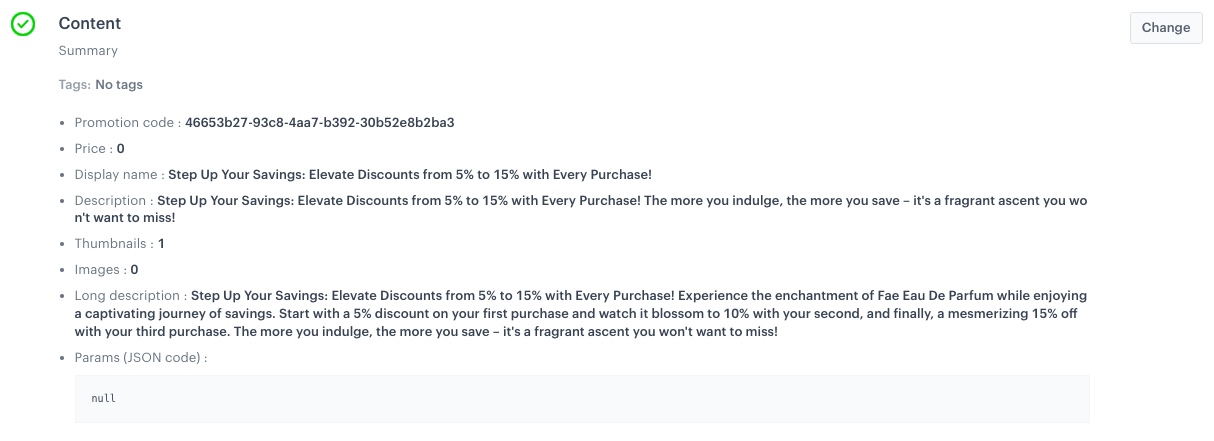
    1. Define the name, descriptions, thumbnail and image of the promotion.
    3. Optionally, you can add tags to the promotion and JSON code with advanced params.
    2. Confirm the settings by clicking **Apply**.
    <figure>
    <img src="/api/docs/image/54176ad07f146575310749eba44b7c2f42c1b327/use-cases/all-cases/_gfx/step_prom_content.png" alt="The view of Content configuration"  class="large">
    <figcaption>Content configuration</figcaption>
    </figure> 
6. In the **Type and limits** section:
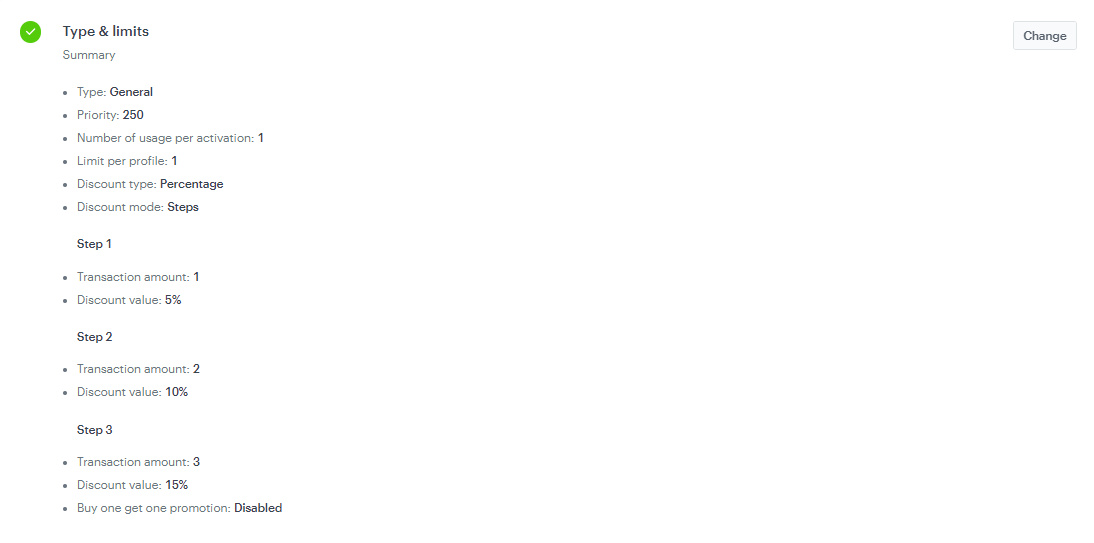
    1. Leave **General** in the **Type section**.
    2. Enter a **Priority** for the promotion.
    
       <div class="admonition admonition-note"><div class="admonition-icon"><svg xmlns="http://www.w3.org/2000/svg" fill="none" viewBox="0 0 24 24" stroke="currentColor" stroke-width="2.5"><path stroke-linecap="round" stroke-linejoin="round" d="M13 16h-1v-4h-1m1-4h.01M21 12a9 9 0 11-18 0 9 9 0 0118 0z" /></svg></div><div class="admonition-body"><div class="admonition-content">

       Priority defines the order of display in the customer’s view. 1 is the highest priority. If two or more promotions applicable to a customer have the same priority, the order of display is determined by the date of creation. The one that was created earlier takes the priority over the other promotion.

       </div></div></div>

    3. Leave **Single** for the promotion logic.
    4. In the **Limit per profile** field, type 1.
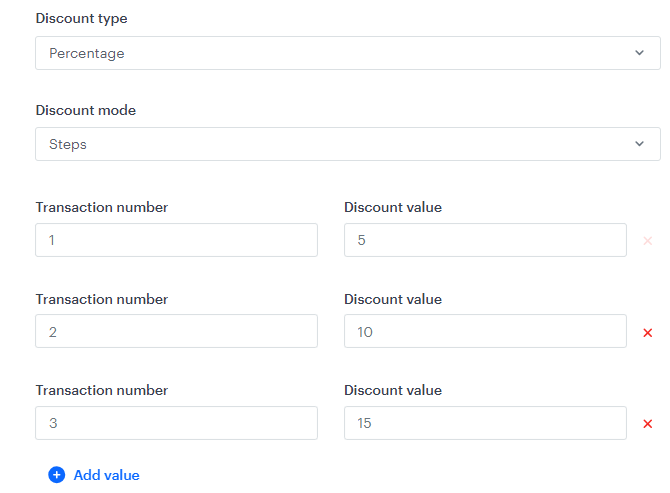
    5. From the **Discount type** dropdown list, select **Percentage**.
    6. From the **Discount mode** dropdown list, select **Steps**.
    7. Assign **Transaction number** for each **Discount value**.
        <figure>
        <img src="/api/docs/image/54176ad07f146575310749eba44b7c2f42c1b327/use-cases/all-cases/_gfx/step_prom_disc.png" alt="The view of configuration of discount thresholds for each purchase"  class="large">
        <figcaption>Configuration of discount thresholds for each purchase</figcaption>
        </figure> 
    8. Confirm the settings by clicking **Apply**.
        <figure>
        <img src="/api/docs/image/54176ad07f146575310749eba44b7c2f42c1b327/use-cases/all-cases/_gfx/step_prom_tl.png" alt="The view of Type and limits configuration"  class="large">
        <figcaption>Type and limits configuration</figcaption>
        </figure> 
7. In the **Schedule** section, specify the time, when you want to display your promotion according to yout business needs.
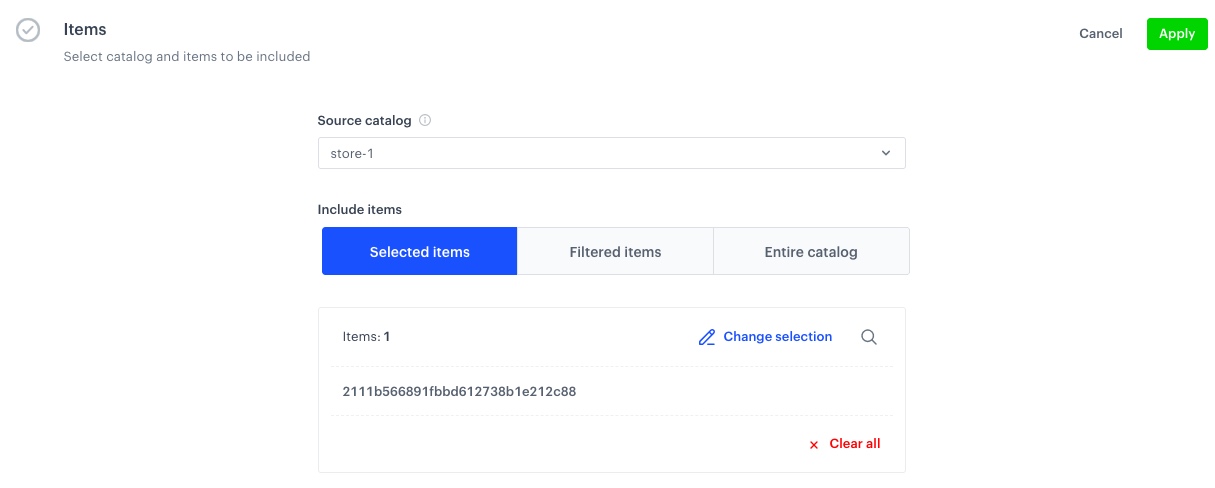
8. In the **Items** section:
    1. From the **Source catalog** dropdown list, select a catalog of items.
    2. In the **Include items** section, choose **Selected items**.
    3. Click **Select items** and select the product you want the step discount to apply to.
    <figure>
    <img src="/api/docs/image/54176ad07f146575310749eba44b7c2f42c1b327/use-cases/all-cases/_gfx/step_prom_items.png" alt="The view of Items configuration"  class="large">
    <figcaption>Items configuration</figcaption>
    </figure> 
10. Optionally select **stores** where the profiles can redeem the promotion.
9. To apply configuration and run the promotion, click **Publish**.

## Check the use case set up on the Synerise Demo workspace
---
You can also check the configuration of the [segmentation](https://app.synerise.com/analytics-v2/segmentations/614f5ac1-8bdb-41ec-8d9d-8ad2d6cd65f2) and [promotion settings](https://app.synerise.com/campaigns/promotions/97531b2e-0440-4bf0-806b-52ab594d9c06) directly in Synerise Demo workspace.
 

If you’re our partner or client, you already have automatic access to the **Synerise Demo workspace (1590)**, where you can explore all the configured elements of this use case and copy them to your workspace.  

If you’re not a partner or client yet, we encourage you to fill out the contact [form](https://demo.synerise.com/request) to schedule a meeting with our representatives. They’ll be happy to show you how our demo works and discuss how you can apply this use case in your business. 

## Read more
---

- [Catalogs](/docs/assets/catalogs/introduction-to-catalogs)
- [Promotions](/docs/ai-hub/promotions)
- [Segmentation](/docs/analytics/segmentations)