 **Behavioral Data Hub > Live Aggregates > Create aggregate**.
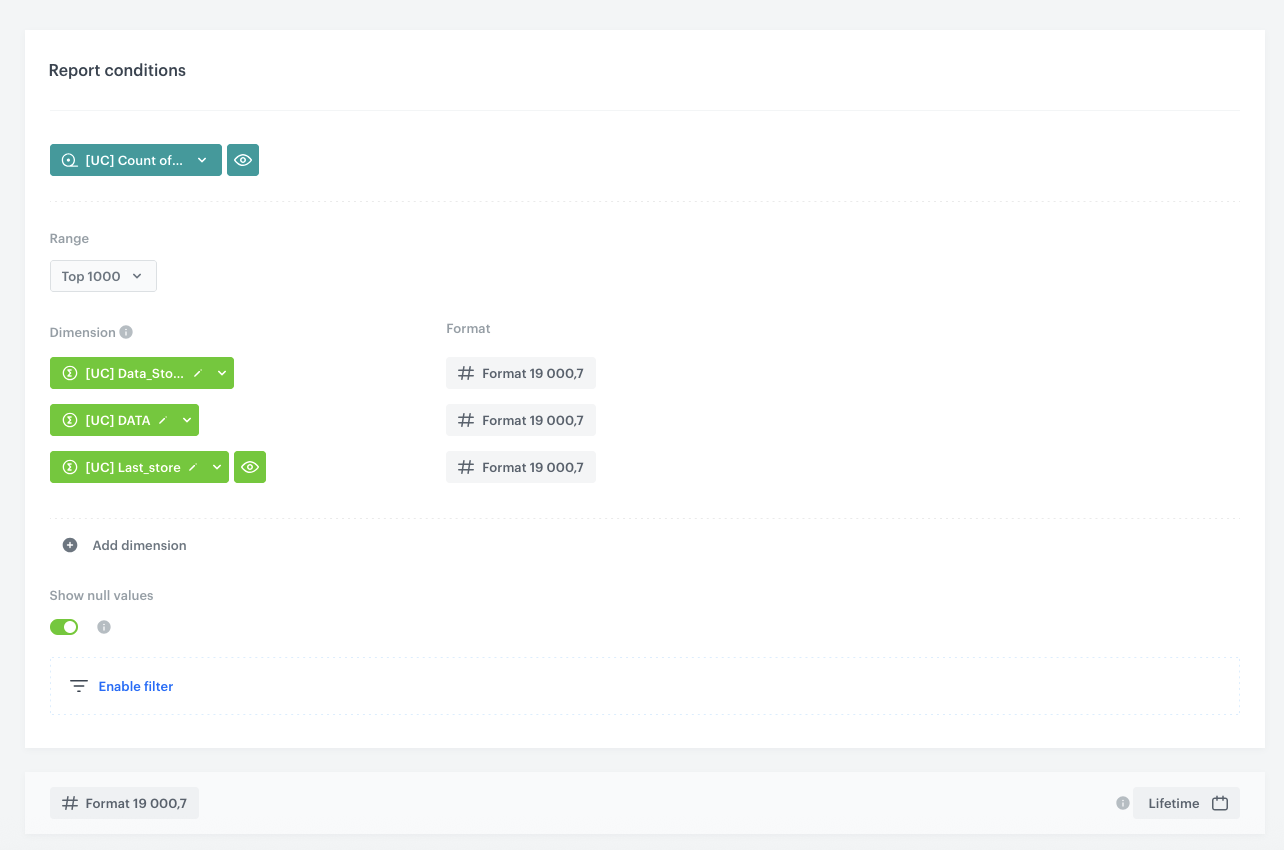
2. As the aggregate type, select **Event**.
3. Enter a name for the aggregate, for example `Last URI from registration form submit`.
4. Set **Analyze events by** to **Last**.
5. From the **Choose event** dropdown list, select the `form.submit` event.
6. As the event parameter, select **uri**.
7. Click the **+ where** button.
8. From the **Choose parameter** dropdown list, select the **formType** parameter.
9. From the **Choose operator** dropdown, choose **Equal**.
10. In the next field, enter `registration`.
11. Set the time range to **Lifetime**.
12. Save the aggregate.
**Behavioral Data Hub > Live Aggregates > Create aggregate**.
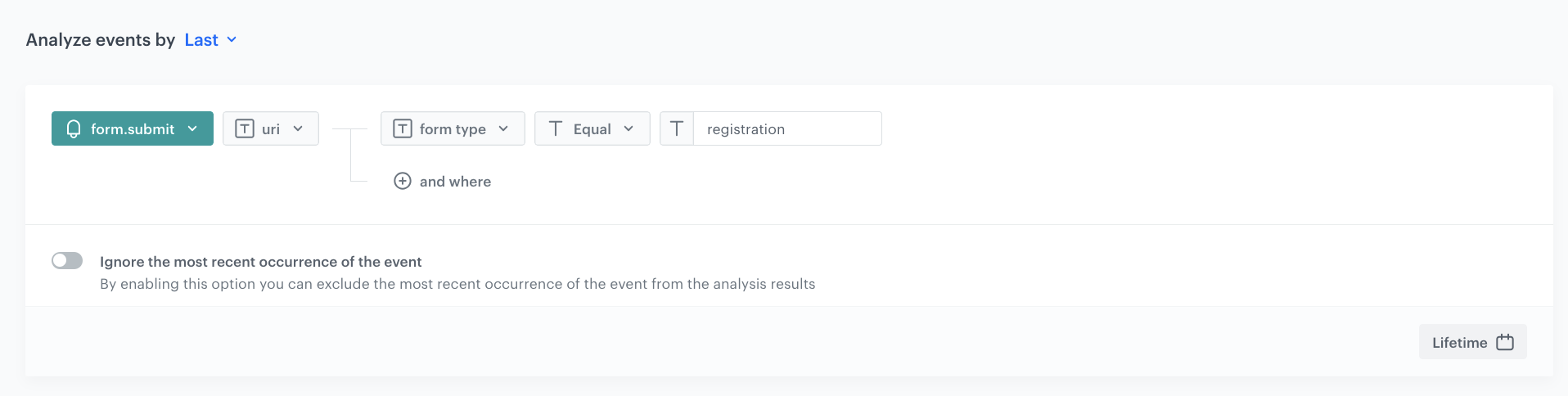
2. As the aggregate type, select **Profile**.
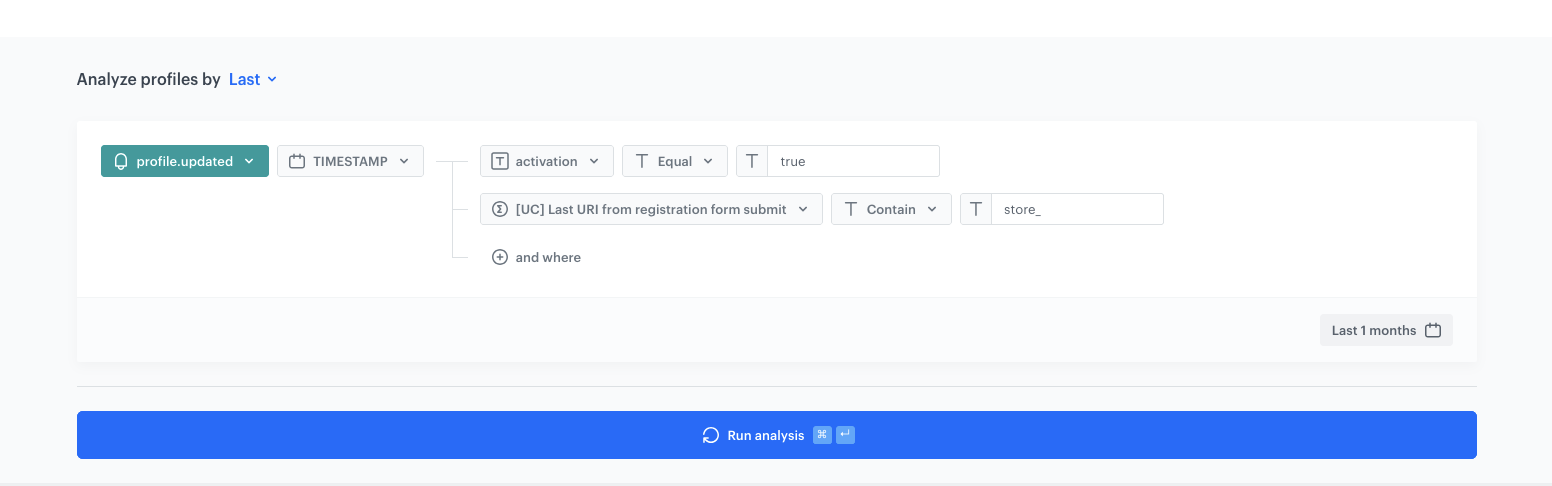
3. Enter a name for the aggregate, for example `Account confirmation timestamp after in-store registration`.
4. Set **Analyze profiles by** to **Last**.
5. From the **Choose event** dropdown list, select the `profile.updated` event.
6. As the event parameter, select **TIMESTAMP**.
7. Click the **+ where** button.
8. From the **Choose parameter** dropdown list, select the **activation** parameter.
9. From the **Choose operator** dropdown, choose **Equal**.
10. In the next field, enter `true`.
11. Click the **+ where** button.
12. From the **Choose parameter** dropdown list, select the event aggregate created in the [previous step](#create-an-event-aggregate-for-registration-uri).
13. From the **Choose operator** dropdown, choose **Contain**.
14. In the next field, enter the store identifier prefix, for example `store_`.
15. Set the time range to **Last month** (or adjust according to the reporting period).
16. Save the aggregate.
**Behavioral Data Hub > Live Aggregates > Create aggregate**.
2. As the aggregate type, select **Event**.
3. Enter a name for the aggregate, for example `Last URI from registration form submit`.
4. Set **Analyze events by** to **Last**.
5. From the **Choose event** dropdown list, select the `form.submit` event.
6. As the event parameter, select **uri**.
7. Click the **+ where** button.
8. From the **Choose parameter** dropdown list, select the **formType** parameter.
9. From the **Choose operator** dropdown, choose **Equal**.
10. In the next field, enter `registration`.
11. Set the time range to **Lifetime**.
12. Save the aggregate.
**Behavioral Data Hub > Live Aggregates > Create aggregate**.
2. As the aggregate type, select **Profile**.
3. Enter a name for the aggregate, for example `Account confirmation timestamp after in-store registration`.
4. Set **Analyze profiles by** to **Last**.
5. From the **Choose event** dropdown list, select the `profile.updated` event.
6. As the event parameter, select **TIMESTAMP**.
7. Click the **+ where** button.
8. From the **Choose parameter** dropdown list, select the **activation** parameter.
9. From the **Choose operator** dropdown, choose **Equal**.
10. In the next field, enter `true`.
11. Click the **+ where** button.
12. From the **Choose parameter** dropdown list, select the event aggregate created in the [previous step](#create-an-event-aggregate-for-registration-uri).
13. From the **Choose operator** dropdown, choose **Contain**.
14. In the next field, enter the store identifier prefix, for example `store_`.
15. Set the time range to **Last month** (or adjust according to the reporting period).
16. Save the aggregate.
 **Decision Hub > Segmentations > New segmentation**.
2. Enter the name of the segmentation, for example `Fully qualified in-store loyalty registrations`.
### Configure Segment A
---
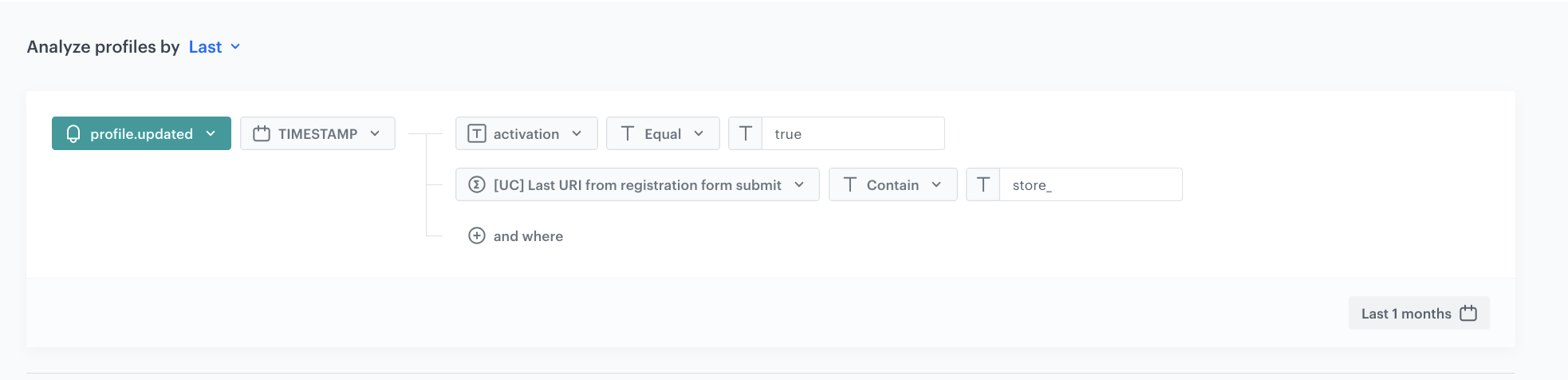
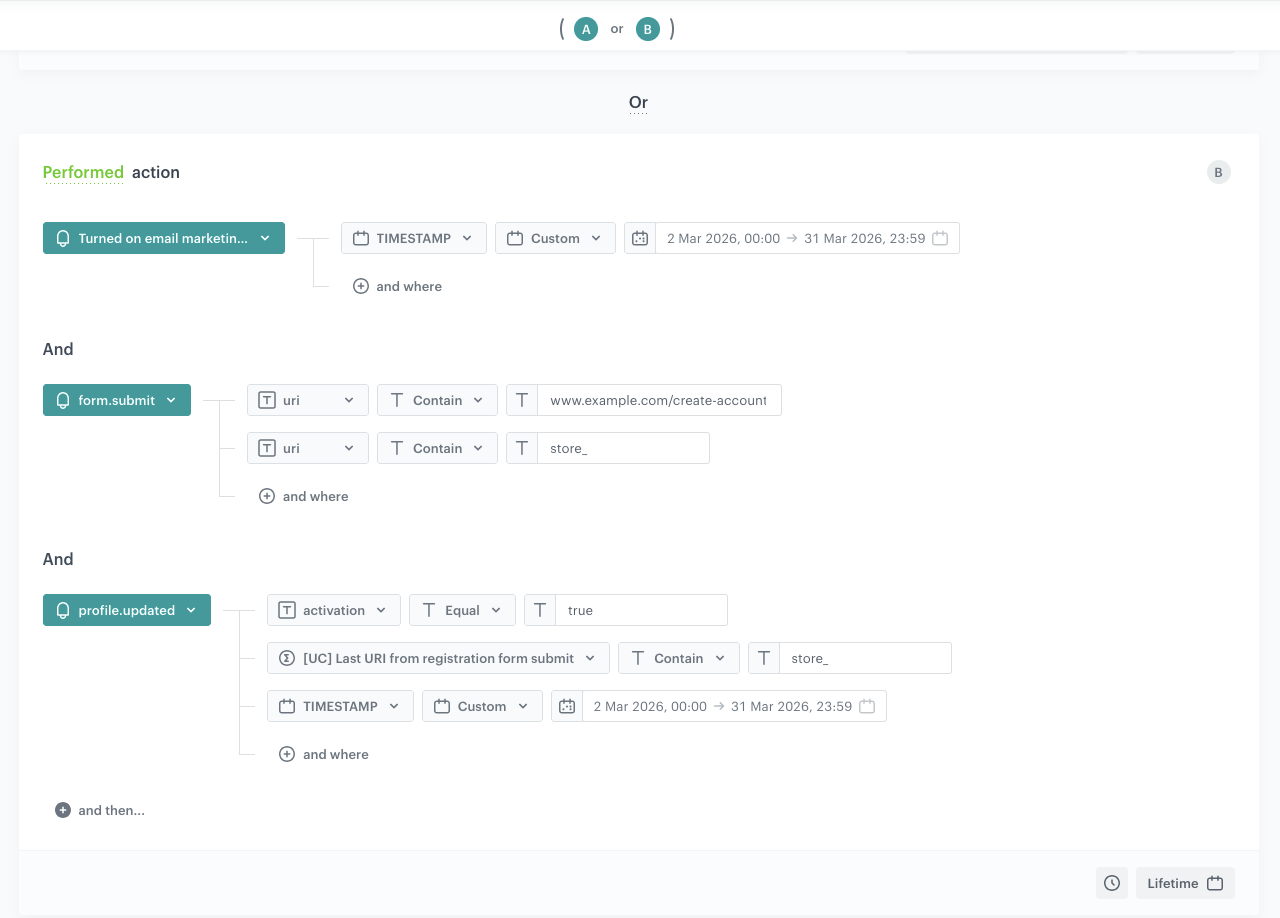
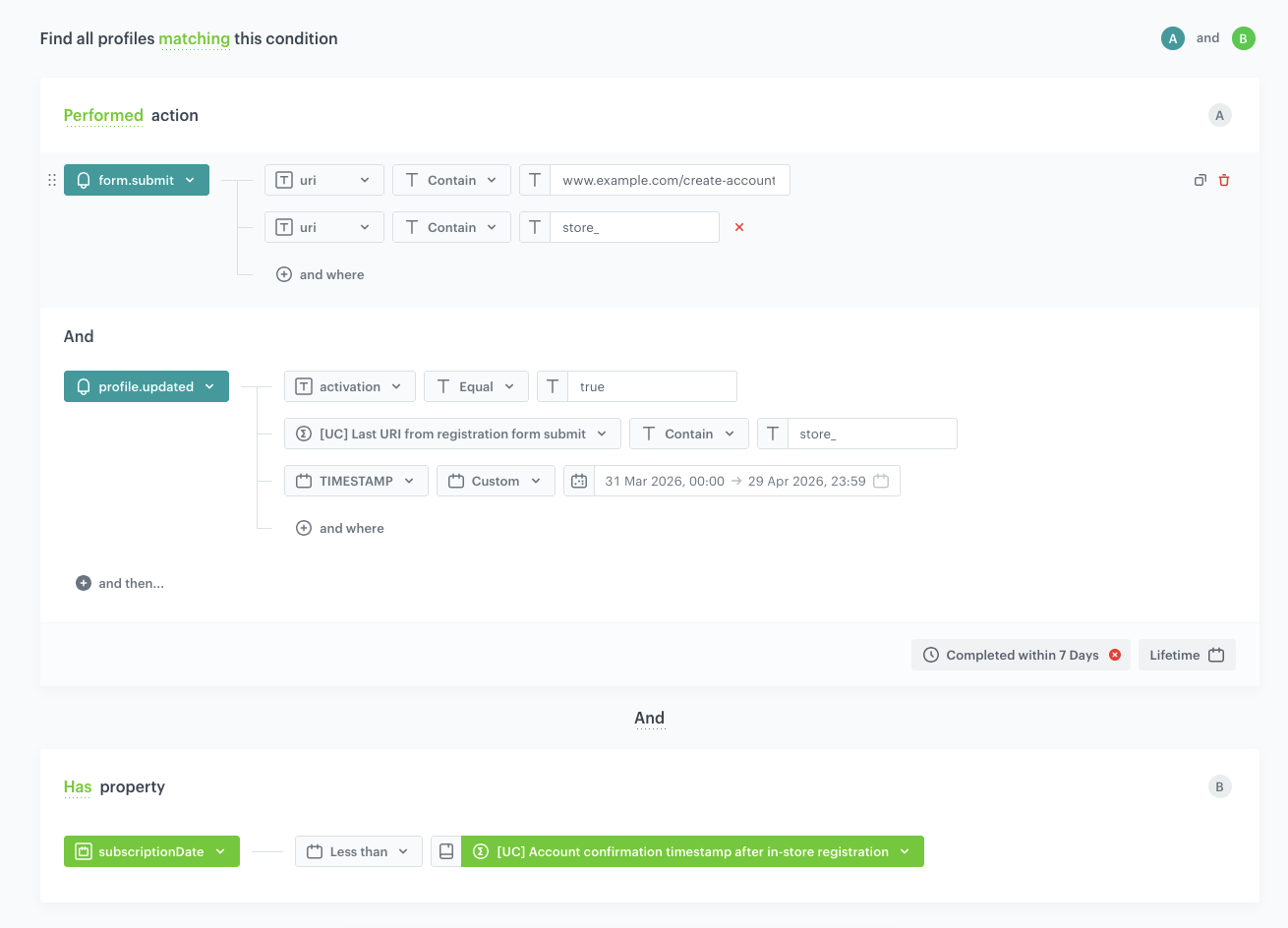
Segment A captures customers who completed all three actions (form submission, account confirmation, newsletter opt-in) within 7 days. Because the events can happen in different orders (for example, newsletter agreement before or after account confirmation), you define two condition groups connected by **OR** to cover both orderings.
**First condition group:**
3. Click **Add condition**.
4. From the dropdown list, select the `form.submit` event.
5. Click the **+ where** button and select the **uri** parameter.
6. From the **Choose operator** dropdown, choose **Contain** and enter the registration page URL, for example `www.example.com/create-account`.
7. Click the **+ where** button and select the **uri** parameter again.
8. From the **Choose operator** dropdown, choose **Contain** and enter the store identifier prefix, for example `store_`.
9. Below the first condition, in the **and then...** section, click **Add condition**.
10. From the dropdown list, select the `profile.updated` event.
11. Click the **+ where** button and select the **activation** parameter.
12. From the **Choose operator** dropdown, choose **Equal** and enter `true`.
13. Click the **+ where** button and select the event aggregate created [earlier](#create-an-event-aggregate-for-registration-uri).
14. From the **Choose operator** dropdown, choose **Contain** and enter the store identifier prefix, for example `store_`.
15. Click the **+ where** button and select the **TIMESTAMP** parameter.
16. From the **Choose operator** dropdown, choose **Custom** and set the date range to the reporting period (for example, `1 Feb 2026, 00:00` to `28 Feb 2026, 23:59`).
**Decision Hub > Segmentations > New segmentation**.
2. Enter the name of the segmentation, for example `Fully qualified in-store loyalty registrations`.
### Configure Segment A
---
Segment A captures customers who completed all three actions (form submission, account confirmation, newsletter opt-in) within 7 days. Because the events can happen in different orders (for example, newsletter agreement before or after account confirmation), you define two condition groups connected by **OR** to cover both orderings.
**First condition group:**
3. Click **Add condition**.
4. From the dropdown list, select the `form.submit` event.
5. Click the **+ where** button and select the **uri** parameter.
6. From the **Choose operator** dropdown, choose **Contain** and enter the registration page URL, for example `www.example.com/create-account`.
7. Click the **+ where** button and select the **uri** parameter again.
8. From the **Choose operator** dropdown, choose **Contain** and enter the store identifier prefix, for example `store_`.
9. Below the first condition, in the **and then...** section, click **Add condition**.
10. From the dropdown list, select the `profile.updated` event.
11. Click the **+ where** button and select the **activation** parameter.
12. From the **Choose operator** dropdown, choose **Equal** and enter `true`.
13. Click the **+ where** button and select the event aggregate created [earlier](#create-an-event-aggregate-for-registration-uri).
14. From the **Choose operator** dropdown, choose **Contain** and enter the store identifier prefix, for example `store_`.
15. Click the **+ where** button and select the **TIMESTAMP** parameter.
16. From the **Choose operator** dropdown, choose **Custom** and set the date range to the reporting period (for example, `1 Feb 2026, 00:00` to `28 Feb 2026, 23:59`).
 **Decision Hub > Metrics > New metric**.
2. Enter the name of the metric, for example `Count of in-store loyalty registrations`.
3. As the metric kind, select **Simple metric**.
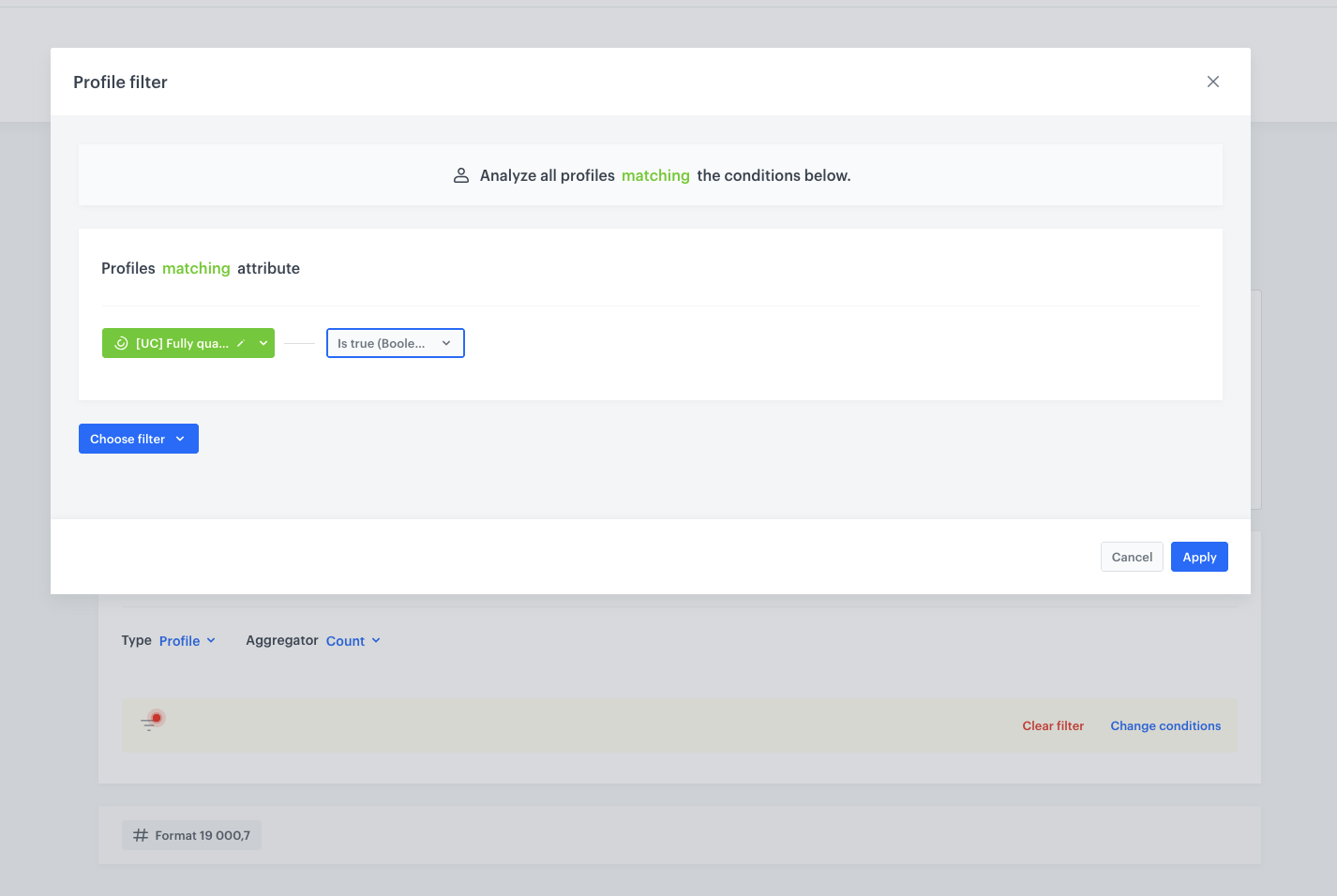
4. As **Type**, select **Profile**.
5. As **Aggregator**, select **Count**.
6. Click the filter icon to add a profile filter.
8. From the **Choose filter** dropdown, select the segmentation created in the [previous step](#create-a-segmentation-of-qualified-registrations).
9. From the **Choose operator** dropdown, choose **Is true (Boolean)**.
10. Confirm by clicking **Apply**.
11. Save the metric.
**Decision Hub > Metrics > New metric**.
2. Enter the name of the metric, for example `Count of in-store loyalty registrations`.
3. As the metric kind, select **Simple metric**.
4. As **Type**, select **Profile**.
5. As **Aggregator**, select **Count**.
6. Click the filter icon to add a profile filter.
8. From the **Choose filter** dropdown, select the segmentation created in the [previous step](#create-a-segmentation-of-qualified-registrations).
9. From the **Choose operator** dropdown, choose **Is true (Boolean)**.
10. Confirm by clicking **Apply**.
11. Save the metric.
 **Behavioral Data Hub > Live Aggregates > Create aggregate**.
2. As the aggregate type, select **Profile**.
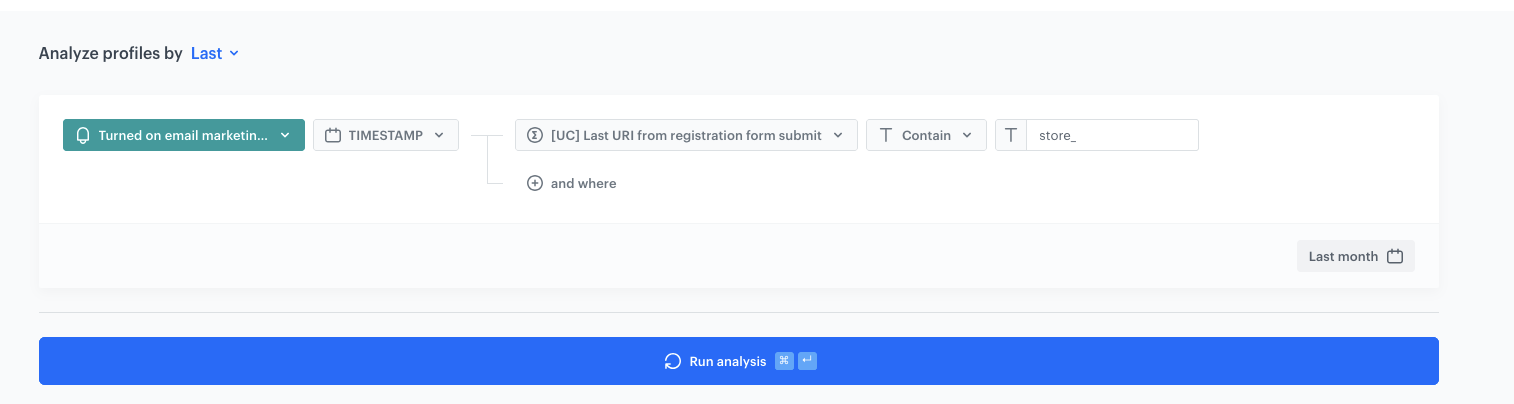
3. Enter a name for the aggregate, for example `Newsletter agreement timestamp after in-store registration`.
4. Set **Analyze profiles by** to **Last**.
5. From the **Choose event** dropdown list, select the `marketingAgreement.turnOn` event.
6. As the event parameter, select **TIMESTAMP**.
7. Click the **+ where** button.
8. From the **Choose parameter** dropdown list, select the event aggregate created in the [first step](#create-an-event-aggregate-for-registration-uri) (last URI from registration form submit).
9. From the **Choose operator** dropdown, choose **Contain (String)**.
10. In the next field, enter the store identifier prefix, for example `store_`.
11. Set the time range to **Last 1 months before 1 months** (this ensures the aggregate covers the previous month's data for reporting purposes).
12. Save the aggregate.
**Behavioral Data Hub > Live Aggregates > Create aggregate**.
2. As the aggregate type, select **Profile**.
3. Enter a name for the aggregate, for example `Newsletter agreement timestamp after in-store registration`.
4. Set **Analyze profiles by** to **Last**.
5. From the **Choose event** dropdown list, select the `marketingAgreement.turnOn` event.
6. As the event parameter, select **TIMESTAMP**.
7. Click the **+ where** button.
8. From the **Choose parameter** dropdown list, select the event aggregate created in the [first step](#create-an-event-aggregate-for-registration-uri) (last URI from registration form submit).
9. From the **Choose operator** dropdown, choose **Contain (String)**.
10. In the next field, enter the store identifier prefix, for example `store_`.
11. Set the time range to **Last 1 months before 1 months** (this ensures the aggregate covers the previous month's data for reporting purposes).
12. Save the aggregate.
 **Behavioral Data Hub > Live Aggregates > Create aggregate**.
2. As the aggregate type, select **Profile**.
3. Enter a name for the aggregate, for example `Account confirmation timestamp after in-store registration`.
4. Set **Analyze profiles by** to **Last**.
5. From the **Choose event** dropdown list, select the `profile.updated` event.
6. As the event parameter, select **TIMESTAMP**.
7. Click the **+ where** button.
8. From the **Choose parameter** dropdown list, select the **activation** parameter.
9. From the **Choose operator** dropdown, choose **Equal**.
10. In the next field, enter `true`.
11. Click the **+ where** button.
12. From the **Choose parameter** dropdown list, select the event aggregate created in the [first step](#create-an-event-aggregate-for-registration-uri) (last URI from registration form submit).
13. From the **Choose operator** dropdown, choose **Contain**.
14. In the next field, enter the store identifier prefix, for example `store_`.
15. Set the time range to **Last 1 months**.
16. Save the aggregate.
**Behavioral Data Hub > Live Aggregates > Create aggregate**.
2. As the aggregate type, select **Profile**.
3. Enter a name for the aggregate, for example `Account confirmation timestamp after in-store registration`.
4. Set **Analyze profiles by** to **Last**.
5. From the **Choose event** dropdown list, select the `profile.updated` event.
6. As the event parameter, select **TIMESTAMP**.
7. Click the **+ where** button.
8. From the **Choose parameter** dropdown list, select the **activation** parameter.
9. From the **Choose operator** dropdown, choose **Equal**.
10. In the next field, enter `true`.
11. Click the **+ where** button.
12. From the **Choose parameter** dropdown list, select the event aggregate created in the [first step](#create-an-event-aggregate-for-registration-uri) (last URI from registration form submit).
13. From the **Choose operator** dropdown, choose **Contain**.
14. In the next field, enter the store identifier prefix, for example `store_`.
15. Set the time range to **Last 1 months**.
16. Save the aggregate.
 **Behavioral Data Hub > Expressions > New expression**.
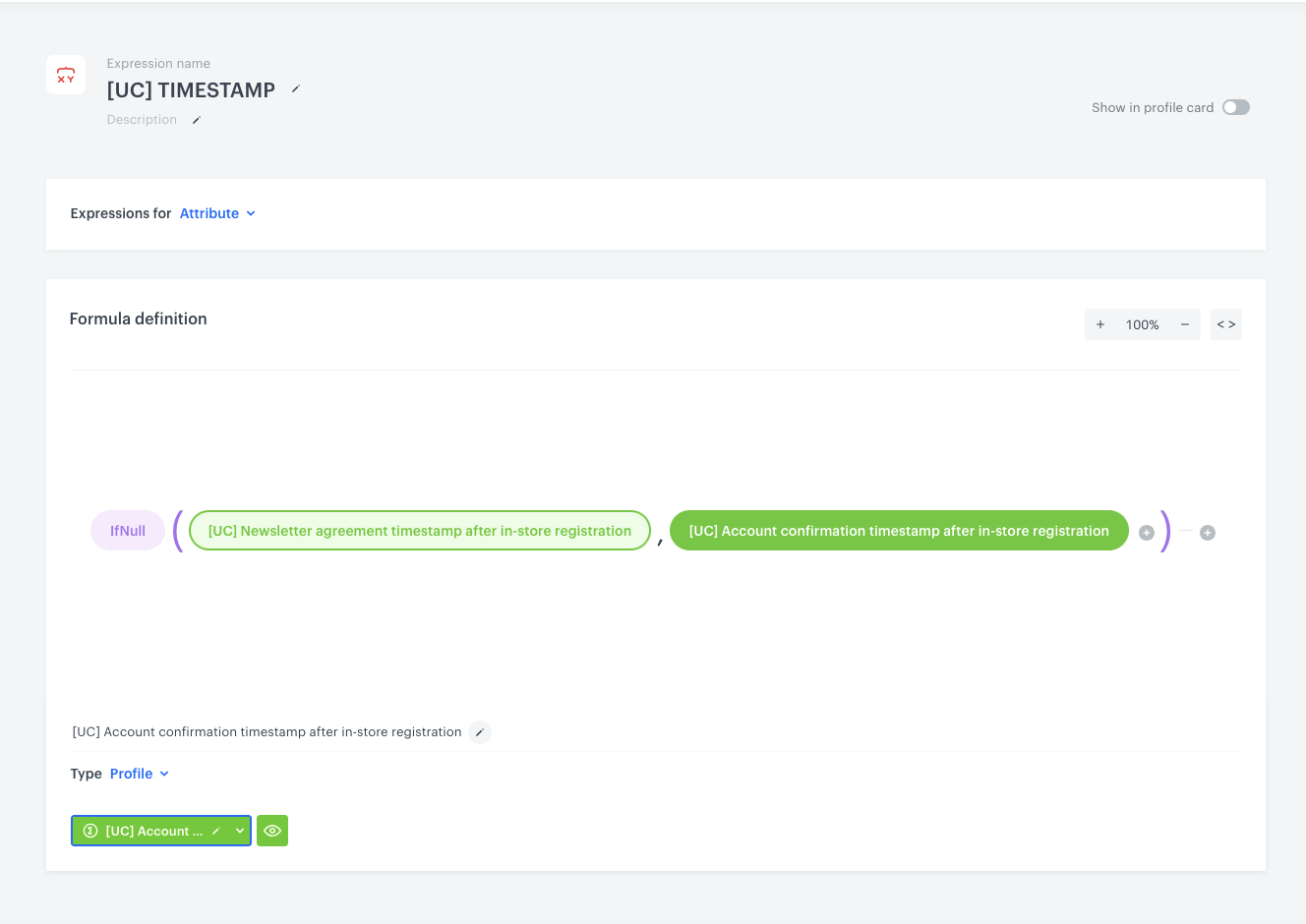
2. Enter the name of the expression: `TIMESTAMP`.
3. Set **Expressions for** to **Attribute**.
4. Build the formula using the following structure:
- **IfNull** - newsletter agreement timestamp aggregate, account confirmation timestamp aggregate
- The first argument is the aggregate for the newsletter agreement timestamp after in-store registration (created in the [previous step](#create-an-aggregate-for-newsletter-agreement-timestamp-after-in-store-registration)).
- The second argument (fallback) is the profile aggregate for account confirmation created [earlier](#create-a-profile-aggregate-for-account-confirmation).
5. Save the expression.
**Behavioral Data Hub > Expressions > New expression**.
2. Enter the name of the expression: `TIMESTAMP`.
3. Set **Expressions for** to **Attribute**.
4. Build the formula using the following structure:
- **IfNull** - newsletter agreement timestamp aggregate, account confirmation timestamp aggregate
- The first argument is the aggregate for the newsletter agreement timestamp after in-store registration (created in the [previous step](#create-an-aggregate-for-newsletter-agreement-timestamp-after-in-store-registration)).
- The second argument (fallback) is the profile aggregate for account confirmation created [earlier](#create-a-profile-aggregate-for-account-confirmation).
5. Save the expression.
 **Behavioral Data Hub > Live Aggregates > Create aggregate**.
2. As the aggregate type, select **Profile**.
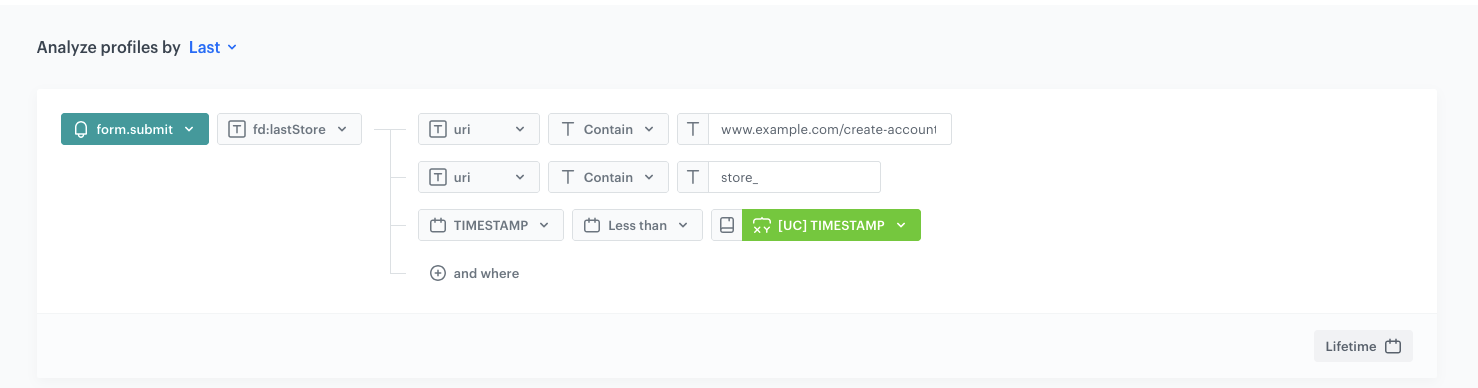
3. Enter a name for the aggregate: `Last_store`.
4. Set **Analyze profiles by** to **Last**.
5. From the **Choose event** dropdown list, select the `form.submit` event.
6. As the event parameter, select the parameter that contains the store identifier extracted from the URI (for example, `fd:lastStore_`).
7. Click the **+ where** button and select the **uri** parameter.
8. From the **Choose operator** dropdown, choose **Contain (String)** and enter the registration page URL, for example `www.example.com/create-account`.
9. Click the **+ where** button and select the **uri** parameter again.
10. From the **Choose operator** dropdown, choose **Contain (String)** and enter the store identifier prefix, for example `store_`.
11. Click the **+ where** button and select the **TIMESTAMP** parameter.
12. From the **Choose operator** dropdown, choose **Less than (Date)**.
13. As the value, select the `TIMESTAMP` expression created in the [previous step](#create-the-timestamp-expression).
14. Set the time range to **Lifetime**.
15. Save the aggregate.
**Behavioral Data Hub > Live Aggregates > Create aggregate**.
2. As the aggregate type, select **Profile**.
3. Enter a name for the aggregate: `Last_store`.
4. Set **Analyze profiles by** to **Last**.
5. From the **Choose event** dropdown list, select the `form.submit` event.
6. As the event parameter, select the parameter that contains the store identifier extracted from the URI (for example, `fd:lastStore_`).
7. Click the **+ where** button and select the **uri** parameter.
8. From the **Choose operator** dropdown, choose **Contain (String)** and enter the registration page URL, for example `www.example.com/create-account`.
9. Click the **+ where** button and select the **uri** parameter again.
10. From the **Choose operator** dropdown, choose **Contain (String)** and enter the store identifier prefix, for example `store_`.
11. Click the **+ where** button and select the **TIMESTAMP** parameter.
12. From the **Choose operator** dropdown, choose **Less than (Date)**.
13. As the value, select the `TIMESTAMP` expression created in the [previous step](#create-the-timestamp-expression).
14. Set the time range to **Lifetime**.
15. Save the aggregate.
 **Behavioral Data Hub > Expressions > New expression**.
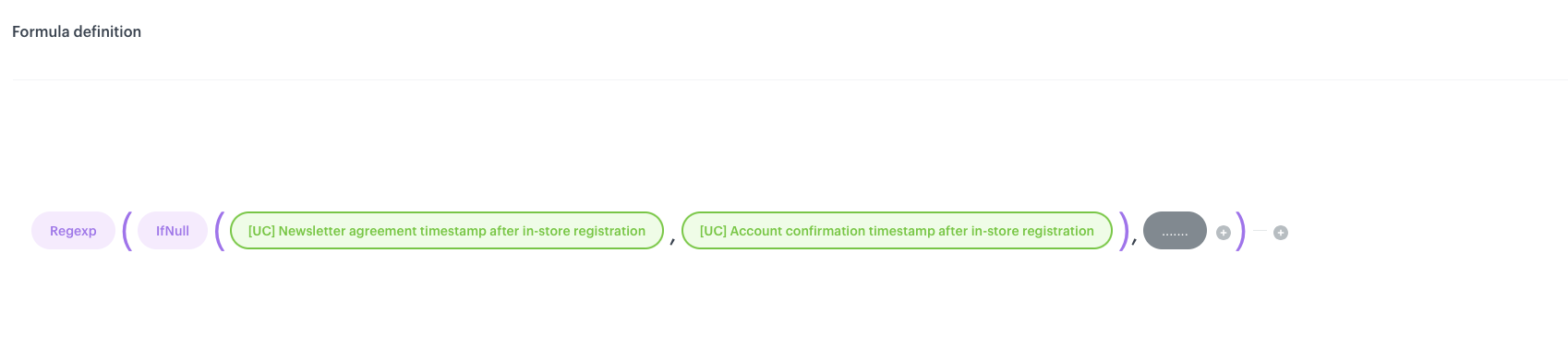
2. Enter the name of the expression: `Data`.
3. Set **Expressions for** to **Attribute**.
4. Build the formula using the following structure:
- **Regexp** ( **IfNull** ( `[newsletter agreement timestamp aggregate]` , `[account confirmation timestamp aggregate]` ) , `......` )
- The first argument of `IfNull` is the aggregate for the newsletter agreement timestamp after in-store registration (created in the step above).
- The second argument (fallback) is the profile aggregate for account confirmation created [earlier](#create-a-profile-aggregate-for-account-confirmation).
- The `Regexp` pattern (`......`) extracts the date portion (for example, year-month) from the timestamp.
5. Save the expression.
**Behavioral Data Hub > Expressions > New expression**.
2. Enter the name of the expression: `Data`.
3. Set **Expressions for** to **Attribute**.
4. Build the formula using the following structure:
- **Regexp** ( **IfNull** ( `[newsletter agreement timestamp aggregate]` , `[account confirmation timestamp aggregate]` ) , `......` )
- The first argument of `IfNull` is the aggregate for the newsletter agreement timestamp after in-store registration (created in the step above).
- The second argument (fallback) is the profile aggregate for account confirmation created [earlier](#create-a-profile-aggregate-for-account-confirmation).
- The `Regexp` pattern (`......`) extracts the date portion (for example, year-month) from the timestamp.
5. Save the expression.
 **Behavioral Data Hub > Expressions > New expression**.
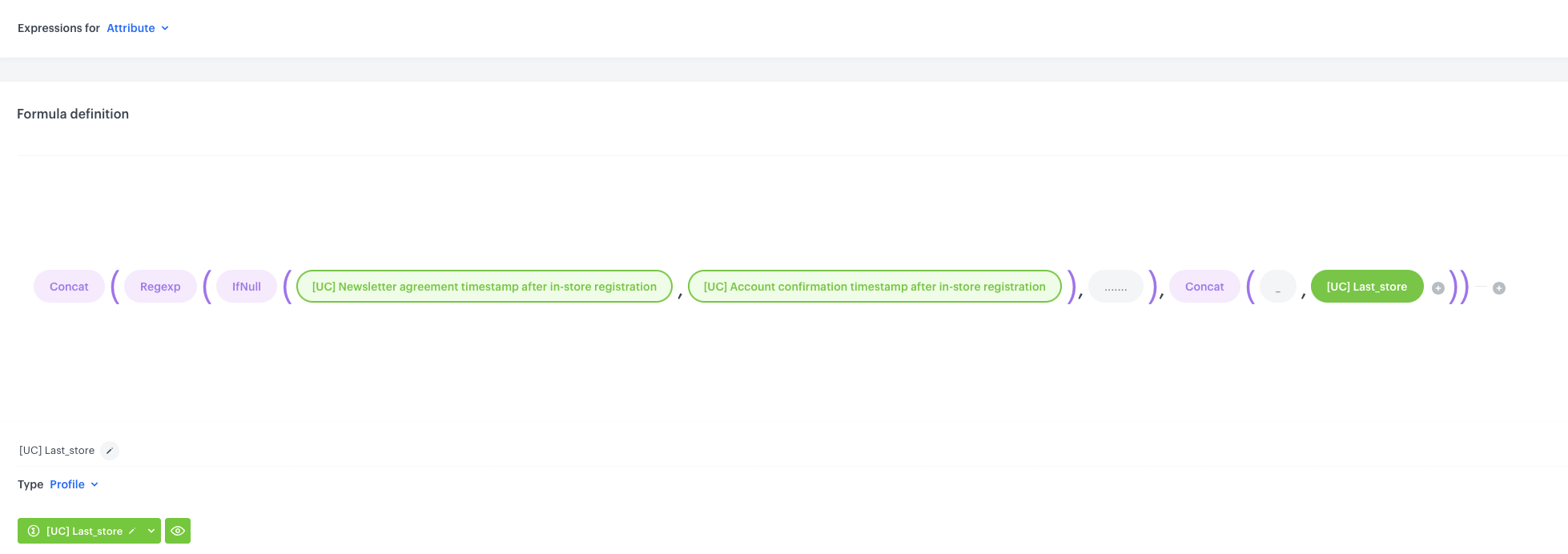
2. Enter the name of the expression: `Data_Store`.
3. Set **Expressions for** to **Attribute**.
4. Build the formula using the following structure:
- **Concat** ( **Regexp** ( **IfNull** ( `[newsletter agreement timestamp aggregate]` , `[account confirmation timestamp aggregate]` ) , `......` ) , **Concat** ( `_` , `Last_store` ) )
- The inner `Regexp(IfNull(...))` portion is the same logic as in the `Data` expression — it extracts the date from the first available timestamp.
- The outer `Concat` appends an underscore and the store identifier from the `Last_store` aggregate.
5. Save the expression.
**Behavioral Data Hub > Expressions > New expression**.
2. Enter the name of the expression: `Data_Store`.
3. Set **Expressions for** to **Attribute**.
4. Build the formula using the following structure:
- **Concat** ( **Regexp** ( **IfNull** ( `[newsletter agreement timestamp aggregate]` , `[account confirmation timestamp aggregate]` ) , `......` ) , **Concat** ( `_` , `Last_store` ) )
- The inner `Regexp(IfNull(...))` portion is the same logic as in the `Data` expression — it extracts the date from the first available timestamp.
- The outer `Concat` appends an underscore and the store identifier from the `Last_store` aggregate.
5. Save the expression.
 **Decision Hub > Reports > New report**.
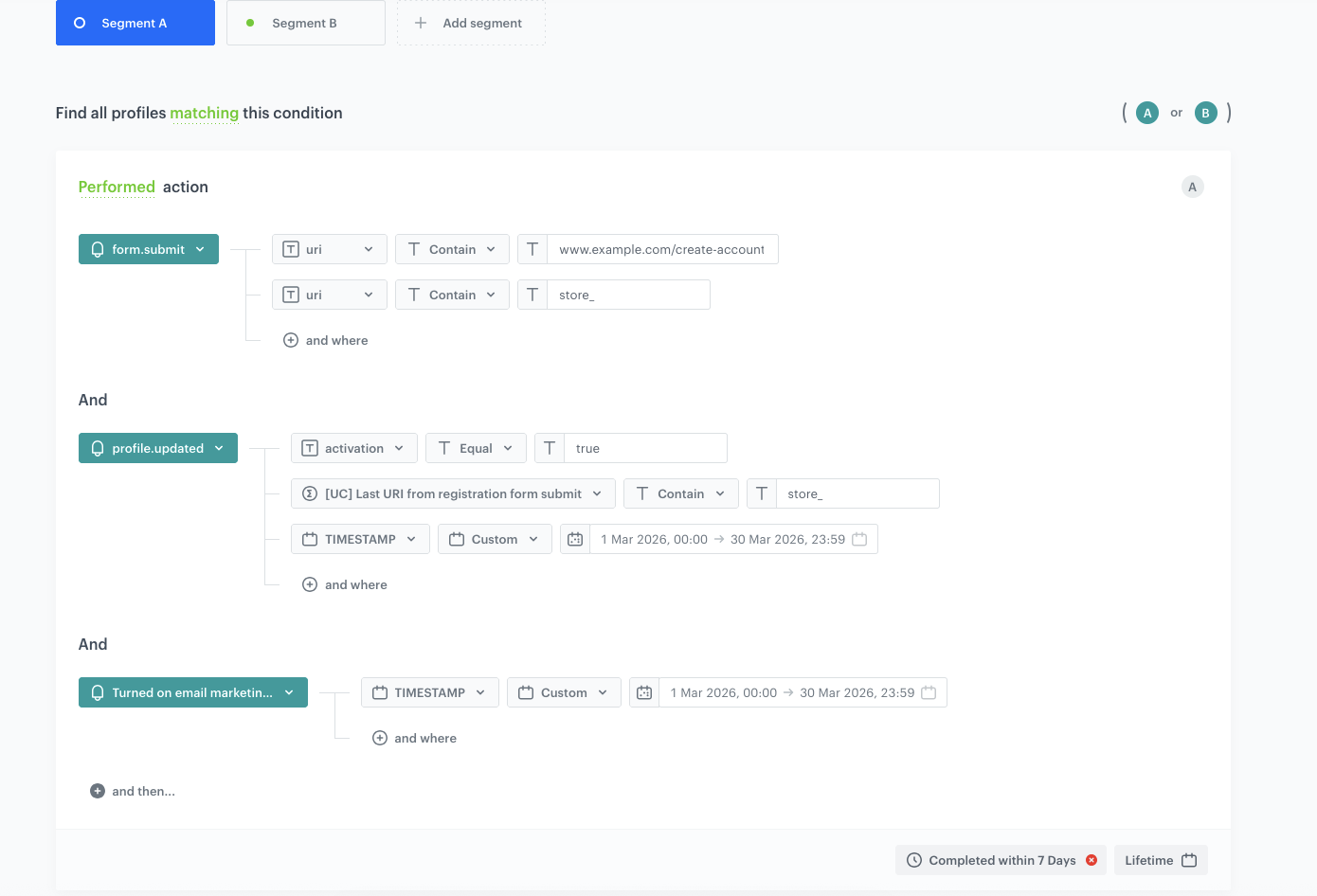
2. Enter the name of the report, for example `Monthly in-store loyalty registrations by store`.
3. Click **Choose metric** and from the dropdown list, select the metric created [above](#create-a-metric-for-counting-qualified-registrations).
4. From the **Range** dropdown list, select **Top 1000**.
5. In the **Dimension** section, add the following dimensions:
- `Data_Store` — the expression combining date and store identifier.
- `Data` — the expression returning the registration date.
- `Last_store` — the aggregate returning the store identifier.
6. Set the **Format** to `19 000,7` for all dimensions.
7. Enable the **Show null values** toggle.
8. Set the time range to **Lifetime**.
9. Save the report.
**Decision Hub > Reports > New report**.
2. Enter the name of the report, for example `Monthly in-store loyalty registrations by store`.
3. Click **Choose metric** and from the dropdown list, select the metric created [above](#create-a-metric-for-counting-qualified-registrations).
4. From the **Range** dropdown list, select **Top 1000**.
5. In the **Dimension** section, add the following dimensions:
- `Data_Store` — the expression combining date and store identifier.
- `Data` — the expression returning the registration date.
- `Last_store` — the aggregate returning the store identifier.
6. Set the **Format** to `19 000,7` for all dimensions.
7. Enable the **Show null values** toggle.
8. Set the time range to **Lifetime**.
9. Save the report.