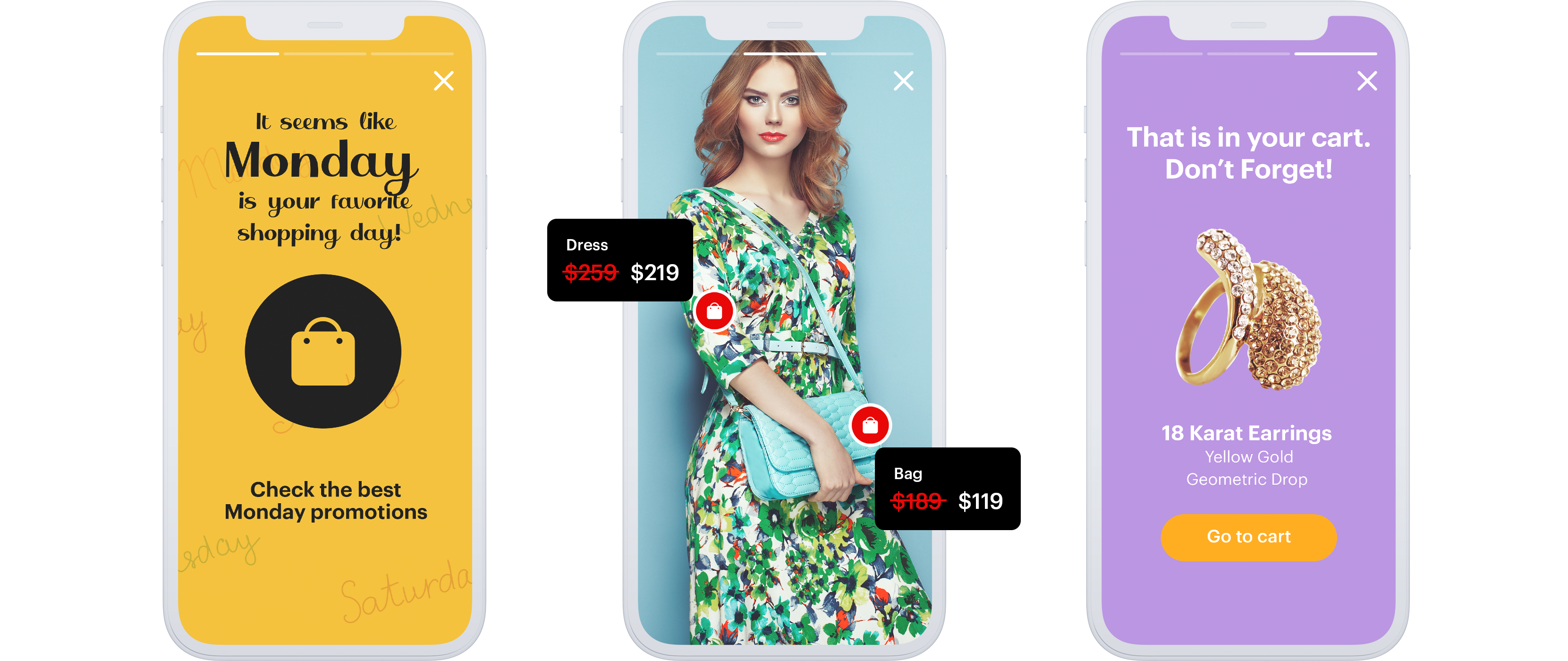
The user engagement platform [Storyly](https://www.storyly.io/) allows to embed full-screen, interactive stories, in both mobile applications and websites. With those stories you can post interactive ads and engaging videos with call to action. You can include GIFs, use ready made templates or create your own without the use of code. To improve your communication and drive conversion you can use customer data collected in Synerise to personalize the stories.
In this use case, we will enrich stories with information about customer's favourite day for shopping, to show them personalized stories in the mobile app. This information will be extracted using an expression and passed to the mobile application in a document.
## Prerequisites
---
- [Implement Synerise SDK in your mobile app](/developers/mobile-sdk).
- Implement transaction events using [SDK](/developers/web/transactions-sdk) or [API](https://developers.synerise.com/DataManagement/DataManagement.html#operation/CreateATransaction).
- [Implement Storyly SDK in your mobile app](https://integration.storyly.io/getting-started/what-is-storyly.html).
## Process
---
In this use case, you will go through the following steps:
1. [Create an event expression](#create-an-event-expression).
2. [Create an aggregate](#create-an-aggregate).
3. [Create an expression](#create-an-expression).
2. [Create a document](#create-a-document) with expression inserts.
## Create an event expression
---
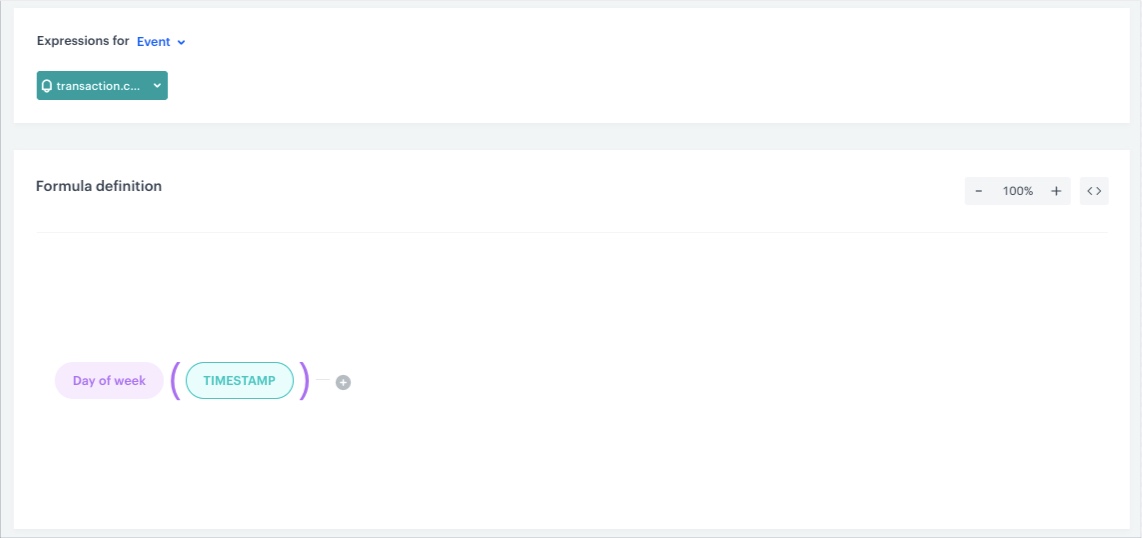
In this part of the process, create an expression that extracts the number of the week day out of a timestamp of the `transaction.charge` event. The result of this expression will be a number from 1 to 7 (1 is Monday, 7 is Sunday).
1. In Synerise, go to **Behavioral Data Hub > Expressions> New expression**.
2. Enter the name of the expression.
3. From the **Expressions for** dropdown list, select **Event**.
4. From the dropdown list, select `transaction.charge` event.
5. In the **Formula definition** section of the page, click **Select**.
Result: A dropdown list appears.
6. From the list that opens, select **Function > Day of week**.
7. In the brackets, click the left **Select** button and from the list, select **Event attribute**.
8. Click **Unnamed** in the brackets, to display the settings of the event attribute.
9. From the **Choose parameter** dropdown list, select `TIMESTAMP`.
10. Save the expression.
Expression configuration
## Create an aggregate
---
In this step, create an aggregate that returns the day of the week in which a customer makes transactions most frequently - it is the day of the week on which the customer is most likely to make a purchase.
1. Go to **Behavioral Data Hub > Live Aggregates > Create aggregate**.
2. As the aggregate type, select **Profile**.
2. Enter the name of the aggregate.
3. Click **Analyze profiles by** and select **Top**.
4. From the **Choose event** dropdown list, select the `transaction.charge `event.
5. From the **Choose parameter** dropdown list, select the [expression created in the previous step](#create-an-event-expression).
6. In the calendar in the right bottom of the page:
1. In the **Relative date range** section, click **Custom**, type 365 and from the the dropdown list, select **Days**.
2. Click **Apply**.
7. Save the aggregate.
Aggregate configuration
## Create an expression
---
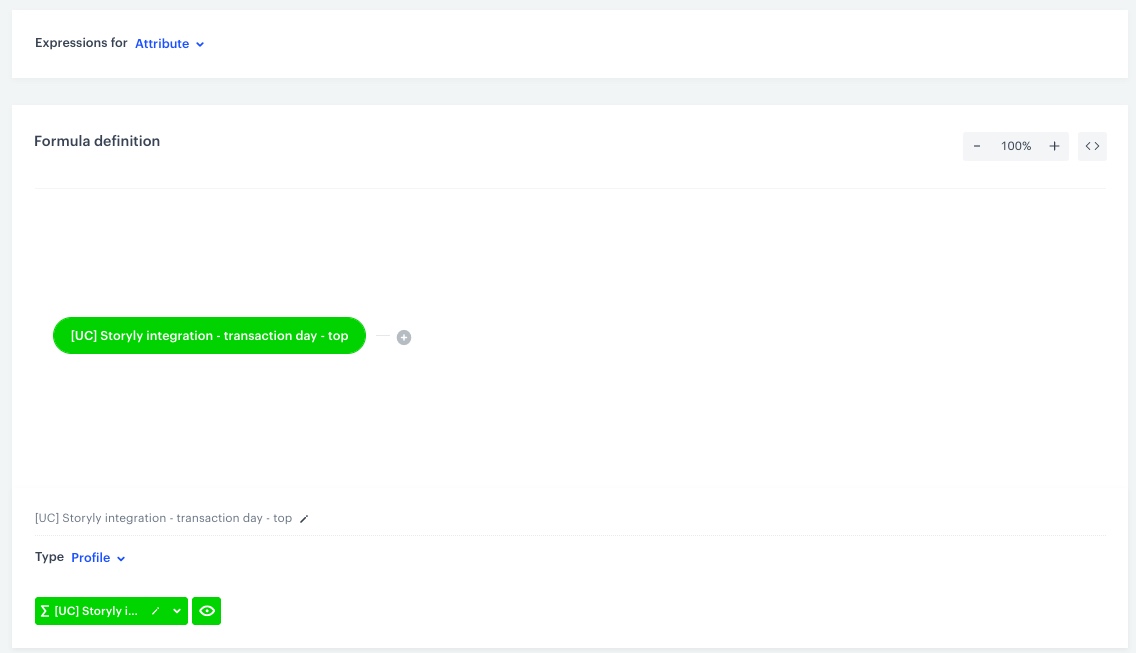
In this part of the process, you will create an expression that will return the value of the [aggregate made in the previous step](#create-an-aggregate). This expression will later be placed in the document retrieved by the application.
1. In Synerise, go to **Behavioral Data Hub > Expressions> New expression**.
2. Enter the name of the expression.
3. Leave the **Expression for** option at default (**Attribute**).
4. In the **Formula definition** section of the page, click **Select**.
Result: A dropdown list appears.
5. From the list that opens, select **Profile**.
6. Click **Unnamed** to display the settings of the profile attribute.
7. From the **Choose parameter** dropdown list, select the [aggregate created in the previous step](#create-an-aggregate).
8. Save the expression.
Expression configuration
## Create a document
---
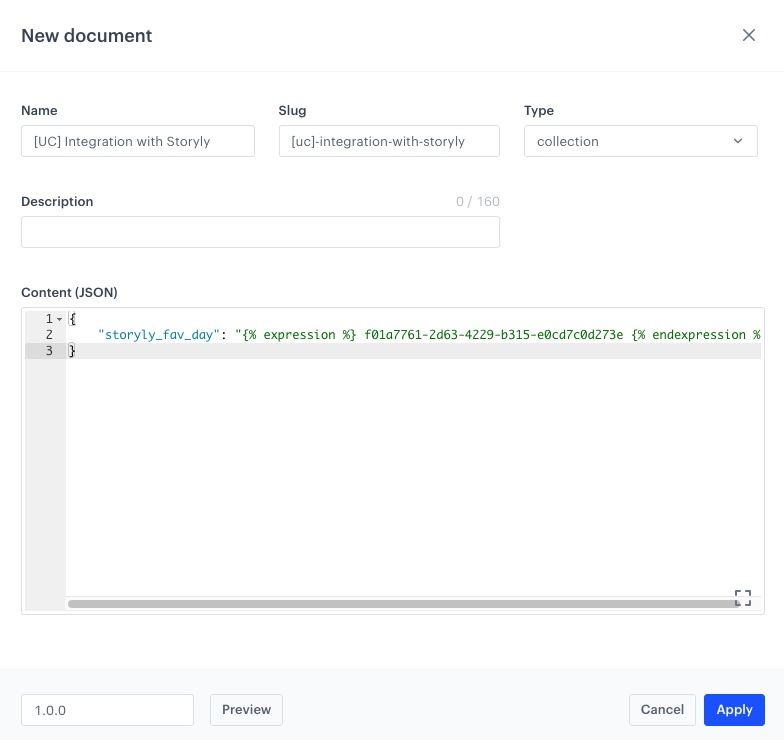
As the final part of the process, create a document with parameters that will be passed to Storyly. The document contains a Jinjava insert with expression value for individual customer.
1. Go to **Data Modeling Hub > Documents > Add document**.
2. Enter the name for your document. Automatically, the field with a slug is filled as well. A slug is an ID of the document.
3. To select the type of schema, in the **Type** section, unfold the dropdown list. A schema defines the method of validating the data included in the document. To create a schema type, please refer to the [API reference pages](https://developers.synerise.com/AssetManagement/AssetManagement.html#operation/addSchemaType).
4. Optionally, in the **Description** field, you can add a description of the document.
5. In the **Content (JSON)** section, paste the JSON code:
{
   "storyly_fav_day": "{% expression %} insert the ID of the expression {% endexpression %}"
   }
6. Click **Apply** to save the document.
Document configuration
7. Click the icon and from the dropdown list select **Versions**.
8. In order to publish a document, next to the version, click the **Publish** button.
## What's next
---
Once the document is created, the mobile app retrieves it using get document method:
- [iOS](/developers/mobile-sdk/method-reference/ios/content#generate-document)
- [Android](/developers/mobile-sdk/method-reference/android/content#generate-document)
- [React Native](/developers/mobile-sdk/method-reference/react-native/content#generate-document).
Then, the document content will be passed as the value of the variables defined in Storyly when executing the Storyly SDK methods for displaying stories:
- [method for iOS](https://integration.storyly.io/ios/personalized-userproperties.html)
- [method for Android](https://integration.storyly.io/android/personalization-userproperties.html).
This way the customer will see personalized stories in the mobile app.
We also encourage you to enrich your integration with events sent to Synerise, for example, when user views or responds to a story. This way you can build different analyses or use this information in other customer communications. Find out which [events](https://integration.storyly.io/android/sending-events.html) you can send from Storyly to Synerise, and [how to send them](/developers/mobile-sdk/event-tracking#declarative-tracking).
## Check the use case set up on the Synerise Demo workspace
---
You can check the configuration of this integration directly in Synerise Demo workspace:
- [Expression that returns the day of week a transaction was made](https://app.synerise.com/analytics/expressions/282ac206-ebbb-4fc0-9cbb-48be59b4d2ed).
- [Aggregate](https://app.synerise.com/analytics/aggregates/070e06fc-3416-3ff5-a3a1-86489f1ce956).
- [Expression that returns the number of the week day of the `transaction.charge` event for specific customer](https://app.synerise.com/analytics/expressions/f01a7761-2d63-4229-b315-e0cd7c0d273e).
If you’re our partner or client, you already have automatic access to the **Synerise Demo workspace (1590)**, where you can explore all the configured elements of this use case and copy them to your workspace.
If you’re not a partner or client yet, we encourage you to fill out the contact [form](https://demo.synerise.com/request) to schedule a meeting with our representatives. They’ll be happy to show you how our demo works and discuss how you can apply this use case in your business.
## Read more
---
- [Aggregates](/docs/analytics/aggregates)
- [Documents](/docs/assets/documents/introduction-to-documents)
- [Expressions](/docs/analytics/expressions)
- [Jijava inserts](/developers/inserts)
- List of pre-defined events in Storyly’s SDK:
- [iOS](https://integration.storyly.io/ios/storyly-events.html)
- [Android](https://integration.storyly.io/android/storyly-events.html)
 **Behavioral Data Hub > Expressions> New expression**.
2. Enter the name of the expression.
3. From the **Expressions for** dropdown list, select **Event**.
4. From the dropdown list, select `transaction.charge` event.
5. In the **Formula definition** section of the page, click **Select**.
Result: A dropdown list appears.
6. From the list that opens, select **Function > Day of week**.
7. In the brackets, click the left **Select** button and from the list, select **Event attribute**.
8. Click **Unnamed** in the brackets, to display the settings of the event attribute.
9. From the **Choose parameter** dropdown list, select `TIMESTAMP`.
10. Save the expression.
**Behavioral Data Hub > Expressions> New expression**.
2. Enter the name of the expression.
3. From the **Expressions for** dropdown list, select **Event**.
4. From the dropdown list, select `transaction.charge` event.
5. In the **Formula definition** section of the page, click **Select**.
Result: A dropdown list appears.
6. From the list that opens, select **Function > Day of week**.
7. In the brackets, click the left **Select** button and from the list, select **Event attribute**.
8. Click **Unnamed** in the brackets, to display the settings of the event attribute.
9. From the **Choose parameter** dropdown list, select `TIMESTAMP`.
10. Save the expression.

 **Data Modeling Hub > Documents > Add document**.
2. Enter the name for your document. Automatically, the field with a slug is filled as well. A slug is an ID of the document.
3. To select the type of schema, in the **Type** section, unfold the dropdown list. A schema defines the method of validating the data included in the document. To create a schema type, please refer to the [API reference pages](https://developers.synerise.com/AssetManagement/AssetManagement.html#operation/addSchemaType).
4. Optionally, in the **Description** field, you can add a description of the document.
5. In the **Content (JSON)** section, paste the JSON code:
**Data Modeling Hub > Documents > Add document**.
2. Enter the name for your document. Automatically, the field with a slug is filled as well. A slug is an ID of the document.
3. To select the type of schema, in the **Type** section, unfold the dropdown list. A schema defines the method of validating the data included in the document. To create a schema type, please refer to the [API reference pages](https://developers.synerise.com/AssetManagement/AssetManagement.html#operation/addSchemaType).
4. Optionally, in the **Description** field, you can add a description of the document.
5. In the **Content (JSON)** section, paste the JSON code:
 icon and from the dropdown list select **Versions**.
8. In order to publish a document, next to the version, click the **Publish** button.
## What's next
---
Once the document is created, the mobile app retrieves it using get document method:
- [iOS](/developers/mobile-sdk/method-reference/ios/content#generate-document)
- [Android](/developers/mobile-sdk/method-reference/android/content#generate-document)
- [React Native](/developers/mobile-sdk/method-reference/react-native/content#generate-document).
Then, the document content will be passed as the value of the variables defined in Storyly when executing the Storyly SDK methods for displaying stories:
- [method for iOS](https://integration.storyly.io/ios/personalized-userproperties.html)
- [method for Android](https://integration.storyly.io/android/personalization-userproperties.html).
This way the customer will see personalized stories in the mobile app.
We also encourage you to enrich your integration with events sent to Synerise, for example, when user views or responds to a story. This way you can build different analyses or use this information in other customer communications. Find out which [events](https://integration.storyly.io/android/sending-events.html) you can send from Storyly to Synerise, and [how to send them](/developers/mobile-sdk/event-tracking#declarative-tracking).
## Check the use case set up on the Synerise Demo workspace
---
You can check the configuration of this integration directly in Synerise Demo workspace:
- [Expression that returns the day of week a transaction was made](https://app.synerise.com/analytics/expressions/282ac206-ebbb-4fc0-9cbb-48be59b4d2ed).
- [Aggregate](https://app.synerise.com/analytics/aggregates/070e06fc-3416-3ff5-a3a1-86489f1ce956).
- [Expression that returns the number of the week day of the `transaction.charge` event for specific customer](https://app.synerise.com/analytics/expressions/f01a7761-2d63-4229-b315-e0cd7c0d273e).
If you’re our partner or client, you already have automatic access to the **Synerise Demo workspace (1590)**, where you can explore all the configured elements of this use case and copy them to your workspace.
If you’re not a partner or client yet, we encourage you to fill out the contact [form](https://demo.synerise.com/request) to schedule a meeting with our representatives. They’ll be happy to show you how our demo works and discuss how you can apply this use case in your business.
## Read more
---
- [Aggregates](/docs/analytics/aggregates)
- [Documents](/docs/assets/documents/introduction-to-documents)
- [Expressions](/docs/analytics/expressions)
- [Jijava inserts](/developers/inserts)
- List of pre-defined events in Storyly’s SDK:
- [iOS](https://integration.storyly.io/ios/storyly-events.html)
- [Android](https://integration.storyly.io/android/storyly-events.html)
icon and from the dropdown list select **Versions**.
8. In order to publish a document, next to the version, click the **Publish** button.
## What's next
---
Once the document is created, the mobile app retrieves it using get document method:
- [iOS](/developers/mobile-sdk/method-reference/ios/content#generate-document)
- [Android](/developers/mobile-sdk/method-reference/android/content#generate-document)
- [React Native](/developers/mobile-sdk/method-reference/react-native/content#generate-document).
Then, the document content will be passed as the value of the variables defined in Storyly when executing the Storyly SDK methods for displaying stories:
- [method for iOS](https://integration.storyly.io/ios/personalized-userproperties.html)
- [method for Android](https://integration.storyly.io/android/personalization-userproperties.html).
This way the customer will see personalized stories in the mobile app.
We also encourage you to enrich your integration with events sent to Synerise, for example, when user views or responds to a story. This way you can build different analyses or use this information in other customer communications. Find out which [events](https://integration.storyly.io/android/sending-events.html) you can send from Storyly to Synerise, and [how to send them](/developers/mobile-sdk/event-tracking#declarative-tracking).
## Check the use case set up on the Synerise Demo workspace
---
You can check the configuration of this integration directly in Synerise Demo workspace:
- [Expression that returns the day of week a transaction was made](https://app.synerise.com/analytics/expressions/282ac206-ebbb-4fc0-9cbb-48be59b4d2ed).
- [Aggregate](https://app.synerise.com/analytics/aggregates/070e06fc-3416-3ff5-a3a1-86489f1ce956).
- [Expression that returns the number of the week day of the `transaction.charge` event for specific customer](https://app.synerise.com/analytics/expressions/f01a7761-2d63-4229-b315-e0cd7c0d273e).
If you’re our partner or client, you already have automatic access to the **Synerise Demo workspace (1590)**, where you can explore all the configured elements of this use case and copy them to your workspace.
If you’re not a partner or client yet, we encourage you to fill out the contact [form](https://demo.synerise.com/request) to schedule a meeting with our representatives. They’ll be happy to show you how our demo works and discuss how you can apply this use case in your business.
## Read more
---
- [Aggregates](/docs/analytics/aggregates)
- [Documents](/docs/assets/documents/introduction-to-documents)
- [Expressions](/docs/analytics/expressions)
- [Jijava inserts](/developers/inserts)
- List of pre-defined events in Storyly’s SDK:
- [iOS](https://integration.storyly.io/ios/storyly-events.html)
- [Android](https://integration.storyly.io/android/storyly-events.html)