 **Behavioral Data Hub > Live Aggregates > Create aggregate**.
2. As the aggregate type, select **Profile**.
2. Enter the name of the aggregate.
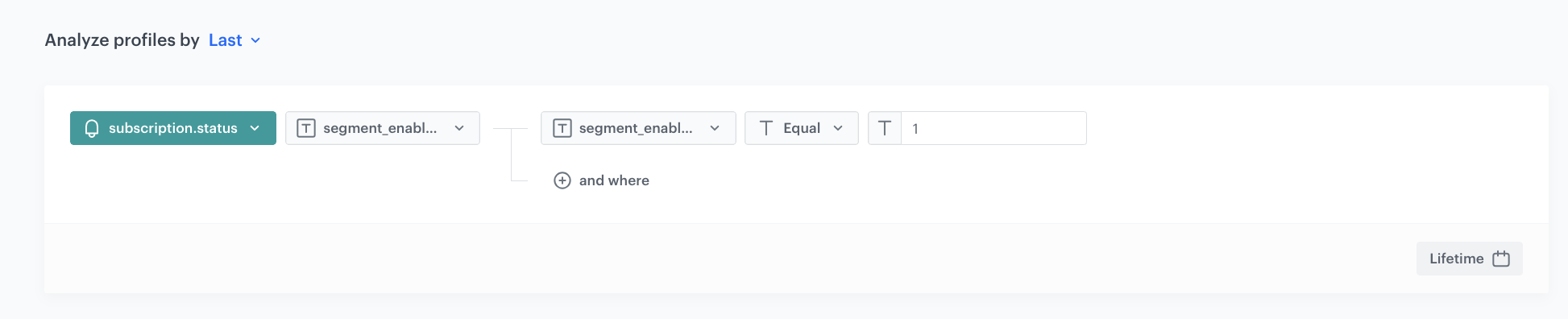
3. Click **Analyze profiles by** and select **Last**.
4. From the **Choose event** dropdown list, select the `subscription.status` event.
5. As the event parameter, select **segment_enabled**.
5. Click **+where** and choose the **segment_enabled** parameter.
9. From the **Choose operator** dropdown list, select **Equal**.
6. As the value set up `1` (it means that it is active).
6. Define the period from which the aggregate will look up event data - in this case, it is **Lifetime**.
7. Click **Save**.
**Behavioral Data Hub > Live Aggregates > Create aggregate**.
2. As the aggregate type, select **Profile**.
2. Enter the name of the aggregate.
3. Click **Analyze profiles by** and select **Last**.
4. From the **Choose event** dropdown list, select the `subscription.status` event.
5. As the event parameter, select **segment_enabled**.
5. Click **+where** and choose the **segment_enabled** parameter.
9. From the **Choose operator** dropdown list, select **Equal**.
6. As the value set up `1` (it means that it is active).
6. Define the period from which the aggregate will look up event data - in this case, it is **Lifetime**.
7. Click **Save**.
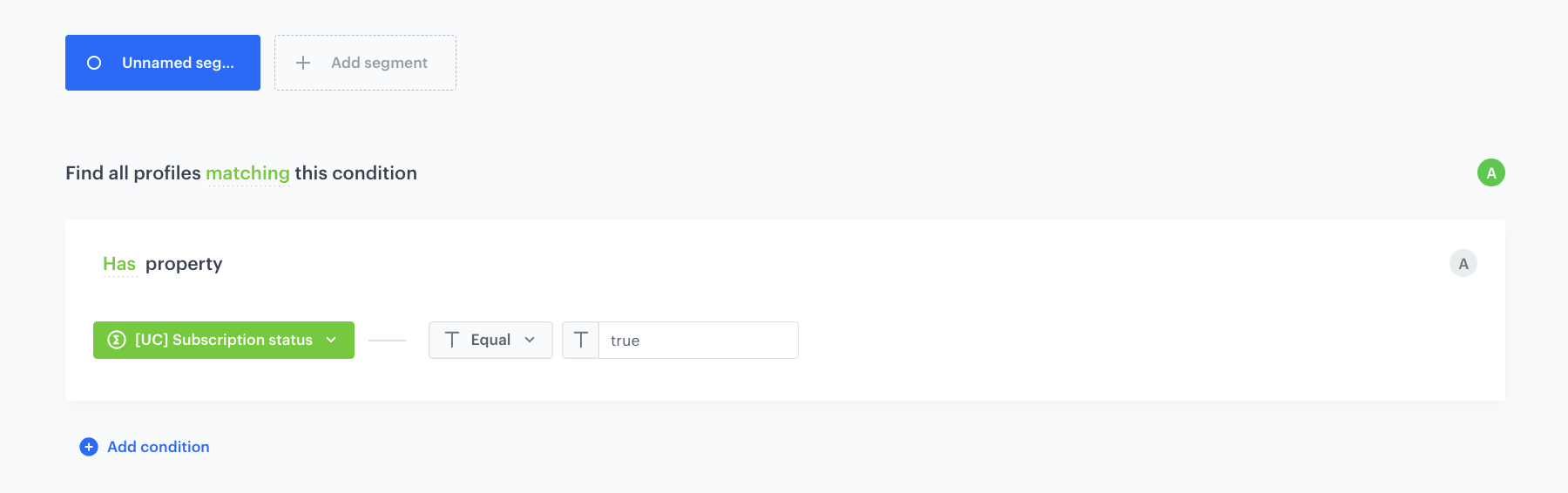
 **Decision Hub > Segmentations > New segmentation**.
2. Enter the name of the segmentation.
3. Click **Choose filter**.
4. From the dropdown list, select the [aggregate you created before](/use-cases/subscription#create-an-aggregate).
5. As the logical operator, select **Equal**.
6. In the text field, enter `true`.
7. Save the segmentation.
**Decision Hub > Segmentations > New segmentation**.
2. Enter the name of the segmentation.
3. Click **Choose filter**.
4. From the dropdown list, select the [aggregate you created before](/use-cases/subscription#create-an-aggregate).
5. As the logical operator, select **Equal**.
6. In the text field, enter `true`.
7. Save the segmentation.
 **AI Hub > Regular Promotions > Add promotion**.
2. Select the **For selected items** option.
3. In the **Audience** section:
4. Choose the [segment created previously](/use-cases/subscription#create-a-segmentation).
5. Click **Apply**.
4. In the **Content** section:
2. Add the name in the **Display name**.
2. In the **Price** field, enter `0`.
3. In the **Long description** add the names and SKU's of products which price should be reduced to zero (in this case coffees).
4. Define the name and description of the promotion.
3. Confirm the settings by clicking **Apply**.
4. In **Type & limits** section:
1. Choose the **Custom** type.
2. Choose the **Multibuy** sub-type.
4. Define the number of usages per activation as `1`.
6. Define distribution period in the **Schedule** section and publish the promotion to apply all changes and run the promotion.
7. After buying the subscription the promotion created above should be activated on the client side - **for 30 times** (because it is the promotion for 30 coffees). Check the [first](https://developers.synerise.com/LoyaltyandEngagement/LoyaltyandEngagement.html#operation/ActivateAPromotion) or [second](https://developers.synerise.com/LoyaltyandEngagement/LoyaltyandEngagement.html#operation/BatchActivate) option which help you in activation of the promotion in our documentation.
## Create a workflow that tracks redemptions
---
In this step create a workflow that generates the event which informs that user collecting his daily coffee. In this workflow, after the promotion is redeemed by customer who has subscription - `client.removePoints` event is generated. This event is the trigger of the described workflow, which removes a customer from the segment for one day (they will not be able to use this subscription two times a day).
1. Go to
**AI Hub > Regular Promotions > Add promotion**.
2. Select the **For selected items** option.
3. In the **Audience** section:
4. Choose the [segment created previously](/use-cases/subscription#create-a-segmentation).
5. Click **Apply**.
4. In the **Content** section:
2. Add the name in the **Display name**.
2. In the **Price** field, enter `0`.
3. In the **Long description** add the names and SKU's of products which price should be reduced to zero (in this case coffees).
4. Define the name and description of the promotion.
3. Confirm the settings by clicking **Apply**.
4. In **Type & limits** section:
1. Choose the **Custom** type.
2. Choose the **Multibuy** sub-type.
4. Define the number of usages per activation as `1`.
6. Define distribution period in the **Schedule** section and publish the promotion to apply all changes and run the promotion.
7. After buying the subscription the promotion created above should be activated on the client side - **for 30 times** (because it is the promotion for 30 coffees). Check the [first](https://developers.synerise.com/LoyaltyandEngagement/LoyaltyandEngagement.html#operation/ActivateAPromotion) or [second](https://developers.synerise.com/LoyaltyandEngagement/LoyaltyandEngagement.html#operation/BatchActivate) option which help you in activation of the promotion in our documentation.
## Create a workflow that tracks redemptions
---
In this step create a workflow that generates the event which informs that user collecting his daily coffee. In this workflow, after the promotion is redeemed by customer who has subscription - `client.removePoints` event is generated. This event is the trigger of the described workflow, which removes a customer from the segment for one day (they will not be able to use this subscription two times a day).
1. Go to  **Automation Hub > Workflows > New workflow**.
2. Enter the name of the workflow.
### Define the Profile Event trigger node
---
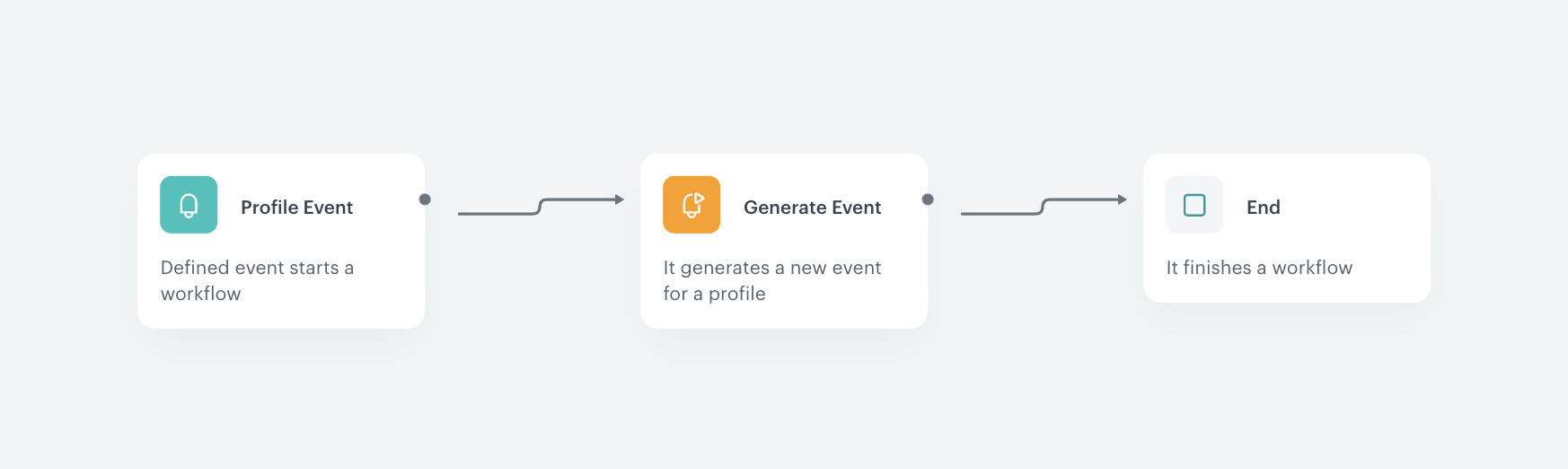
At this stage, you configure the workflow to be triggered by a `client.removePoints` event.
1. As the first node of the workflow, add **Profile Event**. In the configuration of the node:
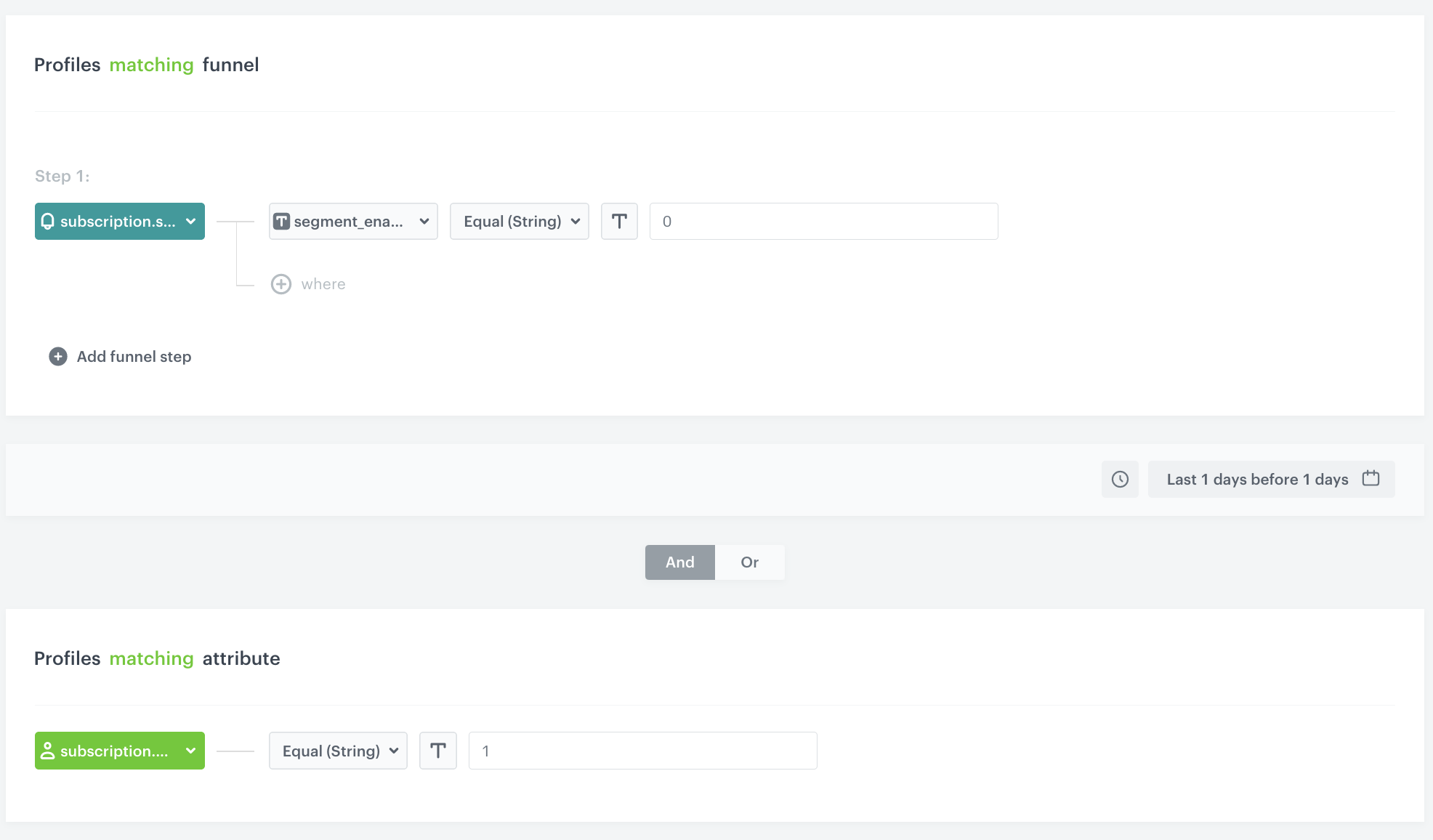
1. From **Choose event** dropdown menu, choose `client.removePoints` event.
2. Click the + where button, from the **Choose parameter** dropdown menu, choose **promotionUuid**.
3. From the **Choose operator** dropdown, choose **Equal (String)**.
4. In the next field, type the UUID of the promotion that you created earlier.
2. Confirm by clicking **Apply**.
### Define the Generate Event node
---
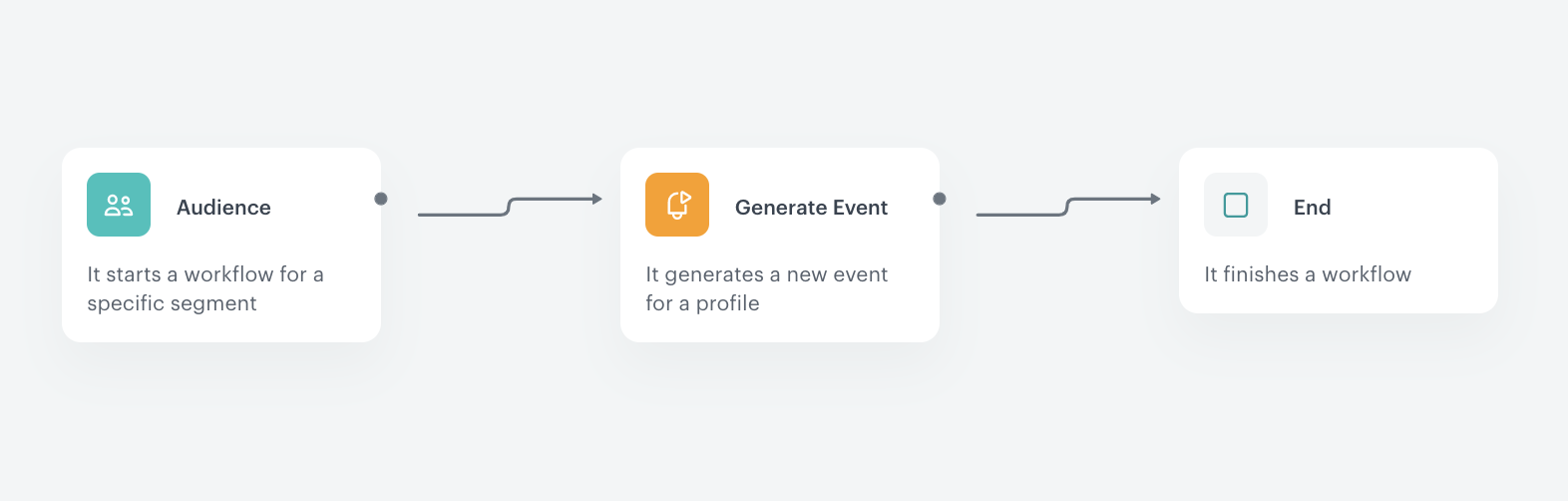
At this stage, an event is generated which is then used to exclude this profile from the segmentation of customers who did not pick up a coffee on this day.
1. As the second node of the workflow, add **Generate Event**.
2. In the **Event name**, enter `subscription.status`.
4. In the **Body** section, define the parameters of this event. In this case it is: ``` {"segment_enabled": "0"} ``` This removes the customer from the segment of customers eligible for a coffee on this day.
5. Click **Apply**.
### Add the finishing node
---
9. Add the **End** node.
10. In the upper right corner, click **Save & Run**.
**Automation Hub > Workflows > New workflow**.
2. Enter the name of the workflow.
### Define the Profile Event trigger node
---
At this stage, you configure the workflow to be triggered by a `client.removePoints` event.
1. As the first node of the workflow, add **Profile Event**. In the configuration of the node:
1. From **Choose event** dropdown menu, choose `client.removePoints` event.
2. Click the + where button, from the **Choose parameter** dropdown menu, choose **promotionUuid**.
3. From the **Choose operator** dropdown, choose **Equal (String)**.
4. In the next field, type the UUID of the promotion that you created earlier.
2. Confirm by clicking **Apply**.
### Define the Generate Event node
---
At this stage, an event is generated which is then used to exclude this profile from the segmentation of customers who did not pick up a coffee on this day.
1. As the second node of the workflow, add **Generate Event**.
2. In the **Event name**, enter `subscription.status`.
4. In the **Body** section, define the parameters of this event. In this case it is: ``` {"segment_enabled": "0"} ``` This removes the customer from the segment of customers eligible for a coffee on this day.
5. Click **Apply**.
### Add the finishing node
---
9. Add the **End** node.
10. In the upper right corner, click **Save & Run**.